How to fix
Boot Error 0xc0000098 Blue Screen
on Windows
Resolve the Boot Error 0xc0000098 blue screen on Windows 10 and 11 effortlessly. Quick fixes to get your device running again, expert-tested.

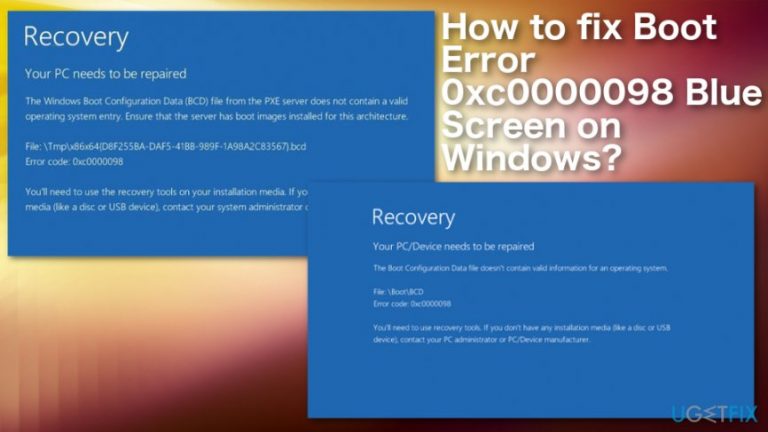
What causes How to fix Boot Error 0xc0000098 Blue Screen on Windows?
- Corrupted Boot Configuration Data files
- Damaged hard drive
- Bad RAM
- Missing required files
- Errors in the operating system
Repairs Windows system files, removes malware, and restores a clean OS state — without reinstalling.
Hello. Some days ago, I have installed Windows 10 on my desktop computer and everything worked fine. However, not when I start my PC, I receive a blue screen error, which says: “You PC couldn't start properly. The application or operating system couldn't be loaded because a required file is missing or contains errors. File :\\windows\\system32\\winload.exe. Error code: 0xc0000098”. What should I do?
Error 0xc0000098 Bug Check is a Windows Boot Error. For some reason, this error prevails on the latest version of Windows 8 or 10, but that does not mean that it can occur on this OS version only. It is an issue that frustrates a lot of Windows users, from Windows Vista to Windows 10. This error code emerges during the system boot phase and indicates the fact that the system contains some corrupted Boot Configuration Data files.[ref en-1]
The error is displayed in the blue background, so it’s also referred to as 0xc0000098 Blue Screen of Death (BSOD).[ref en-2] It’s one of the fatal errors because it prevents the system from booting up, meaning that all the data stored on it cannot be accessed either. Luckily, PC experts have already grasped 0xc0000098 BSOD error and found the way to fix it.
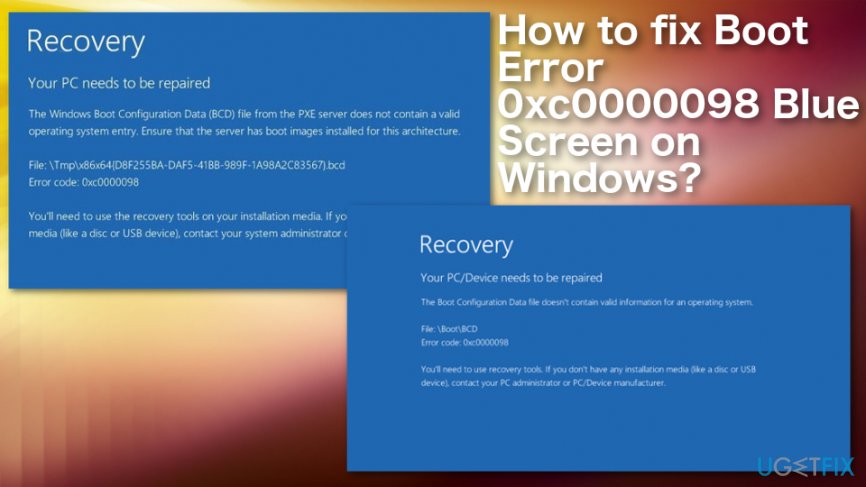
Therefore, in this short article, we will try to explain what steps have to be performed to fix 0xc0000098 error immediately. NOTE: before you get started, prepare a USB stick or a CD/DVD driver because you are going to need it for the creation of Windows recovery drive.
How to Fix 0xc0000098 BSOD Error on Windows?
This error can be caused by hardware error like a damaged hard drive or bad RAM,[ref en-3] so you should check those out if other solutions including programs and features are not working. Also, there is a good recommendation to run the full system scan using [d1] or similar PC repair tool to find possibly fixable errors or indicate malicious files and programs. Follow our guide and try a few methods or even all of them to properly get rid of the issue.
Repair Boot Configuration Data
- Navigate to the official Microsoft website and download Media Creation Tool. (click on this link to open the page directly).
- Once downloaded, right-click on the .exe file and select Run as Administrator.
- Accept the agreement and click Next.
- Click on the Create installation media for another PC and press Next.
- Set the language, architecture, and Edition.
- Deselect Use recommended option for this PC option.
- Select Windows 10 Edition and Architecture 64-bit / 32-bit according to the properties of your PC.
- Once done, click Next.
- On the Media Selection window, plug in your USB flash drive, and press Next.
- After that, select Troubleshoot and then Advanced Options.
- Select Command Prompt on the current window, type bootrec /rebuildbcd and bootrec /fixmbr commands. Don’t forget to press Enter after each of them.
- Then type two additional commands bootrec /rebuildbcd and bootrec /fixboot each followed by Enter.
- Finally, reboot your PC. Hopefully, it works fine. If, however, it could not boot up normally due to the Blue Screen Error Code 0xc0000098, try the next fix.
Use Startup Repair to fix 0xc0000098 error
- Locate to Troubleshoot and select Advanced Options;
- Click on Repair your computer and choose Startup Repair.
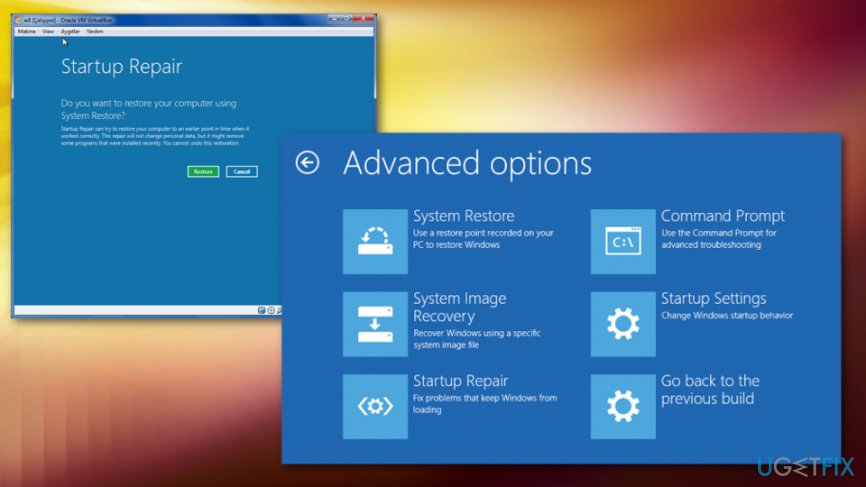
How to fix boot error 0xc0000098 blue screen on windows troubleshoot repair
Run System File Checker Utility (sfc)
- Navigate to the official Microsoft website and download Media Creation Tool. (click on this link to open the page directly).
- Once downloaded, right-click on the .exe file and select Run as Administrator.
- Accept the agreement and click Next.
- Click on the Create installation media for another PC and press Next.
- Set the language, architecture, and Edition.
- Deselect Use recommended option for this PC option.
- Select Windows 10 Edition and Architecture 64-bit / 32-bit according to the properties of your PC.
- Once done, click Next.
- On the Media Selection window, plug in your USB flash drive, and press Next.
- Click Repair your computer (at the bottom left corner).
- Select Windows installation drive.
- On the System Recovery Option, select Command Prompt, type sfc /scannow /offbootdir=C:\\ /offwindir=C:\\Windows\\ command, and hit Enter.
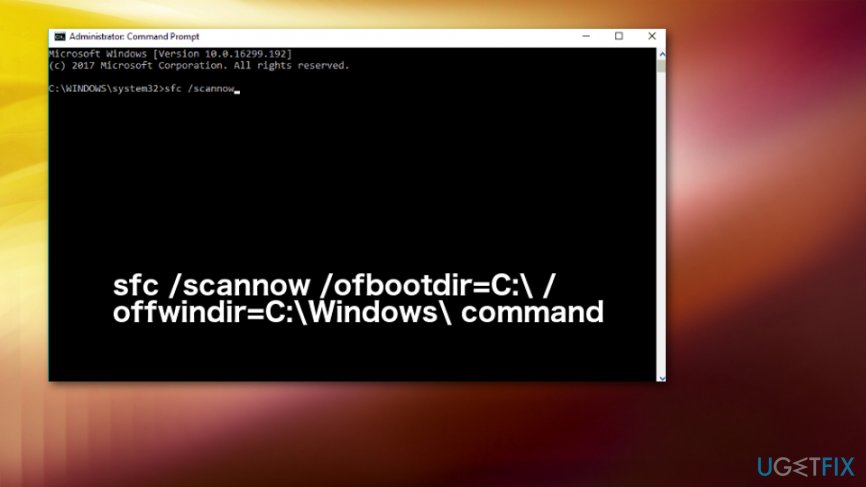
How to fix boot error 0xc0000098 blue screen on windows sfc - NOTE: instead of C:\\ you have to type the letter of the drive where Windows OS is installed.
Bottom line
To fix the 0xc0000098 BSOD error, you can repair the Boot Configuration Data, check for hardware issues, and run a full system scan using a PC repair tool. If these solutions do not resolve the issue, consider creating a Windows recovery drive for further troubleshooting.
Frequently asked questions
The Boot Error 0xc0000098 on Windows 10 is typically caused by corrupted boot configuration data (BCD) or missing system files. This error can prevent your system from starting properly.
To fix the Boot Error 0xc0000098 on Windows 11, you can use the Windows Recovery Environment to rebuild the BCD. Boot from a Windows installation media, select 'Repair your computer', and then choose 'Troubleshoot' > 'Advanced options' > 'Command Prompt' to run the necessary commands.
To prevent the Boot Error 0xc0000098 on Windows, ensure that your system is regularly updated and perform routine disk checks. Additionally, using reliable antivirus software can help avoid file corruption caused by malware.




Report an issue
What's wrong with this guide? We review every report and update or remove content.
Report received — thank you. We'll review and fix it.
You need a free account to submit a report.
Be the first to comment