How to fix
“Bootmgr is missing. Press Ctrl+Alt+Del to restart” Error
on Windows
Resolve the “Bootmgr is missing” error on Windows 10 and 11 quickly and easily. Get expert-tested solutions to boot your PC in minutes!

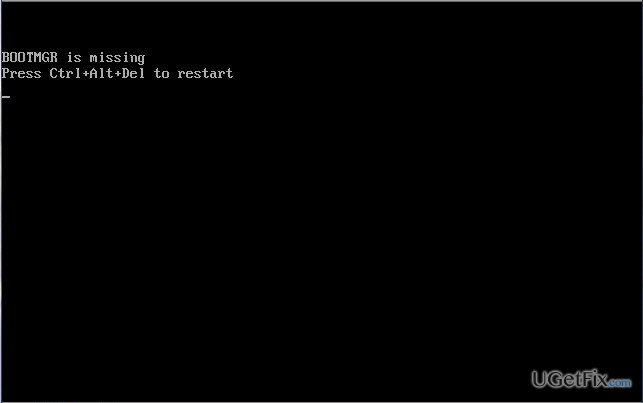
What causes How to Fix “Bootmgr is missing. Press Ctrl+Alt+Del to restart” Error on Windows?
- Corrupted system files
- Missing system files
- Issues after Windows system upgrades
- External drives interfering with startup
- Inaccessible files needed for startup
Repairs Windows system files, removes malware, and restores a clean OS state — without reinstalling.
Hi! Please tell me why does a message saying “Bootmgr is missing Press Ctrl+Alt+Del to restart” show up during Windows startup? Running Windows 10 Anniversary update. Need your help urgently as I can’t access my PC.
“Bootmgr is missing Press Ctrl+Alt+Del to restart” is a system error, which usually shows up on Windows 8, 8.1, and 7 OS. Although Windows XP, Vista, and 10, seldom encounter this bug, there is no technical grounds to claim that these versions can’t be affected either. This issue usually happens after Windows system upgrades during startup process. “Bootmgr is missing Press Ctrl+Alt+Del to restart” is not a fatal error, but, nevertheless, it mean that some of the system files that are crucial for a successful Windows Startup got corrupted or missing for some reason. That's why the system cannot load normally and the user is prevented from accessing the desktop. Luckily, Microsoft has already acknowledged “Bootmgr is missing" error and provided several solutions for it. To fix this bug, you should check whether OS can access the files needed for startup at all. After that, needed actions to repair damaged or missing files should be taken.
If somehow you manage to access the system, we would highly recommend running a scan with a PC optimization tool, which is capable of detecting and fixing Registry Entries and System Files. For this purpose, you can rely on [d1]. In case you cannot access you PC or ran a scan with optimization utility, but in vain, then the following are the solutions:
Fix 1. Run StartupRepair using preinstalled recovery option
NOTE: this fix is available only if Startup Repair is a preinstalled recovery option on your operating system. (The Fix 2 will be available for those who have Windows installation disc, so if you have one, go to the Fix 2 below). To fix startup problems, you have to:
- Remove all external drives (CD, DVD USB) from the device and reboot it by pressing Power button.
- Then, press and hold F8 key before the Windows logo shows up.
- Using the arrow keys on your keyboard, go to the Repair your computer and then press Enter.
- Opt for keyboard layout and click Next.
- Now you have to select user name, type in the password, and press OK.
- When the System Recovery Option menu shows up, select Startup Repair.
- If necessary, reboot the system.
Fix 2. Run Startup Repair using Windows OS installation disc
NOTE: the following fixes require Windows OS installation disc (XP, Vista, 7, 8, 8.1, 10). In case you do not have it, go to the official Microsoft’s website and find out how to create a Media Creation Tool. As soon as you prepare a CD, DVD or USB had drive with your OS, insert it to your device and follow these steps:
- Press Power button and then press any key to prompt system's startup using CD, DVD or USB drive.
- In case the system fails to detect hard drive automatically, read everything that is given during the restart process and try find the reference to the key, which has to be pressed to interrupt normal startup (usually, F2, F10, ESC, or DEL).
- Then using the arrow keys go to the option, for example, Boot, Boot Options, Boot Order or something similar, and then press Enter.
- After that, find CD, USB flash drive or DVD under the Boot list and change its place from down below to the top using the arrow keys. Once done, hit Enter.
- Once done, press F10 key to save the changes.
- When the confirmation window shows up, click Yes and wait for the system to restart.
- Select the language that you prefer, time, currency, keyboard, and other settings, and then press Next.
- Then select Repair your computer option and wait for the System Recovery Options to open.
- Once opened, select the Windows installation drive, and press Next.
- After that, click Startup Repair option and wait for the process to complete.
Bottom line
To fix the 'Bootmgr is missing' error, you can run Startup Repair using the preinstalled recovery option or use a Windows installation disc for further repairs. If these solutions do not resolve the issue, consider running a scan with a PC optimization tool or seeking additional help.
Frequently asked questions
You can try booting from a Windows 10 installation media, selecting 'Repair your computer', then using the Command Prompt to run 'bootrec /fixmbr' and 'bootrec /fixboot'.
Yes, you can access the Advanced Startup Options by holding Shift while clicking Restart, and then navigate to Troubleshoot > Advanced options > Startup Repair.
This error can be caused by a corrupted boot sector, a faulty hard drive, or incorrect BIOS settings that prevent the system from locating the boot manager.




Report an issue
What's wrong with this guide? We review every report and update or remove content.
Report received — thank you. We'll review and fix it.
You need a free account to submit a report.
Be the first to comment