How to fix
Bridge.sys Blue Screen
on Windows
Resolve the Bridge.sys blue screen error in Windows 10 and 11 quickly and effectively. Get expert-tested solutions and fix it in minutes!

What causes How to fix Bridge.sys Blue Screen in Windows?
- Corrupted or outdated drivers
- Hardware issues, such as failing hard drives or RAM
- Malware or virus infections
- Overheating or thermal issues with the hardware
- Insufficient power supply
- Outdated or corrupt system files
Repairs Windows system files, removes malware, and restores a clean OS state — without reinstalling.
Hello. My Windows computer crashed today with a Bridge.sys Blue Screen of Death. What could have caused this? Any tips would be appreciated.
The Bridge.sys Blue Screen is a Windows system stop error that indicates a problem with the Bridge.sys driver. Blue Screen of Death (BSOD) errors are critical system crashes that occur when the operating system encounters a problem that it cannot resolve, causing the system to shut down abruptly to prevent further damage. There are several common causes of BSOD errors, including:
- Corrupted or outdated drivers[ref en-1]
- Hardware issues, such as failing hard drives or RAM
- Malware or virus infections
- Overheating or thermal issues with the hardware
- Insufficient power supply
- Outdated or corrupt system files
BSOD errors can have a significant impact on users, resulting in the loss of unsaved data, application crashes, and productivity loss. The Bridge.sys blue screen may be caused by outdated or corrupted drivers, which can cause conflicts with other drivers and the operating system.
In this guide, you will find 9 steps that should help you fix Bridge.sys Blue Screen in Windows. However, the manual troubleshooting process may be lengthy. If you want to avoid it, you can use a maintenance tool like [d1] that can fix most system errors, BSODs,[ref en-2] corrupted files, and registry[ref en-3] issues. Otherwise, follow the step-by-step instructions below.
Method 1. Fix Corrupted System Files
Use Command Prompt commands to repair system file corruption:
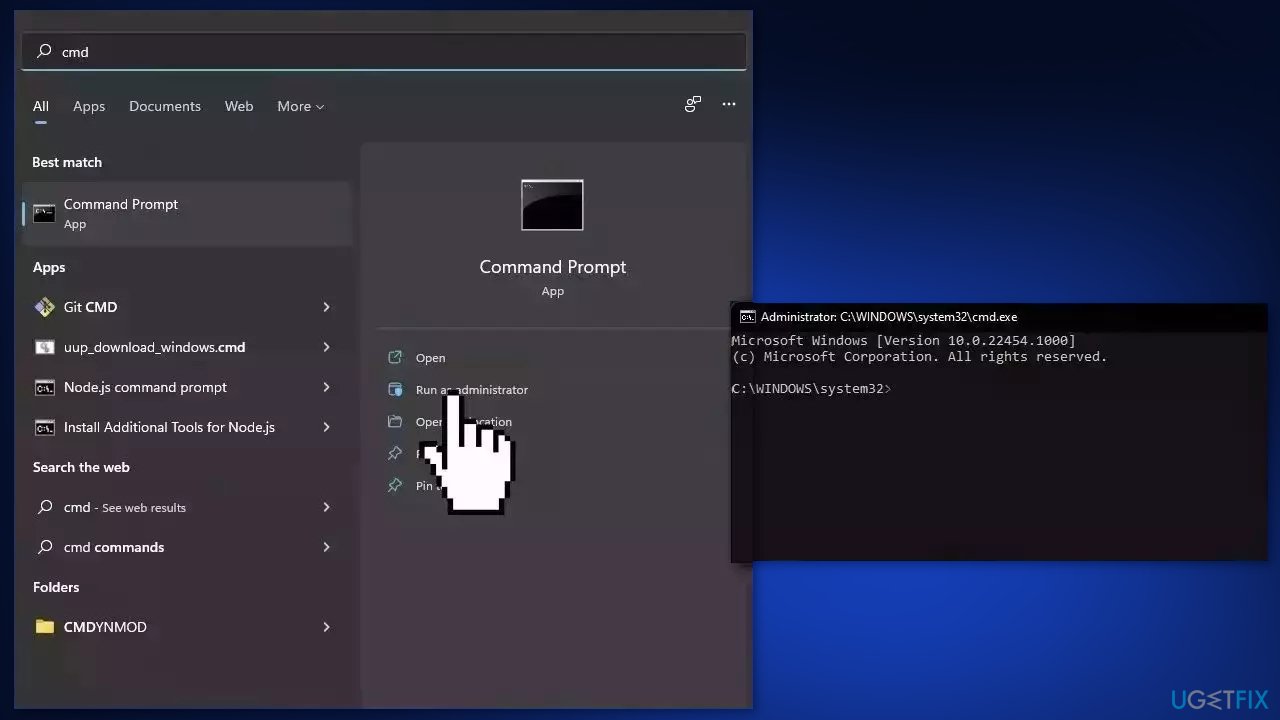
- Open Command Prompt as administrator
- Use the following command and press Enter:
sfc /scannow
- Reboot your system
- If SFC returned an error, then use the following command lines, pressing Enter after each:
DISM /Online /Cleanup-Image /CheckHealth
DISM /Online /Cleanup-Image /ScanHealth
DISM /Online /Cleanup-Image /RestoreHealth
Method 2. Install Windows Updates
- Press the Windows key + R to open the Run box
- Type ms-settings:windowsupdate in the text box and press Enter
- Click the Check for updates button
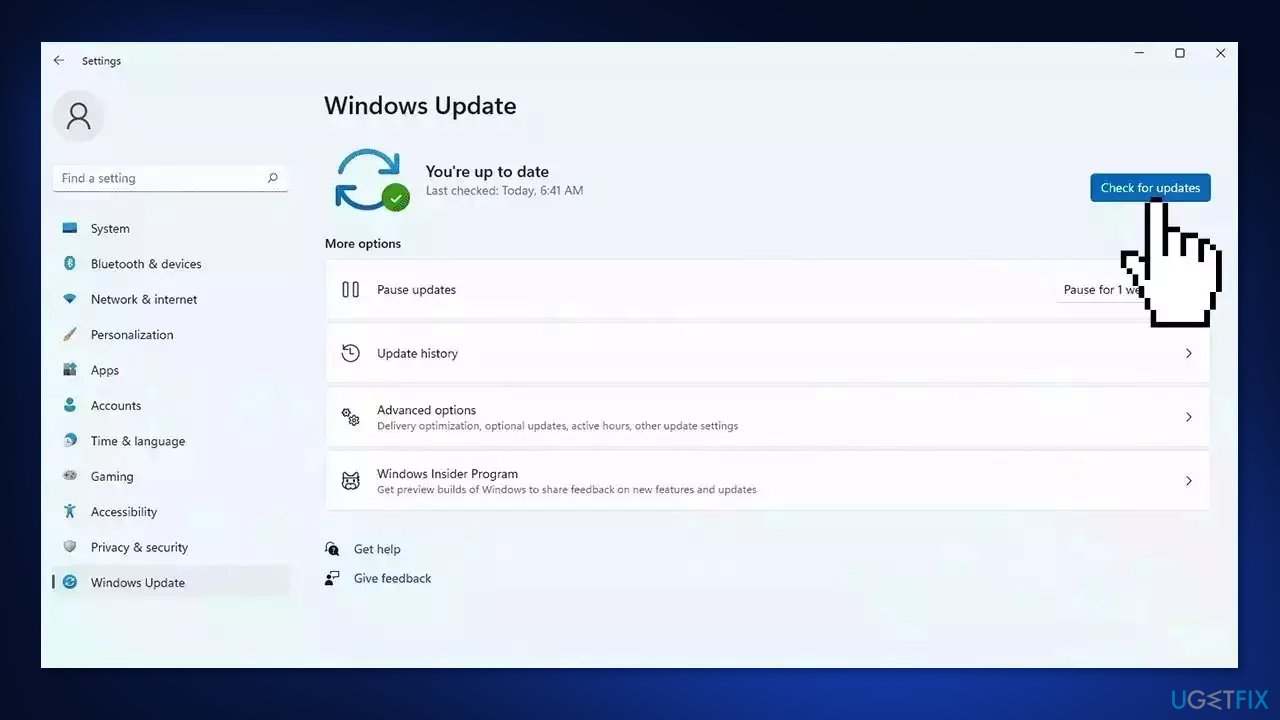
- If a new update is available, click the Download & Install all button.
- Restart your computer after the process is finished and check to see if the problem is fixed
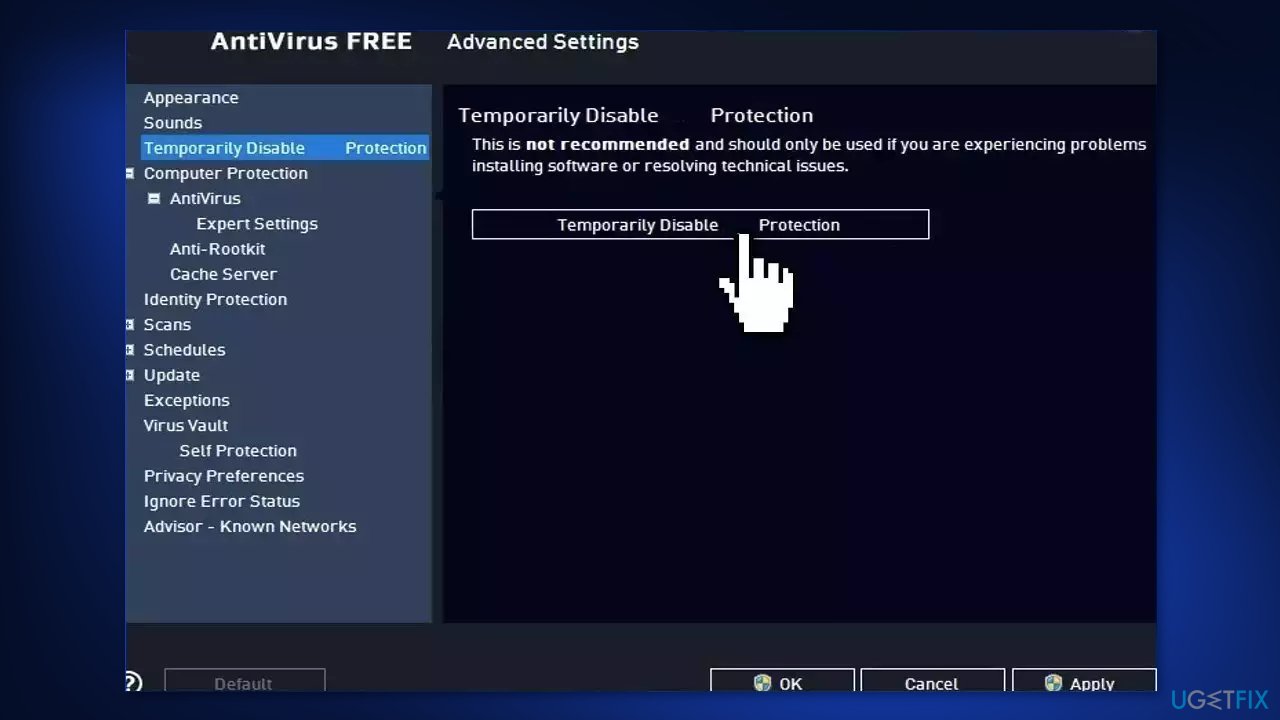
Method 3. Disable Third-Party Security Software
Users should disable third-party security software if they experience BSOD crashes in Windows because it can cause conflicts with the operating system, resulting in crashes.
Third-party security software can also interfere with the proper functioning of Windows' built-in security features, potentially leaving the system vulnerable to malware or other security threats.
Disabling the software temporarily can help to determine if it is the cause of the crashes, and if it is, the user can consider alternative security solutions.
Method 4. Run Windows Memory Diagnostic Tool
Windows has a built-in RAM testing tool. It’s included on Windows 10, Windows 11, Windows 7, and all other modern versions of Windows.
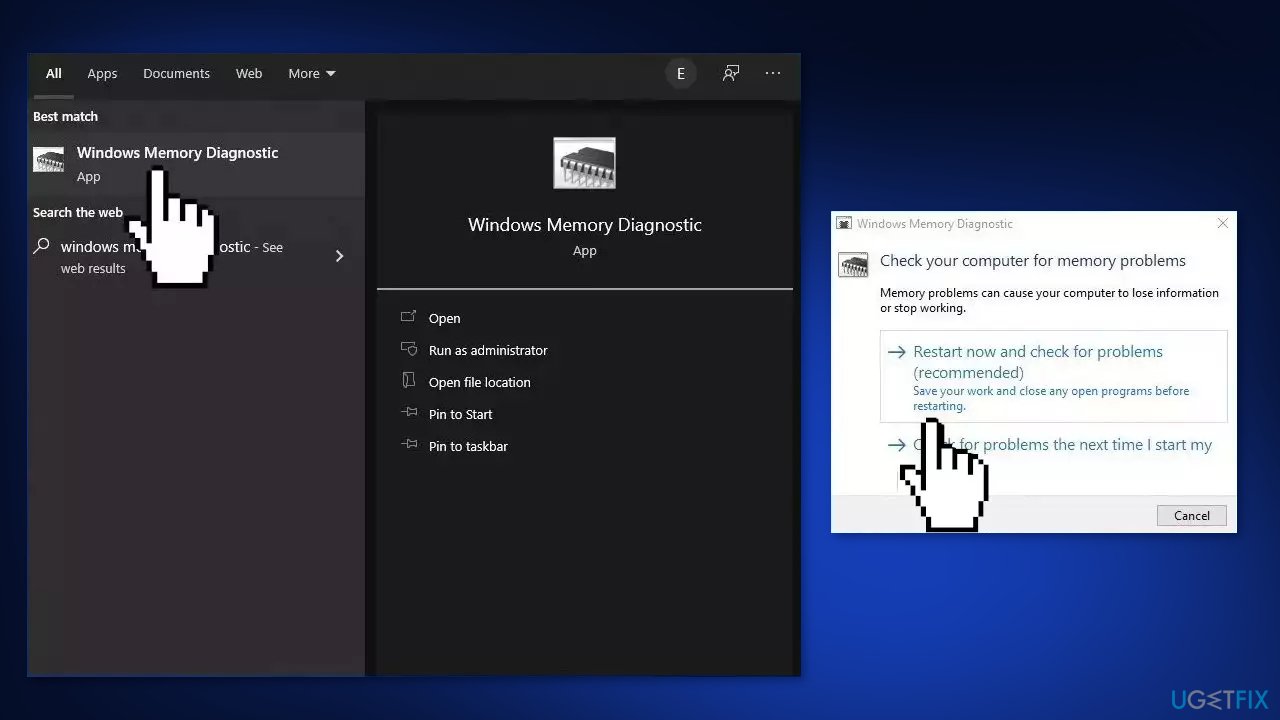
- Open the Start menu, type Windows Memory Diagnostic, and press Enter
- Click Restart now and check for problems (recommended)
- Your computer will now restart
- The test may take several minutes. You will see a progress bar and a Status message will inform you if any problems have been detected during the process
Method 5. Update Drivers
Outdated drivers could be the cause of this issue. In this case, you can fix it automatically by using [rev id="DriverFix"], which will scan your PC for missing and out-of-date device drivers. Or you can update them manually:
- Open Settings
- Click on Update & Security
- Click on Windows Update
- Click the Check for updates button
- Click the View optional updates option
- Click the Driver updates tab
- Select the driver you want to update
- Click the Download and install button
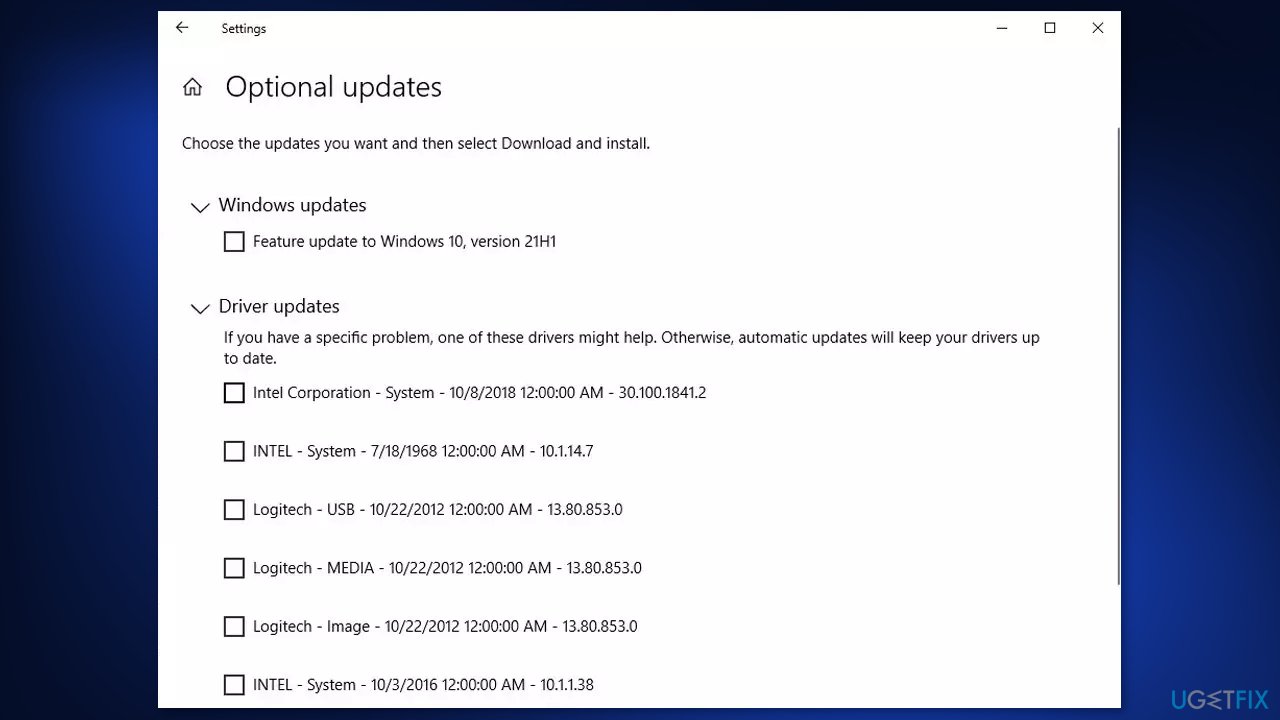
If the View optional updates link is not available after checking for updates, then Windows Update does not have any new drivers or any updates for other products at that particular time.
Method 6. Update BIOS
Updating BIOS incorrectly might result in a myriad of issues. Thus, if you are a novice computer user, we recommend allowing somebody with more IT knowledge to perform this step.
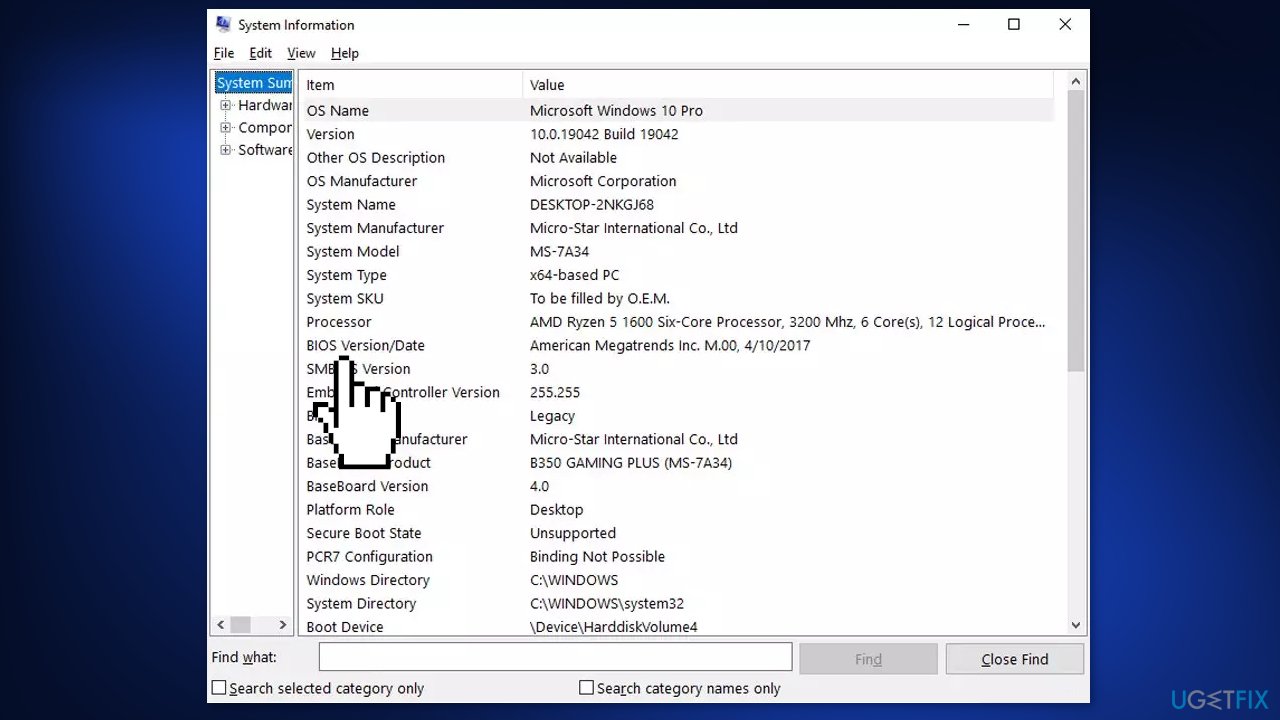
- Type in System Information in Windows search and hit Enter
- Note down info next to BIOS Version/Date and BaseBoard Product
- Open your web browser and visit the official site of your motherboard manufacturer
- Head to the Downloads section
- Download the appropriate version of BIOS for your motherboard and launch the installer
- Reboot your system once done.
Method 7. Run Driver Verifier
Driver Verifier is a built-in tool in Microsoft Windows that checks the integrity of drivers installed in the system. It runs tests on drivers to identify any issues or corruption and helps to resolve them. This tool can be useful in troubleshooting various blue screen errors caused by faulty or corrupted drivers. Here's how to use Driver Verifier in Windows:
- Press the Windows key + X, select Command Prompt (Admin)
- Type verifier and press Enter
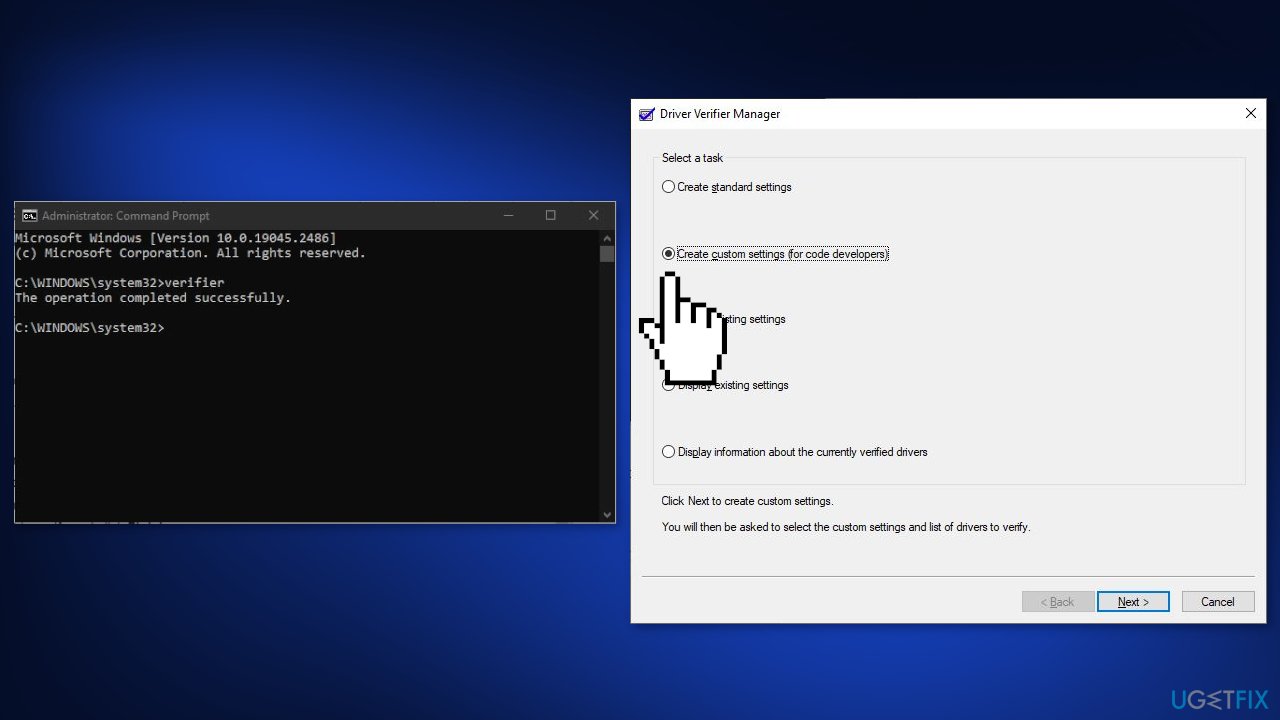
- In the Driver Verifier Manager, select Create custom settings (for code developers) and click Next
- Select the options you want to enable and click Next
- Select the drivers you want to verify and click Finish
- Restart your computer for the changes to take effect
- The tool will run tests on the selected drivers and if any issues are found, it will generate a blue screen error, which you can use to diagnose the problem.
Note: It's recommended to run Driver Verifier for a short period of time and then turn it off. Using Driver Verifier for an extended period can make your system unstable.
To disable Driver Verifier in Windows, you can follow these steps:
- Open the Command Prompt as an administrator
- Type verifier /reset and press Enter
- Restart your computer
- Driver Verifier will be disabled and your system will return to its normal state
Method 8. Use System Restore
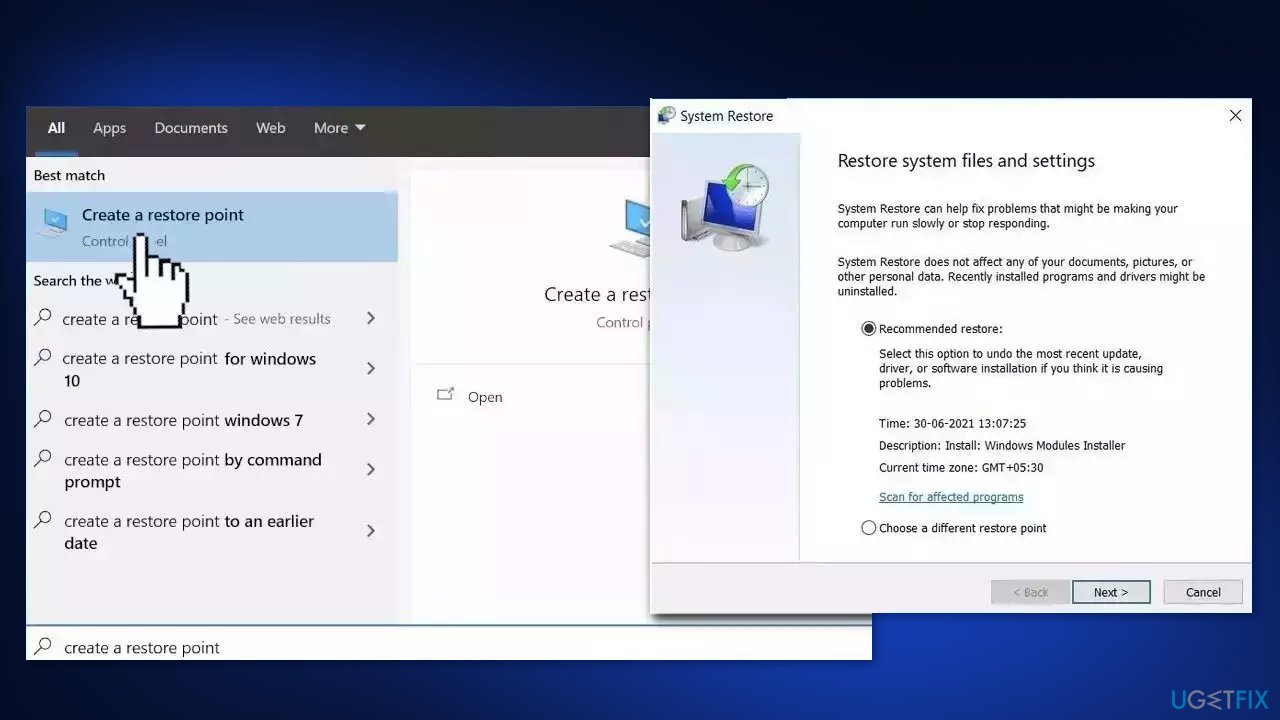
System Restore is a feature in Microsoft Windows that allows users to revert their computer's state to a previous point in time. This can be helpful if you have made changes to your system that are causing problems.
- Go to the Start menu, type restore, and click on Create a restore point
- Click System Restore, then follow the prompts until you can select a restore point
- Select the one you want (ideally before the issue started occurring) and go ahead with the process
Method 9. Repair Install Windows
- Visit the official Microsoft website to download Windows 11 or Windows 10 Installation Media
- Run the Media Creation Tool and select Create Installation Media for another PC
- Select your USB drive
- Let the Process complete of writing the Installation files to the USB drive
- Click Finish
- On the PC you wish to upgrade, Press Windows + E to open the File Explorer
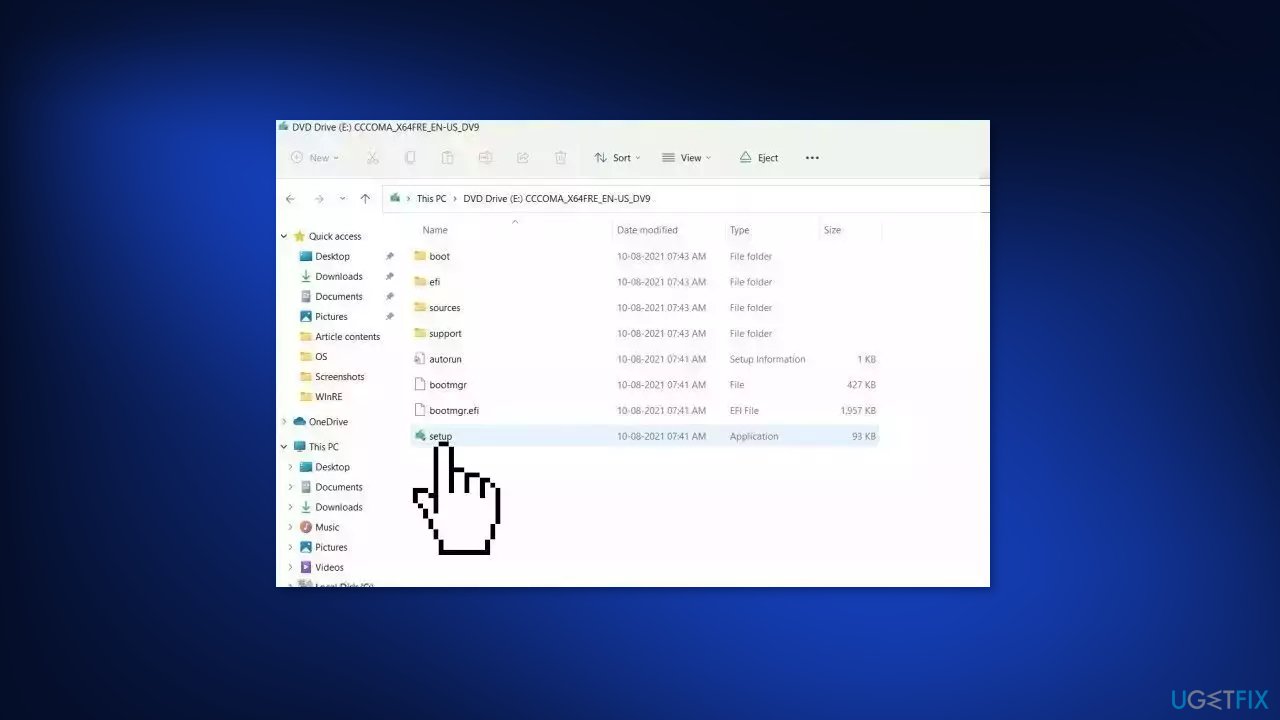
- Open the Removable drive and click Setup.exe
- Accept the license terms on the next screen
- Confirm the Upgrade options – Files, apps and Settings are kept
- Click Install, and the upgrade should start
Bottom line
To fix the Bridge.sys Blue Screen error, you can repair corrupted system files using Command Prompt, install Windows updates, or disable third-party security software. If these methods do not resolve the issue, consider using a maintenance tool to address system errors.
Frequently asked questions
The Bridge.sys Blue Screen error is often caused by outdated or incompatible drivers, particularly related to network adapters or virtualization software. It can also occur due to system file corruption or hardware issues.
To update drivers in Windows 10 or Windows 11, go to Device Manager, right-click the problematic device, and select 'Update driver.' You can also visit the manufacturer's website for the latest driver versions.
If the Bridge.sys error continues, try running the Windows Memory Diagnostic tool and performing a system file check using the command 'sfc /scannow' in the Command Prompt. If issues remain, consider restoring your system to a previous restore point.




Report an issue
What's wrong with this guide? We review every report and update or remove content.
Report received — thank you. We'll review and fix it.
You need a free account to submit a report.
Be the first to comment