How to fix
Brightness constantly changing after returning from sleep
on Windows
Resolve the issue of fluctuating brightness after sleep on Windows 10/11 effortlessly. Expert-tested solutions ensure your comfort, fixed in minutes!

What causes How to fix brightness constantly changing after returning from sleep on Windows?
- Adaptive brightness setting
- Inaccurate brightness settings
- Video driver issues
- Screen dimming after sleep
- Brightness control malfunction
Repairs Windows system files, removes malware, and restores a clean OS state — without reinstalling.
Hello, I have a pretty annoying issue to deal with. Every time I leave my Surface Pro 6 for awhile (I usually don't turn it off when going to bed) and turn it on later, the brightness changes drastically - it seems like it has been set to the maximum. However, when I check the brightness settings, it is set to what I set it to be. The only way to fix this is by scrolling the brightness control bar left or right. Any idea on what is going on?
Many users have complained that brightness control was not working in Windows as expected. This issue affected the Surface Pro/Surface Go users mostly (although complaints were also seen from Lenovo community), as they said that the brightness is constantly changing after the device wakes up from sleep or hibernation.[ref en-2] In other cases, people reported that the screen becomes incredibly dim after waking up from sleep.
Surface Pro is a touchscreen-based 2-in-1 device that can transform from a laptop into a tablet easily. This feature was generally met positively, as all the available 128GB versions of the initial devices were sold on the launch day. However, these $900 million worth of Surface RT were written off due to a failure.[ref en-1]
That being said, many still use the device, although it still manages to cause problems to some people, and inaccurate brightness settings are something that users had to deal with for a while. Do not worry, as the fix is on the way.
One of the main reasons for the brightness constantly changing on Windows is the adaptive brightness setting. Originally it is meant to dim the screen when it is dark and brighten it when there is too much light in the environment, helping people to reduce stress on their eyes while working.
Unfortunately, this function sometimes fails, so you should try turning adaptive brightness on or off in order to fix unwanted brightness changes when the computer wakes up from sleep.
There are also other solutions that you could try (such as updating your video drivers)[ref en-3] - we list them all below. Keep in mind that the method that helps one individual will not work for the other, so you should try each solution until one works for you.
Before we begin, we strongly recommend you install and run a scan with [d1] repair software, as it can fix many underlying issues on Windows OS, especially if they are related to system file corruption, registry errors, and similar problems.
Fix 1. Turn off adaptive brightness
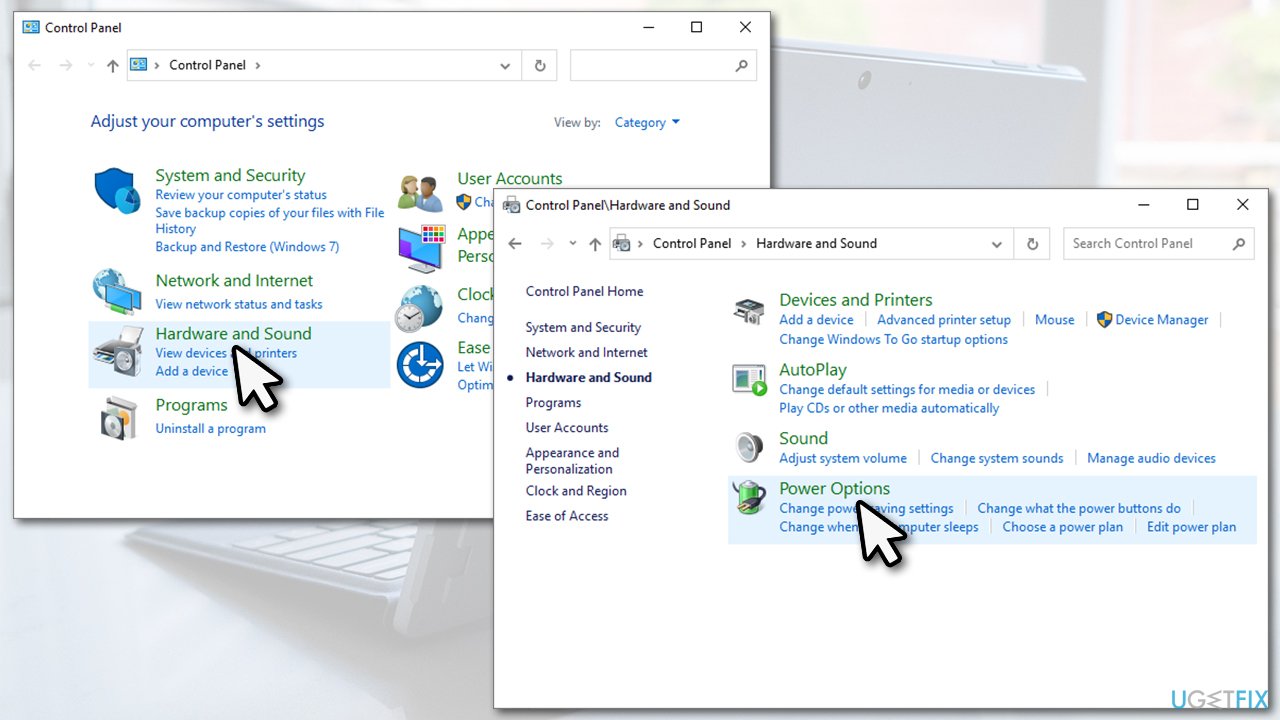
- Type in Control Panel in Windows search and press Enter
- Here, go to Hardware and Sound > Power Options
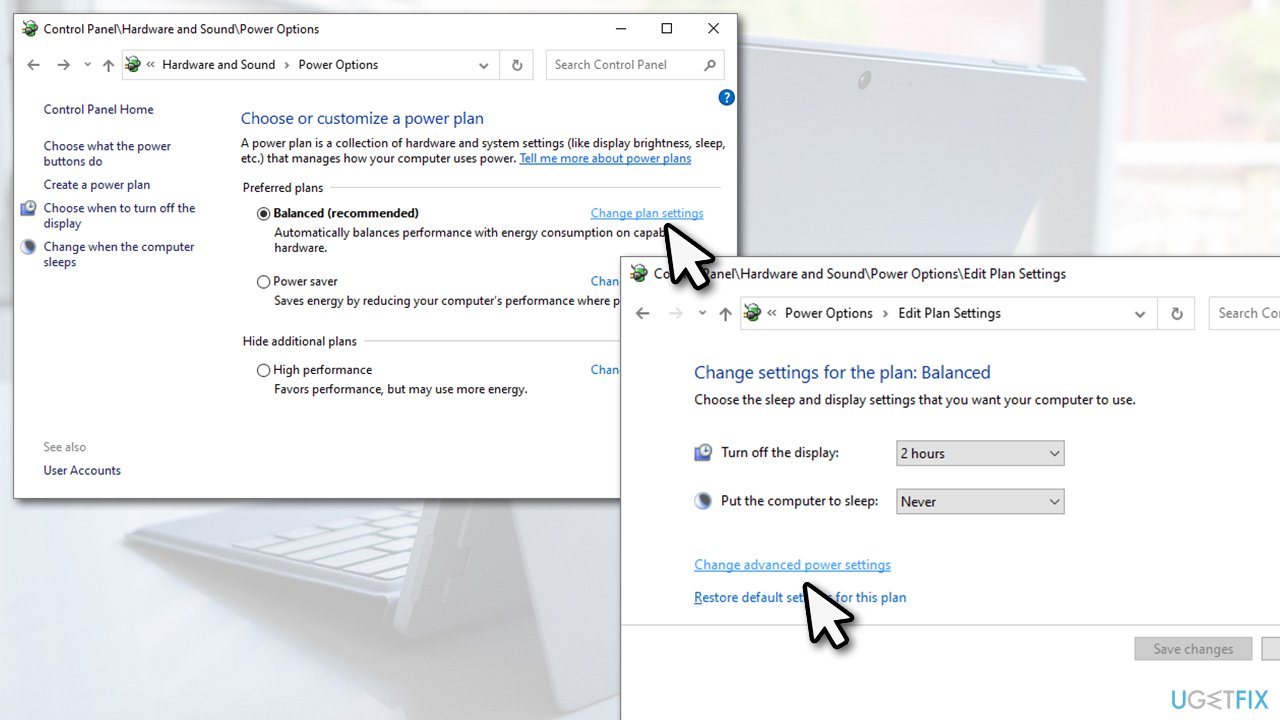
How to fix brightness constantly changing after returning from sleep on windows disable adaptive brightness - Under your plan, select Change plan settings
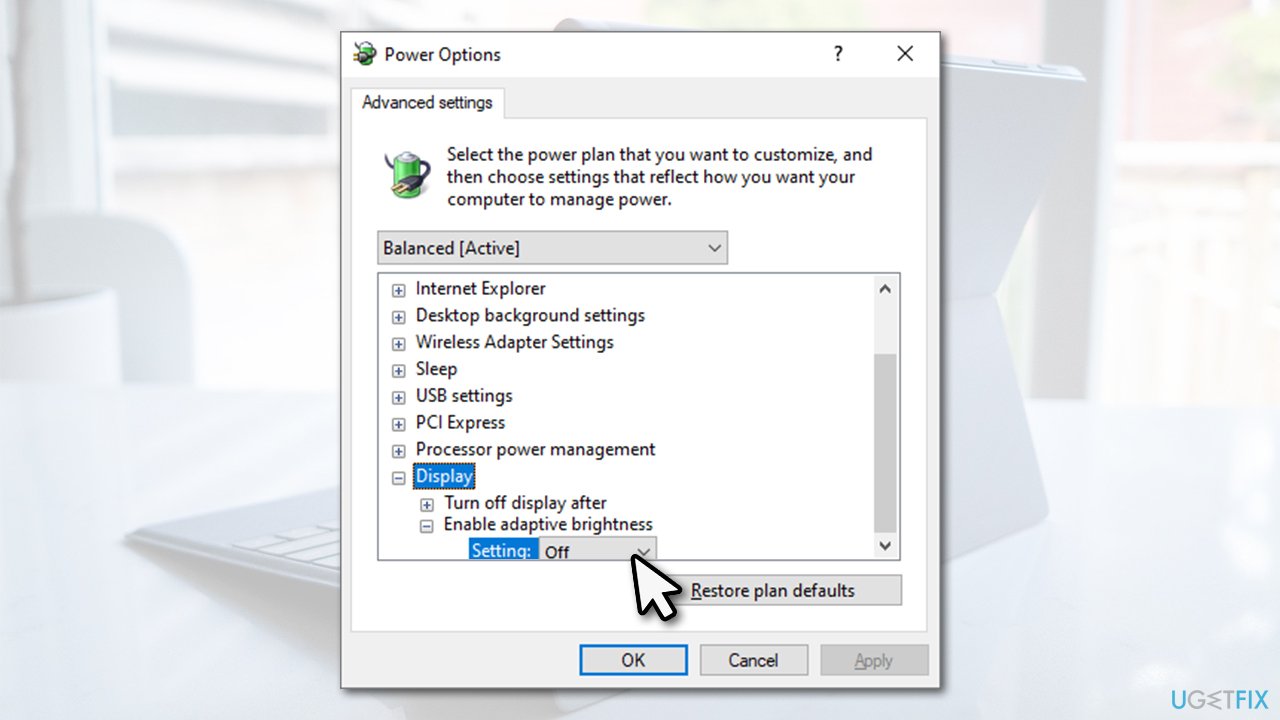
- Select Change advanced power settings
How to fix brightness constantly changing after returning from sleep on windows disable adaptive brightness2 - Expand the Display section and set the Enable adaptive brightness setting to Off.
How to fix brightness constantly changing after returning from sleep on windows disable adaptive brightness3
Fix 2. Update Windows to the latest version
Some Windows versions, in particular 1809, are known to be causing brightness changes after waking up from sleep. Therefore, updating your device to the latest version could help you solve the problem.
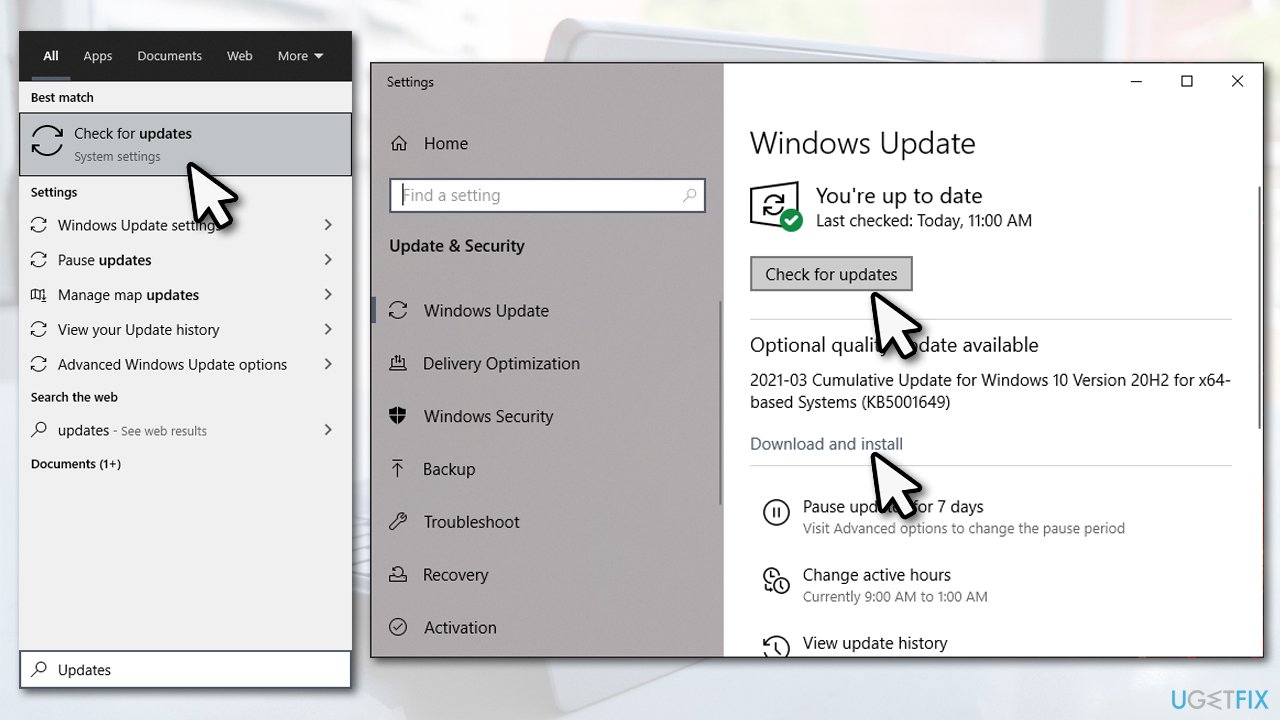
- Type in Updates in Windows search and press Enter
- Click Check for updates on the right
- Wait till Windows downloads and installs updates
- Don't forget to install any optional available updates
How to fix brightness constantly changing after returning from sleep on windows install all available updates - Restart your machine.
Fix 3. Run Power troubleshooter
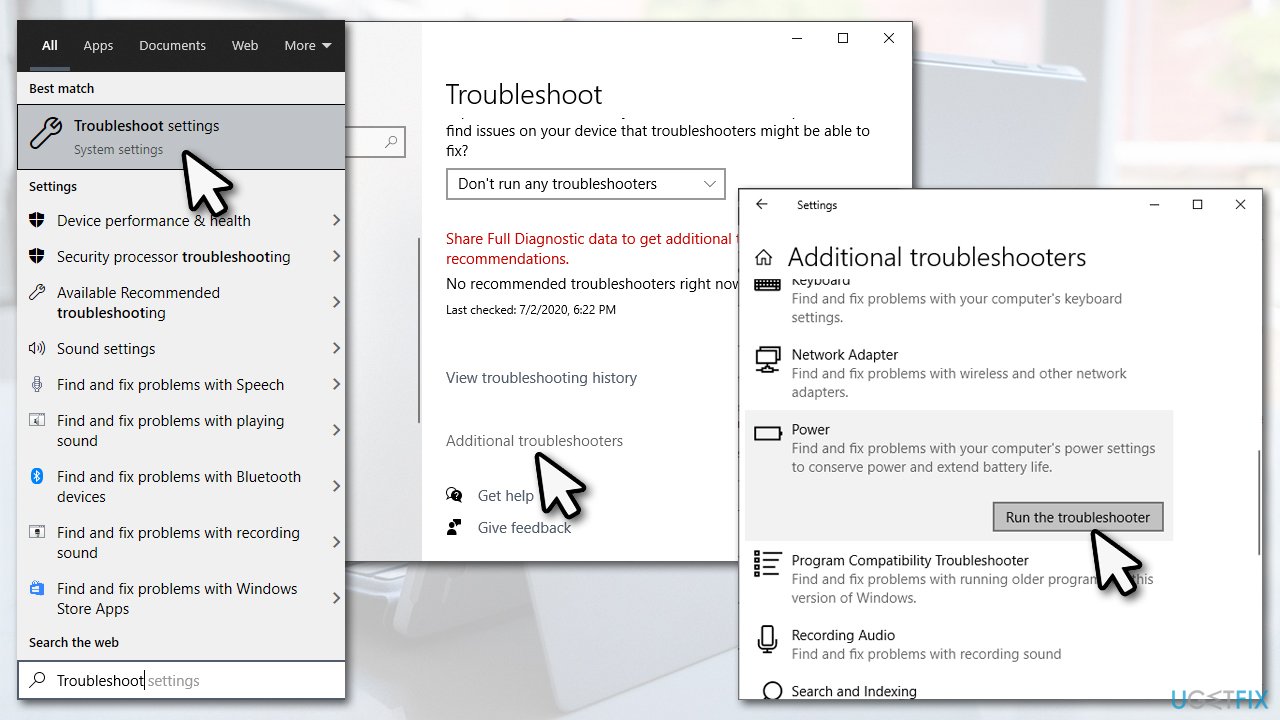
- Type Troubleshoot in Windows search and hit Enter
- On the right side, select Additional Troubleshooters
- Here, select Power and click Run the troubleshooter
How to fix brightness constantly changing after returning from sleep on windows run troubleshooter - Wait till Windows reports its findings and fixes the brightness issue for you.
Fix 4. Update/install your display drivers
Surface Pro devices use Intel UHD Graphics that need to be installed upon purchase. In many cases, users who suffered from brightness issues were using the default display driver provided with a Windows update. To install the driver, you should visit the official Intel website and download the appropriate one for your device.
If you have Intel drivers already installed on Surface Pro, you should update them. You can do it via the Device Manager, although keep in mind that it can often fail to detect the newest drivers available:
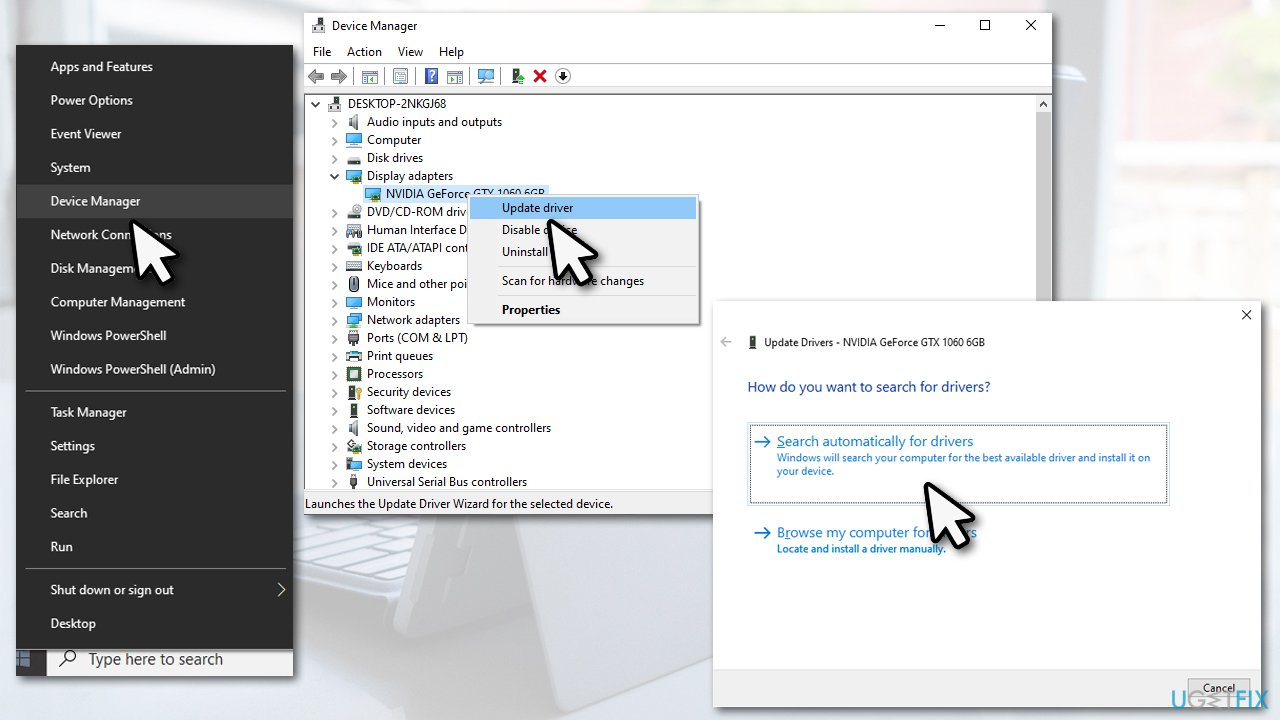
- Right-click on Start and pick Device Manager
- Expand the Display Adapters section
- Right-click on your Intel driver and select Update driver
- Pick Search automatically for drivers and wait
How to fix brightness constantly changing after returning from sleep on windows update drivers - Restart your computer once finished.
Instead of digging through the Intel site while trying to find out the relevant driver for you, you could instead rely on an automatic driver updater such as [rev id="DriverFix"]. It can backup your drivers and find the latest drivers for you in just a few minutes.
Note: some users said that installing Nvidia DCH drivers helped them to fix changing brightness issue on Surface Pro devices
Fix 5. Roll back video drivers
Reverting to previous driver version is usually not a good idea, although it might be necessary when malfunctions are encountered.
- Open Device Manager and expand Display Adapters once again
- Right-click on the display driver and select Properties
- Go to Driver tab
- Here, select Roll Back Driver option
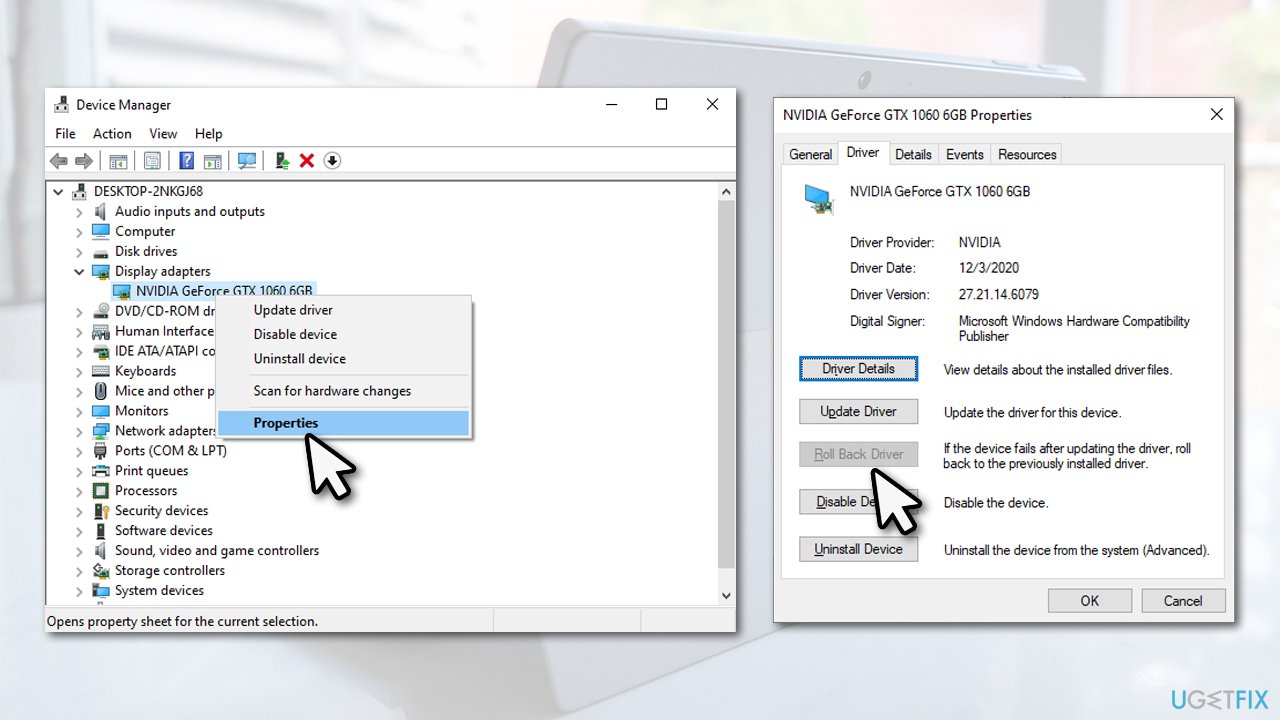
How to fix brightness constantly changing after returning from sleep on windows roll back drivers - Restart your device.
Bottom line
To fix the brightness issue, try turning the adaptive brightness setting on or off and updating your video drivers. If these solutions do not resolve the problem, further troubleshooting may be necessary.
Frequently asked questions
This issue may occur due to outdated graphics drivers or power settings that adjust brightness automatically. Updating your drivers or disabling adaptive brightness in the settings can help resolve this problem.
To stop automatic brightness adjustments, go to Settings > System > Display and turn off the 'Change brightness automatically when lighting changes' option. Additionally, check your graphics driver settings for any similar features.
Yes, you can try resetting your power plan settings to default, which might resolve any conflicts causing brightness changes upon waking. This can be done through the Control Panel under Power Options.




Report an issue
What's wrong with this guide? We review every report and update or remove content.
Report received — thank you. We'll review and fix it.
You need a free account to submit a report.
Be the first to comment