How to fix
Brightness function key not working
on Windows
Resolve brightness function key issues on Windows 10 or 11 effortlessly. Get expert-tested solutions to enhance your display adjustments in minutes.

What causes How to fix brightness function key not working in Windows?
- Outdated drivers
- Corrupted drivers
- Incorrect settings
- Hardware issues
Repairs Windows system files, removes malware, and restores a clean OS state — without reinstalling.
Hello. The brightness function key is no longer working on my Windows laptop. What could be the cause of this and how do I fix it?
The brightness function key on many computers allows users to adjust the brightness of their screen, making it easier to use the computer in different lighting conditions. When the brightness function key stops working, users can have a frustrating experience.
This problem can have a number of consequences for users, including eye strain, headaches, and difficulty working or using a computer in low-light environments. When the brightness function key fails, users experience increased stress and frustration because they are unable to properly adjust their screen to a comfortable level of brightness.
The brightness function key may not be working due to a variety of factors such as outdated or corrupted drivers,[ref en-1] incorrect settings, or hardware issues. Users can try updating or reinstalling the display driver, checking the brightness settings in the Windows Control Panel or Settings app, or adjusting the brightness using alternative keyboard shortcuts. In some cases, the keyboard or other hardware components may also need to be replaced.
In this guide, you will find 8 steps that should help you fix brightness function key not working in Windows. Keep in mind that the manual troubleshooting process can be lengthy. You can use a maintenance tool like [d1] that can fix most system errors, BSODs,[ref en-2] corrupted files, and registry[ref en-3] issues. Otherwise, follow the step-by-step instructions below.
Method 1. Run the Hardware and Devices Troubleshooter
- Look for the Command Prompt in the Search menu
- Select Run as Administrator
- Copy and paste the command below and hit Enter:
msdt.exe -id DeviceDiagnostic
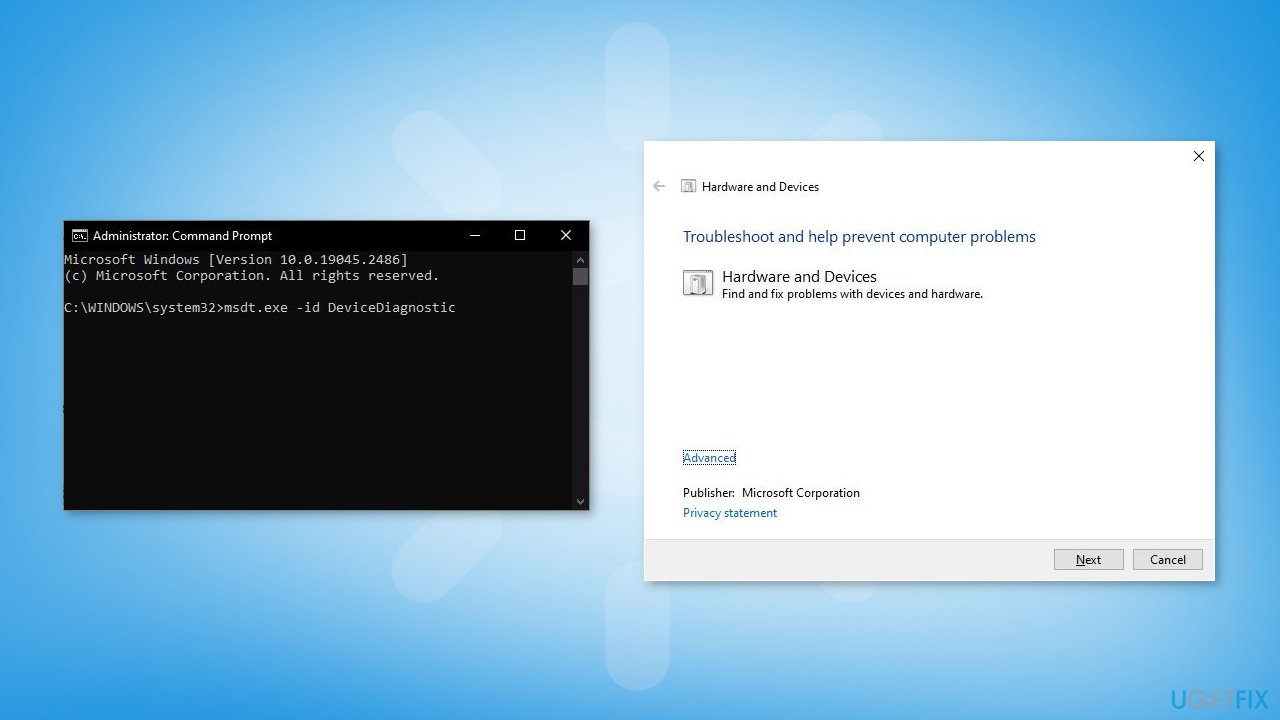
- Follow the on-screen instructions to run the troubleshooter
Method 2. Run the Keyboard Troubleshooter
Windows 11:
- Right-click on the Start menu in Windows 11
- Launch the Settings app
- Scroll down the right side of the Settings app
- Look for the Troubleshoot tab and click on it
- Click on Additional troubleshooters
- A list of all available troubleshooters in Windows 11 will be displayed
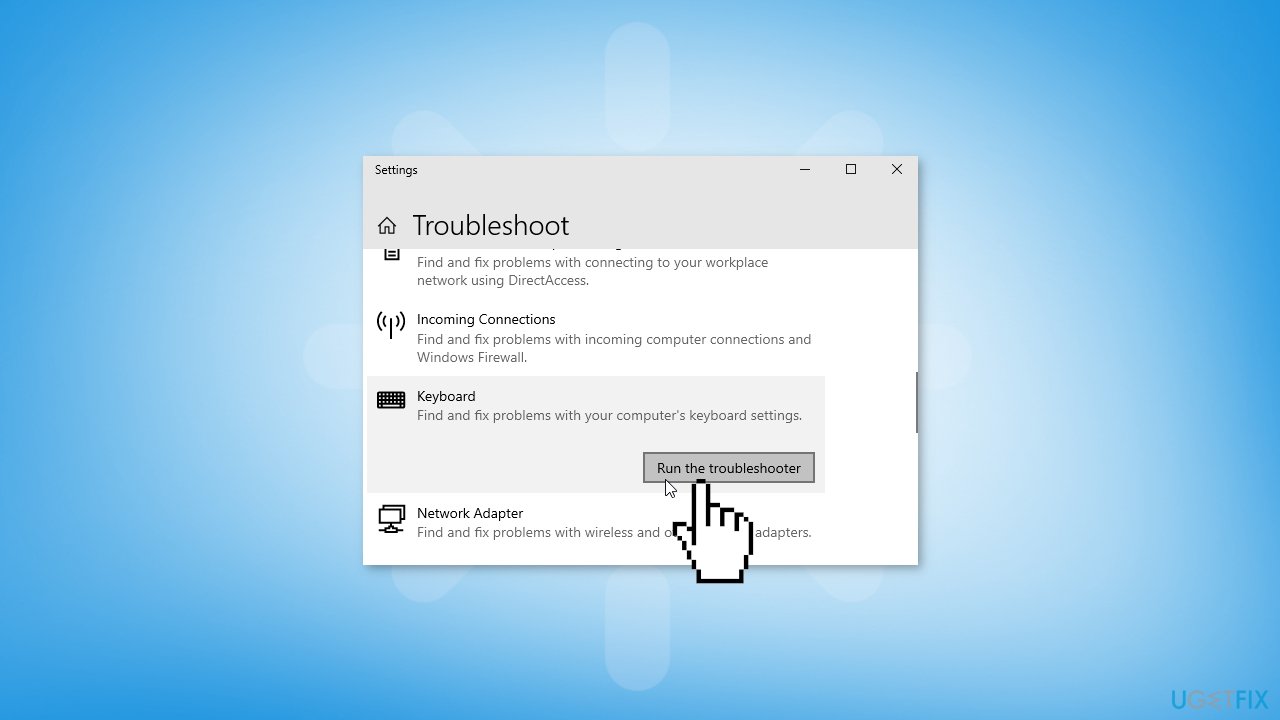
- Locate the Keyboard troubleshooter in the list
- To launch the Keyboard troubleshooter, click on the Run button next to Keyboard
Windows 10:
- Press the Windows key + I to open the Settings app
- Select Update and Security
- From the left panel, select Troubleshoot
- Click Additional troubleshooters
- Locate and run the Keyboard Troubleshooter
Method 3. Enable Generic PnP Monitor Driver
- Open the Device Manager
- Expand the Monitors branch
- Right-click on the driver
- If the driver is disabled, click Enable device
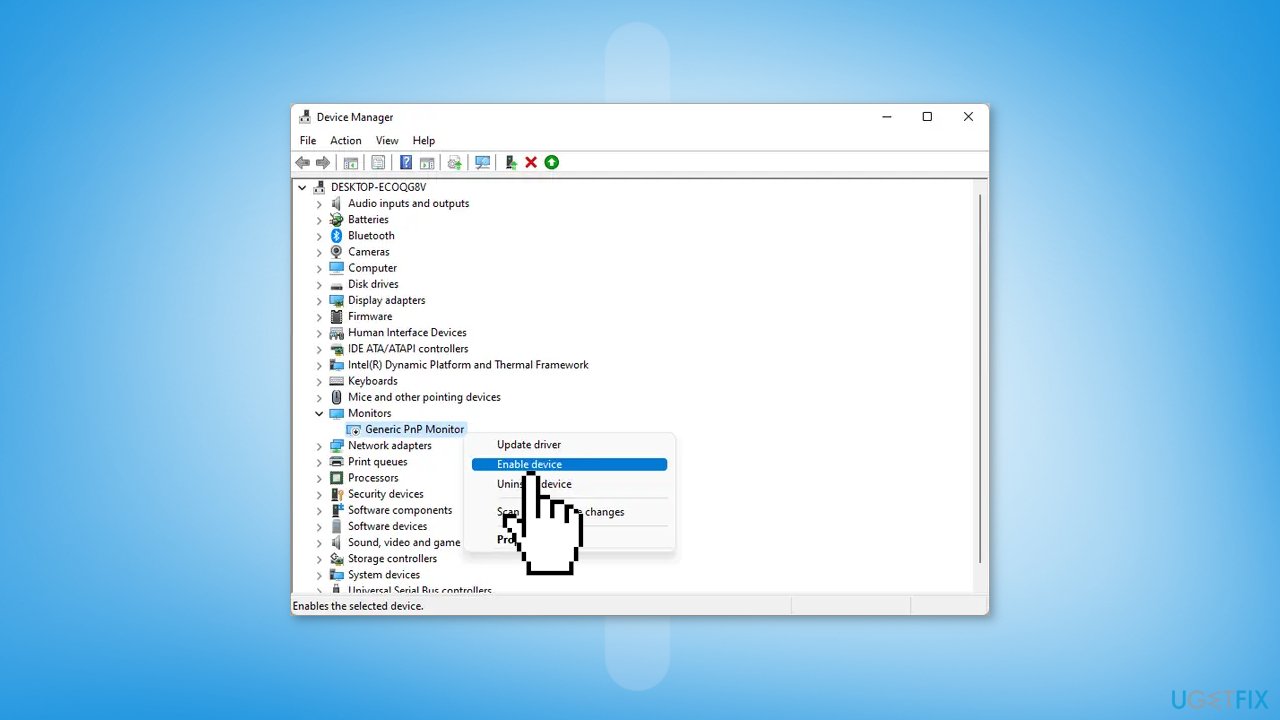
Method 4. Reinstall the Keyboard Driver
- Open the Device Manager
- Expand the Keyboards branch
- Right-click on the keyboard driver
- Select Uninstall device
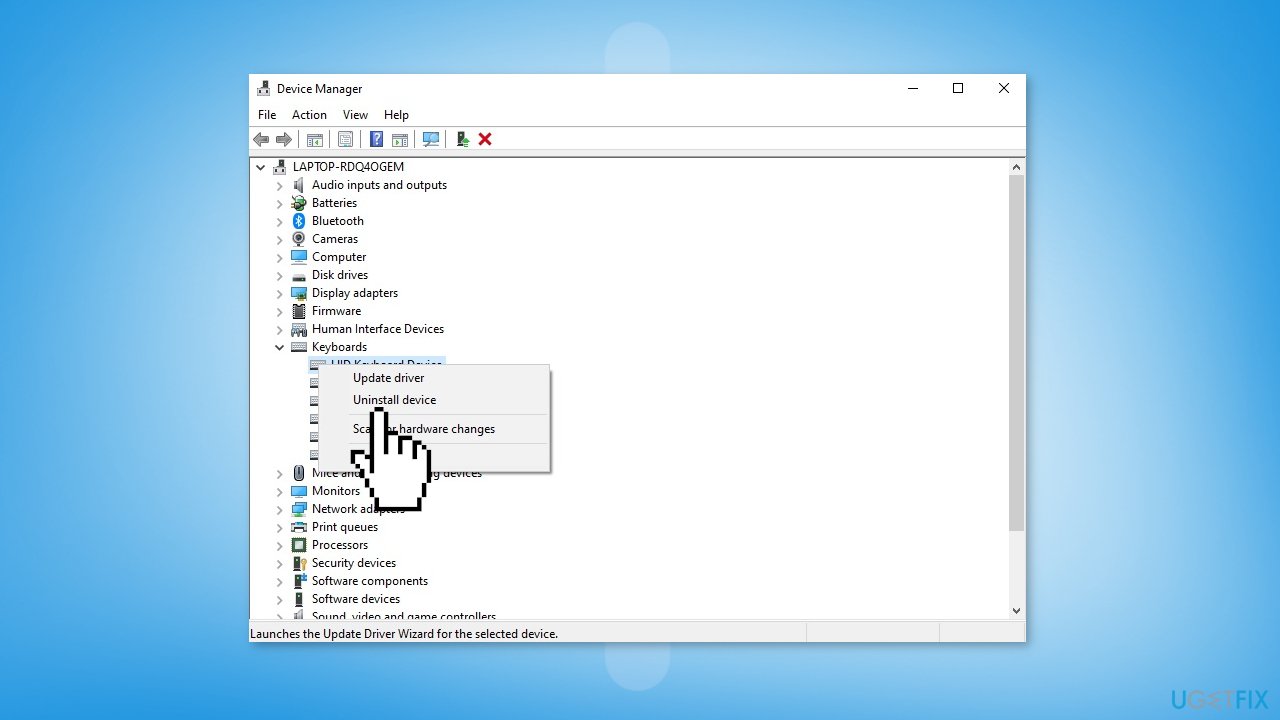
- Restart your computer
Method 5. Reinstall the Display Driver
- Open Device Manager and expand the Display Adapters tab
- Right-click on your graphics driver and select Properties
- Go to the Driver tab and click on Uninstall Device
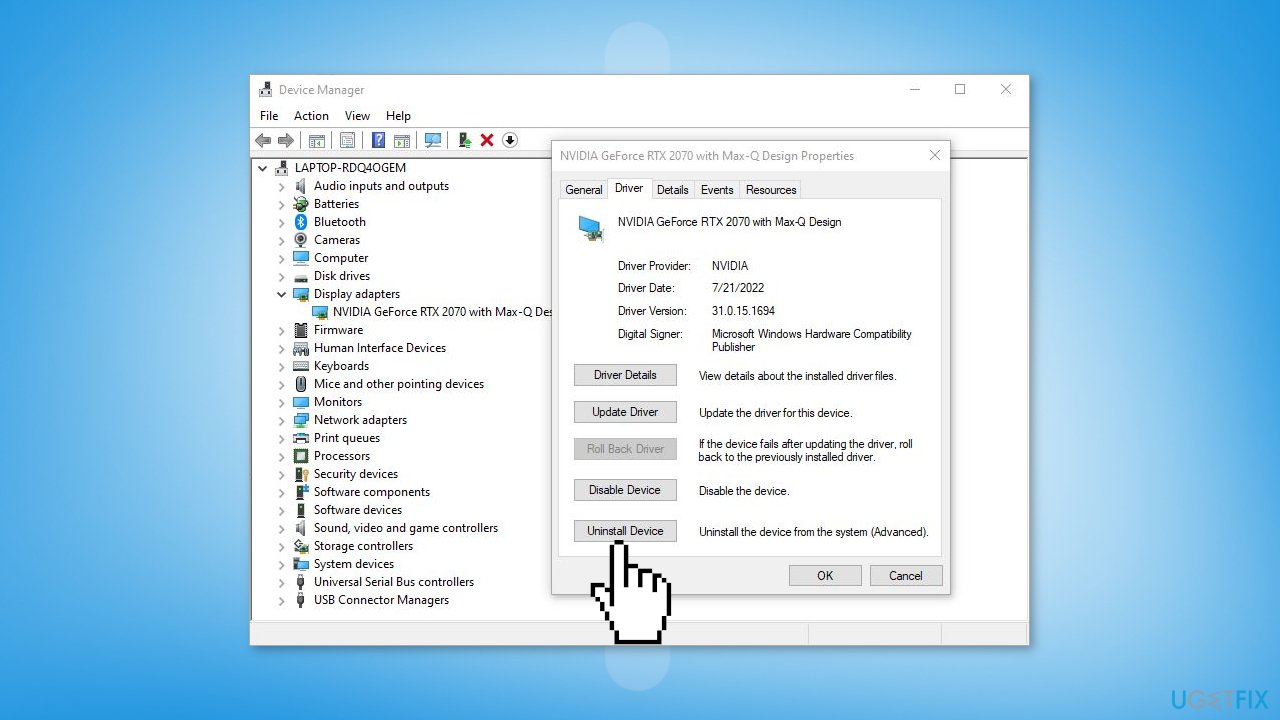
- Restart your PC
- Windows will install a basic driver upon reboot
- You may also use a dedicated utility like [rev id="DriverFix"] that can find the best drivers for your machine and install them automatically, or install the driver manually from the manufacturer's website
Method 6. Install Microsoft Basic Display Adapter
- Open the Device Manager
- Expand the Display adapters section
- Right-click on the display driver and click Update driver
- Click Browse my computer for drivers
- Click Let me pick from a list of available drivers on my computer
- Select Microsoft Basic Display Adapter
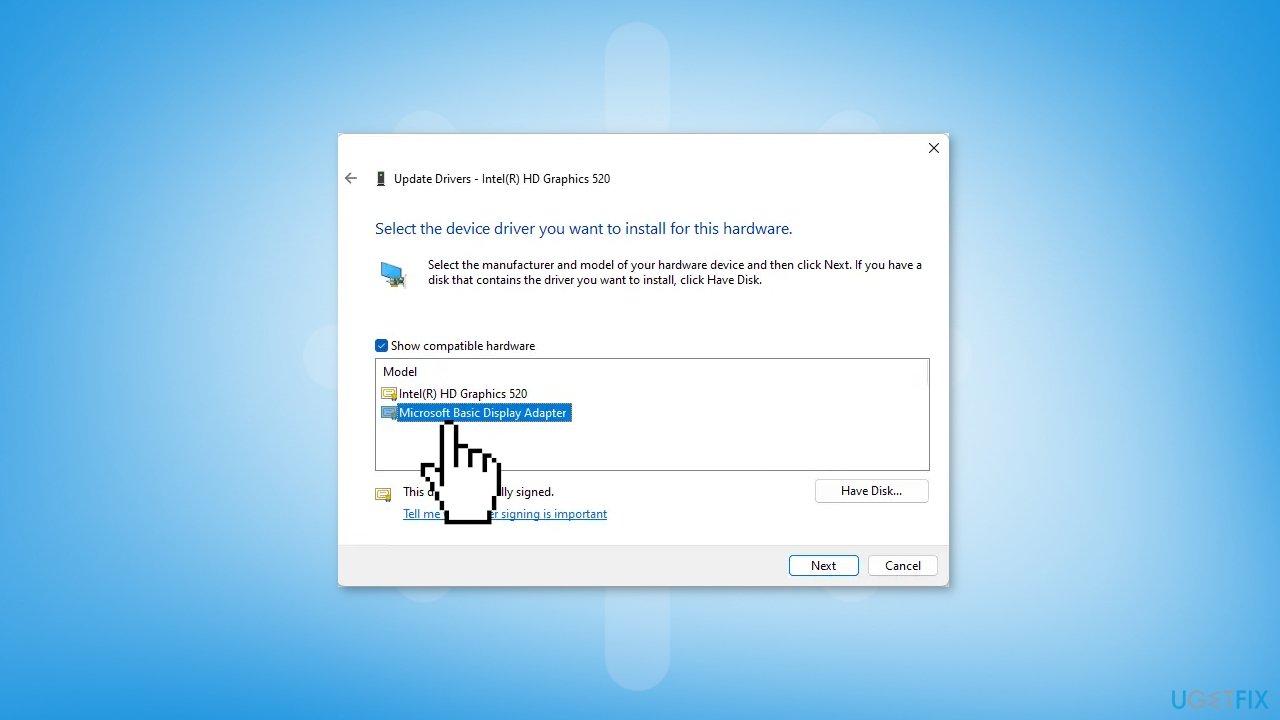
- Click Next and follow the on-screen instructions to install the driver
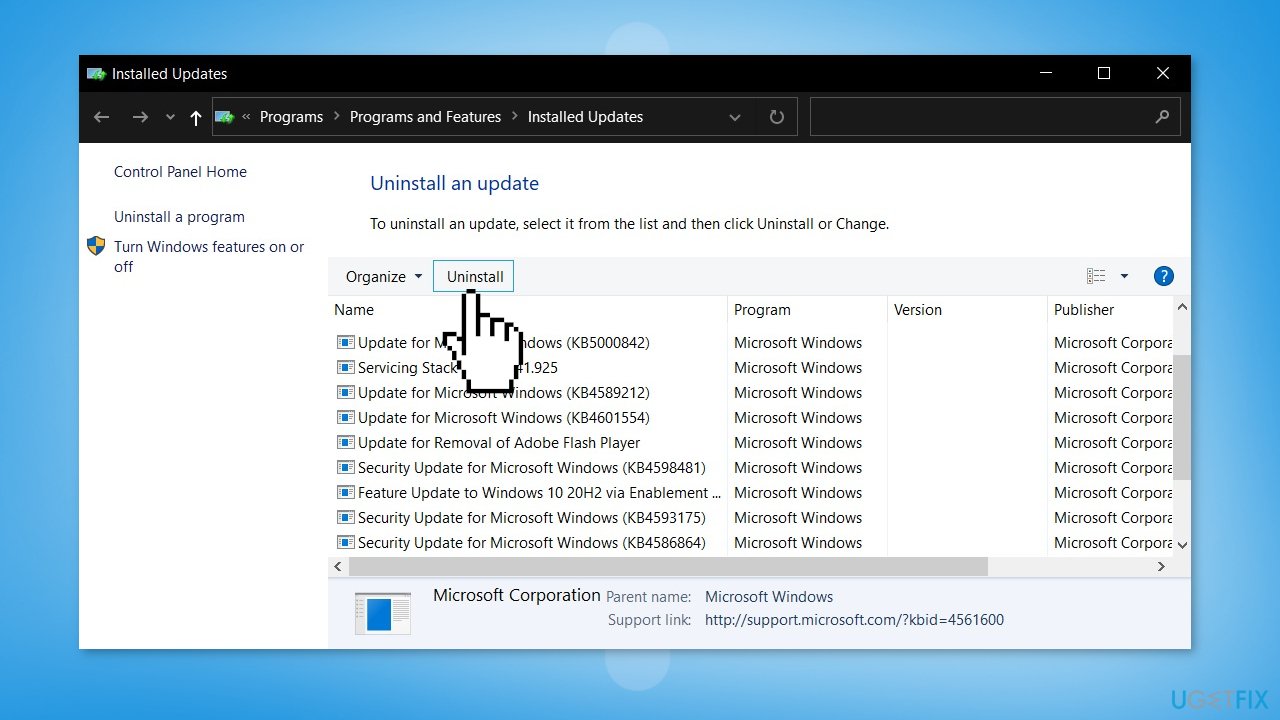
Method 7. Uninstall the last Windows Update
- Open Settings from the Start menu
- Click on Windows Update on the left side
- Click on Update History
- Scroll down to find Uninstall updates under Related settings
- Right-click on the update and select Uninstall
Method 8. Adjust Brightness without the Fn key
In Windows, there are multiple ways to adjust screen brightness. Alternatives to using the Fn key include using the Windows Settings app or Quick Settings menu or using the Windows Mobility Center. The Windows Mobility Center can be launched either from the Windows Search or from the Control Panel.
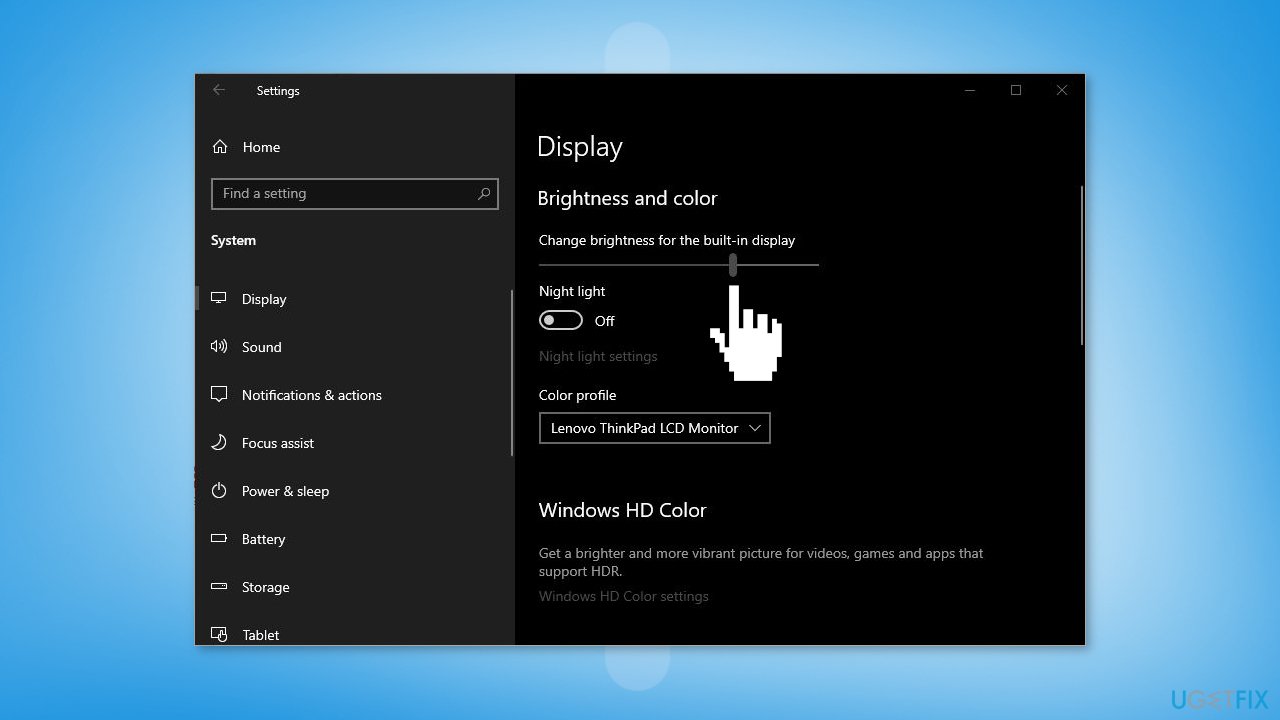
Using the Settings app:
- Open the Settings app
- Click on System
- Click on Display
- Adjust the Brightness slider to set the desired level of brightness
Using the Quick Settings menu:
- Click on the Notification icon in the system tray
- Find and click on the Brightness slider to set the desired level of brightness
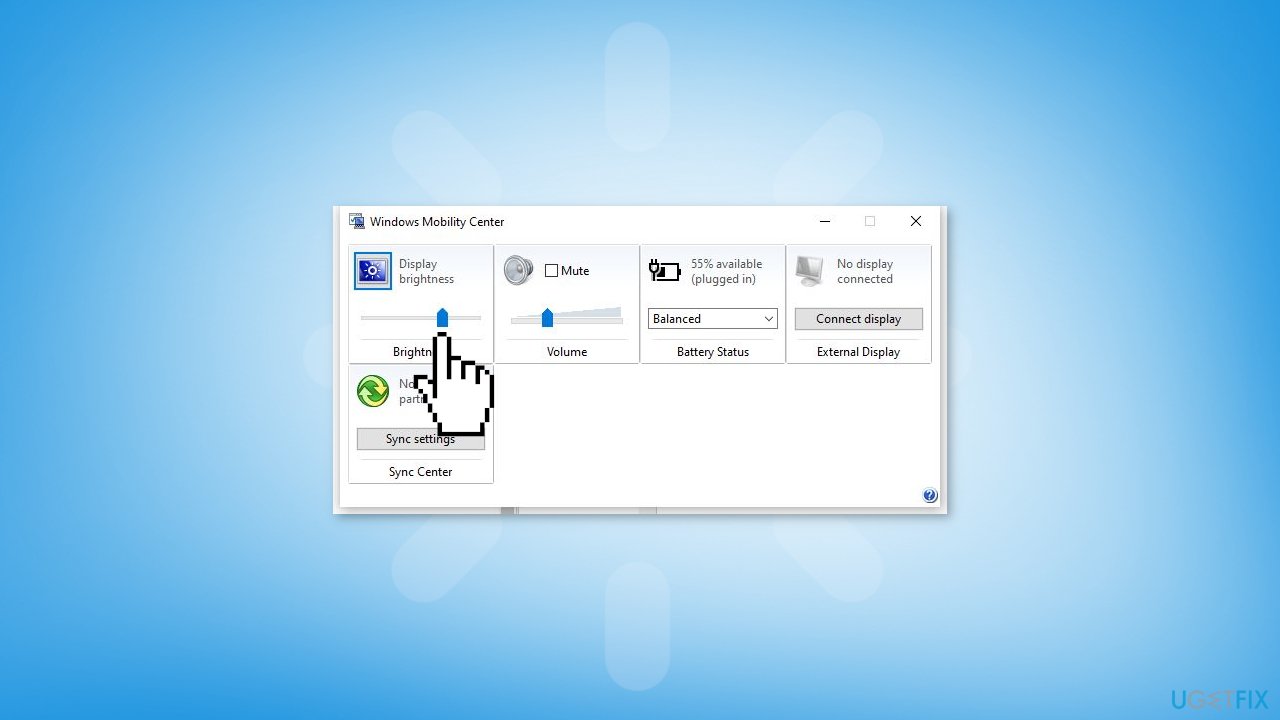
Using Windows Mobility Center:
- Open the Windows Mobility Center by either searching for it in the Windows Search or through the Control Panel
- Adjust the brightness of the screen by using the Brightness slider in the Windows Mobility Center.
Bottom line
To fix the brightness function key not working, users can try updating or reinstalling the display driver, checking brightness settings in the Windows Control Panel or Settings app, and using alternative keyboard shortcuts. If these methods do not resolve the issue, consider running the Hardware and Devices Troubleshooter or the Keyboard Troubleshooter for further assistance.
Frequently asked questions
You can try updating your display drivers through Device Manager or check if the correct brightness settings are enabled in the Windows Settings under System > Display.
To reset the brightness function key settings, go to Settings > System > Display and toggle the 'Night light' feature off, then adjust the brightness slider.
Yes, you can use the Windows + A key combination to open the Action Center and adjust the brightness slider directly from there.




Report an issue
What's wrong with this guide? We review every report and update or remove content.
Report received — thank you. We'll review and fix it.
You need a free account to submit a report.
Be the first to comment