
How to fix BSOD 139 (KERNEL_SECURITY_CHECK_FAILURE) in Windows

Prefer to fix it yourself? The manual steps follow.
- 8methods
- 15 to 60 minutes
- Intermediate
Applies to Windows 11 and Windows 10 PCs that crash with BlueScreen code 139, bug check 0x00000139 or KERNEL_SECURITY_CHECK_FAILURE
8 methods in this guide
Hello. My Windows PC keeps crashing with a 139 BSOD error. What should I do? Any suggestions would be appreciated.
BSOD 139, written 0x139 or 0x00000139, is the stop code KERNEL_SECURITY_CHECK_FAILURE. Windows stopped because the kernel found one of its critical data structures damaged, almost always by a driver. Find the driver named in the crash dump, then update, roll back or remove it first.
Code 139 is KERNEL_SECURITY_CHECK_FAILURE: the Windows kernel caught a damaged data structure and stopped the PC to protect itself. A driver is the usual culprit. Open the crash dump, find the driver it names, and update, roll back or remove it (Fix 1). If the crashes began after a change, undo that change (Fix 2). If the PC restarts in a loop, use Safe Mode (Fix 5).
| Error | A stop screen with Stop code: KERNEL_SECURITY_CHECK_FAILURE. Reliability Monitor shows the crash as BlueScreen with BCCode: 139. |
|---|---|
| Where it appears | At random while you work, game or sleep the PC, during startup, or right after a driver, app or Windows update. The screen appears and the PC restarts by itself. |
| Main cause | A driver that damaged a kernel structure, such as a linked list, timer or event object, as Microsoft's bug check reference describes. Faulty RAM and overclocks are less common causes. |
| Fastest fix | Update, roll back or remove the driver the dump names (Fix 1). |
| Also written as | bluescreen 139, bsod 139, blue screen code 139, stop code 0x139, bugcheck 139, 0x00000139, kernel security check failure. |
| Affects | Windows 11 and Windows 10. Windows 10 left support on 14 October 2025, so new driver and stability fixes for it are no longer guaranteed. |
| Vendor status | Microsoft documents 0x139 for developers and says the cause is found with the debugger and several dump files. There is no single Windows patch; driver makers fix their own drivers. |
| Where the cause is logged | C:\Windows\Minidump (one .dmp file per crash) and the System log in Event Viewer. WinDbg's !analyze -v shows Arg1 (the type of damage) and IMAGE_NAME. |
| Time to fix | 15 to 20 minutes for a driver fix. 30 to 60 minutes with Driver Verifier, a memory test or a restart loop. |
Facts checked on 16 October 2026. Steps written for Windows 11 (25H2 and 26H2) and Windows 10 22H2.
What BSOD 139 means
Microsoft's bug check reference says the KERNEL_SECURITY_CHECK_FAILURE bug check has a value of 0x00000139 and indicates that the kernel detected the corruption of a critical data structure. Windows checks these structures every time it uses them, and stops the PC the moment one does not add up.
In plain words: some code running in the kernel, usually a driver, wrote where it should not or used memory it had already freed. Windows noticed the damage later, when it touched that structure again. That is why the screen often blames a Windows file rather than the driver that caused the harm.
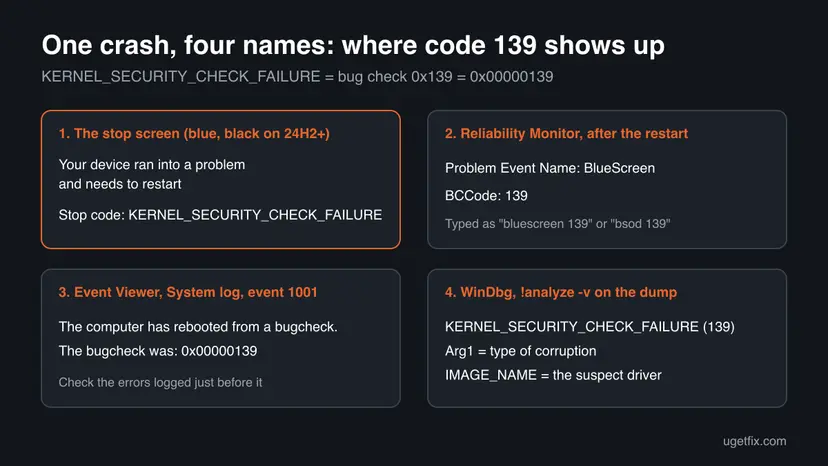
| What you see | Where |
|---|---|
| Your device ran into a problem and needs to restart, Stop code: KERNEL_SECURITY_CHECK_FAILURE | The stop screen on Windows 11 and Windows 10 |
| BlueScreen, BCCode: 139 | Reliability Monitor and the problem report Windows writes after the restart |
The computer has rebooted from a bugcheck. The bugcheck was: 0x00000139 | Event Viewer, System log, event 1001 |
KERNEL_SECURITY_CHECK_FAILURE (139), BUGCHECK_CODE: 139 | WinDbg after !analyze -v |
| Bluescreen 139, bsod 139, error 139, stop code 0x139 | Typed names of the same stop code |
0xc0000139 is a different error: a status code that appears when a program or Windows file cannot find a function it needs. If your screen shows that code, read our guide to the 0xc0000139 error instead.
Microsoft says the screen colour and message of a stop code error vary by Windows 11 version. On Windows 11 24H2 and later the screen is black. The stop code and its fixes stay the same.
What causes the 0x139 blue screen, most common first
Microsoft's list of causes for this code names drivers in every line: a driver that damaged a kernel event or timer, mismanaged a linked list, freed memory that was still listed, or used a list from two threads at once. Its general advice is to remove new hardware, update or remove new drivers and system services, and scan for viruses.
| How often | Cause | Sign | Fix |
|---|---|---|---|
| Most often | A buggy or outdated third-party driver: graphics, network, Wi-Fi, audio, security software, VPN, anti-cheat, virtual machine tools | IMAGE_NAME in the dump names a .sys file that is not part of Windows | Fix 1 |
| Often | Something new: a device, a driver, a system service or a Windows update | The crashes began within days of the change | Fix 2 |
| Often | A driver that damages memory but is never caught in the act | Every dump names only Windows files such as ntoskrnl.exe | Fix 3 |
| Less often | Faulty RAM, an overclock or a memory profile (XMP or EXPO) | Different stop codes each time, crashes under load | Fix 4 |
| Rarely | Damaged system files, a failing disk or malware | Disk errors in Event Viewer, a restart loop, unknown programs | Fix 5 to Fix 7 |
Find the driver behind code 139
Microsoft says the cause of most 0x139 crashes can be narrowed down with a dump file and the value of Parameter 1, and that several dumps should be compared. If the PC still starts, reading one takes about ten minutes.
- Open File Explorer and go to
C:\Windows\Minidump. Each crash leaves one.dmpfile named by its date. - Install Microsoft's debugger: open Terminal and run
winget install Microsoft.WinDbg. - Start WinDbg as administrator, select File > Open dump file and open the newest
.dmpfile. - Type
!analyze -vand press Enter. Wait until the analysis ends. - Note Arg1 under
KERNEL_SECURITY_CHECK_FAILURE (139)and the lines MODULE_NAME and IMAGE_NAME further down. - Open the two or three older dumps the same way. A driver named in more than one is your main suspect.
| Arg1 | Meaning | What it tells you |
|---|---|---|
3 | A LIST_ENTRY is corrupted, for example removed twice | Microsoft notes the damage is often found later than it happened, so the dump may blame Windows. Use Fix 3 if no driver is named. |
2 or 0 | A stack-based buffer overrun | Code wrote past the end of a buffer. The named driver is a strong suspect. |
14 | The reference count for an object is invalid | An object was released too often. Look at the driver that owns it. |
6 | The loader did not set up the stack security cookie | A driver built for a newer Windows is loaded on an older one. Update or remove that driver. |
Press Win + X, select Event Viewer and open Windows Logs > System. Microsoft advises looking for critical errors in the same time window as the blue screen. A device that logs errors right before each event 1001 is your first suspect.
How to fix BSOD 139 in Windows
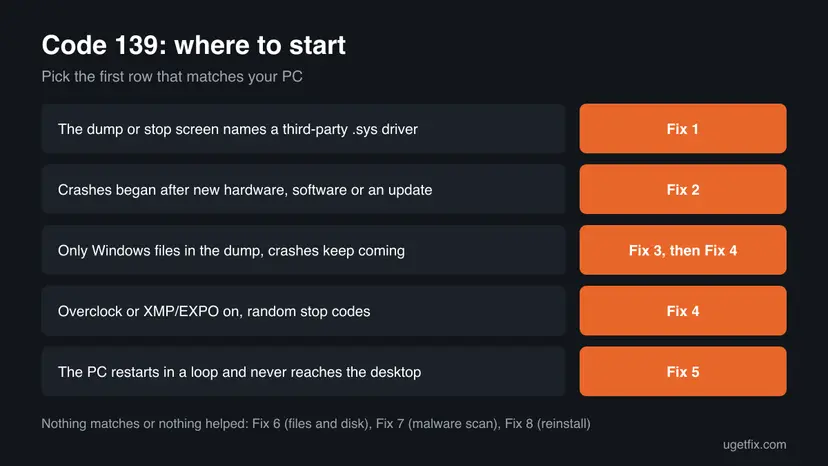
Start with Fix 1 if the dump names a driver, or with Fix 2 if the crashes began after a change. Fixes 3 and 4 are for dumps that blame only Windows. Fix 5 is for a restart loop. Fixes 6 to 8 are the general repairs.
| What you see | Start with | Then |
|---|---|---|
| IMAGE_NAME names a third-party driver | Fix 1 | Fix 2 |
| Crashes began after new hardware, a driver, an app or a Windows update | Fix 2 | Fix 1 |
| Every dump names only Windows files | Fix 3 | Fix 4 |
| Overclock or memory profile on, or different stop codes each time | Fix 4 | Fix 3 |
| The PC restarts in a loop and never reaches the desktop | Fix 5 | Fix 6 |
| Disk errors in Event Viewer, unknown programs, or nothing above helped | Fix 6 | Fix 7 |
Fix 1. Update, roll back or remove the driver the crash names
15 minutesLow risk!analyze -v shows an IMAGE_NAME that is not a core Windows file, or the stop screen shows a What failed line.
Every cause Microsoft lists for 0x139 is a driver misusing kernel memory, and Microsoft's own advice is to update or remove recently added drivers. A newer driver release is how the maker closes such a bug.
- Search the driver file name (for example
nvlddmkm.sysornetwtw10.sys) to learn which device or program it belongs to. - If it belongs to a program such as a VPN, antivirus or game anti-cheat, update that program or uninstall it for a test.
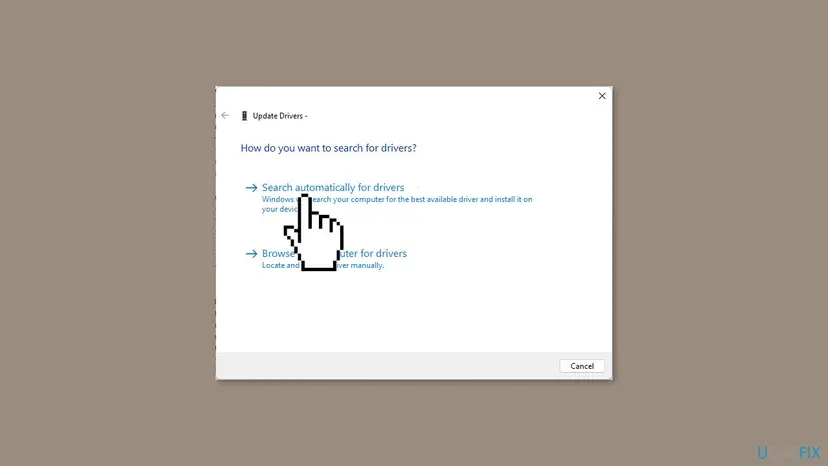
- If it belongs to a device, right-click Start, select Device Manager and find that device.
- If the crashes began after a driver update, open Properties > Driver and select Roll Back Driver.
- Otherwise, install the newest driver for that exact device from its maker or your PC maker's support page.
- Restart and use the PC the way it used to crash. Step by step with screenshots: Update, roll back or reinstall a driver
If IMAGE_NAME is ntoskrnl.exe or another Microsoft file, Windows only found the damage there. Microsoft notes that the corruption is not always detected when it happens. Go to Fix 2, then Fix 3.
It worked if: Device Manager shows the new or older driver, or the program is gone, and the PC gets through the task that used to crash without a new file in C:\Windows\Minidump.
If not: If the dumps name nothing useful, go to Fix 2.
Fix 2. Undo the last change: new hardware, drivers, services or a Windows update
15 minutesLow riskThe crashes began within days of adding a device, installing a driver or a program that runs its own service, or installing a Windows update.
Microsoft's advice for 0x139 is to work out what changed in the system before the new bug check appeared, then remove or replace new hardware and remove or update new drivers and system services.
- Press Win + R, type
perfmon /reland press Enter to open Reliability Monitor. Find the day of the first BlueScreen and read what was installed just before it. - Shut the PC down and unplug any device you added before the crashes began: a dock, a USB adapter, a capture card, a new card inside the PC.
- Uninstall programs installed before the first crash that bring drivers or services: VPN clients, security suites, RGB and fan tools, virtual machine and anti-cheat software: Uninstall a program or app in Windows
- If a Windows update arrived the day before, uninstall it for a test: How to uninstall a Windows update
- Use the PC as before for as long as a crash usually takes. Put things back one at a time until the crash returns.
Antivirus, VPN and anti-cheat programs install kernel drivers. Uninstall a third-party one for the test, and Microsoft Defender turns itself back on. Reinstall the newest version of the program afterwards if it was not the cause.
It worked if: The PC runs without code 139 with the change undone, and the crash returns only when that one device, program or update is back.
If not: If nothing changed recently, or the crash continues, go to Fix 3.
Fix 3. Catch the driver with Driver Verifier
30 minutes, then a day of normal useRead the warningEvery dump names only Windows files, and Fix 1 and Fix 2 did not help.
Microsoft notes that Driver Verifier with special pool can help track down the driver behind a 0x139 crash. It watches the drivers you pick and stops the PC the moment one misuses memory, so the next dump names it.
Microsoft says running Driver Verifier could cause the computer to crash and recommends it for test and debugging computers. It can crash during startup. Back up your files and create a restore point first, and learn how to turn it off before you start: Back up your files (Windows Backup, File History, Time Machine)
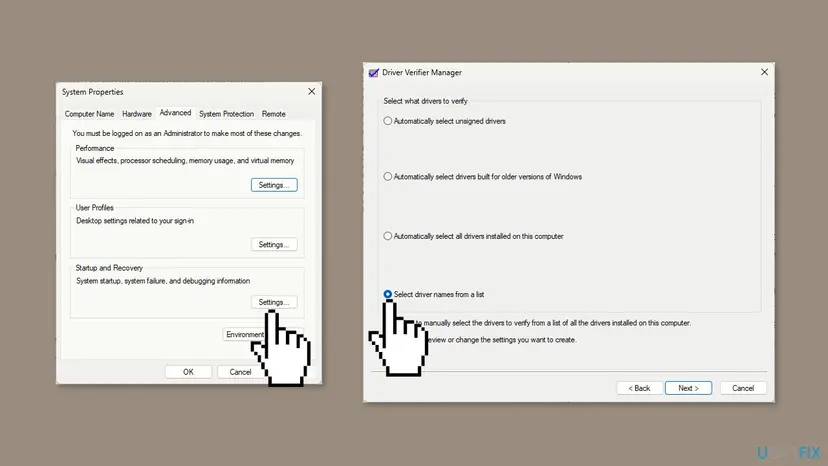
- Open Terminal (Admin), type
verifierand press Enter to open Driver Verifier Manager. - Select Create standard settings and select Next.
- Select Select driver names from a list and select Next.
- Tick the drivers that are not from Microsoft Corporation in the Provider column, then select Finish and restart.
- Check that it runs: in Terminal (Admin), run
verifier /querysettings. Then use the PC normally until it crashes. - Open the new dump as in Find the driver. The driver it names is the one to update or remove with Fix 1.
- Turn Driver Verifier off with
verifier /resetand restart.
Start Windows in Safe Mode as in Fix 5, open Terminal (Admin), run verifier /reset and restart. The crash that stopped startup has already written a dump that names the driver.
It worked if: A new crash within a day or two, with a dump that names a third-party driver. If no crash comes in two days, the drivers you picked are probably clean.
If not: Run verifier /reset and go to Fix 4.
Fix 4. Test the memory and undo overclocks
30 minutes or moreLow riskThe PC runs an overclock or an XMP or EXPO memory profile, you get different stop codes each time, or Driver Verifier found nothing.
Code 139 means a kernel structure in memory was found damaged. A driver is the usual cause, but memory that returns wrong data or an unstable overclock can damage the same structures.
- Turn off every CPU, GPU and memory overclock in the BIOS or the maker's tool, and turn off XMP or EXPO for the test.
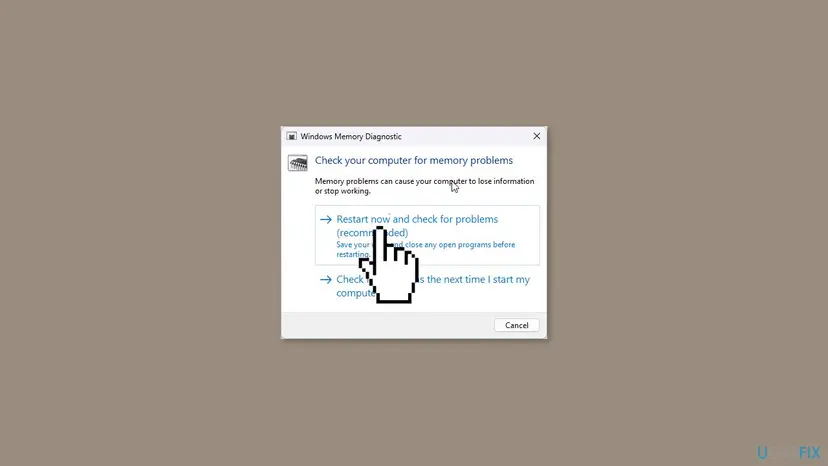
- Press Win + R, type
mdsched.exeand select OK. - Select Restart now and check for problems (recommended). The test runs before Windows starts.
- After the restart, read the result in Event Viewer under Windows Logs > System, source MemoryDiagnostics-Results. Full method: How to test your RAM with Windows Memory Diagnostic
- If errors are found, test one memory stick at a time to find the bad one, and replace it.
It worked if: The memory test reports no errors, and the PC stays stable with the overclock off.
If not: If the PC no longer starts at all, go to Fix 5. If it starts but still crashes, go to Fix 6.
Fix 5. Stop a restart loop from Safe Mode or the recovery environment
30 minutesRead the warningCode 139 appears during startup and the PC restarts again and again.
Safe Mode starts Windows with a minimal set of drivers, so the driver behind 0x139 usually does not load. Microsoft lists starting in Safe Mode among its steps for stop code errors.
Safe Mode and Startup Repair change nothing in your files. System Restore removes apps and drivers installed after the restore point. Have your BitLocker recovery key ready, because the recovery environment can ask for it.
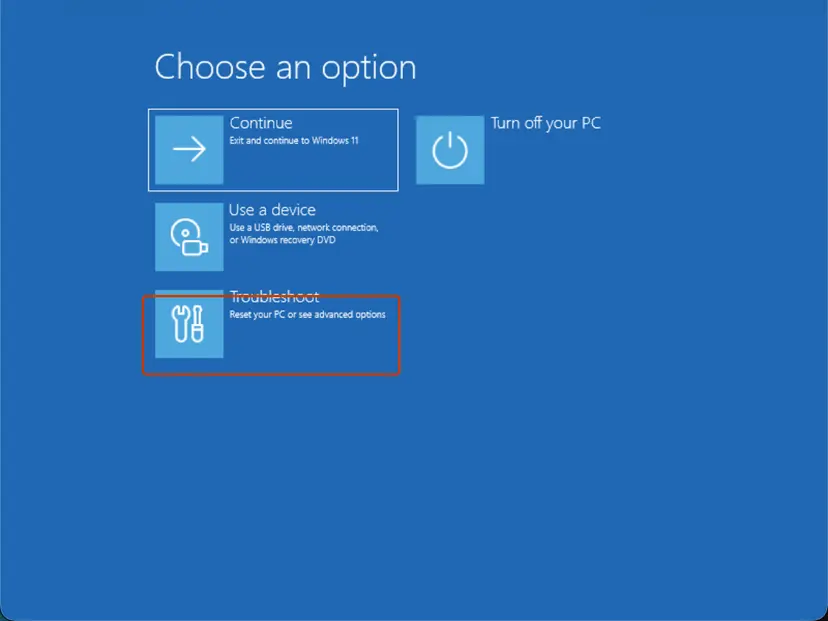
- Turn the PC on and, when the logo appears, hold the power button until it shuts down. Do this twice; the third start opens Automatic Repair.
- Select Advanced options > Troubleshoot > Advanced options > Startup Settings > Restart, then press 4 for Safe Mode: Start Windows or a Mac in Safe Mode
- In Safe Mode, run
verifier /resetif you used Driver Verifier, then roll back or uninstall the driver or program you installed last, as in Fix 1. - If Safe Mode does not start, go back to Advanced options and run Startup Repair: Run Startup Repair
- If that fails, select System Restore and pick a point from before the first crash: Undo recent changes with System Restore
It worked if: Windows reaches the desktop in normal mode after you remove the driver, and the restart loop is gone.
If not: If the PC starts now, run the checks in Fix 6. If it still loops, go to Fix 8.
Fix 6. Repair system files and check the disk
20 to 60 minutesNo riskEvent Viewer shows disk errors, the crash happens during startup, or SFC has never run on this PC.
Damaged Windows files are a rare cause of 0x139, but Microsoft notes that disk corruption can produce bug check codes. These two checks rule out both the files and the disk under them.
DISM fetches clean copies of Windows components, then SFC replaces damaged system files with them. Step by step with screenshots: Run DISM and SFC to repair Windows system files
In Terminal (Admin), one after the other:
DISM.exe /Online /Cleanup-Image /RestoreHealth
sfc /scannow
Then check the disk for file system errors and bad sectors. chkdsk C: /f /r runs at the next restart and can take an hour on a large drive: Check a disk for errors (chkdsk)
It worked if: SFC reports no integrity violations or that it repaired them, and CHKDSK reports no bad sectors.
If not: If CHKDSK finds bad sectors, back up your files and replace the drive. If everything is clean, go to Fix 7.
Fix 7. Scan for malware with Microsoft Defender
30 minutes or moreNo riskYou see programs you did not install, or the crashes started after a download from an unknown site.
Malware that loads its own kernel driver can damage the same structures a buggy driver does. Microsoft's 0x139 reference advises running a virus scan that also checks the Master Boot Record.
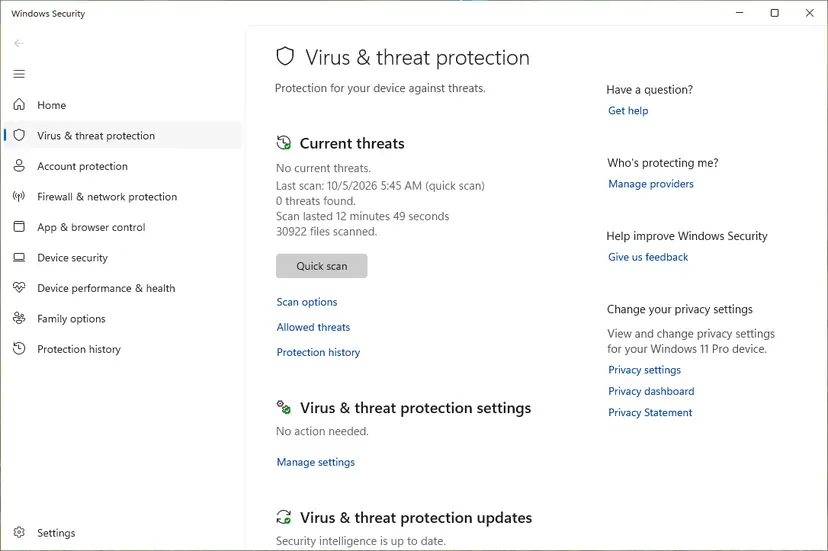
- Open Windows Security > Virus & threat protection and select Scan options.
- Run a Full scan first.
- Then run Microsoft Defender Antivirus (offline scan), which restarts the PC and scans before Windows loads. Step by step: How to scan for malware with Microsoft Defender
It worked if: Windows Security reports no current threats, or removes what it finds and the crashes stop.
If not: If the scan is clean and nothing above helped, go to Fix 8.
Fix 8. Reinstall Windows and keep your files
60 minutes or moreRead the warningEvery fix above failed and the dumps keep naming only Windows files.
A reinstall replaces every Windows file and the whole driver store at once. If the crash then returns before you install any driver of your own, the cause is the hardware.
Reset PC with Keep my files keeps documents, pictures and the desktop, but removes the apps you installed. Back up your files to an external drive or cloud storage before you start: Back up your files (Windows Backup, File History, Time Machine)
- Back up your files and note the apps you will need to install again.
- Open Settings > System > Recovery (on Windows 10: Settings > Update & Security > Recovery).
- Select Reset PC, then Keep my files and Cloud download.
- After the reset, install the drivers from your PC maker first, then your apps one at a time, and use the PC for a day between batches. Full method: Reinstall Windows without losing files

It worked if: Windows starts fresh, and the crash does not return as you add drivers and apps back.
If not: If code 139 returns on a clean Windows before any extra driver, contact your PC maker or a repair shop.
Still getting blue screen 139: what to collect and whom to ask
Microsoft says finding the cause of this kind of corruption usually needs the debugger and several dumps. The help you need comes from the maker of the driver the dumps point at, so collect the facts once and send them there.
- The three newest
.dmpfiles fromC:\Windows\Minidump, zipped. - The Arg1, MODULE_NAME and IMAGE_NAME lines from
!analyze -vfor each dump. - Your Windows edition and build from Settings > System > About, and the BIOS version from
msinfo32. - The version of the named driver from Device Manager or the program's About screen.
- What you were doing at each crash: idle, gaming, waking from sleep, startup.
| Where to report | When |
|---|---|
| The maker of the device or program in IMAGE_NAME | The dump names a third-party driver |
| Your PC or motherboard maker | Memory test errors, BIOS questions, or crashes on a fresh install |
| Microsoft Q&A or Feedback Hub | Only Windows files are named, right after a Windows update |
| A repair shop | Crashes on a clean reinstall, memory errors or disk errors |
How to keep code 139 from coming back
- Get drivers from Windows Update, the device maker or your PC maker's support page.
- Keep one antivirus and one VPN client, and keep them up to date.
- Keep 10 to 15 % of the system disk free, as Microsoft's stop code checklist advises.
- Create a restore point before you change drivers.
- Use driver updater programs.
- Keep an overclock or memory profile that has never passed a stability test.
- Leave Driver Verifier running after the test.
- Ignore disk or memory warnings in Event Viewer.
Other blue screens follow the same logic: find the driver in the dump first. Our guide to blue screen code 133 shows it for a driver that holds the processor too long.
Frequently asked questions
What is bluescreen code 139?
Bluescreen code 139 is the stop code KERNEL_SECURITY_CHECK_FAILURE, bug check 0x00000139. Windows shows the name on the stop screen, and after the restart Reliability Monitor lists the crash as BlueScreen with BCCode 139. It means the kernel found one of its critical data structures damaged and stopped the PC rather than keep running on bad data. A driver is the usual cause, so the fix starts with the driver named in the crash dump.
Is stop code 0x139 the same as 139 and 0x00000139?
Yes. All three are the same number in hexadecimal: 0x139 is the short form, 0x00000139 is the eight digit form Event Viewer uses in the line The bugcheck was: 0x00000139, and 139 is how Reliability Monitor and WinDbg print it. Searches for bsod 139, error 139, bugcheck 139 or bug check code 0x139 all lead to KERNEL_SECURITY_CHECK_FAILURE and the same fixes on this page.
How serious is blue screen 139?
It is worth fixing, but it rarely means broken hardware. Microsoft's causes for this code are all driver bugs that damage kernel memory, and a driver update or removal usually ends them. One crash after an update can be a one-off. Repeated crashes need attention, because each one can lose unsaved work, and faulty RAM, though less common, gets worse over time. Start with the driver named in the dump.
How do I fix kernel security check failure 0x139?
Find the driver first. Open the newest dump in C:\Windows\Minidump with WinDbg, run !analyze -v and read IMAGE_NAME, then update, roll back or remove that driver or the program it belongs to (Fix 1). If the crashes began after a change, undo it (Fix 2). When dumps name only Windows files, use Driver Verifier (Fix 3) and test the memory (Fix 4). Repair files and reinstall only after that.
Why does the dump blame ntoskrnl.exe?
ntoskrnl.exe is the Windows kernel itself, and it is where the damage was found, not where it was made. Microsoft explains that list corruption is not necessarily detected when it happens, so some detective work may be needed. Compare several dumps for a shared third-party driver, undo recent changes, and run Driver Verifier as in Fix 3 so the next crash happens inside the guilty driver.
Can bad RAM cause the 0x139 blue screen?
It can, though less often than a driver. Code 139 means a kernel structure in memory was found damaged, and memory that returns wrong data can produce exactly that. Signs that point to RAM are different stop codes each time, crashes under heavy load, and crashes that started after enabling XMP or EXPO. Turn the memory profile off and run Windows Memory Diagnostic as in Fix 4.
Does SFC or chkdsk fix blue screen 139?
Sometimes, but rarely on their own. SFC repairs damaged Windows files and CHKDSK repairs the file system and marks bad sectors. Code 139 is mostly a driver bug, so these tools help only when a system file or the disk is damaged. Run DISM and SFC first, then CHKDSK, as in Fix 6, after you have dealt with the drivers.
Is Driver Verifier safe to use?
It is safe for your files, but it makes the PC crash on purpose. Microsoft says running it could cause the computer to crash and recommends it for test and debugging computers. Back up your files and know how to reach Safe Mode first. When you are done, or if Windows will not start, run verifier /reset from Terminal (Admin) or from Safe Mode and restart, as in Fix 3.
What is 0xc0000139, and what about other error 139 messages?
This page is about the Windows stop code 139, KERNEL_SECURITY_CHECK_FAILURE. 0xc0000139 is a different error: a status code that appears when a program or system file cannot find a function it needs. It has its own guide, linked in the first section of this page. Other apps and games that show error 139 in their own window use the number for unrelated things, so check that app's help pages.
Sources
- Microsoft Learn: Bug Check 0x139 KERNEL_SECURITY_CHECK_FAILURE (learn.microsoft.com)
- Microsoft Learn: How to use Driver Verifier (learn.microsoft.com)
- Microsoft Support: Troubleshooting Windows unexpected restarts and stop code errors (support.microsoft.com)
Did this fix work?
One click, no account. It tells the next reader which guides are worth their time.
Questions and experiences: fix BSOD 139 (KERNEL_SECURITY_CHECK_FAILURE) in Windows
Still broken, or found a fix we did not cover? Ask here: members and our editors answer. Reading is open; writing needs a free account.
…