How to fix
C: drive is not visible in File Explorer
on Windows
Resolve the issue of C: drive not appearing in File Explorer on Windows 10 or 11. Get quick, expert-tested solutions today! Fixed in minutes.

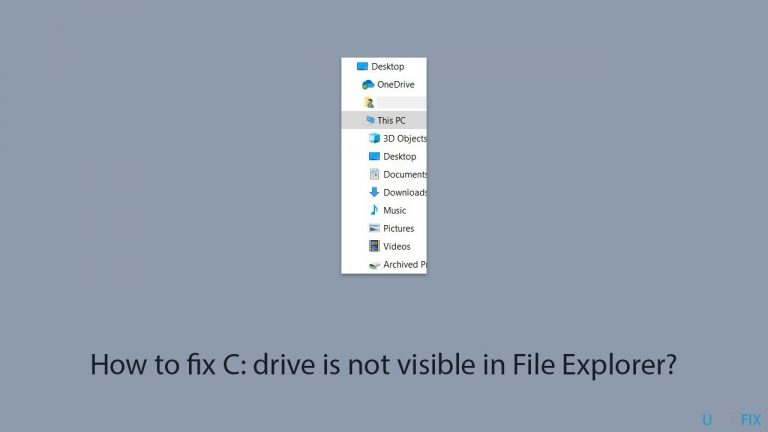
What causes How to fix C: drive is not visible in File Explorer?
- Corrupted system files
- Intervention of third-party software
- Incorrect drive letter assignments
- Issues with the SSD or HDD
- Partition issues
Repairs Windows system files, removes malware, and restores a clean OS state — without reinstalling.
For some reason, my C: drive is no longer visible in File Explorer. I can see my other Drives - such as E: and F: - perfectly fine but the C: drive is missing. It is visible in Disk Management. What is going on?
With File Explorer, you can navigate and manage your drives and files, making it a crucial tool in Windows. Your operating system and primary data are often located on your C: drive, which is the drive that is most visible in File Explorer under "This PC." Nevertheless, there are people who experience a problem with File Explorer not showing the C: drive.
Common causes for C: drive missing
One of the most common causes for C: drive not being visible in File Explorer is corrupted system files, where damage or corruption to these critical files can significantly impact the visibility of your drives.
The intervention of third-party software, especially disk management or File Explorer customization tools, is another possible reason. These programs may unintentionally change drive settings, hiding the C: drive.
Incorrect drive letter assignments are another possibility. In these cases, the drive letter may have been altered or eliminated, making the drive invisible in File Explorer.
Issues with the SSD or HDD, including physical problems or errors, can also arise, preventing the drive from being recognized correctly by the system. Lastly, partition issues, such as the drive not being set as active, can lead to the C: drive not being displayed in File Explorer.
Potential solutions
To resolve the issue of the C: drive not appearing in File Explorer, various approaches can be taken:
- Running system checks to repair corrupted files.
- Checking and modifying settings in third-party software.
- Reassigning the correct drive letter.
- Adjusting partition settings.
- Uninstalling conflicting software, etc.
For guidance on how to perform these and other steps, check the instructions section below the article.
For addressing a variety of Windows issues related to system file corruption, DLL errors, and more, consider using the [d1] repair and maintenance tool. This tool can help maintain your system's health and prevent similar problems in the future.
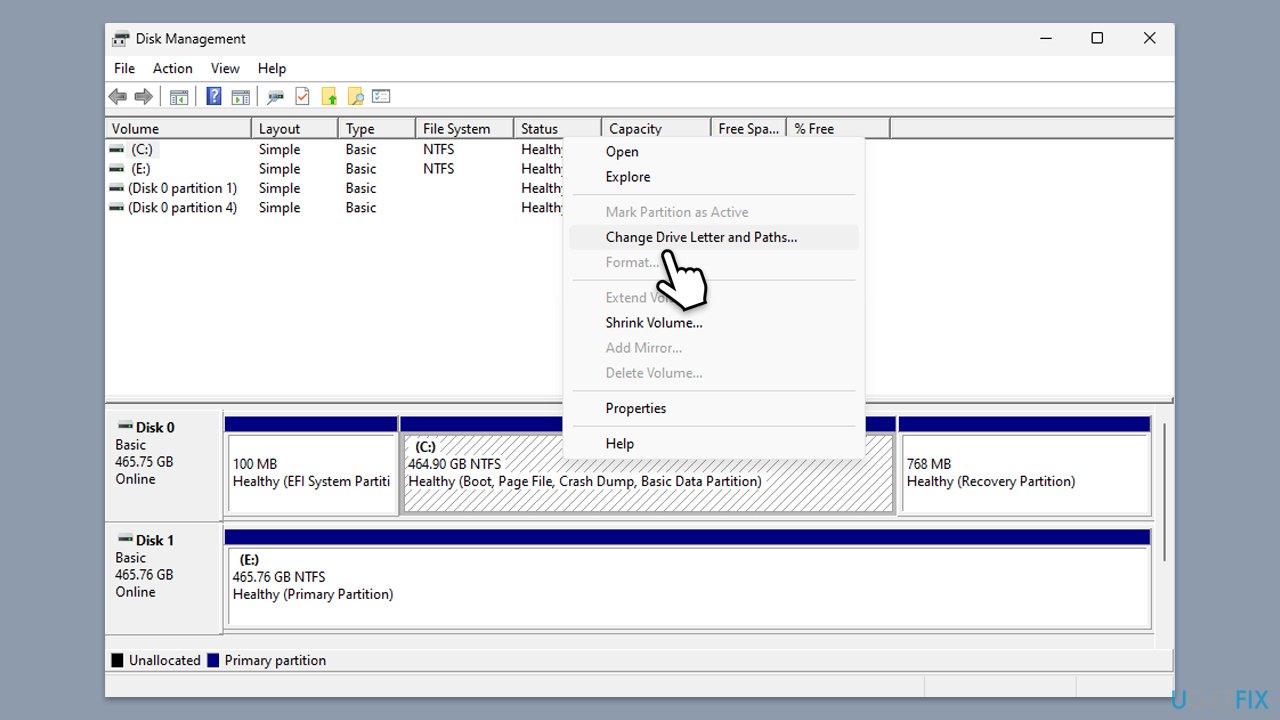
Fix 1. Assign the C: drive letter correctly
- Press Win + R and type diskmgmt.msc.
- Find your C: drive in the list of disks.
- Right-click the C: drive and select Change Drive Letter and Paths.
- Click Add or Change and assign the letter C.
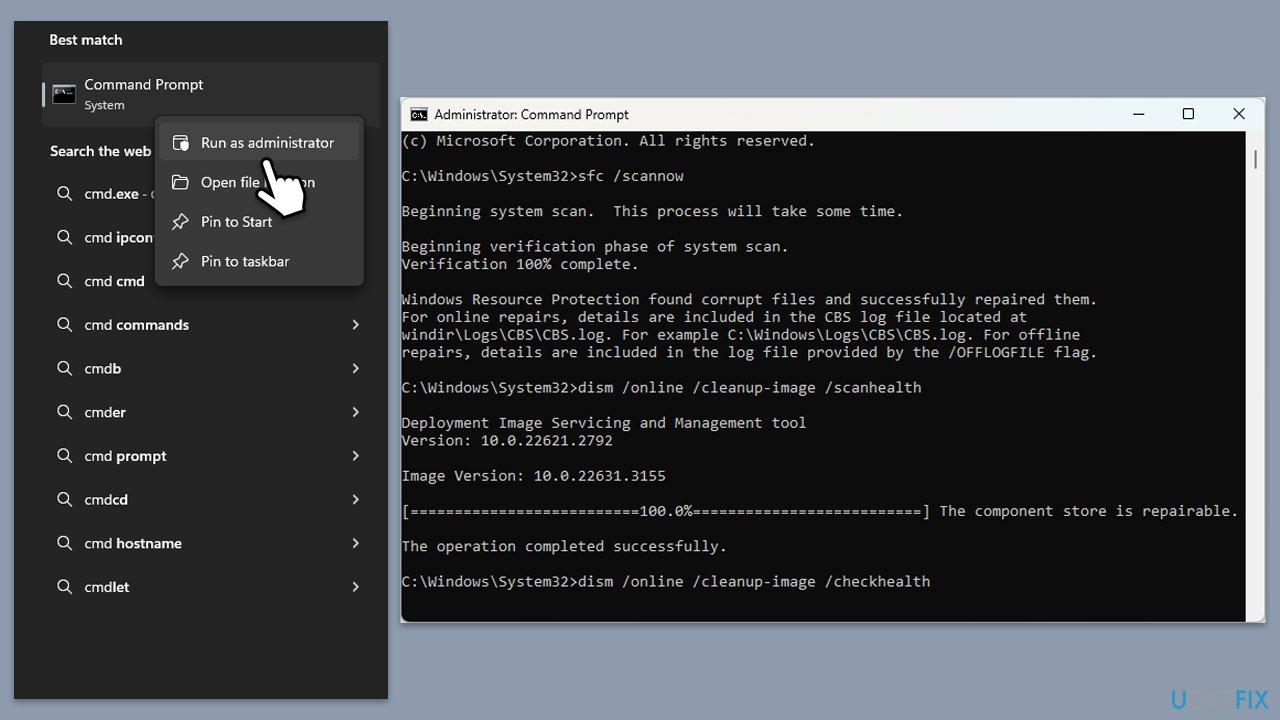
Fix 2. Run SFC and DISM
- Type cmd in Windows search.
- Right-click on Command Prompt and pick Run as administrator.
- User Account Control window will show up - click Yes when prompted.
- Then, copy and paste the following command, pressing Enter after:
sfc /scannow - Wait till the scan is finished. If Windows finds system file integrity violations, it will attempt to fix them. After this, use the set of the following commands, pressing Enter each time:
DISM /Online /Cleanup-Image /CheckHealth
DISM /Online /Cleanup-Image /ScanHealth
DISM /Online /Cleanup-Image /RestoreHealth - (Note: if you get an error executing this last command, add /Source:C:\RepairSource\Windows /LimitAccess to it and try again).
- Close down the Command Prompt and restart your system.
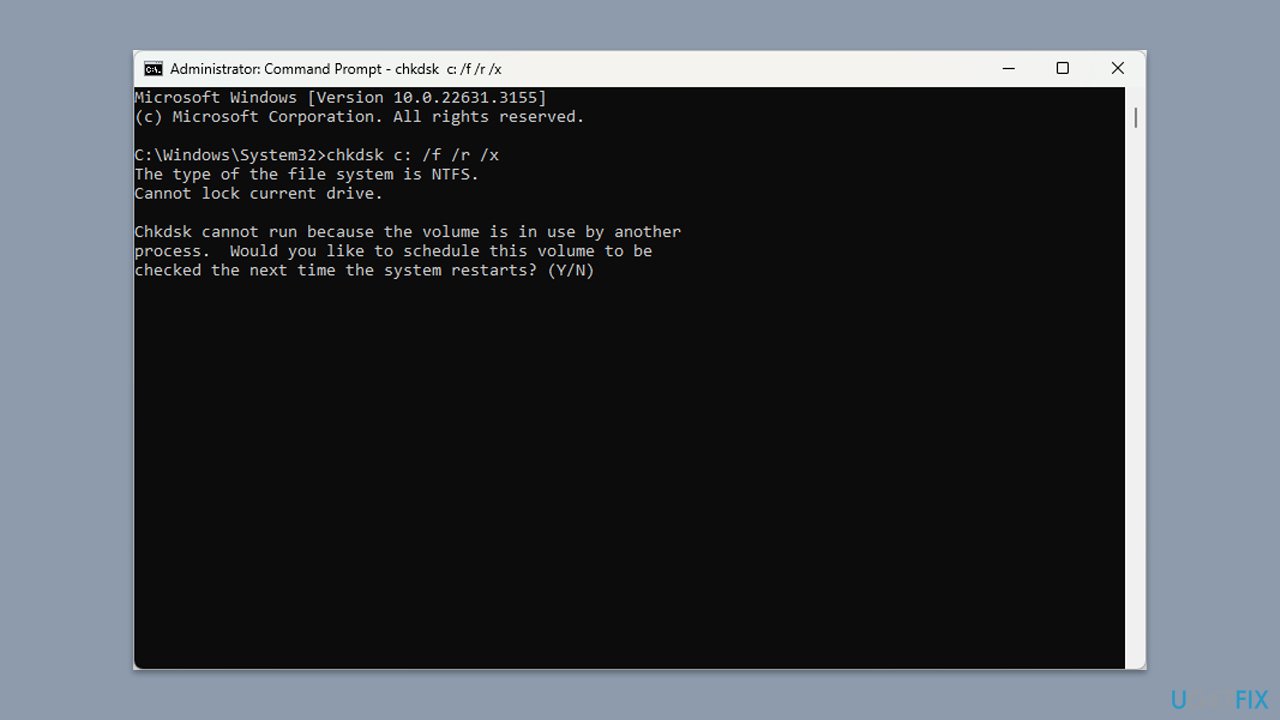
Fix 3. Perform Check Disk
- Open Command Prompt as administrator.
- In the new window, type in the following command and press Enter after:
chkdsk c: /f
(Note: use chkdsk c: /f /r /x command if you are using SSD as your primary partition. Also, replace c: with another drive letter if you are not using default) - If you receive an error, type in Y, close down Command Prompt and restart your computer.
- Wait till the scan is finished.
Fix 4. Use Diskpart
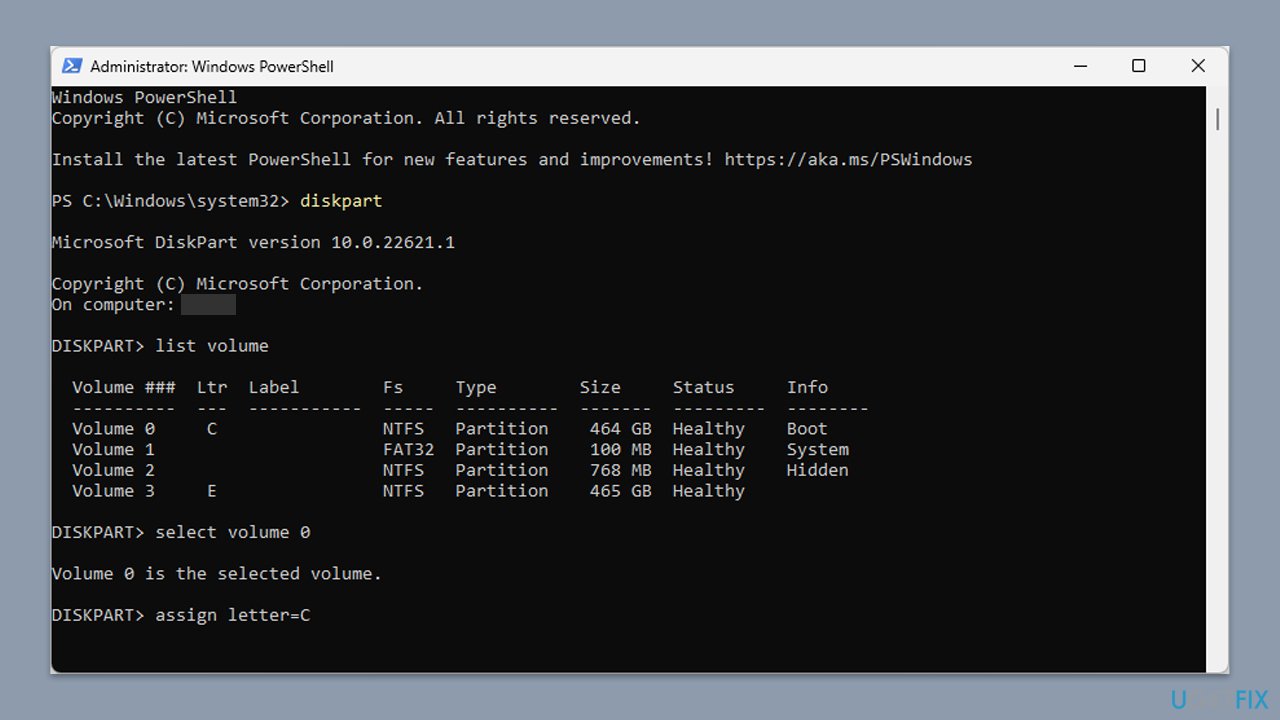
- Type PowerShell in Windows search.
- Right-click on PowerShell and select Run as administrator.
- Type the set of the following commands, pressing Enter after each:
diskpart
list volume
select volume X (replace X with your C: drive volume number)
assign letter=C
exit - Close down PowerShell.
Fix 5. Create another user profile
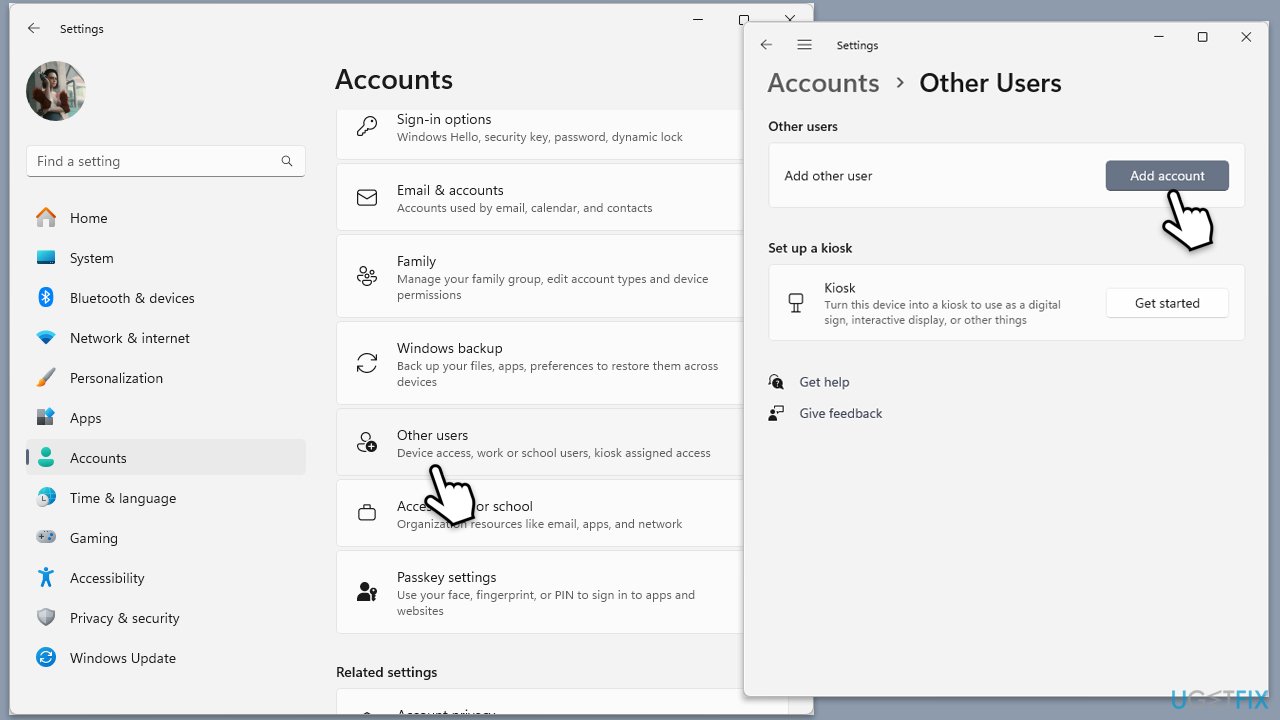
- Open Windows Settings.
- Go to Accounts then Family/Family & other users.
- Under Other users, click Add account/Add someone else to this PC.
- Follow the prompts to create a new user account. If you don't have Microsoft account details, you can choose I don't have this person's sign-in information followed by Add a user without a Microsoft account.
- Assign a username and password for the new account and complete the setup.
- Log out of your current account and log into the new account.
Fix 6. Perform Clean Boot
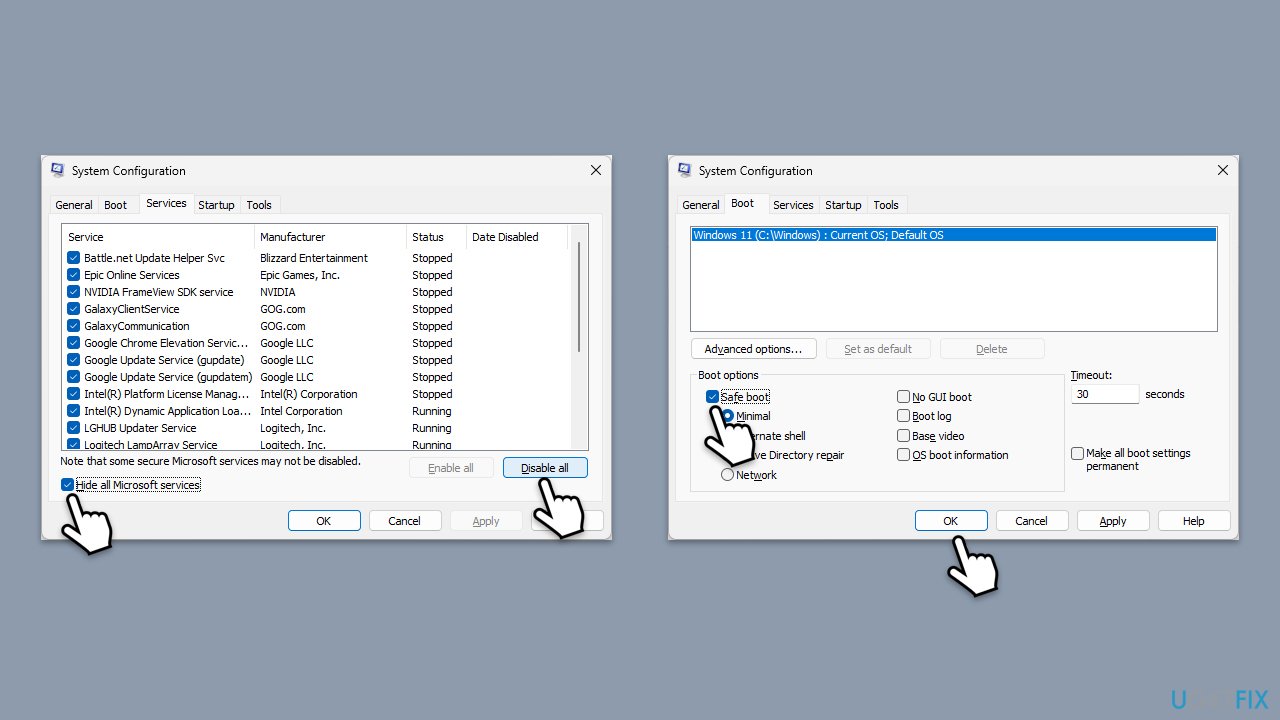
- Type msconfig inWindows Search and press Enter to open the System Configuration window.
- Click on the Services tab and check the Hide all Microsoft Services box.
- Click Disable all to disable non-Microsoft services, then click the Startup tab.
- Open the Task Manager, disable all startup items, and close the Task Manager.
- Go to the Boot tab and mark the Safe boot option.
- Click OK on the System Configuration window and restart your computer.
- If the problem does not exist, third-party software is at fault. To determine which app is causing it try enabling half of the available programs, restarting, and checking if the the problem is still absent. Continue till you find the offending software and either update or uninstall it.
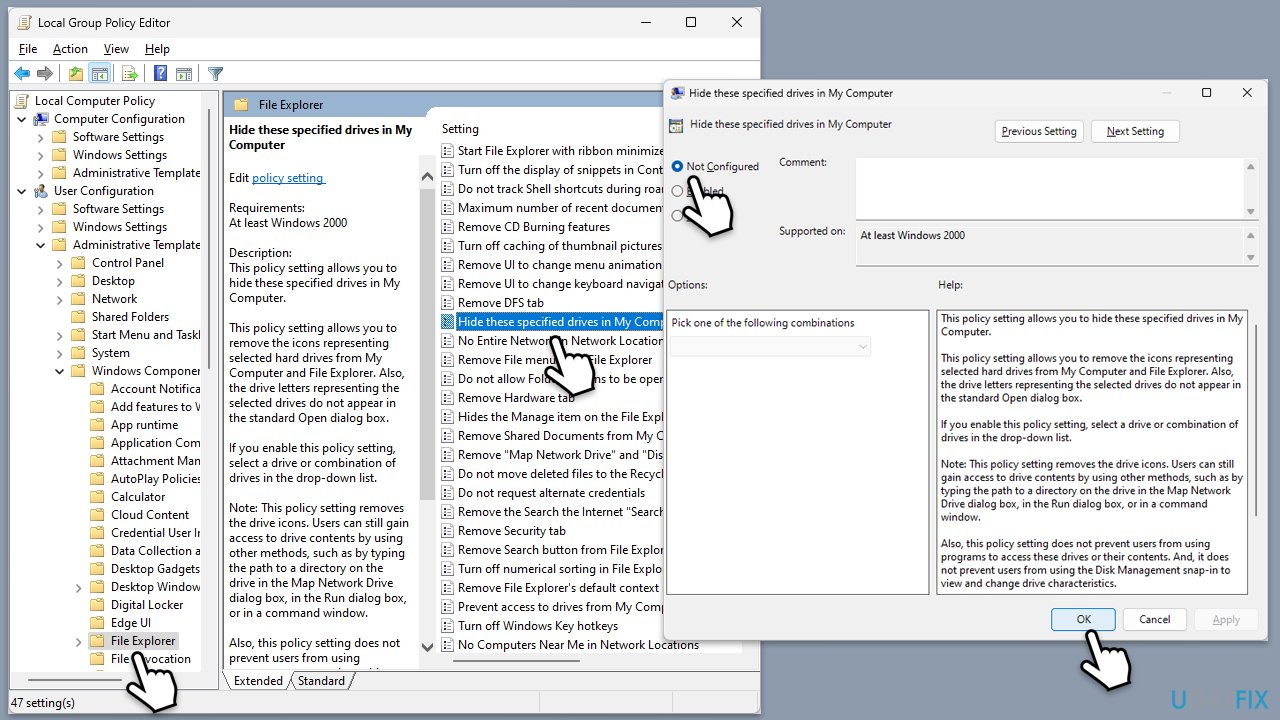
Fix 7. Edit Group Policy settings
- Type Group Policy in Windows search and press Enter.
- Navigate to User Configuration > Administrative Templates > Windows Components > File Explorer.
- Find the setting Hide these specified drives in My Computer.
- Set it to Not Configured and press OK.
- Restart your computer.
Fix 8. Reset Windows
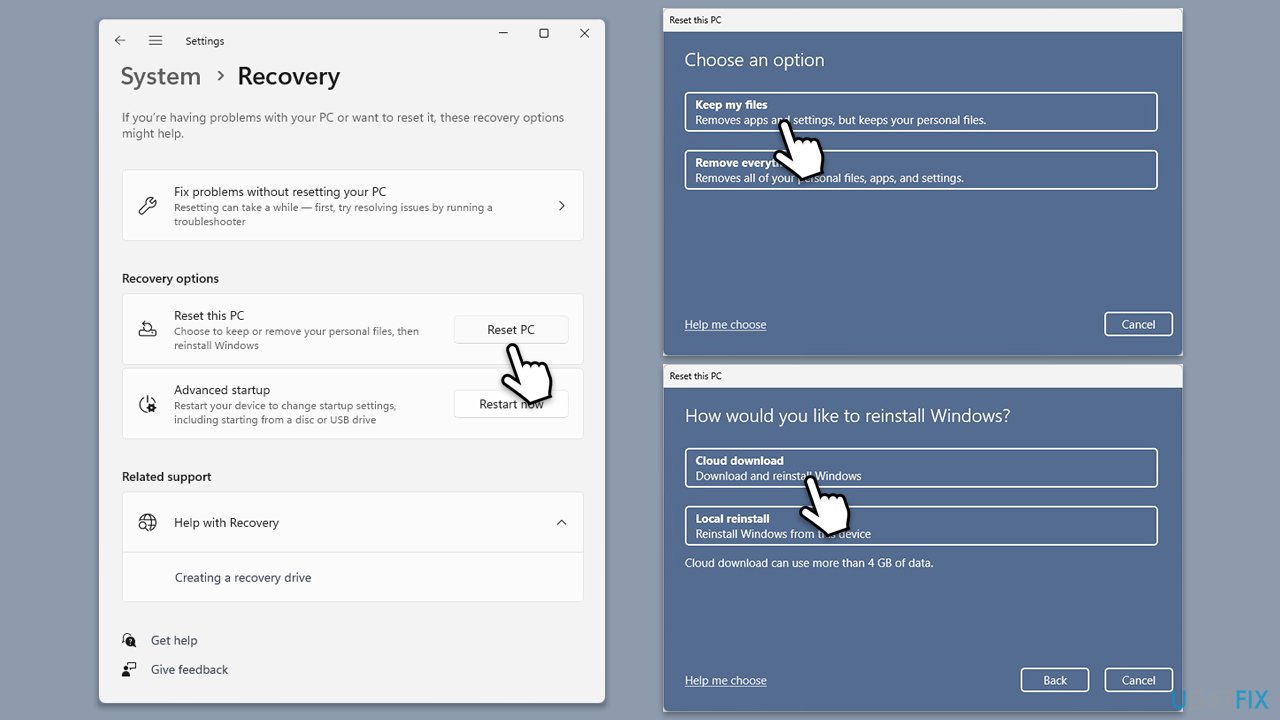
- Click on Start and pick Settings.
- Go to Windows Update/Update & Security.
- Select Advanced options.
- Under Additional options, select Recovery.
- Under Recovery options, click Reset PC.
- Select the option to Keep your files and then press Cloud download.
- Follow on-screen instructions to finish the process.
Bottom line
To resolve the issue of the C: drive not appearing in File Explorer, you can run system checks to repair corrupted files, check and modify settings in third-party software, reassign the correct drive letter, and adjust partition settings. If these solutions do not work, consider uninstalling conflicting software or using a repair and maintenance tool to help maintain your system's health.
Frequently asked questions
Your C: drive may not be visible due to incorrect drive letter assignment or the drive may be unallocated. You can use Disk Management to check and reassign the drive letter if necessary.
If your C: drive is missing, try running the disk check utility by using Command Prompt with the command 'chkdsk C: /f'. This can help identify and fix issues that may cause the drive not to appear.
To unhide your C: drive, go to Disk Management, right-click the C: drive, and select 'Change Drive Letter and Paths' to assign a letter if it's missing.




Report an issue
What's wrong with this guide? We review every report and update or remove content.
Report received — thank you. We'll review and fix it.
You need a free account to submit a report.
Be the first to comment