How to fix
CAA30190 error in Microsoft Teams
on Windows
Resolve the CAA30190 error in Microsoft Teams on Windows 10 or 11 effortlessly. Get expert-tested solutions for a seamless experience, fixed in minutes.

What causes How to fix CAA30190 error in Microsoft Teams?
- Corrupted desktop cache files
- Bugs within the app
- Conflicts with other software
- Outdated user credentials
- Incorrectly stored user credentials
Repairs Windows system files, removes malware, and restores a clean OS state — without reinstalling.
I can't use Microsoft Teams because of the "We're sorry - we've run into an issue - error code CAA30190" error. Any idea on how to resolve this?
Microsoft Teams has emerged as a vital communication and collaboration tool, especially in the contemporary remote working environment. Its extensive features facilitate seamless interaction, file sharing, and project management among team members, making it an indispensable asset for many businesses and educational institutions.
However, despite its robustness and utility, users occasionally encounter issues that hinder its optimal functionality. One such problem is the CAA30190 error, which prevents users from signing in to the application.
This error typically arises due to a confluence of factors related to the application's internal workings and the user's device environment. At its core, the CAA30190 error in Microsoft Teams is often linked to corrupted desktop cache files. These files, essential for speedy data retrieval and smoother app performance, can sometimes become corrupt, leading to login difficulties.
Additionally, general bugs within the app itself can contribute to this issue. These bugs might stem from recent updates or conflicts with other software running on the same device. Another common cause of this error is credential issues. This encompasses problems with user credentials being outdated, incorrectly stored, or mishandled by the application, thereby blocking access.
To fix the CAA30190 error code in Microsoft Teams, performing several troubleshooting steps is often necessary. It involves addressing potential cache corruption by clearing or refreshing these files. Additionally, ensuring that the app is updated to its latest version can help resolve any bug-related issues. Credential verification and update is another critical step, as it ensures that login information is current and accurately processed by the application.
For those seeking a more straightforward solution, utilizing a PC repair tool like [d1] can help rectify underlying Windows issues automatically, thereby possibly resolving the error without extensive manual intervention.
Fix 1. Clear Microsoft Teams cache files
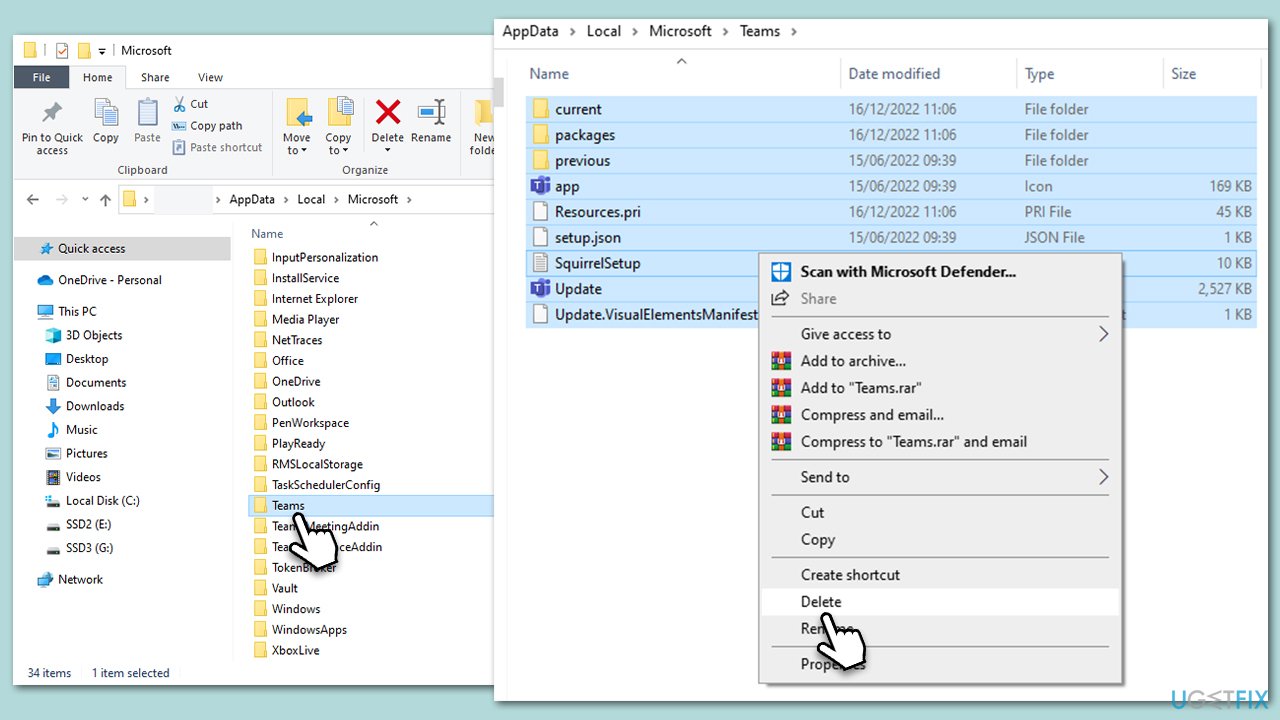
Clearing the cache removes temporary files that may be corrupt or causing issues with Teams functionality. This process helps refresh the app's data, potentially resolving the CAA30190 error.
- Make sure Teams is not running (close from the system tray or Task Manager).
- Press Win + R on your keyboard to open the Run dialog.
- Type AppData and press Enter or click OK.
- Go to the following location:
%userprofile%\appdata\local\Packages\MSTeams_8wekyb3d8bbwe\LocalCache\Microsoft\MSTeams - Delete all the files and folders located in the Teams folder.
- Start the app again.
Fix 2. Run Windows Store Apps troubleshooter
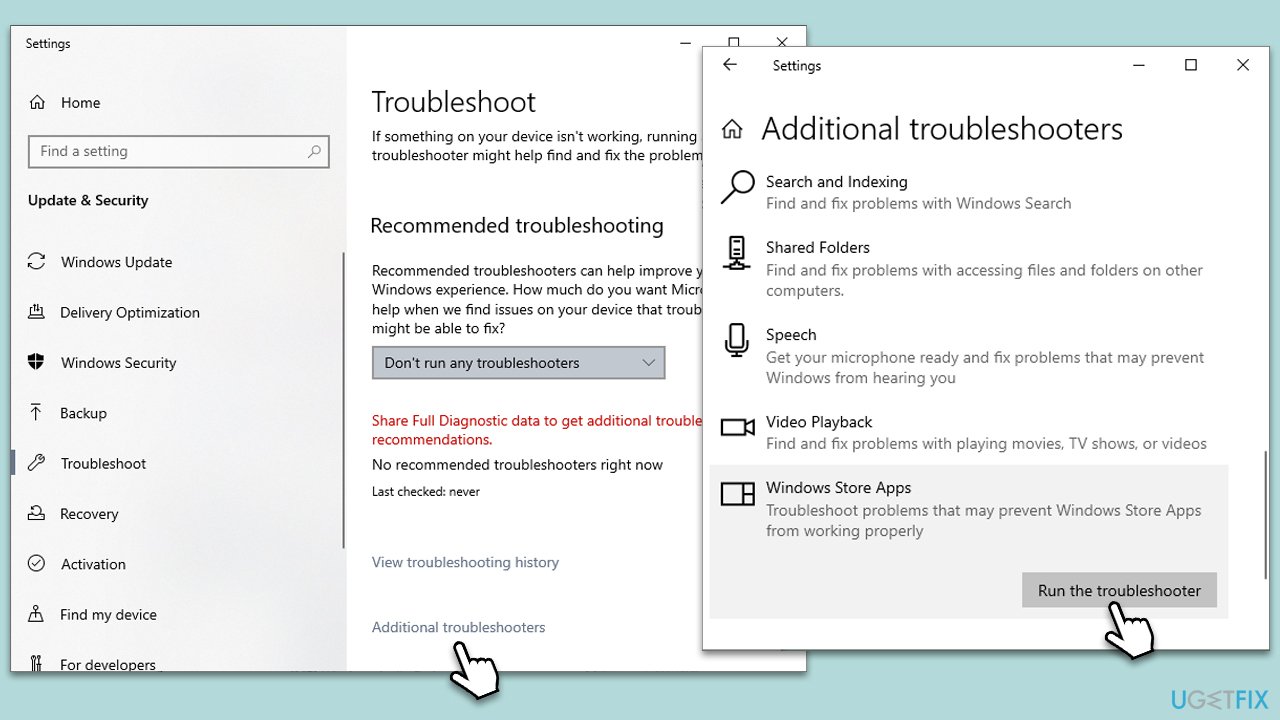
This troubleshooter identifies and fixes problems with apps downloaded from the Windows Store, including Microsoft Teams. It can resolve issues related to app performance and functionality.
- Type troubleshoot in the Windows search box and press Enter.
- Select Additional troubleshooters/Other troubleshooters.
- Scroll down to find the Windows Store Apps entry.
- Select it and click Run the troubleshooter/Run.
- Wait until the scan finishes, apply the suggested fixes, and reboot your PC.
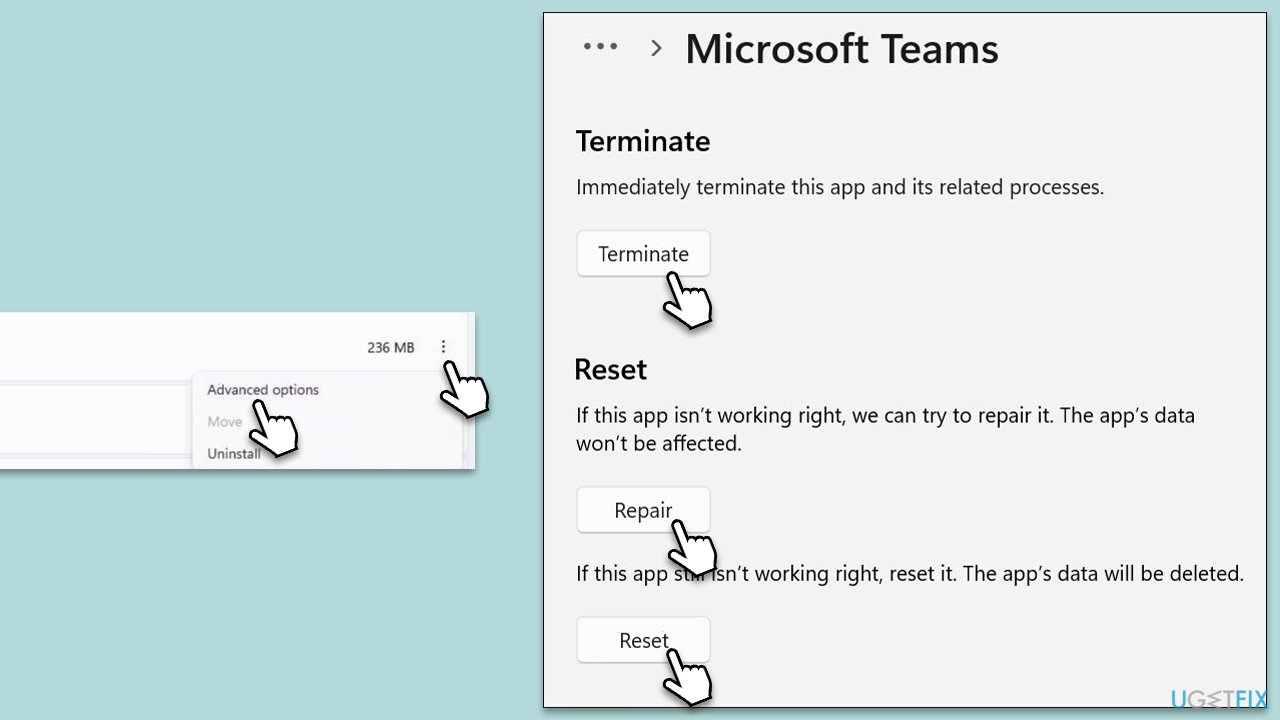
Fix 3. Repair or reset Teams [Win 11]
Repairing Teams fixes issues without affecting the app data while resetting it reinstalls the app and clears its data, which can resolve deeper issues.
- Click on Start and pick Settings.
- Go to the Apps section.
- Locate Microsoft Teams from the list.
- Click on the three vertical dots and pick Advanced options.
- Click Terminate to ensure that the app is not running.
- Under the Reset section, click Repair and see if that solved your issue.
- If not, then try the Reset option.
Fix 4. Clear Credential cache data via Credential Manager
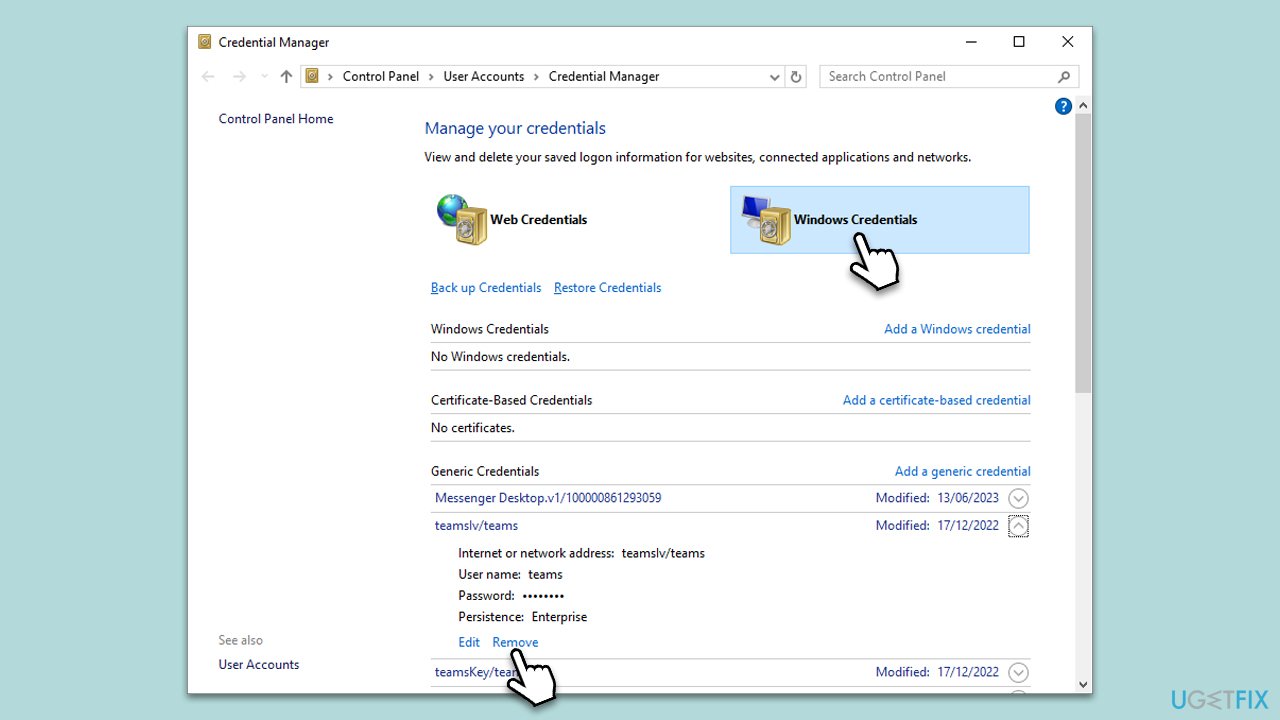
Clearing stored credentials can resolve login issues caused by outdated or corrupt credential data.
- Type Credential Manager in Windows search and press Enter.
- Select Windows Credentials.
- Locate and remove any stored credentials related to Microsoft Teams.
- Restart Teams and re-enter your login details.
Fix 5. Modify the Settings.json file
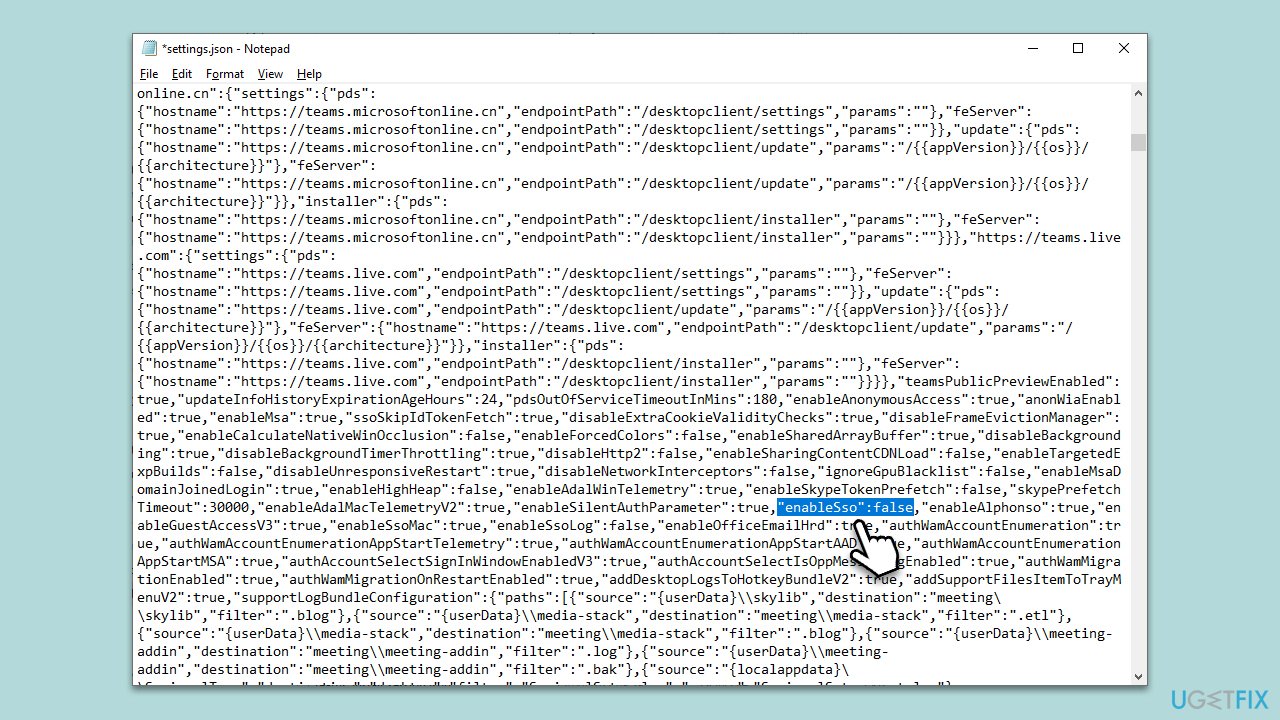
Altering specific lines in the Settings.json file can resolve issues caused by corrupted or misconfigured settings.
- Press Win + E to open File Explorer.
- Go to the following location:
C:\Users\User\AppData\Roaming\Microsoft\Teams\settings.json - Find and open the settings.json file with a text editor like Notepad.
- Locate "enableSso": true and change it to "enableSso": false.
- Save the file and restart Teams.
Fix 6. Update the app
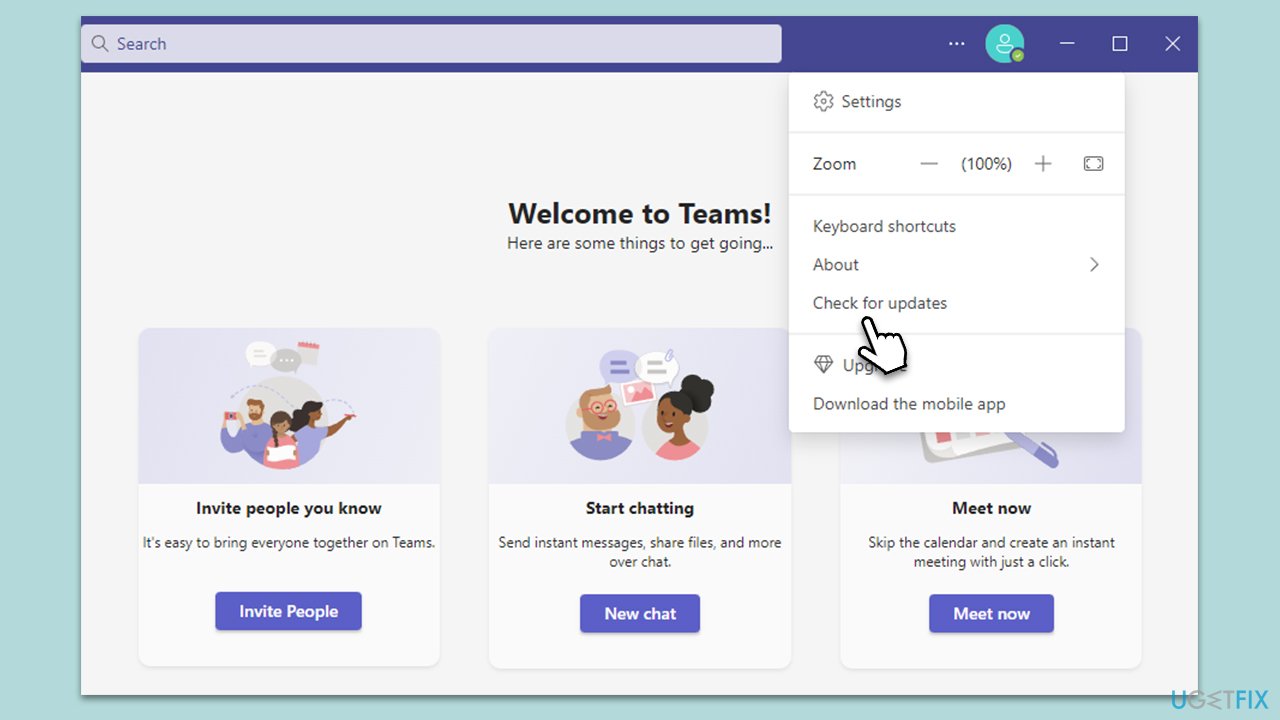
Updating the app might resolve any bugs and other issues:
- Open Microsoft Teams (ignore the error).
- At the top-right corner, next to your icon, click on three horizontal dots (⋅⋅⋅).
- Select Check for updates.
- Wait till updates are applied and restart your system.
Fix 7. Reinstall Teams
Reinstalling Teams ensures that you have a fresh, error-free installation of the app. This can be the ultimate solution if other methods fail.
- Type Control Panel in Windows search and press Enter.
- Go to Programs > Uninstall a program.
- Find Microsoft Teams, right-click, and select Uninstall.
- Follow the prompts to remove the app.
- Once done, press Win + E to open File Explorer.
- In the View tab at the top of the window, enable Hidden Files.
- Go to C:\Program Files\WindowsApps location.
- Scroll down to find the Microsoft Teams folder and delete it (alternatively, you can rename it).
- Now type %AppData% in Windows search and press Enter.
- Delete the Teams folder.
- Finally, restart your device and reinstall the app.

Bottom line
To fix the CAA30190 error in Microsoft Teams, you can clear the cache files, ensure the app is updated to the latest version, and verify your user credentials. If these steps do not resolve the issue, consider using a PC repair tool to address underlying Windows problems.
Frequently asked questions
The CAA30190 error indicates a network or authentication issue preventing Microsoft Teams from connecting properly. It often occurs when there are problems with your account credentials or network settings.
To fix the CAA30190 error on Windows 11, try clearing the Teams cache by navigating to %appdata%\Microsoft\Teams and deleting the contents of the Cache folder. Additionally, ensure your network connection is stable and that you are logged into the correct account.
Yes, reinstalling Microsoft Teams can help resolve the CAA30190 error on Windows 10 by ensuring that you have the latest version and that any corrupted files are replaced. Uninstall Teams through the Settings app and then download the latest version from the official website.




Report an issue
What's wrong with this guide? We review every report and update or remove content.
Report received — thank you. We'll review and fix it.
You need a free account to submit a report.
Be the first to comment