How to fix
Calculator app not working
on Windows
Resolve your Windows 10 or Windows 11 Calculator app issues quickly and easily with expert-tested solutions that get you back on track in minutes.

What causes How to fix Calculator app not working in Windows?
- Malfunction of the Calculator app
- Corrupted system files
- Outdated app version
- User reliance on specialized features
- Interference with workflow
Repairs Windows system files, removes malware, and restores a clean OS state — without reinstalling.
Hello. The Calculator app on my Windows laptop is not responding and not working. What should I do?
Standard calculations, scientific calculations, currency conversion, and other features are all available through the Windows Calculator software, which is a flexible and user-friendly tool. It's an essential tool that many users use for a variety of purposes. However, certain users have complained that the Calculator app does not function as intended, which can be a bothersome problem.
The Calculator app's malfunction can have a variety of effects on users. First off, it interferes with their workflow because they are unable to use a convenient tool for doing crucial calculations. This might have an effect on productivity, especially if you frequently use the Calculator app for work or school. Additionally, if the app cannot be used, time may be lost investigating the issue or looking for alternate solutions, which is frustrating and ineffective.
For users who rely on the scientific or specialized features of the Calculator app, the malfunction can have a more significant impact. It could impair their capacity to perform correct complex computations or conversions, which might result in mistakes in their work. Furthermore, the comfort and accessibility that Windows users have grown accustomed to may be compromised by the Calculator app's absence.
There are a number of alternative fixes that might be taken into consideration in order to address the Calculator app's issue. These could entail troubleshooting techniques including using the built-in Windows diagnostic tools, upgrading the app, or wiping everything clean. Users can use web-based calculators as a temporary fix or investigate alternative calculator applications that are available on the Microsoft Store.
In this guide, you will find 7 steps that should help you fix Calculator app not working in Windows. You can also run a maintenance tool like [d1] that can fix most system errors, BSODs,[ref en-1] corrupted files, and registry[ref en-2] issues. Otherwise, follow the step-by-step instructions below.

Method 1. Fix Corrupted System Files
Use Command Prompt commands to repair system file corruption:
- Open Command Prompt as administrator
- Use the following command and press Enter:
sfc /scannow
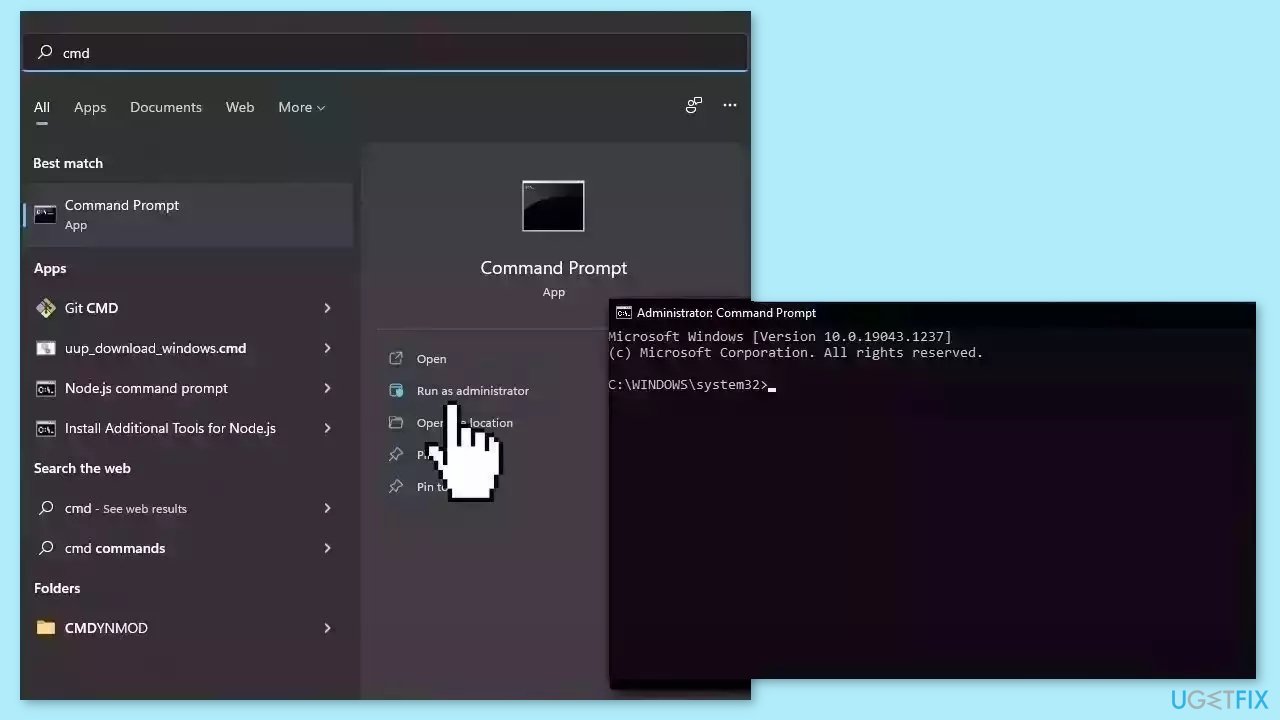
- Reboot your system
- If SFC returned an error, then use the following command lines, pressing Enter after each:
DISM /Online /Cleanup-Image /CheckHealth
DISM /Online /Cleanup-Image /ScanHealth
DISM /Online /Cleanup-Image /RestoreHealth
Method 2. Install Windows Updates
- Click Start and select Settings.
- Go to the Windows Update section.
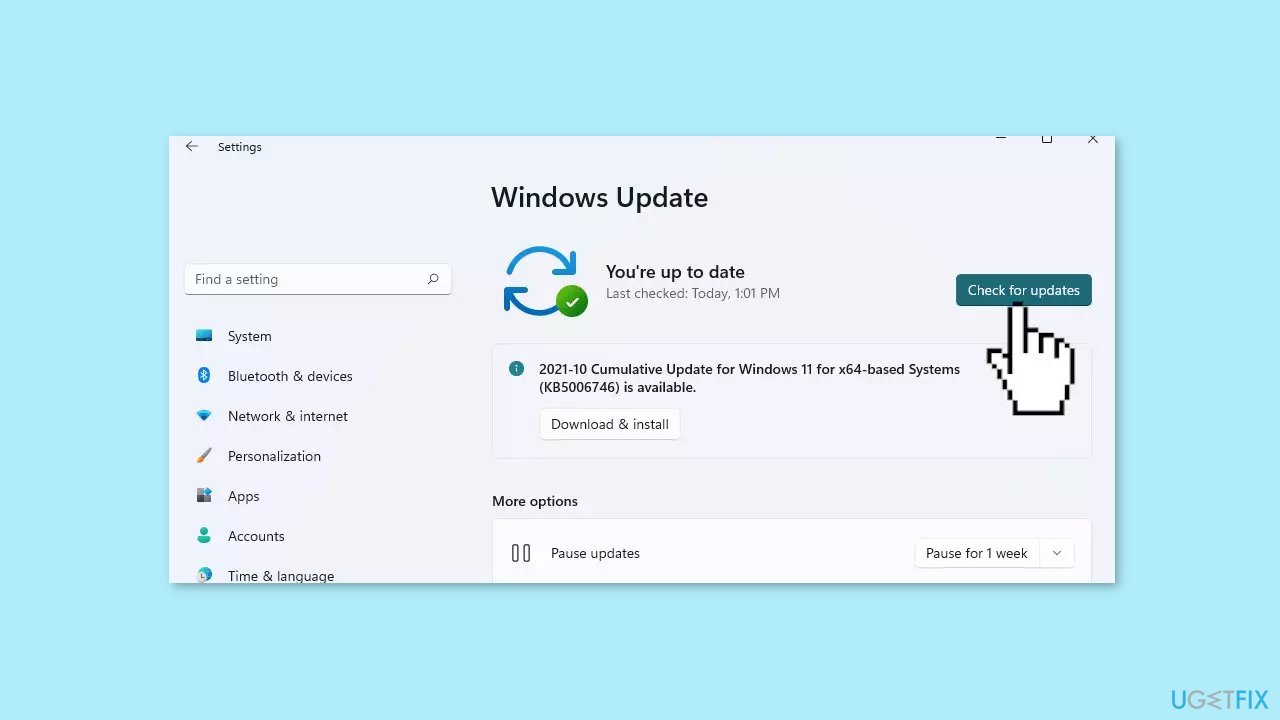
- Click Check for updates and wait.
- Go to the Advanced options and install optional updates.
- Reboot your system.
Method 3. Re-register Windows Apps
- Press the Windows key + S on your keyboard to bring up the search tool.
- Look for PowerShell in the search results.
- Right-click on Windows PowerShell from the search results.
- Choose Run as administrator.
- If prompted, click Yes to allow PowerShell to make changes on your device.
- Once the application is open, copy and paste the following script into it.
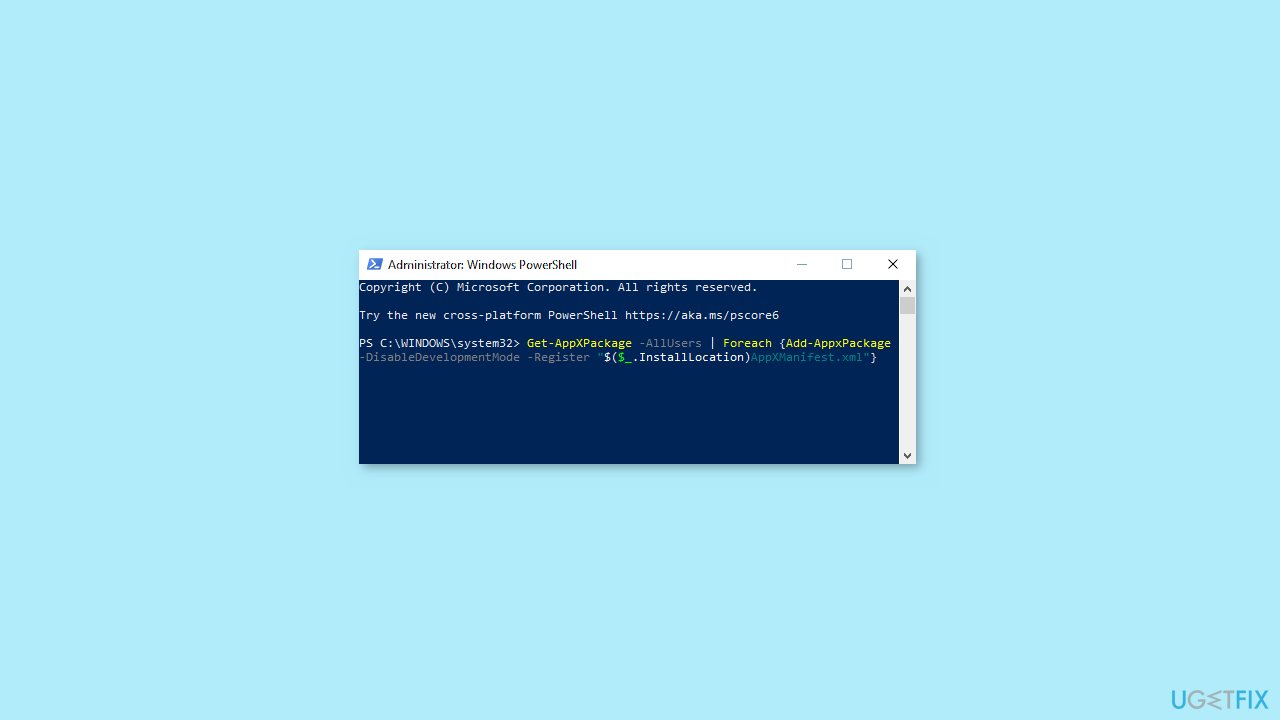
- Press the Enter key on your keyboard to execute it: Get-AppXPackage -AllUsers | Foreach {Add-AppxPackage -DisableDevelopmentMode -Register "$($_.InstallLocation)\AppXManifest.xml"}
- After the process of re-registering the Windows 10 apps has finished, try using the Calculator app again.
Method 4. Reset the Calculator App
- Click on the Start menu and choose Settings.
- Click on the Apps tile and wait for all of your applications to appear on the list. This may take longer depending on how many apps you have installed on your system.
- Type calculator into the search field to locate the app.
- Click on Calculator and choose the Advanced options link.
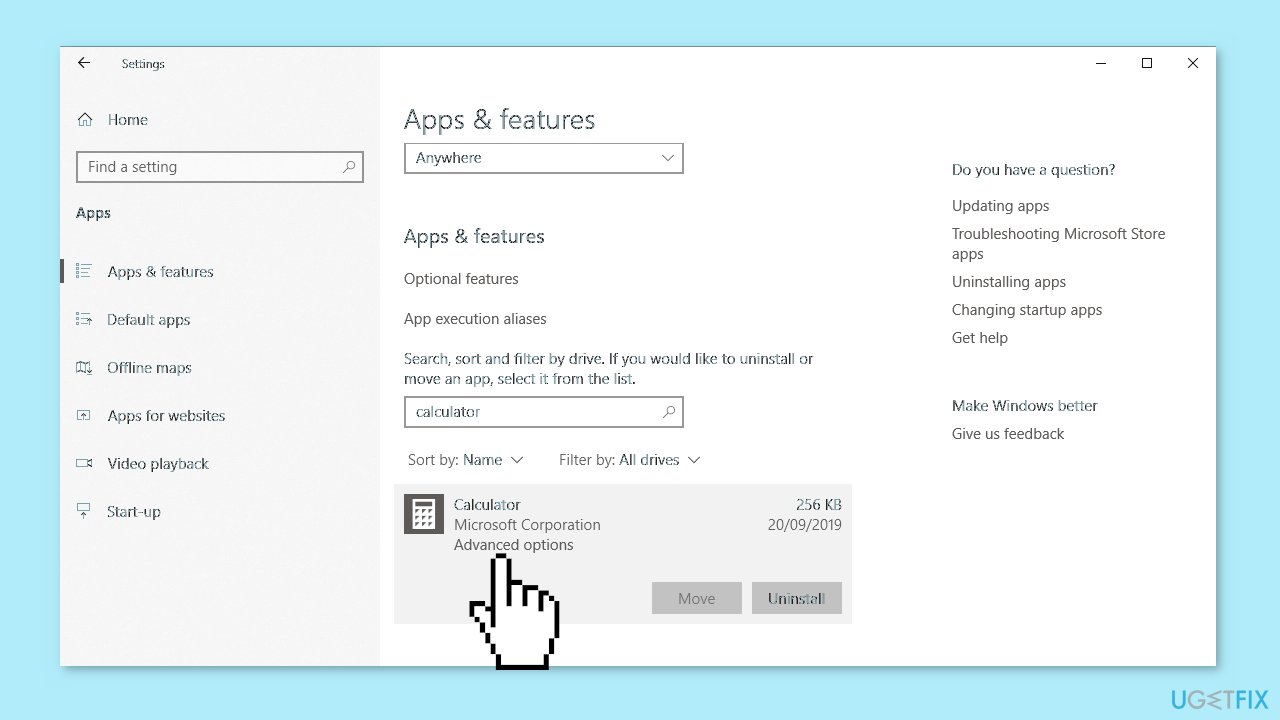
- Scroll down until you see the Reset section, then simply click on the Reset button and wait for the process to finish.
- Test if you can use the Calculator app properly.
Method 5. Reinstall the Calculator App
- Click on the Start menu and choose Settings. You can alternatively use the Windows key + I shortcut as well.
- Click on the Apps tile and wait for all of your applications to appear on the list. This may take longer depending on how many apps you have installed on your system.
- Type calculator into the search field to locate the app.
- Click on Calculator and click on the Uninstall button. Wait for the process to finish, then exit out of Settings.
- Press the Windows key + S on your keyboard to bring up the search utility, then type in Microsoft Store. Launch the Microsoft Store app from the search results by clicking on it once.
- Click on the Search button in the top-left of the window, then type in calculator.
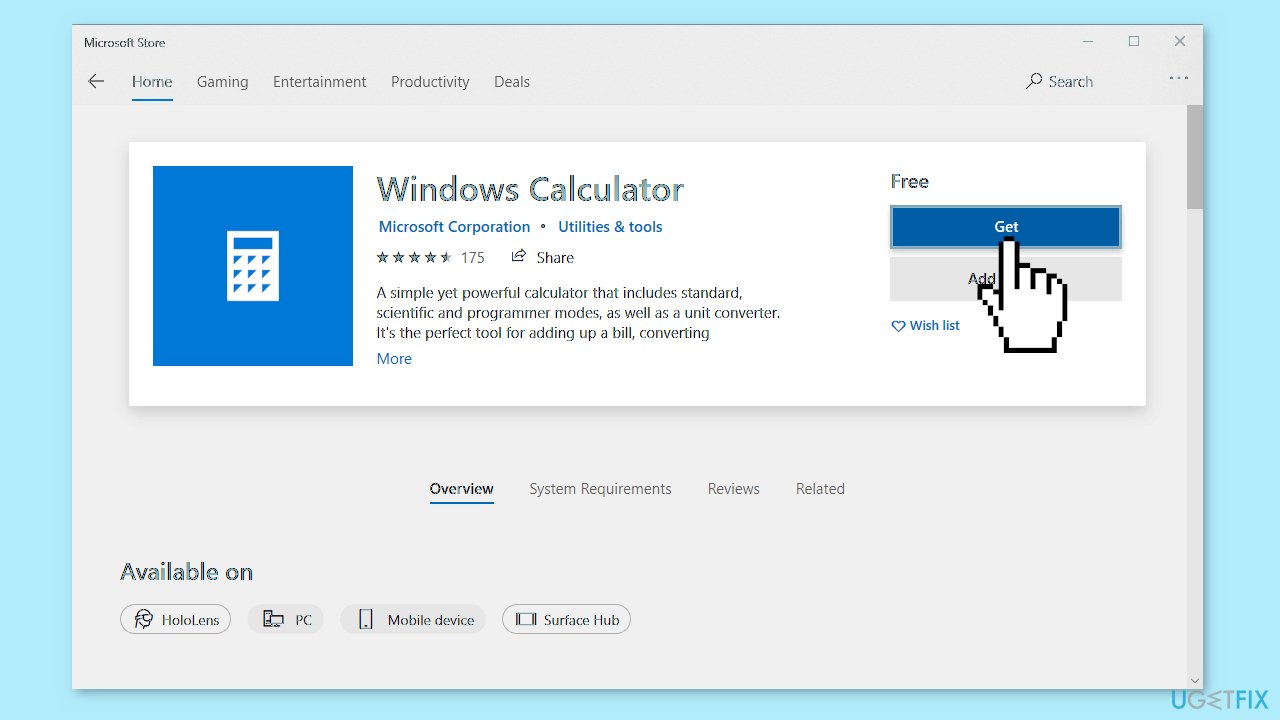
- Choose Windows Calculator by Microsoft and click on the Get button.
- Click the Install button and wait for the app to download and install. You should be able to use it without any issues now.
Method 6. End the RuntimeBroker.exe Process
- Right-click on any empty space in your taskbar, then click on Task Manager. Alternatively, you can use the Ctrl + Shift + Esc keyboard shortcut.
- If your Task Manager has launched in compact mode, click on the More details button located in the bottom-left of the window. This will expand everything to the full view.
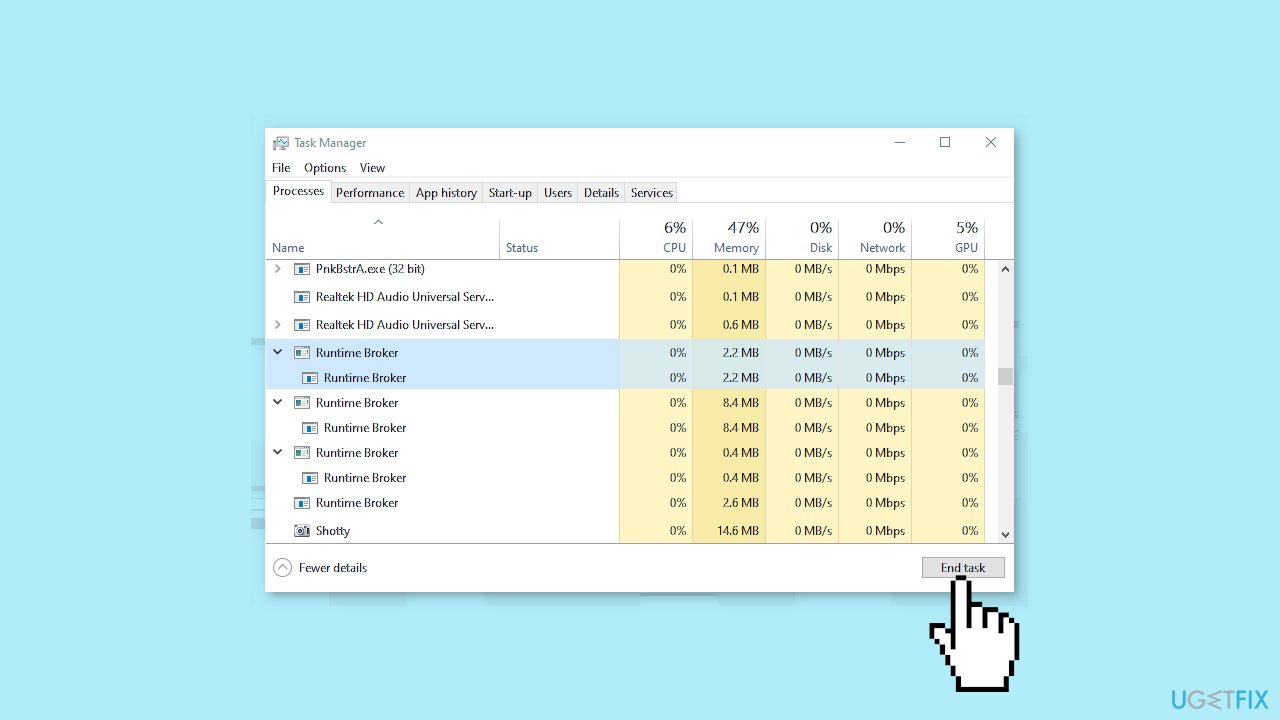
- Make sure to stay on the Processes tab. Scroll down until you see an instance of Runtime Broker.
- Right-click on Runtime Broker and choose End task. If you have multiple instances of this process, make sure to repeat this on all of them.
- Check if you can successfully use the Calculator app now.
Method 7. Run the Windows Store Apps Troubleshooter
- Open the Start menu.
- Click the gear-shaped icon to launch the Settings app.
- In the Settings app, click on the System tab.
- Click on Troubleshoot.
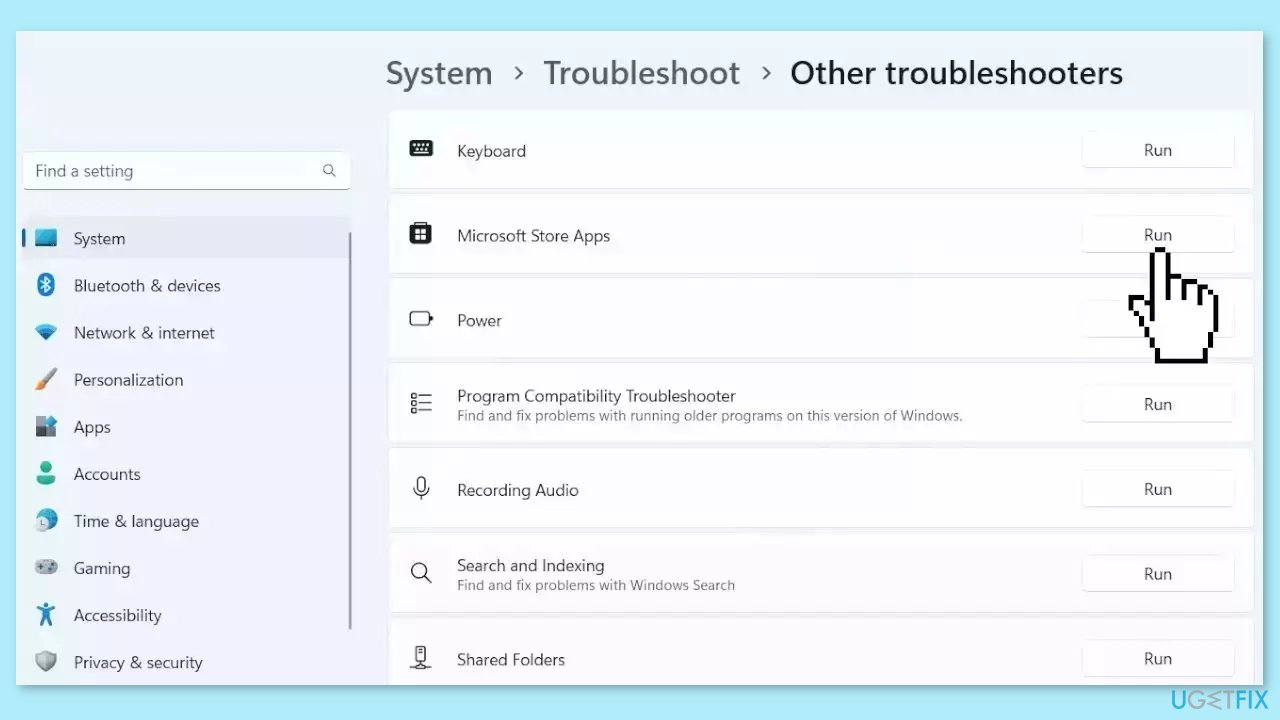
- Select Other troubleshooters.
- Look for Microsoft Store Apps and click the Run button next to it.
- Follow the on-screen prompts to run the troubleshooter.
Bottom line
To fix the Calculator app not working in Windows, you can try repairing corrupted system files using Command Prompt, upgrading the app, or using built-in Windows diagnostic tools. If these methods do not resolve the issue, consider using web-based calculators or alternative calculator applications from the Microsoft Store.
Frequently asked questions
Try resetting the Calculator app by going to Settings > Apps > Apps & features, selecting Calculator, and clicking on 'Advanced options' to find the reset option.
You can repair the Calculator app by navigating to Settings > Apps > Apps & features, selecting Calculator, and choosing 'Repair' to fix any underlying issues.
A blank screen in the Calculator app may be resolved by updating your Windows 10 system or reinstalling the app from the Microsoft Store.




Report an issue
What's wrong with this guide? We review every report and update or remove content.
Report received — thank you. We'll review and fix it.
You need a free account to submit a report.
Be the first to comment