How to fix
Calendar on taskbar is showing Chinese characters
on Windows
Resolve the issue of Chinese characters appearing on the Windows 10 or 11 taskbar calendar with expert-tested solutions. Fixed in minutes!

What causes How to fix Calendar on taskbar is showing Chinese characters?
- Windows language settings misconfiguration
- Unintentional changes by users
- Third-party software adjustments
- Glitches in system updates
- Calendar app errors
Repairs Windows system files, removes malware, and restores a clean OS state — without reinstalling.
For some reason, my calendar on taskbar is showing Chinese characters. Was I hacked or something? How can I make it use English again?
Some Windows users experience an unexpected change in their taskbar calendar, where dates appear in Chinese characters. While this sudden shift often leads to concerns about security breaches, the issue typically stems from misconfigured language settings rather than hacking.
Understanding the issue
The taskbar calendar on Windows computers is designed to be a quick reference tool for date and time. However, if the system’s language settings are inadvertently altered, the calendar display can switch to another language, such as Chinese. This change can occur through manual settings adjustments, software installations that modify regional settings, or system updates that reset certain preferences.
Why it happens
Windows language settings misconfiguration is the most common cause of this issue. These settings can sometimes be changed unintentionally by users exploring system settings, or through third-party software that adjusts system preferences without clear notifications. Additionally, glitches in system updates or the Calendar app may lead to incorrect language display.
Resolving Calendar on taskbar shown in Chinese characters issue
Fixing Chinese characters in the taskbar calendar involves a few straightforward steps: adjusting the language settings back to the preferred language, ensuring that the time and date synchronization is correct, or repairing or resetting the Calendar app to its default state. These methods should help you fix the problem quickly.
Seeing Chinese characters in your taskbar calendar is usually nothing more than a settings mishap. With simple changes to the language settings and app configurations, the issue can typically be resolved quickly. For those who want computer maintenance, repair, and optimization to be automatic, we highly recommend trying [d1] utility.
Fix 1. Synchronize time and date
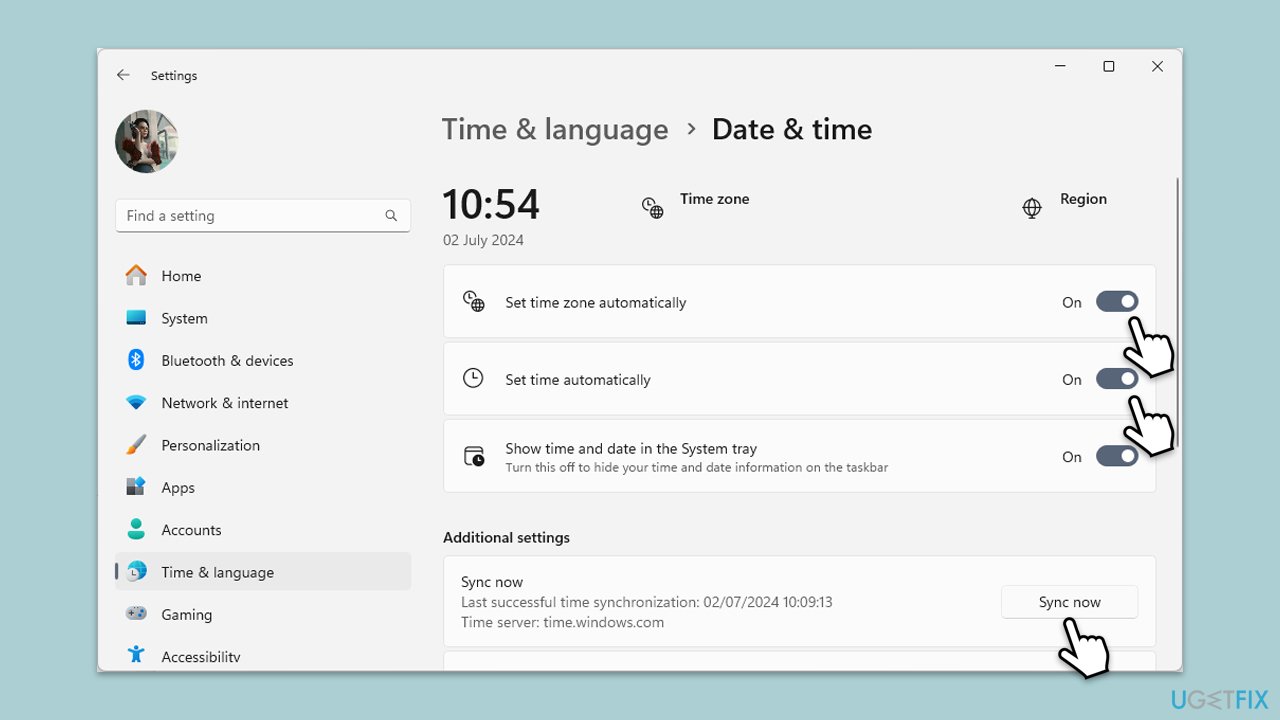
Correcting the system's time and date can resolve issues caused by incorrect or out-of-sync system clocks, which may affect app behavior including the calendar.
- Right-click on the time and date in the taskbar.
- Select Adjust date/time.
- Enable the option Set time zone automatically.
- Turn on the option Set time automatically.
- Click on Sync now under Additional settings.
Fix 2. Disable additional calendars
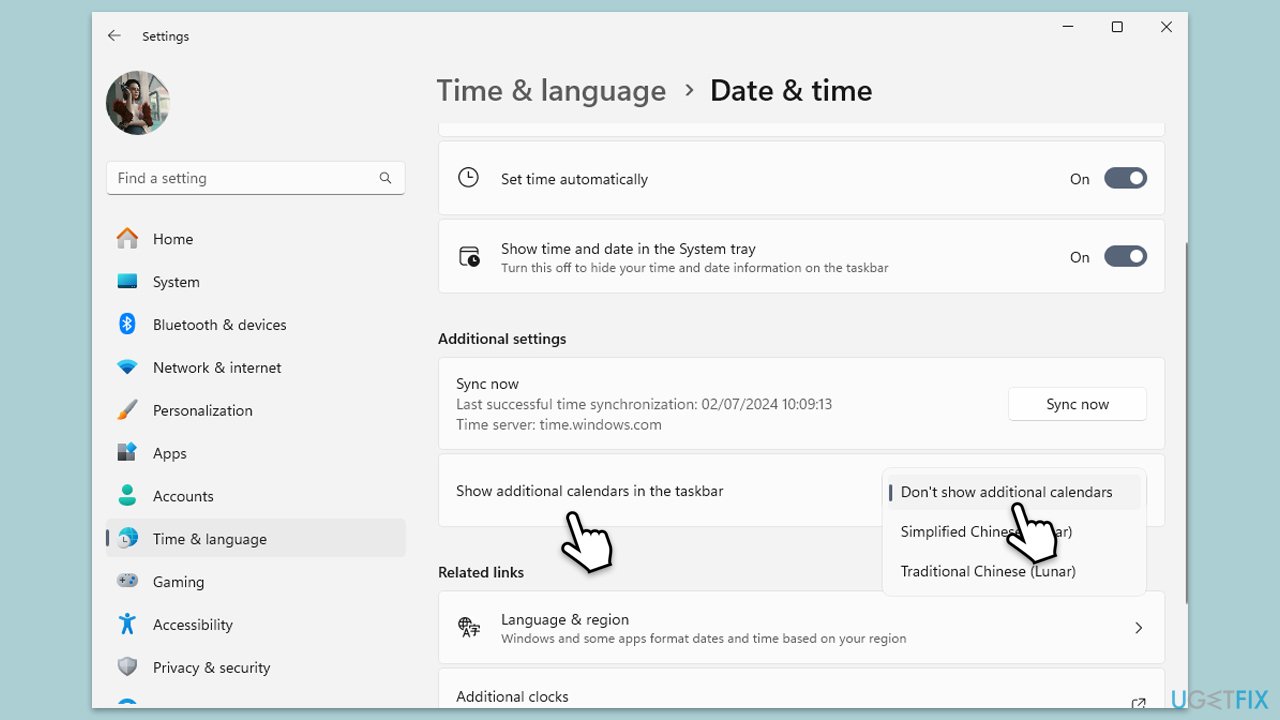
Sometimes, the issue could be related to the setting where additional calendars can be shown. Disable it as follows:
- Press Win + I to open Settings.
- Navigate to Date & time.
- Scroll down to Additional settings section.
- Under Show additional calendars in the taskbar, select Don't show additional calendars from the drop-down menu.
- Restart your computer to apply the changes.
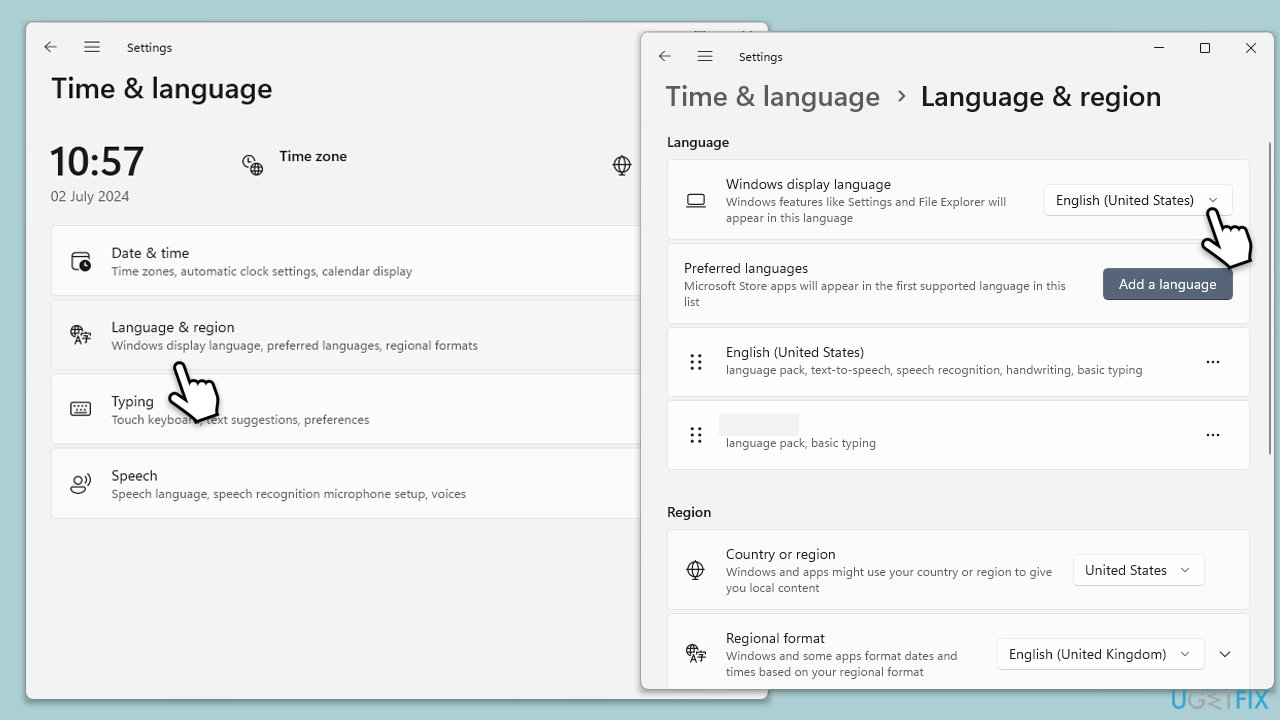
Fix 3. Check regional settings
Ensuring that your regional settings match your location and language preferences can help align all system displays, including the calendar, with your expected language.
- Open Settings.
- Navigate to Time & Language.
- Click on Language & Region.
- Confirm or change your Country or region to match your preferred locale.
- Check the Regional format to ensure it matches your preferred format.
Fix 4. Repair or reset the Calendar app
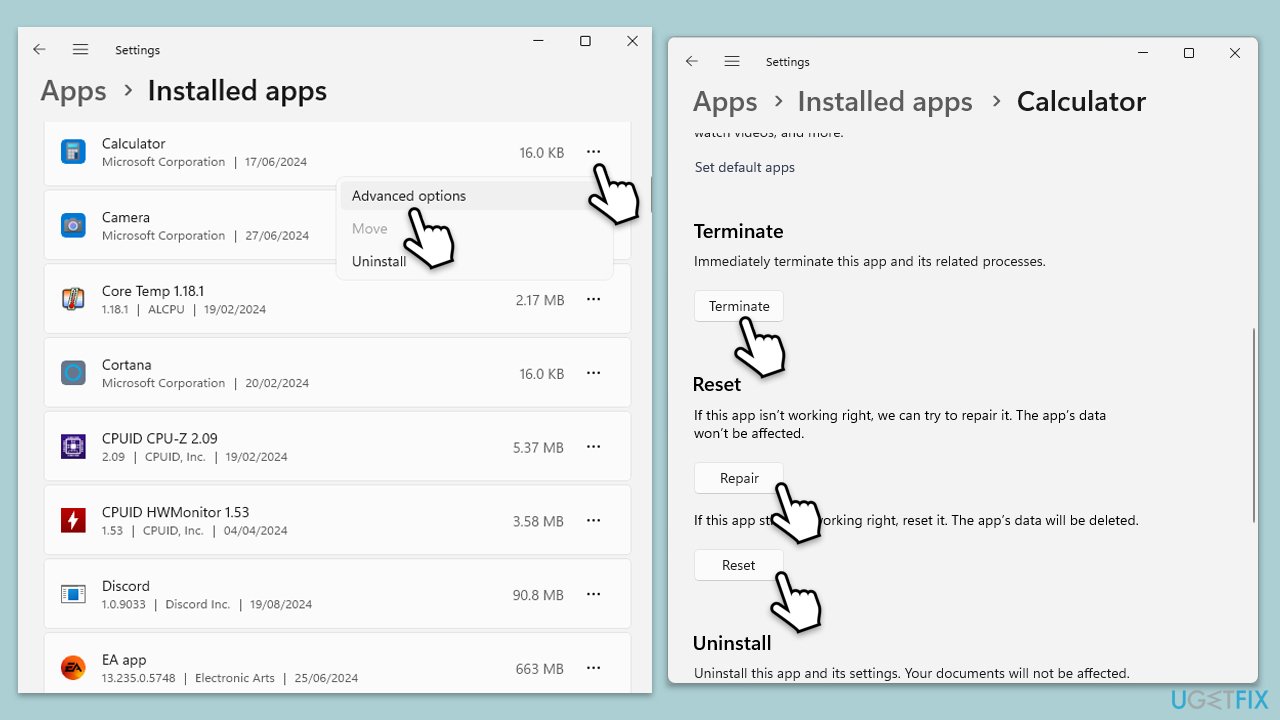
Repairing or resetting the Calendar app can fix any errors within the app itself that might be causing it to display information in the wrong language.
- Open Settings.
- Go to Apps > Installed apps.
- Find the Calendar app in the list.
- Select Advanced options.
- Scroll down and click Terminate.
- First, click on Repair and see if that resolves the situation.
- If it doesn't try using the Reset option.
Fix 5. Repair corrupted files
Corrupted system files can be the cause of many malfunctions on Windows, so make
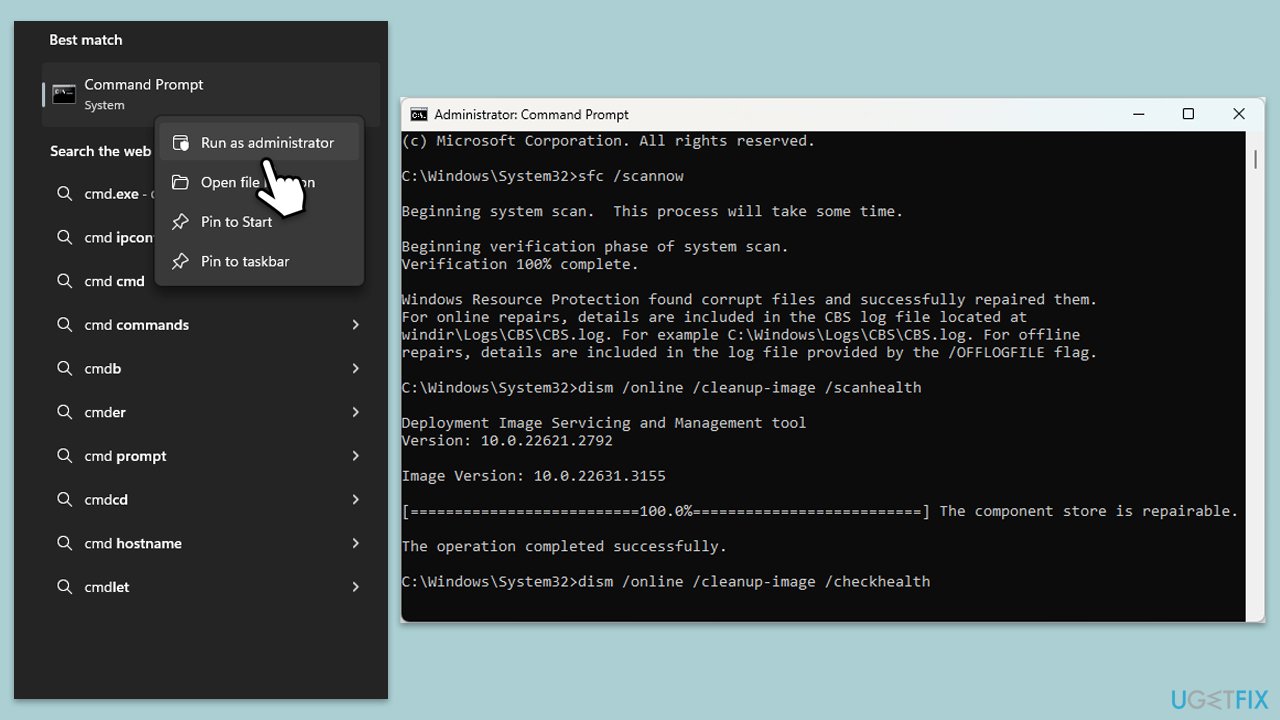
- Type cmd in Windows search.
- Right-click on Command Prompt and pick Run as administrator.
- User Account Control will ask whether you want to allow changes – click Yes.
- Copy and paste this command and hit Enter:
sfc /scannow - Wait for the scan to finish.
- As soon as it finishes, Windows will report whether integrity violations were found and if they could be fixed. Regardless of the outcome, use these commands next, pressing Enter after each:
Dism /Online /Cleanup-Image /CheckHealth
Dism /Online /Cleanup-Image /ScanHealth
Dism /Online /Cleanup-Image /RestoreHealth - Close down the Command Prompt and restart your device.
Fix 6. Update Windows
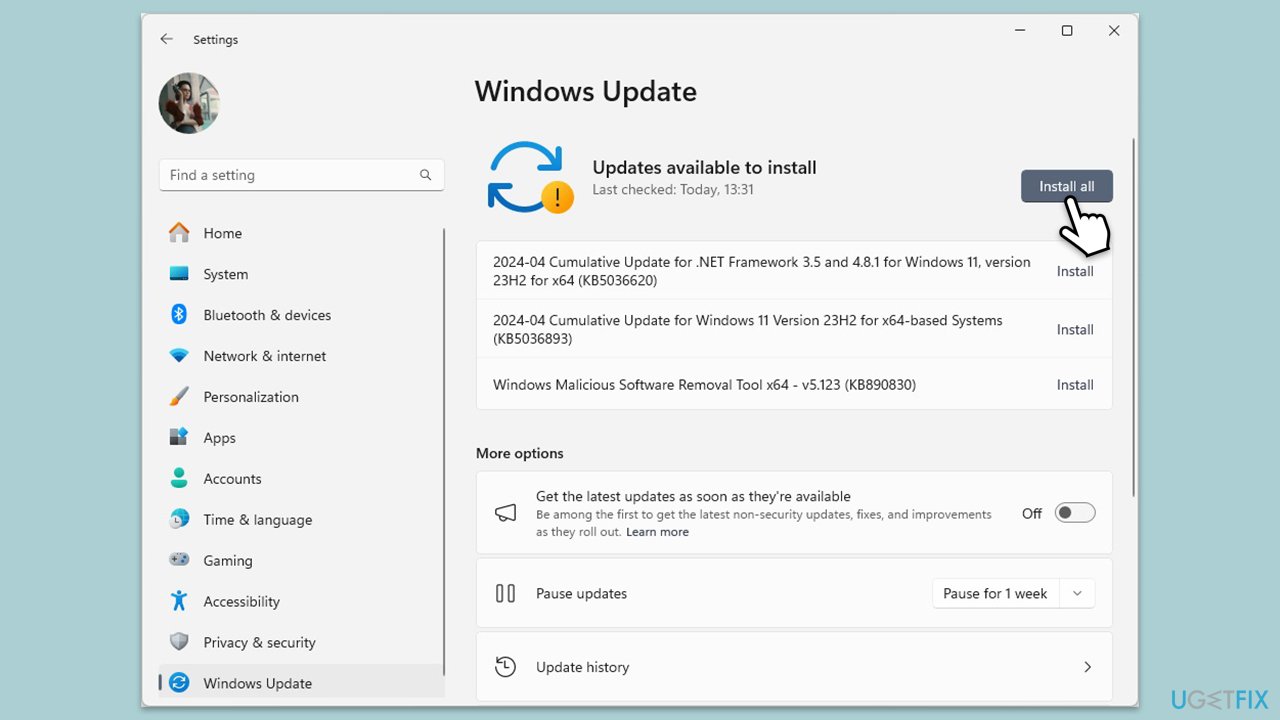
Updating Windows can resolve underlying OS issues that might be causing language display problems in system apps like the Calendar.
- In Windows search, type Updates and press Enter.
- Click Check for updates or Install updates and wait till Windows installs update.
- Make sure you also install all optional updates if they are available.
- To implement the changes, reboot your computer.
Bottom line
To resolve the issue of the calendar displaying Chinese characters, you can adjust the language settings back to English, ensure that the time and date synchronization is correct, or repair/reset the Calendar app. If these methods do not work, consider seeking additional support or using a utility for maintenance and optimization.
Frequently asked questions
This issue may occur due to incorrect language settings or a corrupted system file. Check your language settings and ensure that the region is set to your preferred language.
You can change the taskbar Calendar language by going to Settings, selecting Time & Language, and then Region. Make sure to set the correct language and region to resolve the issue.
If changing the language settings doesn't help, try running the System File Checker tool to repair any corrupted files that might be causing the Calendar to display incorrect characters.




Report an issue
What's wrong with this guide? We review every report and update or remove content.
Report received — thank you. We'll review and fix it.
You need a free account to submit a report.
Be the first to comment