How to fix
Camera app error 0x200F4246 (0x80040154)
on Windows
Resolve the Camera app error 0x200F4246 (0x80040154) in Windows 10 or 11 effortlessly. Get expert-tested solutions for quick fixes!

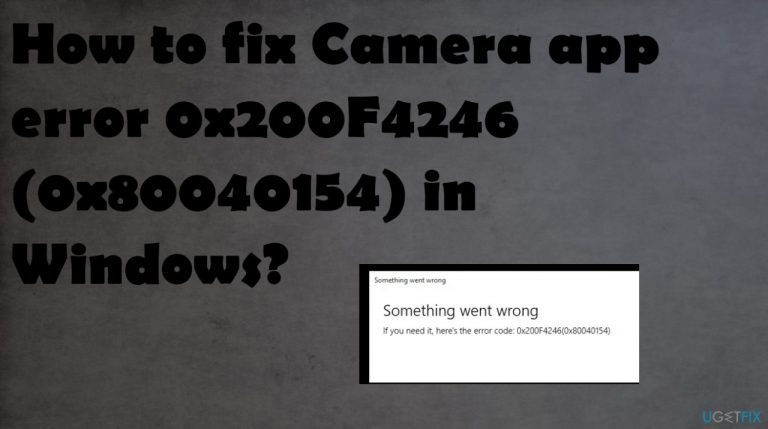
What causes How to fix Camera app error 0x200F4246 (0x80040154) in Windows?
- System bug
- Application issue
- Outdated camera drivers
- Windows Update issues
- Anti-virus compatibility issues
- Camera permissions settings
Repairs Windows system files, removes malware, and restores a clean OS state — without reinstalling.
Hello. I have issues with the inbuilt camera app on Windows. The camera app shows the error 0x200F4246 on the screen and it appears when the app fails to work properly. The error is not explaining anything and the only indication is "something wrong". I run Windows 10 on the computer. Can you help?
Windows machines have issues with various functions and features of the OS. It is not perfect, and bugs occur due to various reasons. The particular Windows 10 issues can be related to problems with third-party applications, system damage, malware[ref en-1] infections. It is common to experience errors when the update fails or has bugs that require patching.
Camera app error 0x200F4246 (0x80040154) in Windows gets reported by various users.[ref en-2] The issue occurs when users try to use the webcam application or just turn it on. The Camera app cannot find the webcam for use and delivers the error indicating that something is wrong. The program fails to work, and the attempt gets terminated.
The error can be caused by a system bug or an issue with the application itself. Driver issues[ref en-3] are pretty common, and these issues with system files can lead to other problems. Outdated camera drivers in particular can trigger the "something wrong" issue. This is one of the common reasons behind the Windows issues.
The problem with Camera app error 0x200F4246 (0x80040154) code can occur due to the Windows Update issues when the latest upgrade is not installed or installed without particular files that are needed for the proper launch of programs. Anti-virus solutions can trigger issues with the machine when the OS and the program have compatibility issues.
Permissions for the camera often lead to problems with webcam usage and other applications. The occurrence of these problems might indicate that those settings are not right. The app needs to be permitted to use the camera, so the process can be smooth. It is not difficult to fix and alter.
As for the issues with system files, you can fix Camera app error 0x200F4246 (0x80040154) in Windows issue by running [d1]. This app can find affected files, data that need repairing due to corruption or alterations. This is a quick solution to the problem. If you cannot fix the issue easily, you can go through the steps below.
Method 1. Run the troubleshooter
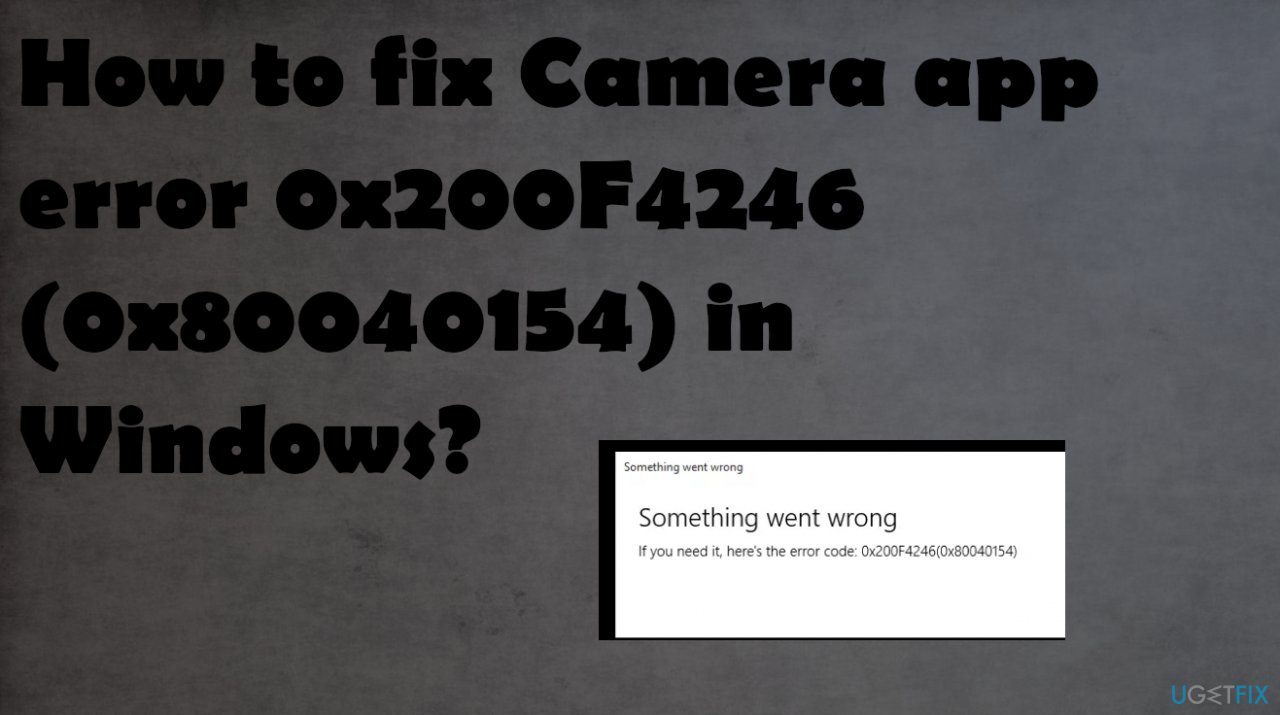
- Click Start, search Troubleshoot Settings, and open it.
- Hit Advanced troubleshooters.
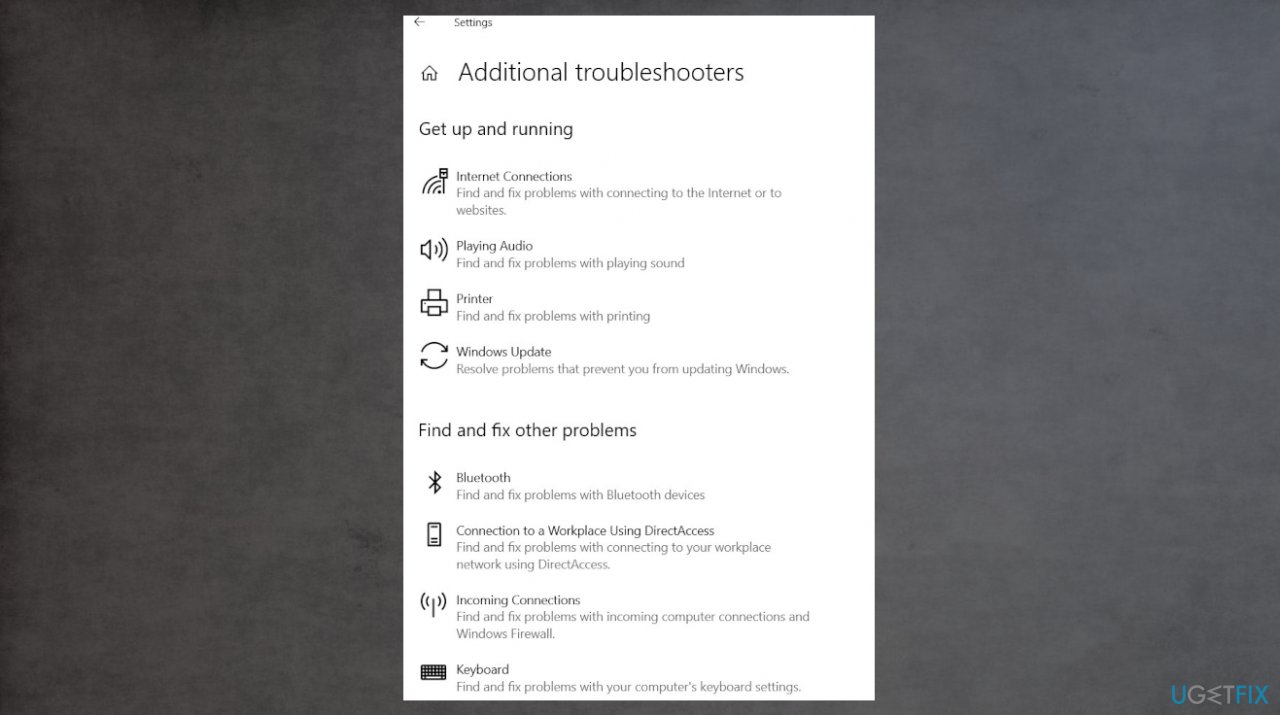
Camera app error 0x200f4246 troubleshooters - Under Find and fix other problems, scroll down and select Windows Store Apps.
- Click on the Run the troubleshooter option.
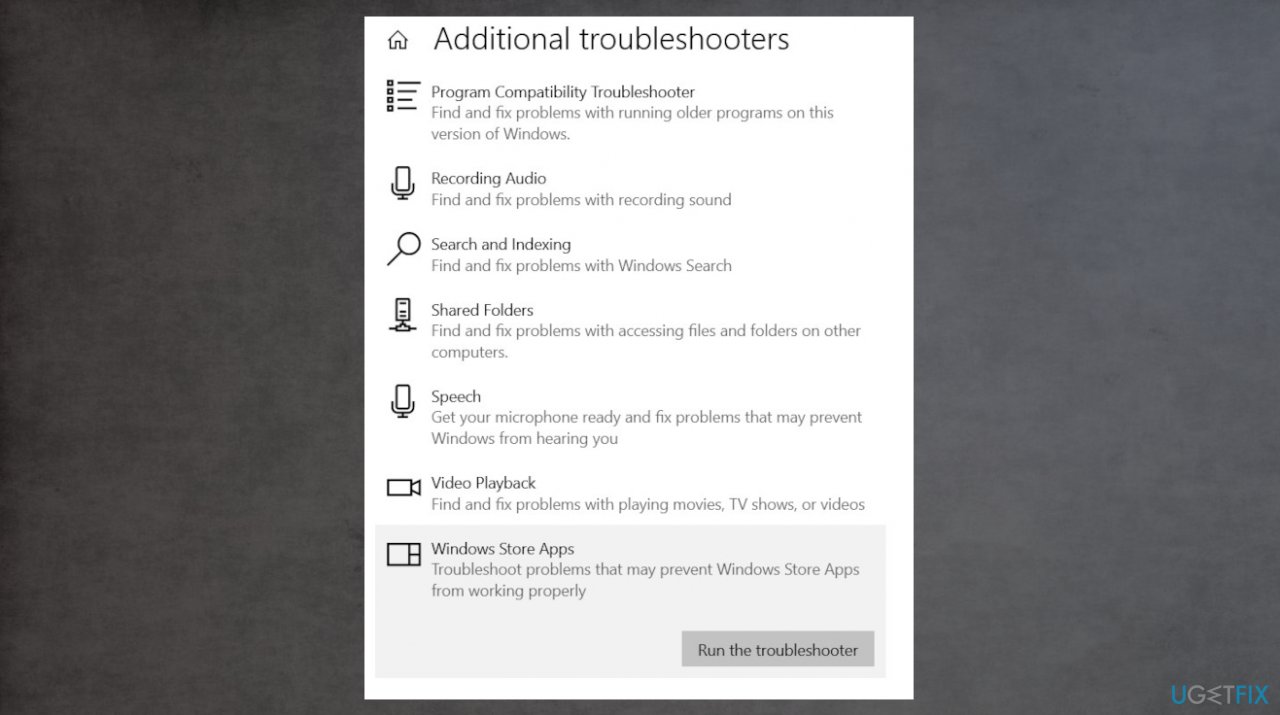
Camera app error 0x200f4246 windows store apps - Click on Open Apps and Features.
- Click on the Camera app and select Advanced Options.
- This will take you to the window that contains action choices for the Camera application.
- Scroll down and click on the Reset option.
- After the reset try to launch the app again.
Method 2. Check Privacy settings
- Press Start + I button on the keys to open the Settings window.
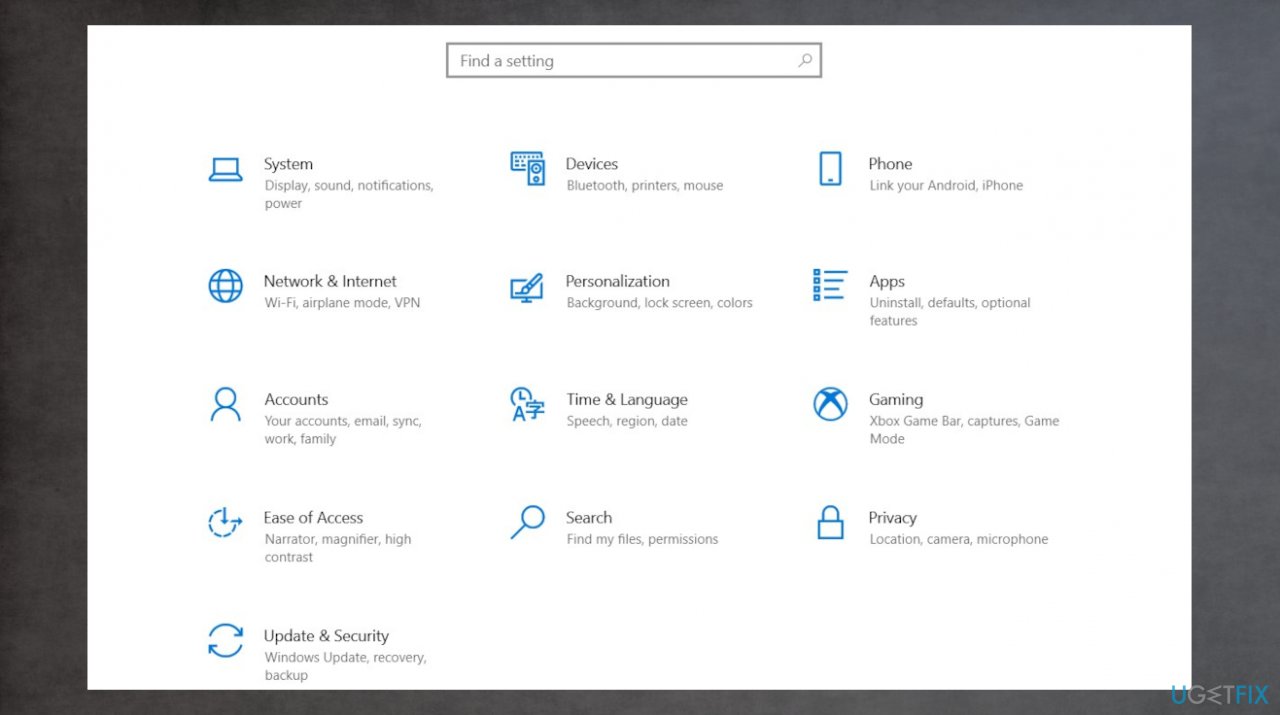
Camera app error 0x200f4246 settings - Find and click on the Privacy (Location, camera).
- Shift to Camera from General on the left-hand pane.
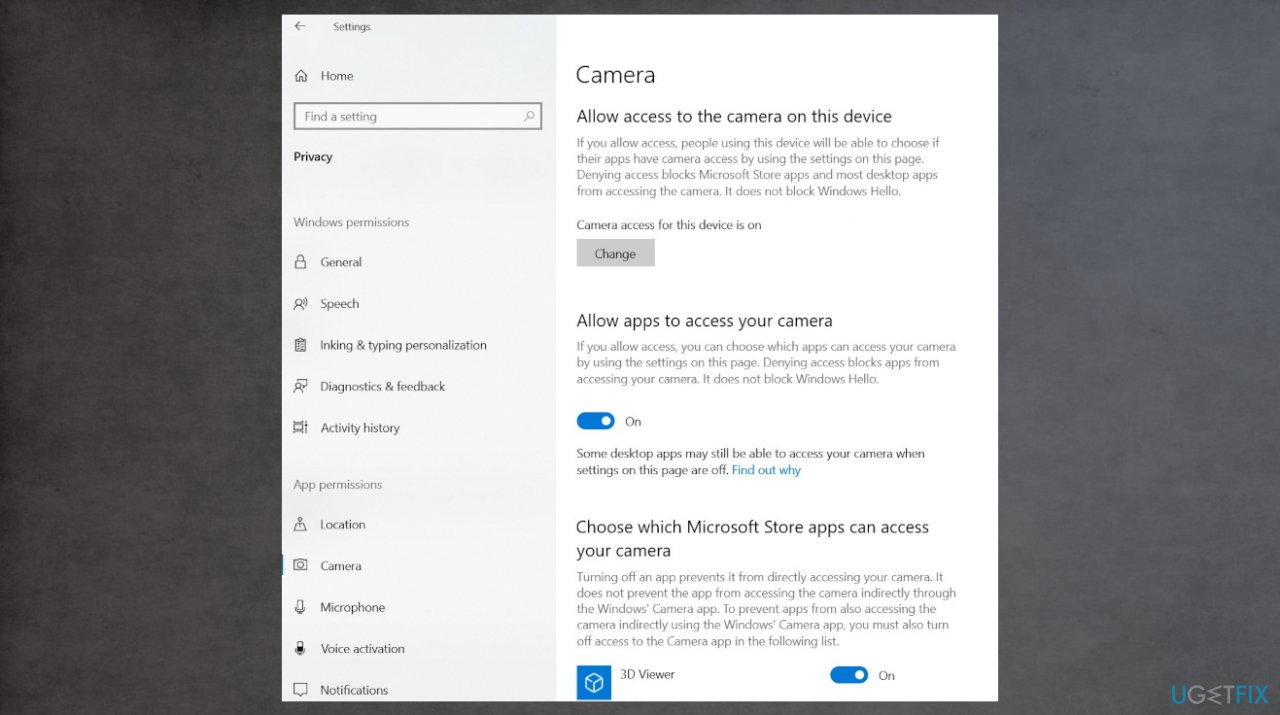
Camera app error 0x200f4246 camera settings - There is a toggle under Allow apps use my camera hardware.
- Make sure the toggle is switched to On.
Method 3. Uninstall or reinstall drivers
- Right-click on the Start button in the bottom left.
- Choose Device Manager from the list.
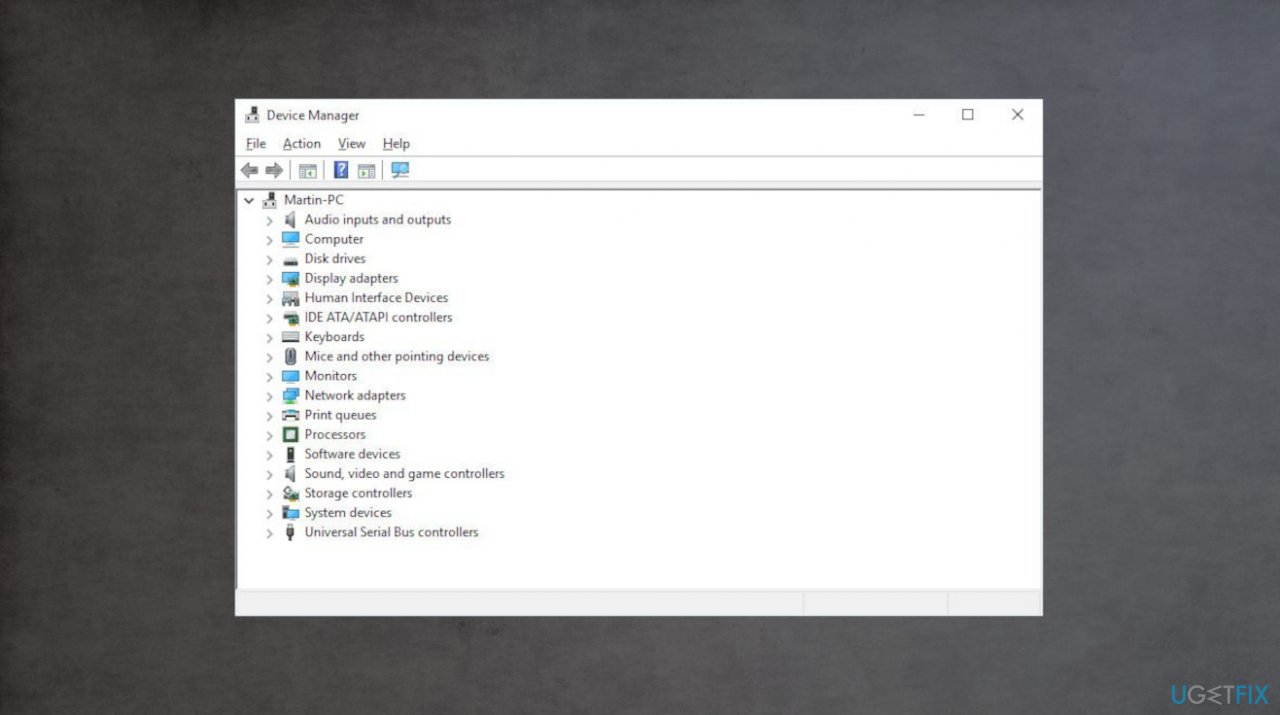
Camera app error 0x200f4246 device managers - Open Cameras or Sound, video and game controllers on the right-hand pane to find your webcam.
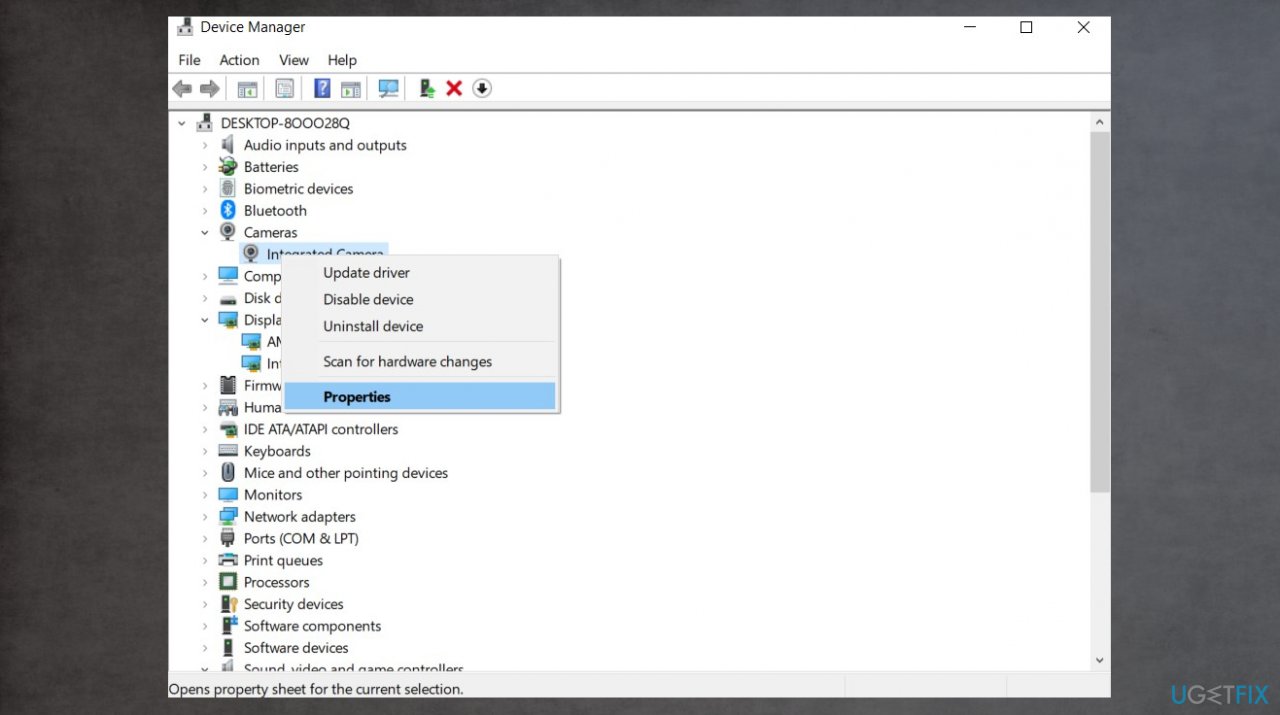
Camera app error 0x200f4246 driver properties - Right-click on the webcam and choose Properties from the menu.
- Select the Driver tab and click on Uninstall.
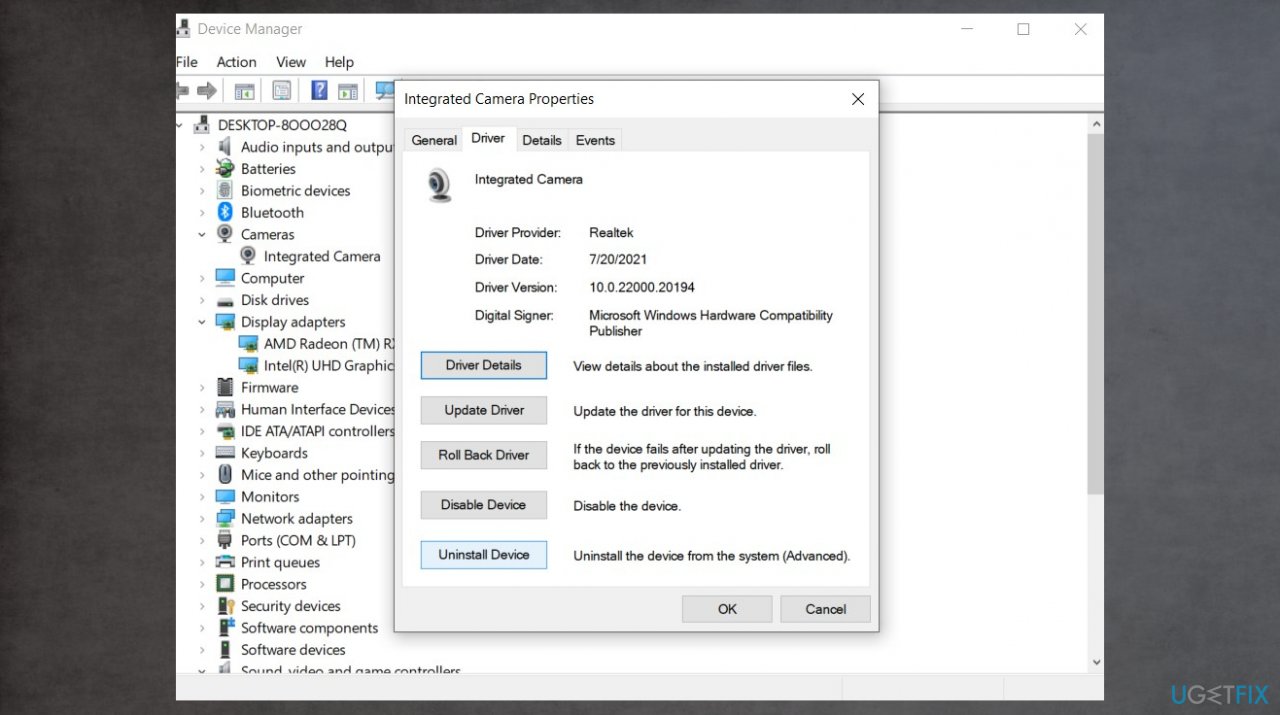
Camera app error 0x200f4246 driver settings - Choose to Delete the driver software for this device.
- Click on OK to confirm.
Method 4. Reinstall Camera app
- Right-click on the Start button in the bottom left corner of the screen.
- Choose Windows PowerShell (Admin) from the context menu.
- Type Get-AppxPackage *Microsoft.WindowsCamera* | Remove-AppxPackage and press Enter.
- Wait for the process to end.
- Open Microsoft Store.
- Find and download the Windows Camera app.
- Install the app.
Bottom line
To fix Camera app error 0x200F4246 (0x80040154), you can run system checks, update camera drivers, ensure Windows is fully updated, check anti-virus settings, and adjust camera permissions. If these solutions do not resolve the issue, consider seeking further technical support.
Frequently asked questions
This error typically occurs due to missing or outdated camera drivers, incorrect app permissions, or conflicts with other applications. Ensuring your camera drivers are updated and checking the app permissions can help resolve the issue.
To update your camera drivers in Windows 11, open Device Manager, locate your camera under 'Imaging devices', right-click it, and select 'Update driver'. You can also visit the manufacturer's website for the latest drivers.
In Windows 10, go to Settings > Privacy > Camera, and ensure that 'Allow apps to access your camera' is turned on. Also, check that the Camera app has permission to access the camera.




Report an issue
What's wrong with this guide? We review every report and update or remove content.
Report received — thank you. We'll review and fix it.
You need a free account to submit a report.
Be the first to comment