How to fix
Camera app error 0XA00F425C
on Windows
Resolve the Camera app error 0XA00F425C in Windows 10 and 11 effortlessly. Follow our expert-tested guide to fix it in minutes, with screenshots!

What causes How to fix Camera app error 0XA00F425C in Windows?
- Out-of-date camera drivers
- Software conflicts
- Corrupted system files
- Hardware issues
Repairs Windows system files, removes malware, and restores a clean OS state — without reinstalling.
Hello. Every time I try to use the Camera app in Windows, I receive the 0XA00F425C error. Is there a way to fix this?
The Camera app is a built-in Windows application that allows users to capture photos and videos using their computer's integrated or external camera devices. It offers a quick and easy way to take pictures or record videos without the need for additional software.
The Camera app error code 0xA00F425C typically indicates a problem with the system's camera functionality. This error can be caused by a variety of factors, such as out-of-date camera drivers,[ref en-1] software conflicts, or corrupted system files. When users encounter this error, it can have a number of consequences for their experience.
For starters, they will be unable to use the Camera app to take photos or record videos. This can be especially aggravating for users who rely on the Camera app for tasks like video conferencing, live streaming, or simply capturing memorable moments. Other applications or services may be unable to access the camera as a result of the error, causing inconvenience in a variety of scenarios.
Several potential solutions for the 0xA00F425C camera app error can be investigated. These may include updating the camera driver to the most recent version, installing all Windows updates, checking for software conflicts, troubleshooting hardware issues, and repairing corrupted system files.
In this guide, you will find 6 steps that should help you fix Camera app error 0XA00F425C in Windows. You can also use a maintenance tool like [d1] that can fix most system errors, BSODs,[ref en-2] corrupted files, and registry[ref en-3] issues. Otherwise, follow the step-by-step instructions below.
Solution 1. Run the Camera Troubleshooter
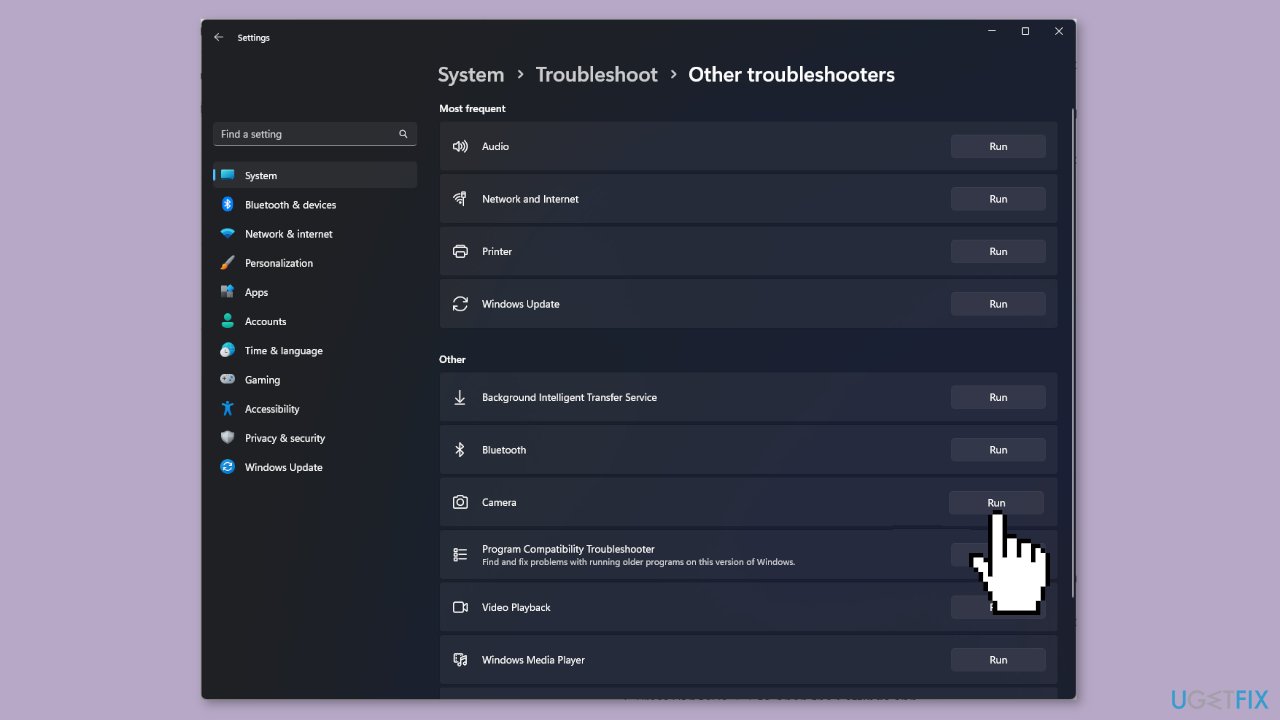
- Press the Windows key + I to open the Settings app.
- Go to System.
- Click on Troubleshoot.
- Click on Other troubleshooters.
- Under Other, locate Camera.
- Click on Run.
- Follow the onscreen instructions to complete the process.
Solution 2. Recreate the Camera Roll Folder
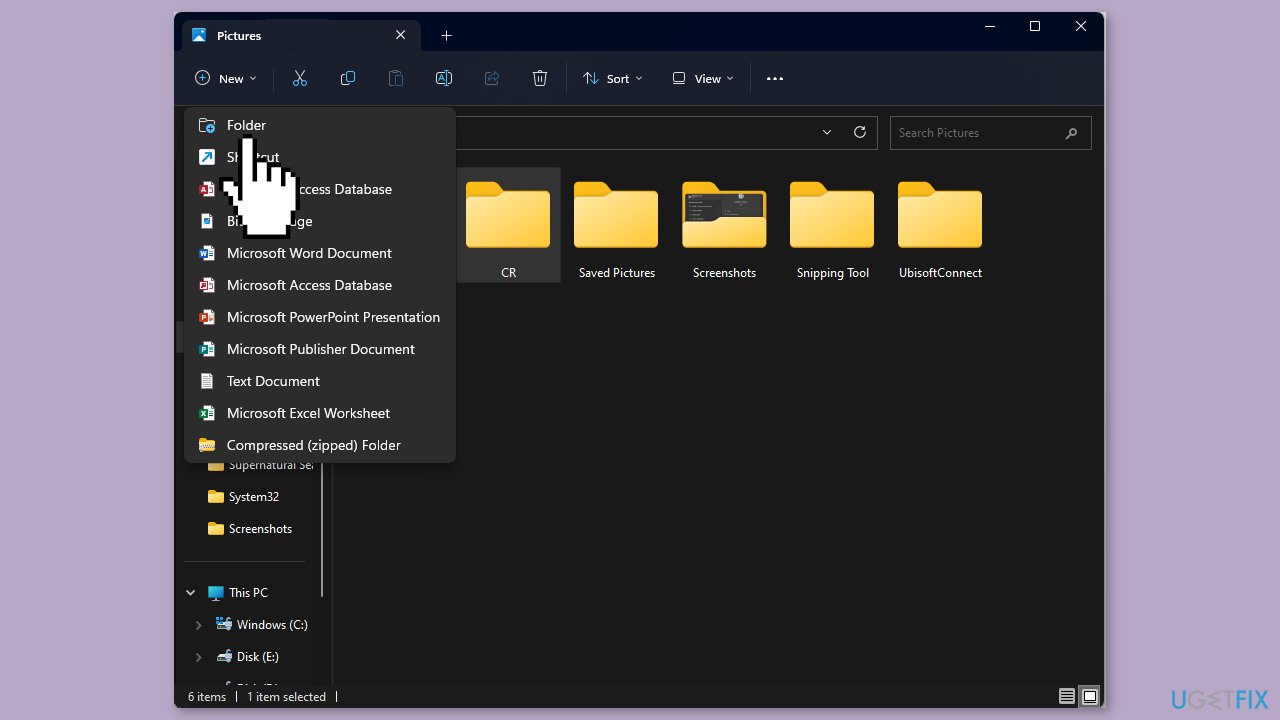
- Press the Windows key + E to open File Explorer.
- Locate the Pictures folder from the Quick Access column in the left pane.
- Select New and choose Folder to create a new folder.
- Name the folder Camera Roll.
- Launch the Camera app.
- Check if the issue is resolved.
Solution 3. Update Camera Driver
- Press the Windows key + R to open the Run window.
- Type devmgmt.msc and click OK to open the Device Manager.
- Locate and click on Cameras to expand the category.
- Right-click on the camera driver and select Update driver.
- Click on Search automatically for drivers.
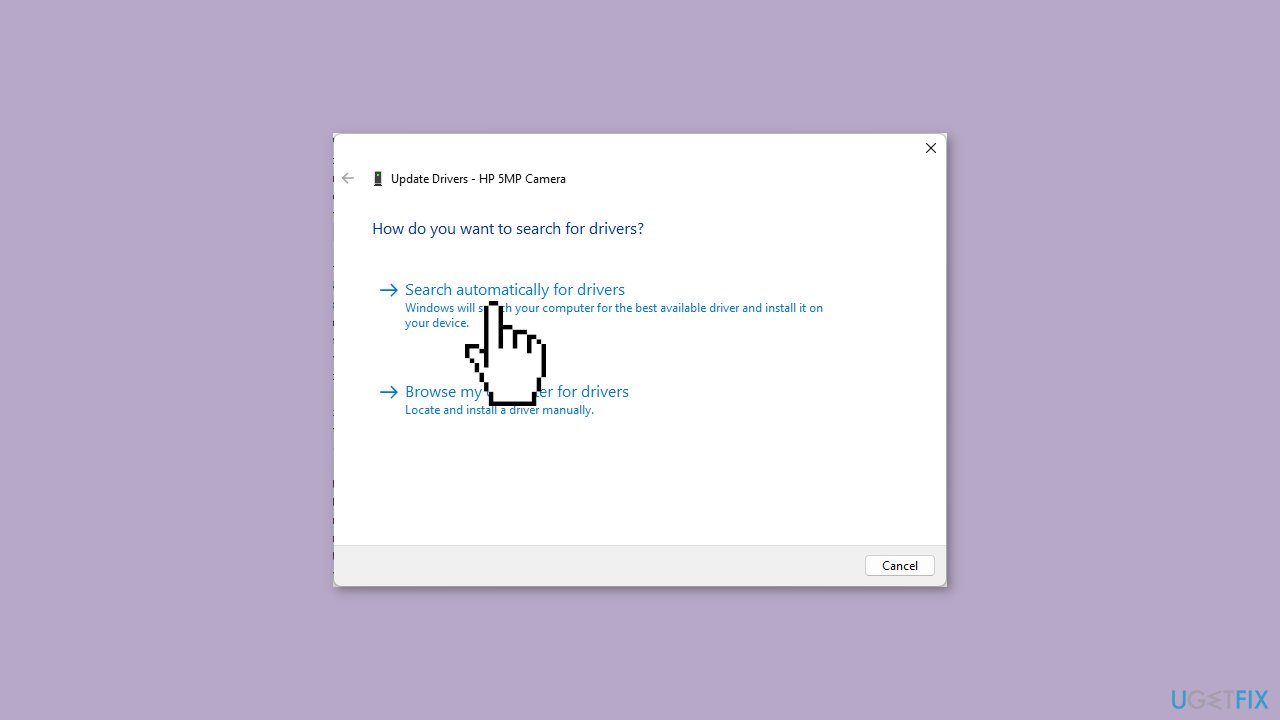
- Follow the onscreen instructions to complete the process.
- Restart your computer to let the changes take effect.
You can also use a dedicated tool like [rev id="DriverFix"] that can find the best drivers for your machine and install them automatically.
Solution 4. Change where new Content is Saved
- Press the Windows key + I to open the Settings app.
- Go to System.
- Click on Storage.
- Under Storage management, click on Advanced storage settings to expand it.
- Locate Where new content is saved.
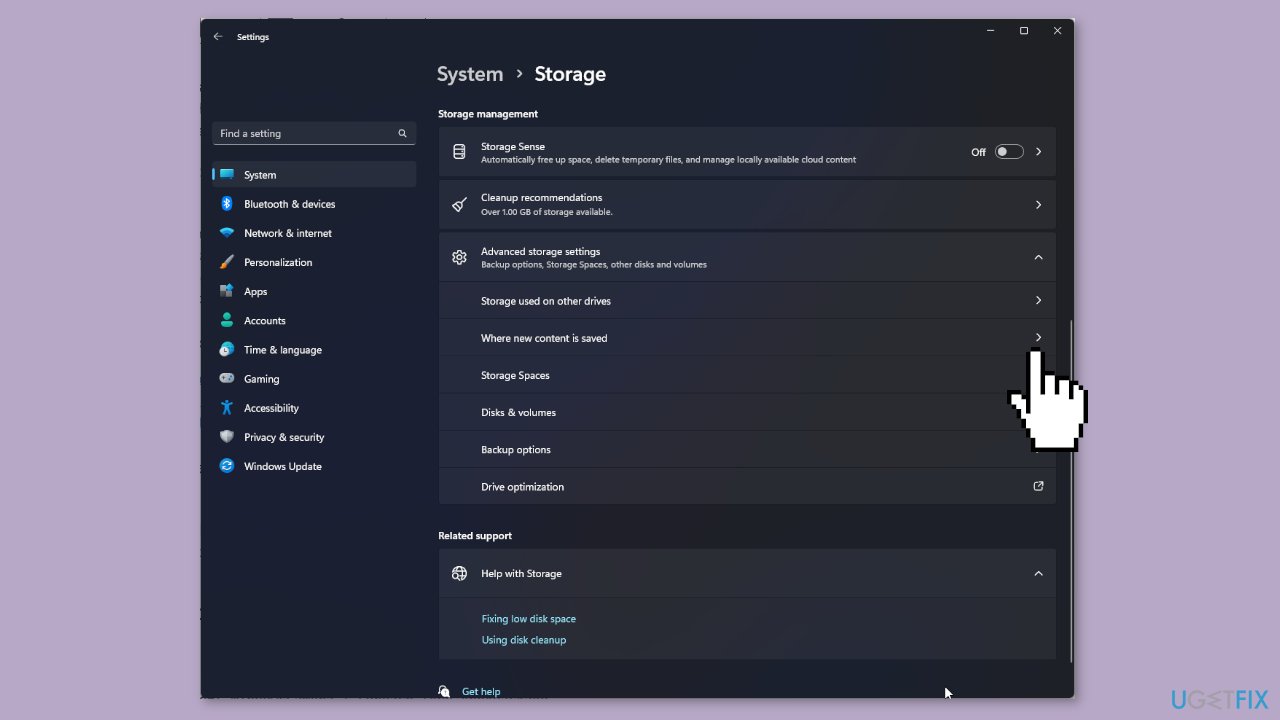
- Look for New photos and videos will save to and choose System drive (ususally C:\).
Solution 5. Reset the Camera App
- Press the Windows key + I to open the Settings app.
- Go to Apps.
- Click on Installed apps.
- Locate Camera.
- Click on the three dots.
- Select Advanced options.
- Locate Reset.
- Click the Reset button under it.
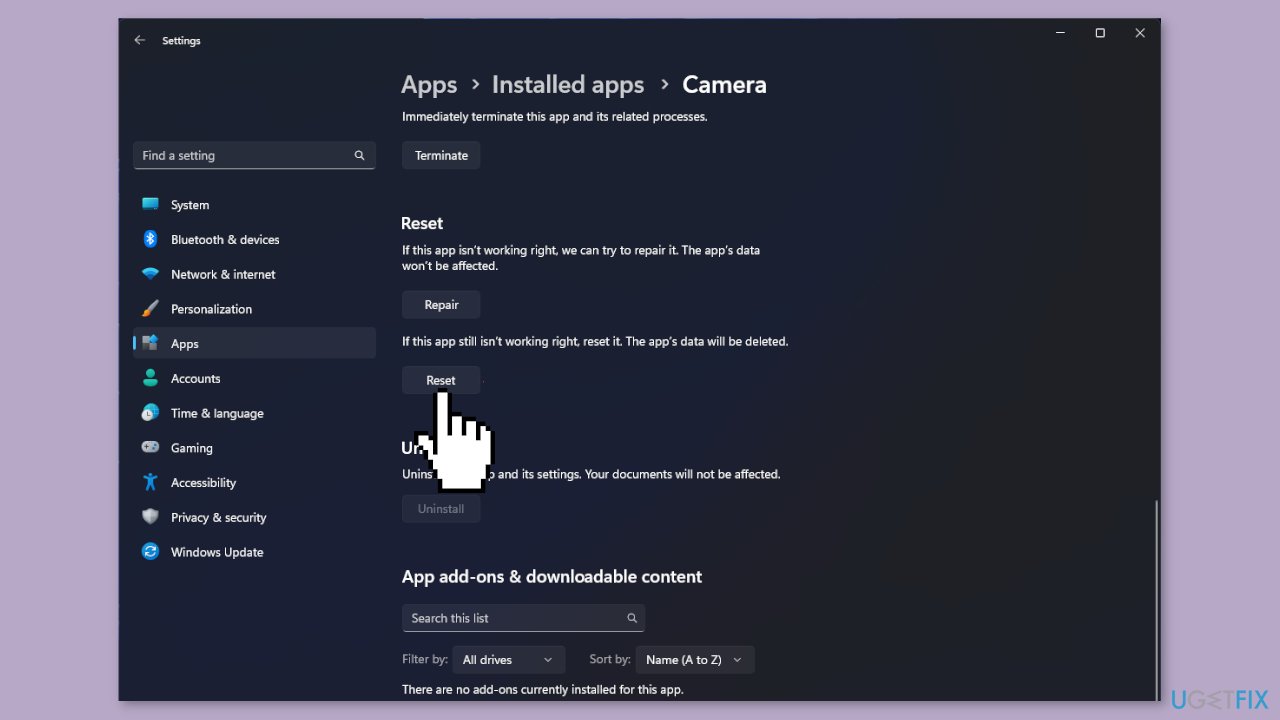
Solution 6. Re-register the Camera App
- Press the Windows key.
- Type powershell.
- Click on Run as administrator.
- In the PowerShell window, type the following command and press Enter:
Get-AppxPackage -allusers Microsoft.WindowsCamera | Foreach {Add-AppxPackage -DisableDevelopmentMode -Register "$($_.InstallLocation)\AppXManifest.xml"}
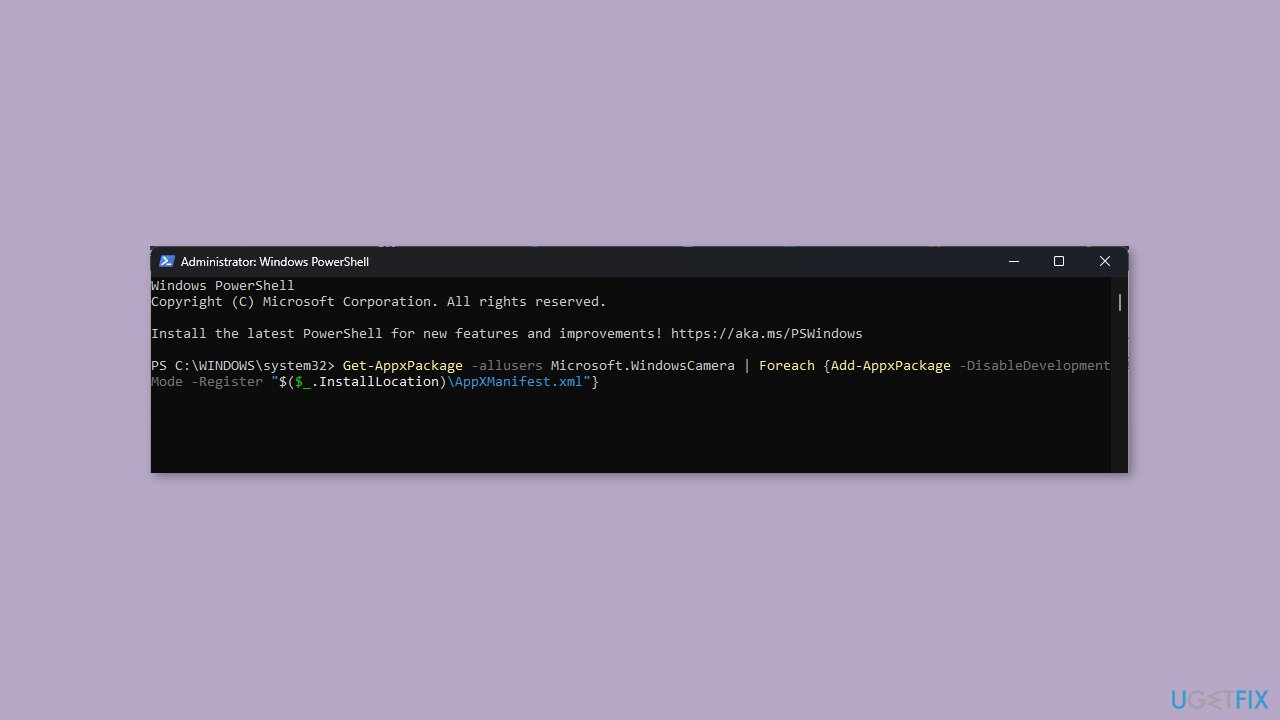
- Once the command is executed, close the PowerShell window.
Bottom line
To fix the Camera app error 0XA00F425C in Windows, you can try updating the camera driver, installing all Windows updates, checking for software conflicts, troubleshooting hardware issues, and repairing corrupted system files. If these solutions do not resolve the issue, consider using a maintenance tool to fix system errors.
Frequently asked questions
This error typically indicates that the Camera app is unable to access the camera hardware or that there is a problem with the app itself. It can be caused by permission issues, outdated drivers, or conflicts with other applications.
To fix this error, try updating your camera drivers through Device Manager, ensuring that the Camera app has the necessary permissions in Privacy settings, and restarting the app or your computer.
Yes, make sure that the camera is enabled in Device Manager and check the Privacy settings to ensure that the Camera app is allowed to access the camera.




Report an issue
What's wrong with this guide? We review every report and update or remove content.
Report received — thank you. We'll review and fix it.
You need a free account to submit a report.
Be the first to comment