How to fix
Camera app error 0xA00F4288
on Windows
Resolve the Camera app error 0xA00F4288 on Windows 10 quickly with our expert-tested solutions. Get back to capturing moments in minutes!


What causes How to fix Camera app error 0xA00F4288 on Windows 10?
- Camera driver missing
- Third-party applications interfering
- Previous OS updates causing issues
- File corruption or compatibility problems
- Malware infection
Repairs Windows system files, removes malware, and restores a clean OS state — without reinstalling.
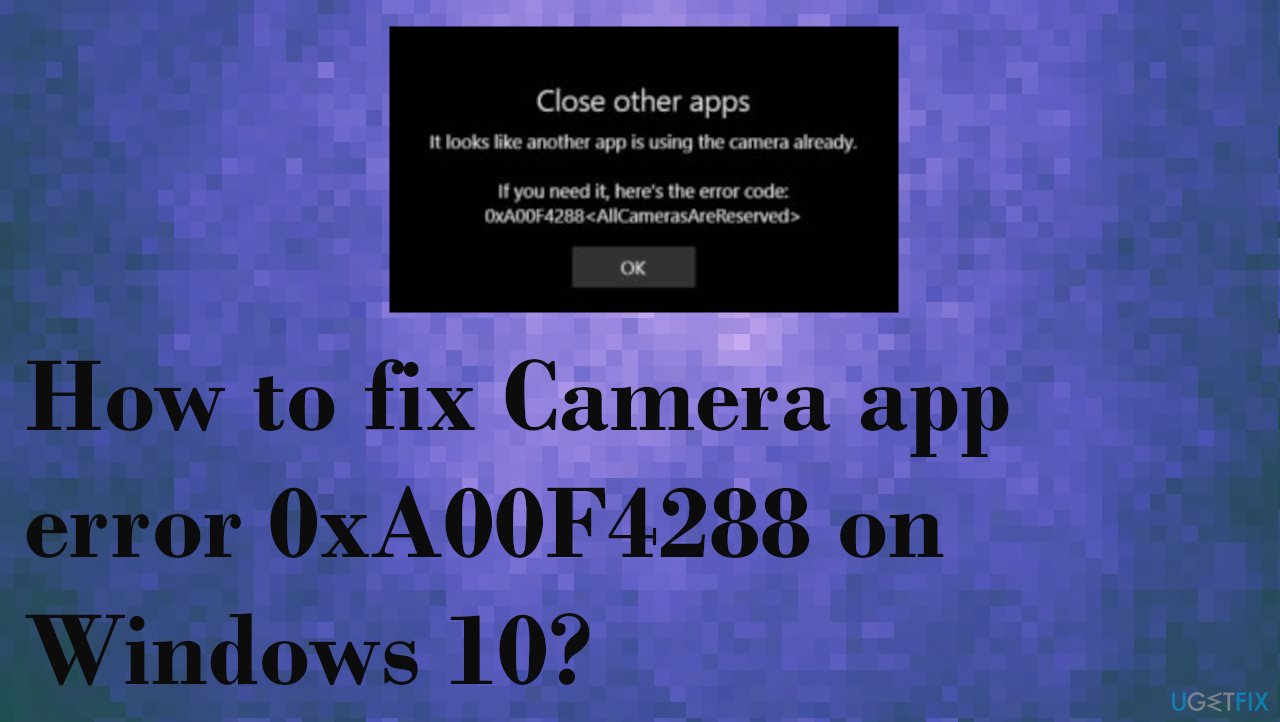
My camera app states that the camera is used in the other app and the code 0xa00f4288 appears. I have no idea why this is happening because no other programs could use the camera. The "Close other apps. It looks like another app is using the camera already. If you need it, here's the error code: 0xA00F4288" keeps occurring, and I don't know how to solve it. Help!
Camera app error 0xA00F4288 can occur in devices with Windows 10, and other versions of the operating system, but users[ref en-1] mainly complain about the latest Windows issue. The Camera App on Windows presents the error message, and it creates problems when the camera cannot be used.
The error can appear due to the camera driver missing when third-party applications interfere with other programs. Unfortunately, the problem is reported to appear after certain OS updates, so going back to a previous version or searching for the latest variant can solve Camera app error 0xA00F4288 on Windows 10 issue.
It has been a tendency that OS updates with issues, bugs, failure trigger errors and crashes, freezes, problems with devices.[ref en-2] Driver issues and file corruption or compatibility problems can occur due to missing or altered files in the system. Such problems can be the result of a previous malware[ref en-3] infection. It is less likely that the intruder is still on the device while the problem occurs.
The full message of the error:
Close other apps. It looks like another app is using the camera already. If you need it, here’s the error code: 0xA00F4288<AllCamerasAreReserved>
It is possible to check for malicious programs, files, altered settings, and other issues. We have a few methods that help and show how you can fix Camera app error 0xA00F4288 on Windows 10. One of the quick ways to see if there any system file issues - [d1]. You can run this tool and repair affected parts before you go for the manual methods listed below.
Method 1. Check the access to the camera
- Go to Settings.
- Find Privacy.
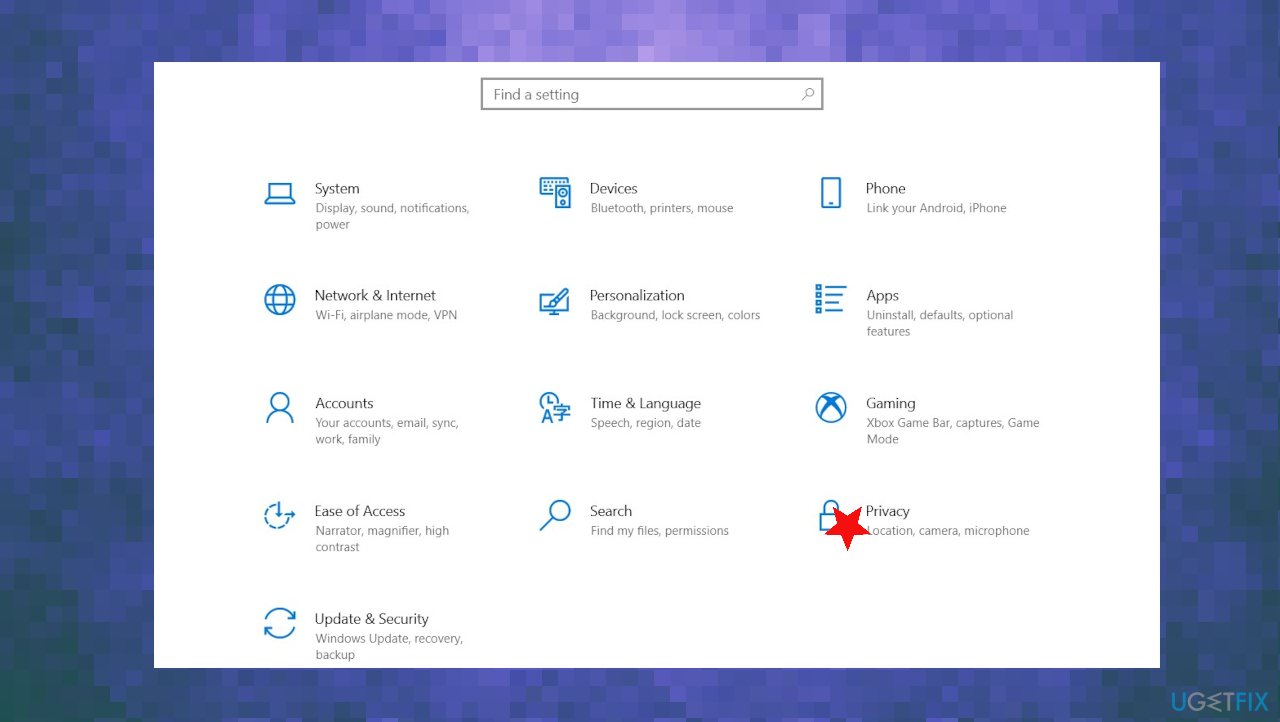
Camera app code error 0xa00f4288 fix privacy - Click Camera.
- You can see the Camera access of this device is Turned Off/On.
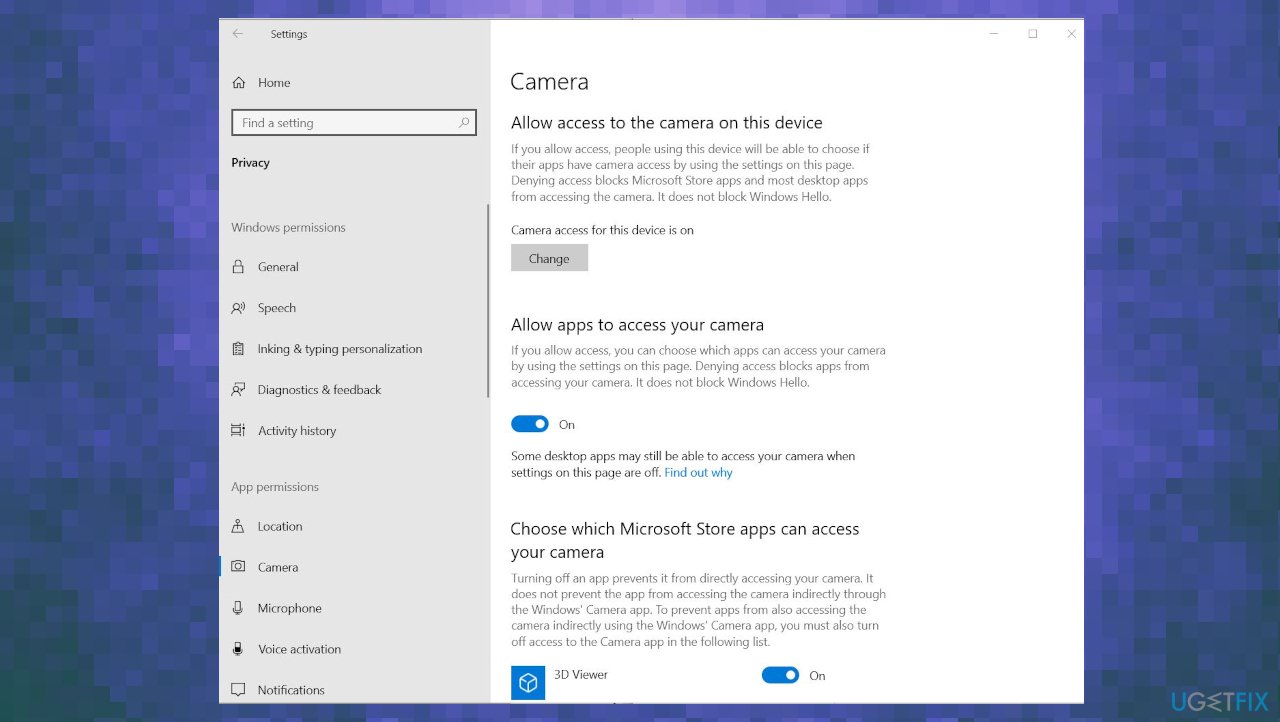
Camera app code error 0xa00f4288 fix camera access - If it is turned off, change it to the turned on.
- Scroll down the below and give access to the apps which you want to use with a camera.
Method 2. Check the Camera privacy settings
- Click Start.
- Click Settings.
- In the search box in the upper right, type webcam.
- Click Camera privacy settings.
- Check that Let apps use my camera toggle is On.
Method 3. Reset the camera App to fix Camera app error 0xA00F4288 on Windows 10
- Go to the Settings.
- Choose Apps.
- Then Apps & Features.
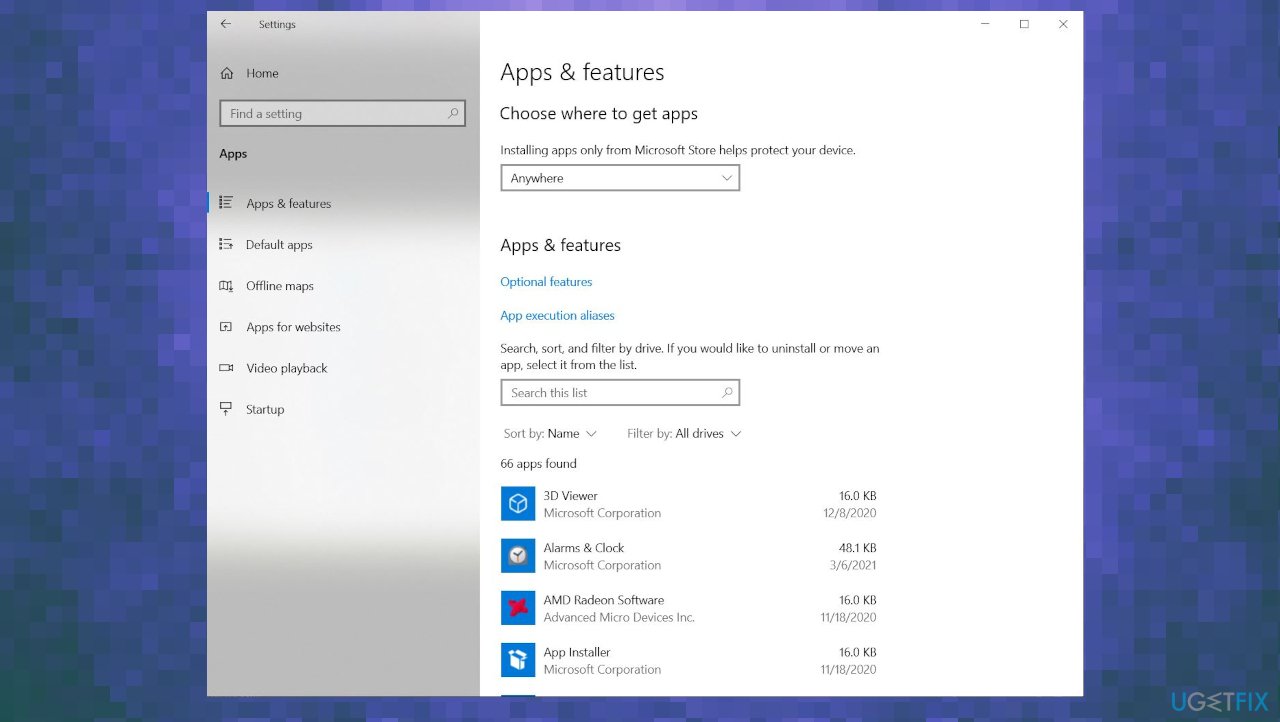
Camera app code error 0xa00f4288 fix apps - Find Camera.
- Click on Advanced Options.
- Scroll down.
- Find Reset option.
- Click on Reset.
Method 4. Update driver for Webcam
- Type Device Manager in the search bar.
- Open Device Manager.
- Find a Camera section.
- Right-click the driver, you can see the Update Driver option.
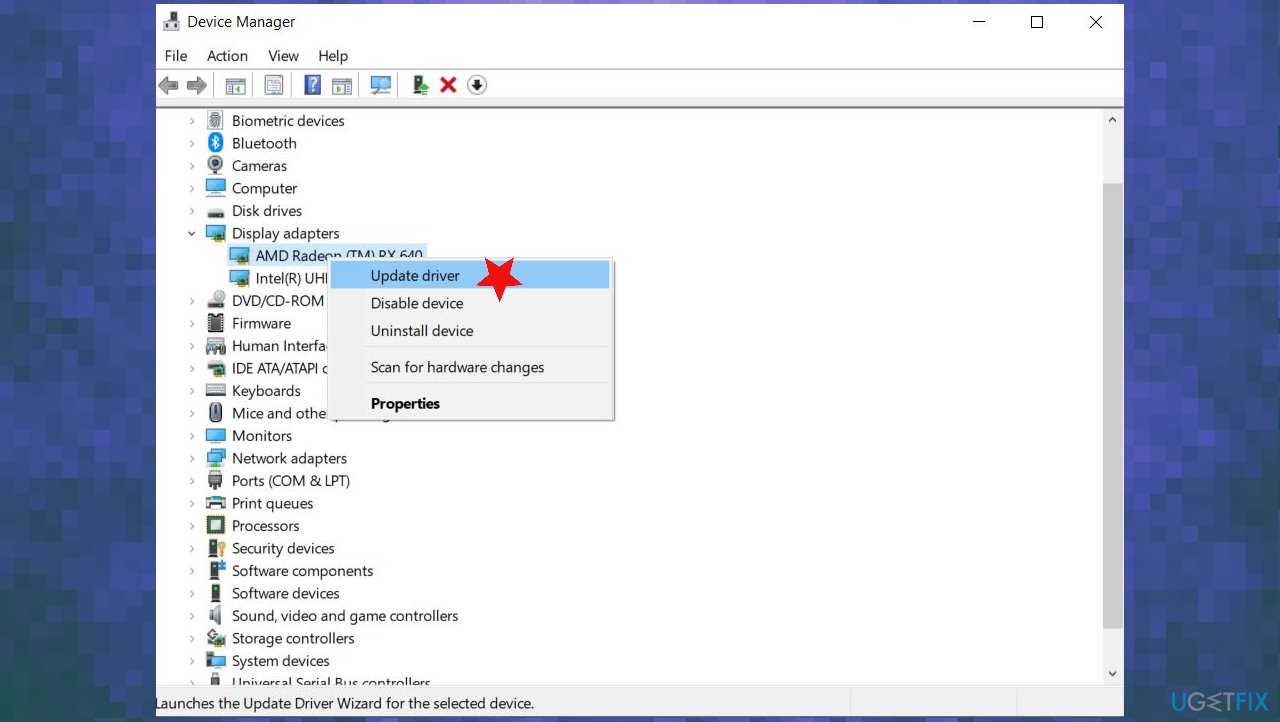
Camera app code error 0xa00f4288 fix driver update - Select Search automatically for updated driver software.
- Update the driver.
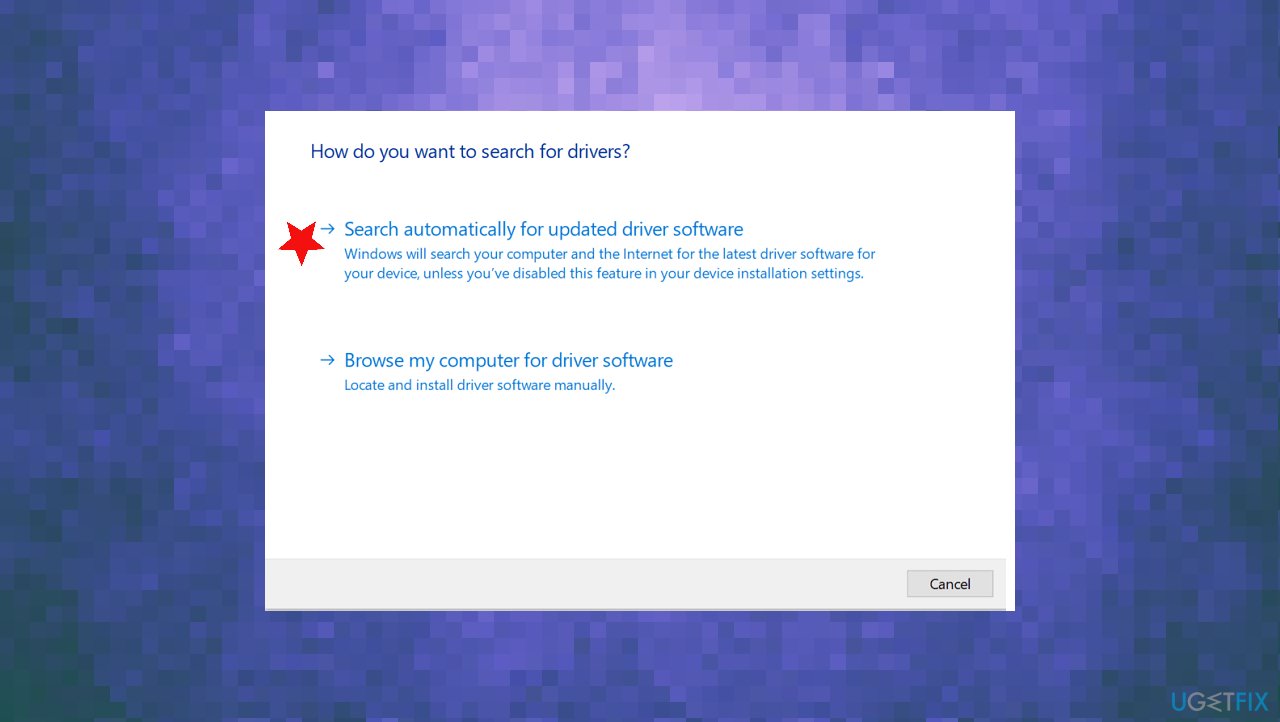
Camera app code error 0xa00f4288 fix search for drivers - You can rely on the tool like [rev id="DriverFix"] and update drivers automatically
Method 5. Edit the registry to fix Camera app error 0xA00F4288 on Windows 10
- Type regedit in the left corner Search bar.
- Open Registry Editor.
- Follow this path:
HKEY_LOCAL_MACHINE -> SOFTWARE. - Find Microsoft.
- Windows Media Foundation.
- Right-click on the Platform
- Select the New Dword 32 Bit value.
- Set Name to the EnableFrameServerMode, Set the Value to 1.
Bottom line
To fix Camera app error 0xA00F4288 on Windows 10, you can check camera access settings, run system file repair tools, and consider reverting to a previous OS version. If these methods do not resolve the issue, further investigation into potential malware or system file alterations may be necessary.
Frequently asked questions
Error 0xA00F4288 indicates that the Camera app is unable to access the camera hardware or a necessary system component. This can be due to permission settings or driver issues.
To check if your camera is in use, right-click the Start menu, select 'Task Manager,' and look for any applications listed under the 'Processes' tab that may be using the camera.
You can reinstall the Camera app by opening PowerShell as an administrator and running the command 'Get-AppxPackage *windowscamera* | Remove-AppxPackage', then reinstall it from the Microsoft Store.




Report an issue
What's wrong with this guide? We review every report and update or remove content.
Report received — thank you. We'll review and fix it.
You need a free account to submit a report.
Be the first to comment