How to fix
Camera not working after Windows update
on Windows
Resolve your camera issues after a Windows 10 or Windows 11 update with expert-tested solutions. Get your video calls back in minutes!

What causes How to fix Camera not working after Windows update?
- Camera app issues after Windows update
- Outdated camera drivers
- Corrupted camera app installation
- Registry issues
- Underlying system errors
Repairs Windows system files, removes malware, and restores a clean OS state — without reinstalling.
Hello. I recently updated my Windows PC and then the camera stopped working. What could be the issue?
The issue of a camera not working after a Windows update is a common problem faced by many users. The camera app in Windows is a built-in feature that allows users to take photos and videos, and use it for video conferencing, live streaming, and other similar activities. The camera app is beneficial to users as it provides a convenient and easy way to capture moments and share them with others.
However, when a Windows update is installed, it can sometimes cause issues with the camera app. This can result in the camera not working or not being able to be accessed by the user. This can impact users in various ways, such as not being able to participate in video conferencing for work or school, not being able to capture important moments, and not being able to use certain apps or features that require the use of the camera.
Possible solutions for this issue include checking for Windows camera updates, reinstalling the camera driver,[ref en-1] or modifying the registry. Another solution is to reinstall the Windows camera app itself. In this guide, you will find 6 steps that should help you fix Camera not working after Windows update.
Keep in mind that the camera may have stopped working because of underlying system issues. You can use a maintenance tool like [d1] that can fix most system errors, BSODs,[ref en-2] corrupted files, and registry[ref en-3] issues. Otherwise, follow the step-by-step instructions below.
Solution 1. Check for Windows Camera Updates
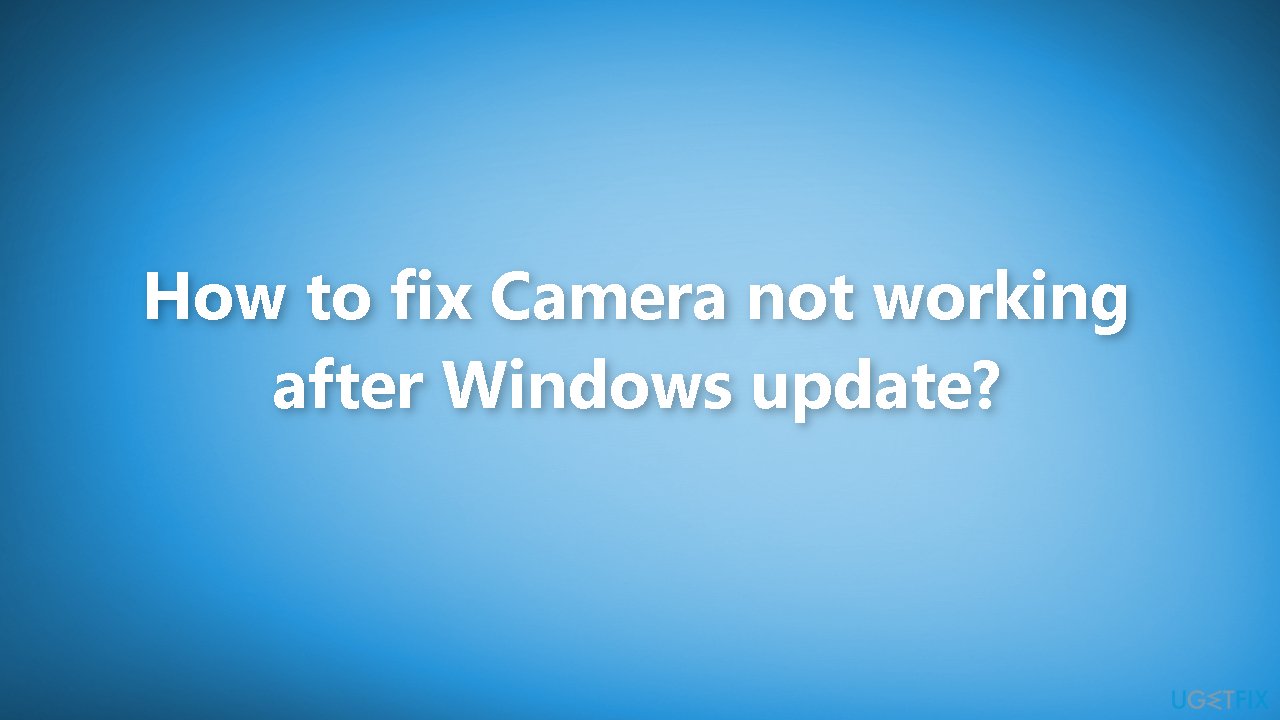
- Open the Microsoft Store and click on Library
- You will see the installed applications, click Get updates to see if there are any available updates
- Click the Update button on the right to update
- Wait for the process to finish and check if the error is fixed
Solution 2. Reset Windows Camera
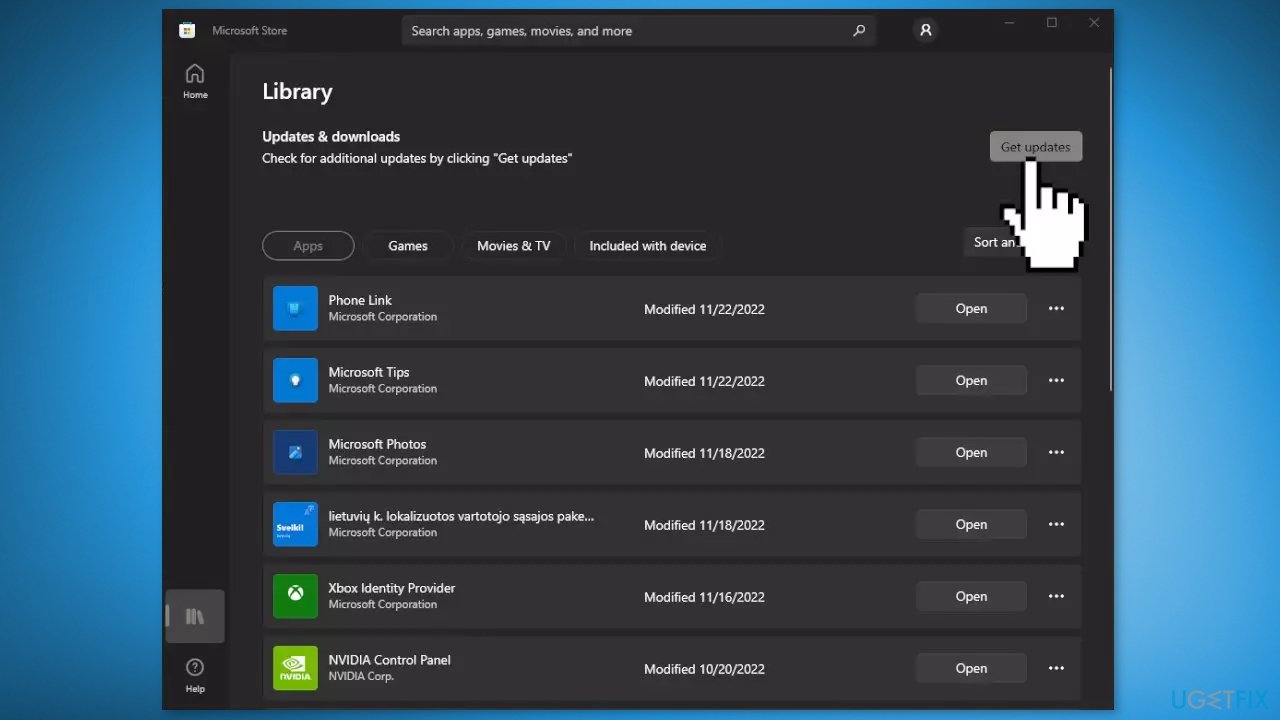
- Open the Windows Search Menu
- Type Windows Camera and right-click on the result
- Press on App settings
- Scroll down to find the Reset button
Solution 3. Reinstall the Windows Camera App
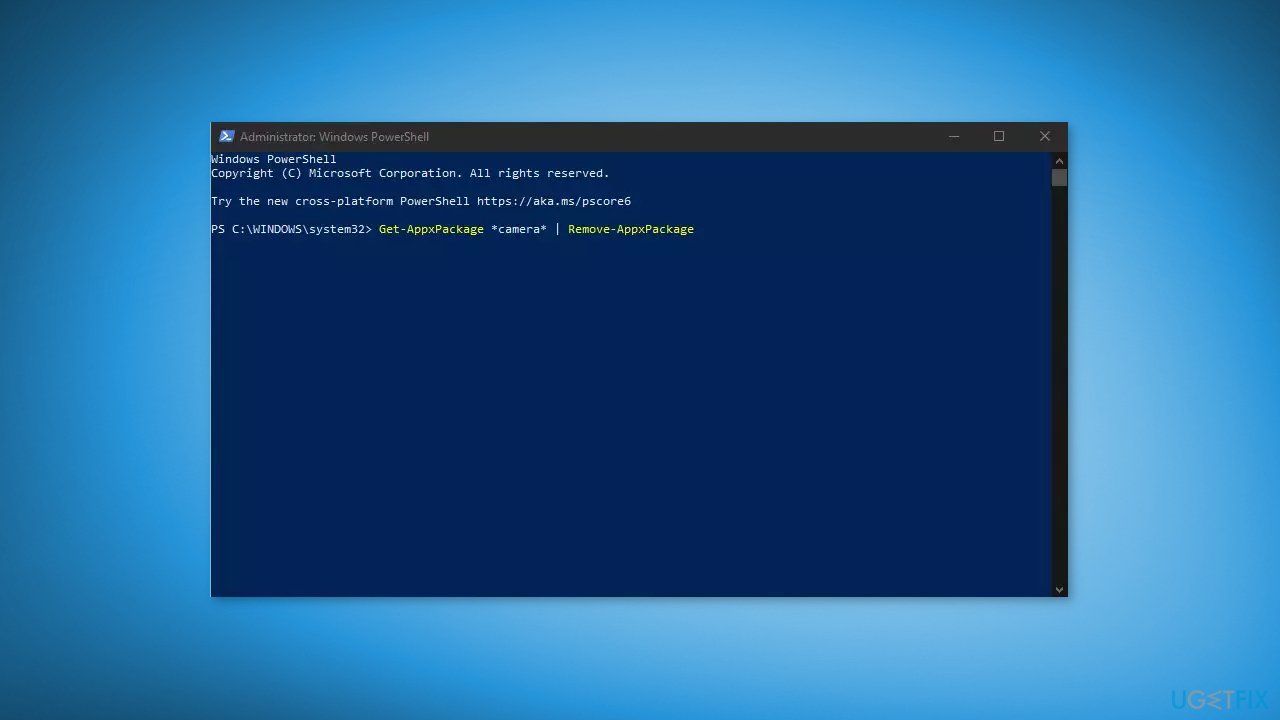
You can also reinstall the app using a PowerShell command:
- Press the Windows key + X, then choose Windows PowerShell (Admin) from the menu
- Execute the following command in the PowerShell window:
Get-AppxPackage *camera* | Remove-AppxPackage
Solution 4. Reinstall Camera Driver
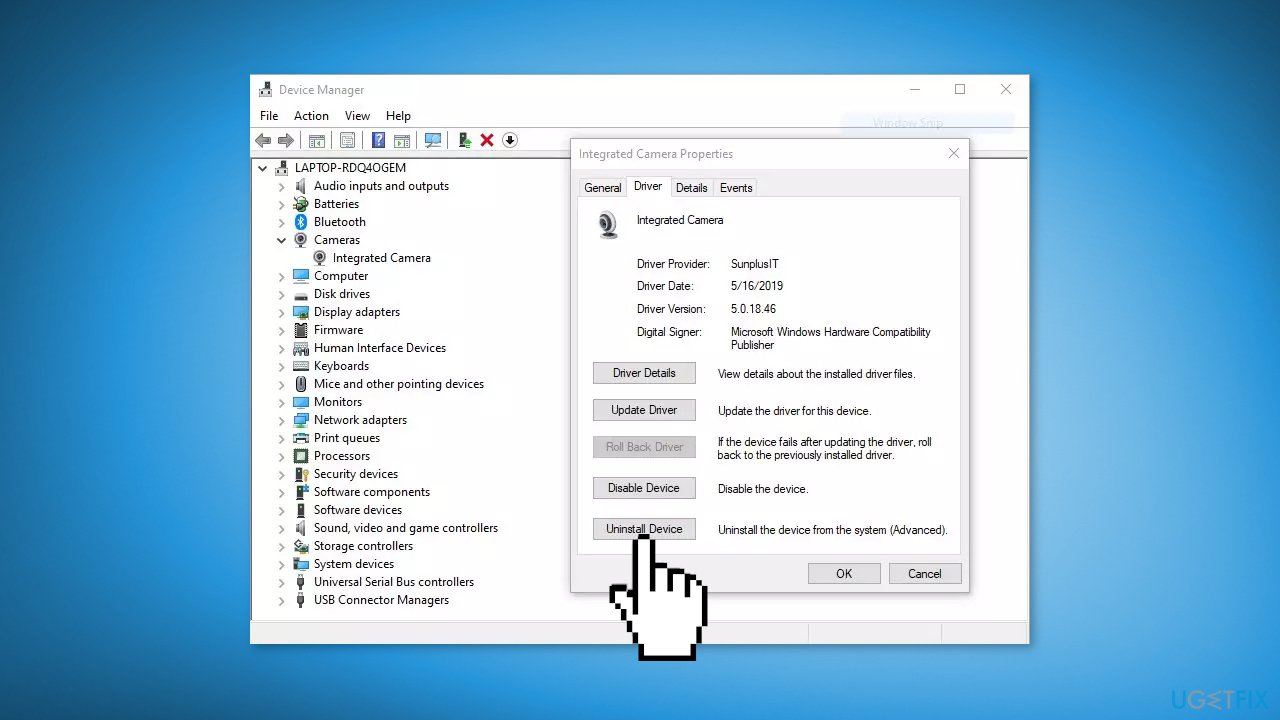
If the older camera driver does not work well with the updated version of Windows 10/11, you can check the manufacturer’s website for the latest version of the camera driver and install it on your computer. If you want an automatic solution, you can use a dedicated utility like [rev id="DriverFix"]. It can find the best drivers for your system and install them. You can also uninstall the driver and replace it with the basic driver from Microsoft:
- Press the Windows key + X and click on Device Manager from the menu
- Expand Cameras
- Right-click on your camera and press Uninstall device
- Restart your computer and check if the issue is solved
Solution 5. Edit the Windows Registry
This worked for several Windows users but remember that editing the registry may cause irreversible changes to your computer, so proceed with caution:
- Press the Windows key + S, then search for Registry Editor
- Navigate to the following key:
Computer\HKEY_LOKAL_MACHINE\SOFTWARE\WOW6432Node\Microsoft\Windows Media Foundation\Platform
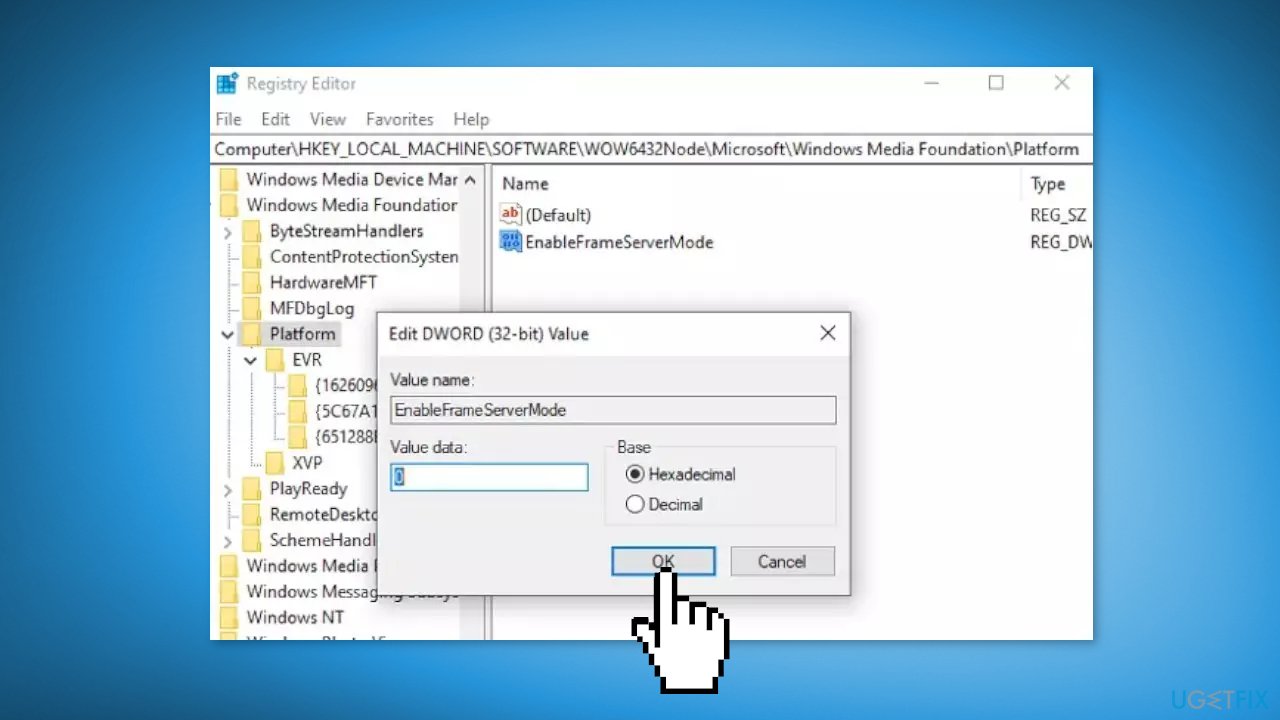
- Right-click on the right pane, then choose New > DWORD (32-bit) Value
- Type in EnableFrameServerMode under Value name
- Double-click the newly created EnableFrameServerMode entry
- Under Value data, type in 0 with the base value as Hexadecimal
- Click OK to save your changes
- Restart your computer and check if the camera is now working.
Solution 6. Reset Windows
If none of the above methods worked, try resetting Windows.
- Open the Start Menu and click on Settings
- Press on Update & security
- Click on Recovery in the left pane
- In the right pane, click on Reset PC next to Reset this PC
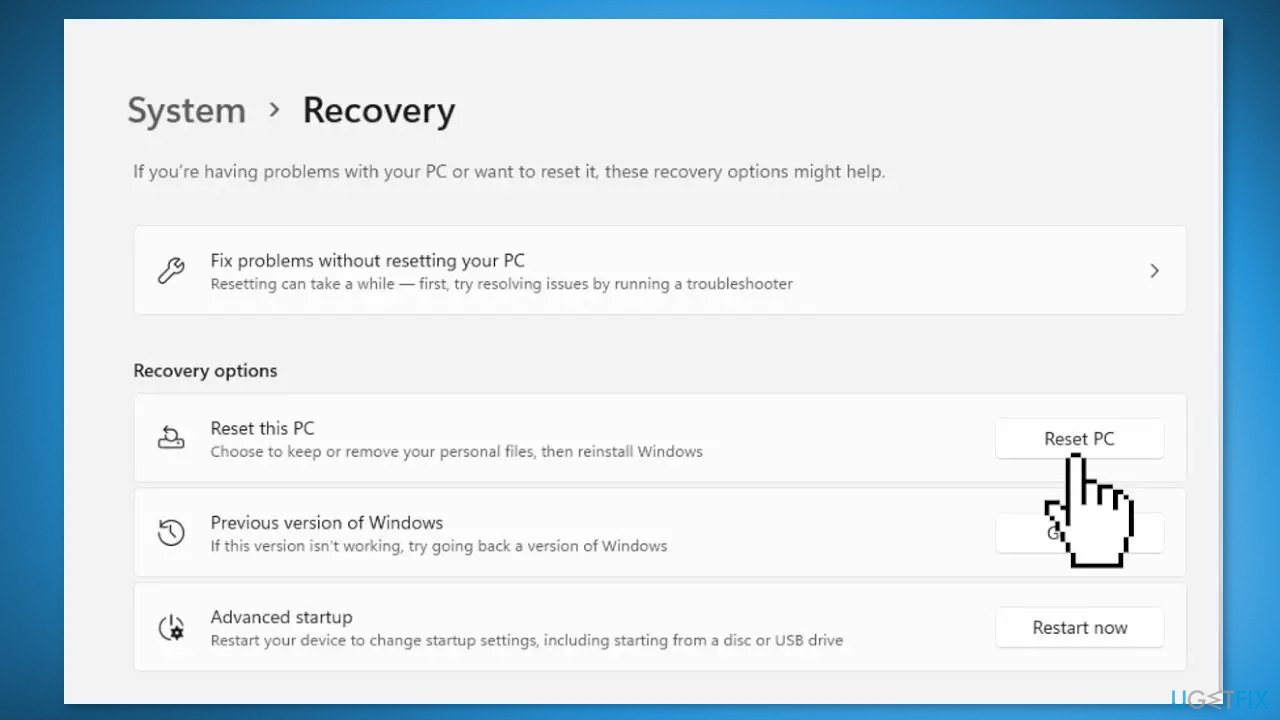
- Click on either Keep my files (if you want the computer to be reset without losing any of the user data stored on it) or Remove everything (if you want the computer to be reset and any and all user data stored on it to be deleted
- If presented with a warning, simply click on Next
- When prompted to do so, click on Reset
Bottom line
To fix the camera not working after a Windows update, you can check for Windows camera updates, reset the Windows camera app, or reinstall the camera driver. If these solutions do not resolve the issue, consider using a maintenance tool to fix system errors.
Frequently asked questions
The camera may not work after a Windows 10 update due to driver incompatibility or changes in system settings. Check for driver updates or adjust your privacy settings to allow camera access.
If updating drivers doesn't resolve the issue, try uninstalling the camera device from Device Manager and restarting your computer to allow Windows to reinstall it automatically.
Yes, Windows updates can reset privacy settings, which might prevent apps from accessing your camera. Go to Settings > Privacy > Camera to ensure the necessary permissions are enabled.




Report an issue
What's wrong with this guide? We review every report and update or remove content.
Report received — thank you. We'll review and fix it.
You need a free account to submit a report.
Be the first to comment