How to fix
“Cannot find the Microsoft.MicrosoftStickyNotes_8wekyb3d8bbwe!App” error
on Windows
Resolve the "Cannot find the Microsoft.MicrosoftStickyNotes_8wekyb3d8bbwe!App" error on Windows 10/11 swiftly with our expert-tested solutions, fixed in…


What causes How to fix “Cannot find the Microsoft.MicrosoftStickyNotes_8wekyb3d8bbwe!App” error in Windows?
- Recent Windows update introduced a bug
- System fails to locate the Sticky Notes application
- Specific app package cannot be found
- Faulty update causing the error
- Registry issues with low-level configurations
Repairs Windows system files, removes malware, and restores a clean OS state — without reinstalling.
I have a problem with Sticky Notes in Windows. Every time I try to use them, I get the error which reads: "Cannot find the Microsoft.MicrosoftStickyNotes_8wekyb3d8bbwe!App file. Do you want to create a new file?" I was wondering if you can help me.
"Cannot find the Microsoft.MicrosoftStickyNotes_8wekyb3d8bbwe!App" error in Windows is a relatively recent issue faced by many users, particularly after installing a recent Windows update. It prevents people from accessing Sticky Notes - a useful app for many who rely on it for quick note-taking and reminders.
The "Cannot find the Microsoft.MicrosoftStickyNotes_8wekyb3d8bbwe!App" error typically arises due to a bug introduced by the latest Windows update, causing the system to fail to locate the Sticky Notes application.
The message in the error indicates that the system cannot find the specific app package, which results in Sticky Notes failing to open and operate as usual. Fortunately, there are several potential solutions to resolve this issue.
Potential solutions
Firstly, you should try to fix the "Cannot find the Microsoft.MicrosoftStickyNotes_8wekyb3d8bbwe!App" error by installing a subsequent update that addresses the bug causing it. Microsoft regularly releases updates to resolve issues introduced by previous updates, so keeping your system updated is what often rids off these bugs.
Another effective solution is to uninstall the faulty update that caused the error in the first place. This can roll back your system to a state where Sticky Notes worked just fine, eliminating the error and allowing the app to open normally.
Applying a registry fix is a third option. Windows registry is a database that houses the operating system's and installed apps' low-level configurations and settings. Sometimes problems like this can be fixed by modifying specific registry entries, but it is important to keep in mind that incorrect handling of this may result in further issues.
To simplify those processes, we provide instructions on how to create a reg file, which can then be launched and applied to resolve the error.
For those seeking an automated solution, using a PC repair tool like [d1] can efficiently fix underlying Windows issues and restore normal operation of its various components, so we recommend trying it first.

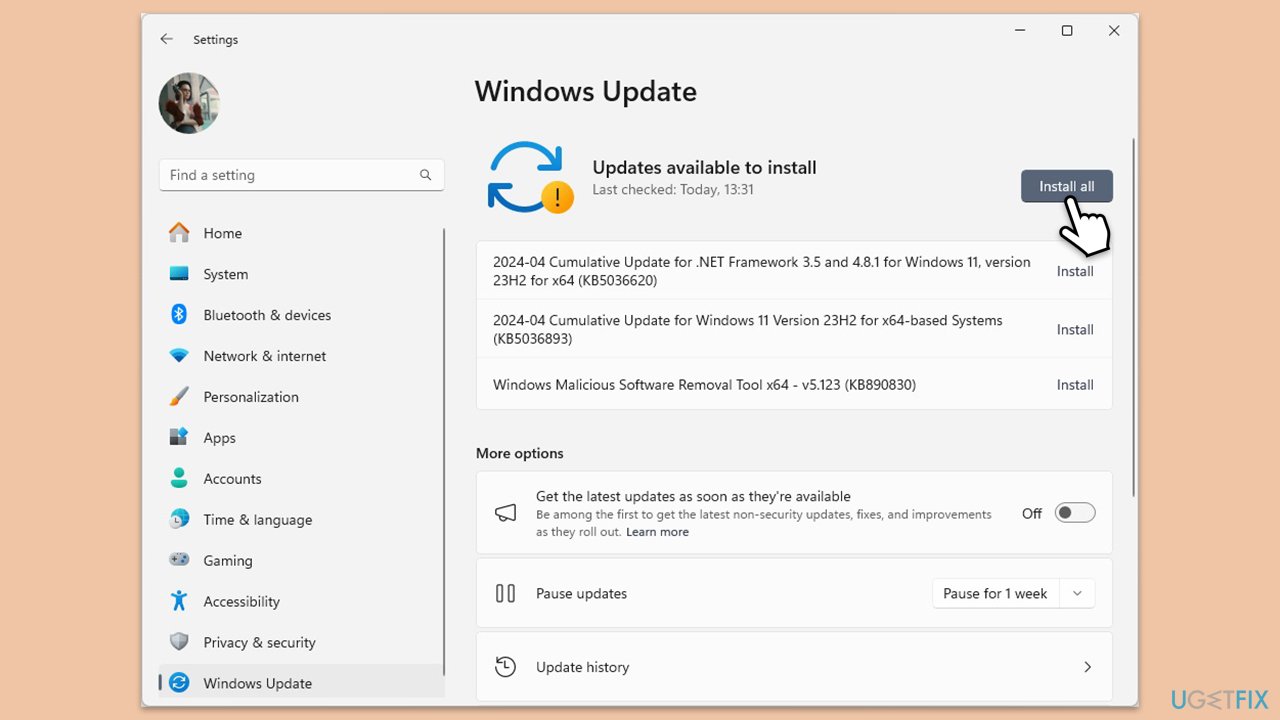
Fix 1. Install an update that fixes the bug
If you have not yet updated Windows, do so to address the issue automatically:
- Right-click on Start and select Settings.
- Go to Update & Security/Windows Update (depending on Windows version).
- If updates are pending, click Install updates.
- Otherwise, click Check for updates and wait.
- If there are optional updates available, install them as well.
- Restart your system to implement the changes.
Fix 2. Uninstall the faulty update
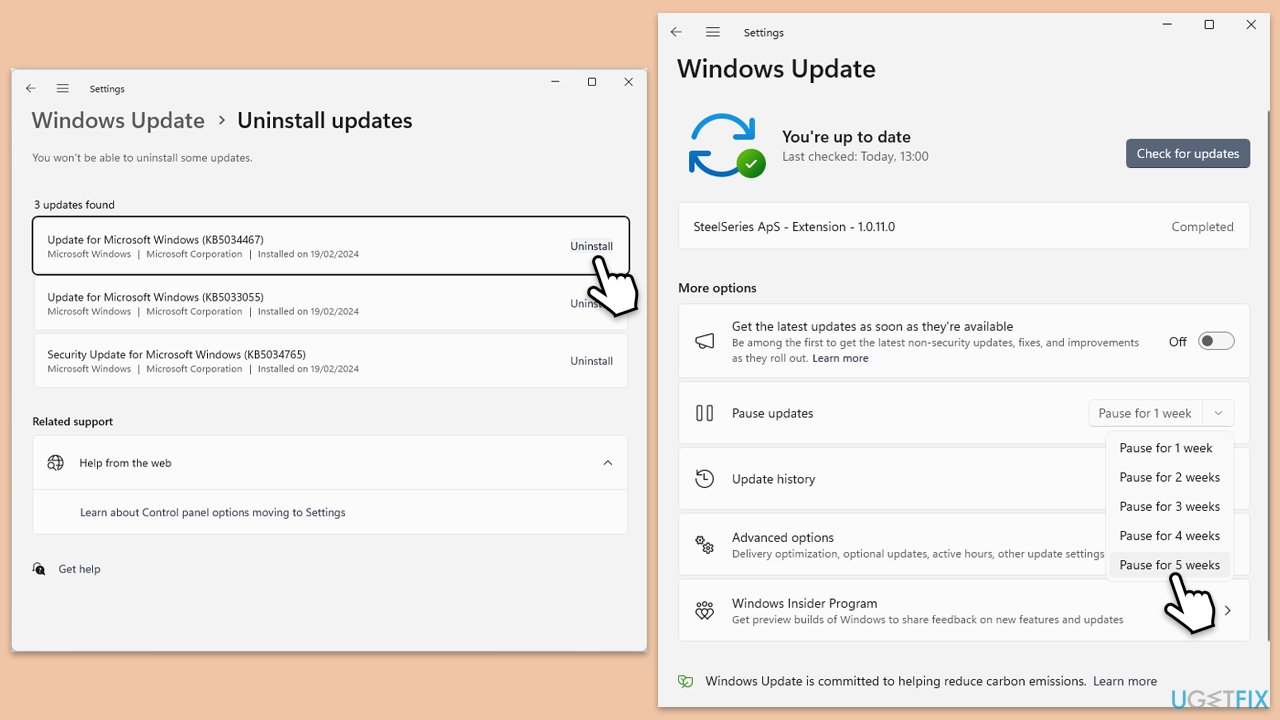
If you are stuck with the "Cannot find the Microsoft.MicrosoftStickyNotes_8wekyb3d8bbwe!App" error after installing the Windows update, you can undo the change as follows:
- Open Control Panel.
- Select Programs > Uninstall a program.
- Click on View installed updates on the left side of the window.
- Sort all the updates by date.
- Right-click on the most recent update and select Uninstall.
- Proceed with on-screen instructions.
- Then, type Updates in Windows search and press Enter.
- Click Pause the updates for 7 days (in Windows 11, you can pick a different time period).
- Install updates only once the issue is addressed by Microsoft.
Fix 3. Use a registry fix
Modifying the Windows registry can sometimes resolve the issue. Be careful when making changes to the registry.
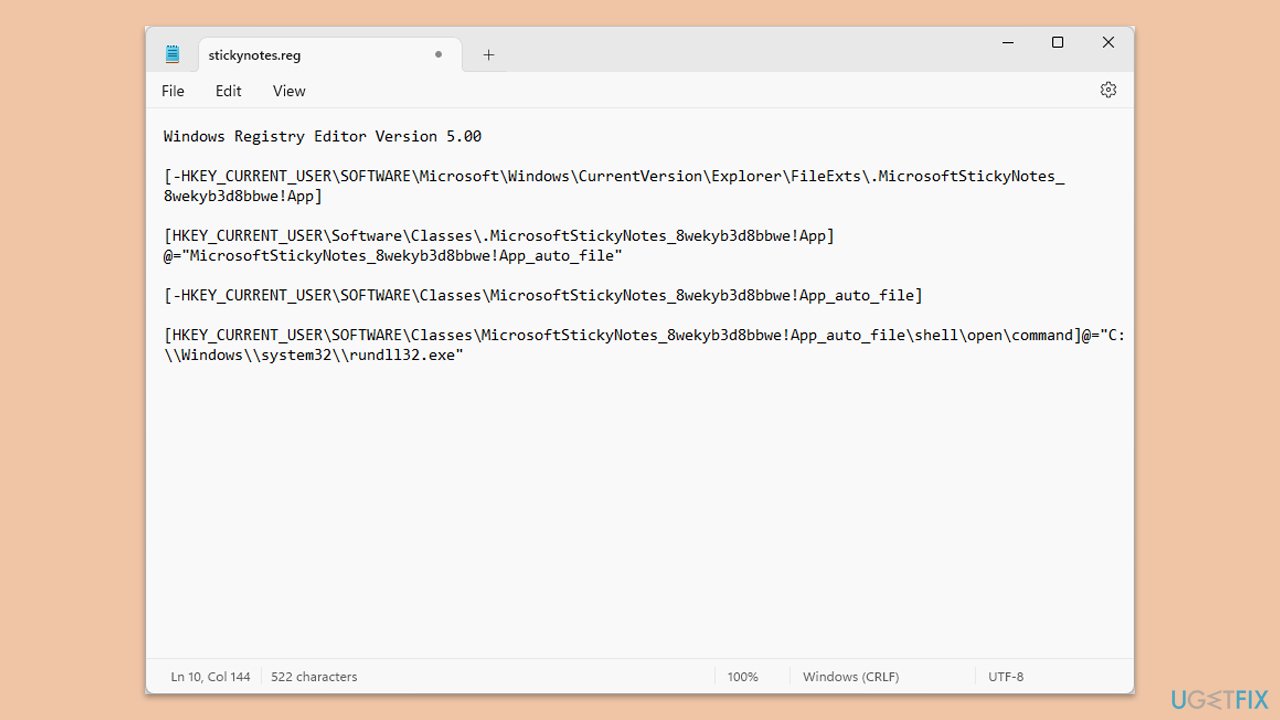
- Open Notepad.
- Copy and paste the following command lines:
Windows Registry Editor Version 5.00
[-HKEY_CURRENT_USER\SOFTWARE\Microsoft\Windows\CurrentVersion\Explorer\FileExts\.MicrosoftStickyNotes_8wekyb3d8bbwe!App]
[HKEY_CURRENT_USER\Software\Classes\.MicrosoftStickyNotes_8wekyb3d8bbwe!App]
@="MicrosoftStickyNotes_8wekyb3d8bbwe!App_auto_file"[-HKEY_CURRENT_USER\SOFTWARE\Classes\MicrosoftStickyNotes_8wekyb3d8bbwe!App_auto_file]
[HKEY_CURRENT_USER\SOFTWARE\Classes\MicrosoftStickyNotes_8wekyb3d8bbwe!App_auto_file\shell\open\command]@="C:\\Windows\\system32\\rundll32.exe"
- Click File > Save and name it stickynotes.reg, then place the file in your desired location.
- Run this file to apply the fix - click Yes when prompted.
- Restart your computer.
If you want to undo this change, please follow these steps:
- Create a new Notepad file and paste the following inside:
Windows Registry Editor Version 5.00
[-HKEY_CURRENT_USER\SOFTWARE\Microsoft\Windows\CurrentVersion\Explorer\FileExts\.MicrosoftStickyNotes_8wekyb3d8bbwe!App]
[-HKEY_CURRENT_USER\Software\Classes\.MicrosoftStickyNotes_8wekyb3d8bbwe!App]
[-HKEY_CURRENT_USER\SOFTWARE\Classes\MicrosoftStickyNotes_8wekyb3d8bbwe!App_auto_file]
- Save as undo.reg and close it.
- Run the file and restart your PC.
Fix 4. Reinstall Sticky Notes
If you can't uninstall Sticky Notes in a regular way, you can use elevated PowerShell instead.
- Type PowerShell in Windows search.
- Right-click on Windows PowerShell and select Run as administrator.
- Type the following and press Enter:
Get-AppxPackage Microsoft.MicrosoftStickyNotes | Remove-AppxPackage - Then type this command to reinstall the app:
Get-AppxPackage -AllUsers| Foreach {Add-AppxPackage -DisableDevelopmentMode -Register "$($_.InstallLocation)\AppXManifest.xml"} - Restart your computer.

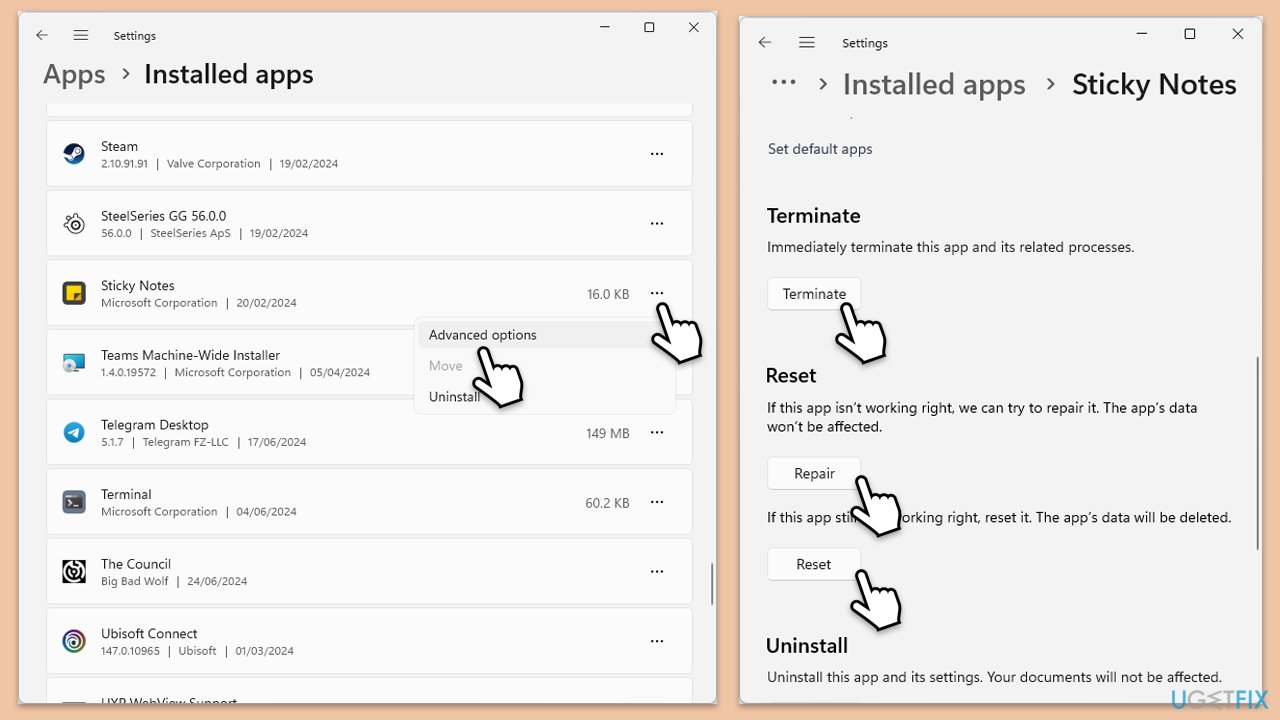
Fix 5. Repair or reset the Sticky Notes app
Resetting the app can fix any issues related to app settings or data.
- Right-click on Start and select Apps & Features/Installed apps.
- Scroll down to find Sticky Notes and click (three dots>) Advanced options.
- Scroll down again, click Terminate and then Repair.
- If that does not help, use Reset.
- Restart your system.
Bottom line
To fix the "Cannot find the Microsoft.MicrosoftStickyNotes_8wekyb3d8bbwe!App" error, you can install a subsequent update, uninstall the faulty update, or apply a registry fix. If these solutions do not work, consider using a PC repair tool to address underlying Windows issues.
Frequently asked questions
This error typically occurs due to corrupted app files or issues with the Microsoft Store. It can also happen if the Sticky Notes app is not properly installed or updated.
To reinstall Sticky Notes, open Windows PowerShell as an administrator and run the command 'Get-AppxPackage Microsoft.MicrosoftStickyNotes | Remove-AppxPackage'. Then, reinstall it from the Microsoft Store.
Yes, you can use the Windows Store Apps troubleshooter found in the Settings app under Update & Security > Troubleshoot > Additional troubleshooters to help identify and fix issues with the Sticky Notes app.




Report an issue
What's wrong with this guide? We review every report and update or remove content.
Report received — thank you. We'll review and fix it.
You need a free account to submit a report.
Be the first to comment