How to fix
Cannot open volume for direct access error
on Windows
Resolve the "Cannot open volume for direct access" error on Windows 10 and 11 easily. Expert-tested solutions to get your drives running smoothly again!

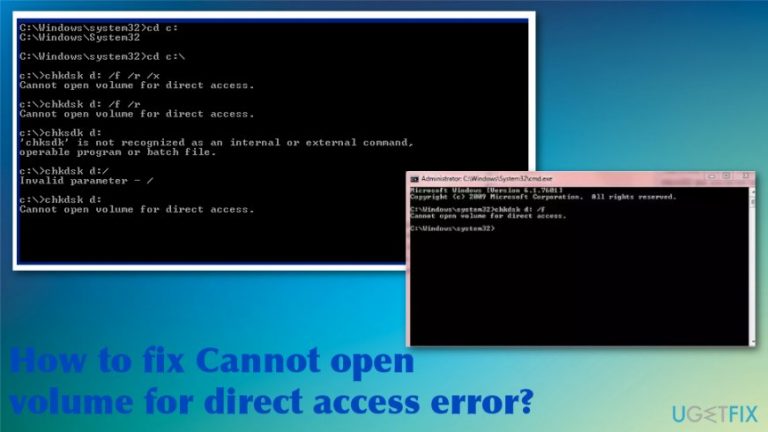
What causes How to fix Cannot open volume for direct access error?
- DBR corruption of the hard drive
- Physical damage affecting accessibility
- Third-party application interference
- Cyber infection checker interference
- Disk monitoring tool interference
Repairs Windows system files, removes malware, and restores a clean OS state — without reinstalling.
Hello, I tried to move some files from the storage hard drive to an external USB. The transfer didn't happen and I rebooted the device. Once that was done, the computer couldn't read the hard drive itself. after a CHKDSK scan "Cannot open volume for direct access" appeared. I don't know how this is all related and how to fix the issue in the first place. Help!
"Cannot open volume for direct access" is the error that signifies that certain applications cannot access the drive and scan or perform operations on it. There are some workarounds that can help to check for the reason for the issues and make the problem go away for good because many users[ref en-1] have complained about the error in different scenarios.
CHKDSK is the system tool of devices that run Windows OS. This feature verifies the integrity of a volume, and tries to fix errors, identifies bad sections of the hard drive, and marks them to avoid errors when the computer uses a particular drive. The tool can be used as a hard drive repair tool because it allows for fixing corrupted drives.
Cannot open volume for direct access error appears for many users and is not related to the version of Windows. So even though corrupted Windows updates may cause errors,[ref en-2] this is not one of them. We can determine that the main reasons behind the CHKDSK "Cannot open volume for direct access" error are either the DBR corruption of the hard drive or physical damage that affects the accessibility. 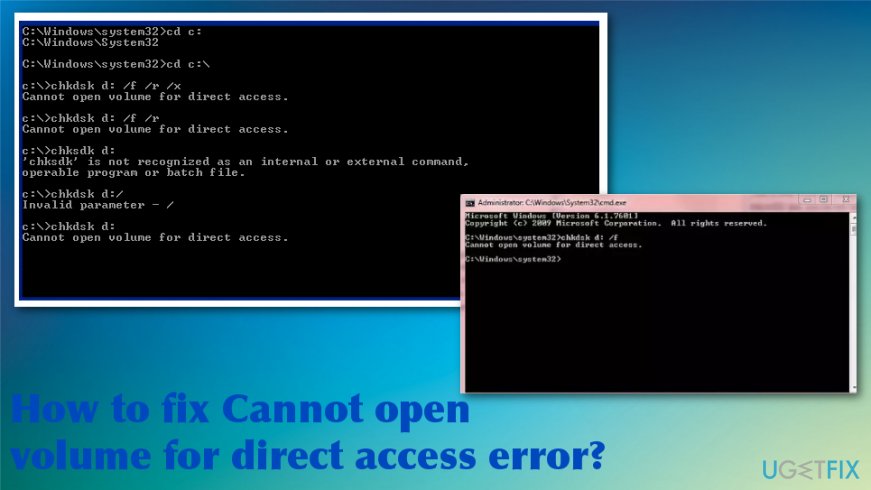
How to fix "Cannot open volume for direct access" error
"Cannot open volume for direct access" error can be caused by a third-party application or happen due to a cyber infection checker, disk monitoring tool. Such programs that prevent your device from fixing needed data and repair data storage drives. So checking the system with a PC repair tool like [d1] can show potentially unwanted programs[ref en-3] or certain issues with your system files. You can uninstall such programs completely or disable their processes to check.
Also, check the hard drive for particular issues before interfering with settings. The damage may be physical or from the inside. Insert the drive to another computer and see if it works or displays the same Cannot open volume for direct access error. It is fine when the error appears on your primary device only. Then, you can go through manual methods and fix other possible issues yourself.
Disable third-party services that affect the partition
- Press the Windows logo and R together and open the Run box.
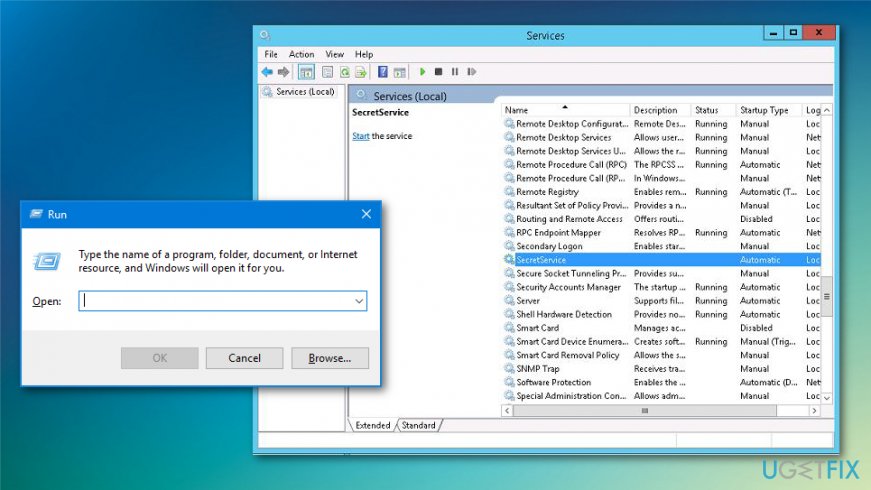
How to fix cannot open volume for direct access error run services - Type services.msc and click OK to launch the services window.
- In the displayed list, find the particular third-party program that may cause issues.
- Right-click on it and select Properties.
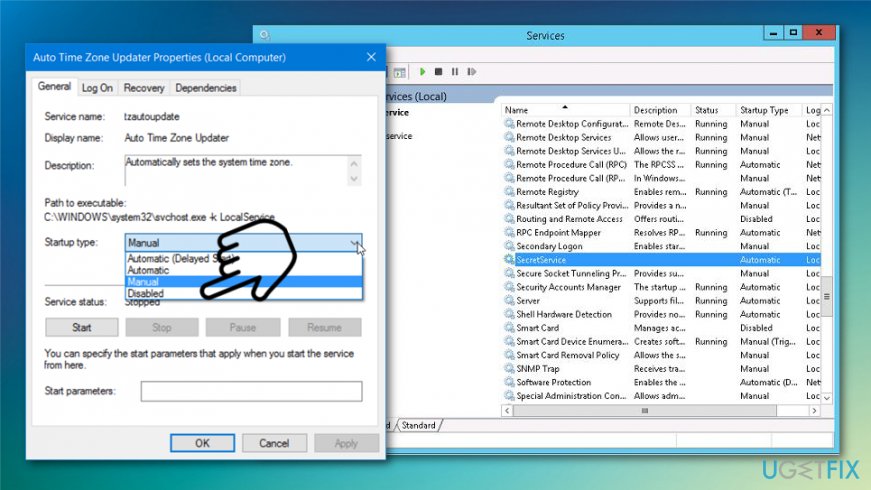
How to fix cannot open volume for direct access error disabled startup - Change the Startup type to Disabled for any of the suspicious applications.
- Click OK.
- Exit the Services and reboot the PC.
Run CHKDSK at Boot time to fix Cannot open volume for direct access error
- Boot the PC in Safe Mode and open Command Prompt command line with Administrator rights.
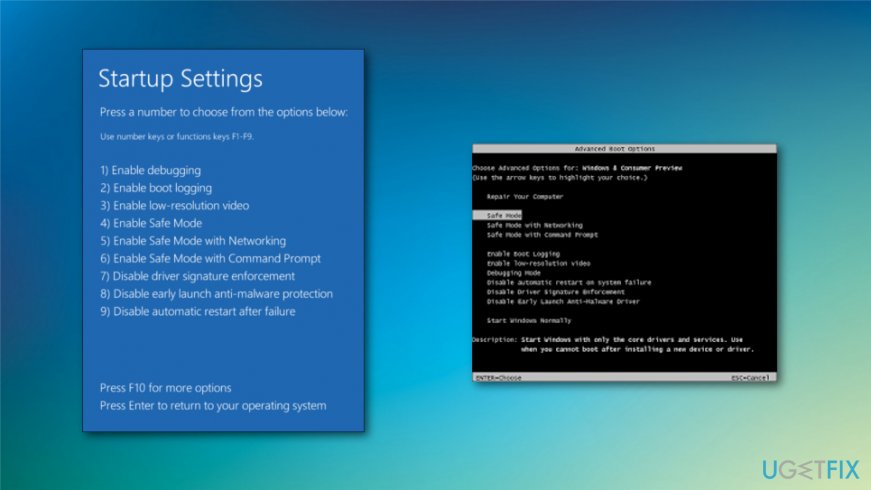
How to fix cannot open volume for direct access error safe mode - Execute the following command when opened:
chkdsk /x /f /r - See if the error occurs in the Safe Mode too.
Run the Hard Disk Self Test
- Boot the computer to BIOS, and under the Diagnostics tab, select Primary Hard Disk Self Test.
- Let the process run and boot the computer normally.
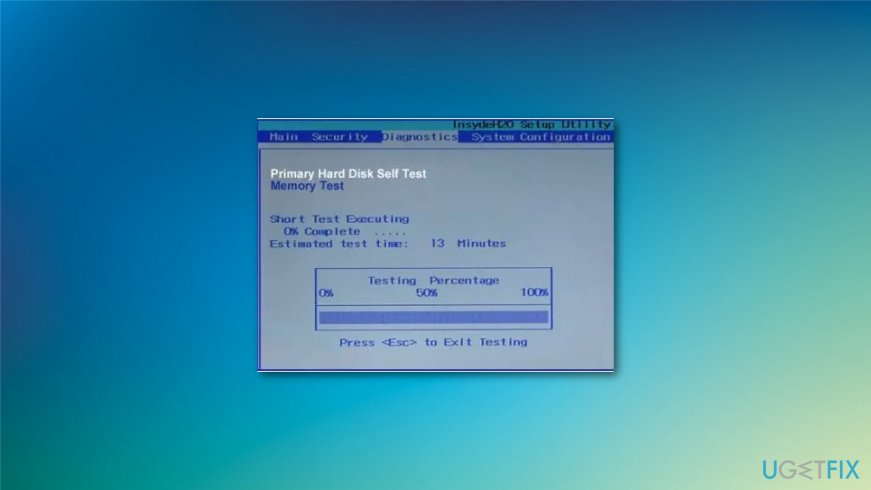
How to fix cannot open volume for direct access error test
Use File Explorer to fix Cannot open volume for direct access error
- Open This PC folder.
- Find the device partition you need to format and right-click on it.
- Choose Format and a new file system.
- Wait for the process to finish.
Bottom line
To fix the 'Cannot open volume for direct access' error, you can check for third-party applications that may be interfering, use a PC repair tool to identify unwanted programs, and consider uninstalling or disabling such applications. If these solutions do not resolve the issue, further investigation into the hard drive's integrity may be necessary.
Frequently asked questions
This error typically occurs due to issues with the disk or the file system, often when the drive is corrupted or unresponsive. Running a disk check or using the Command Prompt to troubleshoot the drive can help resolve the issue.
In Windows 11, you can try using the CHKDSK utility in Command Prompt to scan and repair the drive. Type 'chkdsk X: /f' (replace X with your drive letter) and press Enter to initiate the repair process.
Yes, tools like Windows Error Checking and third-party disk repair software can help fix the underlying issues causing this error. Make sure to back up your data before attempting any repairs.




Report an issue
What's wrong with this guide? We review every report and update or remove content.
Report received — thank you. We'll review and fix it.
You need a free account to submit a report.
Be the first to comment