How to fix
Can’t add a Microsoft account to existing local account
on Windows
Resolve the issue of linking a Microsoft account to your local account on Windows 10 or 11. Quick fixes and expert-tested solutions await!

What causes How to fix can’t add a Microsoft account to existing local account?
- Local account lacks permissions to transition to a Microsoft account
- Corrupt user profile or system settings
- Poor or inconsistent internet connectivity
- Third-party antivirus or firewall interference
- Account linking options are disabled
Repairs Windows system files, removes malware, and restores a clean OS state — without reinstalling.
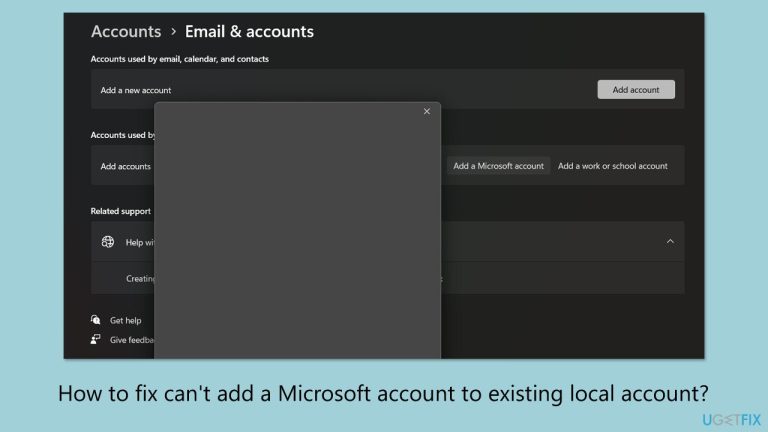
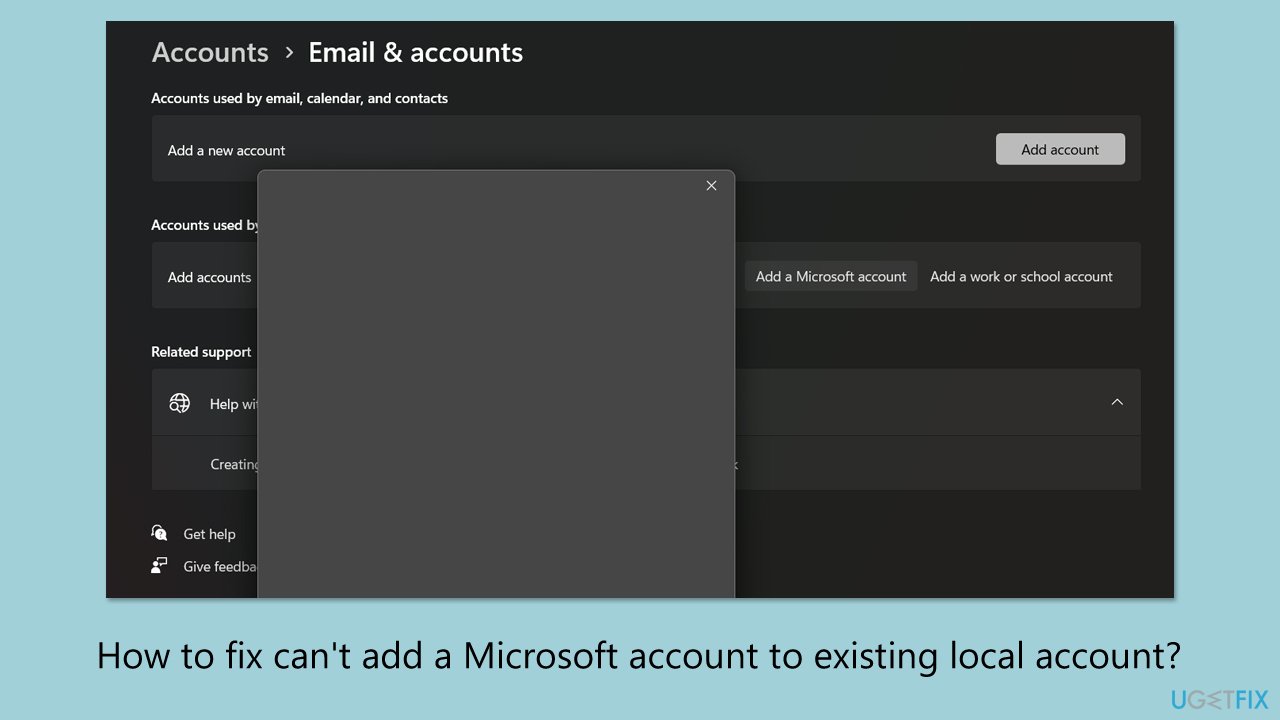
Hello. I hope you will be able to help me with my Microsoft account issue. I was having problems with my account so I removed it to re-add it. However, now I can't add it all - all I can see is an empty Window when I press Add account. I keep waiting but nothing happens. Any idea what is going on?
If Windows won't let you add a Microsoft account to your already existent local account, such a thing might turn to be really distressing. Without this, it becomes impossible to synchronize settings or access some online services.
The bug almost always hinders linking between two accounts and prevents people from utilizing apps like OneDrive, Microsoft Store, or even any other functions connected with their Microsoft Account. For some people, the option to add an account could be completely disabled, while for others, an empty window might show up instead.
If you can't add a Microsoft account to a local account, there could be many reasons for that. The most common one is that the local account does not have the permissions or settings to let the system transition to a Microsoft account.
Secondly, it may also be due to some corrupt user profile or system settings that are obstructing the process. The other reasons may be related to poor or inconsistent internet connectivity, as Microsoft requires an online check to proceed. Third-party antivirus or firewall interference might be the case sometimes.
Fixing this error is basically about troubleshooting the root cause of it. Some possible fixes could include:
- Verifying your internet connection to ensure it's stable and active.
- Checking system settings to confirm that account linking options are enabled.
- Resolving potential conflicts caused by third-party software by temporarily disabling them during the account setup process.
- Ensuring the local account is not damaged, which may require creating a new profile or repairing the existing one.
If manual troubleshooting feels overwhelming, using an automated tool like [d1] PC repair can help resolve underlying Windows issues, making it easier to add a Microsoft account to your local account seamlessly.
Fix 1. Add via Your Info
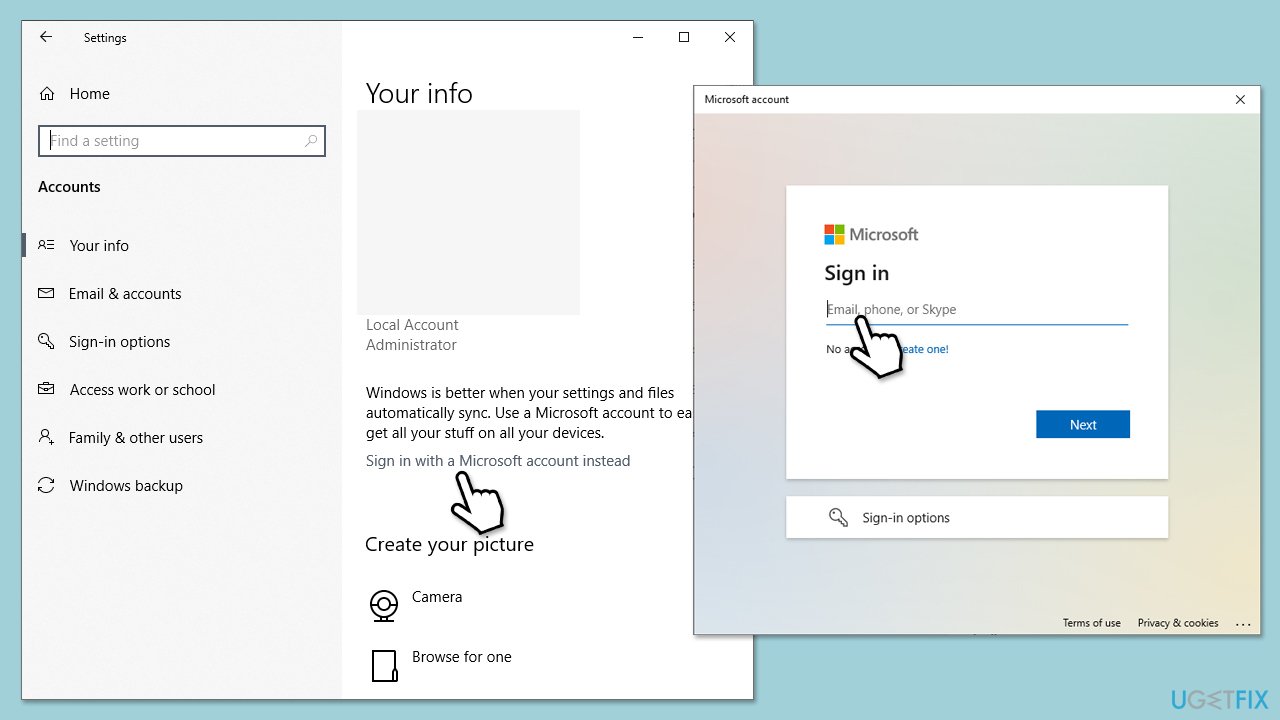
The easiest way to attach your Microsoft account is through the Your info section in Windows Settings. This ensures that the account setup process integrates directly with your user profile.
- Right-click on Start and pick Settings.
- Go to Accounts and click on Your info.
- Click Sign in with a Microsoft account instead.
- Enter your Microsoft account credentials and follow the prompts to complete the setup.
Fix 2. Add via User Accounts
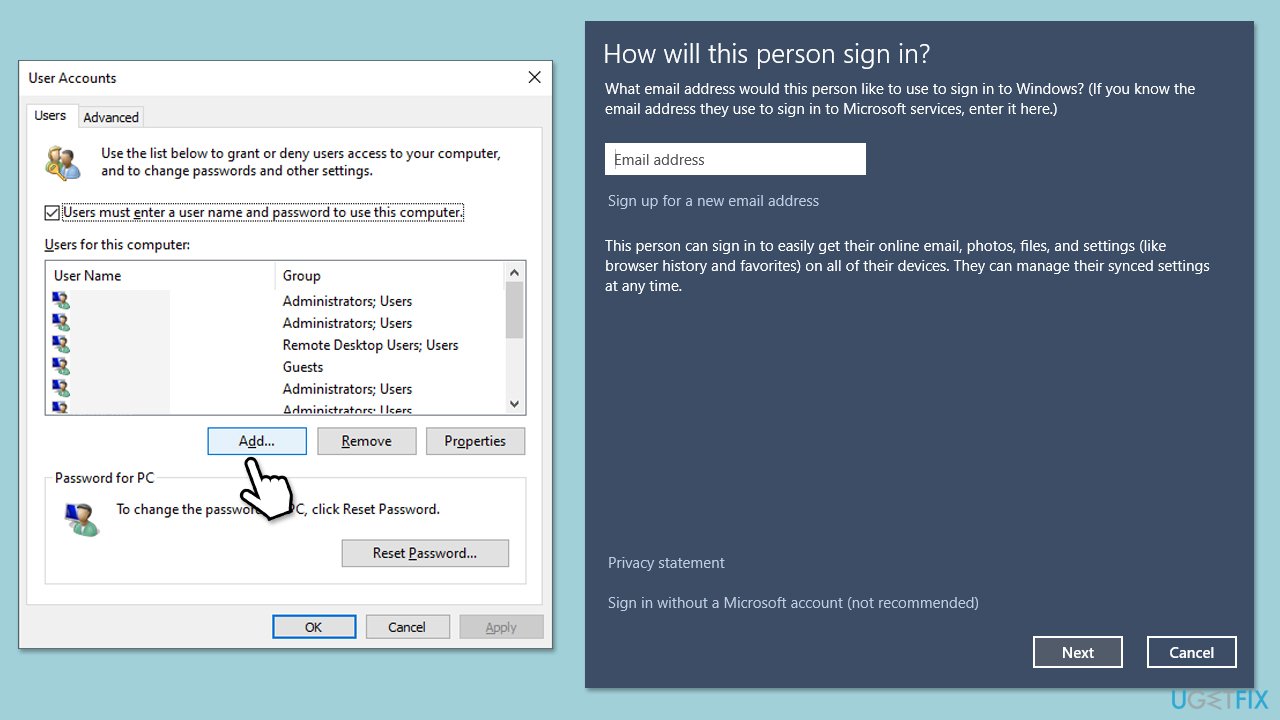
If the Settings app isn't working, using the User Accounts tool will provide another route to add a Microsoft account.
- In Windows search, type netplwiz and press Enter.
- In the User Accounts window, click Add.
- Select Sign in without a Microsoft account and then add your desired account.
- Follow the prompts to link your Microsoft account to your existing profile.
Fix 3. Update Windows
Install the latest Windows updates to ensure that all the latest bus are ironed out.
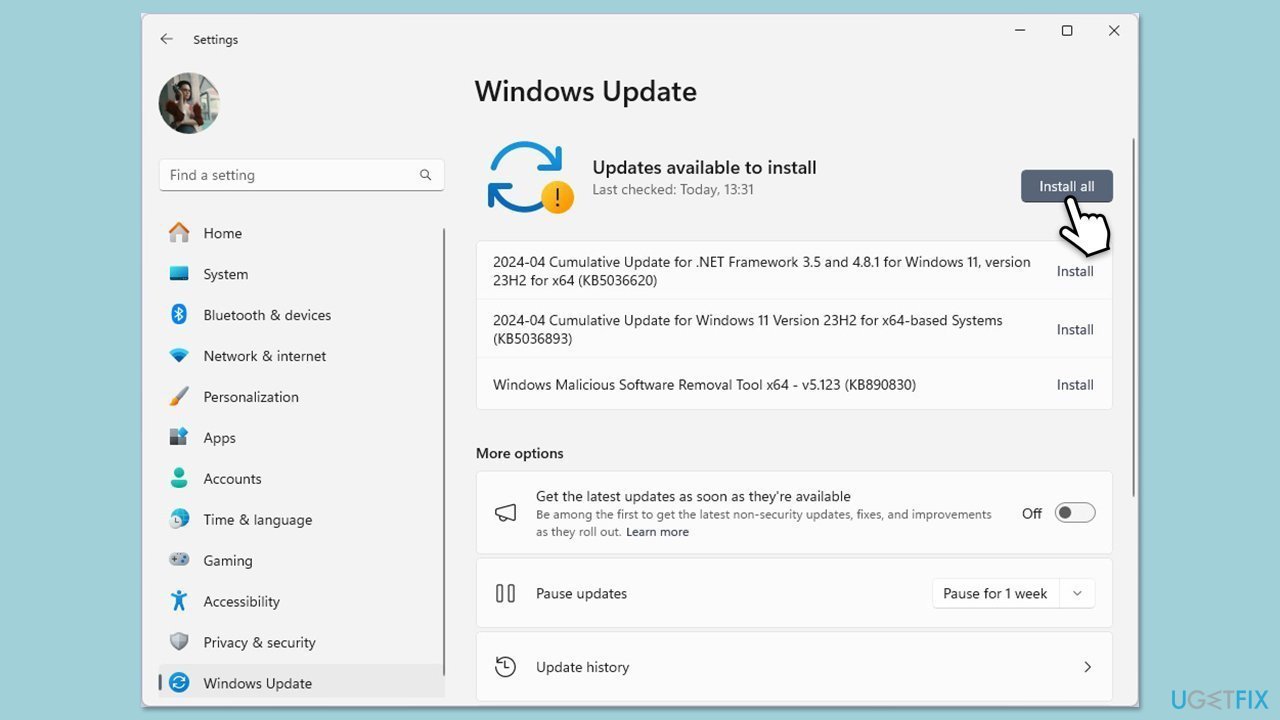
- Type Updates in Windows search and hit Enter.
- If updates are available, click Install updates.
- Otherwise, click Check for updates.
- If optional updates are available, install them as well.
- When all the update processes are complete, restart your computer.
Fix 4. Use Clean Boot
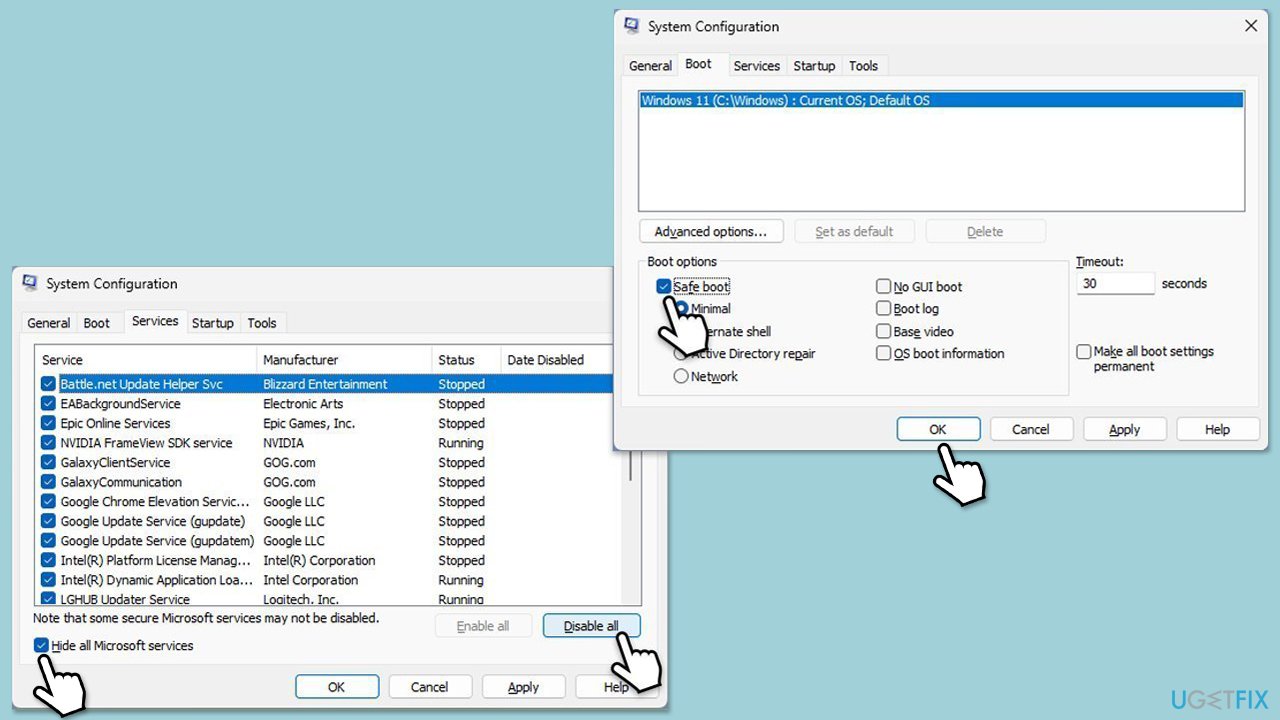
- Type msconfig in Windows search and hit Enter.
- Go to the Services tab.
- Mark Hide all Microsoft services and select Disable all.
- Go to the Startup tab and click Open Task Manager.
- In the Task Manager, right-click on each of the items and select Disable, then close the Task Manager.
- Go to the Boot tab, and tick Safe Boot.
- Click Apply and OK, and restart your computer.
- To find out which app(s) is causing conflicts, enable each of the processes (or do it in groups), restart, and see if the problem persists. Repeat until you find the faulty app, then either update or uninstall it.
Fix 5. Create a new user account
If your existing local account is corrupted, creating a new user account can resolve the issue. Before proceeding, back up your user profile to retain important files and settings.
- Open File Explorer (Win+E) and navigate to the following location:
C:\Users[YourUsername]. - Copy your Documents, Desktop, Downloads, and other important folders to a safe location, such as an external drive or OneDrive.
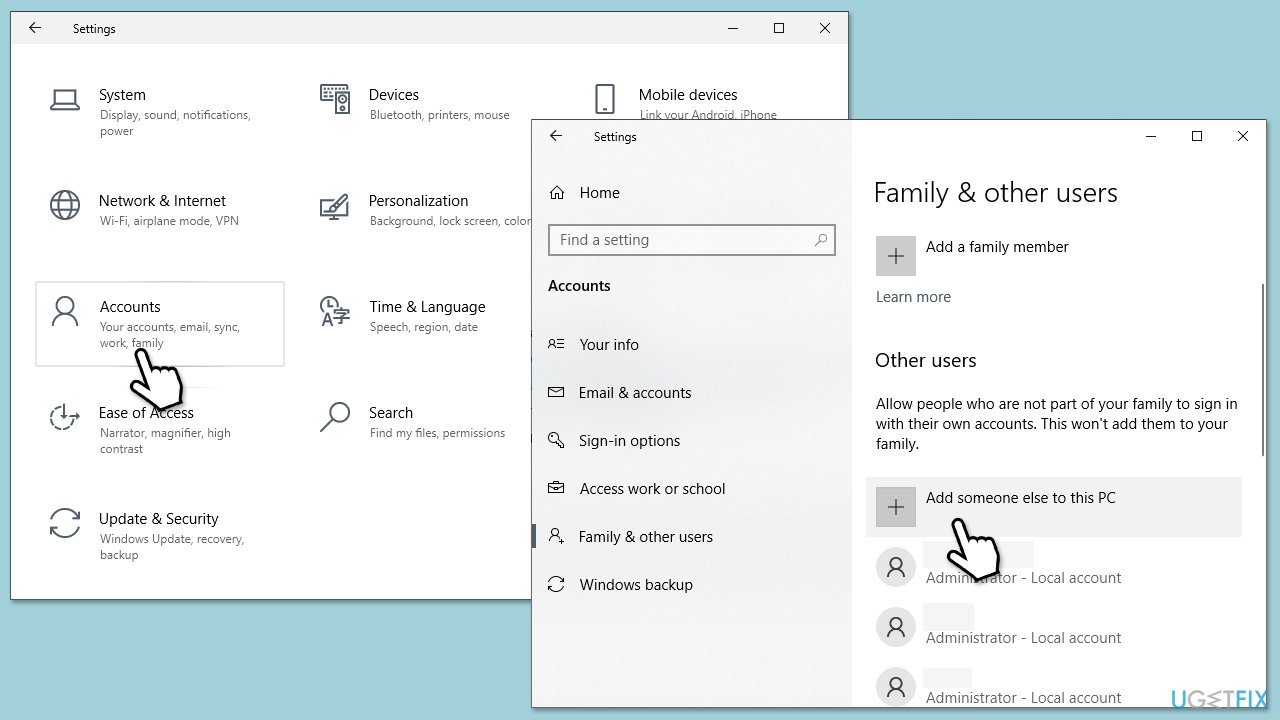
- Open Windows Settings.
- Go to Accounts then Family/Family & other users.
- Under Other users, click Add account/Add someone else to this PC.
- Follow the prompts to create a new user account. If you don't have Microsoft account details, you can choose I don't have this person's sign-in information followed by Add a user without a Microsoft account.
- Assign a username and password for the new account and complete the setup.
- Log out of your current account and log into the new account.
Fix 6. Repair-install Windows
If none of the above methods work, performing a repair-install of Windows can resolve deeper system-level issues without affecting your personal files and apps.
- Visit the official Microsoft website and download Windows 10 installation media (Windows 11 version).
- Double-click the installer, select Yes when UAC shows up, and agree to the terms.
- Select the ISO file and click Next, then follow the instructions to finish the process.
- Right-click on ISO and click Mount.
- Open the location of the ISO, right-click on it, and select Mount.
- Launch the installer.
- Select Upgrade this PC now and click Next.
- Windows will start downloading the needed files.
- Agree to the terms once again and click Next.
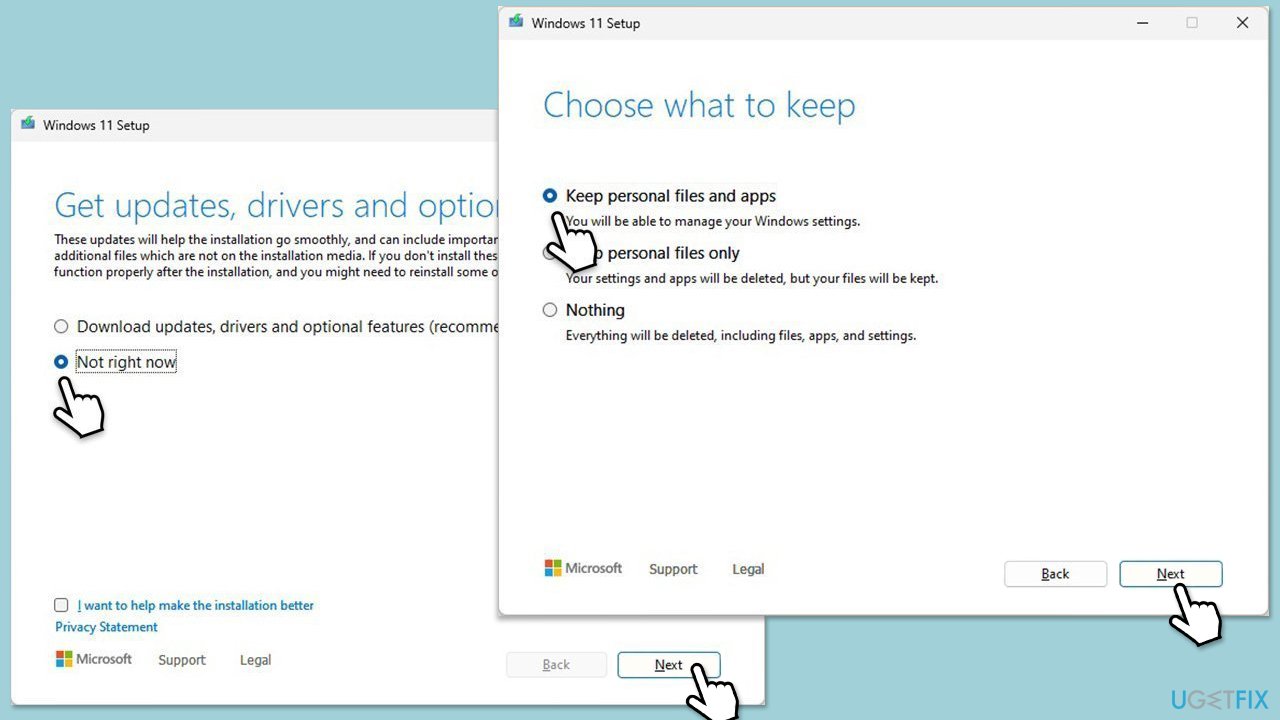
- Before installing, ensure you are happy with your choices (otherwise, you can click the Change what to keep option).
- Finally, click Install to begin the upgrade process.
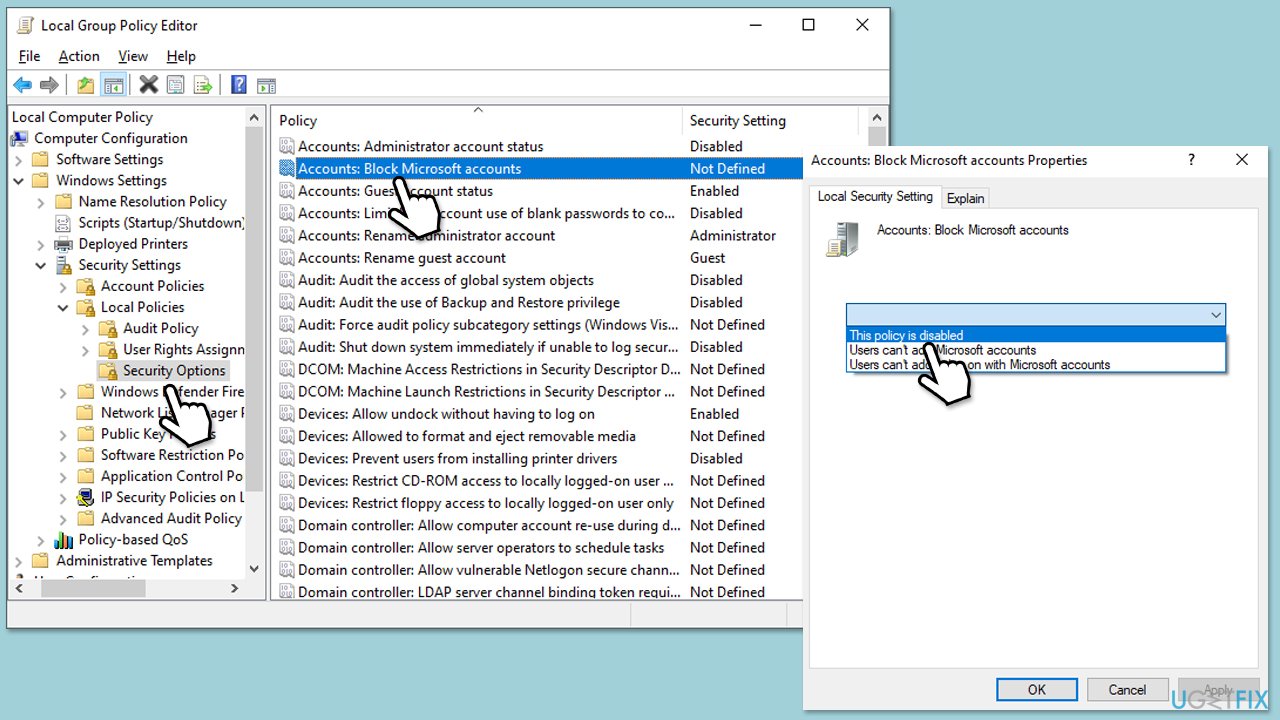
Fix 7. Enable Microsoft account sign-in policy
If your computer is managed by an organization or specific settings are altered, the Microsoft account sign-in policy might be disabled.
- Type Group Policy in Windows search and press Enter.
- Navigate to the following location:
Computer Configuration > Windows Settings > Security Settings > Local Policies > Security Options - Find Accounts: Block Microsoft accounts and set it to Disbled.
- Restart your system and try again.
Bottom line
To fix the issue, verify your internet connection, check system settings for account linking options, and resolve conflicts caused by third-party software. If the local account is damaged, consider creating a new profile or repairing the existing one. If none of these solutions work, using an automated tool like PC repair may help resolve underlying Windows issues.
Frequently asked questions
This issue may occur due to corrupted user profiles or incorrect settings in your Windows 10 system. Make sure your Windows is updated and try creating a new local account to see if the problem persists.
If you encounter an error, ensure that your device is connected to the internet and that your Microsoft account credentials are correct. You can also try resetting the Microsoft account settings through the Accounts settings on Windows 11.
Yes, you can switch to a Microsoft account without losing data by going to Settings > Accounts > Your info and selecting 'Sign in with a Microsoft account instead.' Make sure to back up your data before proceeding.




Report an issue
What's wrong with this guide? We review every report and update or remove content.
Report received — thank you. We'll review and fix it.
You need a free account to submit a report.
Be the first to comment