How to fix
Can’t Add Another User to Windows 10
on Windows
Resolve the "Can't Add Another User" issue in Windows 10 effortlessly. Follow our expert-tested solutions and get it fixed in minutes!

What causes How to Fix Can’t Add Another User to Windows 10?
- Dependency settings
- Network problems
- Incorrect Windows settings
- User account restrictions
Repairs Windows system files, removes malware, and restores a clean OS state — without reinstalling.
Hello all. For some reason, Windows prevents me from creating new user account. I’m logged as administrator, but apparently that does not make sense. Have you any suggestions?
Once Windows operating system is set up, its user is prompted to create the user account. The first registered account is known as Administrator account. If the device is used by one person only and he/she doesn’t have a need for another account, the single account is more than sufficient. However, sometimes Windows users may need to create additional user account. It’s useful if several people are using the same device or if the same person want to separate settings/files/folders/apps, etc used for the home and work purposes.
The additional account is known as User account. The difference between the two accounts is that the latter one can only be created / removed by the administrator. Besides, User account owner will be restricted from accessing some folders and modifying some system settings. Unfortunately, due to various reasons, some Windows users cannot create new User account. Usually, new account set up can be performed by following these steps:
- Press Windows key + I to access Settings.
- Open Accounts and select Family and other users.
- Then, click Add someone else to this PC.
According to people’s reports, clicking the Add someone else to this PC button simply does not respond. The “Can’t create new user on Windows 10” issue can be triggered by many factors, such as dependency settings, network problems, incorrect Windows settings, and so on. Nevertheless, the problem can usually be fixed quite easily. There are two basic options to fix not working “Add someone else to this PC” button - Using netplwix or hiding some problematic services.
Solution 1. Fix cannot add users to Windows 10 by running netplwiz
- Press Windows key + R, type netplwiz and click OK.
- In the newly opened window, click Add and enter the Microsoft account email address of a person for whom you want to add an account. (This option will create a Microsoft account, not Local Account. If you are OK with that, please follow the instructions).
- If you opt for creating new Local Account, select Sign in without a Microsoft account (not recommended) link.
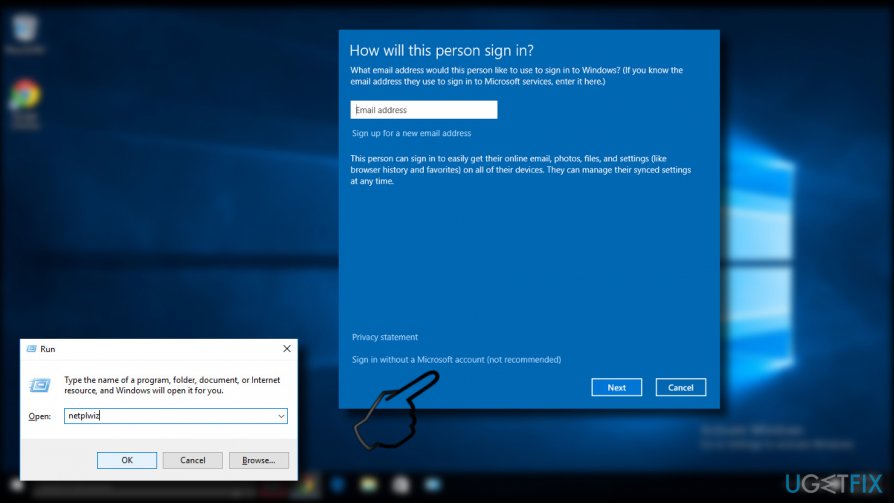
Picture1 -
Now select Local account. In case you would decide to create Microsoft account, select Microsoft account.
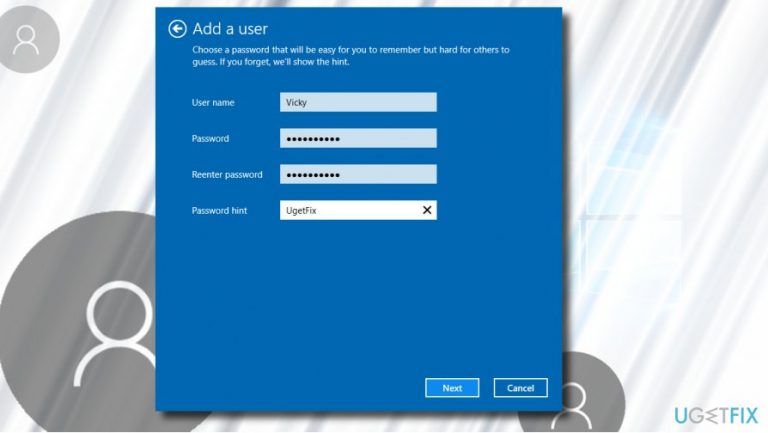
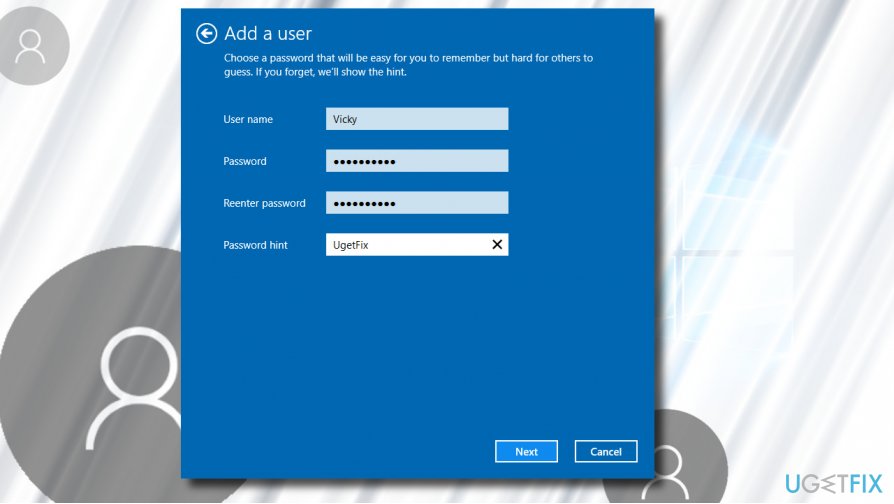
- Now enter the user name, user password, reenter password, password hint and then click Next. Follow the on-screen instructions and the account should successfully be created.
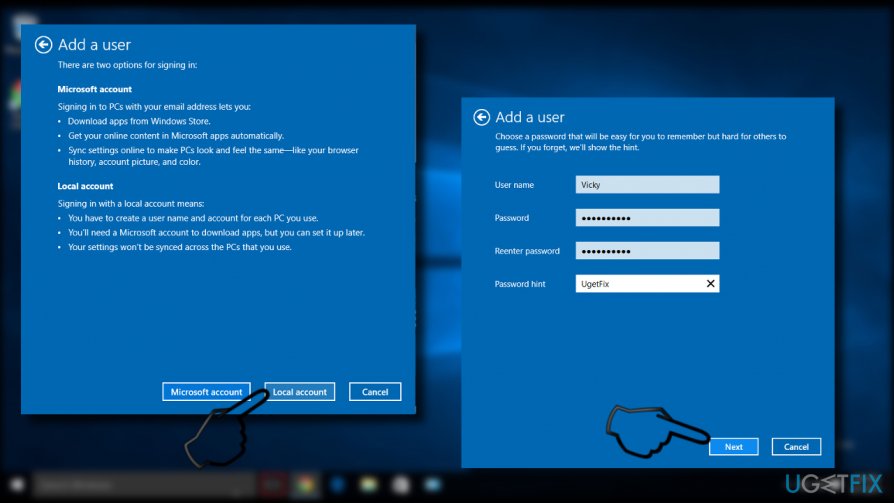
Picture2
Solution 2 – Hide problematic services
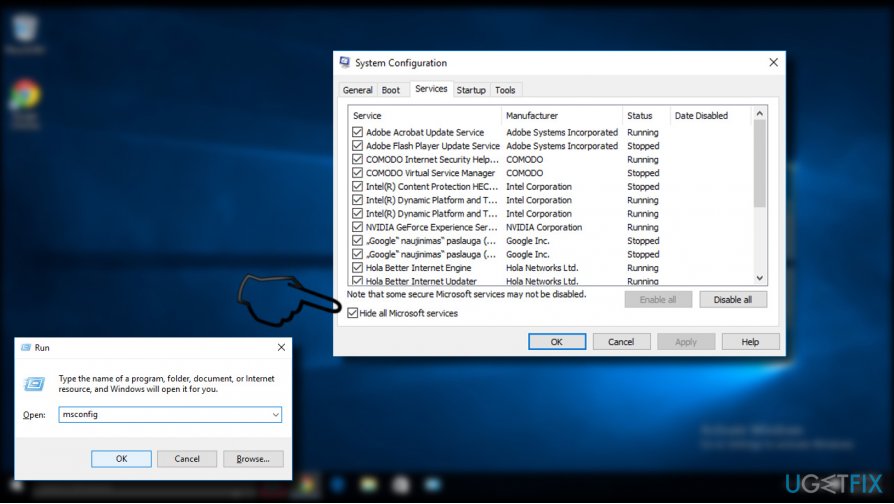
Some background processes may prevent PC’s owner from creating new user account. Therefore, try to disable all Microsoft processes and try to create an account.
- Press Windows key + R, type msconfig and hit Enter.
- On the System Configuration window, open the Services tab.
- Mark the Hide all Microsoft services check box.
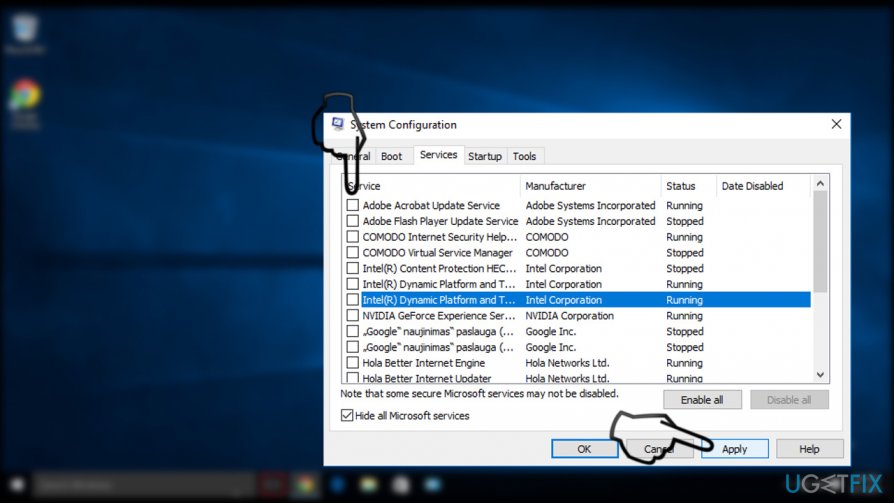
Picture3 - Now uncheck all the services and close the System Configuration.
- Try to create new user to check if that helped. One way or another, you will have to re-enable all the services.
Picture4
Bottom line
The issue of not being able to add a new user account in Windows 10 can often be resolved by using the netplwiz command or by hiding problematic services. If these solutions do not work, further investigation into system settings or seeking additional support may be necessary.
Frequently asked questions
Make sure your Windows 10 is updated to the latest version, as missing features can often be resolved through system updates. Additionally, check if your user account has administrative privileges.
Try running the 'User Accounts' troubleshooter from the Control Panel, which can often identify and resolve issues with user account settings. If that doesn't work, consider creating a new local user account through the Command Prompt.
Yes, you can add a new user through the Command Prompt by executing the 'net user' command, which allows you to create accounts directly. This method can be useful if the Settings app is not functioning properly.




Report an issue
What's wrong with this guide? We review every report and update or remove content.
Report received — thank you. We'll review and fix it.
You need a free account to submit a report.
Be the first to comment