How to fix
“Can’t add your folder right now” OneDrive error
on Windows
Resolve the "Can’t add your folder right now" OneDrive error in Windows 10 or 11 effortlessly. Quick solutions, expert-tested fixes, and zero traces left.

What causes How to fix “Can’t add your folder right now” OneDrive error in Windows?
- Folder permissions issues
- Conflicts with existing files in OneDrive
- Restricted file names
- Outdated OneDrive app
- Corrupted files or registry issues
Repairs Windows system files, removes malware, and restores a clean OS state — without reinstalling.
Hello. When I try to add a folder to OneDrive, I get the "Can’t add your folder right now" error. How can I fix this?
Microsoft OneDrive is a cloud storage and file synchronization service. Users can store files and folders in the cloud, access them from multiple devices, and share them with others. OneDrive is built into Windows operating systems, making it easy for users to store and access their files.
The "Can't add your folder right now" error is a common problem for Windows OneDrive users. Users may receive this error message when attempting to add a folder to OneDrive for synchronization. The error usually indicates that there is a problem with the folder permissions or that there are conflicts with existing files in OneDrive.
This problem may have a number of consequences for users. For starters, it prevents them from adding new folders to OneDrive, limiting their ability to sync and access files across devices. This can stifle productivity and collaboration, particularly when working on projects that necessitate seamless file sharing and access. Furthermore, users may become frustrated and confused while attempting to resolve the issue, especially if they are unfamiliar with troubleshooting techniques or lack technical expertise.
There are several solutions available to resolve the "Can't add your folder right now" error in OneDrive. These solutions could include changing folder permissions, resolving file conflicts, or troubleshooting the OneDrive app itself. Users can address the problem by checking folder permissions, ensuring file names are not restricted, updating or reinstalling OneDrive, or contacting Microsoft support.
In this guide, you will find 5 steps that should help you fix "Can’t add your folder right now" OneDrive error in Windows. You can also try a system repair tool like [d1]. It can fix most system errors, BSODs,[ref en-1] corrupted files, and registry[ref en-2] issues. Otherwise, follow the step-by-step instructions below.

Method 1. Run the OneDrive Troubleshooter
- Go to the official OneDrive troubleshooter page.
- Scroll down to the Are you having any of these issues? section.
- Choose the option labeled Sync issues.
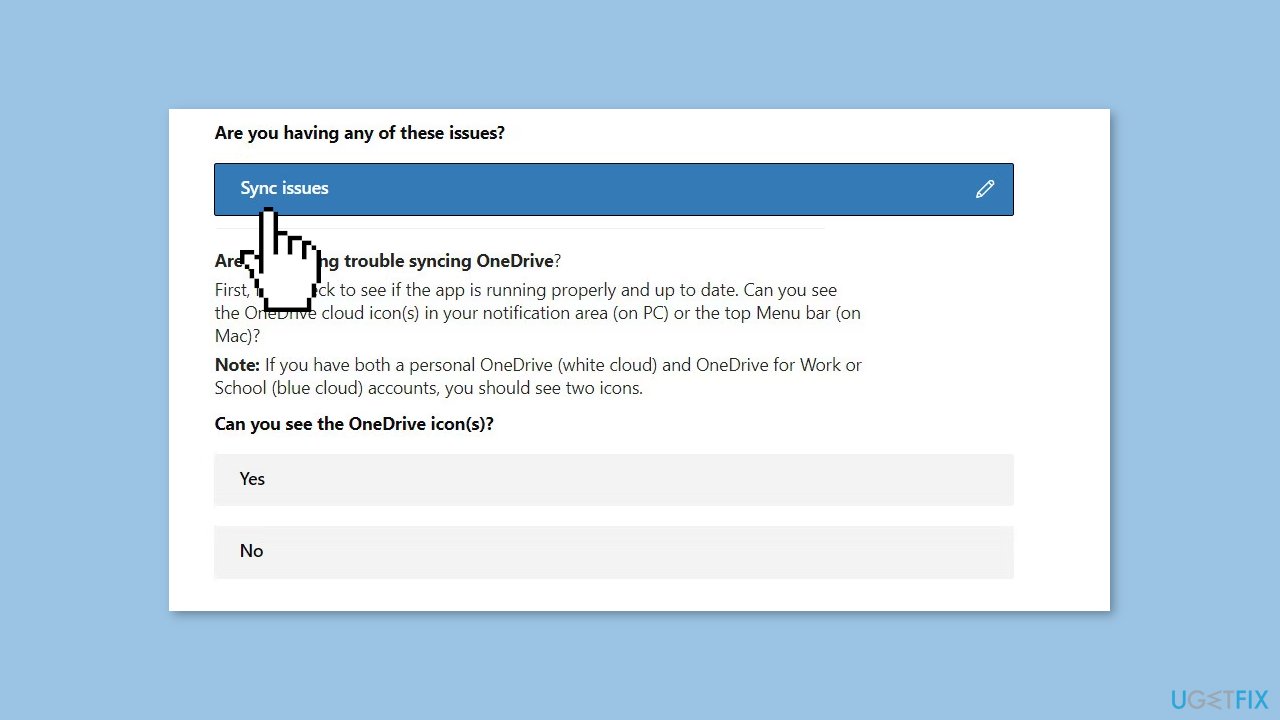
- Follow the on-screen instructions provided by the troubleshooter.
- Answer the questions presented by the troubleshooter. These questions aim to identify the underlying problem.
- Implement the changes recommended by the troubleshooter.
- Check if the changes made have resolved the problem you were experiencing.
Method 2. Check Folder Permissions
- Right-click on the folder you want to add to OneDrive.
- From the context menu, select Properties.
- In the Properties window, navigate to the Security or Sharing & Permissions tab.
- Look through the list of users and their permissions for the folder.
- Verify if your user account has the necessary permissions for reading, writing, modifying, and accessing the folder.
- If your user account lacks the required permissions, click on the associated Edit button.
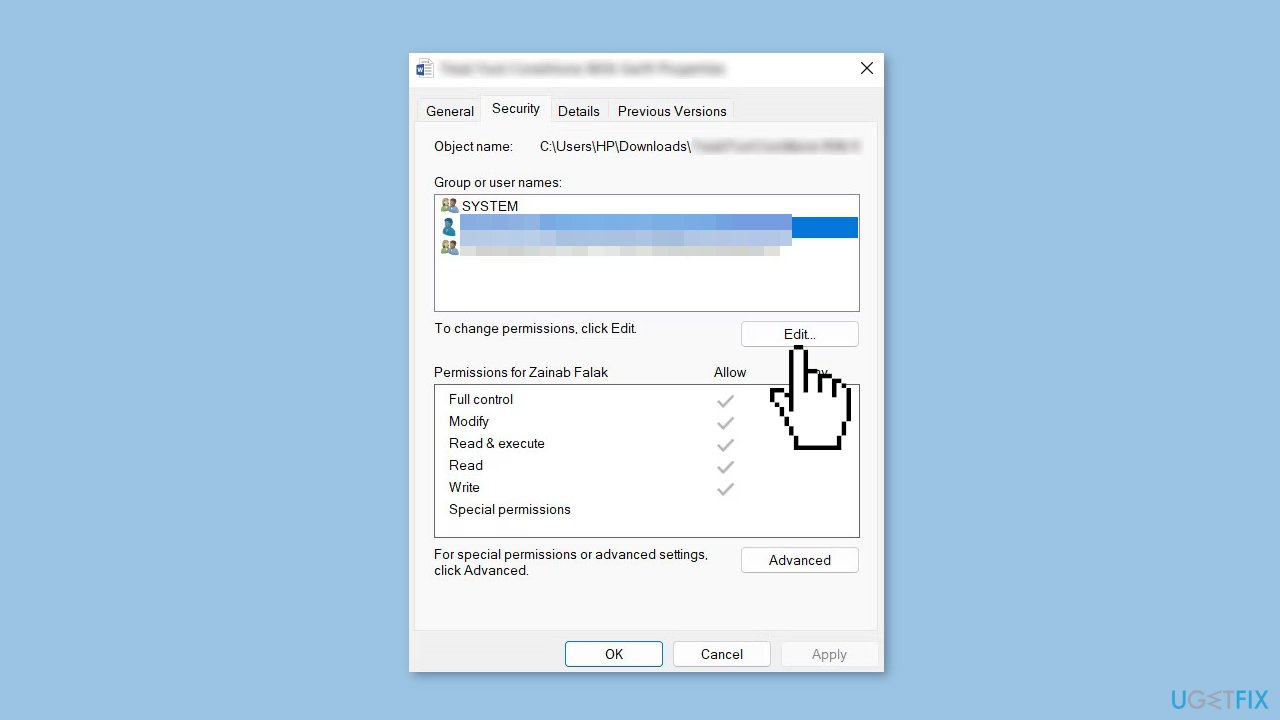
- Assign the necessary permissions to your user account.
- Click Apply and then OK to save the changes and close the Properties window.
Method 3. Try Clean Boot
- Open the Search menu, type in system configuration, and press Enter.
- Under the Services tab, tick the Hide all Microsoft services box.
- Click on Disable all button.
- Head over to the Startup tab and click on Open Task Manager.
- Select a third-party program and click on Disable at the top.
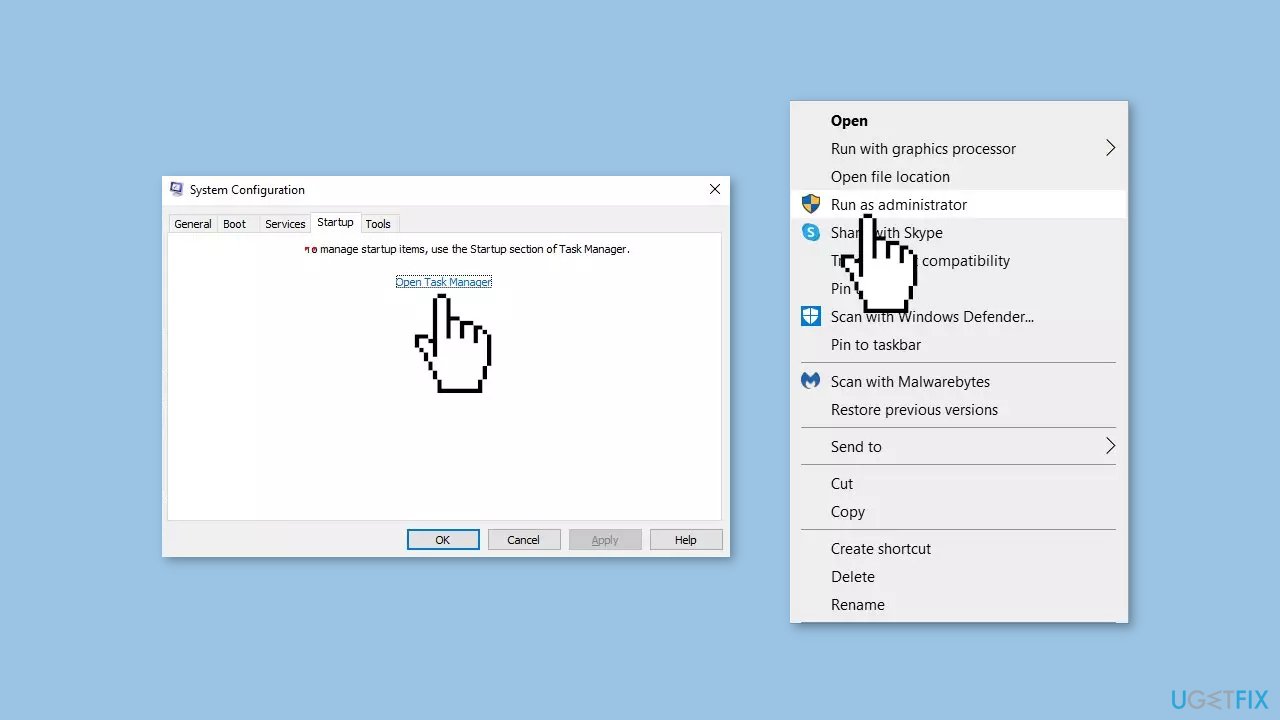
- Repeat this step to disable all third-party apps and programs.
- Restart your PC to enter the clean boot state and see if the issue persists.
- If the issue disappeared in the clean boot state, then you can be certain that a third-party app is causing it.
- Go through all recently installed apps or programs and remove them one by one.
Method 4. Check Available Storage
- Go to the OneDrive website and log in to your account.
- Navigate to the Accounts settings section.
- Look for the storage space information.
- Verify whether you have enough storage available or if you have reached your storage limit.
Method 5. Reinstall OneDrive
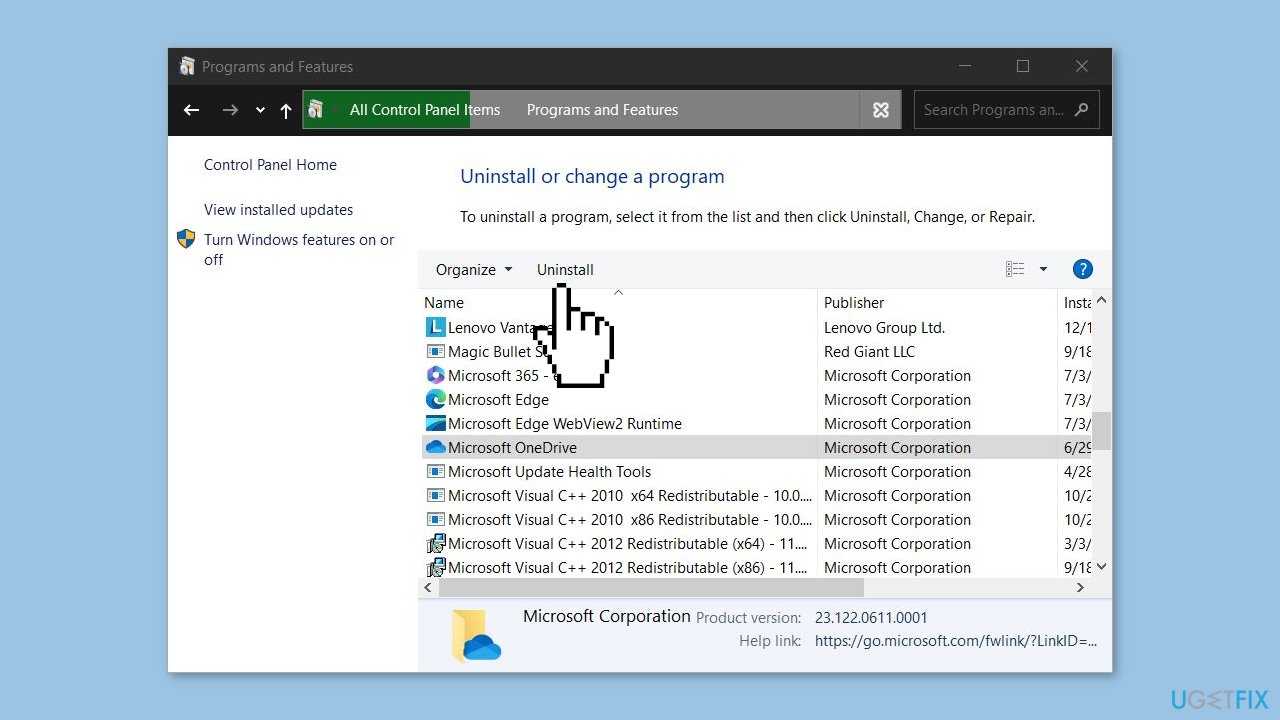
- Open the Control Panel on your computer.
- Navigate to Programs or Programs and Features.
- Locate Microsoft OneDrive in the list of installed programs.
- Right-click on Microsoft OneDrive and select Uninstall or Uninstall/Change.
- Follow the prompts and instructions provided by the uninstaller to complete the removal of OneDrive from your system.
- Open a web browser and visit the official Microsoft OneDrive website.
- Look for a prominent button or link to download OneDrive.
- Click on the download button or link to start downloading the OneDrive installer.
- Once the installer file is downloaded, locate it on your computer.
- Double-click on the installer file to launch the OneDrive installation process.
- Follow the on-screen instructions presented by the installer.
- If prompted, sign in to your Microsoft account associated with OneDrive.
- Choose the desired settings and preferences during the installation process.
- Wait for the installation to complete.
Bottom line
To fix the 'Can’t add your folder right now' error in OneDrive, users can try changing folder permissions, resolving file conflicts, updating or reinstalling the OneDrive app, and using a system repair tool. If these solutions do not work, contacting Microsoft support may be necessary.
Frequently asked questions
This error usually arises due to issues with your OneDrive sync settings, insufficient storage space, or a corrupted OneDrive installation on Windows 10.
To fix the error on Windows 11, try resetting OneDrive by pressing Win + R, typing 'onedrive.exe /reset', and then restarting the app.
Yes, unlinking and then relinking your OneDrive account can often resolve the 'Can’t add your folder right now' error in both Windows 10 and Windows 11.




Report an issue
What's wrong with this guide? We review every report and update or remove content.
Report received — thank you. We'll review and fix it.
You need a free account to submit a report.
Be the first to comment