How to fix
Can’t change Power Plan settings
on Windows
Resolve Power Plan setting issues in Windows 10 and Windows 11 quickly and easily. Get expert-tested solutions that work in minutes!

What causes How to fix can’t change Power Plan settings in Windows?
- Driver issues
- Corrupt system files
- Conflicts with third-party software
- Windows update causing the issue
Repairs Windows system files, removes malware, and restores a clean OS state — without reinstalling.
I just can't seem to be able to change the power plan on my laptop. I want to set it to balanced but it remains on power saver as was set before. Please advise.
Power Plan is a feature in Windows that allows users to manage and optimize the power usage of their computers. It helps users to conserve energy and extend the battery life of their laptops or tablets. Power Plan provides options to control the display and sleep settings, adjust CPU usage, and other power-related configurations.
Windows offers three default power plans: Balanced, Power saver, and High performance. The Balanced plan is the default setting, and it balances performance and energy consumption. The Power saver plan conserves energy but reduces performance, while the High-performance plan provides maximum performance but consumes more energy.
However, some users face the issue of not being able to change Power Plan settings on their Windows computers. The option to change the Power Plan may be grayed out or simply resets to the previous setting after applying changes. This can be a frustrating problem for users who want to customize their power settings according to their needs.
The problem can occur due to various reasons, including driver issues, corrupt system files, or conflicts with third-party software. In some cases, it may be due to a Windows update that may have caused the issue.
If you can't change Power Plan on Windows, there are several troubleshooting steps that you can follow to resolve it. Below we provide a step-by-step guide that should help you to resolve this issue, and you can change the settings according to your needs.
If you would rather take an automatic approach, we recommend running a PC repair tool [d1], which can scan your system for issues that may be preventing you from changing your Power Plan settings and offer automated solutions to fix them.
Fix 1. Run Power troubleshooter
We recommend starting with a built-in troubleshooter that's designed to fix issues related to the computer's power settings.
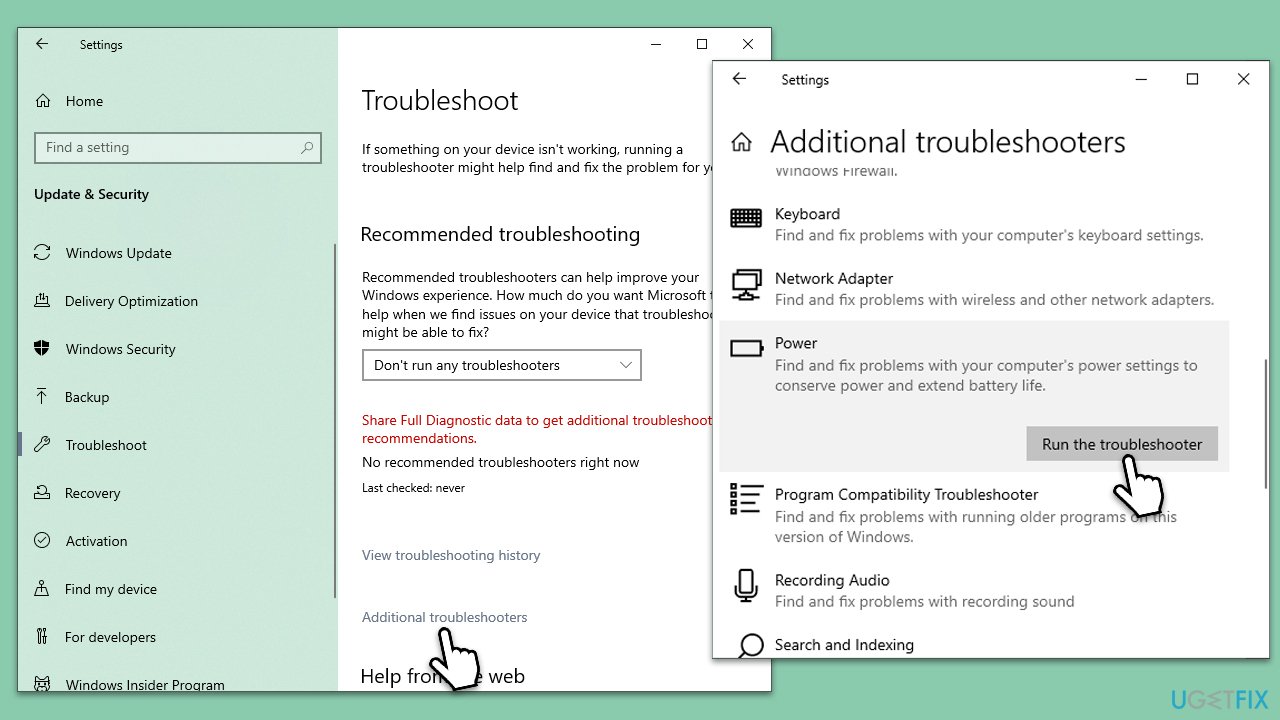
- Type troubleshoot in Windows search and press Enter.
- Select Additional troubleshooters/Other troubleshooters.
- Scroll down to find the Power section.
- Click Run the troubleshooter/Run.
- The scan will begin, and problems will be diagnosed during this process.
- Apply all the recommendations.
Fix 2. Update your graphics drivers
There are several ways you can update your drivers. You can start by applying all the main and optional updates using the Windows update feature:
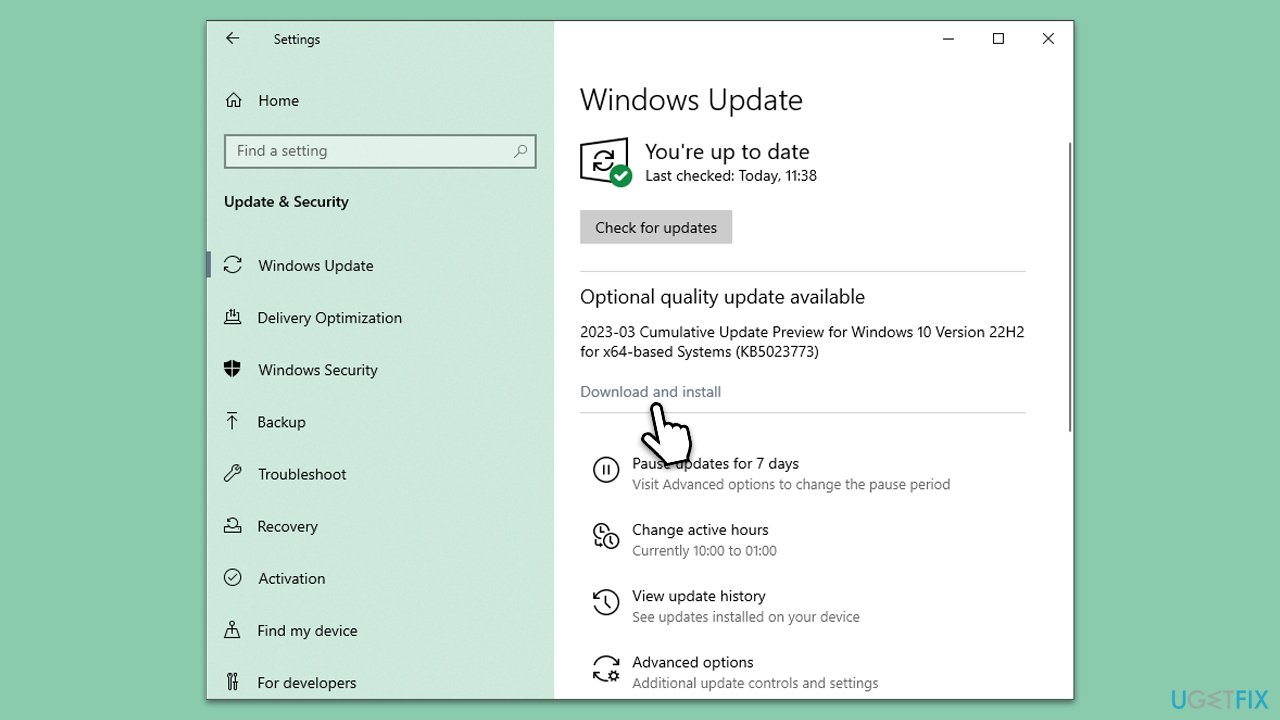
- Type Updates in Windows search and press Enter.
- Here, click the Check for Updates button.
- Wait till all the available updates are installed.
- If any optional updates are there, install them too.
- When done, restart your system to apply all the driver updates.
This method is not the best when it comes to updating your GPU drivers, as Windows might fail to identify and download software for your particular graphics card/adapter. Thus, either visit your device's manufacturer's website and install drivers manually or employ an automatic driver updater such as [rev id="DriverFix"].
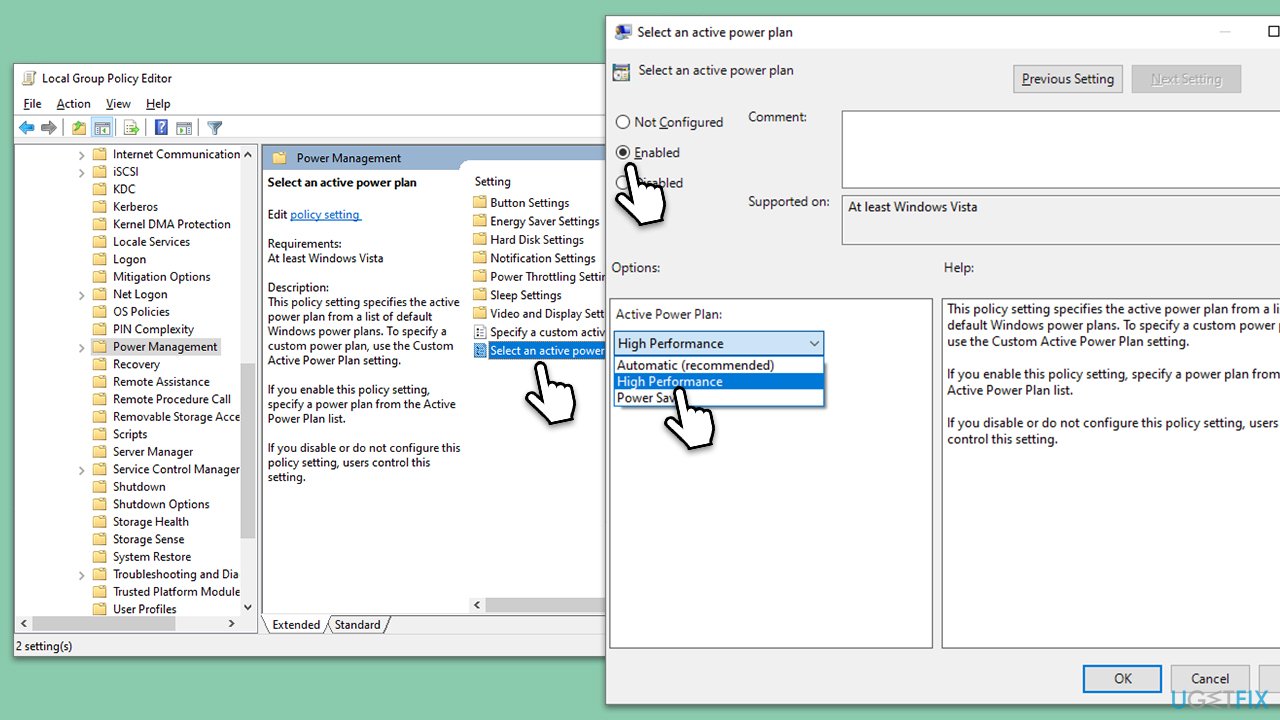
Fix 3. Use Group Policy to change Power Plan
- Make sure you are logged in as an administrator.
- Type Group Policy in Windows search and hit Enter.
- Go to the following location:
Computer Configuration > Administrative Templates > System > Power Management - On the right side, double-click the Select an active power plan option.
- Select Enabled.
- Under Options, click on the drop-down menu and select your preferred Power Plan, e.g., High Performance.
- Click Apply and OK.
Fix 4. Reset Power Plan
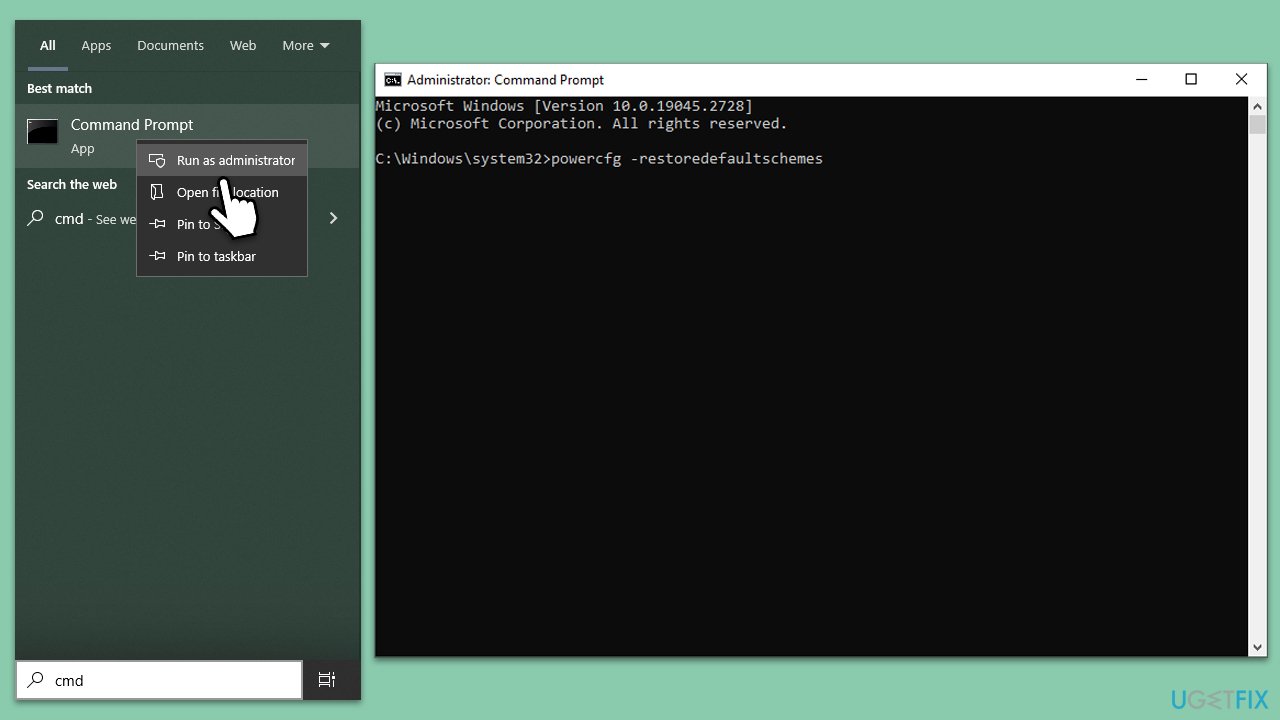
You can restore your power plan settings to default using the elevated Command Prompt:
- Type cmd in Windows search.
- Right-click on Command Prompt and select Run as administrator.
- User Account Control will ask you whether you want to allow changes - click Yes.
- When the new window opens, copy and paste the following command:
powercfg –restoredefaultschemes - Press Enter and close down Command Prompt.
- Try changing your Power Plan again.
Fix 5. Perform Clean Boot
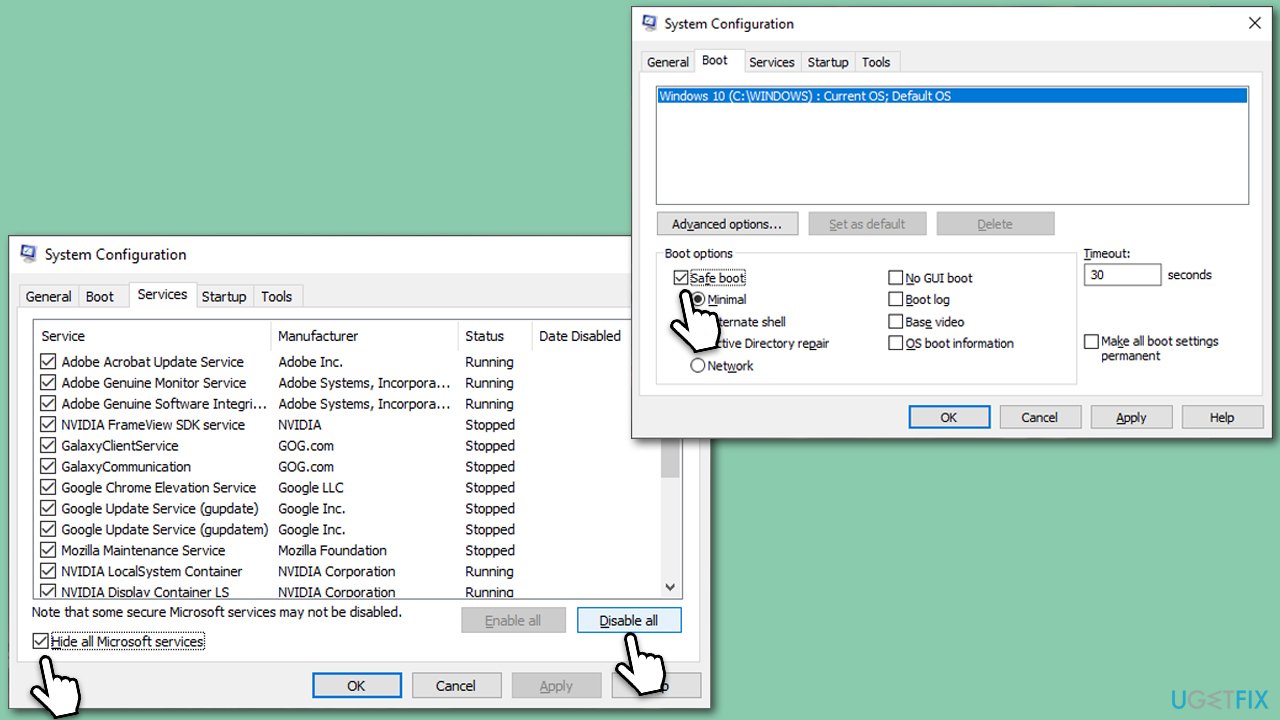
- Type msconfig in Windows search and press Enter.
- Go to the Services tab.
- Mark Hide all Microsoft services and select Disable all.
- Go to the Startup tab and click Open Task Manager.
- In the Task Manager, right-click on each of the items and select Disable, then close the Task Manager.
- Go to the Boot tab, and tick Safe Boot.
- Click Apply and OK, and restart your PC.
Check if you can change the power plan in this mode. If the problem is gone, it is likely that you have some third-party software installed on your system that's interfering with the power plan. Uninstall software that could be causing this issue.
Fix 6. Check for system file corruption
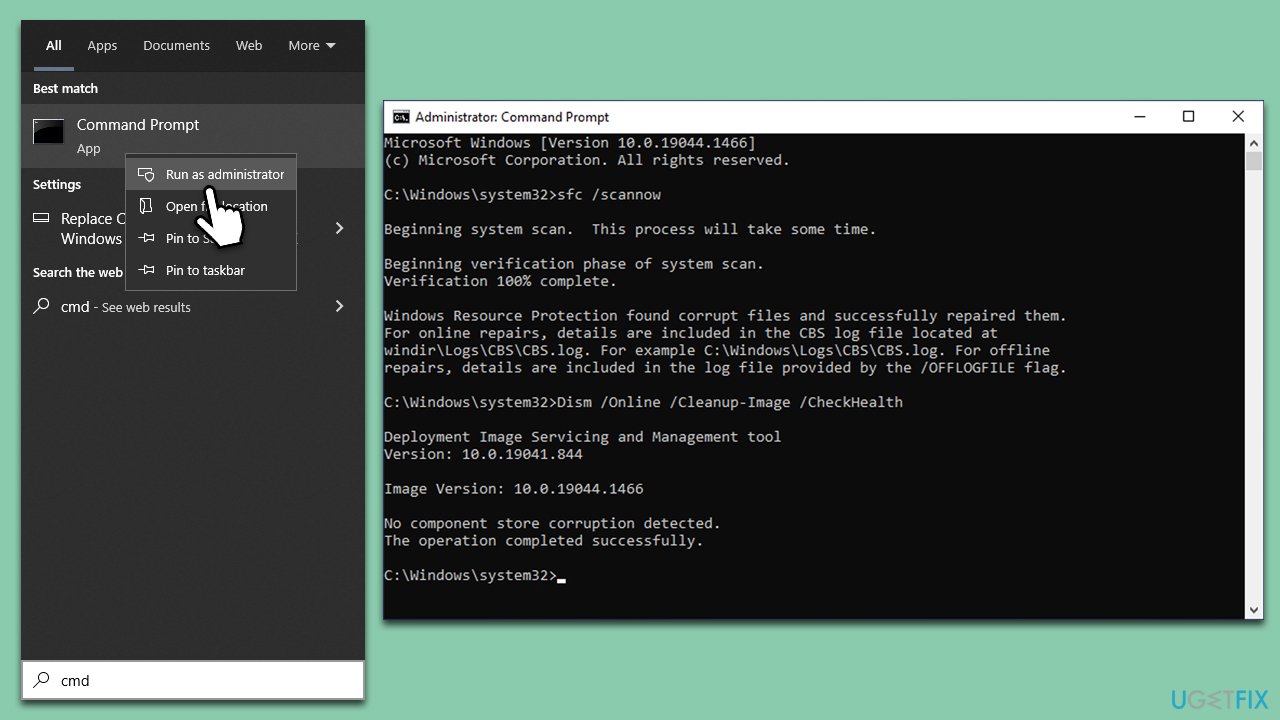
- Open Command Prompt as administrator as explained above.
- In the Command Prompt window, paste the following command and hit Enter:
sfc /scannow - Once the scan is complete, use the following commands and press Enter after each:
Dism /Online /Cleanup-Image /CheckHealth
Dism /Online /Cleanup-Image /ScanHealth
Dism /Online /Cleanup-Image /RestoreHealth - Restart your computer.
Bottom line
To fix the issue of not being able to change Power Plan settings, you can start by running the Power troubleshooter, which is designed to address power-related problems. If the issue persists, consider using a PC repair tool to scan for and resolve underlying issues. If none of these solutions work, further investigation may be necessary.
Frequently asked questions
This issue may occur due to incorrect power settings or user permissions. Try running the Power Troubleshooter or checking your group policy settings.
You can restore default Power Plan settings by opening the Command Prompt as an administrator and typing 'powercfg -restoredefaultschemes'. This will reset your power plans to their original state.
If the settings are grayed out, ensure that you are logged in as an administrator and check if any third-party applications are managing your power settings.




Report an issue
What's wrong with this guide? We review every report and update or remove content.
Report received — thank you. We'll review and fix it.
You need a free account to submit a report.
Be the first to comment