How to fix
“Can’t connect to this network” error
on Windows
Resolve the "Can't connect to this network" error on Windows 10 and 11 effortlessly. Expert-tested solutions ensure seamless connectivity, fixed in minu…

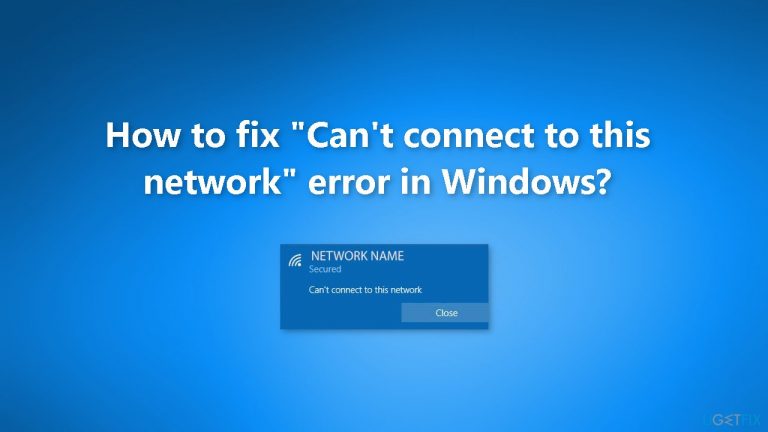
What causes How to fix “Can’t connect to this network” error in Windows?
- Windows unable to establish a connection to a wireless network
- Router issues
- Outdated network drivers
- Network settings misconfiguration
- Corrupted network files
Repairs Windows system files, removes malware, and restores a clean OS state — without reinstalling.
Hello. I keep trying to connect to my Wi-Fi on my Windows laptop but every time I receive the "Can't connect to this network" error. What is the problem? Any tips would be appreciated.
The "Can't connect to this network" error in Windows is a common issue that can impact users in different ways. This error usually occurs when Windows is unable to establish a connection to a wireless network. The error message appears when a user attempts to connect to a Wi-Fi network, but the connection fails.
Windows provides an easy way to connect to wireless networks, making it convenient for users to access the internet from anywhere. However, when this error occurs, users may experience difficulties accessing the internet, which can impact their ability to complete important tasks and activities.
There are several possible solutions to the "Can't connect to this network" error, including restarting the router and computer, running the network troubleshooter, updating network drivers,[ref en-1] and more. In some cases, the issue may be resolved by simply forgetting the network and then reconnecting to it.
It is important to identify and fix this issue as soon as possible to ensure smooth and seamless internet connectivity. In this guide, you will find 9 steps that should help you fix "Can't connect to this network" error in Windows. However, the manual troubleshooting process can be lengthy. You can use a maintenance tool like [d1] that can fix most system errors, BSODs,[ref en-2] corrupted files, and registry[ref en-3] issues. Otherwise, follow the step-by-step instructions below.
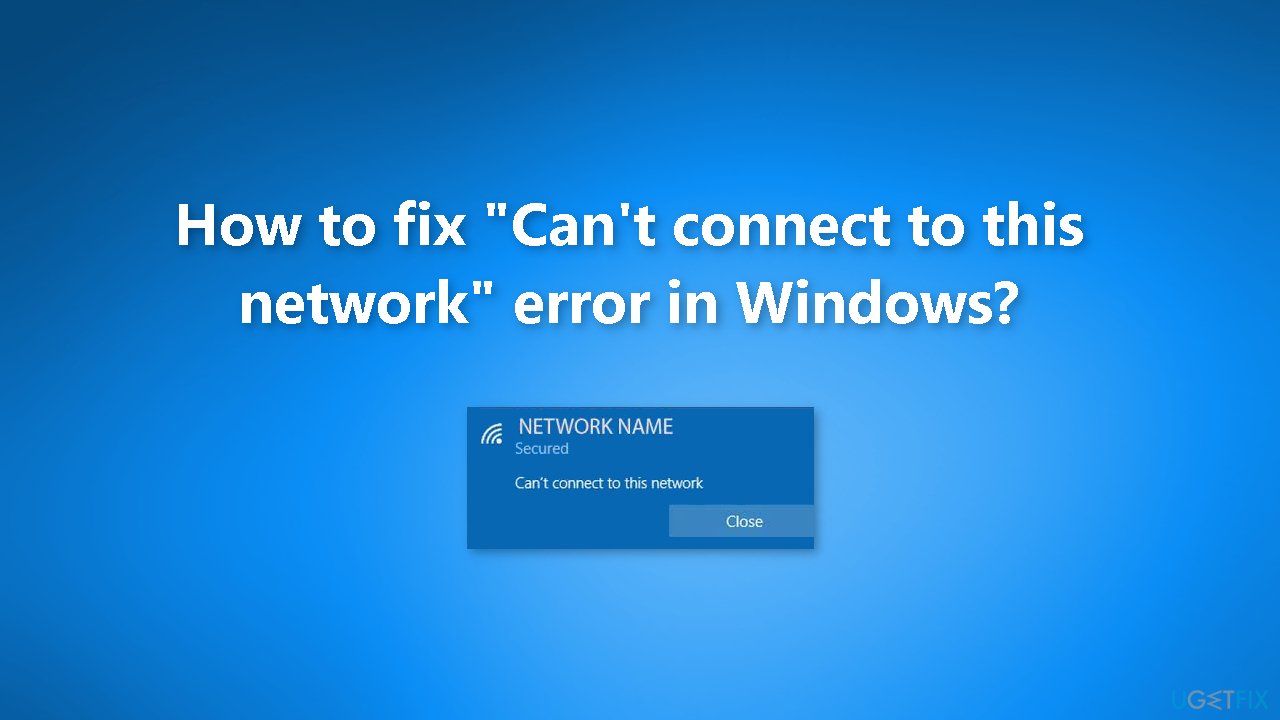
Method 1. Run the Network Troubleshooter
- In Windows Search, type network troubleshooter
- From the search results, click Find and fix network problems
- Click Next in the troubleshooter
- Windows will detect and attempt to fix connection issues on your PC
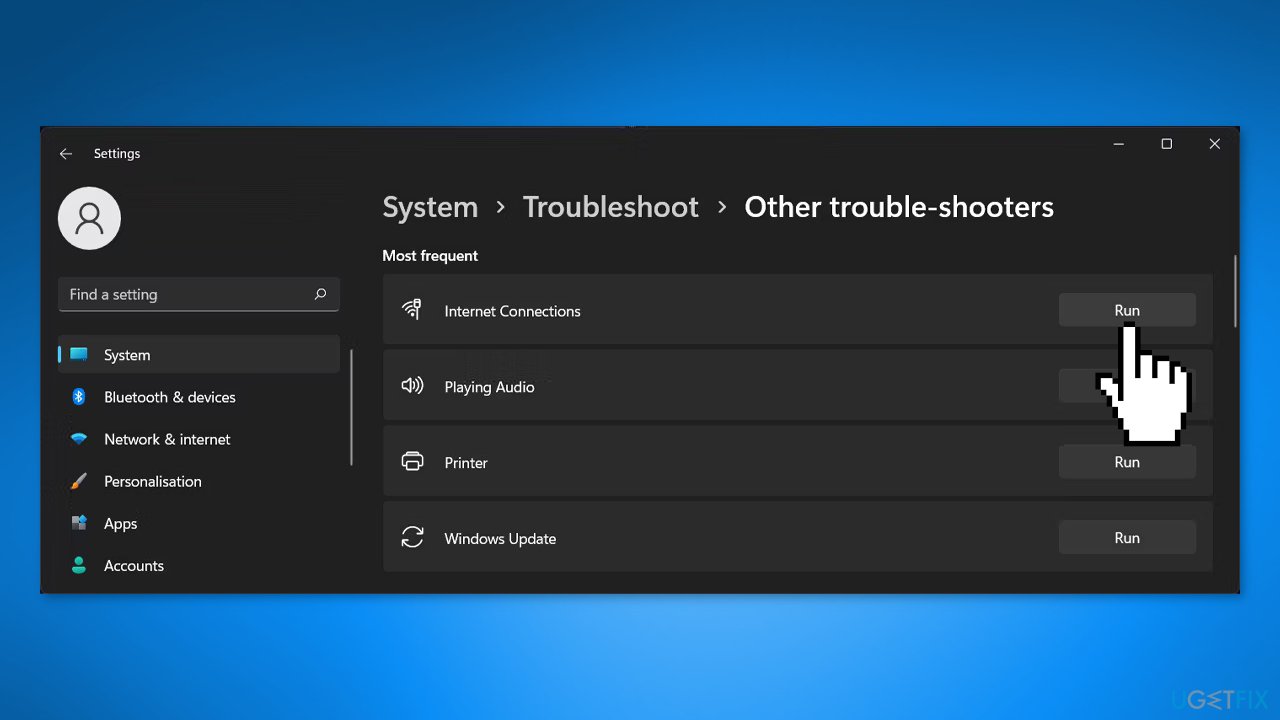
Method 2. Reconnect the Wi-Fi Network
- Open Windows Settings
- Go to Network & internet and click on Wi-Fi
- Select Manage known networks
- Click the Forget button next to the network you can't connect to
- Reconnect to the Wi-Fi and enter the password
Method 3. Install Windows Updates
- Click Start and select Settings
- Go to the Windows Update section
- Click Check for updates and wait
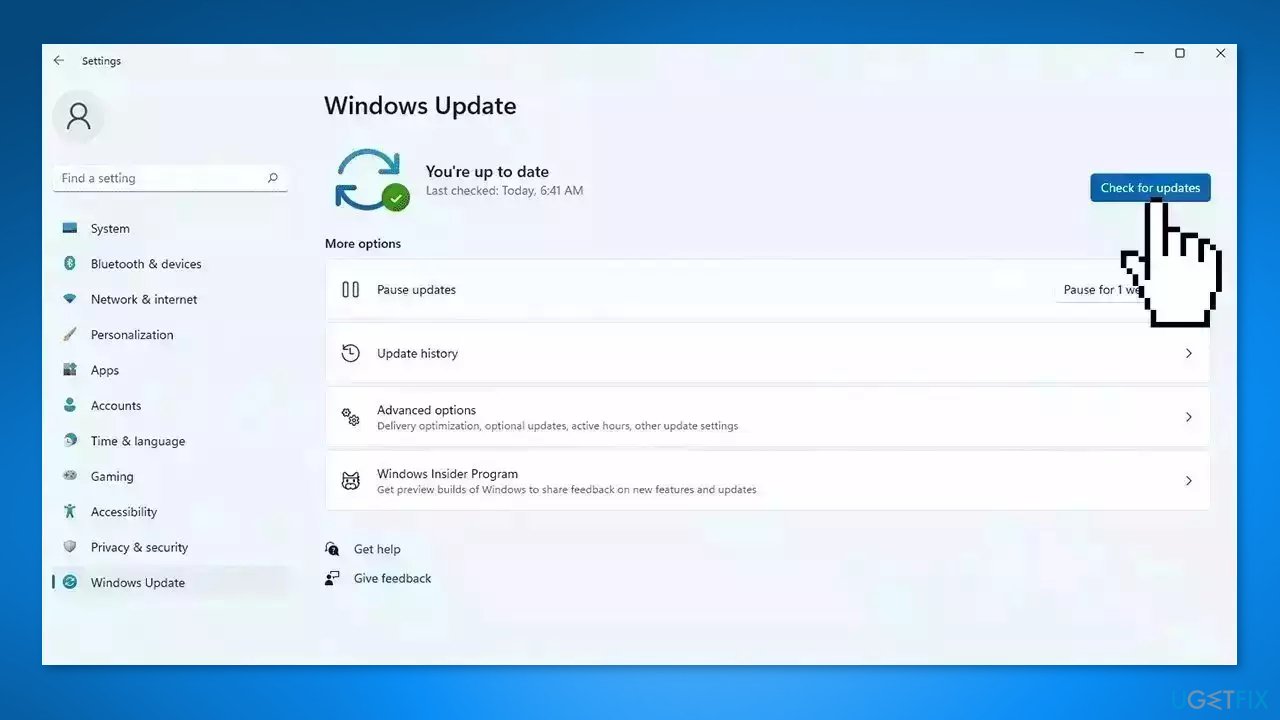
- Go to the Advanced options and install optional updates
- Reboot your system
Method 4. Update or Roll Back Network Driver
If you have not updated your network drivers in a while, you may be seeing the error because the driver is outdated. On the other hand, if you recently updated the driver and started experiencing the issue then, it may be worth trying to roll back the update.
Update Network Driver:
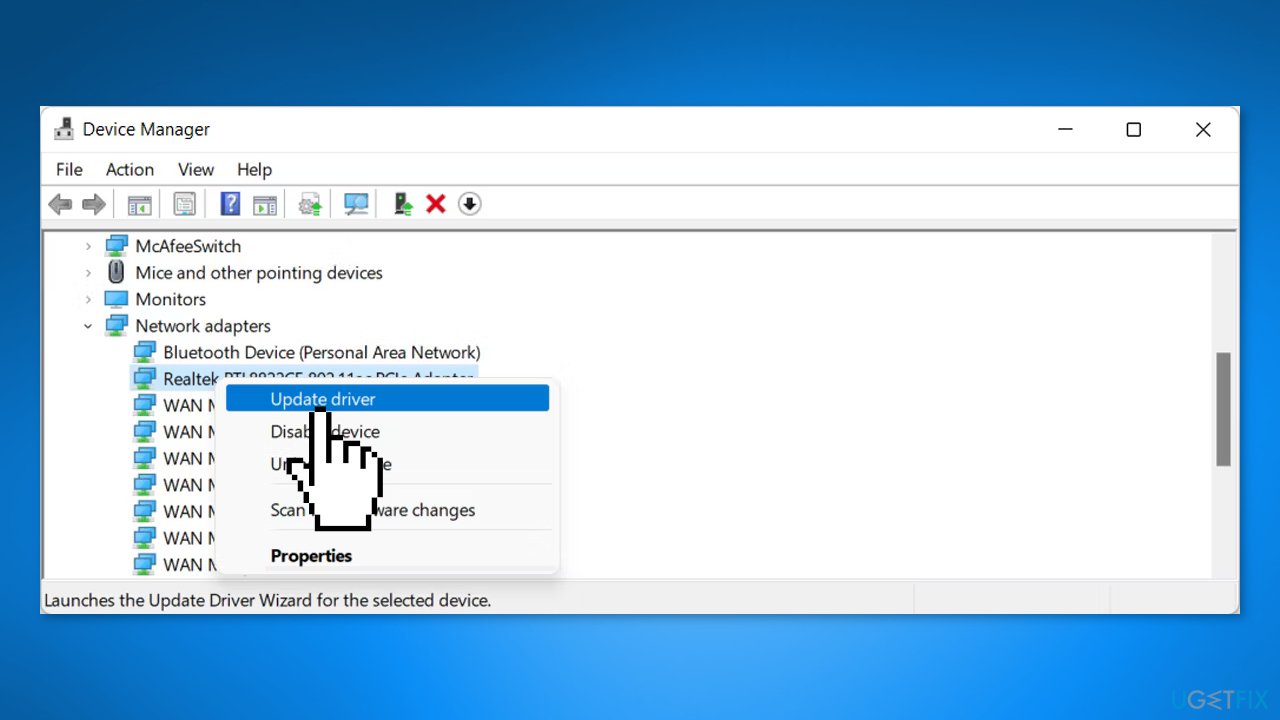
- Right-click the Start button
- Select Device Manager
- Expand the Network adapters section
- Right-click on the wireless adapter for your device
- Click on Update driver
- On the next window, choose Search automatically for drivers
- Windows will download and install the latest drivers for your device
Roll Back Network Driver:
- Open Device Manager
- Expand the Network adapters section
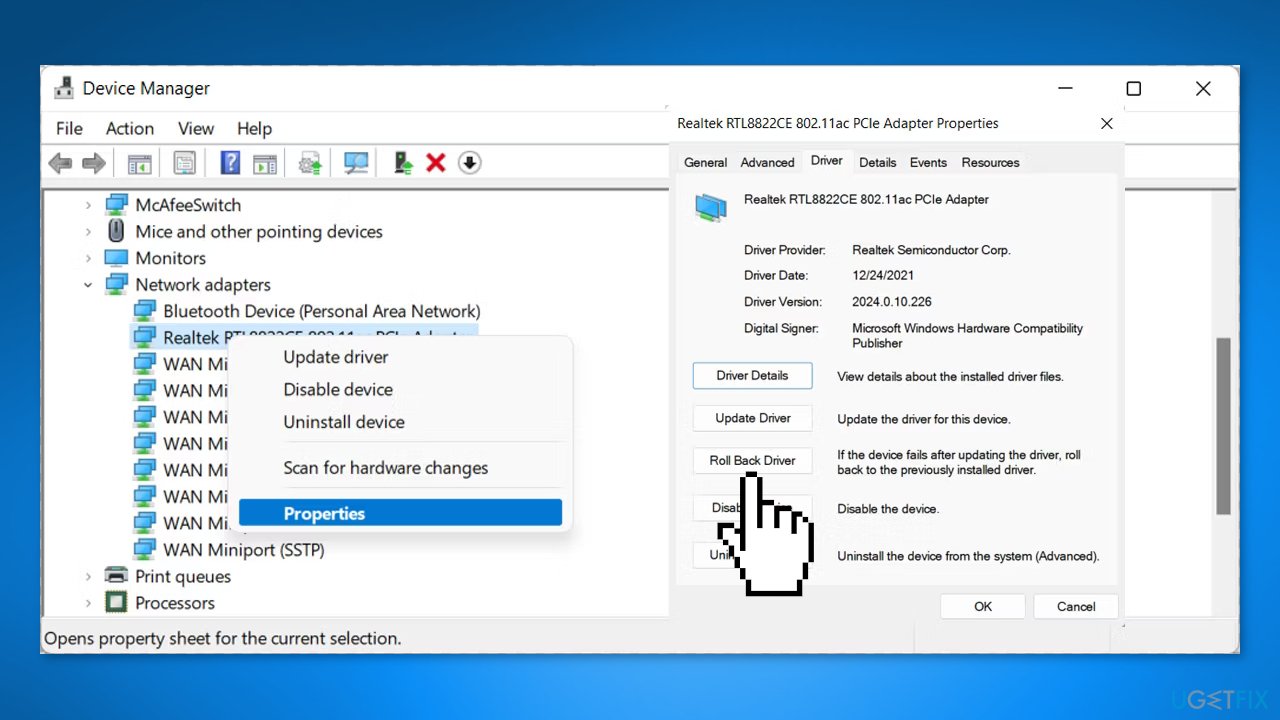
- Right-click on the network driver and select Properties
- Go to the Driver tab
- Click on the Roll back driver option
- Windows will install the previous version of the network driver
- Reboot your computer
Method 5. Reinstall Network Driver
Corrupted drivers could be the cause of this issue. In this case, you can fix it automatically by using [rev id="DriverFix"], which will scan your PC for missing and out-of-date device drivers. Or you can reinstall them manually:
- Open Device Manager
- Expand the Network adapters section
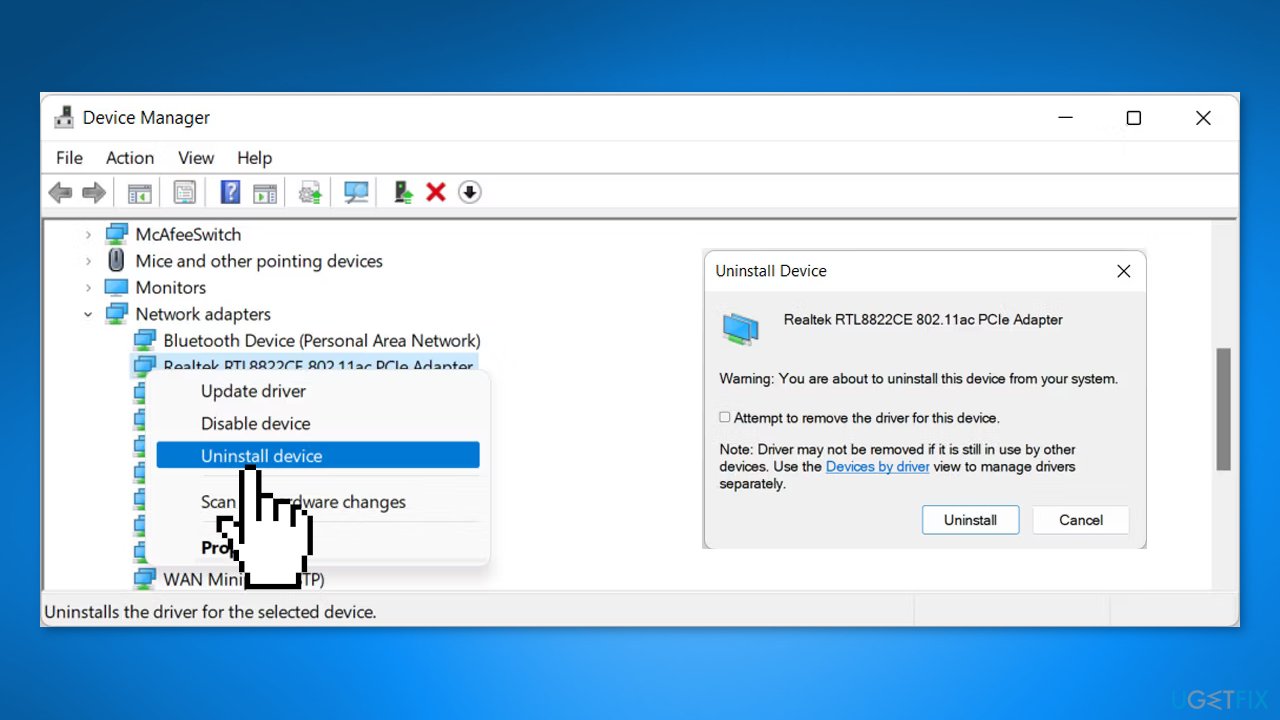
- Right-click the network driver
- Click on Uninstall device
- Check the Attempt to remove the driver for this device option
- Click on Uninstall
- Upon restarting the PC, Windows will automatically reinstall the driver
Method 6. Disable IPv6
- Locate the network icon on the System Tray
- Right-click on the icon and choose Network and Internet settings
- Click on Advanced network settings
- Under Related settings, choose More network adapter options
- Right-click on the wireless network and choose Properties
- Uncheck the Internet Protocol Version 6 (IPv6) option
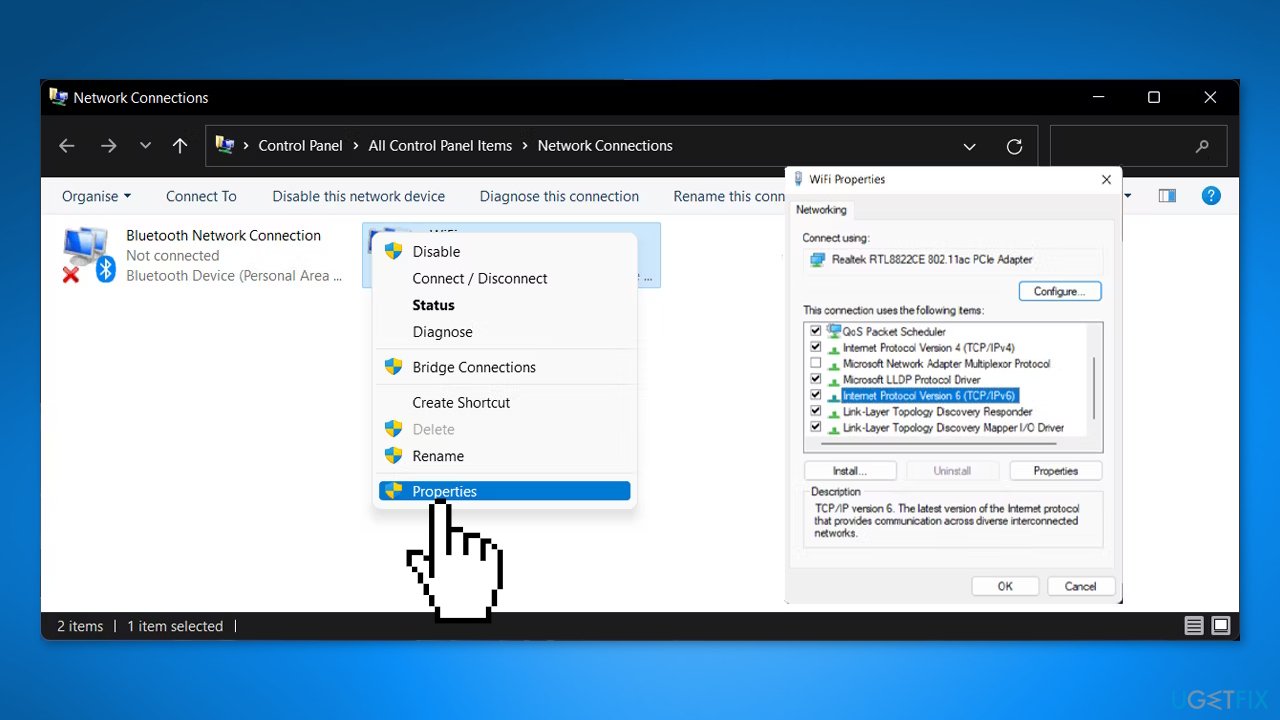
- Click OK and try to reconnect to the wireless network again
Method 7. Re-enable the Wireless Network Adapter
- Right-click on the Network icon in the System Tray
- Click on Network and Internet settings
- Click on Advanced network settings
- Choose More network adapter options
- Right-click the wireless adapter and click Disable
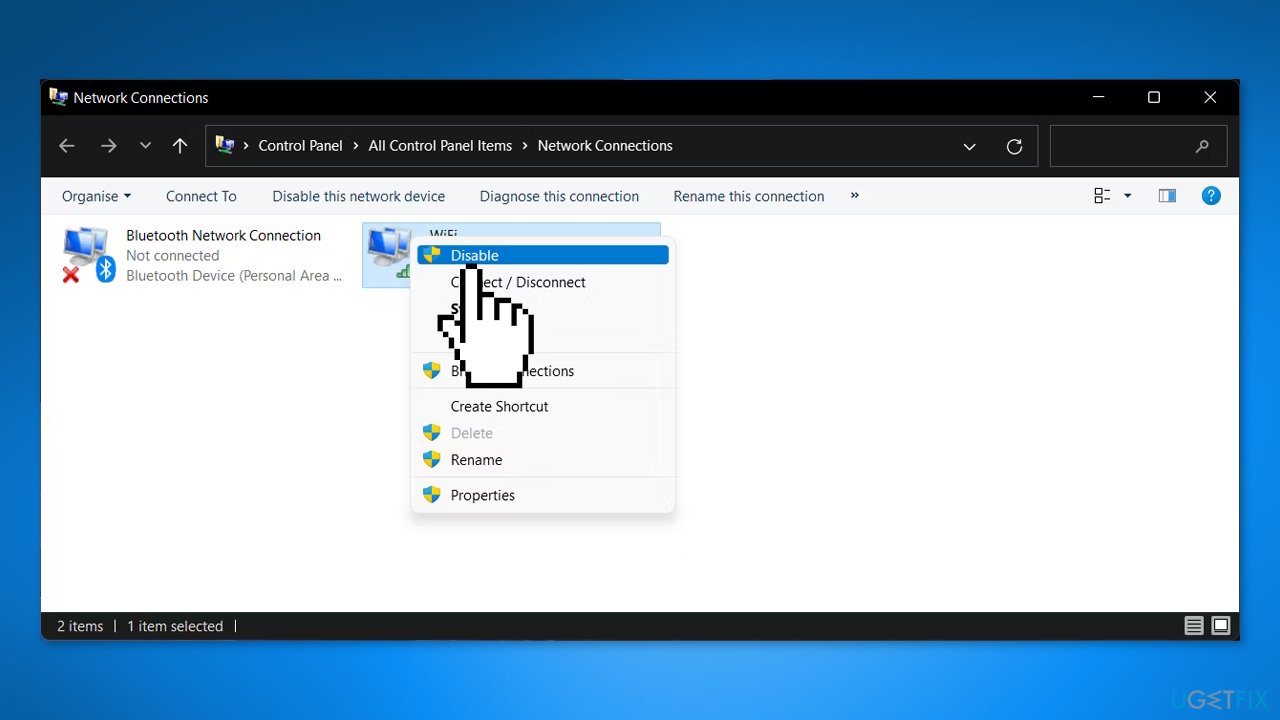
- Wait, then right-click the wireless adapter and choose Enable
- Reboot the PC and try reconnecting to the network
Method 8. Flush DNS
- Type cmd in Windows Search
- Right-click on Command Prompt and select Run as administrator
- Type the following commands and press Enter after each one:
netsh winsock reset
netsh int ip reset
ipconfig /release
ipconfig /renew
ipconfig /flushdns
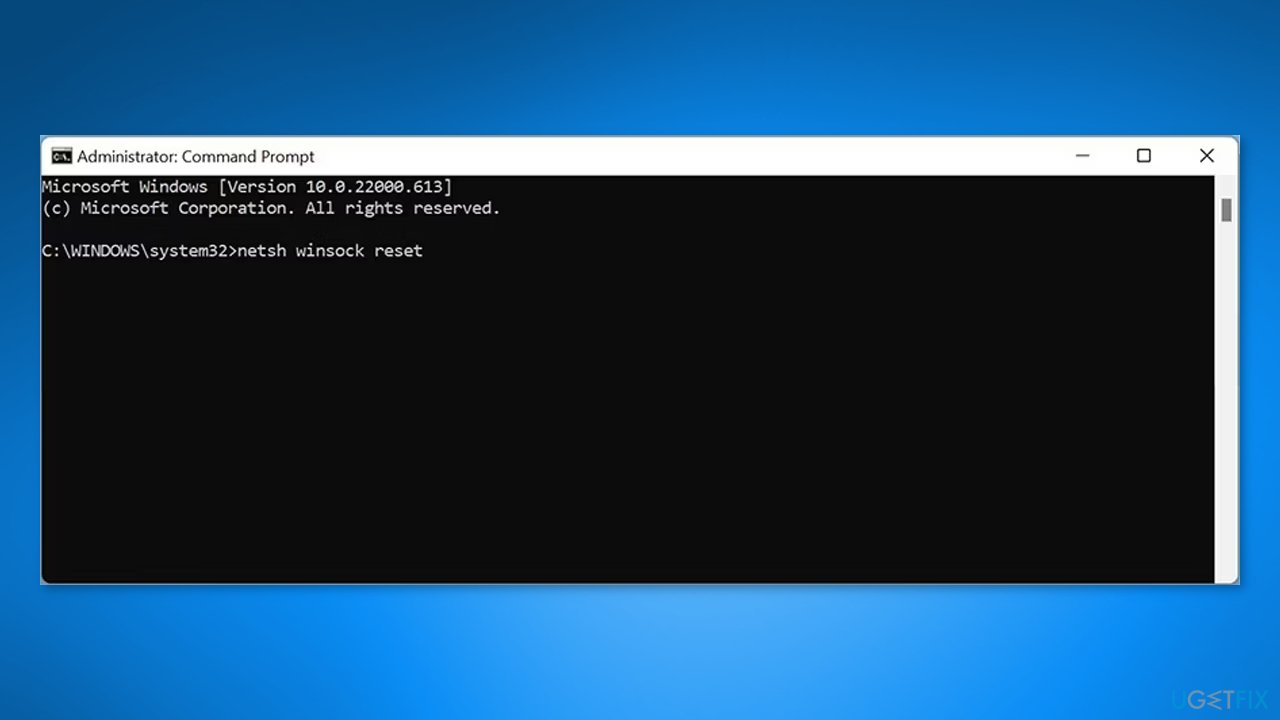
- Close the Command Prompt
- Reboot the computer to see if the error persists
Method 9. Perform a Network Reset
- Right-click on the Start button and go to Settings
- Click on Network & internet in the navigation bar on the left
- Choose Advanced network settings
- Under More settings, click on Network reset
- Click on Reset now
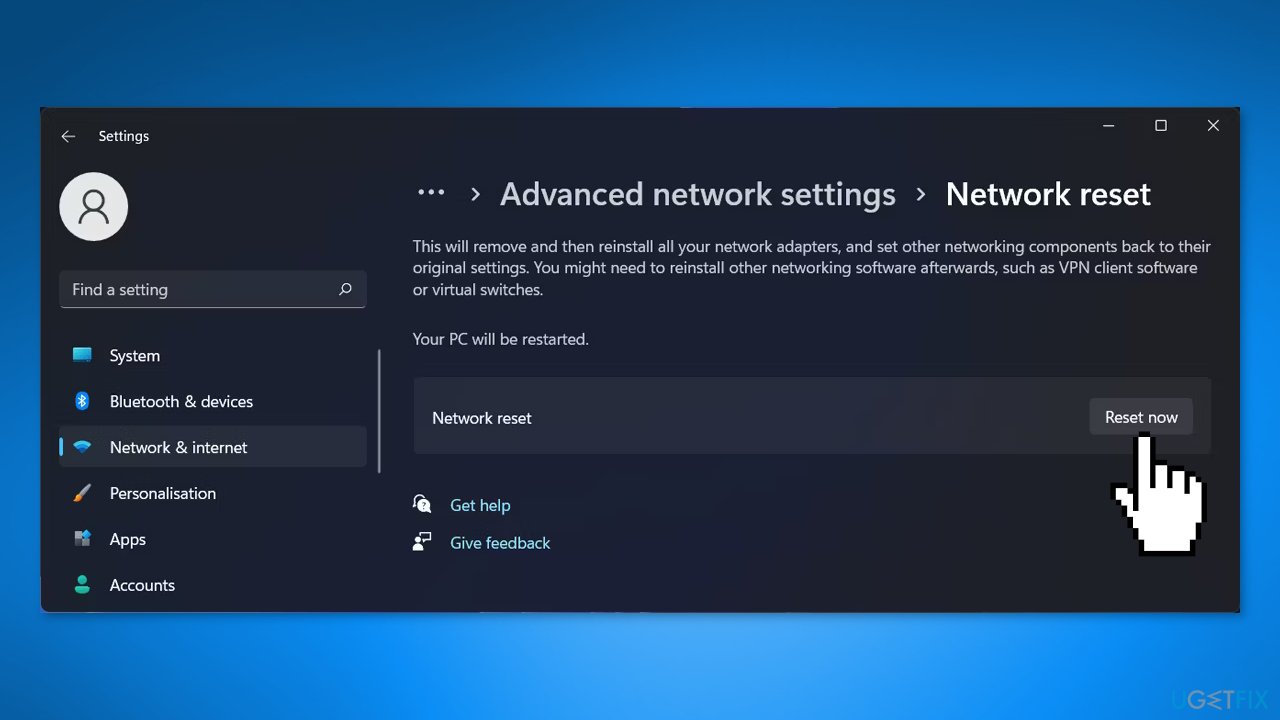
- Your PC will reboot
Bottom line
To fix the 'Can't connect to this network' error in Windows, you can try running the network troubleshooter, reconnecting to the Wi-Fi network, or updating your network drivers. If these solutions do not resolve the issue, consider using a maintenance tool to address potential system errors.
Frequently asked questions
First, try restarting your router and your Windows 10 device. If the problem persists, forget the network and reconnect by entering the password again.
Go to Settings, select Network & Internet, then click on Status and run the Network Troubleshooter for automatic fixes.
Yes, check your network adapter settings by going to Device Manager, right-clicking on your adapter, and selecting 'Update driver' to ensure you have the latest version.




Report an issue
What's wrong with this guide? We review every report and update or remove content.
Report received — thank you. We'll review and fix it.
You need a free account to submit a report.
Be the first to comment