How to fix
Can’t launch Notepad.exe
on Windows
Resolve the Notepad.exe launch issue in Windows 10 or Windows 11 effortlessly with our expert-tested tips. Fix it in minutes, zero traces left!


What causes How to fix can’t launch Notepad.exe in Windows?
- Path to Notepad.exe is incorrect
- Notepad.exe is missing from the PC
- Corruption in system folders
- Driver issues
- Recent Windows update causing bugs
- Malware damage or infection
Repairs Windows system files, removes malware, and restores a clean OS state — without reinstalling.
Hello. I cannot open the notepad and I receive the error stating that the path is not correct. Windows somehow doesn't found the notepad.exe and I have no idea why or how to solve the issue. Do you know anything about this and can help me?
Notepad.exe is one of many executable files that can be commonly found on Windows computers. These extensions mean that the file represents the executable program, so when you cannot launch a particular file, you cannot use the program. The problem should be troubleshooter immediately, so the problem gets fixed.
People complain[ref en-1] online when they can't launch Notepad.exe in Windows ad search for particular solutions. Computer problems like this are pretty common, so solutions are known and in most cases are not that difficult. Another issue that people often report is missing Notepad from their PCs.
Notepad is a simple application but can create issues with the machine due to various problems with the computer. It can be related to corruption in system folders or even driver issues. When you can't launch Notepad.exe in Windows it is frustrating and more problems might occur due to this.
Based on various forum posts this is the error that people get when the program is launched or text file opened:
"C:\\WINDOWS\\system32\\notepad.exe
The specified path does not exist.
Check the path and then try again."
Maybe you have recently updated the Windows operating system, so the upgrade had bugs and triggers issues for you.[ref en-2] This is one of the possible reasons for various system issues. As well, as malware[ref en-3] damage, leftovers, or the full-on active infection.
It is less likely that cyber infection is already running in the machine because viruses create more issues and cause various symptoms that you should already notice. However, your machine might have already taken care f the infection, but the damage done to the machine and system parts leaves you to fix can't launch Notepad.exe in Windows.
As for the common corruption and file alterations - you can run a tool like [d1] and check the machine. This application can find affected parts and repair the damage to fix anything that cannot run smoothly because of this. Use this program as the first step in the troubleshooting of this issue.

1. Alter the registry
- Press Windows Key + X to open the menu.
- Select Command Prompt (Admin) from the menu.
- When Command Prompt starts, simply enter regedit and press Enter.
- In the left pane go to HKEY_CLASSES_ROOT.exe.
- In the right pane, double click (Default) key and set the Data value to .exe file.
- Go to the HKEY_CLASSES_ROOTexefileshellopencommand key.
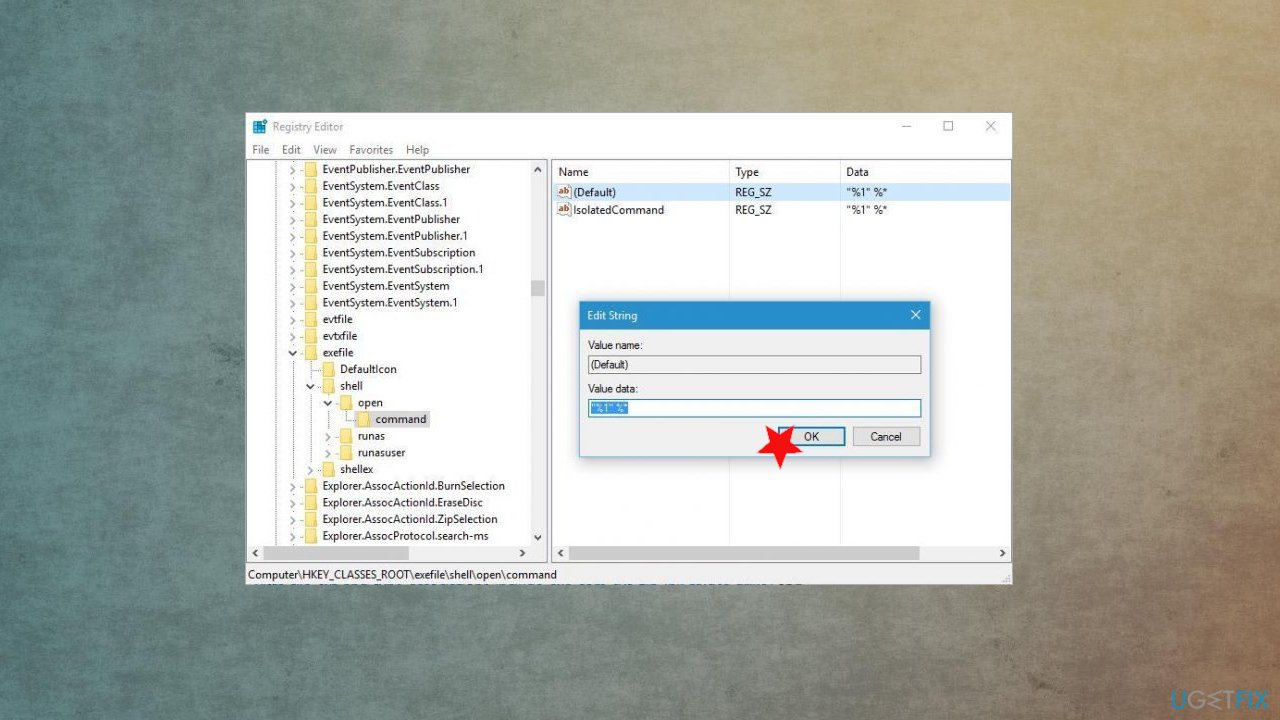
Notepad canot laucnh fix registry - In the right pane select (Default), double click it, and set its Value data to “%1” %*.
- Click OK.
- Restart the PC.
2. Change the location of Program Files
- Start Registry Editor by pressing Windows Key + R and entering regedit.
- Press Enter or OK.
- Then go to the following key in the left pane:
HKEY_LOCAL_MACHINESOFTWAREMicrosoftWindowsCurrentVersion - In the right pane, you’ll see various entries.
- Click on ProgramFilesDir and change its Value to C:Program Files.
- If you have ProgramFilesDir (x86) entry available, make sure to change its Value data to C:Program Files (x86).
- Close Registry Editor and restart your PC.
3. Turn off Firewall
- Type windows firewall in search.
- Select Windows Firewall from the list of results.
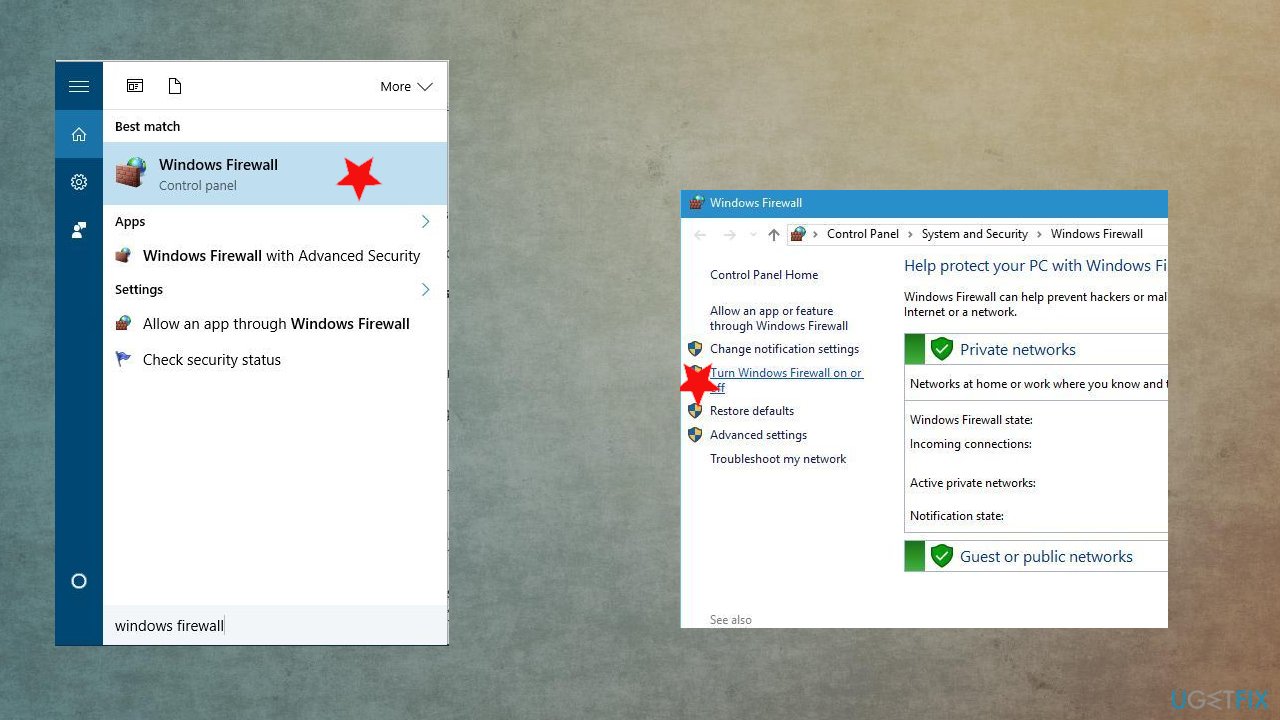
Notepad canot laucnh fix win firewall - In the menu on the left select Turn Windows Firewall on or off.
- Select Turn off Windows Firewall (not recommended) for both Private network settings and Public network settings.
- Click OK to save changes.
- You can access these settings and turn the firewall off in the Windows Security section in Settings.
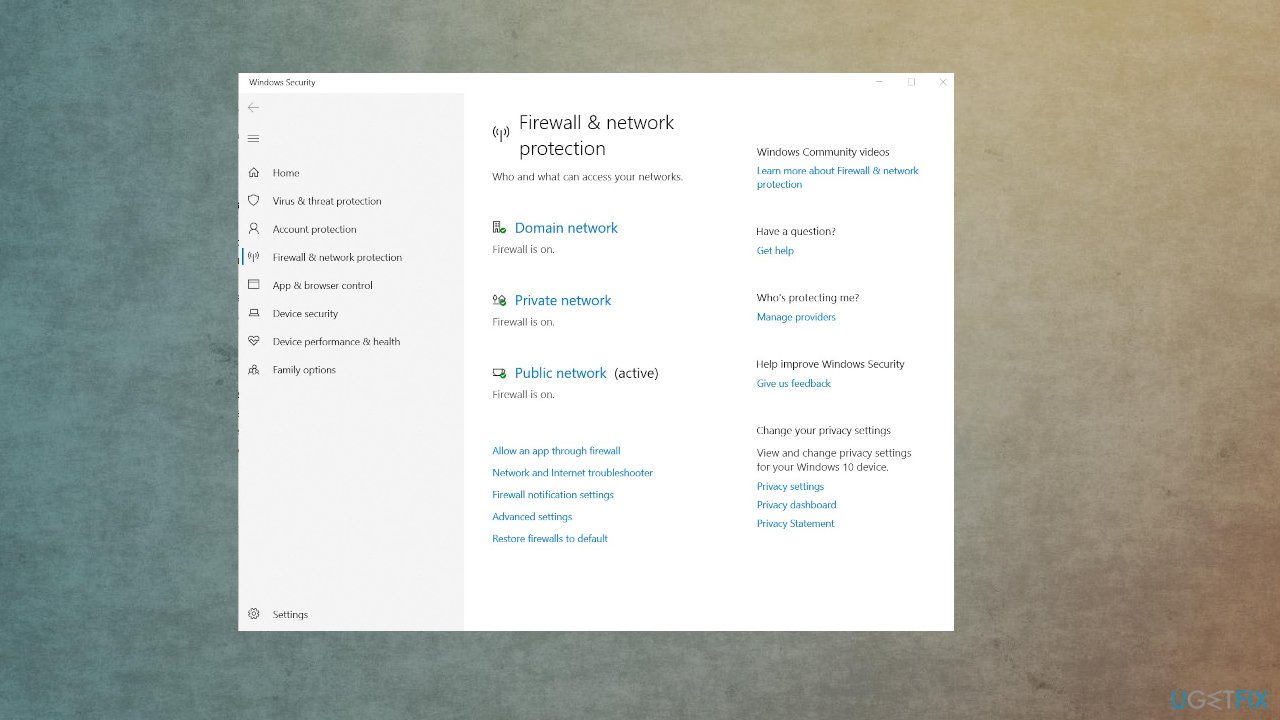
Notepad canot laucnh fix win security
4. Create a new user account
- Open the Setting.
- Go to the Accounts section and select the Family & other users tab.
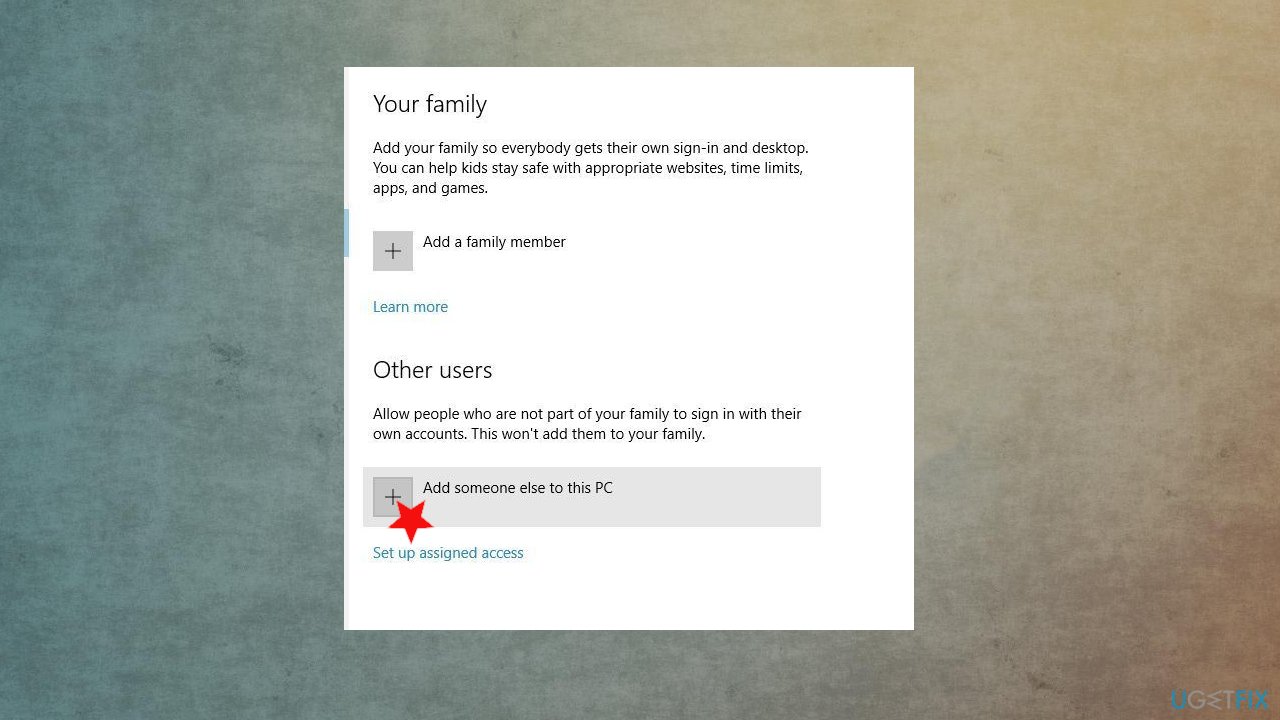
Notepad canot laucnh fix add new user - Click Add someone else to this PC button under Other users section.
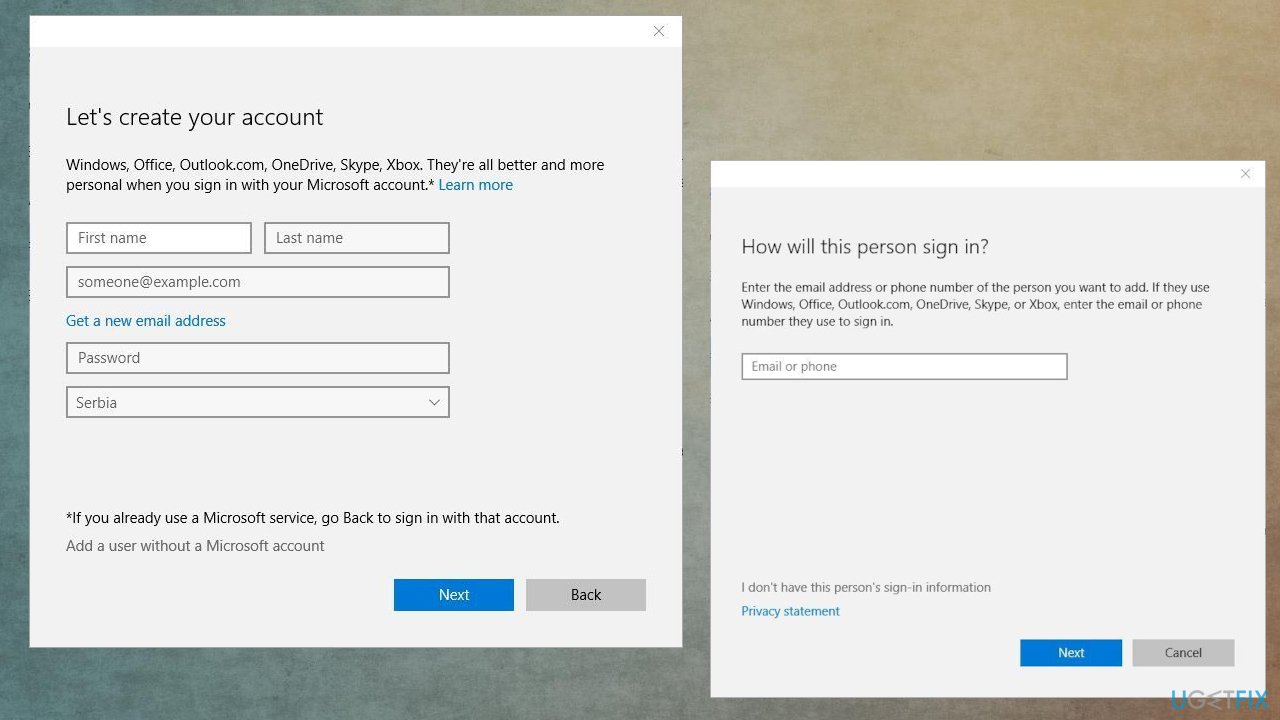
Notepad canot laucnh fix new user - Click on I don’t have this person’s sign-in information.
- Choose Add a user without a Microsoft account.
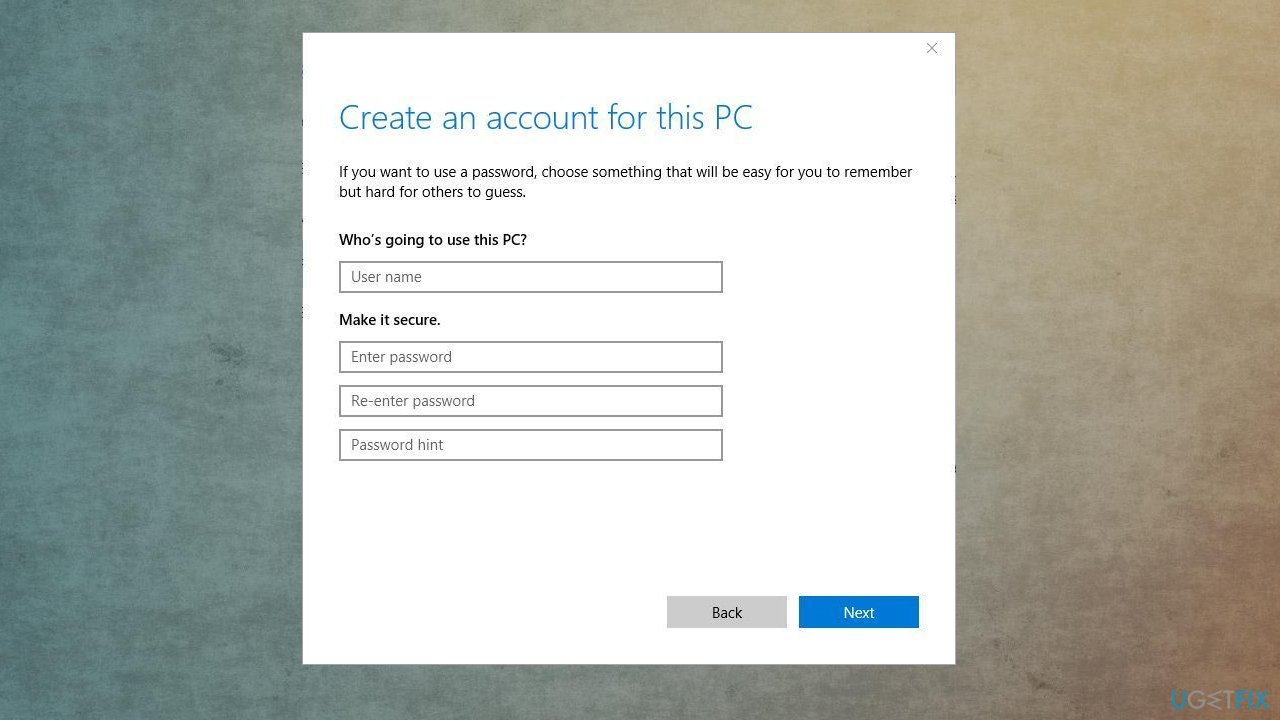
Notepad canot laucnh fix user - Enter the user name for the new user.
- Click Next to add it.
Bottom line
To fix the issue of Notepad.exe not launching, you can check the file path, run a system file checker, or reinstall Notepad. If these solutions do not work, consider checking for malware or restoring your system to a previous state.
Frequently asked questions
You can try running the System File Checker tool by opening Command Prompt as an administrator and typing 'sfc /scannow' to repair any corrupted system files.
You can reset Notepad by going to Settings > Apps > Apps & features, selecting Notepad, and clicking on 'Advanced options' to find the reset option.
Yes, you can reinstall Notepad by going to Settings > Apps > Optional features, finding Notepad in the list, and selecting 'Uninstall', then reinstalling it from the same menu.




Report an issue
What's wrong with this guide? We review every report and update or remove content.
Report received — thank you. We'll review and fix it.
You need a free account to submit a report.
Be the first to comment