How to fix
“Can’t open that file” error in Paint 3D
on Windows
Resolve the "Can't open that file" error in Paint 3D on Windows 10 and 11 effortlessly. Expert-tested solutions ensure your files are accessible again!

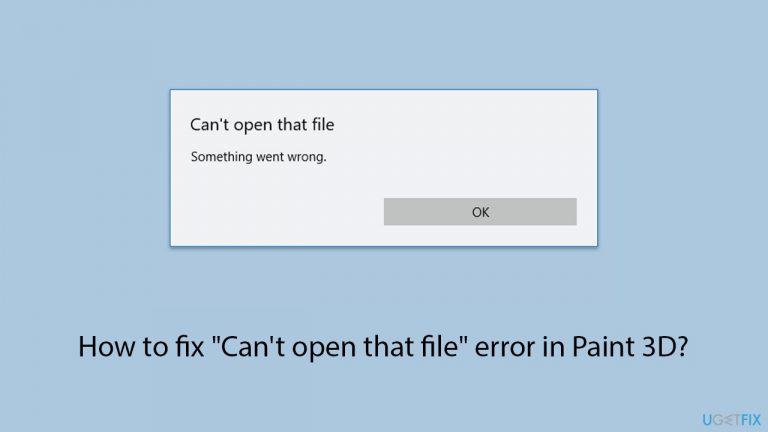
What causes How to fix “Can’t open that file” error in Paint 3D?
- Bugs within Paint 3D
- Updates to Windows or the application
- Corrupt files
- Problems with the file's metadata
Repairs Windows system files, removes malware, and restores a clean OS state — without reinstalling.
So I was using Paint 3D and suddenly my PC froze for a few seconds and then the app's window became grayed out and crashed. I then reopened Paint 3D and when I tried to open my latest project I was working on when it crashed, an error popped up saying "Can't open that file. Something went wrong." What's going on?
To generate and modify 3D models and 2D photos, users often choose Paint 3D - a free program that can be downloaded from the Microsoft Store. Because of its accessibility and adaptability, it has gained popularity among professionals and casual users alike with its user-friendly interface and assortment of tools. However, despite its many benefits, some users encounter issues, such as the "Can't open that file" error.
You may find that you are unable to open the file you were working on, which can be frustrating and result in lost effort. This problem frequently happens after Paint 3D crashes. The "Can't open that file" error is typically reported by users who experience an unexpected crash, causing the application to refuse to open the previously edited file.
Several factors could contribute to this issue, including bugs within Paint 3D that can lead to instability and crashes, as well as updates to Windows or the application that might introduce compatibility issues preventing files from opening properly. Additionally, corrupt files or problems with the file's metadata can also be a source of this error.
You have a few options to fix the "Can't open that file" error. Running the Store app troubleshooter can help identify and fix problems related to the Microsoft Store apps while repairing or resetting Paint 3D through the app settings may resolve any internal corruptions. Clearing the cache can eliminate any temporary data, and as a last resort, reinstalling Paint 3D can ensure a fresh start with the latest version. Detailed instructions on these methods will be provided below this article.
A PC repair program like [d1], which can automatically solve underlying Windows problems and improve overall system stability, can be worth looking into for more extensive system problems.

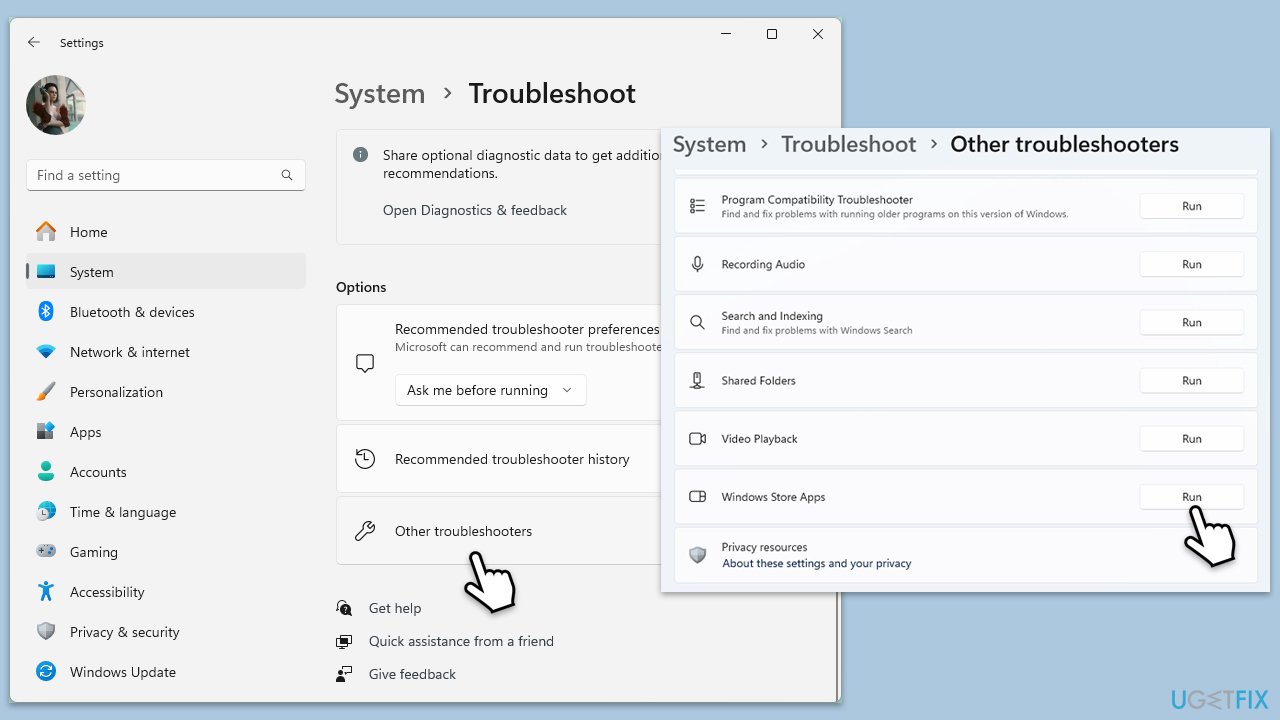
Fix 1. Run the Store app troubleshooter
The Store app troubleshooter can help identify and resolve issues with apps downloaded from the Microsoft Store, including Paint 3D. This tool is designed to detect problems and apply necessary fixes automatically.
- Type Troubleshoot in Windows search and hit Enter.
- Click Additional troubleshooters/Other troubleshooters.
- Scroll down to find Windows store apps and select it.
- Click Run the troubleshooter/Run.
- Wait till the process is finished and apply the fixes.
Fix 2. Repair or reset Paint 3D
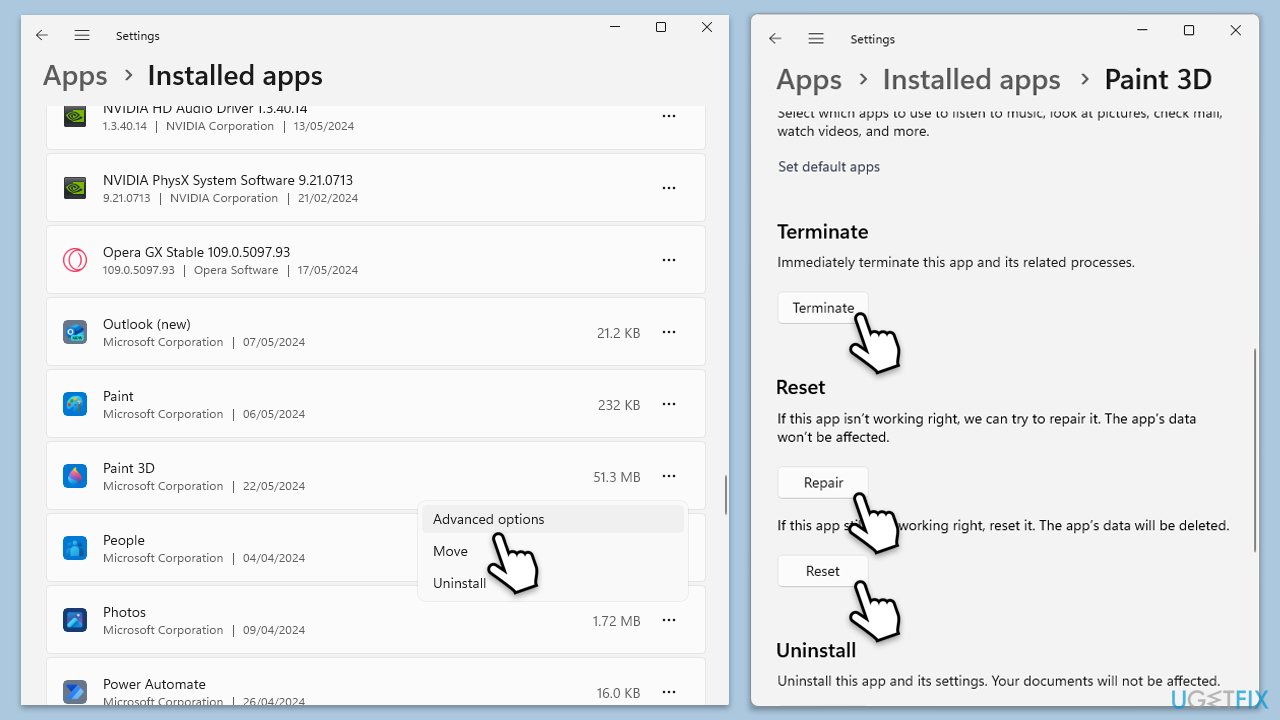
Repairing or resetting Paint 3D can resolve issues by fixing any corrupted files within the app without affecting your settings or data.
- Right-click on Start and select Apps & Features/Installed apps.
- Scroll down to find Paint 3D and click (three dots>) Advanced options.
- Scroll down again, click Terminate and then Repair.
- If that does not help, use Reset.
- Restart your computer.
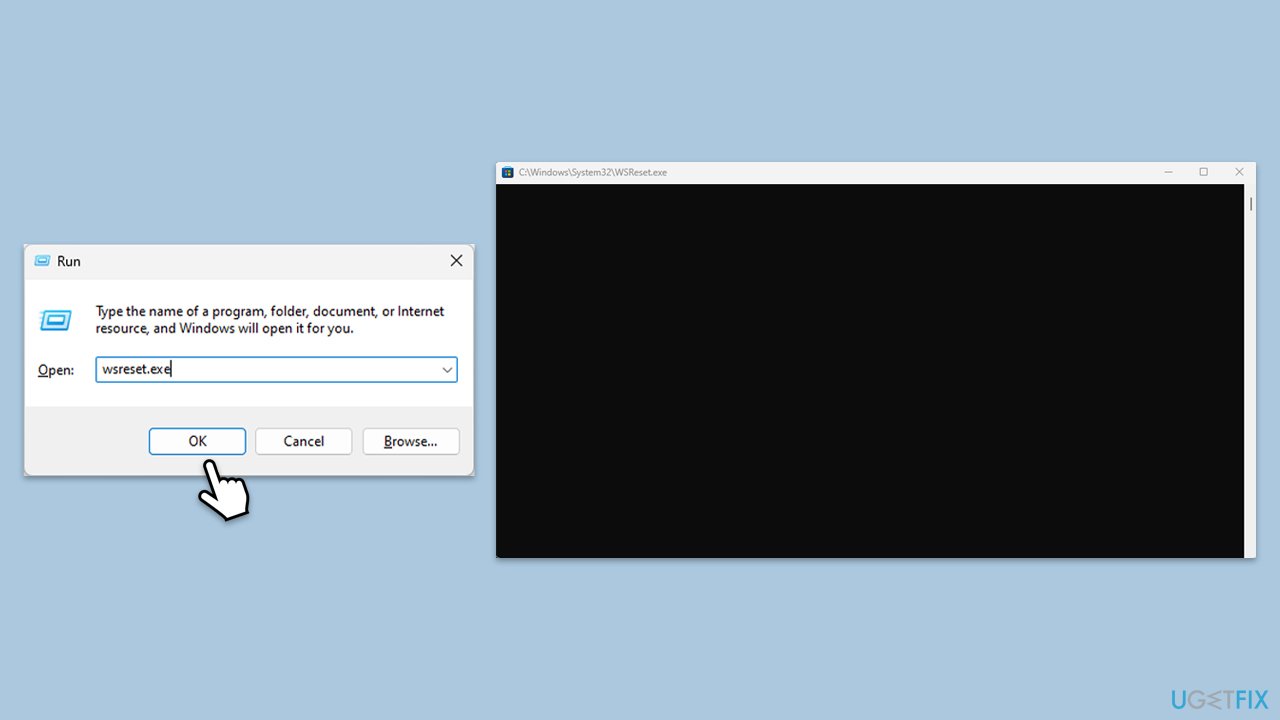
Fix 3. Clear the Microsoft Store cache
Clearing the Microsoft Store cache can resolve issues related to app installations and updates, including problems with Paint 3D.
- Press the Win + R on your keyboard to open the Run dialog box.
- In the dialog box, type wsreset.exe and then hit Enter or click OK.
- A blank Command Prompt window will open (do not close it), and after about ten seconds, the window will close, and the Microsoft Store will open automatically.
Fix 5. Reinstall Paint 3D
Reinstalling Paint 3D ensures you have the latest version and can resolve issues caused by corrupted installation files.
- Right-click on Start and select Apps & Features/Installed apps.
- Scroll down to find Paint 3D and click (three dots>) Uninstall.
- Confirm prompts and finish the removal.
- Reinstall the app from the Microsoft Store.
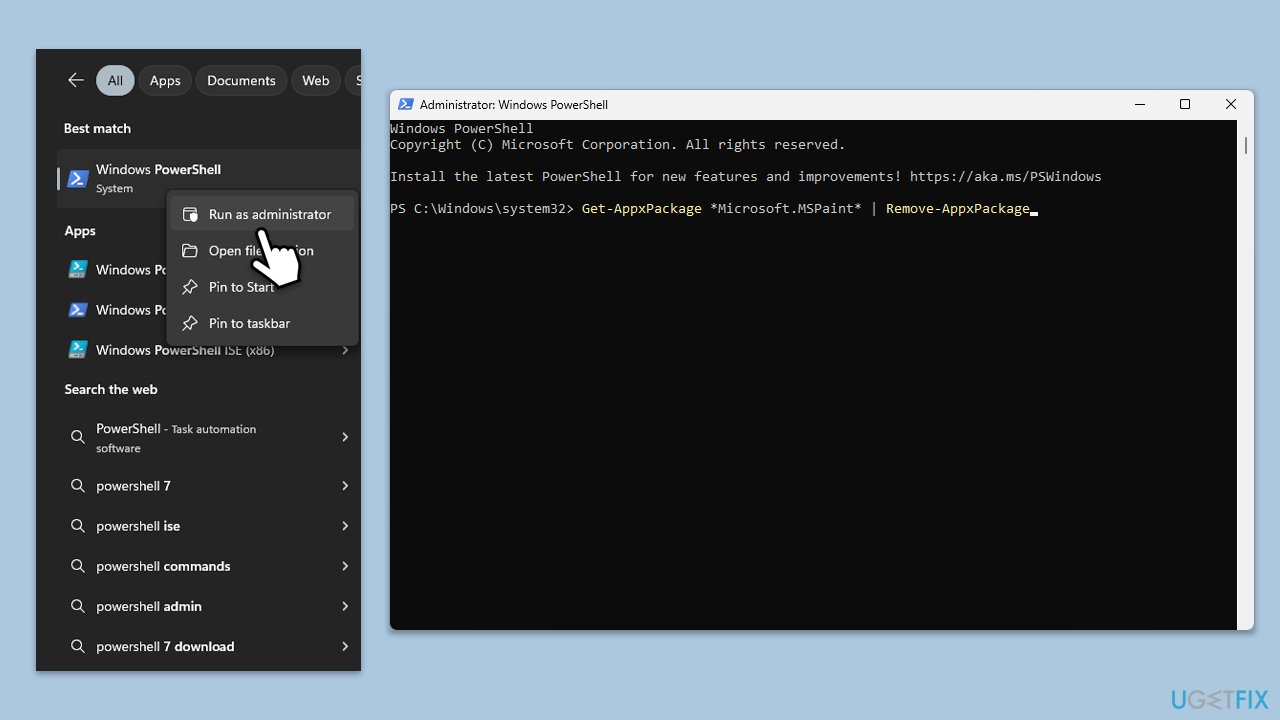
If, for some reason, you can't uninstall the app in a regular way, you can always employ PowerShell to do so:
- Type PowerShell in Windows search.
- Right-click on the result and select Run as administrator.
- When UAC shows up, click Yes.
- Use the following command and press Enter:
Get-AppxPackage *Microsoft.MSPaint* | Remove-AppxPackage - Restart your system and reinstall the app from Microsoft Store.
Fix 6. Update Windows
Keeping Windows up to date can fix compatibility issues and ensure all system components work correctly with Paint 3D.
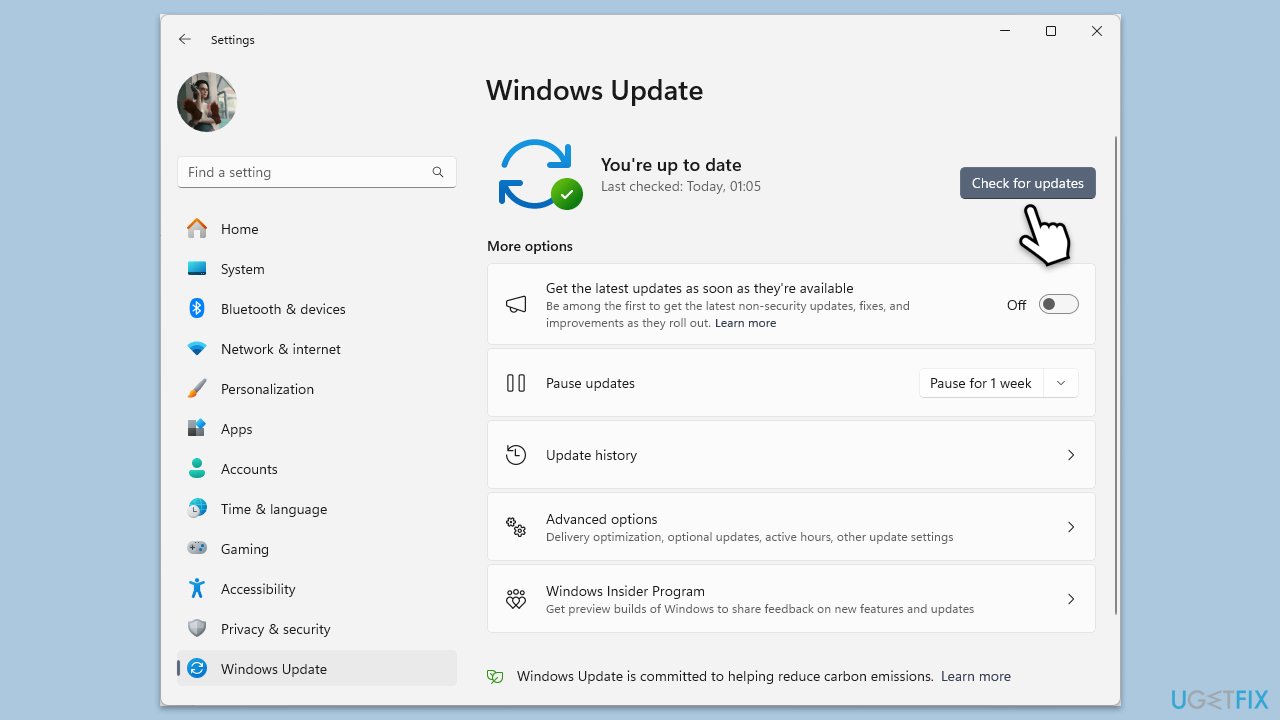
- Type Updates in the Windows search bar and press Enter.
- The new window will open and you should be notified about available updates - click Install all.
- If none are available, click Check for updates, and they should be installed automatically.
- Don't forget to install all the available optional updates.
- When done, restart your computer.
Fix 7. Check for Paint 3D updates
Updating Paint 3D to the latest version can resolve bugs and improve stability.
- Open the Microsoft Store.
- Select Library at the bottom.
- Here, click Get updates and then Update all.
- Wait till updates are installed and check if the "Can't open that file" error is fixed.
Fix 8. Run SFC and DISM
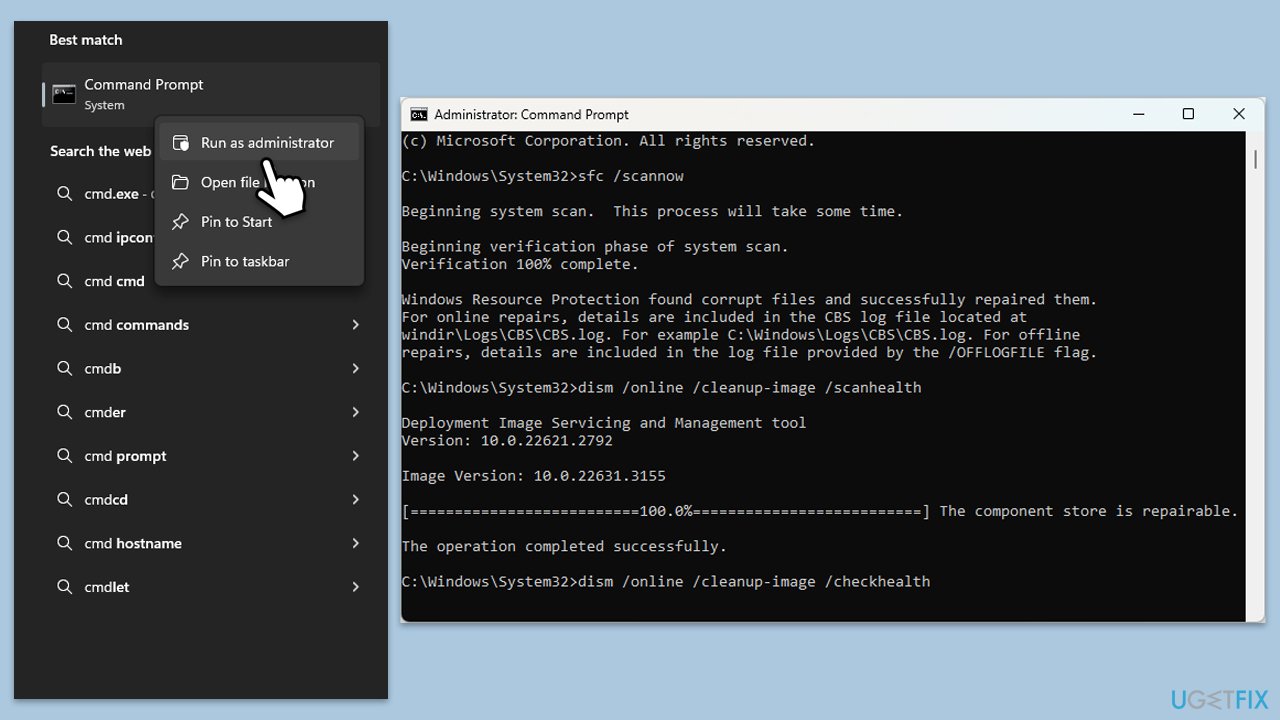
- Type cmd in Windows search.
- Right-click on Command Prompt and pick Run as administrator.
- User Account Control window will show up - click Yes when prompted.
- Then, copy and paste the following command, pressing Enter after:
sfc /scannow - Wait till the scan is finished. If Windows finds system file integrity violations, it will attempt to fix them. After this, use the set of the following commands, pressing Enter each time:
DISM /Online /Cleanup-Image /CheckHealth
DISM /Online /Cleanup-Image /ScanHealth
DISM /Online /Cleanup-Image /RestoreHealth - Close down the Command Prompt and restart your device.
Bottom line
To fix the "Can't open that file" error, you can run the Store app troubleshooter, repair or reset Paint 3D, clear the cache, or reinstall Paint 3D. If none of these solutions work, consider using a PC repair program to address underlying Windows issues.
Frequently asked questions
Try resetting Paint 3D by going to Settings > Apps > Apps & features, selecting Paint 3D, and clicking 'Advanced options' followed by 'Reset.' Additionally, ensure that the file format you are trying to open is supported by Paint 3D.
This error may occur if the PNG file is corrupted or if Paint 3D is not updated. Check for Windows updates and consider opening the file in a different application to verify its integrity.
Make sure that your Windows operating system is up to date and that Paint 3D is the latest version available from the Microsoft Store. Additionally, check your file permissions to ensure you have access to the files you are trying to open.




Report an issue
What's wrong with this guide? We review every report and update or remove content.
Report received — thank you. We'll review and fix it.
You need a free account to submit a report.
Be the first to comment