How to fix
Can’t turn on Core isolation – Memory integrity
on Windows
Fix the Core Isolation Memory Integrity issue in Windows 10 and 11 quickly. Enjoy enhanced security with expert-tested solutions and zero traces left.


What causes How to fix can’t turn on Core isolation – Memory integrity in Windows?
- Incompatibility issues
- Outdated drivers
- Damaged drivers
- Conflicts with processes
- Corrupted by PUP or malware
Repairs Windows system files, removes malware, and restores a clean OS state — without reinstalling.
Hello. Memory integrity is greyed out and cannot be turned on on my PC. I also got the message in Windows Security that the Memory integrity is off, but I can't do anything about it and turn it on. I try to do so, but the message appears again, stating that it is not possible. Can I solve this problem somehow on my own?
Core isolation - Memory integrity issues are pretty common in Windows, unfortunately. These problems often occur due to incompatibility issues or when drivers are affected, outdated, damaged, and conflicts with the needed processes on the machine. Users report[ref en-1] problems with this function online for a while, and the problem sometimes explains the cause with particular messages about driver problems.
The error message can even indicate which driver or different system file is causing these issues with processes on the computer, so you know what to do with these pieces and how to fix the problem. However, accessing the registry editor or updating drivers can be intimidating for some users.
The issue can occur on newer or older versions of devices that run Windows 10 or even the Windows 11 operating system. In most cases, the issue when users can't turn on Core isolation - Memory integrity in Windows is related to drivers and the operating system that is not interacting with those pieces correctly.
Drivers are the pieces that allow the OS and devices to communicate, and when the OS wants to run something, but drivers cannot connect the device to the OS, failure of some functions happen. Drivers can be damaged during updates[ref en-2] of the operating system itself or corrupted by the PUP or malware[ref en-3]. These small pieces can lead to major issues.
You can sometimes solve common issues with files and malware leftovers by running a tool like [d1] that finds such files and fixes issues related to system data that is altered. This is the quick way to fix additional issues or even the solution for the cause of Core isolation - Memory integrity problem in Windows. If that is not helping you - follow instructions thoroughly.
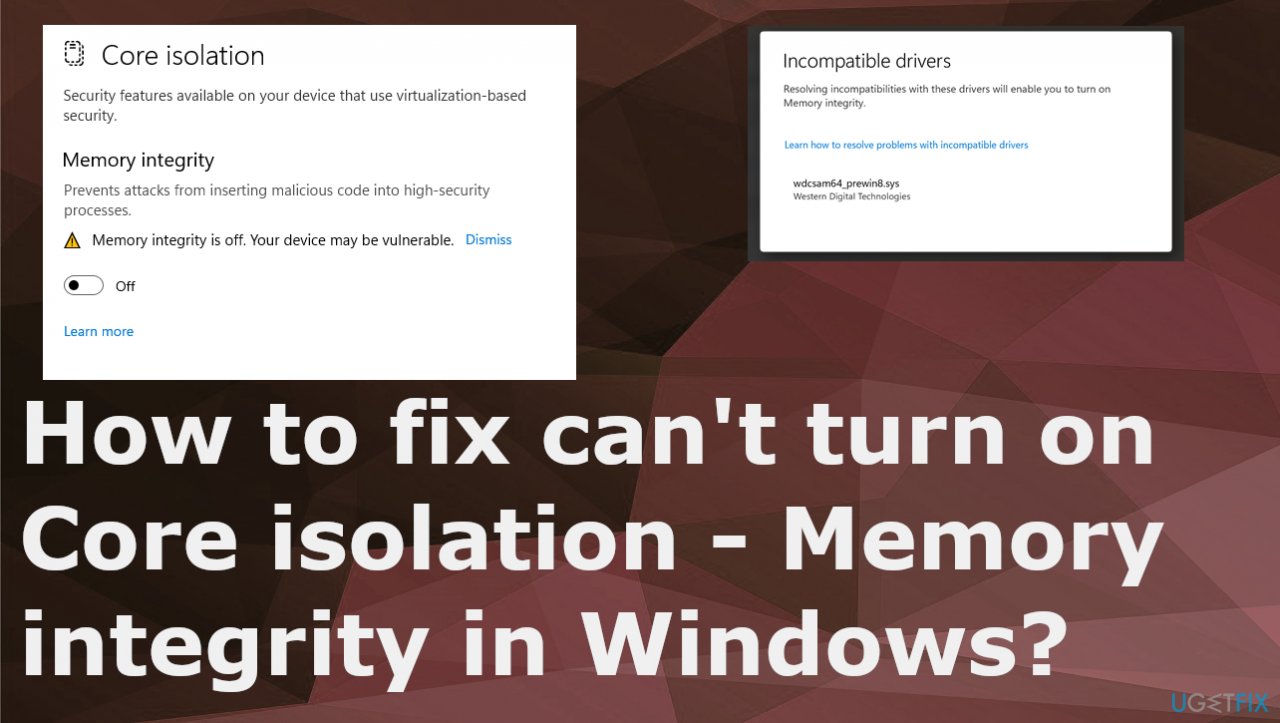
1. Enable Core Isolation & memory Integrity in Settings
- Sign in as an administrator and open Windows Defender Security Center.
- Look for Device Security option.
- Here you should check if Core Isolation under Virtualization is enabled on your PC.
- Core isolation provides virtualization-based security features to protect core parts of your device.
- Click on Core isolation details.
- You will be offered to enable Memory Integrity, so toggle it to On.
- Restart the PC when asked.
2. Enable features using the registry
- Press Win+R to open the Run dialog.
- Type regedit and hit the Enter button.
- Click on the Yes option.
- Navigate to Scenarios in HKEY_LOCAL_MACHINE.
- Right-click on Scenarios > New > Key.
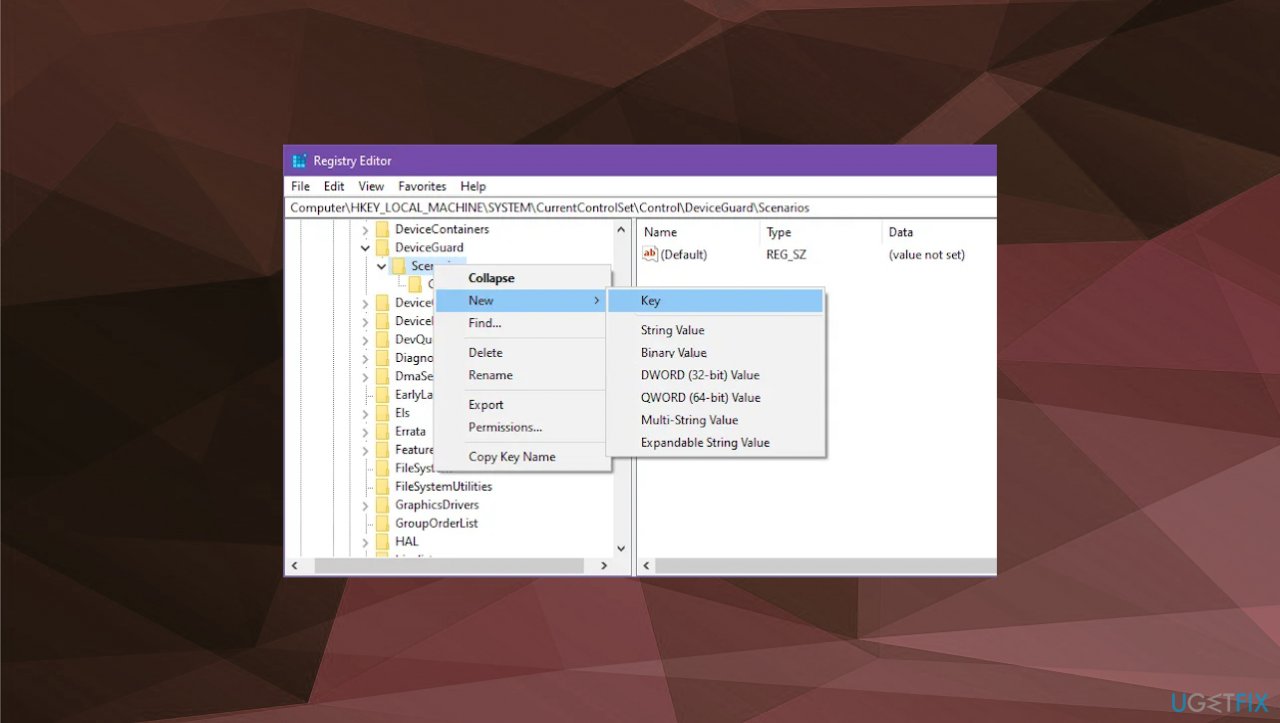
Core isolation memory integrity on off dword - Name it as HypervisorEnforcedCodeIntegrity.
- Right-click on it New, then DWORD (32-bit) Value.
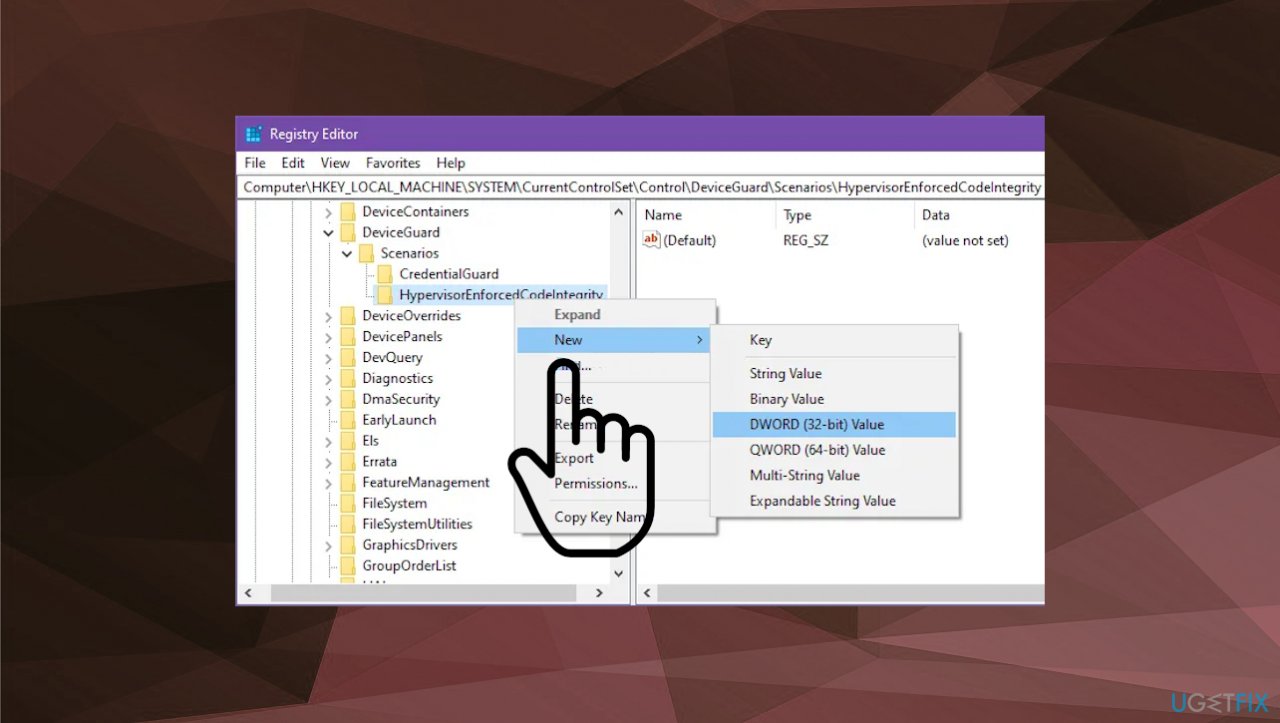
Core isolation memory integrity on off dword find - Name it as Enabled.
- Double-click on it to set the Value data as 1 to enable and 0 to disable.
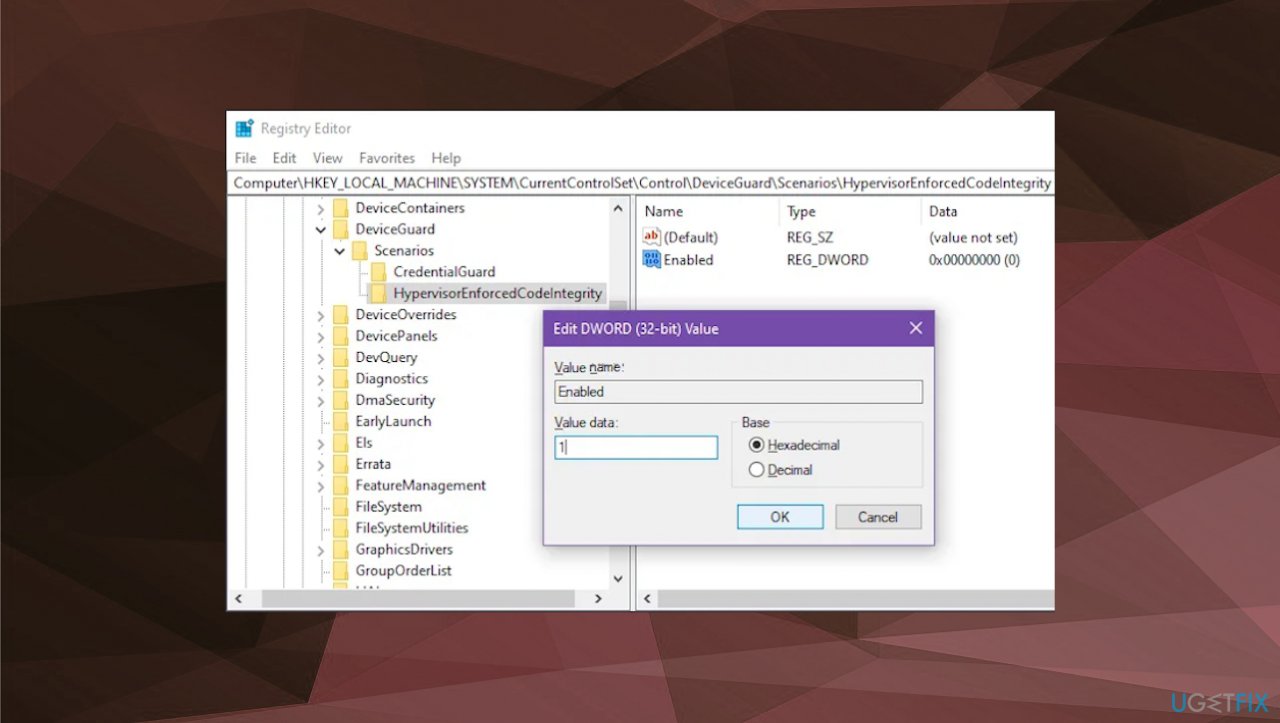
Core isolation memory integrity on off dword value - Click the OK button.
- Restart your computer.
3. Enable Memory Integrity using the Group Policy editor
- Head to the Start Menu and type Group Policy in the menu to search for it.
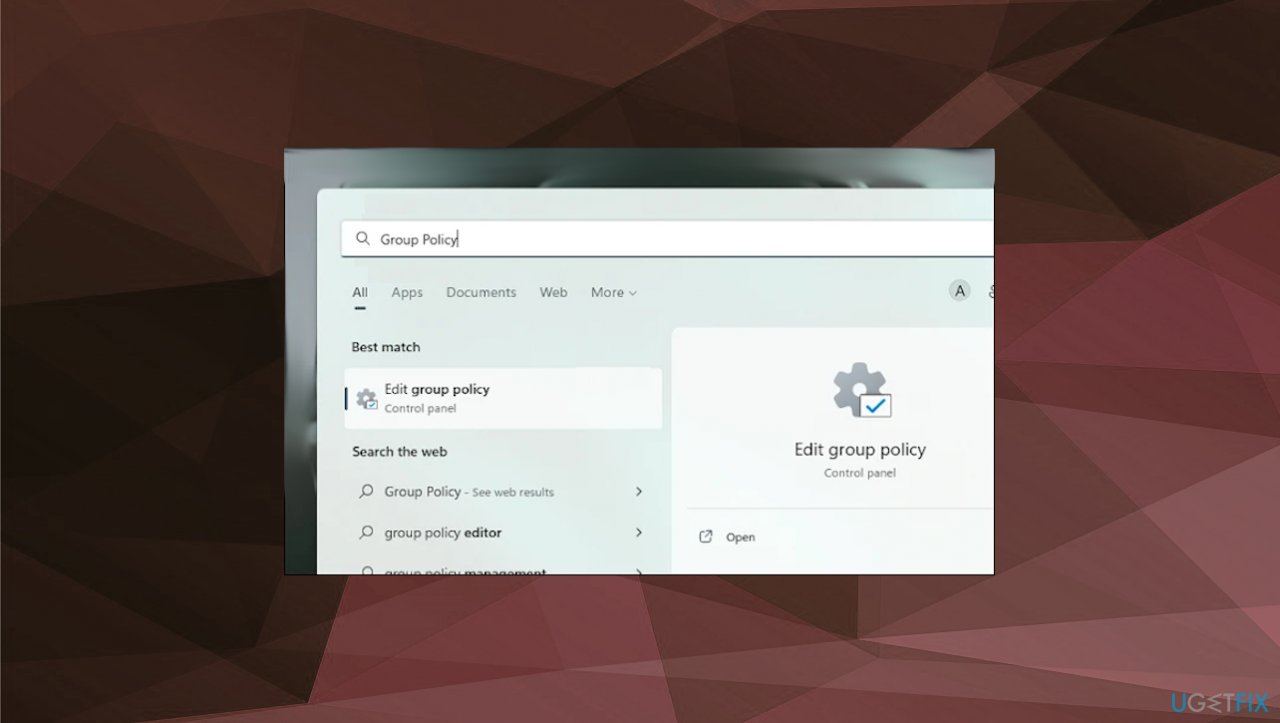
Core isolation memory integrity on off group editor - Click on the Edit Group Policy tile to open the Group Policy Editor on your screen.
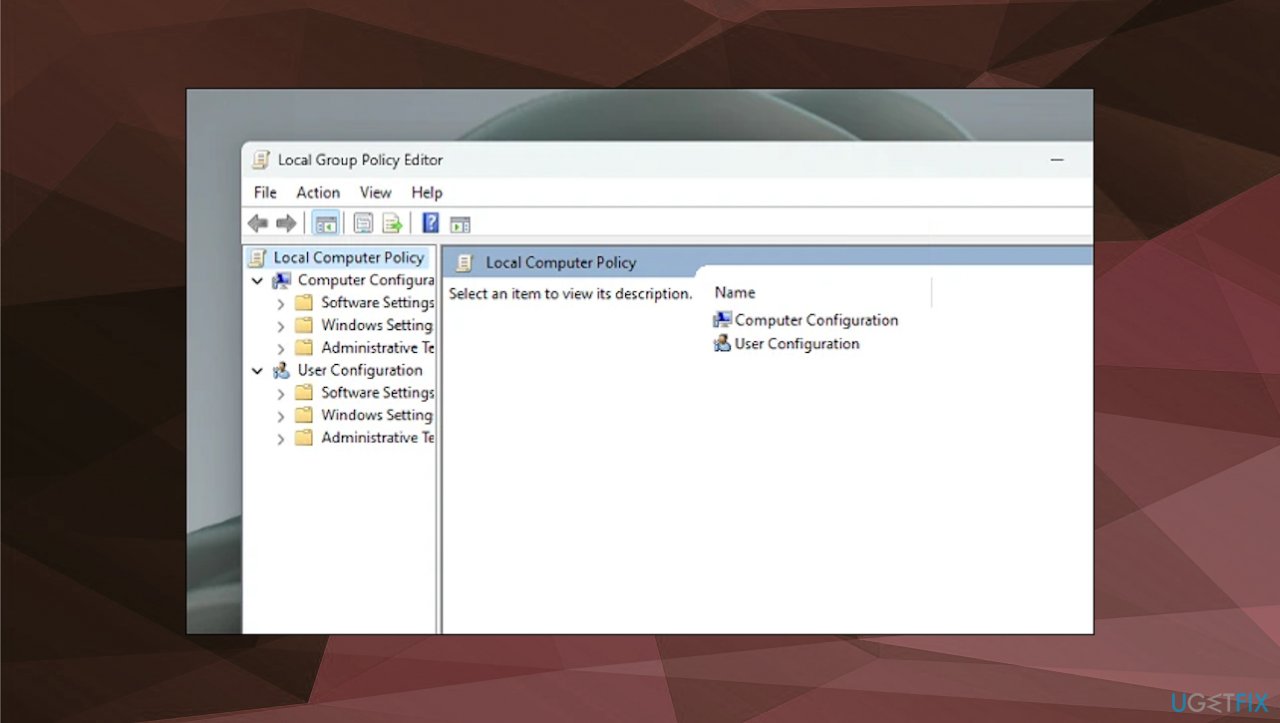
- Double-click on the Computer Configuration option present in the right section of the window.
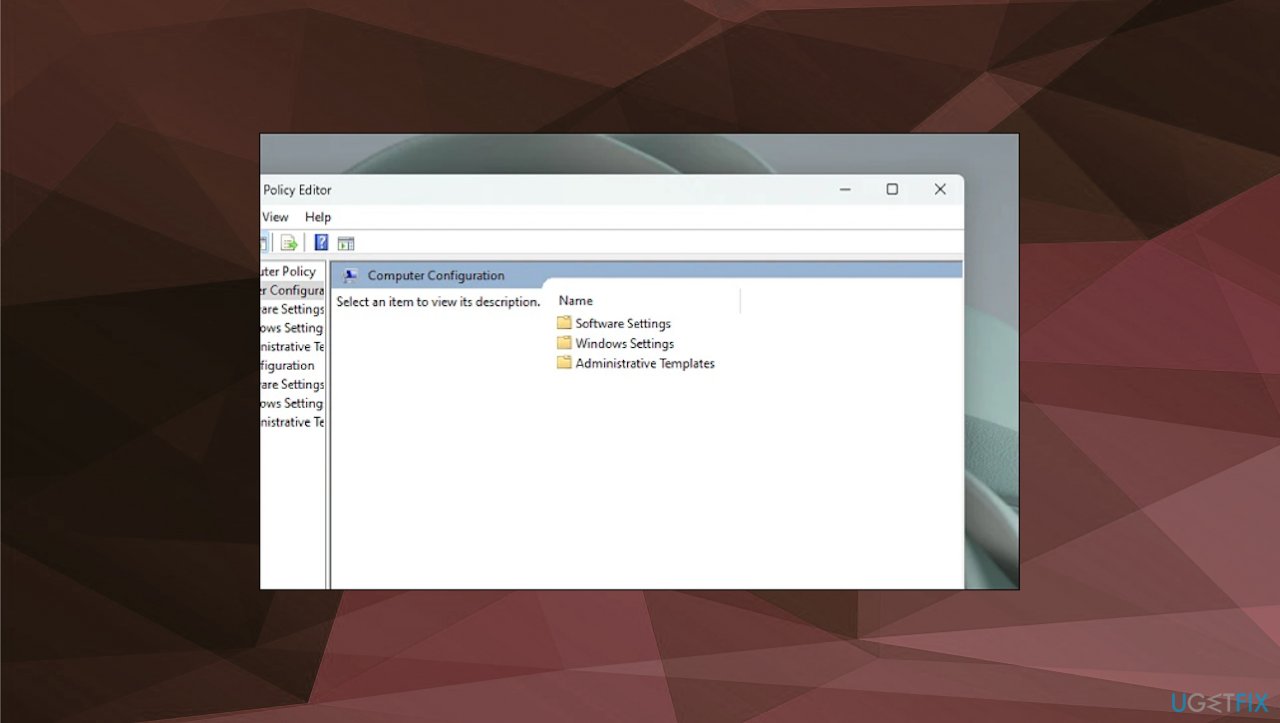
Core isolation memory integrity on off computer configurations - Locate and double-click on the Windows Settings folder from the list of folders to continue.
Core isolation memory integrity on off group policy folders - Locate and double-click on the Device Guard folder to proceed.
- Double-click on the Turn on Virtualization Based Security setting file.
- From the separately opened window, click on the radio button preceding the Enabled option located in the top-left section of the window.
- Click Apply button to apply the changes, and then click on the OK button to close the window.
- Restart the PC to save changes.
4. Update drivers
- In the search box on the taskbar, enter the device manager.
- Select Device Manager.
- Select a category to see the names of devices - you can choose drivers with exclamation points near them.
- Then right-click the one you’d like to update.
- Select Search automatically for updated driver software.
- Select Update Driver.
- You can also rely on the automatic driver update tool [rev id="DriverFix"] that finds and upgrades all the pieces quickly for you. It finds needed and compatible driver pieces for your machine.
Bottom line
To resolve the issue of not being able to turn on Core isolation - Memory integrity, consider updating your drivers and checking for any conflicts with system processes. Additionally, running a tool to fix system data issues may help. If these solutions do not work, further investigation into specific driver problems may be necessary.
Frequently asked questions
Memory integrity may be disabled due to incompatible drivers or hardware settings. Check your Device Manager for any outdated drivers and update them to resolve this issue.
Some antivirus programs may conflict with Core isolation features; consider temporarily disabling or adjusting settings in your antivirus to enable Memory integrity.
You can check if your device supports Core isolation by going to Windows Security, selecting Device security, and looking for Core isolation details to see if Memory integrity is available.




Report an issue
What's wrong with this guide? We review every report and update or remove content.
Report received — thank you. We'll review and fix it.
You need a free account to submit a report.
Be the first to comment