How to fix
CFGMGR32.dll missing or not found error
on Windows
Resolve the CFGMGR32.dll missing error on Windows 10 or 11 effortlessly. Follow our expert-tested solutions and get your system running smoothly in minu…

What causes How to fix CFGMGR32.dll missing or not found error in Windows?
- Corrupted CFGMGR32.dll file
- Missing CFGMGR32.dll file
- Outdated Windows system
- Outdated drivers
- Issues with hardware management
Repairs Windows system files, removes malware, and restores a clean OS state — without reinstalling.
My PC crashed a few days ago, and since then, it's been a nightmare. Most programs won't open, including my browsers and Microsoft Office - I keep getting the "The code execution cannot proceed because C:\WINDOWS\SYSTEM32\cfgmgr.dll was not found" error. Please help me to solve this.
Dynamic Link Libraries (DLL) are a fundamental aspect of Microsoft Windows operating systems. They contain code, data, and resources that multiple programs can use concurrently, promoting code reuse and efficient memory usage. By sharing the same DLL files, applications can operate more efficiently and reduce the disk space necessary for them to run. However, these files are not immune to problems and may occasionally lead to certain errors.
A case in point is the error associated with the CFGMGR32.dll file. Messages such as "The program can't start because cfgmgr32.dll is missing from your computer" or "The code execution cannot proceed because C:\WINDOWS\SYSTEM32\cfgmgr32.dll was not found" might occur. These errors indicate that the particular application cannot function because it is unable to access or find the CFGMGR32.dll file. In essence, this DLL file is a critical component used by the operating system to manage hardware and implement necessary configurations.
If the CFGMGR32.dll file becomes corrupted or missing or encounters other issues, it can lead to errors related to hardware management, device detection, and communication with the Configuration Manager Client. These errors may cause problems with hardware functionality and could impact the proper operation of software that relies on hardware configuration information.
To resolve issues related to CFGMGR32.dll, you can try running a system file checker or DISM from the Command Prompt to check for and repair any corrupted system files. Additionally, ensuring that your Windows system is up-to-date with the latest updates and drivers can also help prevent or resolve DLL-related problems.
In addition to these troubleshooting steps, users might find it beneficial to use a reputable PC repair tool like [d1]. Such utilities can automate the process of finding and fixing common computer errors, thereby reducing the technical knowledge and effort required from the user. This repair tool can prove valuable in rectifying the CFGMGR32.dll missing or not found error, among others.
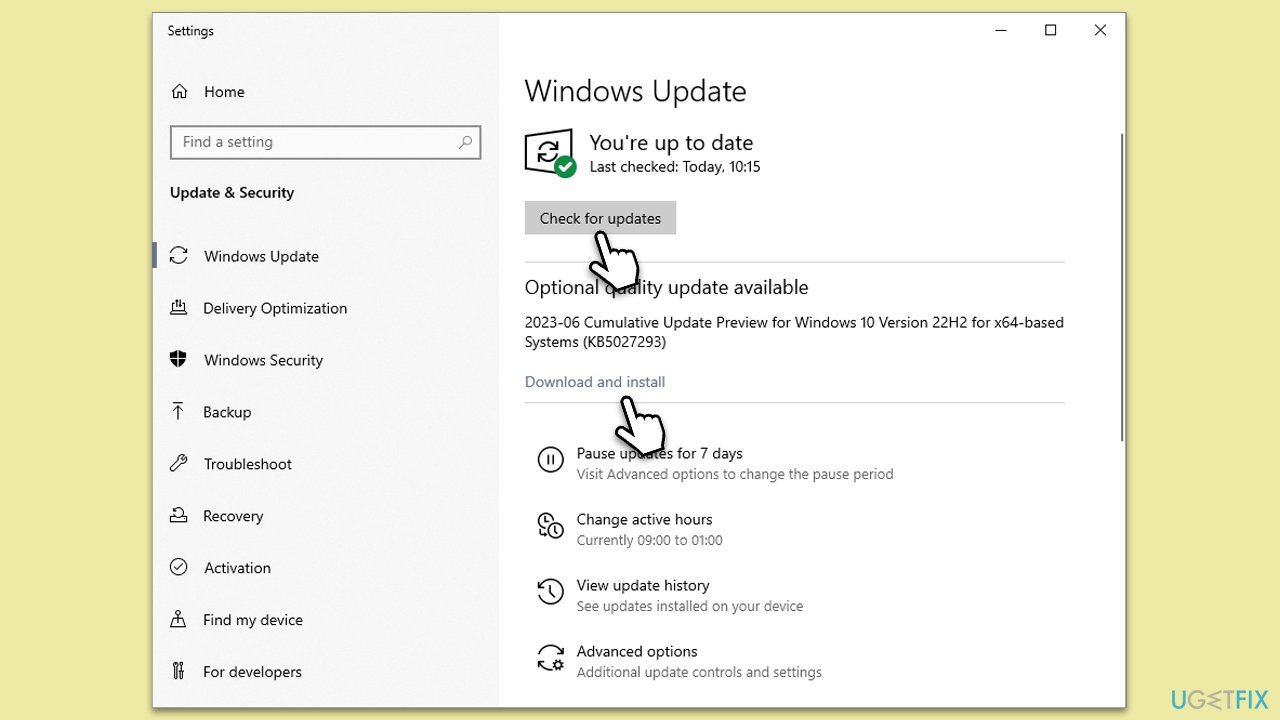
Fix 1. Install all Windows updates
Keeping your Windows OS up-to-date is crucial as updates often contain patches for system file issues and can replace problematic files, such as the CFGMGR32.dll. The updates ensure your system operates optimally and safeguards against errors and vulnerabilities.
- Navigate to Settings > Update & Security.
- Click on Windows Update, then Check for updates.
- If updates are available, install them. Make sure you install optional updates as well.
- Restart your computer once updates are installed.
Fix 2. Run SFC and DISM scans
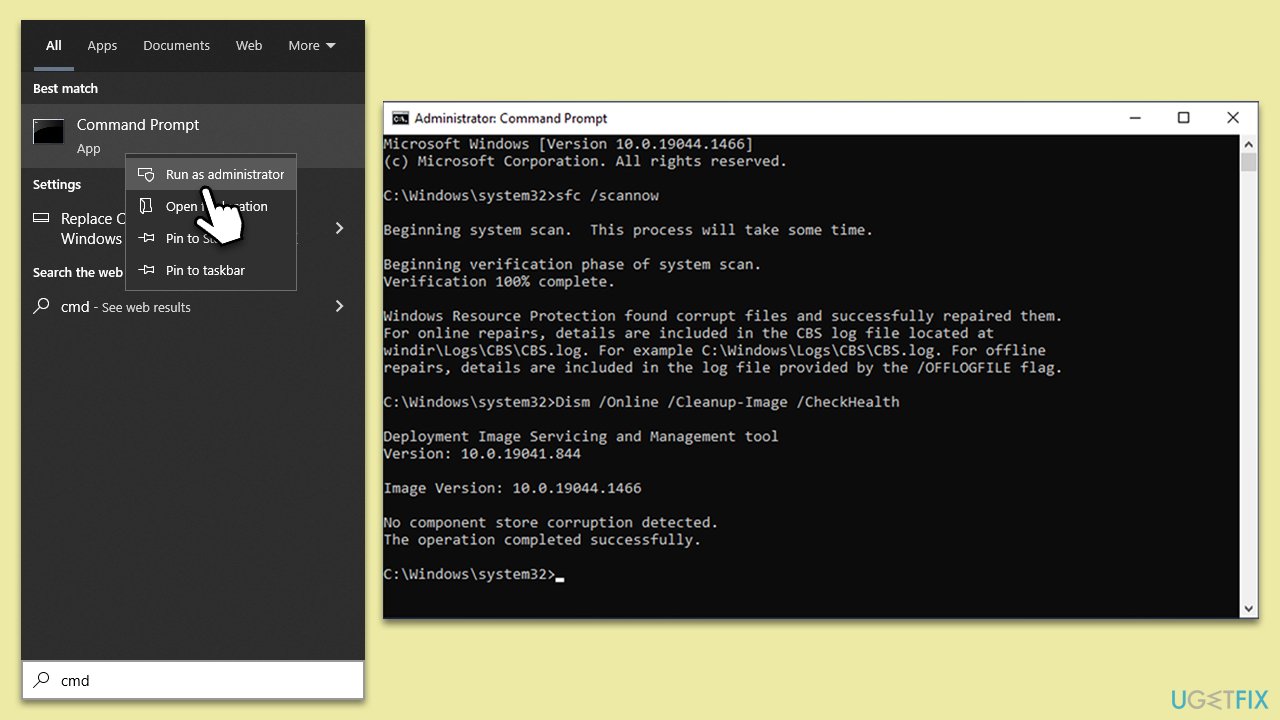
System File Checker (SFC) and Deployment Image Servicing and Management (DISM) are Windows built-in tools that can repair corrupted or missing system files.
- To run an elevated Command Prompt, type in cmd in Windows search.
- Right-click the Command Prompt result and pick Run as administrator.
- User Account Control will ask whether you want to allow changes - click Yes.
- Type this command and press Enter:
sfc /scannow - Wait for the scan to finish.
- Then, use the following commands, pressing Enter after each:
Dism /Online /Cleanup-Image /CheckHealth
Dism /Online /Cleanup-Image /ScanHealth
Dism /Online /Cleanup-Image /RestoreHealth - Reboot your system.
Fix 3. Try Clean Boot
Clean Boot allows you to start Windows with a minimal set of drivers and startup programs. This helps you eliminate software conflicts that occur when you install a program or run an application. Once in the Clean Boot state, you can try running the problematic application to see if the error persists.
- Press Win + R, type msconfig, and hit Enter.
- Go to the Services tab and tick the Hide all Microsoft services checkbox.
- Select Disable all.
- Go to the Startup tab and click Open Task Manager.
- Here, right-click on each of the non-Windows entries and select Disable.
- Close down the Task Manager.
- Go to the Boot tab and tick the Safe boot option.
- Restart your computer.

Fix 4. Temporarily disable security software or uninstall one if you have two installed
Sometimes, security software might flag and block system, treating them as potential threats. Temporarily disabling your security software or uninstalling one if you have two installed might help.
- Open your security software interface.
- Find and click on disable protection (usually under settings).
- If you have two security apps installed, uninstall one via Control Panel > Programs > Uninstall a program.
Fix 5. System Restore
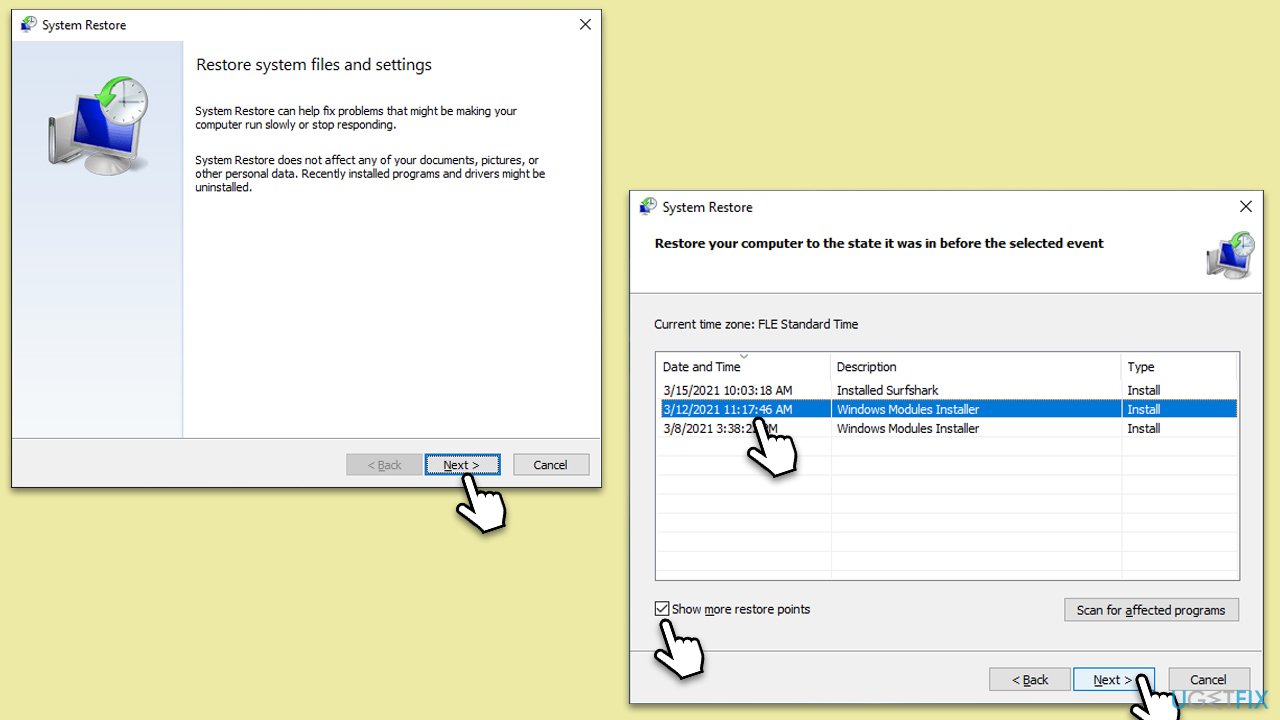
System Restore can take your system back to a point in time when everything was working fine and CFGMGR32.dll wasn't missing or causing errors.
- Type in Create a Restore point in Windows search and hit Enter.
- Go to the System Protection tab and pick System Restore.
- Click Next.
- Click Show more restore points (if available).
- Pick the time before the problem occurred and click Next.
- Follow the prompts to finish the process.
Fix 6. Repair-install Windows
If all else fails, a repair installation of Windows might be your best bet. It will replace all critical system files without deleting your personal files or installed applications.
Create Windows ISO
- Download Windows 11 Installation media from the official Microsoft website. [Windows 10 version]
- Double-click the MediaCreationTool.exe file to launch it.
- When UAC shows up, click Yes.
- Accept license terms.
- Select Language and Edition (make sure it matches the one you have currently installed) or simply mark the Use the recommended options for this PC and click Next).
- Select the ISO file and click Next.
- Pick the location for your ISO file and wait till all the needed files are downloaded, then click Finish.

Repair-install Windows
- Go to the location of your ISO file, right-click, and select Mount.
- Run the setup.exe file.
- You will be asked whether you want to update Windows to the latest version - pick Not right now and click Next.
- Accept Terms and Windows will make several checks to ensure everything is fine.
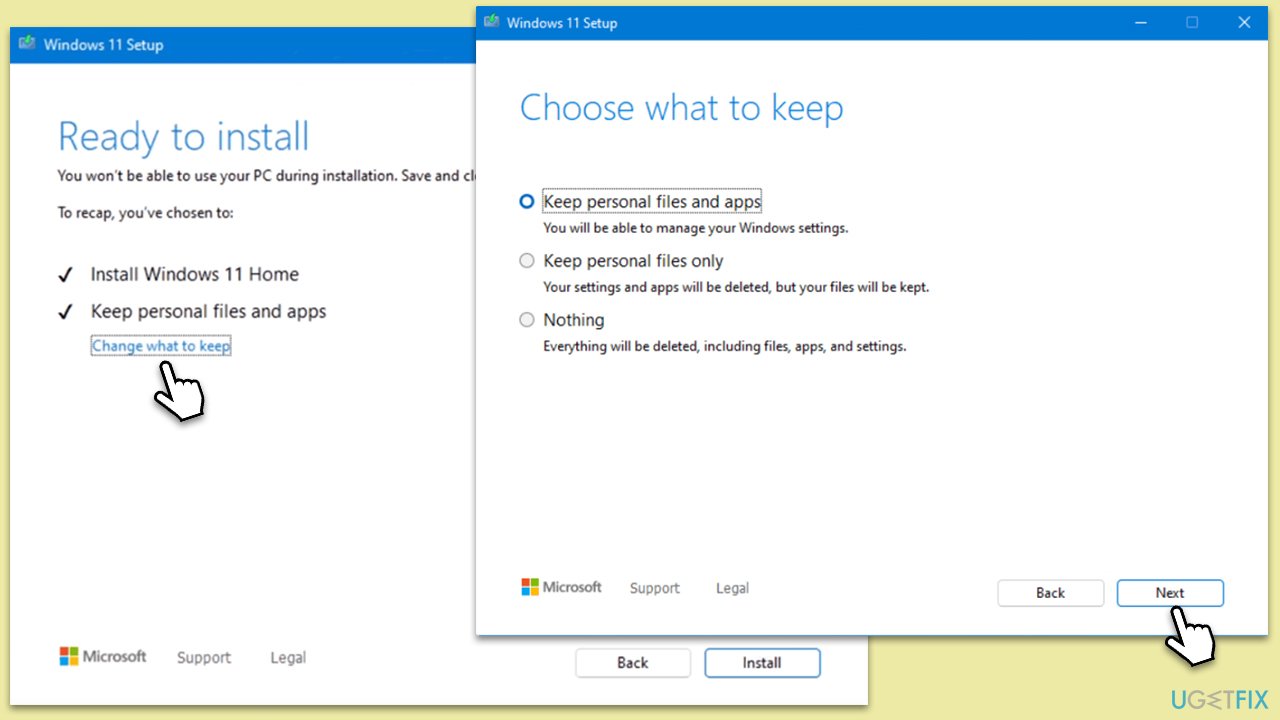
- Click Change what to keep.
- Here, you have several options: Keep your files and apps, Keep files only, or Keep nothing - choose what suits you the best. Click Next.
- Finally, click Install to begin the installation process.
Bottom line
To fix the CFGMGR32.dll missing or not found error, you can run a system file checker or DISM from the Command Prompt to repair corrupted files. Additionally, ensure that your Windows system and drivers are up-to-date. If these solutions do not work, consider using a reputable PC repair tool.
Frequently asked questions
The CFGMGR32.dll missing error can be caused by corrupted system files, incomplete software installations, or malware infections affecting the DLL file. Ensuring your Windows installation is up to date can also help prevent such errors.
To restore CFGMGR32.dll on Windows 10, you can run the System File Checker tool by opening Command Prompt as an administrator and typing 'sfc /scannow'. This will scan and repair any corrupted or missing system files.
It is not recommended to download CFGMGR32.dll from third-party websites, as these files may be outdated or infected with malware. Instead, use built-in Windows tools to repair or restore the file safely.




Report an issue
What's wrong with this guide? We review every report and update or remove content.
Report received — thank you. We'll review and fix it.
You need a free account to submit a report.
Be the first to comment