How to fix
“Check the PIN and try connecting again” Bluetooth error
on Windows
Resolve the "Check the PIN and try connecting again" Bluetooth error in Windows 10 with our expert-tested solutions, fixing issues in minutes!

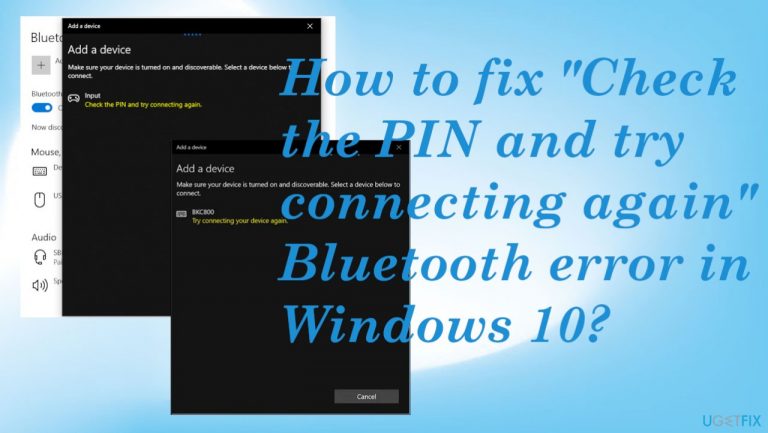
What causes How to fix “Check the PIN and try connecting again” Bluetooth error in Windows 10?
- Bluetooth option is disabled
- Particular files in the system are damaged
- Recent faulty Windows 10 update
- Improper pairing of the device
- Software or hardware problems
Repairs Windows system files, removes malware, and restores a clean OS state — without reinstalling.
Hey, I need help with the connection and PIN error. I cannot pair Bluetooth devices, and I get the Check the PIN error. There is no problem with the device because it has batteries, it works properly. I can find the piece in settings, but when I try to pair them after the Connecting window, the "Check the PIN and try connecting again." error shows up. The PIN form is not showing up, so the process is not going as it is supposed to. Can you help me solve this, so I can pair the device normally?
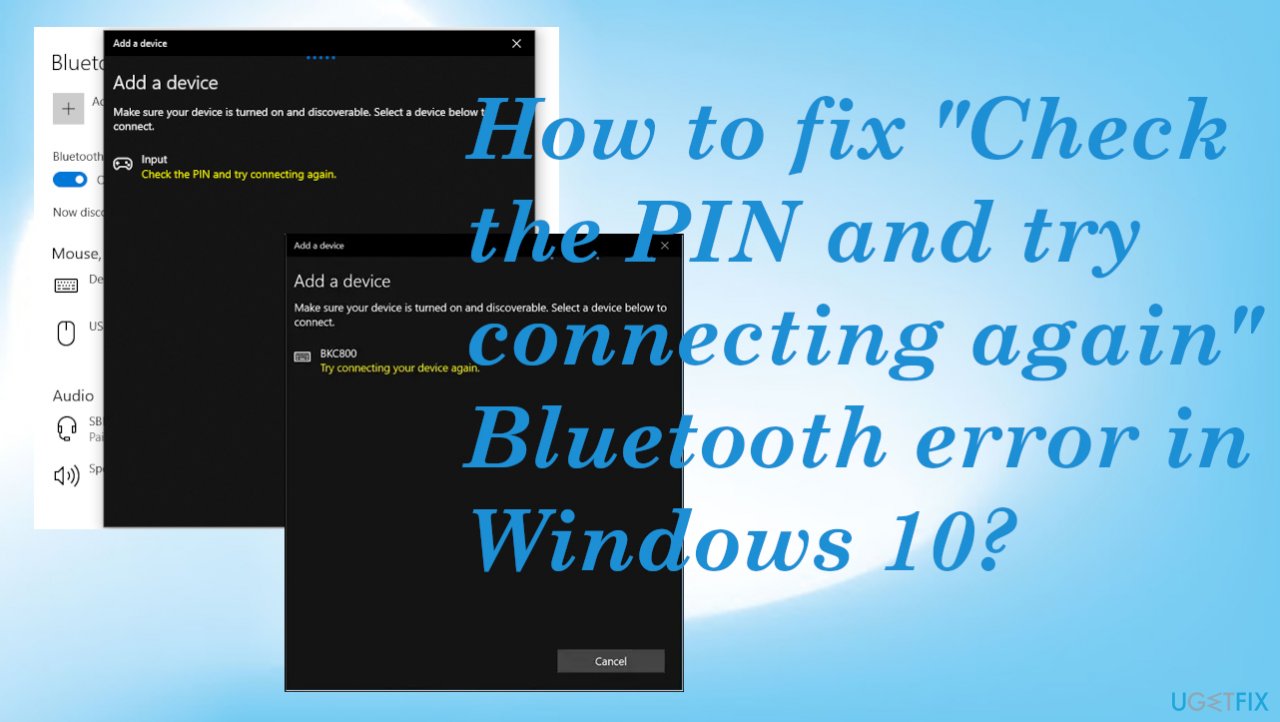
"Check the PIN and try connecting again" Bluetooth error in Windows get reported pretty often and in many cases involves Bluetooth keyboards.[ref en-1] Once the device is deleted and the user wants to connect it again to the PC, the pairing can't happen. Trying to connect to the device via settings ends in the error and the long process of pairing devices.
The issue can be frustrating because the problem occurs out of nowhere, and the process is not loading as it properly should. When the Bluetooth option gets disabled, or some particular files get damaged in the system, functions like this fail. Of course, if you run Windows 10 on the machine, the recent faulty update can be blamed.[ref en-2]
In many cases, the issue can be solved by restarting the machine, so all the functions run as normal. Other reasons why the issue is present can involve some system issues deeper. You might receive the "Check the PIN and try connecting again" error in Windows 10 without noticing that other system features are failing too.
The problem with the error is constant reoccurrence, but the situation can be fixed. This problem shouldn't be related to any serious issues like cyber threats or malware.[ref en-3] However, some of the reasons can require particular solutions. The error can arise when the pairing is not proper in the first place. So if you try to pair the device that was already connected before, the problem may reside in the software or hardware problems.
Another thing that we already mentioned - the disabled option for Bluetooth connections can trigger the problem with new pairings. If your computer is in airplane mode, these connections cannot happen also. WiFi, NFC, Bluetooth, cellular, and other connections get disabled in such mode. If you try to solve the issue and fail, you might want to run [d1] to check for file damage and repair functions needed for normal PC performance. If these quick options do not give results, try to fix the "Check the PIN and try connecting again" Bluetooth error in Windows with the guide below.
#1 Clear registry
- Press Windows key + R together to open the run command box.
- Type regedit and click OK.
- Browse to the following location in the registry editor:
HKEY_USERS\\.DEFAULT\\Software\\Microsoft\\Windows\\CurrentVersion\\Bluetooth\\ExceptionDB\\Addrs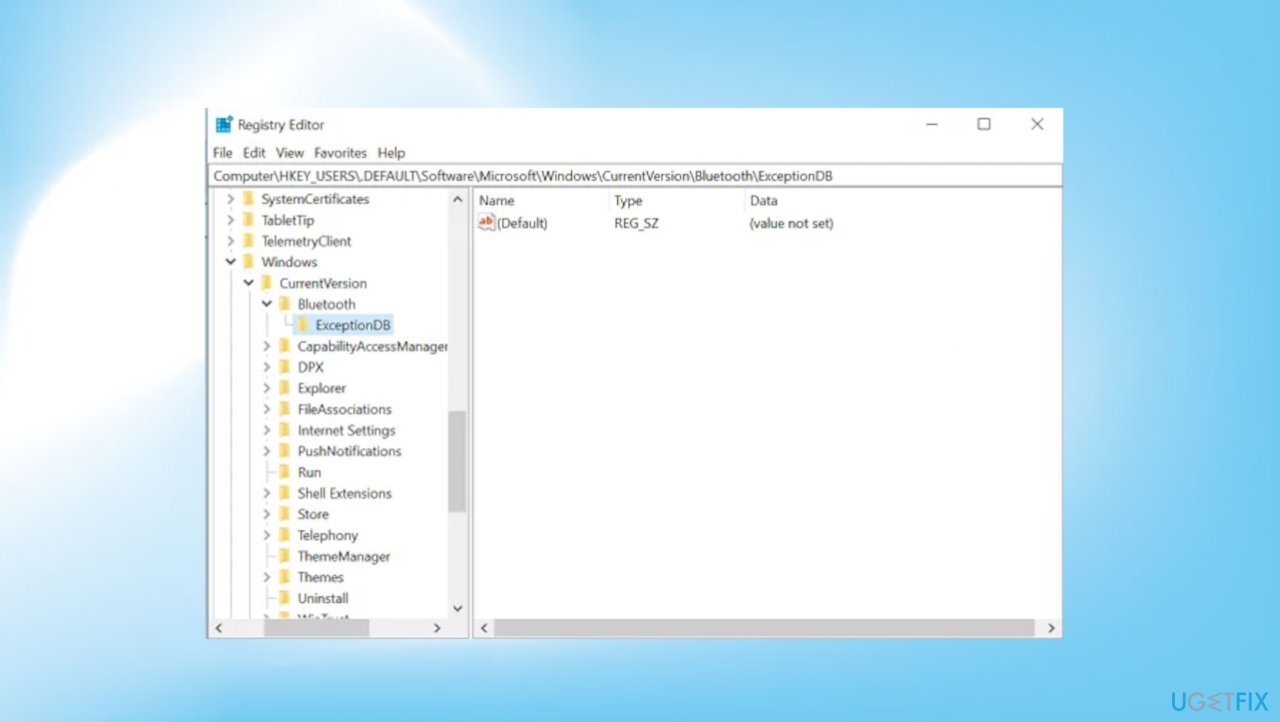
Check the pin try connecting again fix registry - Expand Addrs and delete the folder inside it.
- Try pairing your device again.
#2 Troubleshoot issues
- Press Windows key + I key together to open settings.
- Click on Update & Security.
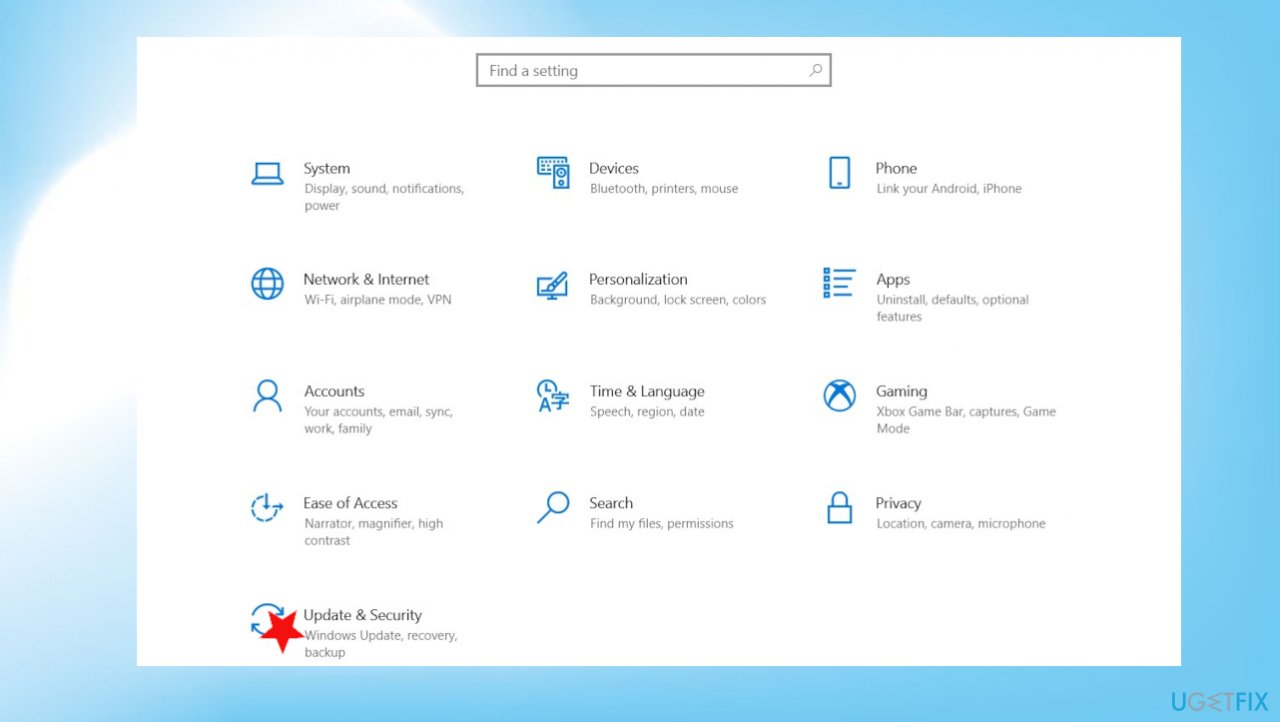
Check the pin try connecting again fix settings - Locate Troubleshoot.
- Click Additional troubleshooters.
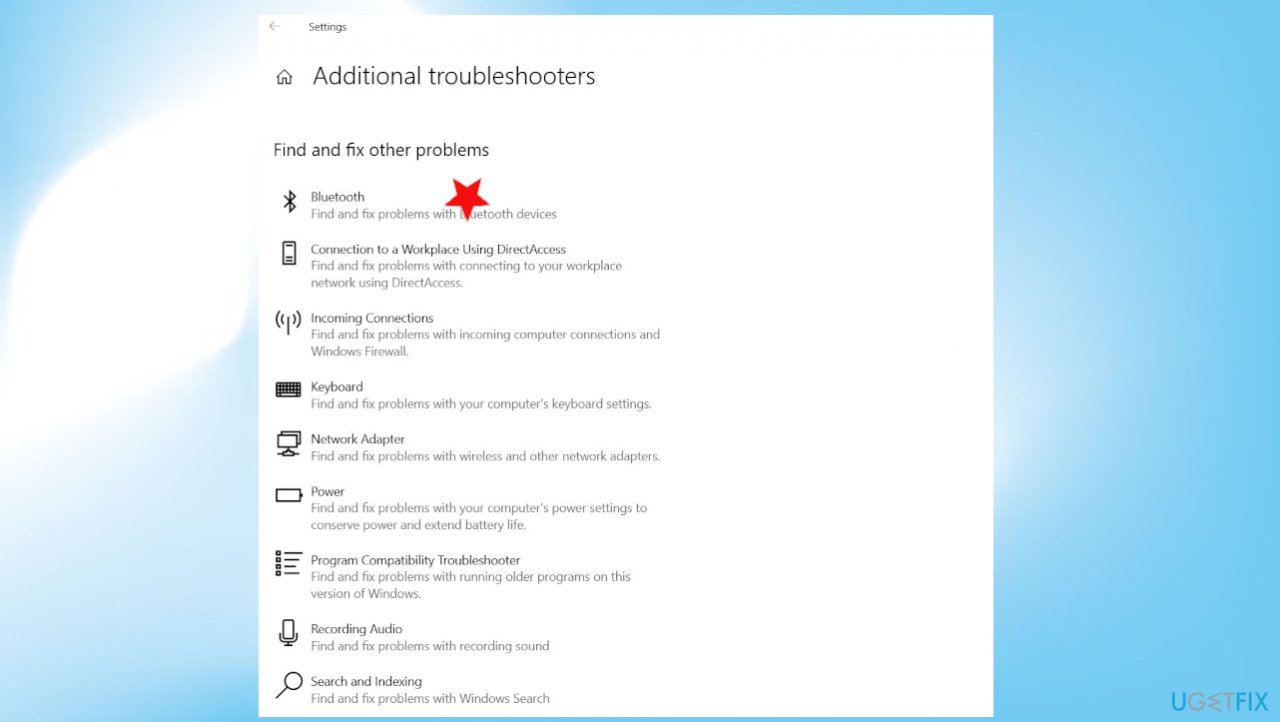
Check the pin try connecting again fix bluetooth troubleshoot - Find Bluetooth option.
- Follow the on-screen instructions to troubleshoot the issues
#3 Use the pairing wizard
- Press Windows key + R together.
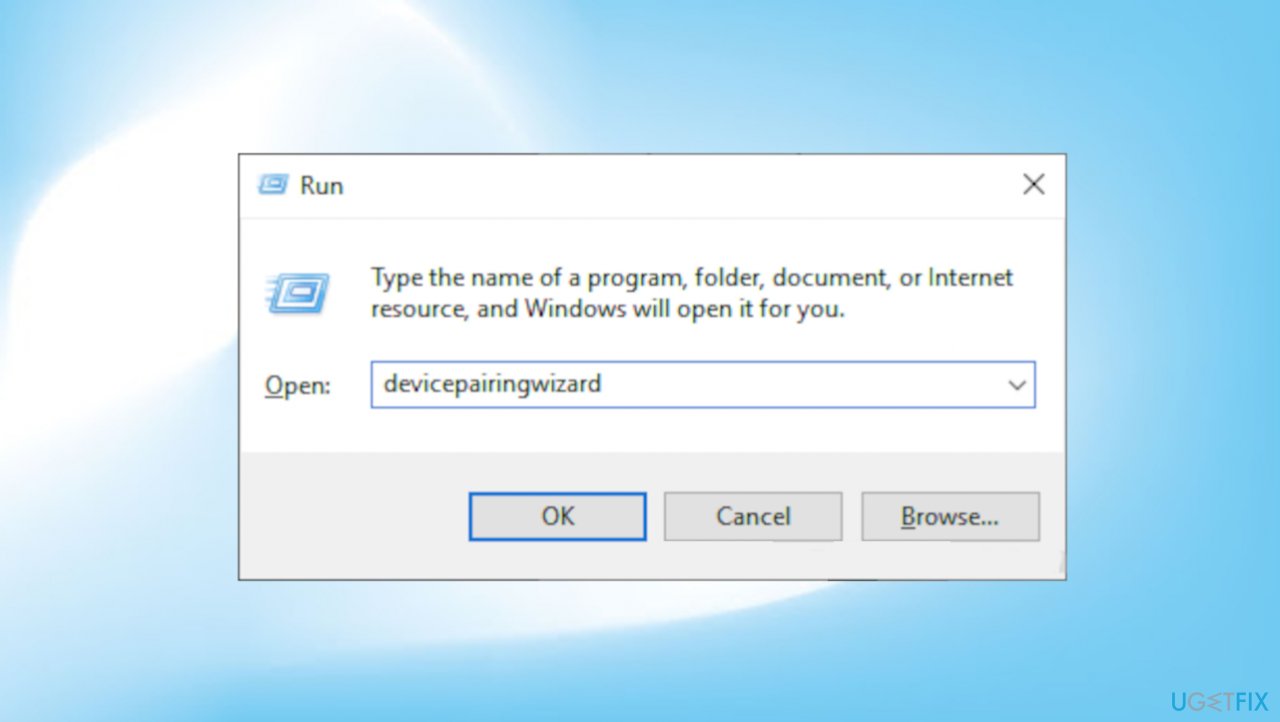
Check the pin try connecting again fix pairing wizard - Type devicepairingwizard in it and click OK.
- Wait for some time for devices to appear.
- Select the Bluetooth device which you want to add.
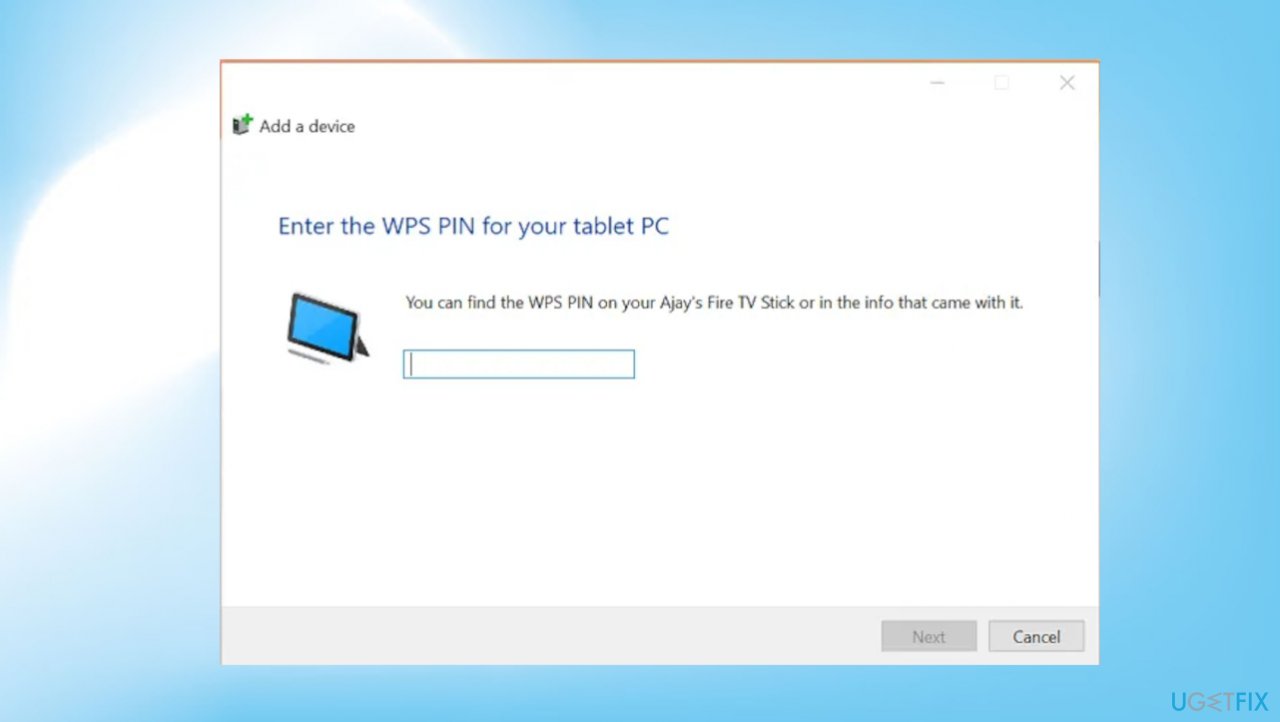
Check the pin try connecting again fix pin enter - A passcode form will appear.
- Type the code from your Bluetooth device.
- Press Enter.
#4 Reinstall or update Bluetooth drivers
- Tap the Win + X keys to open the Device Manager.
- Next, look for the Bluetooth device and right-click.
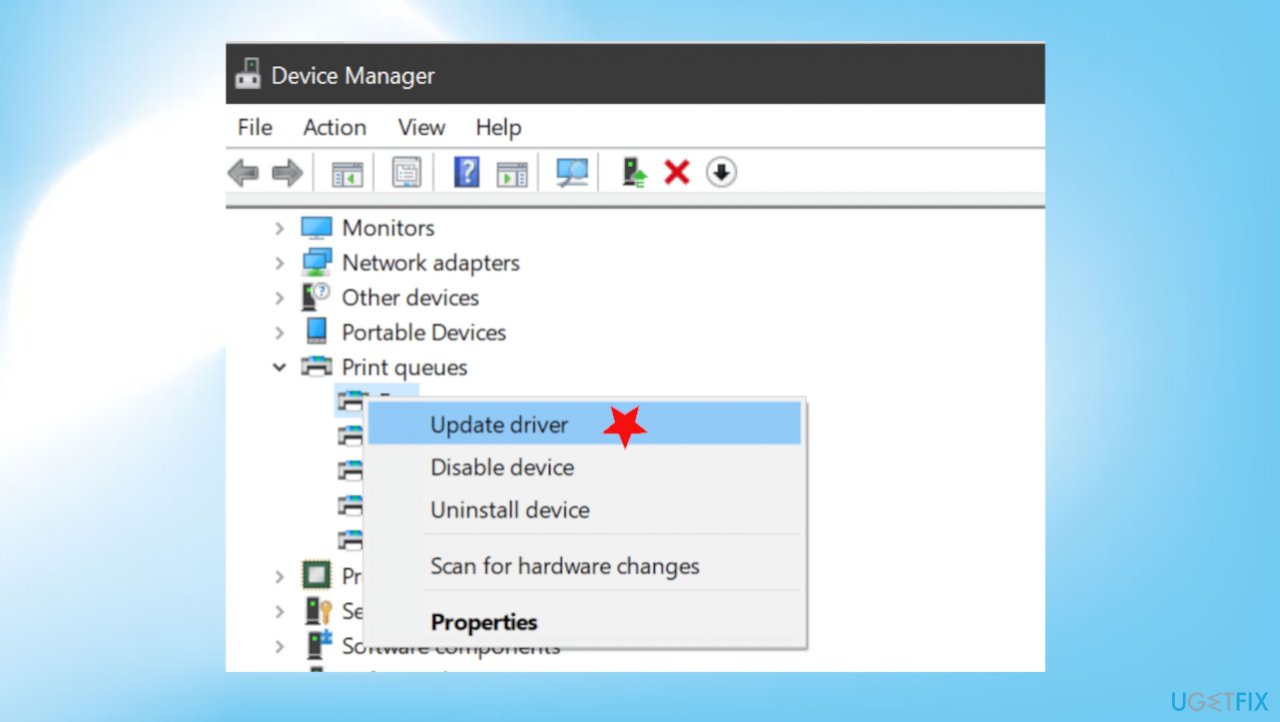
Check the pin try connecting again fix driver update - Select the option Update driver.
- Select the option Search automatically for updated driver software.
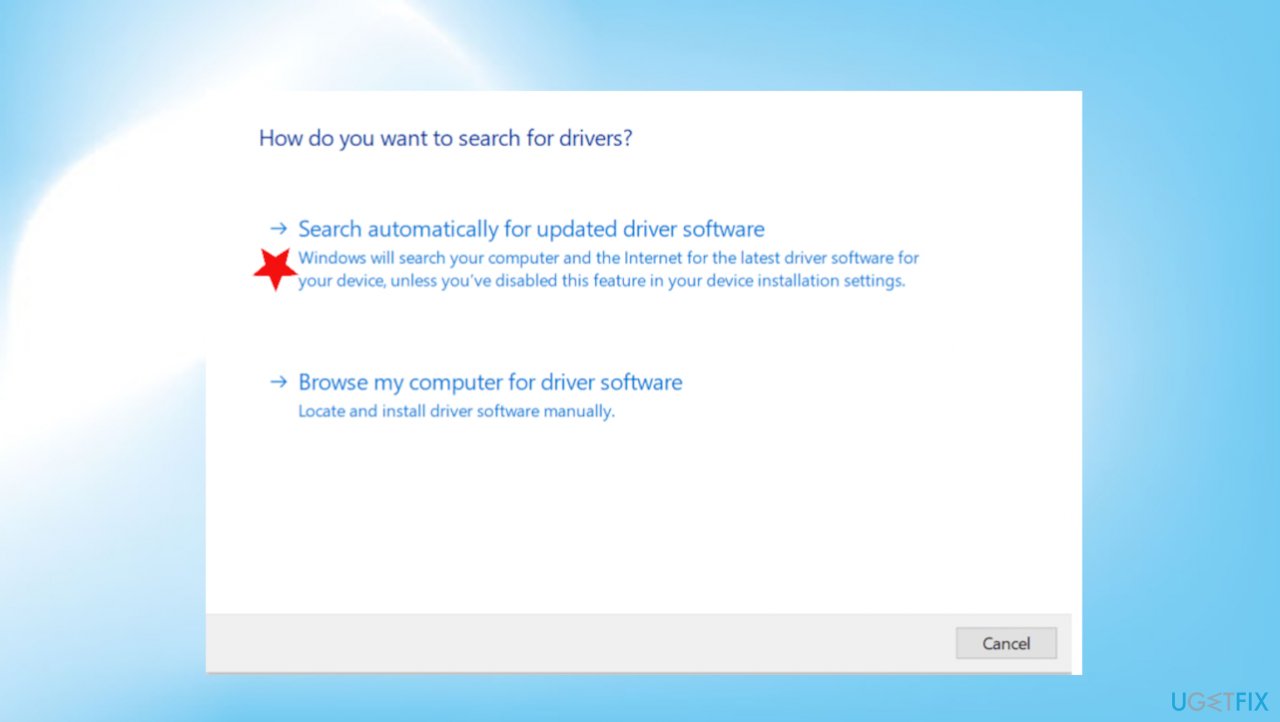
Check the pin try connecting again fix search for drivers
Bottom line
To resolve the 'Check the PIN and try connecting again' error, try restarting your machine, ensuring Bluetooth is enabled, and checking for system updates. If the issue persists, consider deleting the device and attempting to pair it again. If none of these solutions work, further investigation into system issues may be necessary.
Frequently asked questions
First, ensure that both devices are discoverable and within range. Then, try removing the Bluetooth device from your paired list and re-pair it by entering the correct PIN when prompted.
You can reset Bluetooth settings by going to Settings > Devices > Bluetooth & other devices, turning Bluetooth off, waiting a few seconds, and then turning it back on.
Yes, you can update your Bluetooth drivers by going to Device Manager, locating your Bluetooth adapter, right-clicking on it, and selecting 'Update driver' to ensure compatibility and functionality.




Report an issue
What's wrong with this guide? We review every report and update or remove content.
Report received — thank you. We'll review and fix it.
You need a free account to submit a report.
Be the first to comment