How to fix
Chinese characters
on Windows
Resolve the issue of Chinese characters on your Windows 10 or Windows 11 lock screen effortlessly. Expert-tested solutions await you!


What causes How to fix Chinese characters on Windows lock screen?
- Unexpected language switch after a Windows update
- Misconfiguration in language settings
- Spontaneous change without user input
- Update process altering language or regional settings
Repairs Windows system files, removes malware, and restores a clean OS state — without reinstalling.
My lock screen in Windows suddenly started using Chinese language instead of English. I have restarted my PC several times and it still remains Chinese. Any idea what is going on and how to fix this?
One essential feature included in the widely used and versatile Windows operating system is the lock screen. When the device first boots up or wakes from sleep mode, this initial interface appears. It functions as a security feature and a central information center, displaying notifications, the time and date, and - most importantly - a language setting for user interaction.
When the operating system is first installed, the language that is displayed is usually configured to match the user's desire and region. Because Windows is designed to handle multiple languages, users can have a customized and regionally specific experience.
Some Windows users have noticed an interesting bug, though, in which the language shown on the lock screen sometimes switches to Chinese. This change, which frequently happens on its own without user input, can be perplexing and jarring, particularly for people who are not familiar with the Chinese language.
The majority of reports of this unexpected shift come after a Windows update, which may be related to the update process changing language or regional settings. However, there are other cases where this change seems to occur spontaneously, which further complicates matters.

It could be a sign of a more serious misconfiguration in the language settings of the system, perhaps as a consequence of an update that did not fully respect the current user choices. To resolve this, one may want to use the Windows control panel or settings menu to access the language settings, where the selected language can be reviewed and changed. Although it isn't a clear command, this method shows how to fix Chinese characters on the Windows lock screen.
The problem could be a sign of more widespread anomalies or incorrect setups in the system. Using a specialized tool like the [d1] PC repair software can be a wise choice in these situations. This utility is intended to identify and fix a variety of underlying Windows problems automatically.
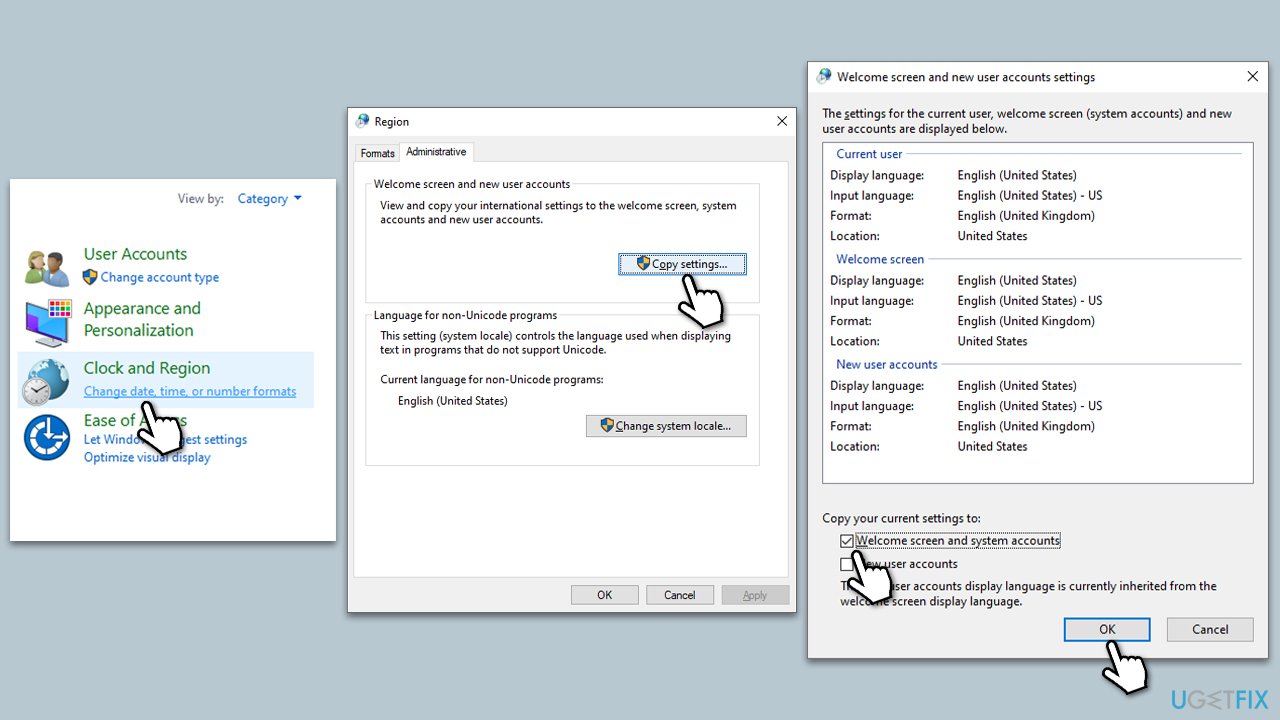
Fix 1. Check regional settings
This solution works by realigning the system settings with the user's geographical location, ensuring that the operating system reflects the appropriate regional standards and language preferences.
- Type Control Panel in Windows search and hit Enter.
- Select Change date, time or number format under the Clock & Region section.
- Go to the Administrative tab.
- Click the Copy settings button.
- Under the Copy your current settings to section, mark the Welcome screen and system accounts checkbox.
- Click OK everywhere and restart your PC.
Fix 2. Set the correct region on account.microsoft.com
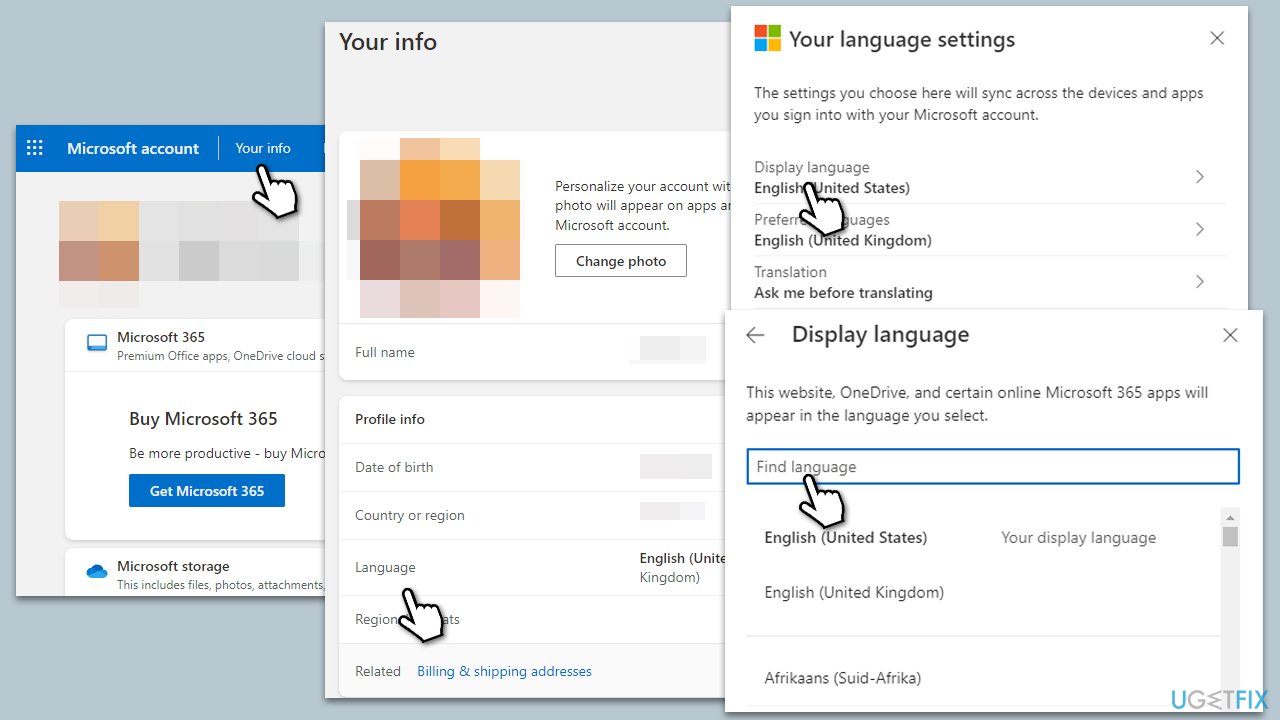
Adjusting your region settings on your Microsoft account can also affect the language displayed on your Windows lock screen. This is particularly effective if your Microsoft account settings are overriding local system preferences.
- Open your web browser and go to account.microsoft.com.
- Sign in with your Microsoft account credentials.
- Click on Your info at the top.
- Under Profile info, you will see various regional settings.
- Update your Country or region to the correct one and save the changes.
- Then click on Language and pick the correct languages.
- Restart your computer for the changes to take effect.
Fix 3. Install all Windows updates
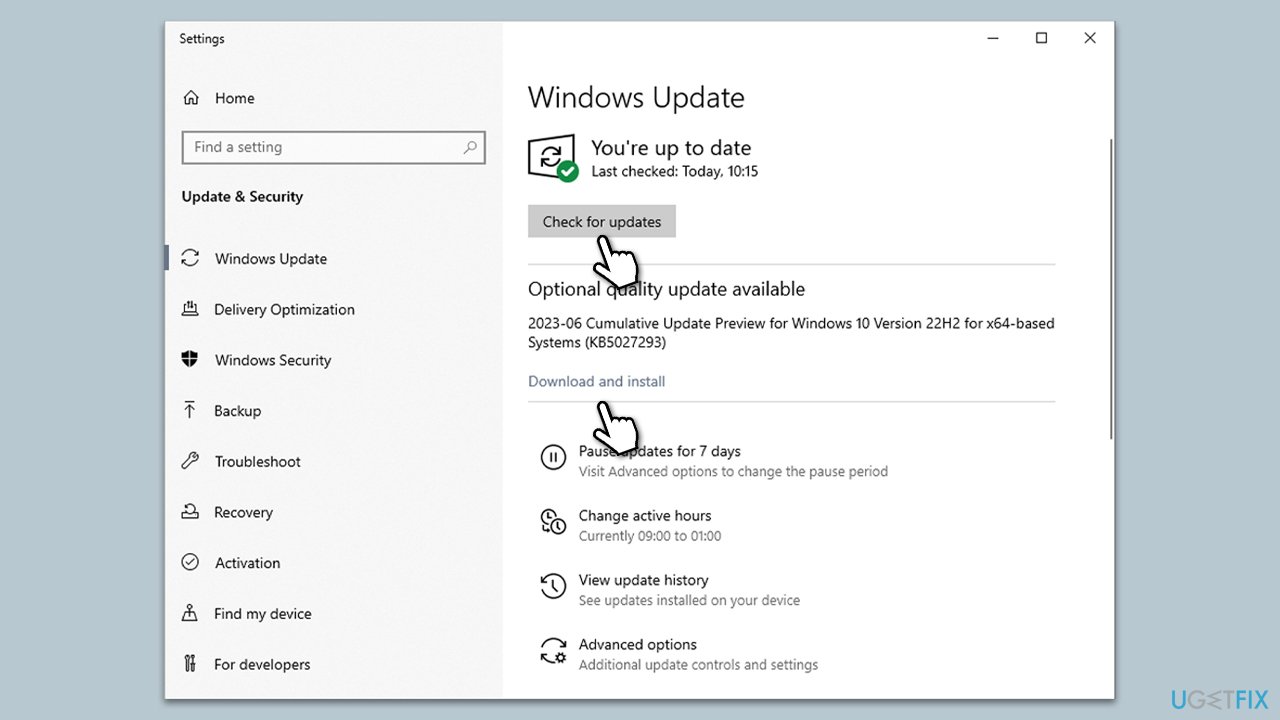
Installing all pending Windows updates can rectify issues caused by incomplete or missing system files that may affect language settings. Updates often contain fixes and improvements that can resolve underlying problems.
- Type Updates in the Windows search box and hit Enter.
- Click Check for Updates and wait till all the needed files are downloaded.
- If optional updates come up, install them too.
- When all is done, restart your system to implement the changes.
Fix 4. Uninstall the latest Windows update
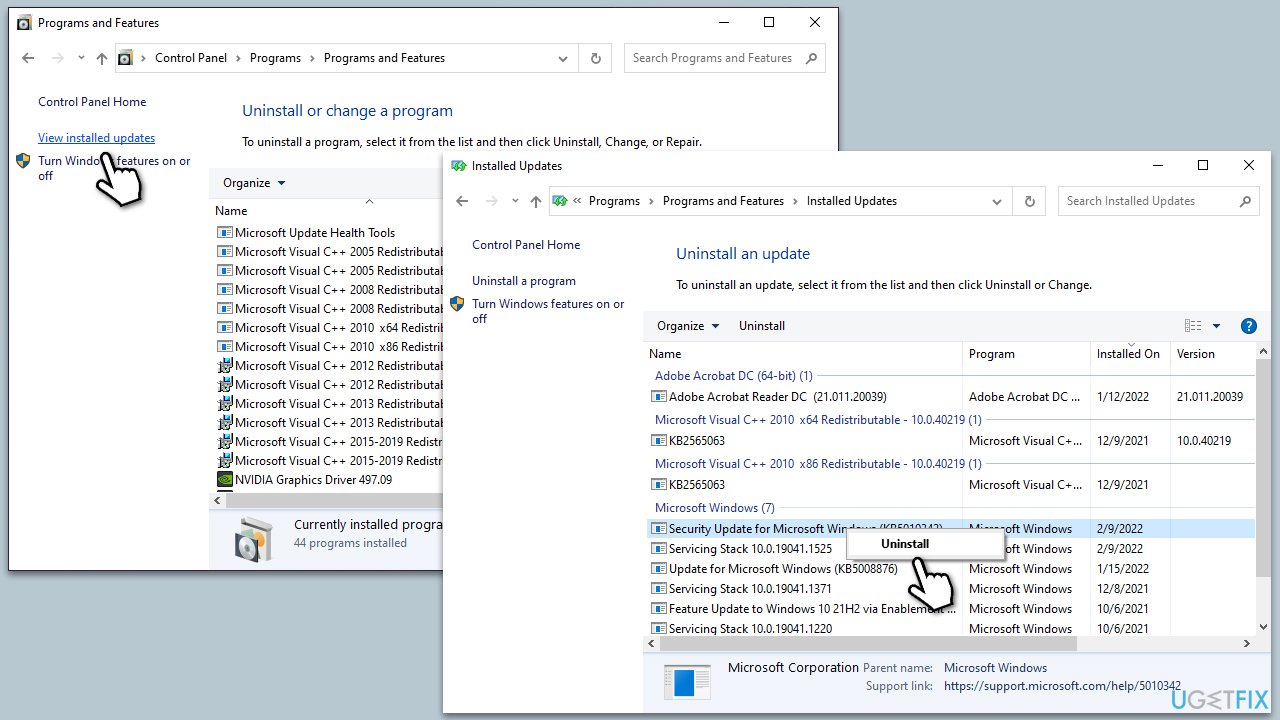
If you already had the latest Windows updates installed, you should uninstall the latest one which caused Chinese characters on the lock screen.
- Type Updates in Windows search and press Enter.
- Open Settings and go to Windows Update.
- Select Update history and pick Uninstall updates.
- When the Control Panel opens, sort it by the date.
- Select the most recent update and click Uninstall at the top.
- Proceed with on-screen instructions to finish the process.
- Go to the Windows update page once again and click Pause updates.
- Reboot your system.
Fix 5. Delete and reinstall the English language package
Removing and then reinstalling the English language package can address issues where the language files are corrupt or improperly configured.
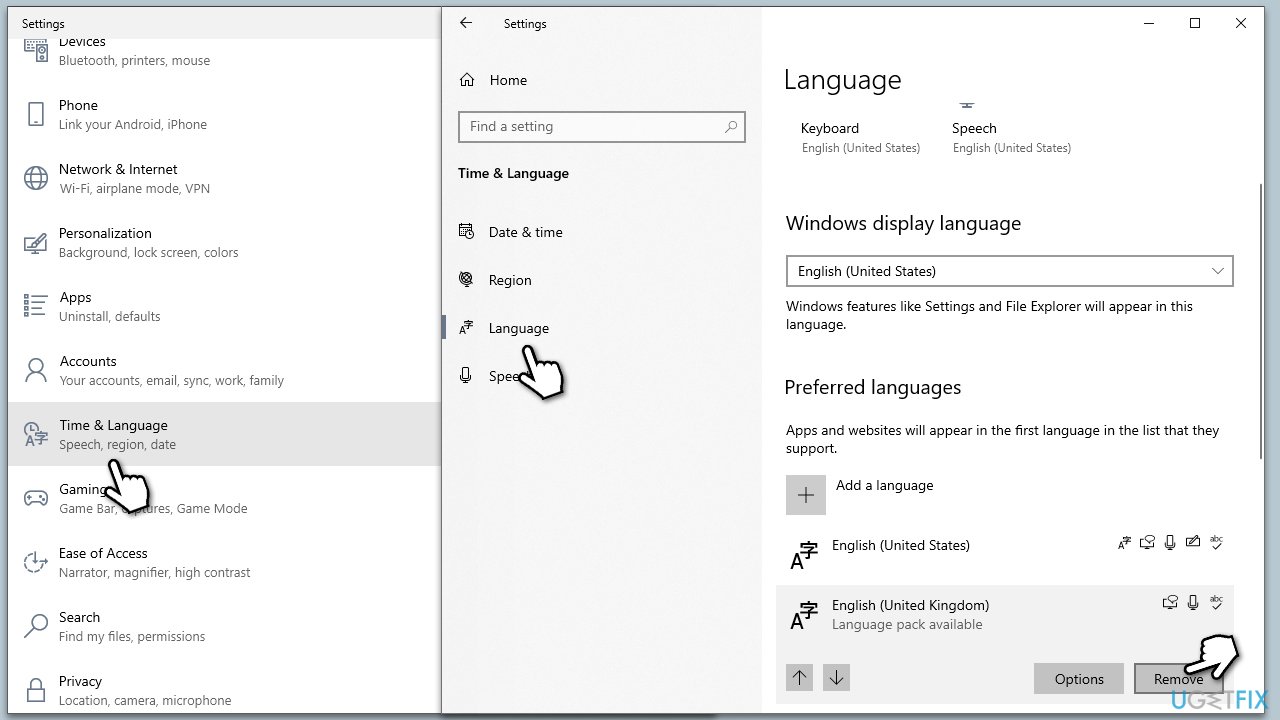
- Open Settings from the start menu.
- Navigate to Time & language and then to Language.
- Under Preferred Languages, find English (or your preferred language) and click on it.
- Select Remove to delete the language pack.
- Click Add a language to reinstall English (or your preferred language).
- Select English from the list, then click Next and install.
- Restart your computer to complete the installation.
Fix 6. Disable Windows Spotlight
Windows Spotlight, which provides dynamic backgrounds and content on the lock screen, may sometimes interfere with system settings, including language preferences.
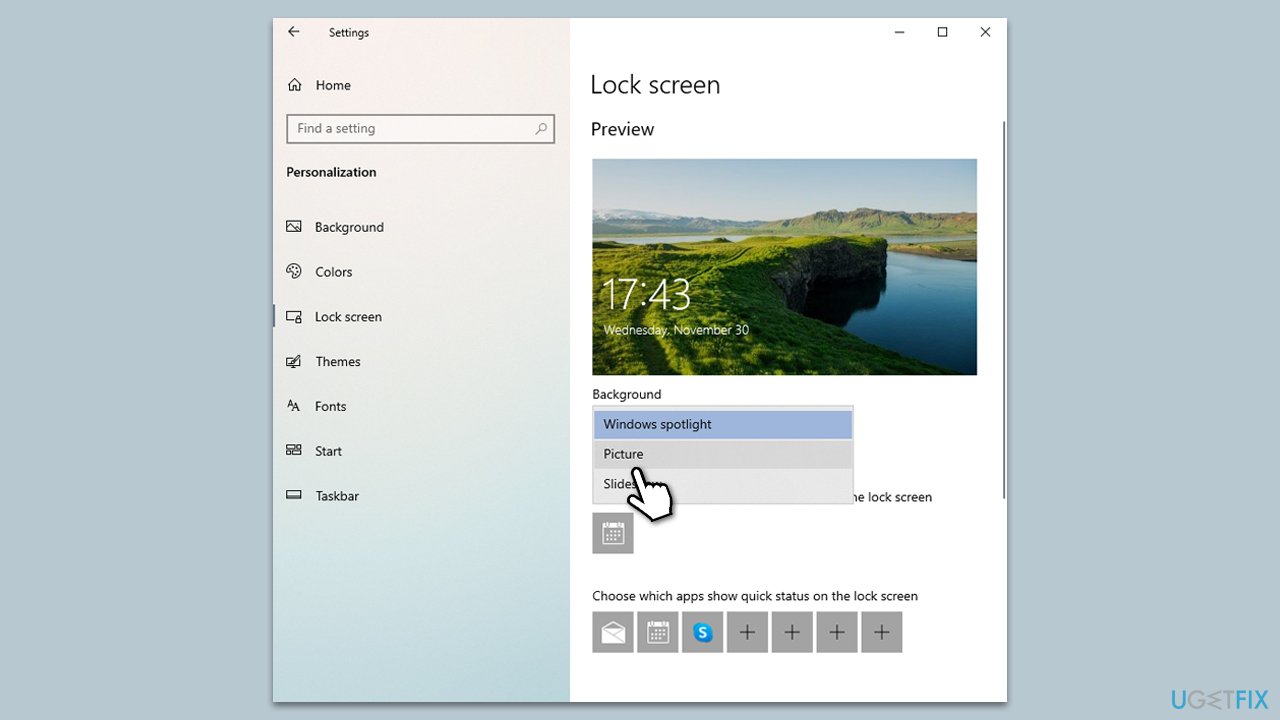
- Right-click on the desktop and select Personalize.
- In the Personalization window, click on the Lock screen.
- In the lock screen settings, find the Background dropdown menu.
- From the dropdown menu, select Picture or Slideshow instead of Windows Spotlight.
- Choose your preferred picture or slideshow for the lock screen background.
- Close the settings window and restart your computer to apply the changes.
Fix 7. Reset Windows
While this option may seem extreme for such a simple issue, some people said that that's the only solution that worked for them. You will keep all your personal files, although you might have to reconfigure your settings and programs.
- Right-click on Start and then select Settings.
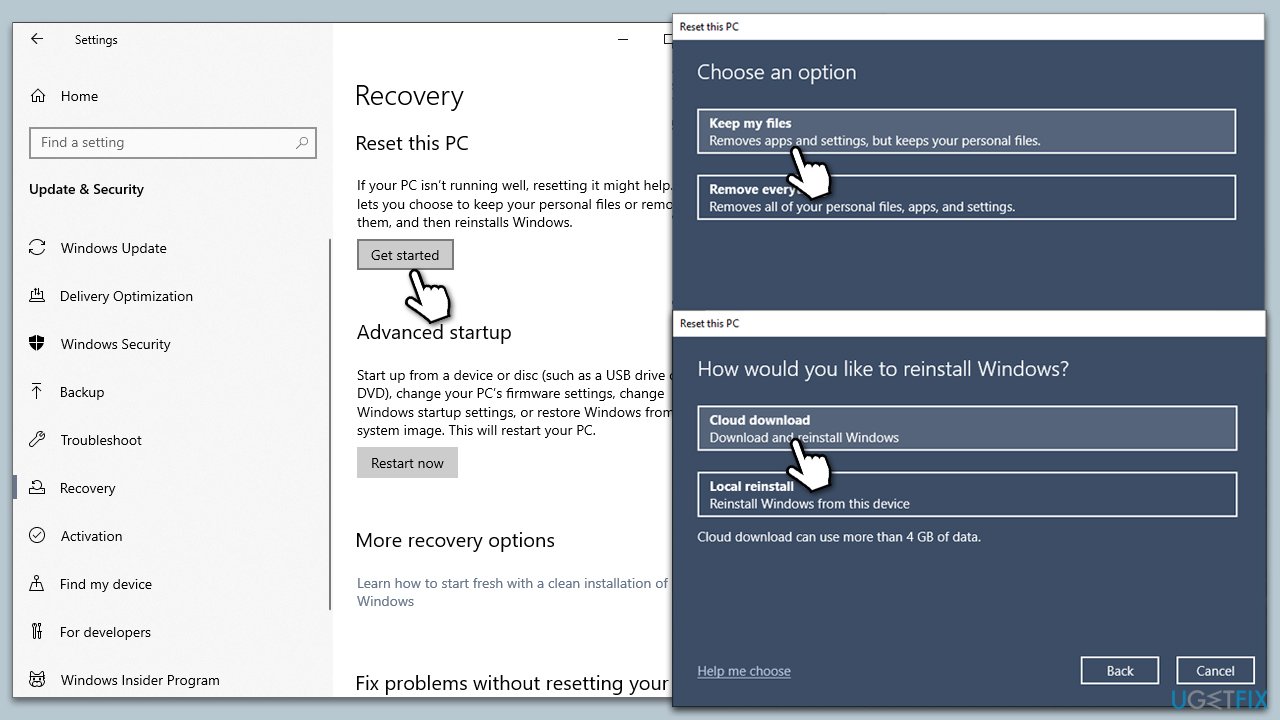
- Go to Update & Security and pick Recovery on the left side of the window.
- Find Reset this PC section and click Get Started.
- Select Keep my files and Cloud download.
- Next, pick whether you want to reinstall the apps.
- Click Reset.
- Your system will restart, and the process of Windows reset will begin.
Bottom line
To fix the issue of Chinese characters on the Windows lock screen, users can access the language settings through the Windows control panel or settings menu to review and change the selected language. If the problem persists, using specialized PC repair software may be advisable.
Frequently asked questions
Incorrect character display often occurs due to improper language settings or font issues in Windows 10 or Windows 11.
To fix the issue, go to Settings > Time & Language > Language, and ensure your preferred language is set correctly in Windows 10 or Windows 11.
If the problem persists, try updating your Windows fonts or resetting your lock screen settings to default in Windows 10 or Windows 11.




Report an issue
What's wrong with this guide? We review every report and update or remove content.
Report received — thank you. We'll review and fix it.
You need a free account to submit a report.
Be the first to comment