How to fix
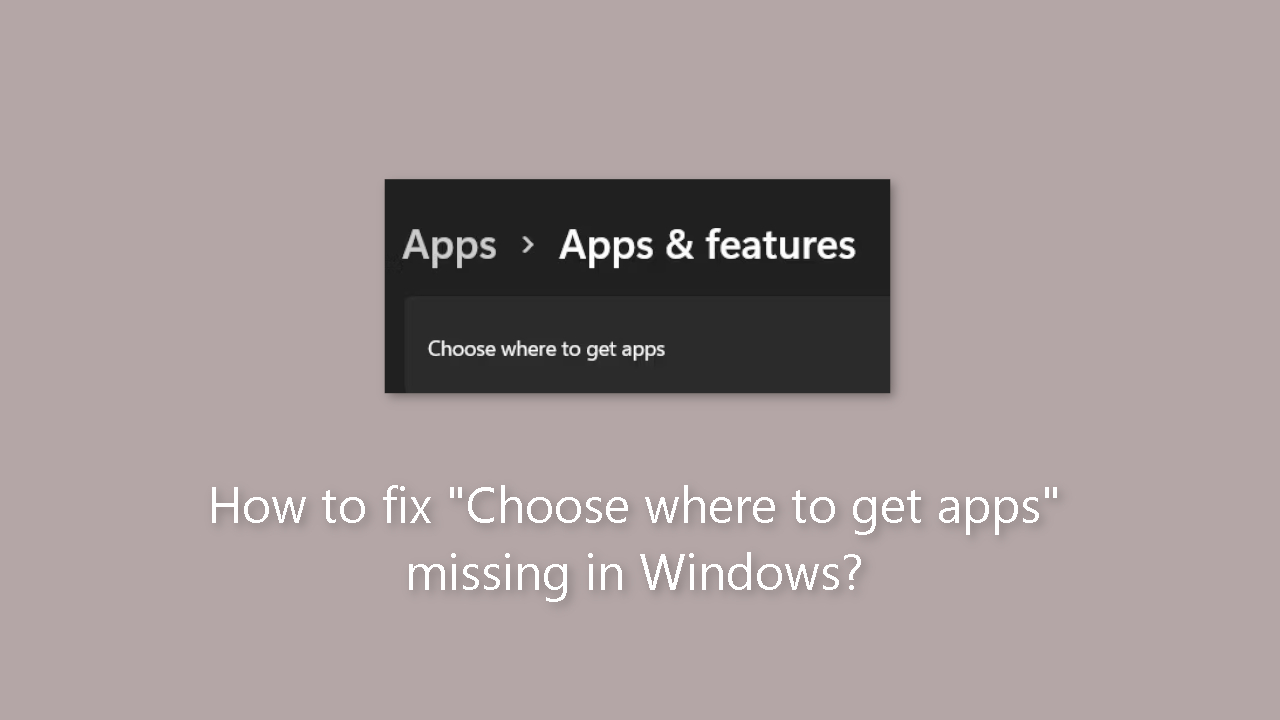
“Choose where to get apps” missing
on Windows
Resolve the "Choose where to get apps" issue in Windows 10 and 11 effortlessly. Enjoy a seamless experience with our expert-tested solutions.


What causes How to fix “Choose where to get apps” missing in Windows?
- Limited ability to investigate alternative sources for app installation
- Forced to install apps from the default source
- Reduced control over system's security
- Increased risk of downloading from untrusted sources
- Compatibility issues with software not available in the Microsoft Store
Repairs Windows system files, removes malware, and restores a clean OS state — without reinstalling.
Hello. The "Choose where to get apps" option is missing from my Windows PC. What could be the problem?
The lack of a "Choose where to get apps" option in Windows can be a source of concern for users. This feature is intended to provide control over the source of app installations, thereby preventing the installation of potentially harmful or unwanted software. Windows by default allows users to install apps from the Microsoft Store, a trusted and curated marketplace that provides a safer environment for app acquisition.
The absence of a "Choose where to get apps" option may have several consequences for users. For starters, it limits their ability to investigate alternative sources for app installation. When certain applications are not available in the Microsoft Store, users may prefer to obtain software from other trusted platforms or specific websites. They are forced to install apps from the default source if they do not have this option, limiting their flexibility and freedom of choice.
Furthermore, the absence of this feature reduces users' control over their system's security. Before installing any software, they can use the "Choose where to get apps" option to verify the authenticity and dependability of the source. Users may unknowingly download and install applications from untrusted or potentially malicious sources if they do not have it, exposing their system to security risks and potential harm.
Furthermore, the lack of an option may result in compatibility issues and limited software availability. Some applications, particularly those created by independent developers or niche software providers, may not be accessible via the Microsoft Store. Because of the lack of flexibility in source selection, users who rely on such software for their work, studies, or personal needs may have difficulty accessing or installing these applications.
In this guide, you will find 3 steps that should help you fix "Choose where to get apps" missing in Windows. You can also use a maintenance tool like [d1] to fix most system errors, BSODs,[ref en-1] corrupted files, and registry[ref en-2] issues. Otherwise, follow the step-by-step instructions below.
Solution 1. Turn Off S Mode
- Press the Windows key + I to open the Settings window.
- Choose System.
- Select Activation.
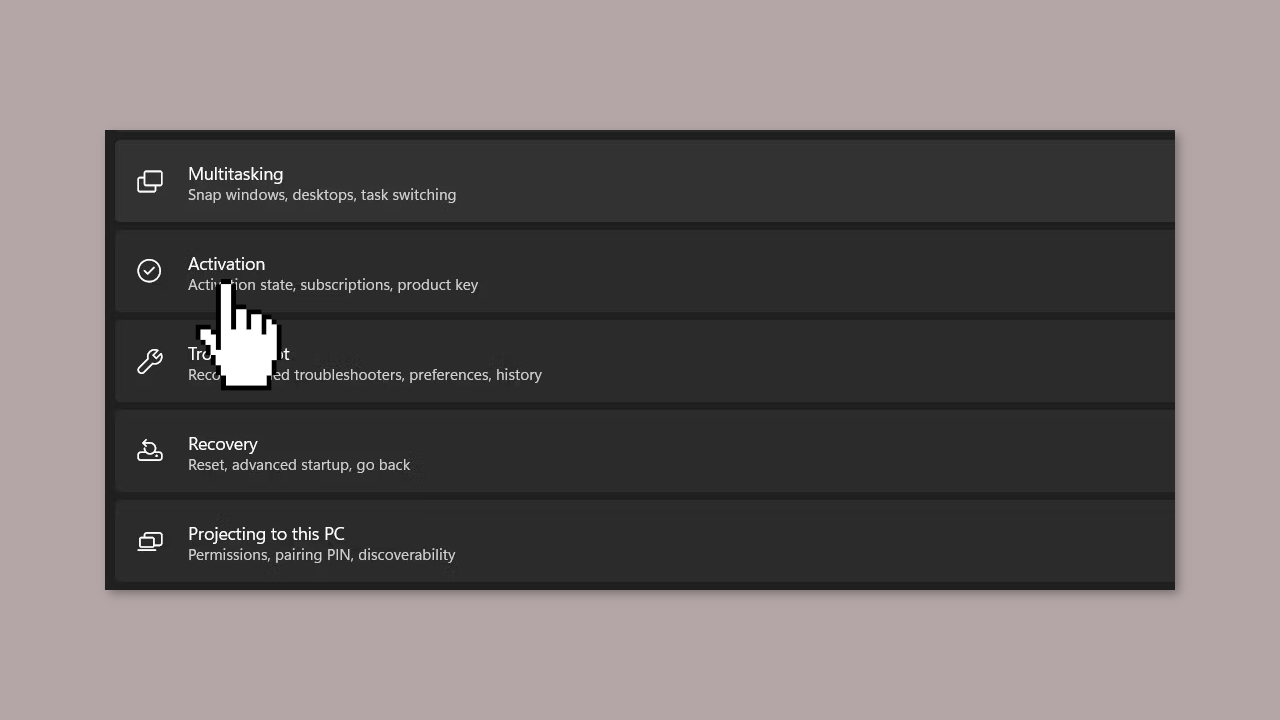
- Under the Switch to Windows 11 Pro section, click on Go to the Store.
- The Switch out of S mode page will appear.
- Click on the Get button.
Solution 2. Modify the Registry
- Press the Windows key + R together to open Run.
- Type regedit in the Run dialog box and click Enter.
- Click Yes in the User Account Control Prompt.
- The Registry Editor will open.
- Inside the Registry Editor, navigate to the following location: HKEY_LOCAL_MACHINE\SOFTWARE\Policies\Microsoft\Windows Defender\SmartScreen
- Move to the right side of the window and locate the ConfigureAppInstallControl and ConfigureAppInstallControlEnabled keys.
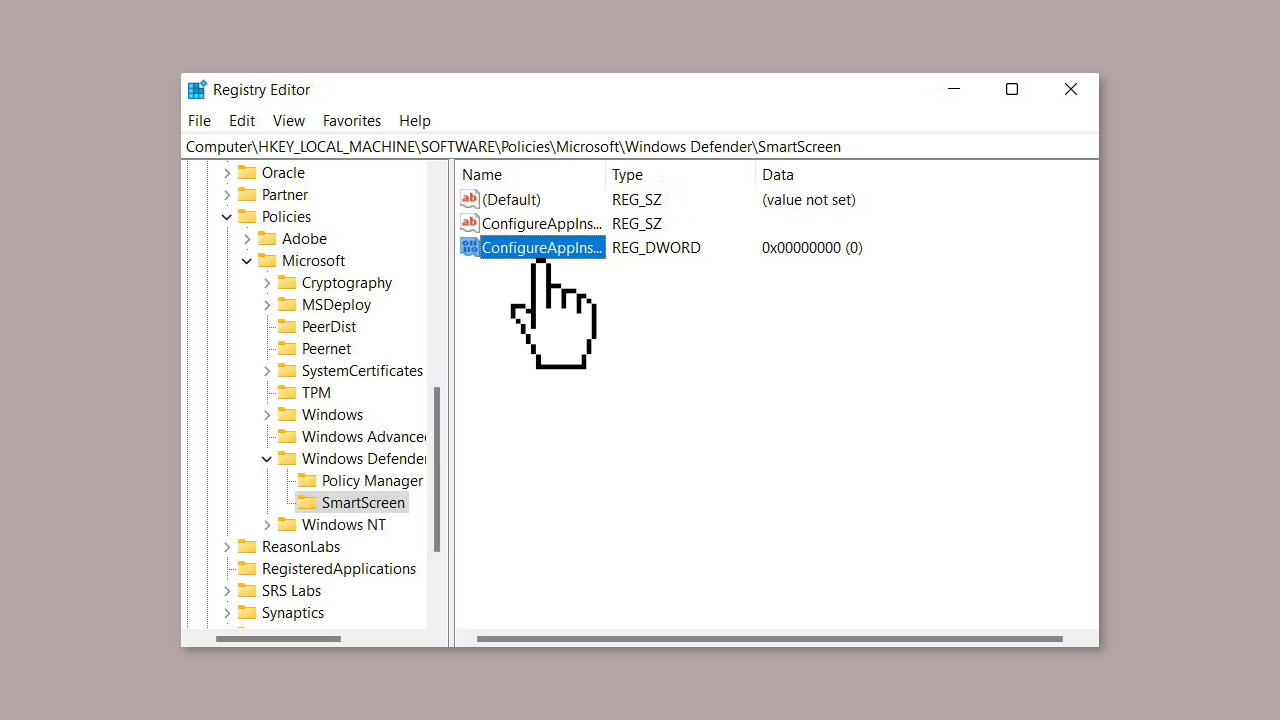
- Delete both the ConfigureAppInstallControl and ConfigureAppInstallControlEnabled keys.
- Close the Registry Editor.
- Restart your PC for the changes to take effect.
Solution 3. Use the Group Policy Editor
- Press the Windows key + R to open Run.
- Type gpedit.msc in the Run dialog box and click Enter.
- Click Yes in the User Account Control Prompt.
- The Group Policy Editor will open.
- Once inside the GPE, navigate to the following location:
Computer Configuration/ Administrative Templates/ Windows Components/ Windows Defender SmartScreen/ Explorer
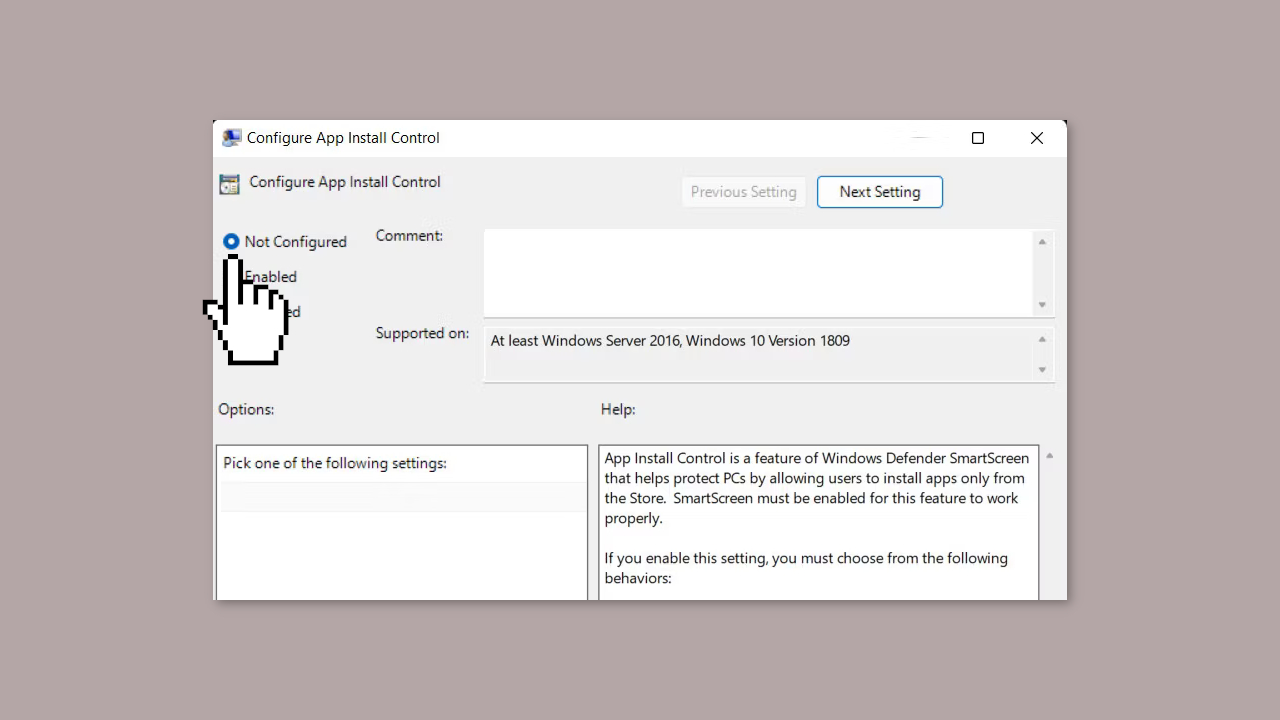
- In the right pane, locate and click on Configure app install control.
- Choose Not Configured from the available options.
- Click Apply and then click OK to save the changes.
Bottom line
This guide provides steps to restore the 'Choose where to get apps' option in Windows. If the issue persists after following the instructions, consider using a maintenance tool to fix system errors or consult further technical support.
Frequently asked questions
You can try resetting the Windows Store cache by pressing Win + R, typing 'wsreset.exe', and hitting Enter. If this doesn't work, consider checking for any pending Windows updates that might resolve the issue.
Navigate to Settings > Apps > Apps & features, and ensure that the Microsoft Store is installed and updated. If the option is still missing, you may need to run a System File Checker scan using 'sfc /scannow' in the Command Prompt.
Yes, if you're using Windows 11 Pro or Enterprise, a Group Policy setting might be preventing access; check under Computer Configuration > Administrative Templates > Windows Components > Store. Ensure the policy for 'Allow Store to be installed' is set to 'Not Configured' or 'Enabled'.




Report an issue
What's wrong with this guide? We review every report and update or remove content.
Report received — thank you. We'll review and fix it.
You need a free account to submit a report.
Be the first to comment