How to fix
Chrome error DNS_PROBE_FINISHED_BAD_CONFIG
on Windows
Resolve the DNS_PROBE_FINISHED_BAD_CONFIG error on Windows 10 or 11 effortlessly. Follow expert-tested tips for a seamless browsing experience!

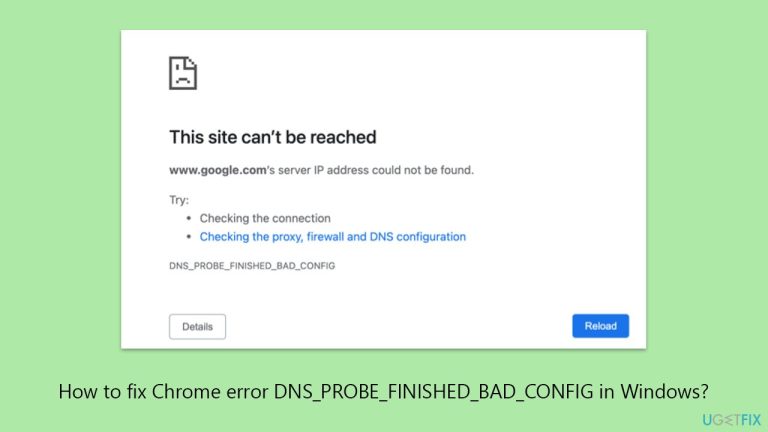
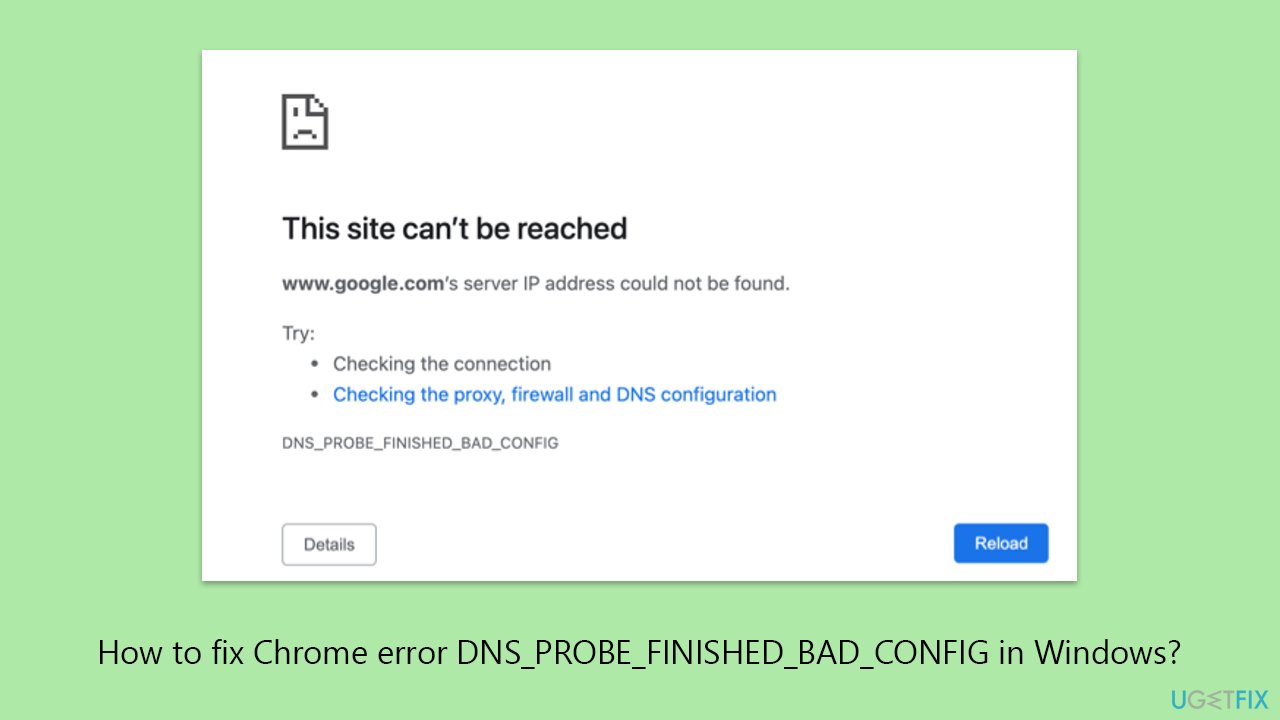
What causes How to fix Chrome error DNS_PROBE_FINISHED_BAD_CONFIG in Windows?
- Malformed or out-of-date DNS server settings
- A corrupted local DNS cache
- Completely incompatible or out-of-date network drivers
- Temporary network loss
- Security software intercepting DNS requests
Repairs Windows system files, removes malware, and restores a clean OS state — without reinstalling.
I keep getting the DNS_PROBE_FINISHED_BAD_CONFIG error in Chrome when trying to open any website. My internet is working fine, but Chrome says it can’t reach the DNS server. How do I fix this in Windows?
The Chrome error DNS_PROBE_FINISHED_BAD_CONFIG is a DNS error that prevents websites from loading. This most likely means that your system is having trouble translating domain names into IP addresses, which is required to access websites. Although it can be seen as a browser issue, it usually occurs due to incorrect or outdated network settings on Windows.
The DNS_PROBE_FINISHED_BAD_CONFIG error is often experienced by users following a Windows update, an unplanned power shutdown, or network configuration changes that modify DNS settings. It is also commonly associated with improperly configured router settings or blocking by firewall or antivirus software. If the DNS cache is corrupted or the DNS server address configured on your system cannot be reached, this error will surely pop up in Chrome.
There are some possible reasons why this error can occur:
- Malformed or out-of-date DNS server settings
- A corrupted local DNS cache
- Completely incompatible or out-of-date network drivers
- Temporary network loss
- Security software intercepting DNS requests
Flushing the DNS cache, restarting the router, using public DNS services like Google DNS, and disabling third-party firewalls temporarily are some of the ways that users have been able to repair the DNS_PROBE_FINISHED_BAD_CONFIG error. A reboot of the router and computer will correct proper connection in some cases.
If manual fix does not work or the cause is not known, using a commercial PC repair software like [d1] might be a better time-saving option. Such software will automatically detect and fix DNS misconfigurations, network service issues, and other system-level issues preventing Chrome from making a correct connection.
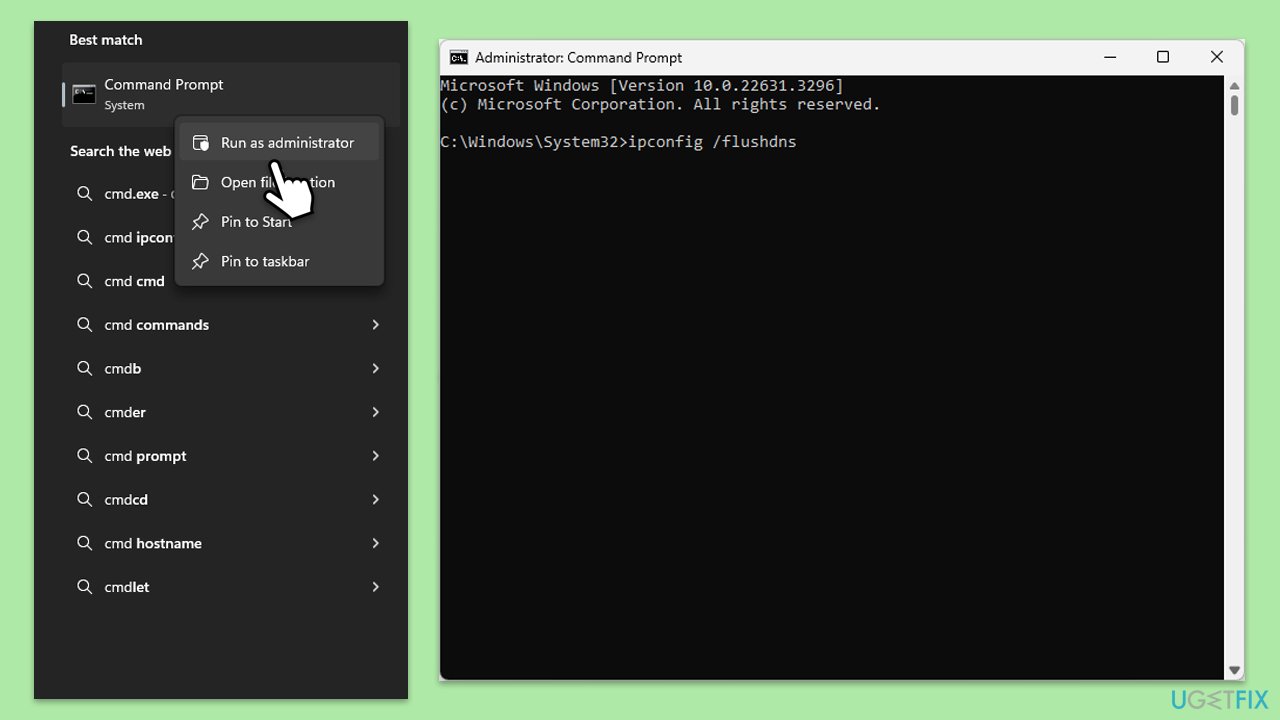
Fix 1. Flush the DNS cache, reset TCP/IP, and Winsock
A corrupted DNS cache can prevent domain names from resolving correctly. Flushing it forces Windows to rebuild the cache.
- Type cmd in Windows search.
- Right-click on Command Prompt result and pick Run as administrator.
- In the new window, copy and paste the following commands, pressing Enter after each:
ipconfig /flushdns
ipconfig /registerdns
ipconfig /release
ipconfig /renew
netsh winsock reset - Wait for each of the commands to be executed.
- Close down Command Prompt.
- Restart Chrome and try visiting a website again.
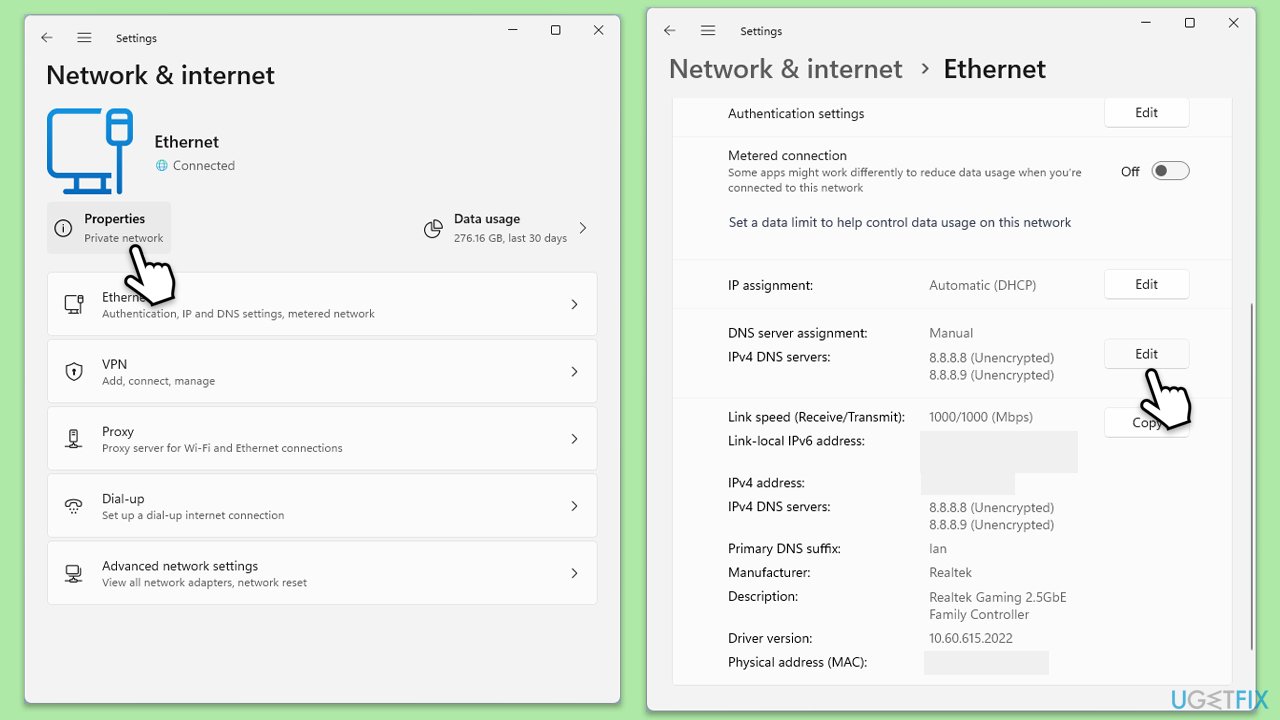
Fix 2. Change DNS server to Google DNS
Using a public DNS server like Google's can help bypass issues with your current DNS provider.
Windows 11
- Right-click on Start and select Network connections.
- Under your connection, click Properties.
- Find the DNS server assignment section and click Edit.
- Set your DNS to Google's:
Preferred DNS: 8.8.8.8
Alternate DNS: 8.8.4.4 - Click Save.
Windows 10
- Right-click on Start and select Settings.
- Go to Network and Internet section.
- Click on Change adapter options.
- Right-click on your internet connection and pick Properties.
- Select Internet Protocol Version 4 (TCP/IPv4) once and go to Properties or select Edit next to the DNS settings.
- Select Use the following DNS server addresses option and set your DNS to Google's:
Preferred DNS server: 8.8.8.8
Alternate DNS server: 8.8.4.4 - Click OK.
Fix 3. Disable antivirus and firewall temporarily
Security software can sometimes interfere with DNS traffic. Disabling them briefly can help identify if they’re the cause.
- Open your antivirus software and disable it.
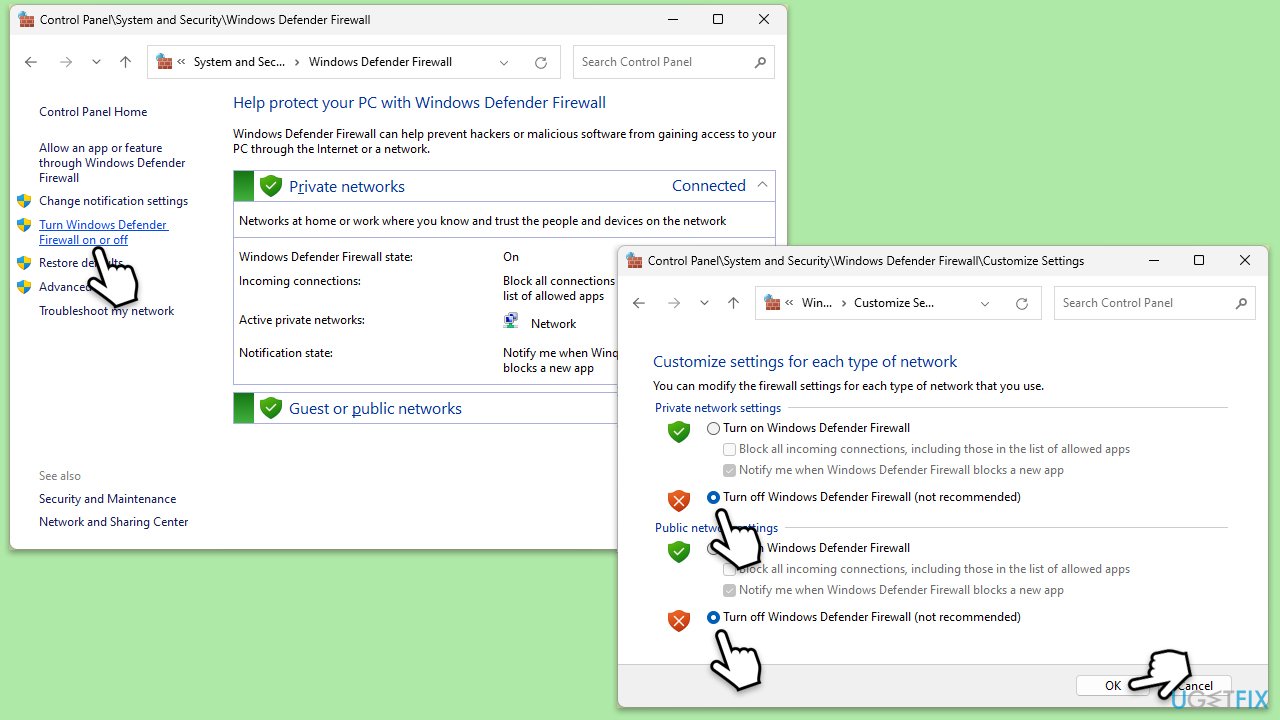
- Open the Control Panel and navigate to System and Security > Windows Defender Firewall.
- Click on Turn Windows Defender Firewall on or off.
- Select Turn off Windows Defender Firewall for both private and public network settings.
- Try using Chrome again to see if the error is resolved.
Fix 4. Restart your router and computer
Temporary network issues can cause DNS errors. Restarting your equipment can help reset the connection and restore proper DNS resolution.
- Turn off your computer.
- Unplug your router from power.
- Wait for about 30 seconds.
- Plug the device back in and wait for it to reconnect.
- Turn on your computer and open Chrome to check if the error is gone.
Fix 5. Update network drivers
Outdated or corrupted network drivers can disrupt DNS communication.
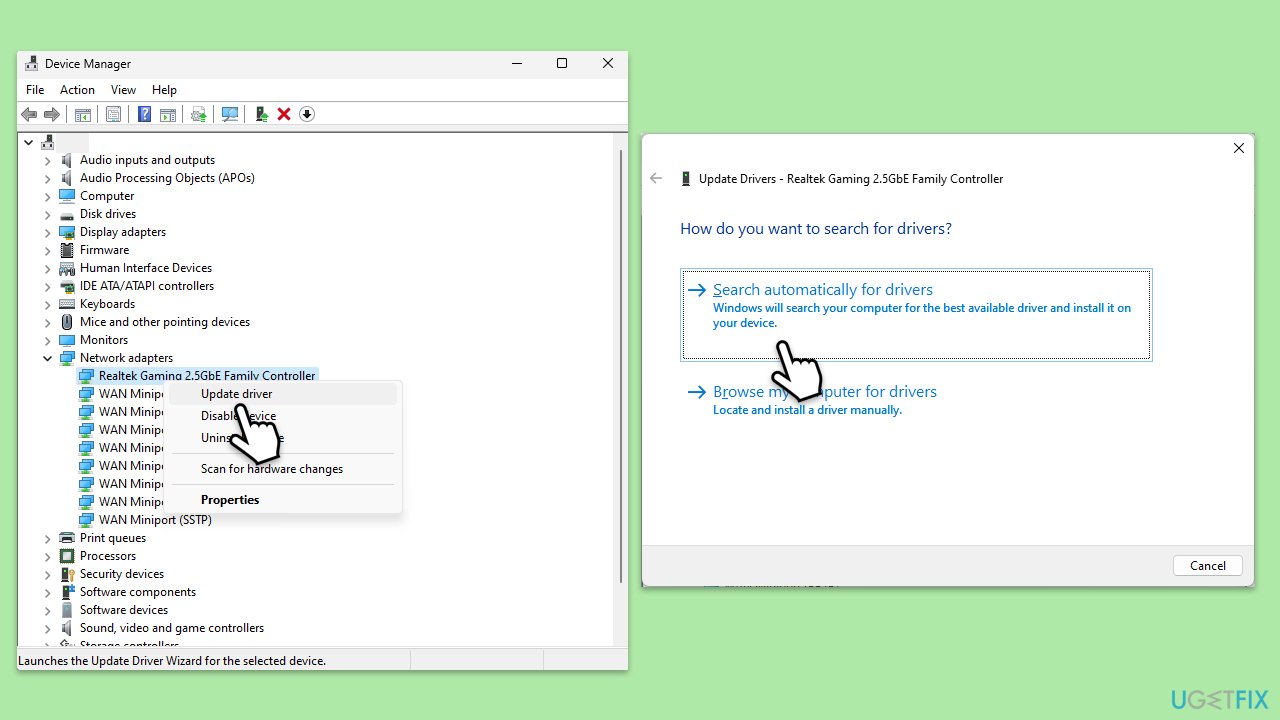
- Right-click on the Start button and select Device Manager.
- Expand the Network adapters section.
- Right-click on your network adapter and select Update driver.
- Choose Search automatically for drivers.
- Follow the prompts to install any available updates.
- Restart your computer after updating the drivers.
- For a quicker solution, you can always use an automatic driver updater such as [rev id="DriverFix"].
Fix 6. Reset Chrome settings
Misconfigured Chrome settings can also trigger DNS errors.
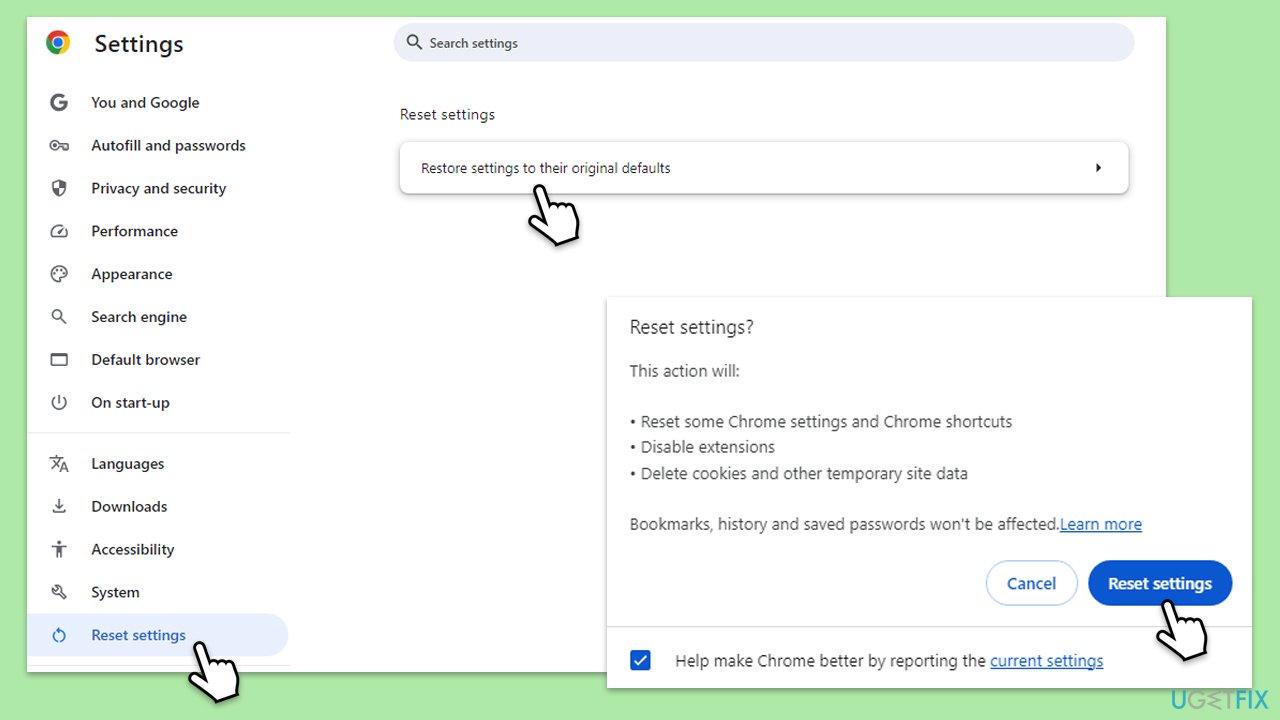
- Click on Menu and go to Settings.
- On the left side, click Reset settings.
- Under Reset settings, click Restore settings to their original defaults.
- Confirm by clicking Reset settings.
Bottom line
To fix the DNS_PROBE_FINISHED_BAD_CONFIG error, you can flush the DNS cache, reset TCP/IP and Winsock, restart your router, and use public DNS services like Google DNS. If these solutions do not resolve the issue, consider using commercial PC repair software to automatically detect and fix DNS misconfigurations.
Frequently asked questions
This error typically occurs due to incorrect DNS settings, network configuration issues, or corrupted cache files in Windows 10.
You can reset the DNS settings by opening Command Prompt as an administrator and running the commands 'ipconfig /flushdns' followed by 'netsh int ip reset'.
Yes, ensure that your DNS server settings are set to obtain addresses automatically or use a reliable public DNS like Google (8.8.8.8) in your network adapter settings.




Report an issue
What's wrong with this guide? We review every report and update or remove content.
Report received — thank you. We'll review and fix it.
You need a free account to submit a report.
Be the first to comment