How to fix
Chrome push notifications not going away
on Windows
Resolve persistent Chrome push notifications on Windows 10 or 11 effortlessly with expert-tested solutions. Get back to a clutter-free browsing experience!

What causes How to fix Chrome push notifications not going away in Windows?
- Recent Windows update
- Browsing certain sites
- Having Chrome open for long periods
- Mismatched notification rendering between Chrome and Windows
- Interference from background processes
- Bugs in the system UI
Repairs Windows system files, removes malware, and restores a clean OS state — without reinstalling.
What is going on with Chrome notifications? I was using my browser as I normally do, and then a pop-up showed up. I clicked "X" to close it, but to no avail. It seems like the whole notification area is non-clickable.
Google Chrome continues to be a default browser of choice among many Windows users owing to its reliability, speed, and smooth performance. Nevertheless, no software is completely immune to problems, and one frustrating problem that has been going around of late focuses on Chrome push notifications not exiting as they should.
Typically, these notifications show up briefly in the bottom-right corner and quietly disappear after a few seconds. But in this case, users are finding that Chrome notifications won't disappear - instead, they freeze in place and stay there indefinitely. Clicking the X button does nothing, and the entire notification area often becomes unresponsive.
For those affected, this bug turns into more than just a minor inconvenience - it actively blocks part of the screen and interrupts regular use.
Some have traced the beginning of this issue to a recent Windows update, though that doesn’t seem to be a universal cause. Others report it happening randomly after browsing certain sites or having Chrome open for long periods. Regardless of the trigger, the result is the same: persistent Chrome notifications that are impossible to close, often forcing users to shut down the browser just to regain control of their screen.
At a deeper level, the glitch may stem from how Chrome interacts with the Windows notification system. A mismatch between Chrome’s internal notification rendering and Windows' own action center might be to blame. There could also be interference from background processes, extensions, or even bugs in the system UI itself.
If you’re struggling with Chrome notifications stuck on screen, there are several ways to potentially fix the issue. We've listed them below in order of simplicity. Before trying them, you may also consider running an all-in-one PC repair tool [d1] to check for underlying Windows errors that could be contributing to the problem.

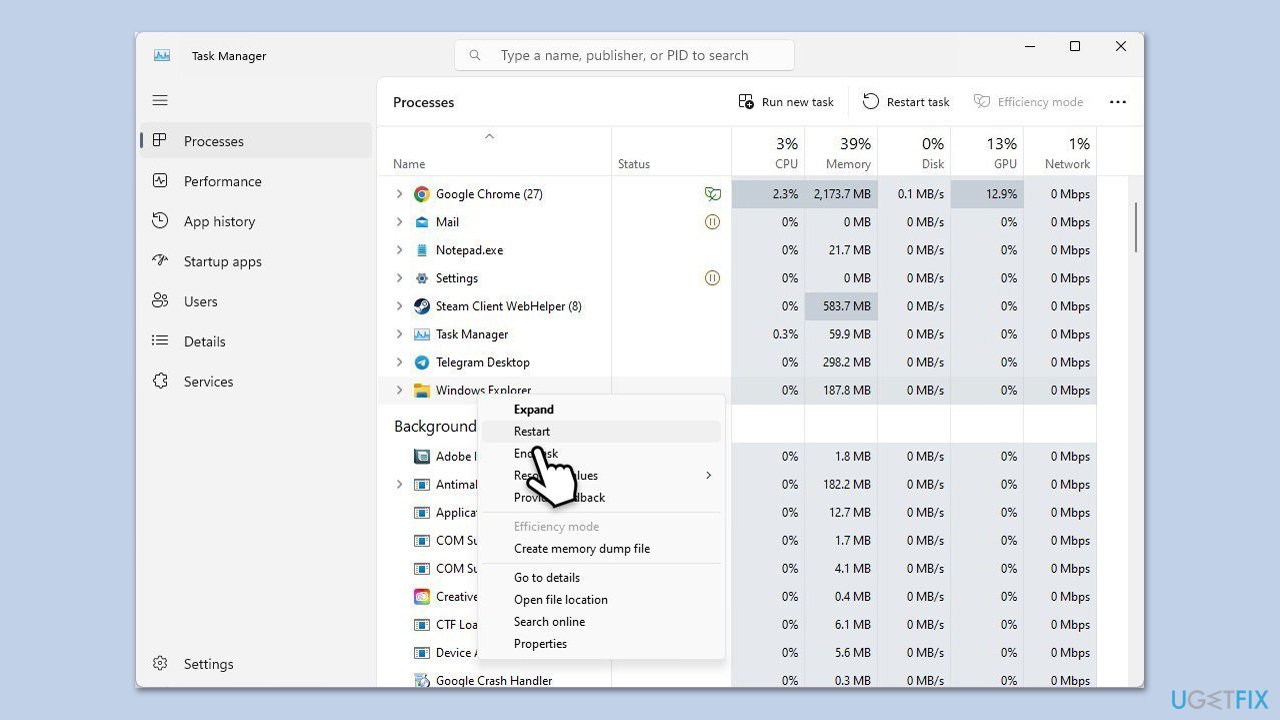
Fix 1. Restart Windows Explorer
Since the notification area is managed by Windows Explorer, restarting this process can refresh the UI and remove any stuck Chrome notifications.
- Press Ctrl + Shift + Esc to open Task Manager.
- In the Processes tab, find Windows Explorer.
- Right-click on Windows Explorer and pick Restart.
- For a few seconds, all the UI elements will disappear and then re-appear.
Fix 2. Clear browser cache
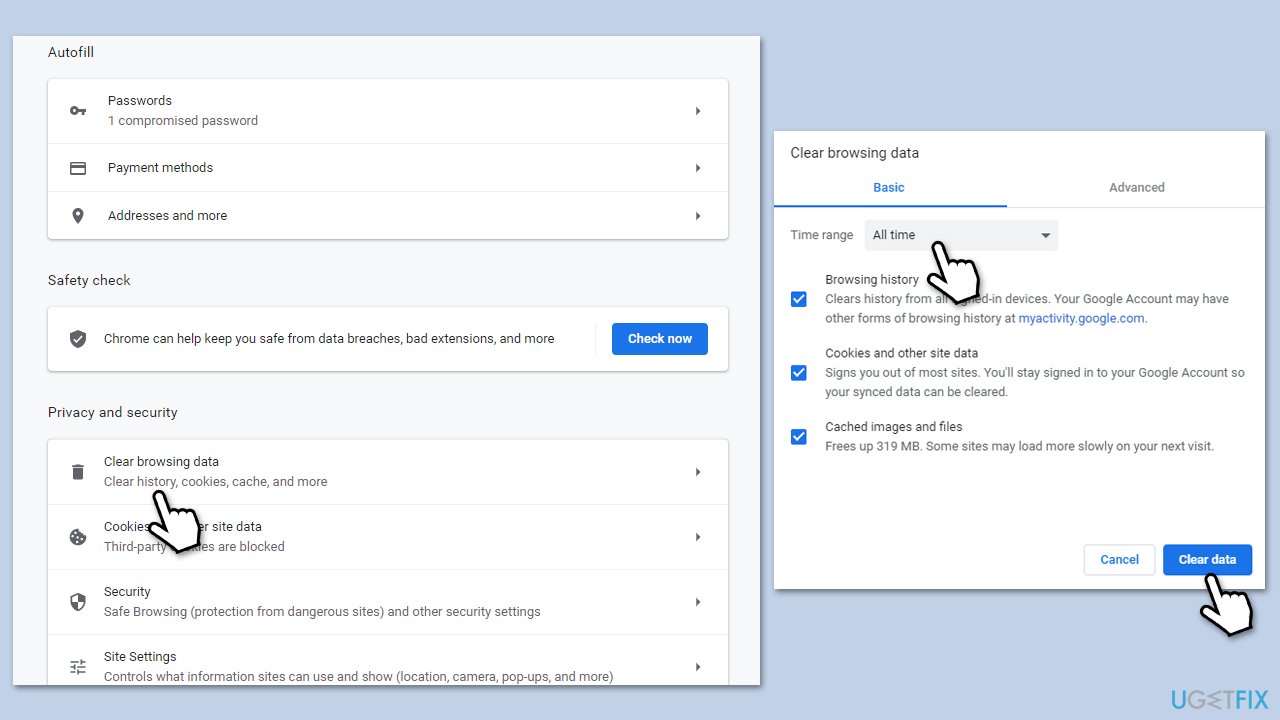
Corrupted cache or a misbehaving extension might affect how notifications behave.
- Click on Menu and pick Settings.
- Under Privacy and security, select Clear browsing data.
- Select All time under the time range.
- Pick Browsing history, Cookies and other site data, as well as Cached images and files.
- Finally, click Clear data.
Fix 3. Temporarily turn off notifications from Chrome
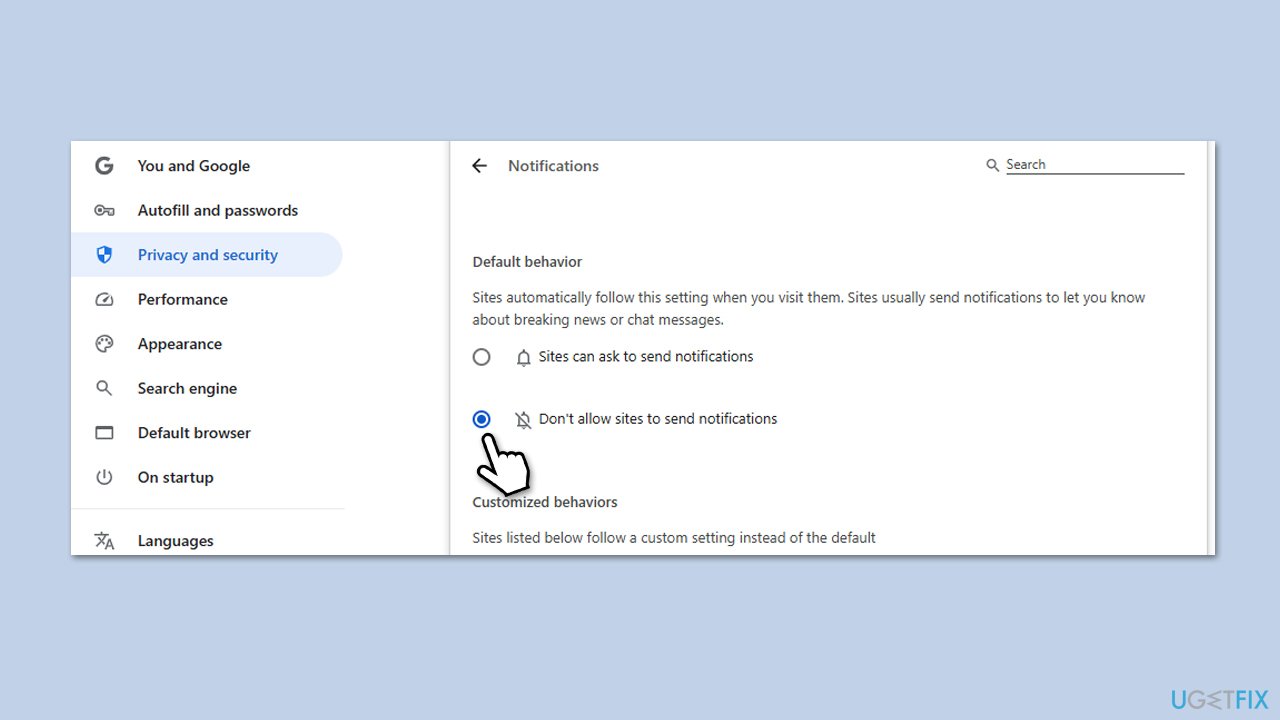
Disabling Chrome notifications entirely can help identify whether the problem is tied to the browser or Windows itself.
- Open Chrome.
- Click on the three-dot menu and go to Settings.
- Navigate to Privacy and security > Site settings > Notifications.
- Turn off the Sites can ask to send notifications option or block specific sites.
- Restart Chrome and monitor if the issue reoccurs.
Fix 4. Repair system file corruption
System corruption may cause problems with Windows UI components like the notification center.
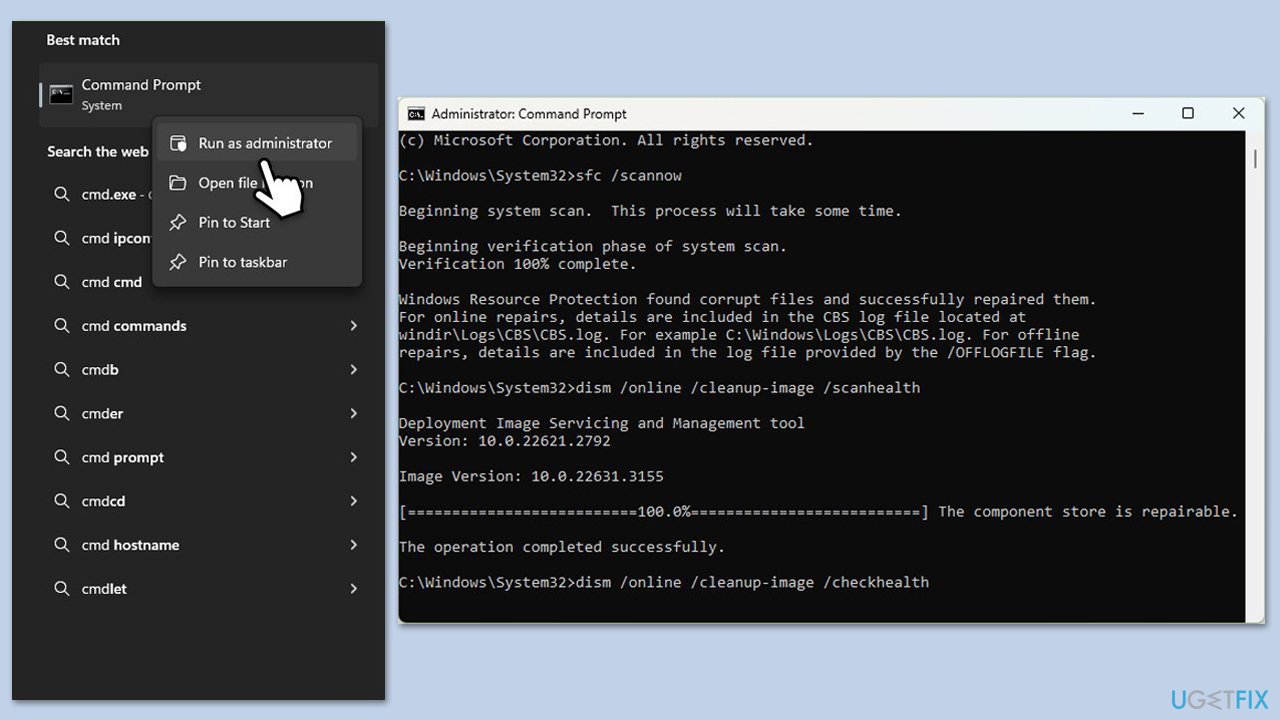
- Type cmd in Windows search.
- Right-click on Command Prompt and select Run as administrator.
- Click Yes when User Account Control window shows up.
- Then, copy and paste the following command, pressing Enter after:
sfc /scannow - Wait till the scan is finished. If Windows finds system file integrity violations, it will attempt to fix them. After this, use the set of the following commands, pressing Enter each time:
DISM /Online /Cleanup-Image /CheckHealth
DISM /Online /Cleanup-Image /ScanHealth
DISM /Online /Cleanup-Image /RestoreHealth - (Note: if you get an error executing this last command, add /Source:C:\RepairSource\Windows /LimitAccess to it and try again).
- Close down the Command Prompt and reboot your computer.
Fix 5. Disable extensions
Some third-party extensions could cause conflicts and prevent notifications from functioning properly.
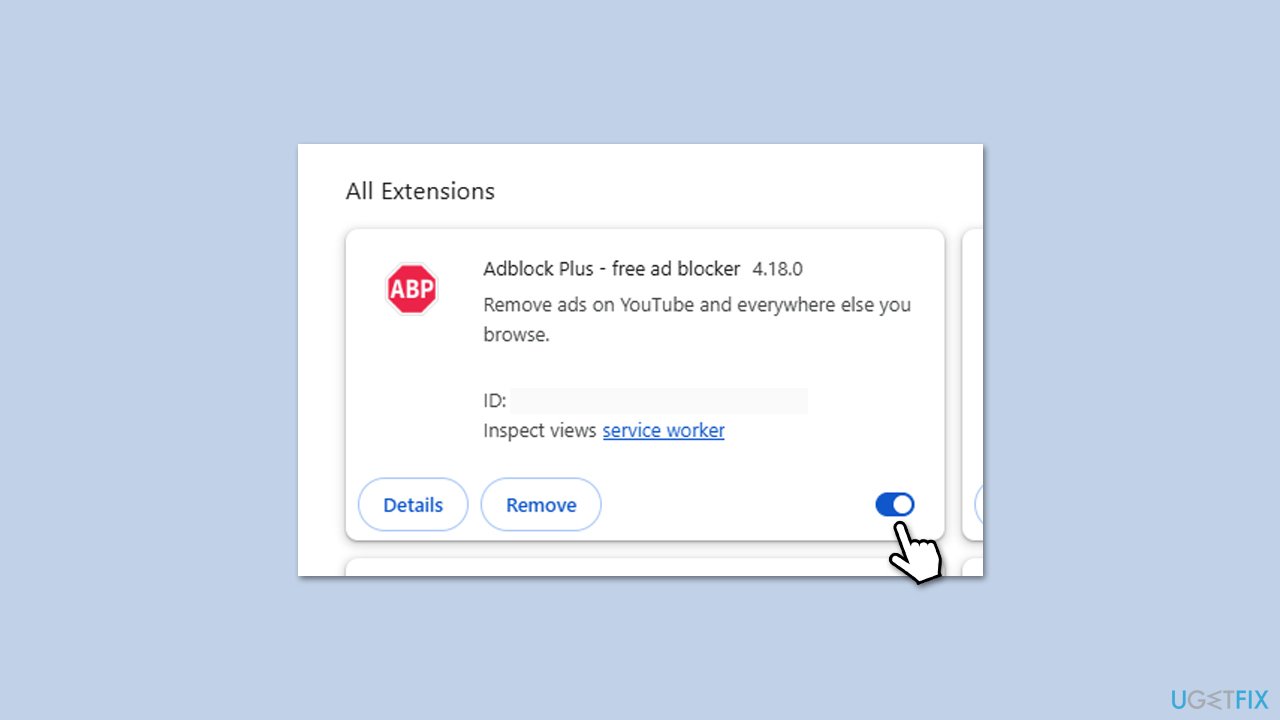
- Click the three-dot menu button in the top-right corner of the screen.
- Go to Settings and go to Extensions, then click Manage Extensions.
- Here, you will find the list of the installed extensions.
- You can either delete them by pressing Remove or toggling the switch to disable them.
Fix 6. Turn off hardware acceleration in Chrome
Sometimes hardware acceleration causes UI elements like notifications to render incorrectly.
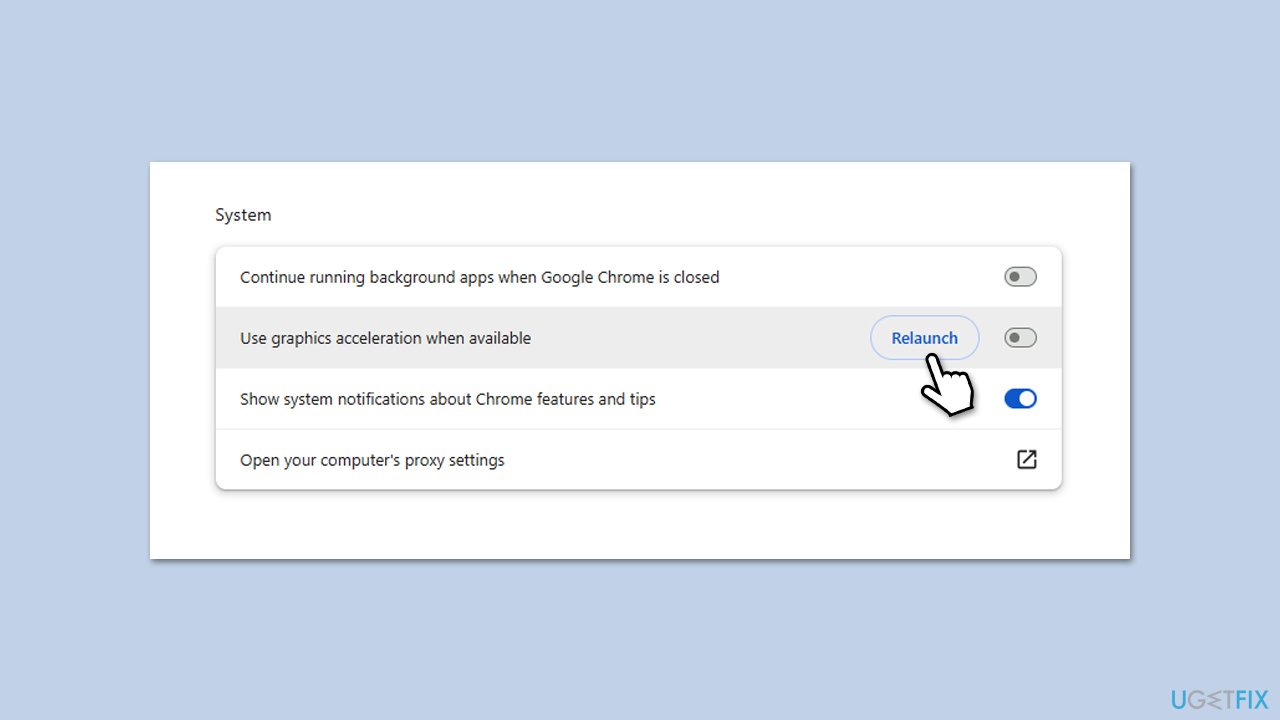
- Open Google Chrome.
- Click the three dots in the upper-right corner and select Settings.
- On the left side, select System.
- Disable the Use graphics acceleration when available option on the right.
- Relaunch Chrome to apply the changes.
Fix 7. Uninstall Windows update which caused the problem
One of the options to resolve this problem is uninstalling the latest Windows update, if that applies to you.
- Type Control Panel in Windows search and hit Enter.
- Go to Programs > Uninstall a program.
- On the left side, click View installed updates.
- Sort all the updates by date.
- Right-click on the most recent update and select Uninstall.
- Proceed with on-screen instructions.
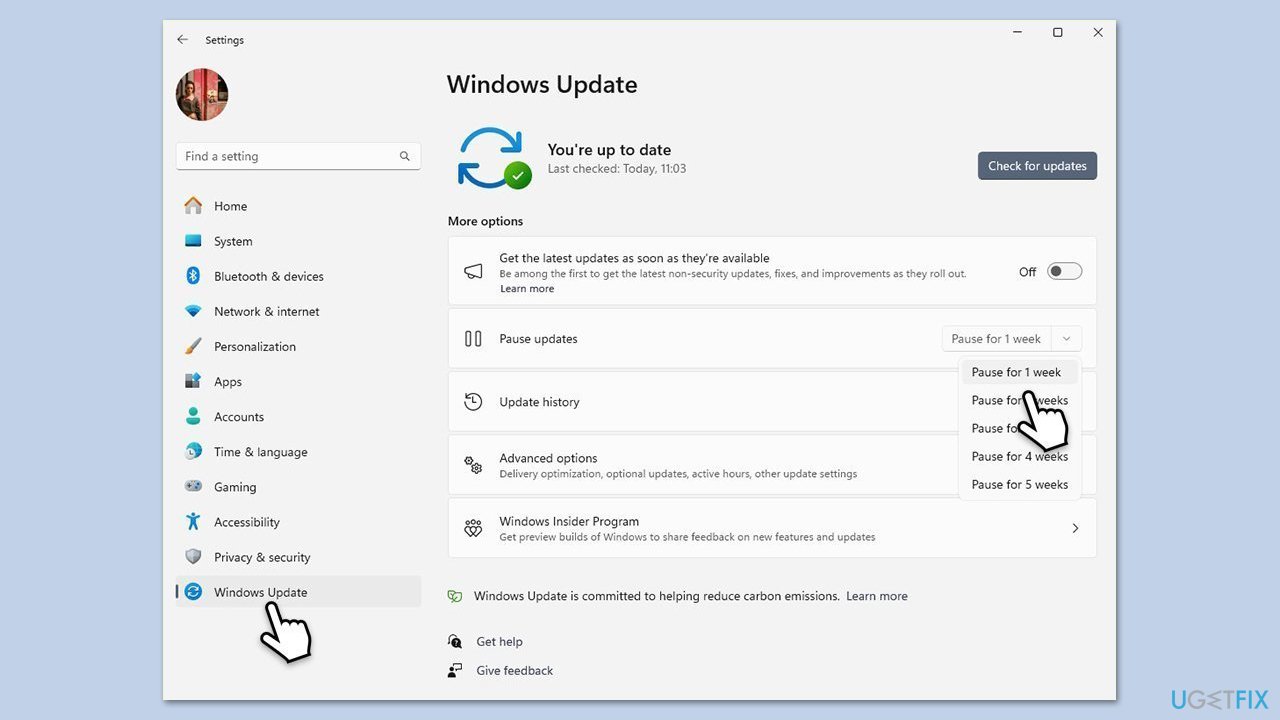
- Then, type Updates in Windows search and press Enter.
- Click Pause the updates for 7 days (in Windows 11, you can pick a different time period).
Bottom line
To fix Chrome push notifications that won’t go away, you can try restarting Chrome, checking for updates, disabling extensions, or using an all-in-one PC repair tool. If none of these solutions work, consider shutting down the browser to regain control of your screen.
Frequently asked questions
This issue may occur due to a glitch in Chrome's notification settings or conflicts with Windows 10's notification system. Try resetting Chrome's settings or checking your Windows notification preferences to resolve it.
To prevent unwanted Chrome push notifications on Windows 11, go to Settings > Privacy & security > Site Settings in Chrome and manage notification permissions accordingly. Additionally, check Windows 11's notification settings to ensure they are configured correctly.
If you are facing persistent Chrome push notifications on Windows, consider clearing your browser cache and cookies, or disabling notifications for specific sites in Chrome's settings. If the problem persists, reinstalling Chrome may also help.




Report an issue
What's wrong with this guide? We review every report and update or remove content.
Report received — thank you. We'll review and fix it.
You need a free account to submit a report.
Be the first to comment