How to fix
Circles shown as polygons
on Windows
Resolve the issue of circles appearing as polygons in Windows 10 effortlessly. Expert-tested solutions await you for a quick fix!

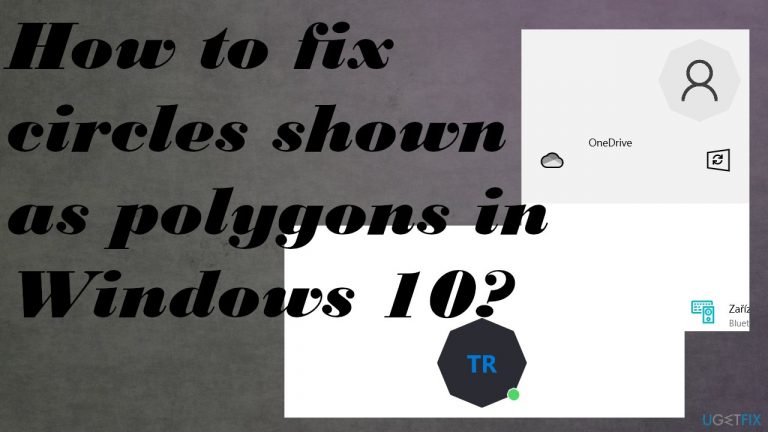
What causes How to fix circles shown as polygons in Windows 10?
- Windows 10 upgrade issues
- Faulty update or upgrade bugs
- Driver issues
- Damaged or corrupted system files
- Malware or cyber infections
Repairs Windows system files, removes malware, and restores a clean OS state — without reinstalling.
Hello. I have this issue that involves circles not being circles anymore. It is in Skype, User account settings, and even in Word applications. Polygons happen to appear instead of my circle on the screen. It is not related to any app because it happens in Windows and Microsoft programs. Can you answer me why this is happening and how to fix it?
When circles are shown as polygons in Windows 10 or as ovals[ref en-1], the issue is quite common, based on reports and posts in online forums. People claim that this is appearing out of nowhere and the issue is not easily fixed. Unfortunately, the issue seems to be related to Windows 10 upgrade[ref en-2] because many users state that this issue appeared after the automatic update of the OS.
It is pretty common to find that the root cause of a particular problem is an operating system update. Faulty update or upgrade has some bugs that lead to driver issues or affected system parts, damaged/ corrupted files in system folders and registry.
You should check particular settings and alter some of them to fix circles shown as polygons in Windows. Sometimes changing resolution or checking problems with the monitor itself can solve the problem. It would be best if you never ruled out the software or external device issue possibility. Not all the problems with the system come ou due to the direct OS issues.
Malware[ref en-3] in various cases can trigger issues with the machine, but cyber infections result in various problems with the computer, so you should notice symptoms and consequences soon after the infection if it active Besides being active, computer viruses might affect the machine by running in the background. If that is the case, you may encounter some damage left behind.
To fix circles shown as polygons in Windows 10 when the issue is triggered by cyber infection damage to system files or device drivers, you can repair those altered files and recover the smooth performance. That is possible by running [d1] or similar tools designed to recover OS files and other computer parts like Windows Registry entries.
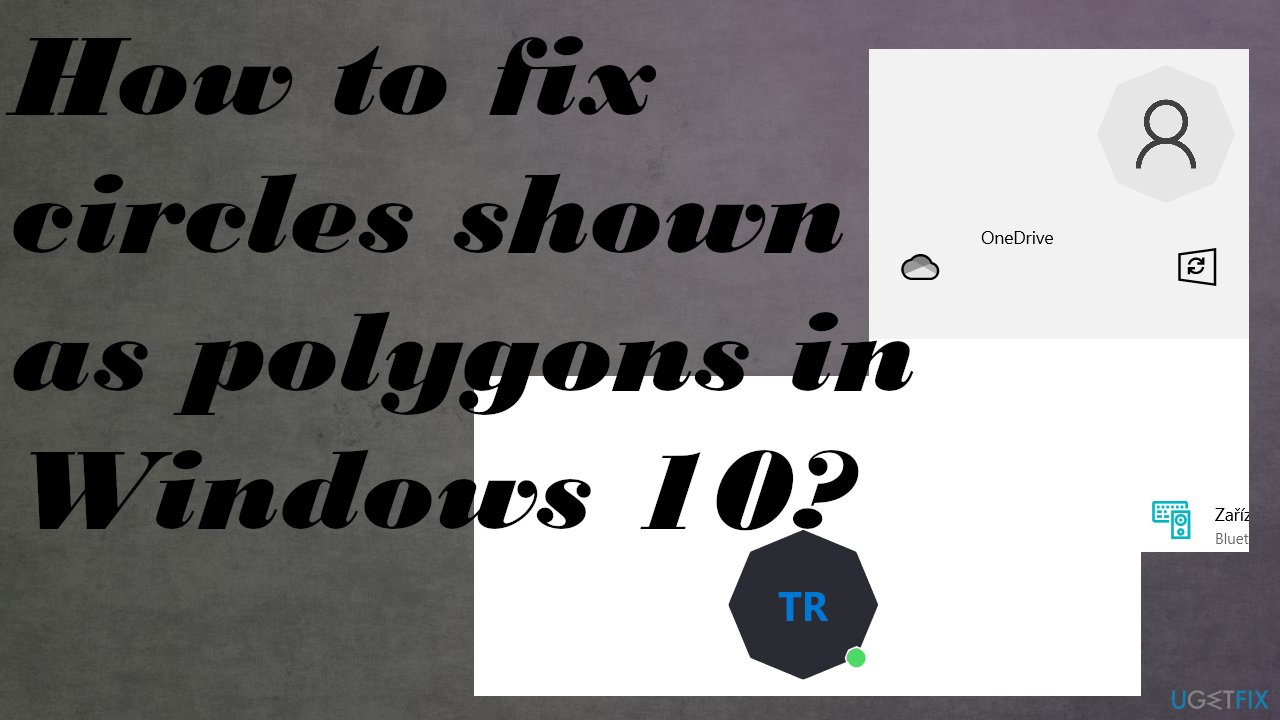
Method 1. Ensure that settings are right
- Open Start.
- Go to Settings.
- System.
- Click Display.
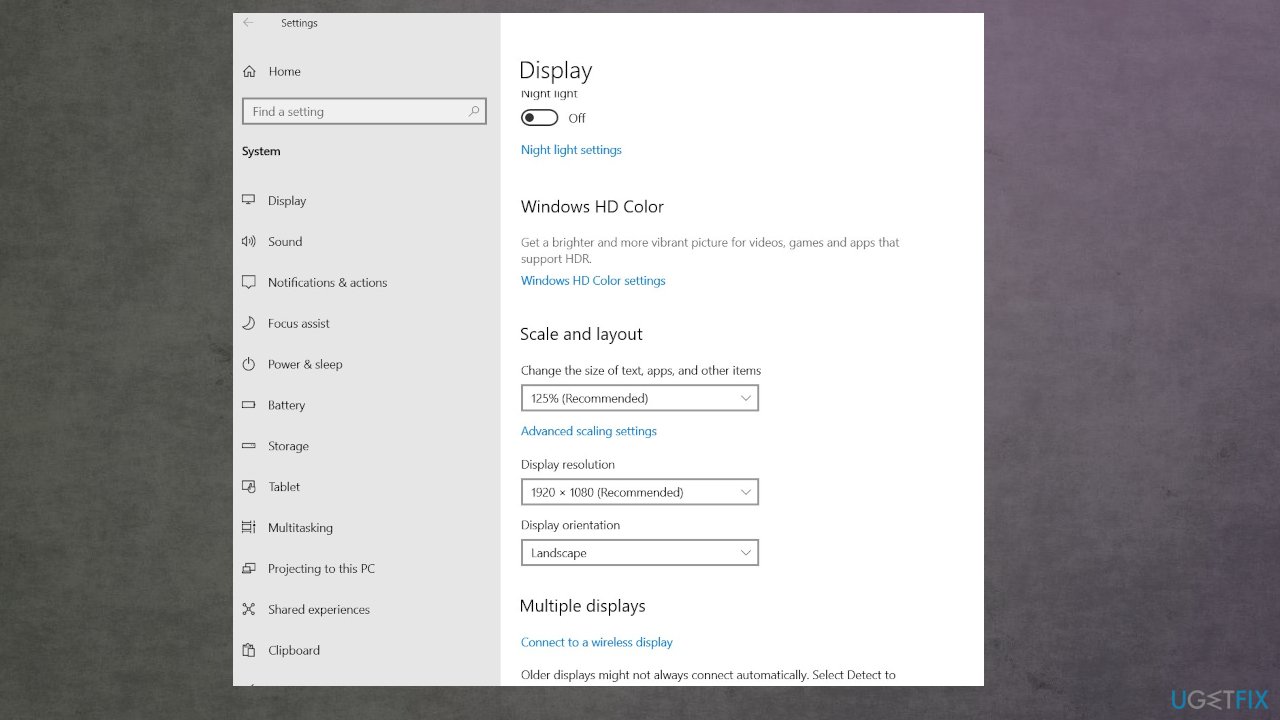
Circles showig up like ovals fix display settings - Set the recommended settings are selected for Scale and Layout, and Screen resolution.
Method 2. Rollback drivers
- Press Windows key + X.
- Click Device Manager.
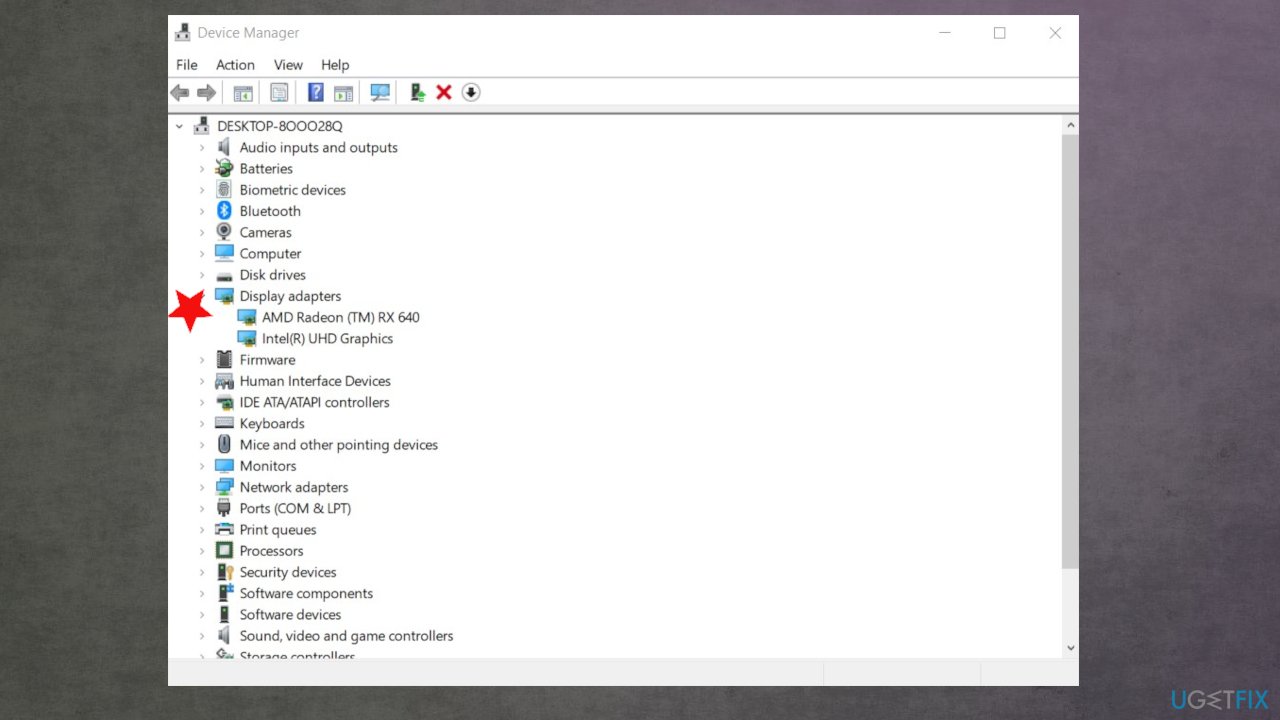
Circles showig up like ovals fix device manager - Expand Display adapters by clicking on the arrow.
- Right-click the current display adapter.
- Click Properties.
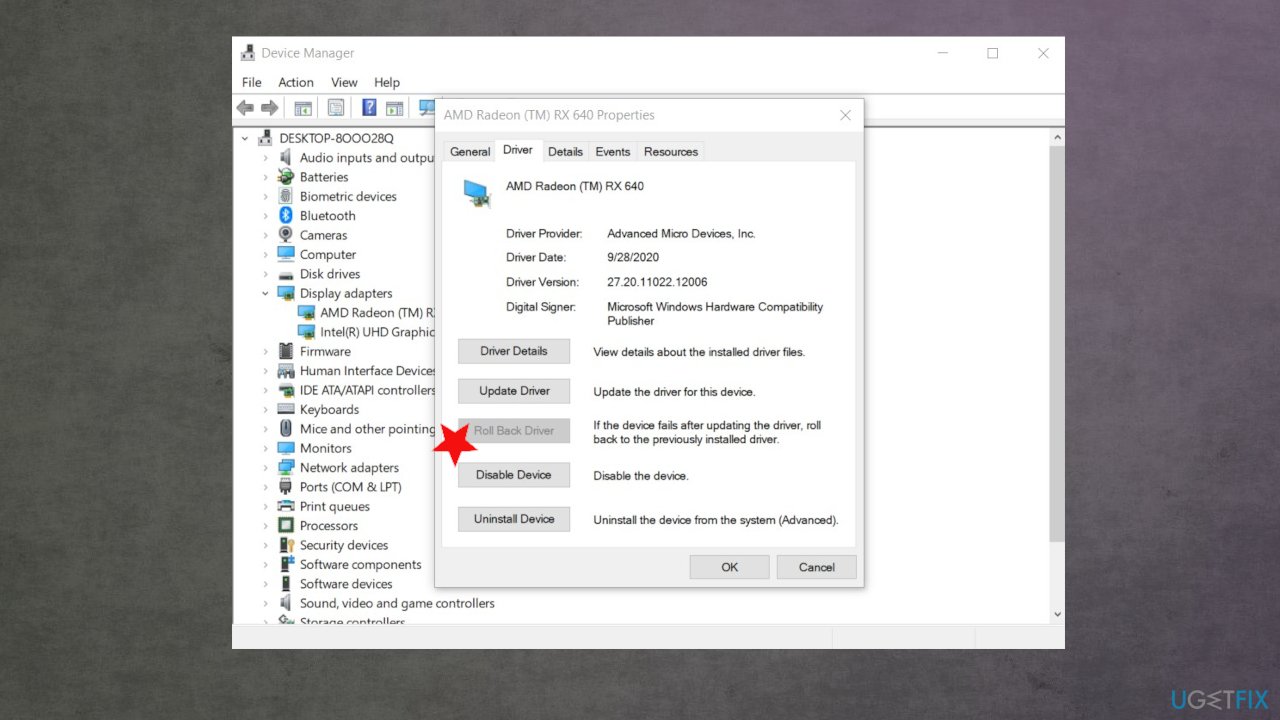
Circles showig up like ovals fix driver rollback - Click Driver tab.
- Click Rollback driver option.
Method 3. Uninstall drivers
- Go to Device Manager again.
- Right-click the current display adapter.
- Click Uninstall.
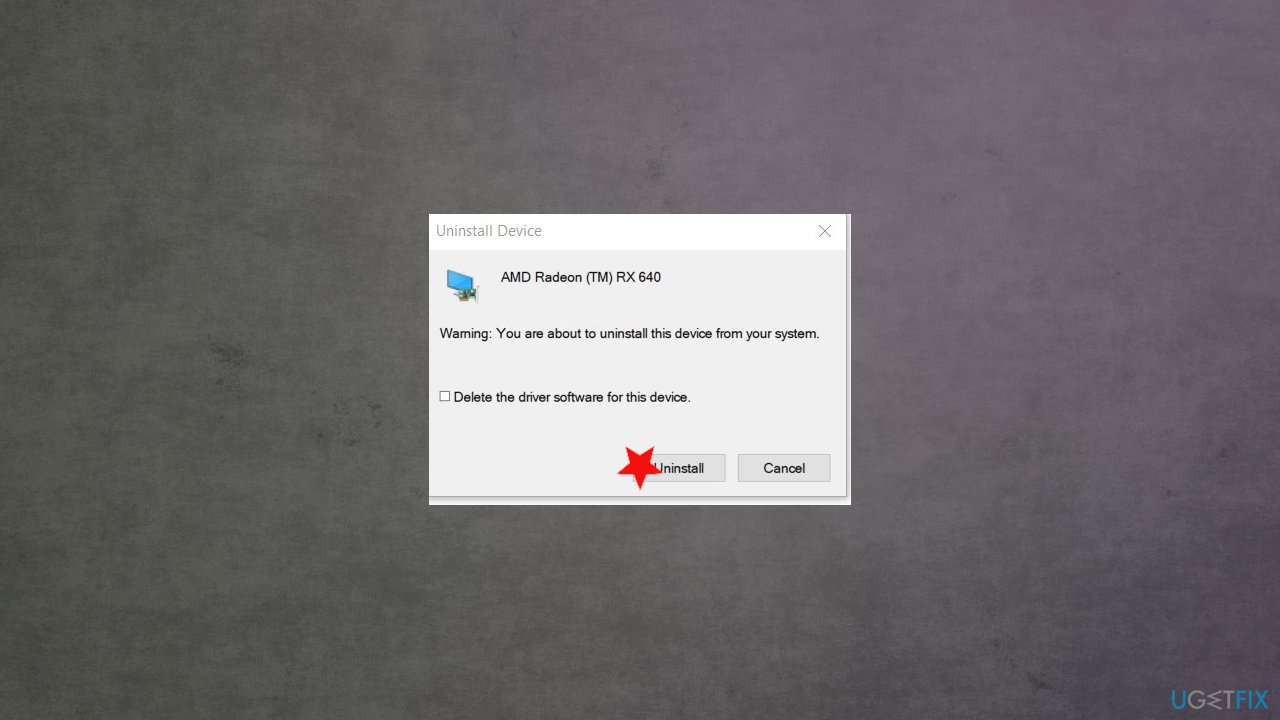
Circles showig up like ovals fix drivr uninstall - Confirm uninstall.
- Exit Device Manager.
- Restart.
Method 4. Check installed updates
- Press Windows key + R.
- Type appwiz.cpl once Run box opens.
- Hit Enter.
- Click View installed updates.
- Select the recent update.
KB4048954, KB4048955 are the versions commonly indicated as triggering the issue with the display. You may want to uninstall these updates.
Method 5. Restore the system to the previous point
- Go to the search box, type System Restore and press ENTER.
- Find and click System Restore.
- Enter the administrator password when asked.
- Choose a recent point of the system before the issue occurred.
- Follow the steps in the wizard.
- Restore your computer.
Bottom line
To fix circles shown as polygons in Windows 10, you can check and alter display settings, change the resolution, and run tools designed to recover OS files. If these solutions do not resolve the issue, consider checking for malware or further diagnosing hardware problems.
Frequently asked questions
This issue is often caused by outdated graphics drivers or incorrect display settings in Windows 10. Updating your graphics driver or adjusting the display settings can usually resolve the problem.
To update your graphics driver, go to Device Manager, find your graphics card under Display adapters, right-click it, and select 'Update driver'. You can also visit the manufacturer's website for the latest driver.
Yes, ensure that your display resolution is set to the recommended value and check the scaling settings under Display settings, as incorrect configurations can lead to display anomalies like polygons instead of circles.




Report an issue
What's wrong with this guide? We review every report and update or remove content.
Report received — thank you. We'll review and fix it.
You need a free account to submit a report.
Be the first to comment