How to fix
“Class not registered” error
on Windows
Resolve the “Class not registered” error on Windows 10 quickly with our expert-tested solutions. Get back to smooth operation in minutes!


What causes How to fix “Class not registered” error on Windows 10?
- A particular .DLL file is not registered
- Certain functions that an application uses cannot be launched
- Multiple apps using the same .DLL file may cause widespread issues
- Issues with the operating system's basic functions
Repairs Windows system files, removes malware, and restores a clean OS state — without reinstalling.
Hi, I have a problem - I often receive "Class not Registered" when trying to search the web by using Cortana. Sometimes the error shows up when I click on links or sometimes I’m not allowed to install software. All I see is a pop-up box saying “Class not Registered” and an ExplorerFrame.dll. Is there anything that can be done?
"Class not Registered" is an error that users may receive while trying to use basic Windows functions, such as using the Start button, opening Internet Explorer/Fire Explorer, launching programs, etc. The issue is exceptionally annoying as users are unable to use the operating system normally. Thus, we will provide insights and ways to fix "Class not Registered" error once and for all.
Windows 10 is a great example of an operating system, which successfully combines the rooted and already adopted features, design, functions, apps, etc. with the current innovations. However, the fact that it exhibits numerous bugs is undeniable. Thousands of people are reporting about error pop-ups, BSOD,[ref en-1] update failures, driver[ref en-3] malfunctions, sound/keyboard/mouse issues, sleep mode bugs, etc. every day. "Class not Registered" is one of the issues that numerous users reported having.
"Class not Registered" error is relatively weird, because it does not provide much information on what exactly is wrong, and neither does it return any error code. Nevertheless, the title of the error pop-up indicates which application or feature is having issues. For example, the most common apps to encounter "Class not Registered" error are File Explorer, Google Chrome, Visual Basic, etc.
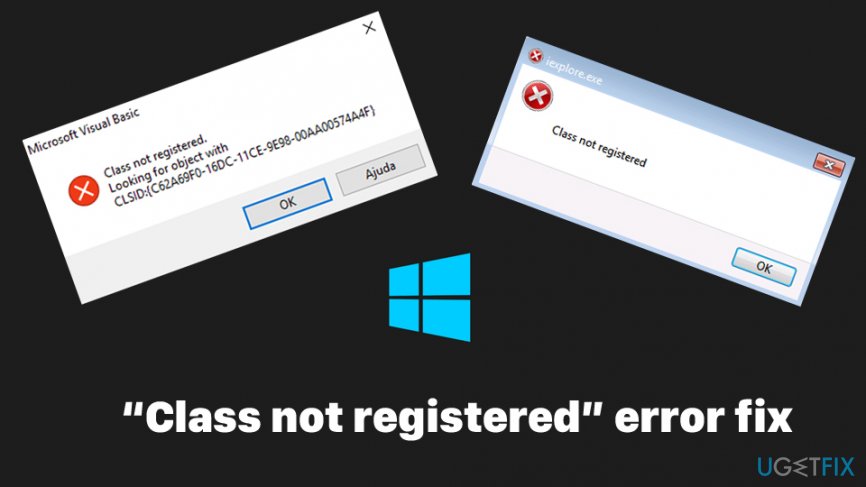
Speaking of reasons why the "Class not Registered" error occurs - it is due to a particular .DLL[ref en-2] file that is not registered, hence certain functions that a particular application uses cannot be launched, consequently resulting in an error. A DLL file (Dynamic Link Library) is similar to that of an .EXE (executable) file, as it incorporates a special set of commands that are used to perform certain operations. Multiple apps can use a same .dll file; thus, the issue might become widespread (depending on the affected .DLL). Here are a few instances that users had to deal with:
- "Class not Registered" error when opening pictures
- "Class not Registered" error when using certain programs, including Excel, Internet Explorer, Windows Media Player, Outlook, etc.
- "Class not Registered" when trying to open Windows 10 photos
- "Class not Registered msstdfmt.dll"
- "Class not Registered" when opening PDF files.
Due to the core functionality of the Windows operating system, there is almost never one universal way to fix things. In other words, in order to fix "Class not Registered" error, some troubleshooting should be done, as each of Windows systems is different - they can run on different versions and have different configuration settings.
Before you proceed with applying the following "Class not Registered" error fixes described below, we would like to offer you a PC repair tool [d1] - it can repair Windows-related issues within a few minutes.
Method 1. Restart Windows Explorer
As we have already mentioned, “Class not registered” error often shows up when using Cortana, Start Menu, or web browsers (Edge, Chrome). In this case, it’s advisable to restart Windows Explorer by performing these steps:
- Click Ctrl + Shift + ESC to open Task Manager.
- Select Details.
- Find Windows Explorer and right-click it.
- Select Restart.
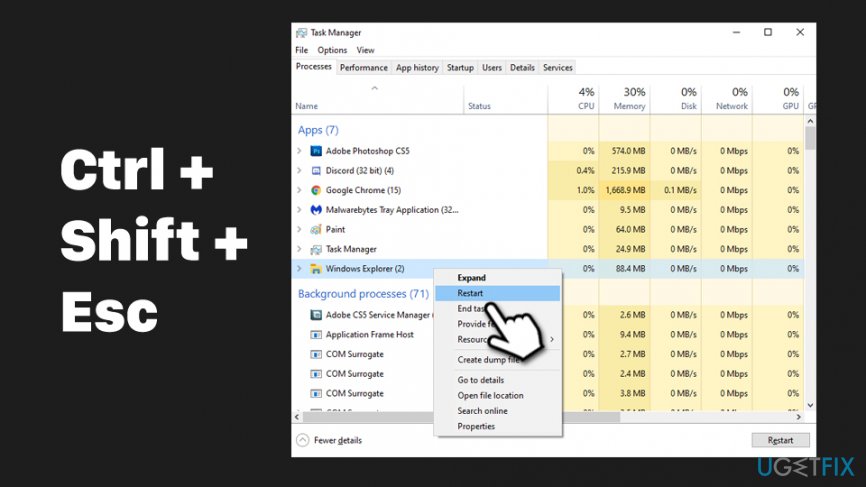
Fix class not registered error on windows restart windows explorer - You will see a short flash and Windows Explorer will be restarted.
Note: Multiple users reported that iCloud was the culprit of the error, and disabling it via Startup menu helped to fix the issue. To disable if, proceed with the following steps:
- Open Task Manager one again.
- Go to Startup.
- Right-click on iCloud and select Disable.
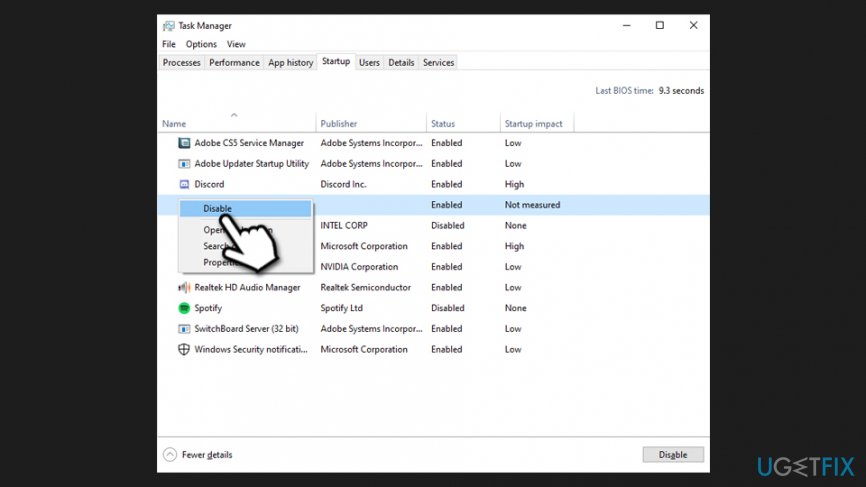
Fix class not registered error on windows disable icloud startup
Method 2. Set Windows Photo Viewer as a default image viewer
If the “Class not registered” error shows up with a .jpg file extension, you should switch a default image viewer to Windows Photo Viewer.
- Click on any picture stored on your PC and right-click on it.
- When the drop-down menu shows up, select Open with.
- Click Choose another app and select Windows Photo Viewer.
- To ensure that Windows Photo Viewer will be opened by default, click Always use this app to open .jpg files and click OK.
Method 3. Reset default apps
This is another method that should help help you fix “Class not registered” error when it occurs when trying to open pictures:
- Type in Default apps into Windows Search and hit Enter.
- Locate Reset to the Microsoft recommended defaults section and click Reset.
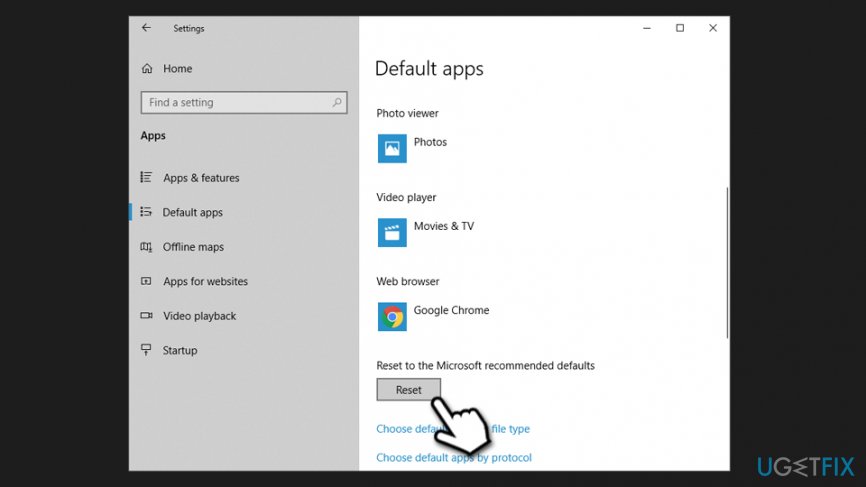
Fix class not registered error on windows reset default apps
Method 4. Set Edge or IE as a default web browser
In case the problem occurs when you attempt to use a web browser, it’s advisable to set Microsoft Edge as a default web browser. This can be done by following these simple steps:
- Type in Default apps into Windows search and press Enter.
- Scroll down to locate Web browser.
- Click on it, and pick MS Edge/Internet Explorer.
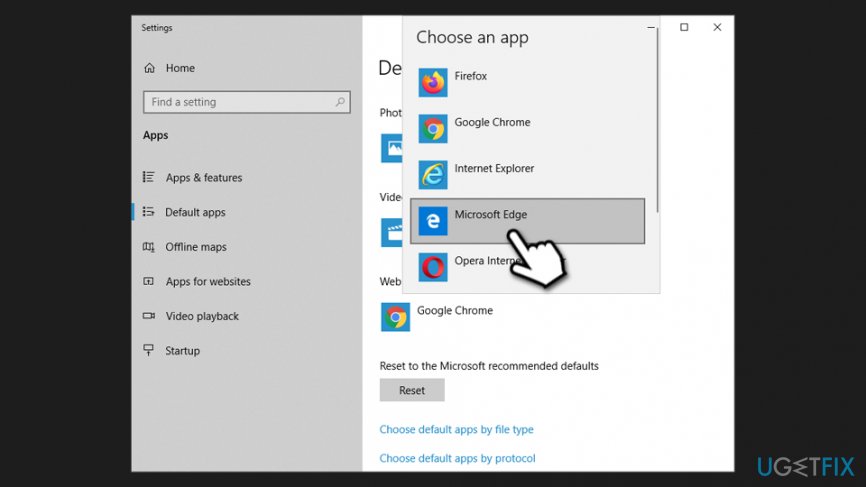
Fix class not registered error on windows choose ms edge or internet explorer as default browser
Method 5. Re-register ExplorerFrame.dll file
If "Class not Registered" error occurred when trying to use Internet Explorer, it might be useful to re-register the .dll file relating to it. Here's how to do it:
- Type in cmd into Windows search.
- Right-click on Command Prompt result and select Run as administrator.
- When User Account Control shows up, click Yes.
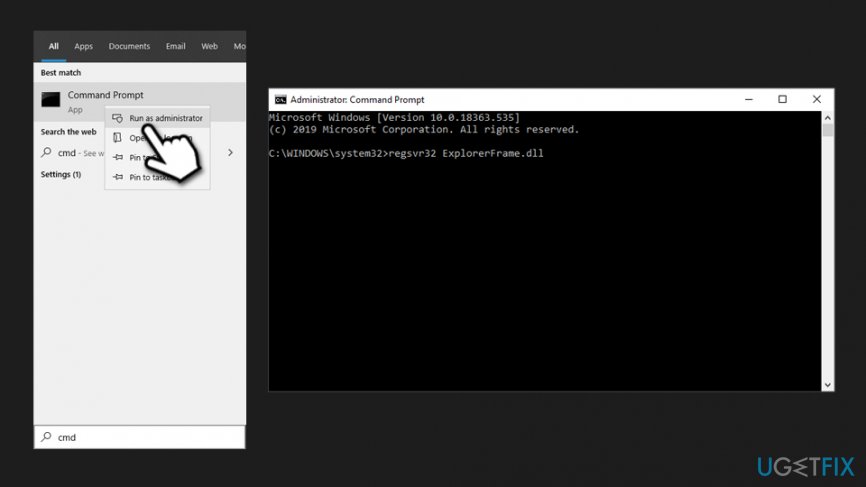
Fix class not registered error on windows reregister explorerframe dll file - In Command Prompt window, type in the following command and press Enter:
regsvr32 ExplorerFrame.dll
Method 6. Run SFC and DISM
Corrupted system files might cause various errors. Therefore, you should try running these built-in tools:
- Open Command Prompt as administrator as explained in the step above.
- In the Command Prompt window, paste the following command and press Enter after:
sfc /scannow
- Wait till Windows finishes the scan and reboot your PC after.
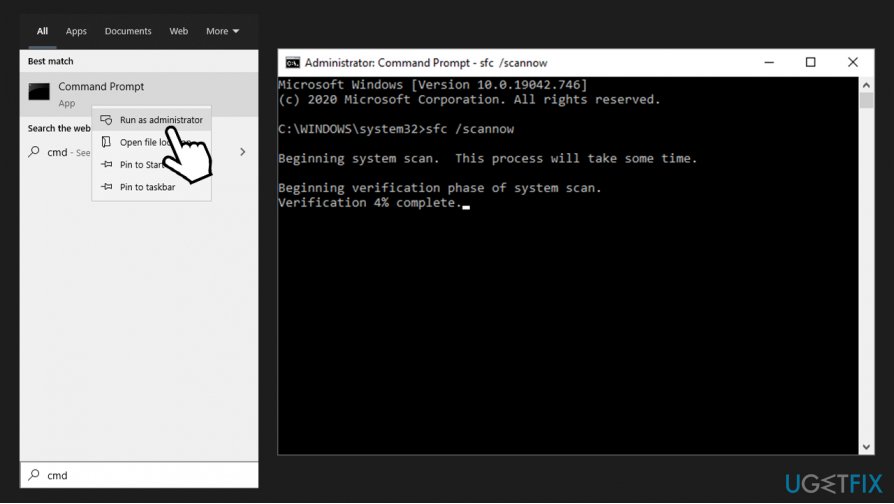
Fix class not registered run sfc scan
If the above steps did not help, you should also try running DISM:
- Open Command Prompt as administrator.
- Type in the following command, pressing Enter after:
DISM /Online /Cleanup-Image /ScanHealth
- Once the scan has finished, type in the following and hit Enter once again:
DISM /Online /Cleanup-Image /RestoreHealth
Method 7. Make use of Component Services
- Type in Component Services into Windows search and hit Enter.
- Expand the following: Component Services > Computers > My Computer.
- Double-click on DCOM Config entry.
- Once you get the DCOM Configuration Warning, press Yes.
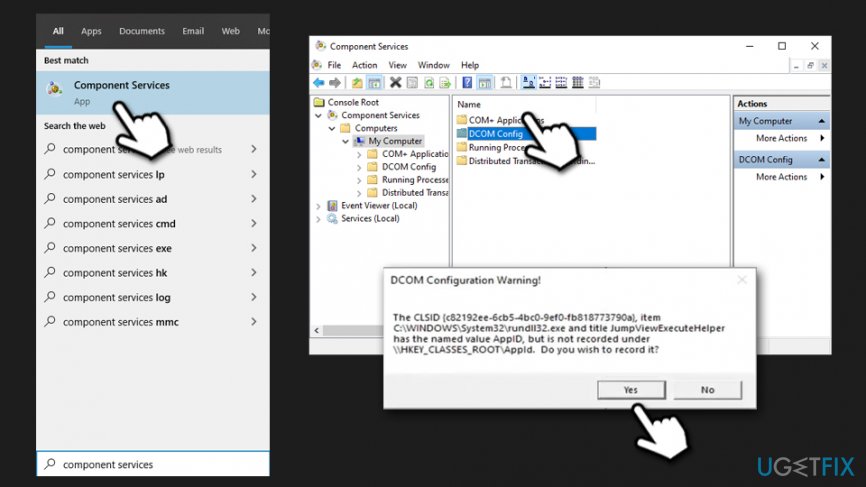
Fix class not registered error on windows use component services - Reboot your PC.
Method 8. Restart Internet Explorer ETW Collector Service
- Type in Services into Windows search and press Enter.
- Scroll down and find Internet Explorer ETW Collector Service.
- Right-click and select Restart.
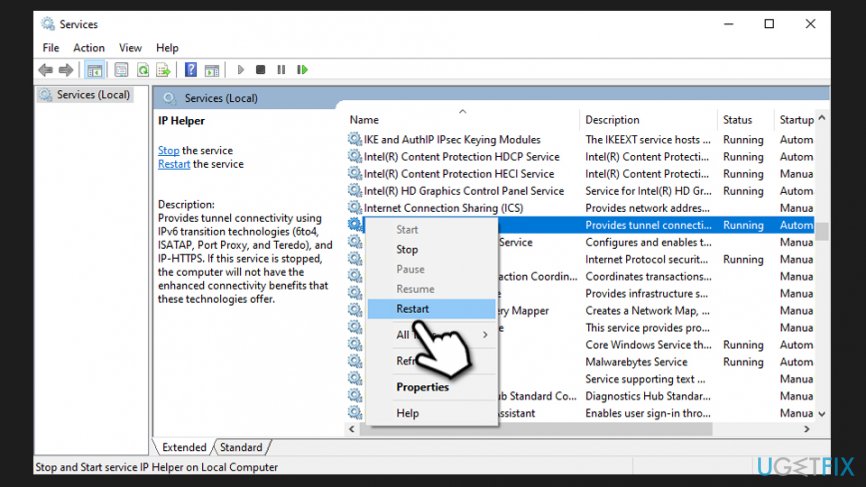
Fix class not registered error on windows internet explorer etw collector service
Bottom line
To fix the 'Class not Registered' error, users can try re-registering the affected .DLL files, running system file checks, or reinstalling the problematic applications. If none of these solutions work, consider seeking further technical support or reinstalling Windows.
Frequently asked questions
The 'Class not registered' error on Windows 10 is often caused by issues with the registry or a corrupted application installation. It can also occur if the required system files are missing or damaged.
To resolve the error, try reinstalling the application or repairing it through the Control Panel. Additionally, running the System File Checker tool can help restore missing or corrupted system files.
Yes, the steps to fix the 'Class not registered' error on Windows 11 are similar to those on Windows 10; you can reinstall the affected application or perform a system file check to repair any corrupted files.




Report an issue
What's wrong with this guide? We review every report and update or remove content.
Report received — thank you. We'll review and fix it.
You need a free account to submit a report.
Be the first to comment