How to fix
Cldfit.sys Blue Screen error
on Windows
Resolve the Cldfit.sys Blue Screen error on Windows 10/11 quickly and easily. Expert-tested solutions to get your system running smoothly again. Updated…


What causes How to fix Cldfit.sys Blue Screen error in Windows?
- Steam folder being synced with OneDrive
- Third-party security software
- Outdated BIOS version
Repairs Windows system files, removes malware, and restores a clean OS state — without reinstalling.
Hello. I have experienced a Cldfit.sys Blue Screen error on my Windows PC. Why is this happening and how do I fix it?
Windows is the most popular operating system in the world created by Microsoft. It is used in corporate environments, by gamers, and regular people for tasking. It is praised for its user-friendly interface, customization abilities, built-in troubleshooters, and more. However, it relies on thousands of processes running in the background to keep it running smoothly.
When something goes rogue, people can encounter a BSOD (Blue Screen of Death)[ref en-1] error that is very intimidating. It appears seemingly out of nowhere and interrupts users' work. It is often caused by problems with the computer’s hardware or issues with its driver software. Software can also cause these errors.
Recently, users reported receiving a Cldfit.sys Blue Screen error. It can appear for multiple reasons. First, it can be caused by the Steam folder being synced with OneDrive. Another possibility is that it was caused by third-party security software. Lastly, you may see this error if your BIOS[ref en-2] version is outdated.
In this guide, you will find 3 steps that could help you fix the Cldfit.sys Blue Screen error in Windows. However, manual troubleshooting can be a lengthy process so you can also use a maintenance tool like [d1] that can fix most system errors, BSODs, corrupted files, and registry[ref en-3] issues. Otherwise, follow the instructions below.

Method 1. Move the Steam Games folder
If you are using Steam and OneDrive, it could be causing Cldfit.sys Blue Screen errors. The reason why is that OneDrive tries to rapidly sync any files that are changing while you game on Steam. You should move the Steam Games folder into a folder not being synced to OneDrive.
- Navigate to your Steam client Settings menu.
- Select Steam Library Folders from the Downloads tab
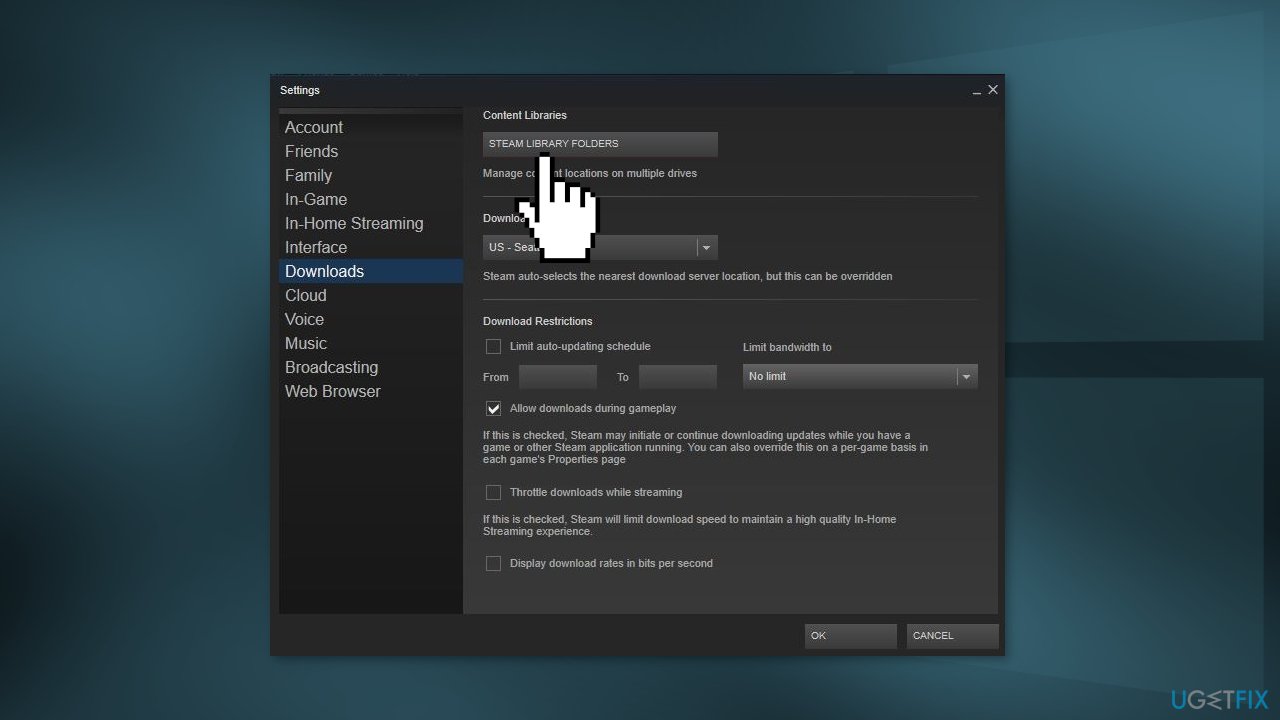
- From here, you can view your default installation path, as well as create a new path by selecting the + button
- Once you have created the new path, all future installations can be installed there
- You can click the ... button and select Make Default to set it as a default
- If you wish to move existing games without having to uninstall them, find the game in your Library you want to move
- Right-click the game's title and select Properties...
- Select the Local Files tab and then select Move install folder...
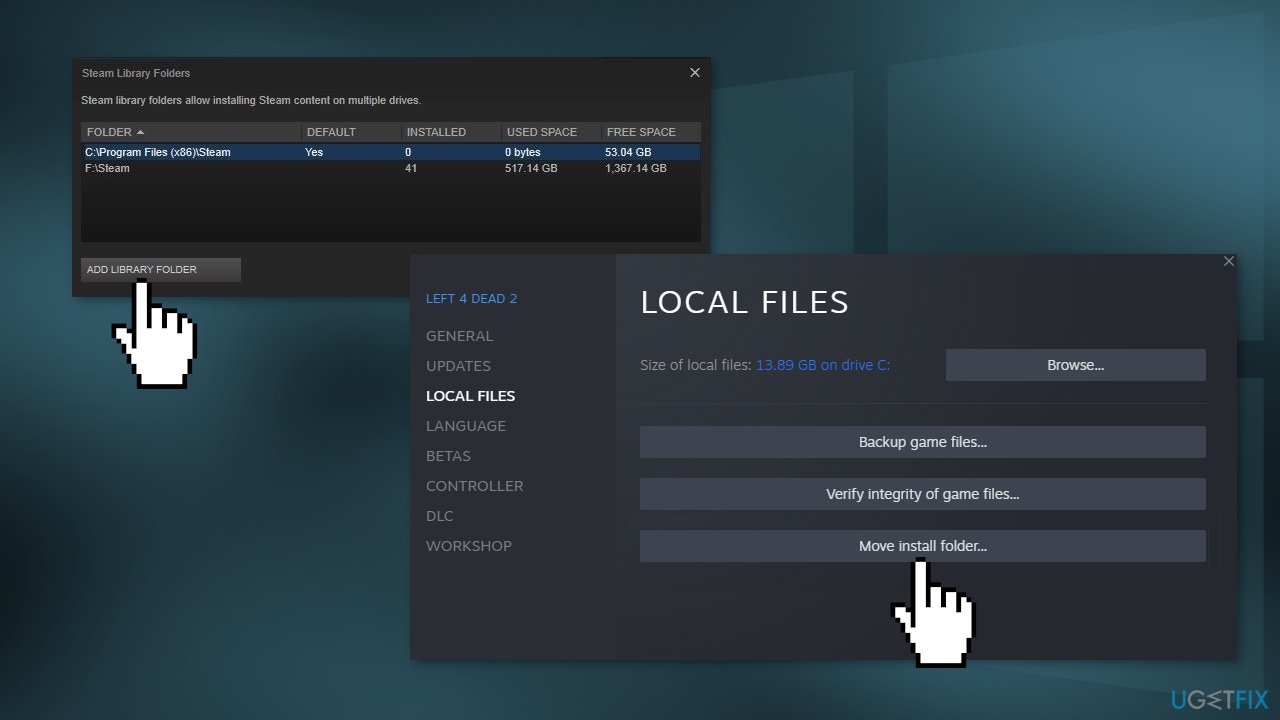
- From the drop-down menu you can then select the Steam Library folder location
Method 2. Uninstall Third-Party Security Software
The reason for the Cldfit.sys BSOD can be a misbehaving ESET driver. However, other security tools could also be the problem. You can follow the instructions below on how to correctly remove ESET:
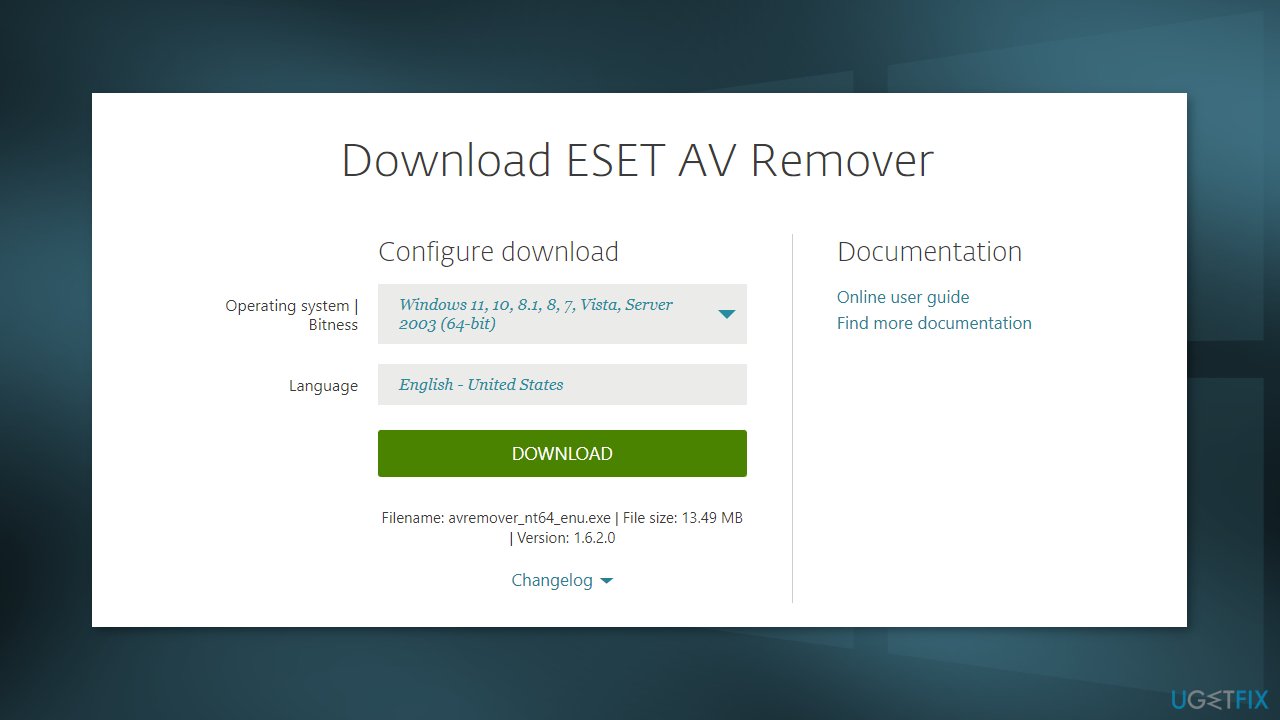
- Download the ESET AV Remover from the official ESET website
Start your PC in Safe Mode:
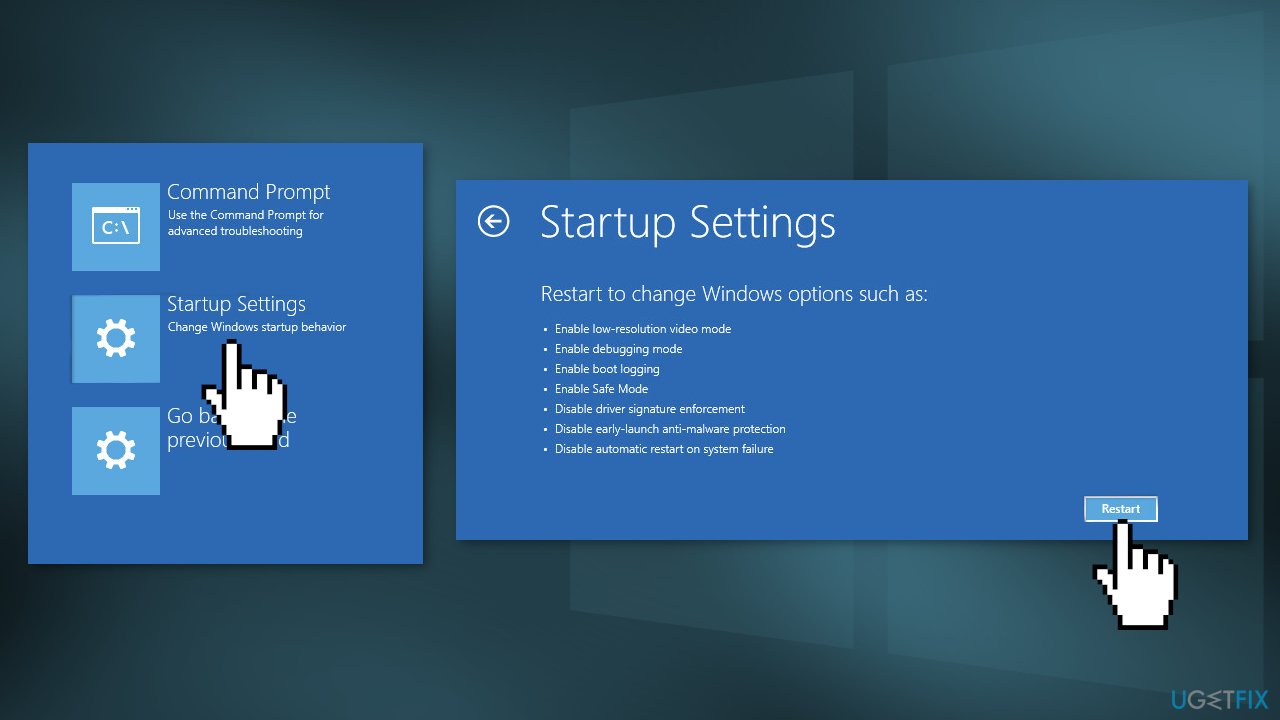
- Click Start, then Power, and then hold the Shift key on your keyboard and click Restart
- Click Troubleshoot
- Click Advanced options
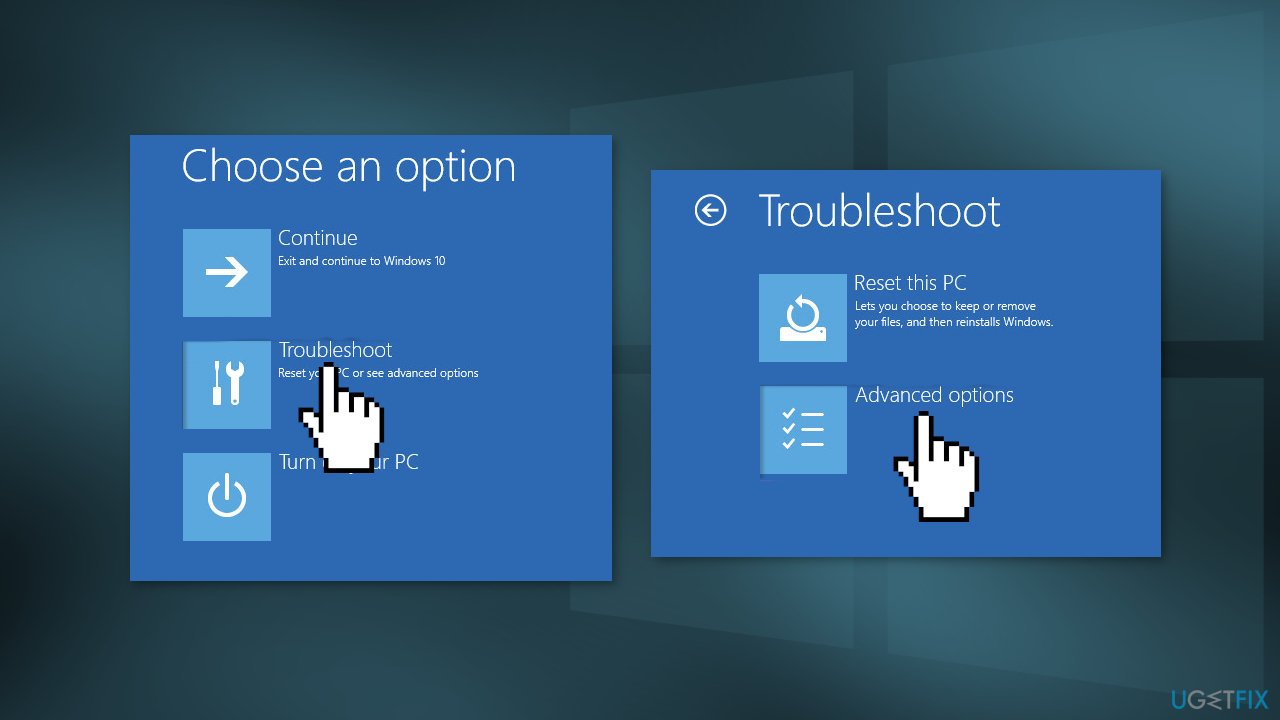
- Click Startup Settings
- Click Restart
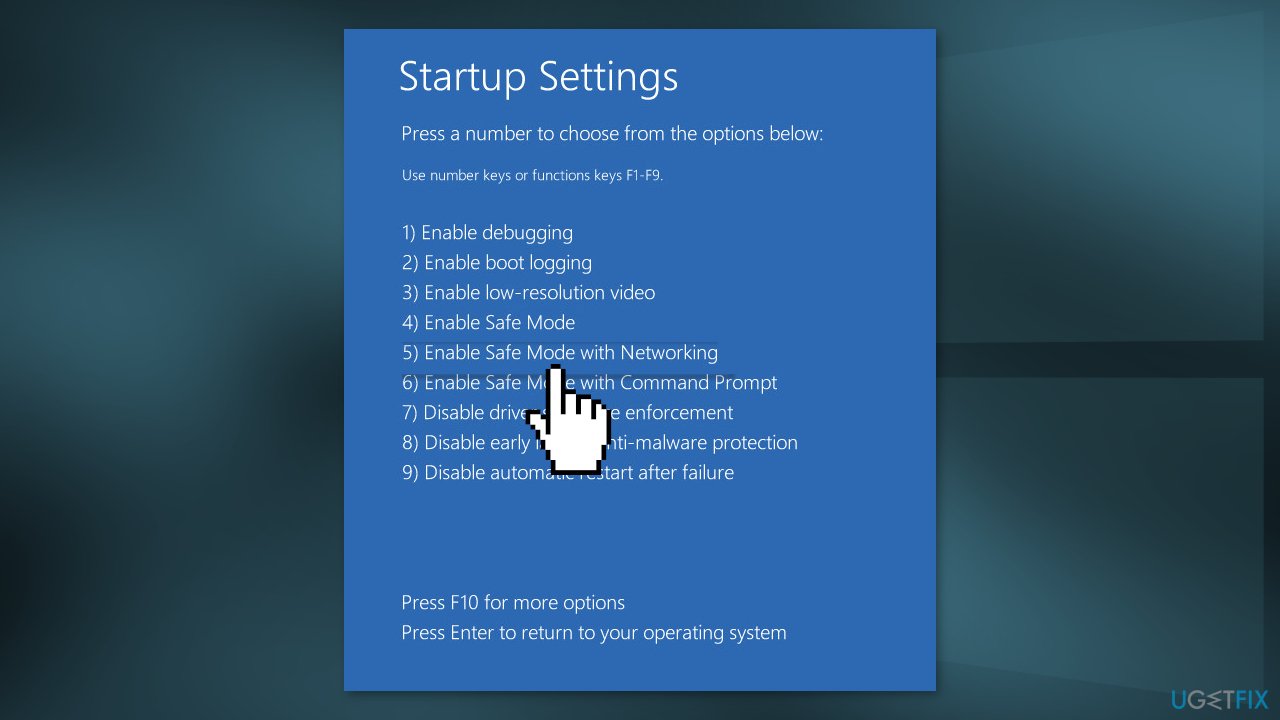
- After your computer restarts, press 5 on your keyboard to select Safe Mode with Networking
- In Safe Mode, double-click the installer file you saved to your Desktop
- Read the warning and type y to confirm
- Review the items listed under Installed ESET products. Type the number that corresponds to the ESET installation that should be uninstalled and press the Enter key
- Verify that you are uninstalling the correct ESET product from the operating system and type y to confirm
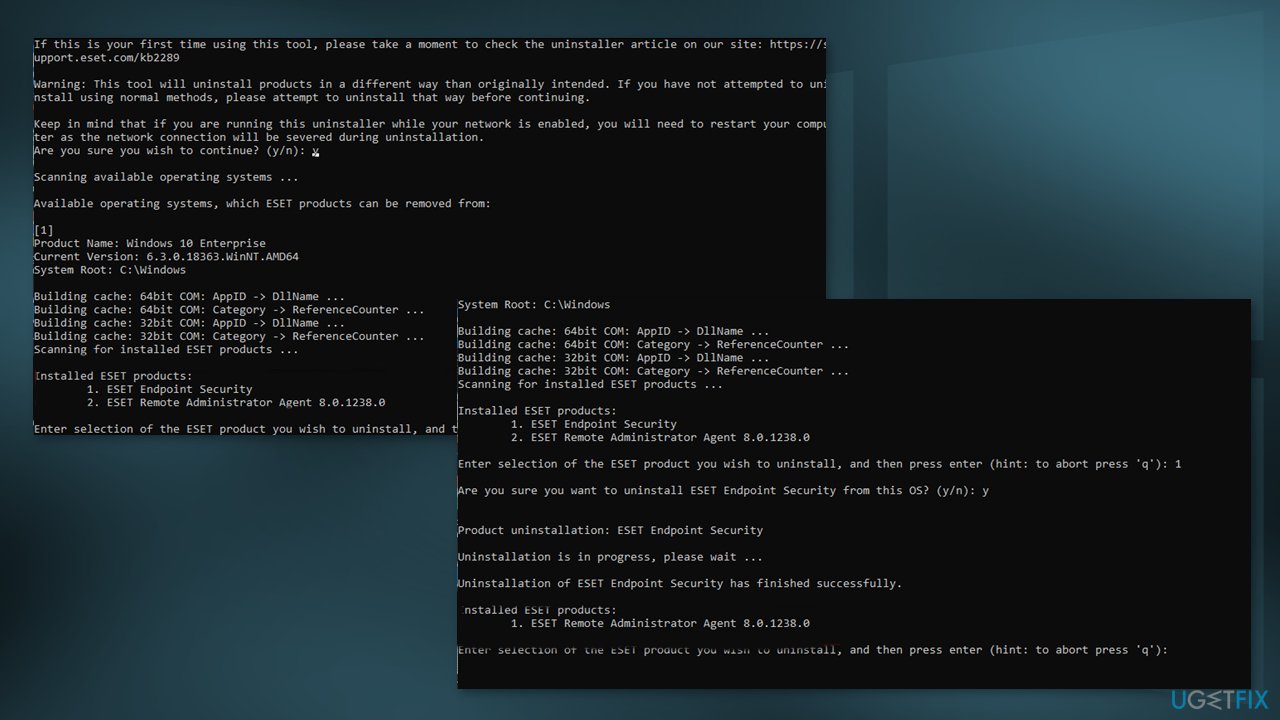
- After the ESET Uninstaller tool has finished running, press any key to exit
- If needed, run the ESET Uninstaller again until the product is no longer listed under Installed ESET products
- Restart your computer in Normal Mode
Method 3. Upgrade BIOS
First, you will have to find out the version of your BIOS if you do not know it. After that, proceed with this guide. The process can differ for each manufacturer. We will use Dell as an example:
- Type Dell.com in your browser and hit the Enter key to reach the official website of DELL
- You can do the same for your laptop’s manufacturer
- Hover over the Support option and the website will display a drop-down menu.
- Click on Support Home
- Scroll down to find the Downloads & Drivers option and click on it to open it
- You can either enter the required information according to your model manually or download the SupportAssist to detect the essential information automatically
The manual option:
- Scroll down to find the BIOS category drivers and expand it
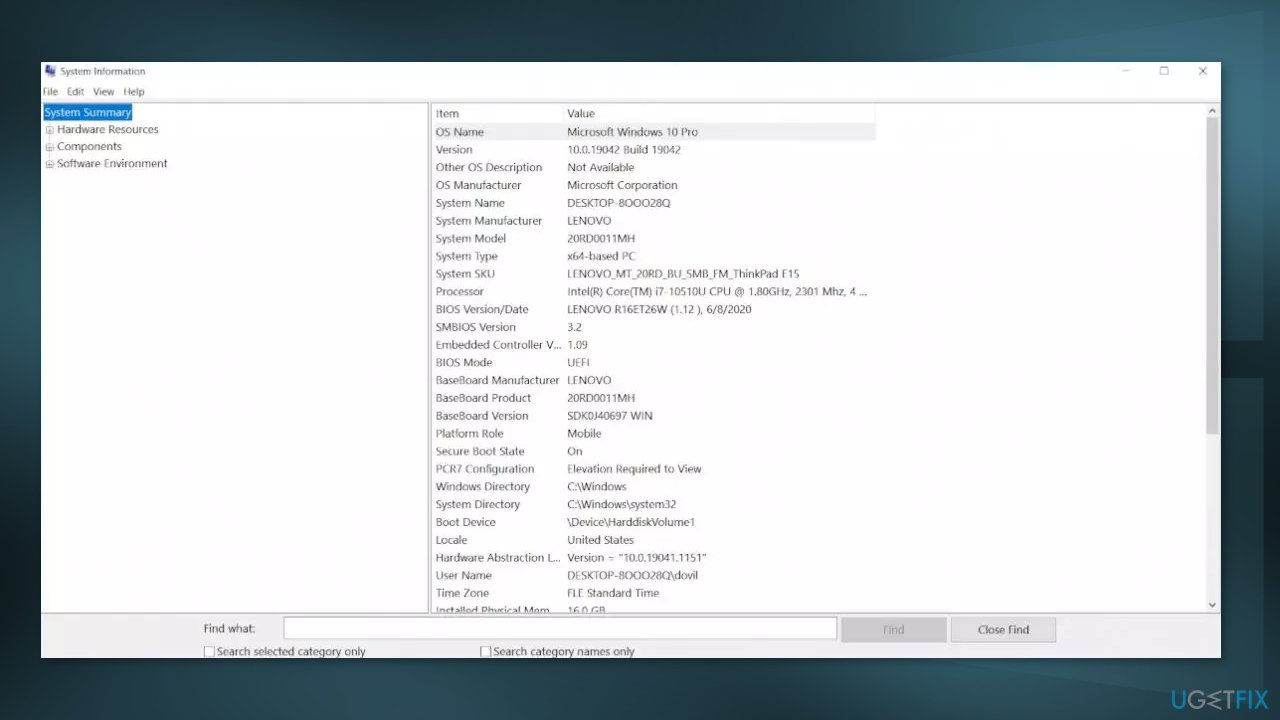
- Type System Information in the Start menu and open it
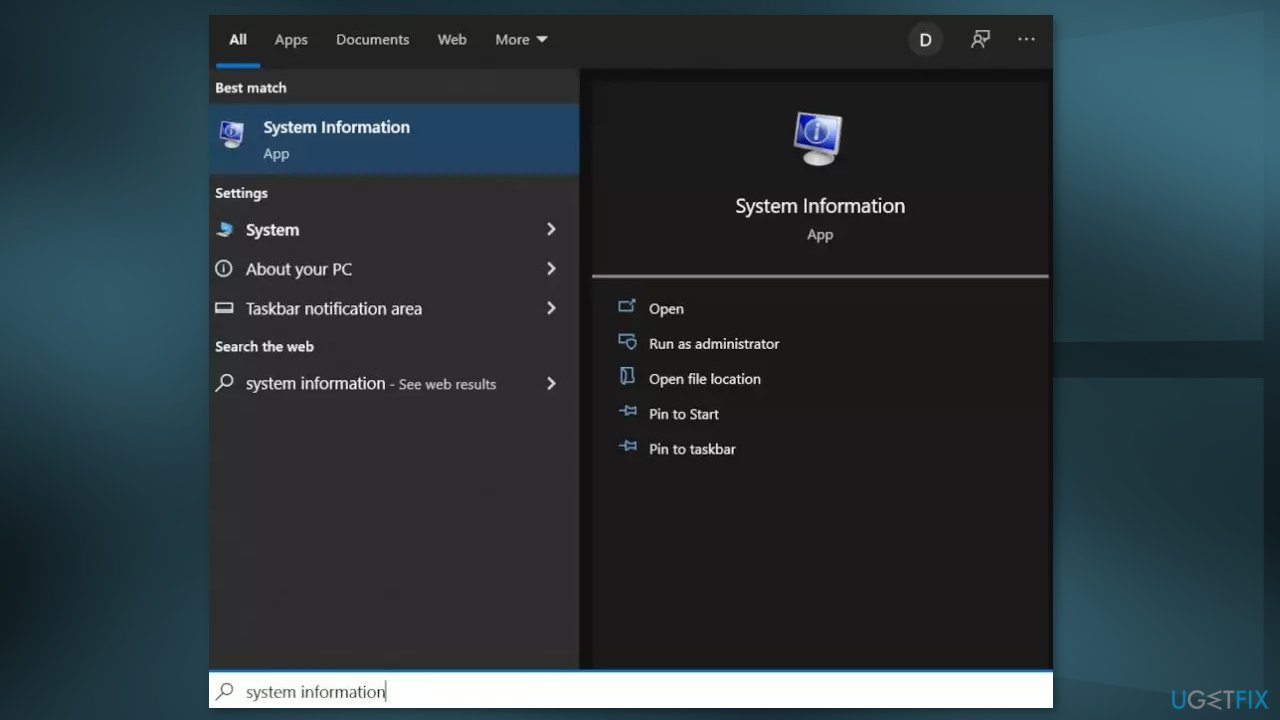
- Compare the BIOS Version/Date in the System Information with the version number specified on the official website
- Begin the downloading
- Once the download is complete, then double-click on the downloaded file
- Upon opening the file, the system will warn you that updating the BIOS process will reboot your system. Click on the OK button.
- Next, the system will show you another information dialog, which indicates the current version of BIOS and the version you are installing. Click on the OK button again.
- The system will begin the BIOS updating process
- Once the progress bar goes to 100%, you’ll see a black screen
- After the updating procedure, the system will reboot normally
- Once the system has successfully rebooted, you can confirm that the latest BIOS version is installed
Bottom line
To fix the Cldfit.sys Blue Screen error, you can move the Steam Games folder to a location not synced with OneDrive, check for conflicts with third-party security software, or update your BIOS. If these steps do not resolve the issue, consider using a maintenance tool to fix system errors.
Frequently asked questions
The Cldfit.sys Blue Screen error is typically related to issues with the Cloud File System Driver, which can cause system crashes or instability on Windows 10 and Windows 11.
To resolve the Cldfit.sys Blue Screen error on Windows 11, you can try updating your drivers, running a system file check, or uninstalling recently installed applications that may conflict with the driver.
Disabling the Cldfit.sys driver may temporarily resolve the Blue Screen error on Windows 10, but it can lead to loss of cloud file access and is not recommended as a permanent solution.




Report an issue
What's wrong with this guide? We review every report and update or remove content.
Report received — thank you. We'll review and fix it.
You need a free account to submit a report.
Be the first to comment