How to fix
Cloud gaming not working
on Windows
Resolve cloud gaming issues on the Windows Xbox app quickly and effortlessly. Enjoy seamless gameplay with expert-tested solutions!


What causes How to fix cloud gaming not working on Windows Xbox app?
- Network connection issues
- Background application interference
- Corrupted user profile
- Problems with Xbox Gaming Services
- Underlying system issues
Repairs Windows system files, removes malware, and restores a clean OS state — without reinstalling.
Hello. I wanted to try out Xbox Cloud Gaming on Windows but it is not working. What could be the issue?
Xbox Cloud Gaming is Microsoft's cloud-based streaming service that allows users to play games on a range of supported devices while on the go. It was formerly known as Project xCloud. The only restriction on the function is that in order to maximize its performance when you're playing cloud-supported games, you'll need a steady internet connection.
This feature offers a terrific method to play some of the top Xbox Series X games as well as a variety of other titles on Xbox Game Pass without having to download them first. However, some users report that cloud gaming is not working on their Windows Xbox apps.
Of course, the first thing you should check is your network connection. If other apps that require an internet connection are working fine and steady, that means there are other issues at play. Xbox Cloud gaming on PC may not function for a number of reasons.
It is possible that a background application is interfering with the Xbox app or that your user profile on Windows is corrupted. Reinstalling the Xbox Gaming Services may also help because, in some situations, they can cause these problems. In this guide, you will find 7 steps that should help you fix cloud gaming not working on Windows Xbox app.
Keep in mind, that you may be experiencing this problem because of underlying system issues. In that case, you can use a PC repair tool, like [d1] that can fix most system errors, BSODs,[ref en-1] corrupted files, registry[ref en-2] issues, or clear cookies and cache[ref en-3] automatically. Otherwise, follow the step-by-step instructions below.
Solution 1. Update the Xbox app
If you're experiencing issues with the Xbox app, it could be because it is out-of-date. Updating the app can help to fix any problems you're having and improve performance.
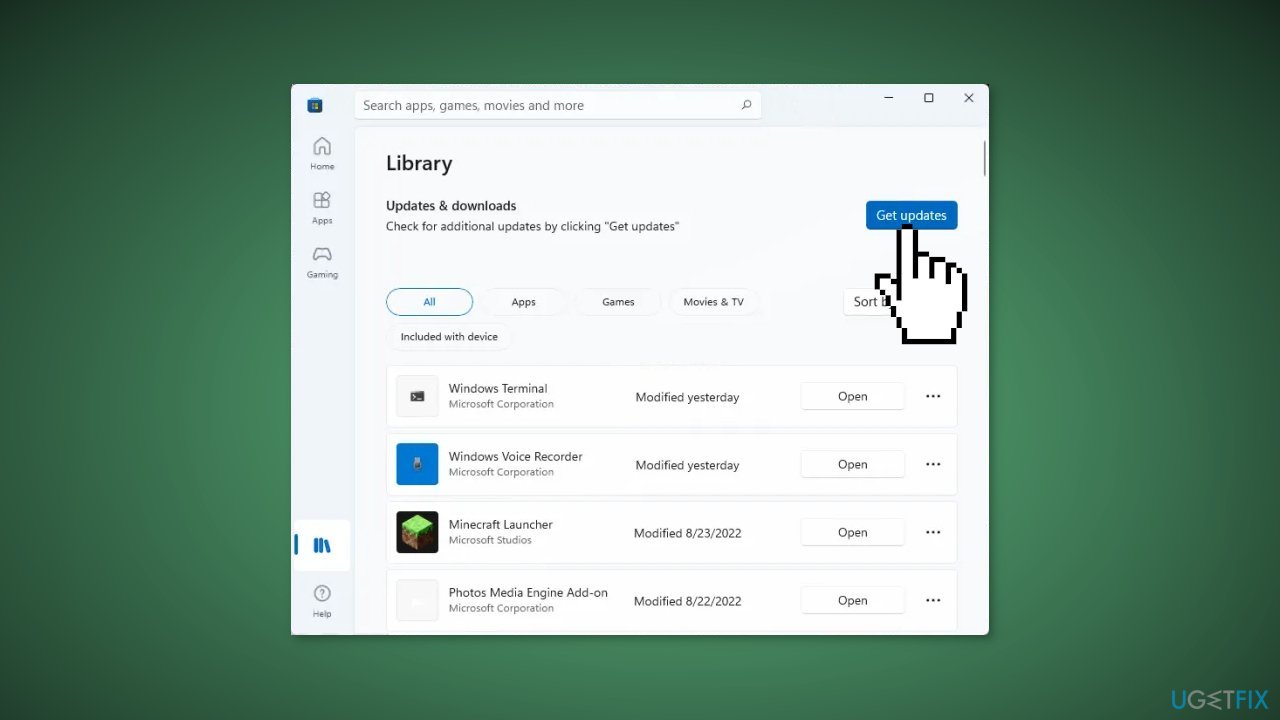
- Open the Microsoft Store and go to the Library tab on the left side of the window
- Click the Get updates button and make sure to update the Xbox app
- Reopen the app and see if cloud gaming is working
Solution 2. Change Language and Region Settings
Some users have reported that this fixed the cloud gaming problem. To change your region in Windows 11/10:
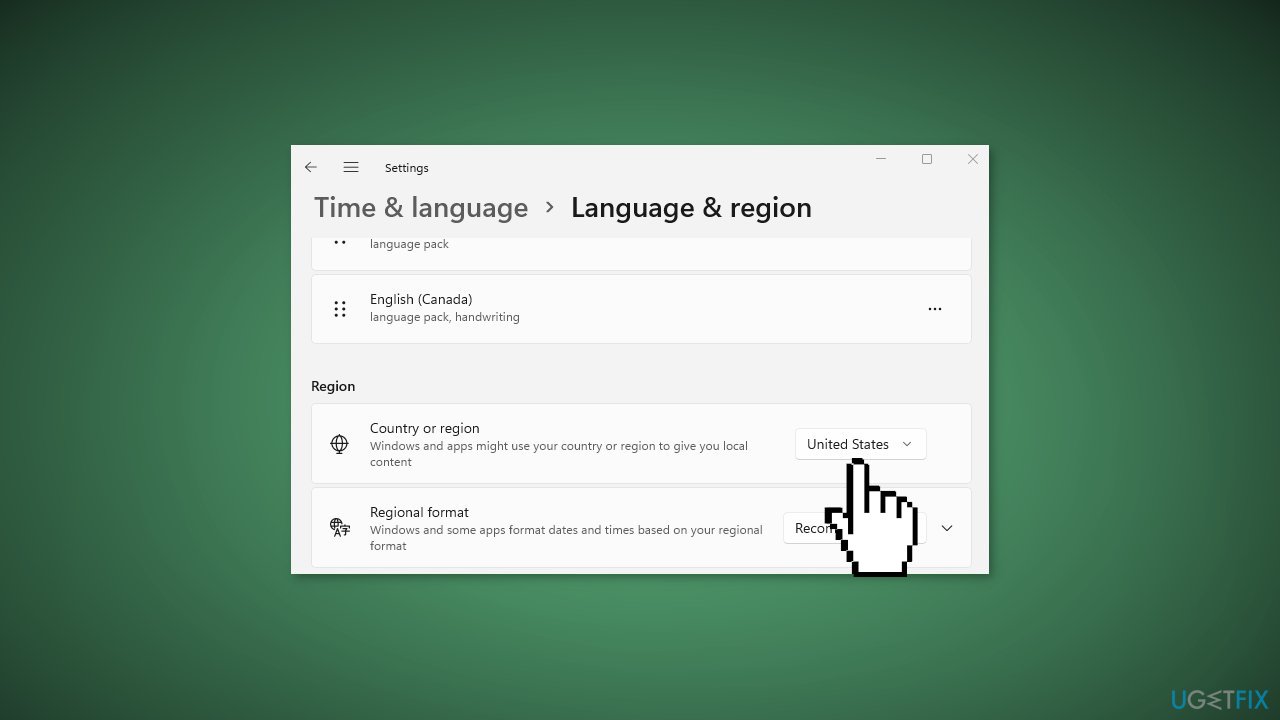
- Open the Settings app and go to the Time & Language tab
- Select the Language & Region option, and choose a different region from the Country or region dropdown menu
- Open Xbox and see if it works properly
Solution 3. Run the Windows Store Apps Troubleshooter
- Press the Windows key + I to open Windows Settings
- Select the System section and scroll down until you see Troubleshoot and click on it
- Click on Other troubleshooters to see more troubleshooters available on your computer
- Scroll down at the bottom until you see Windows Store Apps
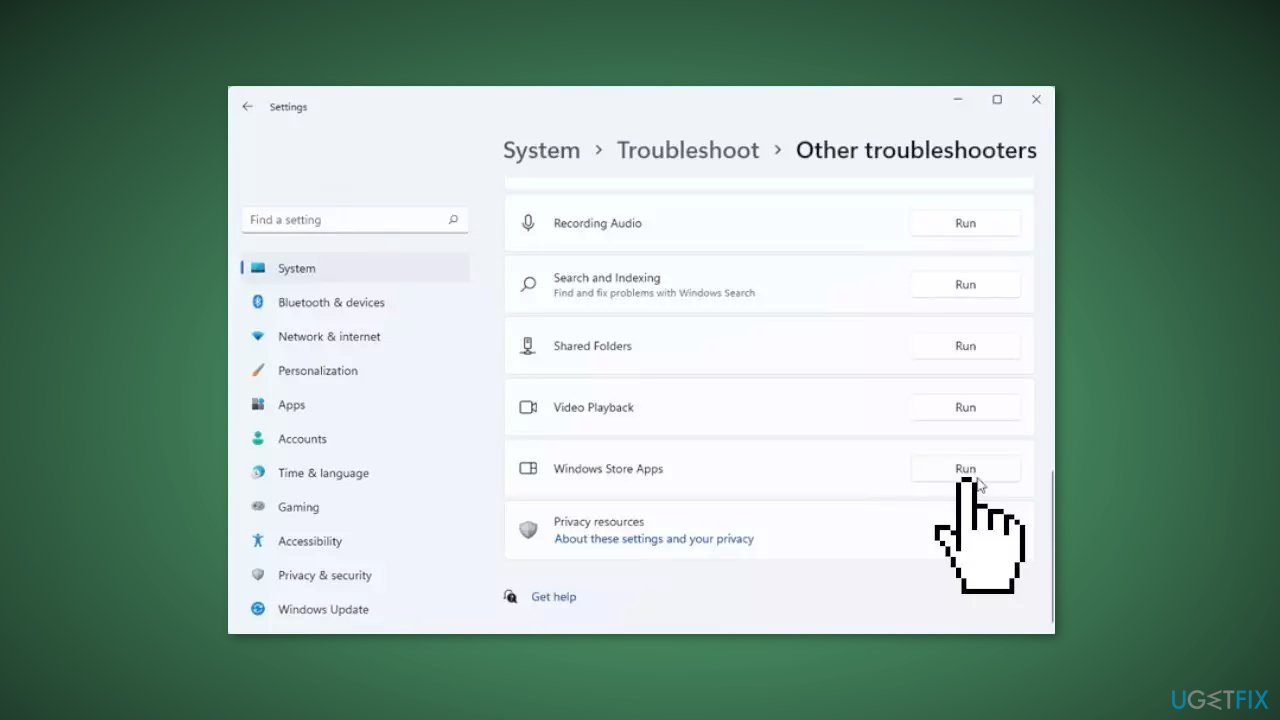
- Click on Run to start the troubleshooting process
- Wait until the process is complete
Solution 4. Reinstall Gaming Services
If none of the previous solutions have helped to resolve the issue with cloud gaming on the Xbox app, the problem may be related to the Microsoft Gaming Services app. In this case, you can try reinstalling the app to see if this fixes the problem.
- Open Windows PowerShell with administrator rights
- In Windows PowerShell, enter the following command to remove Microsoft Gaming Services:
Get-AppxPackage *gamingservices* -allusers | remove-AppxPackage -allusers
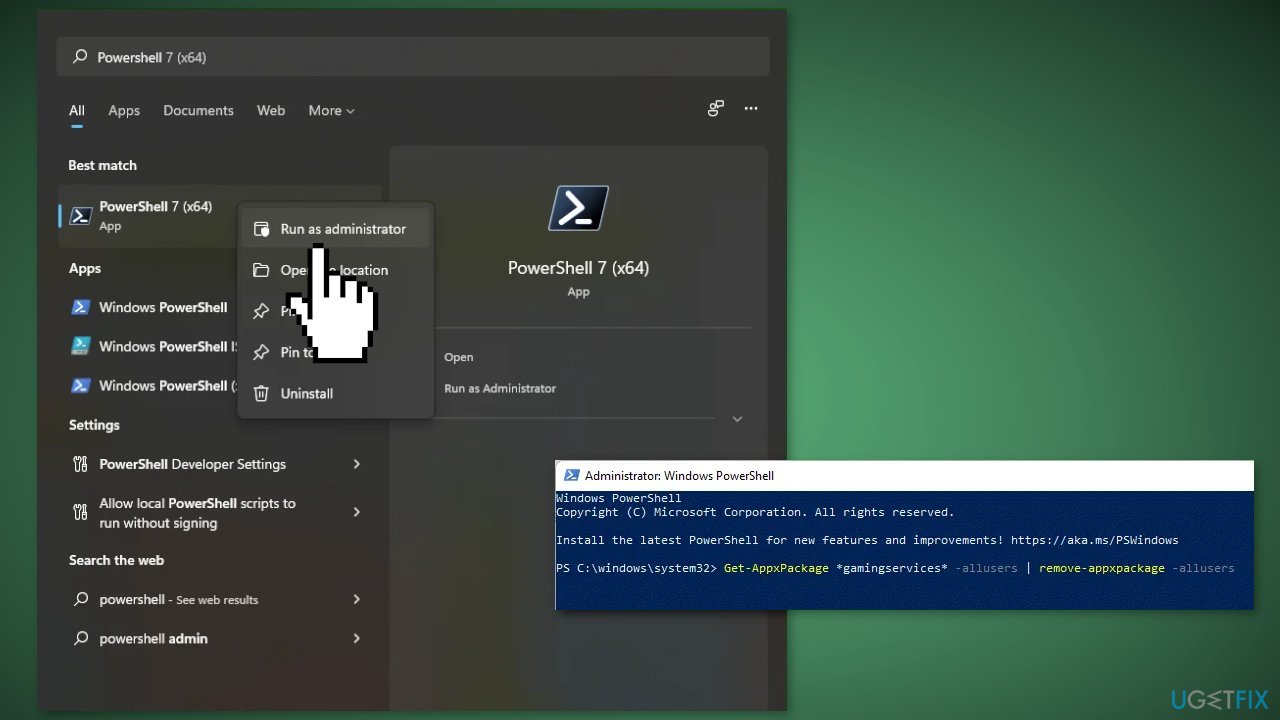
- Once the command has finished successfully, enter the following command:
start ms-windows-store://pdp/?productid=9MWPM2CQNLHN
- This will open the official page for the Microsoft Gaming Services app in the Microsoft Store
- Click the Get button to install it
- Restart your computer and see if the problem has been fixed
Solution 5. Disable Startup Applications
- Open the Task Manager and go to the Startup apps tab
- Disable enabled startup apps
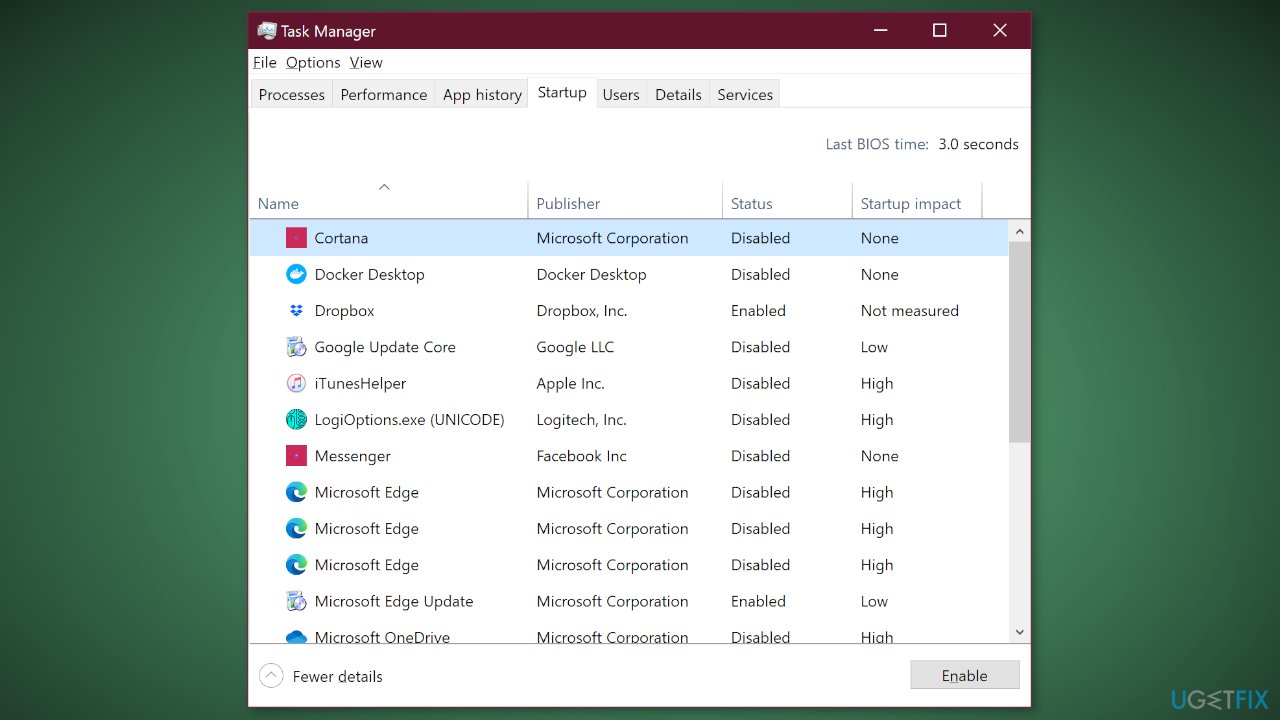
- Restart your computer and see if the issue persists
Solution 6. Repair or Reset the Xbox app
If the problem you're experiencing with the Xbox app is due to corruption, you can try repairing the app to fix the issue. To do this:
- Open the Settings app by pressing the Windows key + I, and go to the Apps tab
- Select the Installed apps option, and then find the Xbox app in the list
- Click the three-dot menu button, and then choose Advanced options
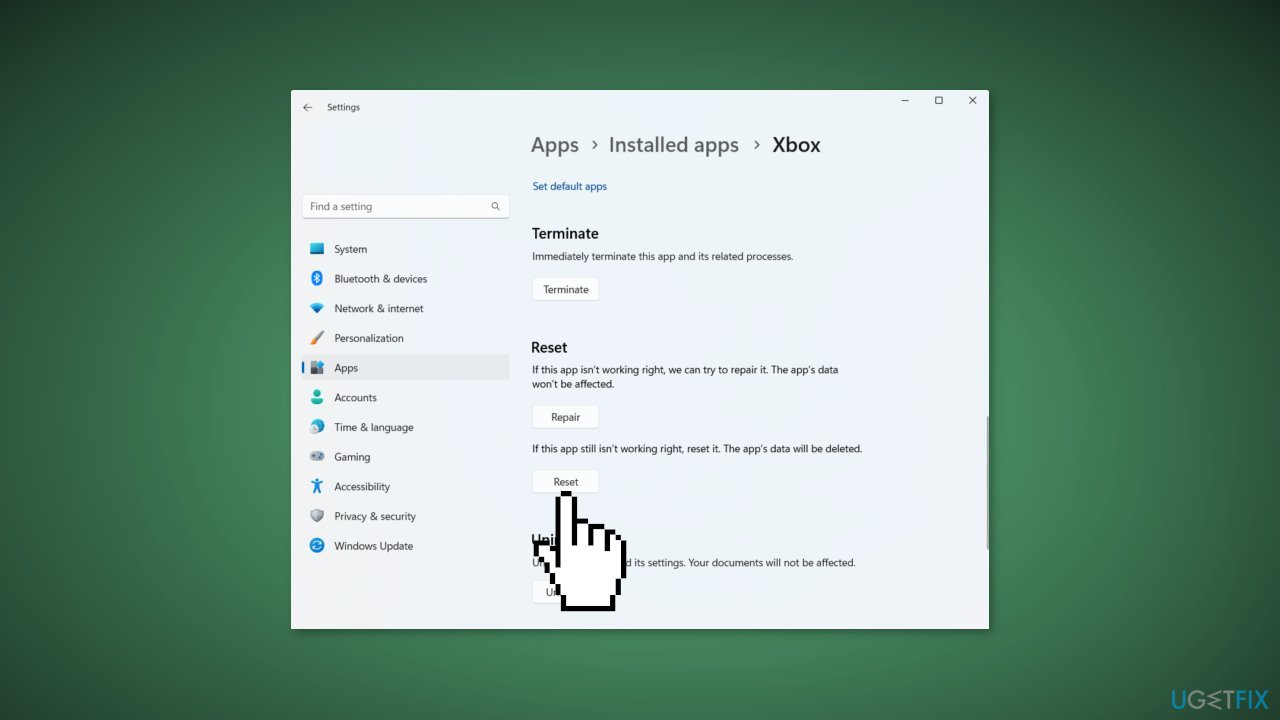
- Scroll down to the Reset section, and click the Repair button
- Once the repair process is finished, reopen the app and see if the problem has been resolved
If repairing the app doesn't help, you can try resetting it to its original state and settings:
- Follow the first three steps above to access the Advanced options for the Xbox app
- Instead of clicking the Repair button, click the Reset button and follow the prompts to reset the app
- Reopen the app and see if the problem has been fixed
Solution 7. Create a new User Profile
- Select the Start menu and go to Settings
- Click on Accounts
- Under Family & other users select Add someone else to this PC
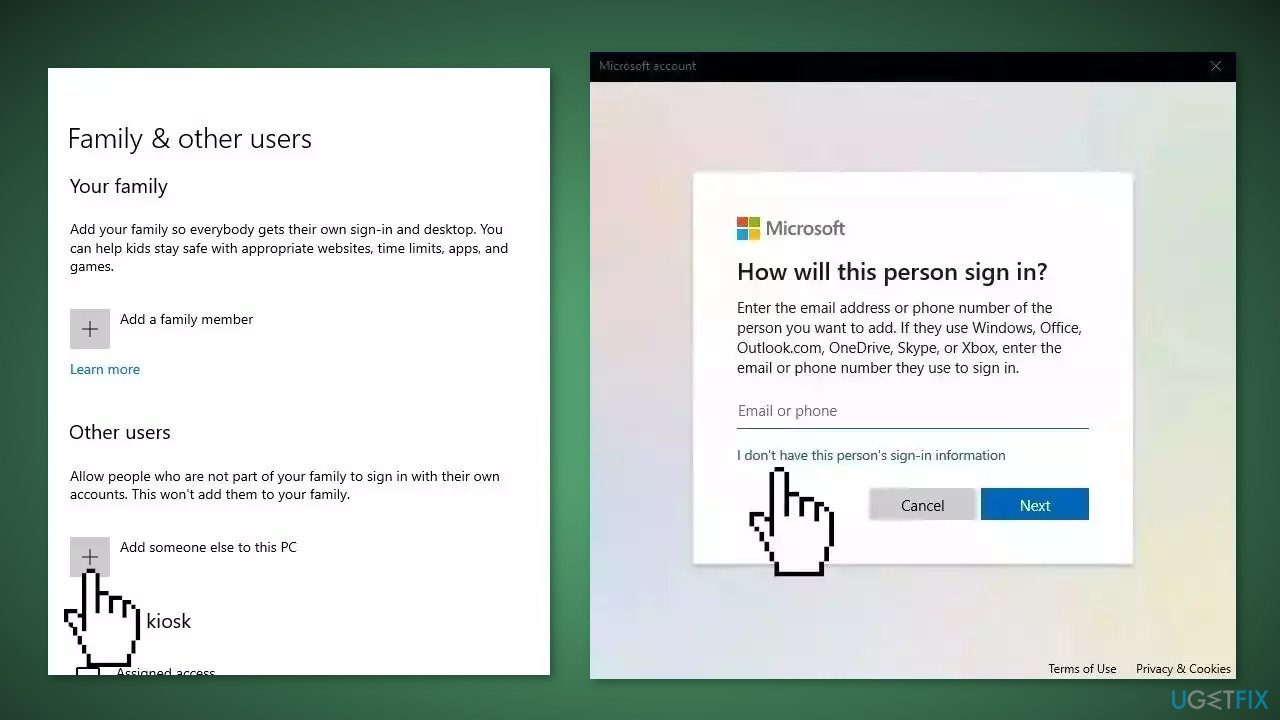
- Select I don't have this person's sign-in information, and on the next page, select Add a user without a Microsoft account
- Enter a user name, password, or password hint, or choose security questions and then select Next to finish the process
- If switching to a new local account fixed the problem, select Change account type
- Under Account type, select Administrator, and then select OK
- Sign in with the new administrator account and check if the issue is resolved
Bottom line
To fix cloud gaming not working on the Windows Xbox app, try updating the Xbox app, reinstalling the Xbox Gaming Services, or using a PC repair tool to address system errors. If these steps do not resolve the issue, consider checking for other underlying problems.
Frequently asked questions
First, ensure your internet connection is stable and meets the required speed for cloud gaming. If the issue persists, try signing out and back into your Xbox account within the app.
To reduce latency, close any unnecessary applications that may be using bandwidth and consider connecting your device to the internet via an Ethernet cable instead of Wi-Fi.
Make sure that your Windows 11 is up to date and that the Xbox app has the necessary permissions in the system settings, including network access.




Report an issue
What's wrong with this guide? We review every report and update or remove content.
Report received — thank you. We'll review and fix it.
You need a free account to submit a report.
Be the first to comment