How to fix
CLR Error 80004005
on Windows
Resolve CLR Error 80004005 on Windows 10 and 11 effortlessly. Our expert-tested solutions ensure your system runs smoothly in no time. Fixed in minutes!

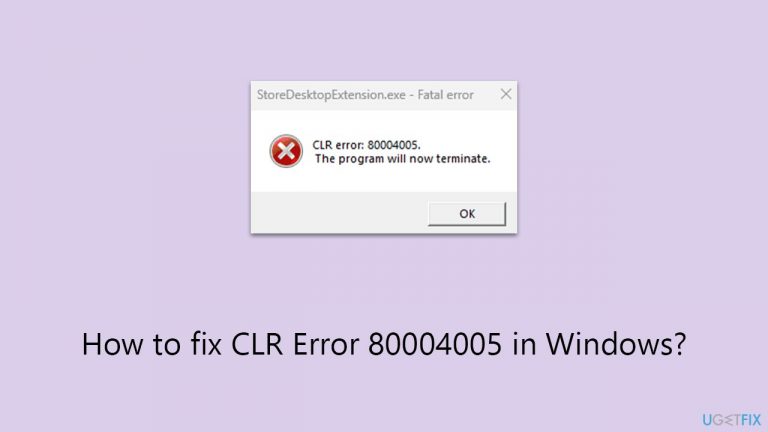
What causes How to fix CLR Error 80004005 in Windows?
- Corrupted files in the .NET Framework
- Incomplete installations of the .NET Framework
- Conflicts with other software
- Outdated .NET Framework components
- Issues with system file integrity
Repairs Windows system files, removes malware, and restores a clean OS state — without reinstalling.
Hi, I am trying to install a program on my Windows 10 PC and I can't because of the CLR Error 80004005. Any tips on how to fix this would be great.
CLR Error 80004005 is a frequent challenge for Windows users, manifesting itself typically when launching applications or in various other contexts like during update downloads. It is not just a random occurrence but is rooted in specific aspects of the Windows operating system, particularly involving the .NET Framework.
At the heart of this issue is the Common Language Runtime (CLR), a crucial component of the .NET architecture provided by Microsoft. CLR plays a pivotal role in the execution of applications developed using this framework, managing their life cycle and ensuring smooth operation. When you encounter CLR Error 80004005, it's a signal that there's a disruption in this process, often pointing to complications within the .NET environment on your computer.
The error transcends the boundaries of Windows versions, underscoring its ties to the framework rather than the operating system. The .NET Framework facilitates a controlled environment for software development and execution on Windows platforms. When it encounters issues, such as corrupted files, incomplete installations, or conflicts with other software, it can lead to the emergence of CLR Error 80004005.
This problem is commonly seen when attempting to run applications that depend on the .NET infrastructure. These applications may fail to launch, or an error might emerge during their operation. Similarly, Windows updates, which sometimes include updates to the framework components, can also trigger this error.

The root causes of CLR Error 80004005 are varied, but they frequently circle back to problems with the .NET Framework's functionality. Resolving this error often involves ensuring that this framework is correctly installed and up-to-date on your system. It may also require checking for any software conflicts and verifying the integrity of system files to ensure smooth operation.
While CLR Error 80004005 can be a disruptive issue, comprehending its connection to the .NET Framework is a vital step in addressing it. For those seeking a thorough resolution, employing a PC repair tool can offer an efficient way to automatically rectify such errors and maintain system stability.
Fix 1. Update .NET Framework
Updating the .NET Framework ensures that you have the latest version, which might include fixes for CLR Error 80004005.
- Type Control Panel in Windows search and select Programs.
- Select Turn Windows features on or off.
- Enable .NET Framework 3.5 (includes .NET 2.0 and 3.0).
- Next, enable .NET Framework 4.8 Advanced Services and press the plus icon next to it.
- Make sure to enable ASP.NET 4.8 as well.
- Click OK.

Fix 2. Run the .NET Framework Repair Tool
The .NET Framework Repair Tool can automatically detect and fix issues with the .NET Framework installations.
- Download Microsoft .NET Framework Repair Tool from the official Microsoft website.
- Start the launcher and select NetFxRepairTool.exe, pressing Next after.
- Double-click the file to begin the repair process.
- When prompted, mark the I have read and accept the license terms and click Next
- Windows will diagnose all the issues and repair them automatically for you
- Restart your computer if it doesn't happen automatically.

Fix 3. Perform SFC and DISM scans
Corrupted system files are among the most common reasons for various errors. To address this, you can use the commands in the elevated Command Prompt.
- Type cmd in Windows search.
- Right-click on the Command Prompt result and select Run as administrator.
- When the UAC window pops up, click Yes.
- In the Command Prompt window, paste the following command and press Enter:
sfc /scannow - Wait for the scan to complete.
- Once the SFC scan is finished, run the following set of DISM commands, pressing Enter after each one:
DISM /Online /Cleanup-Image /CheckHealth
DISM /Online /Cleanup-Image /ScanHealth
DISM /Online /Cleanup-Image /RestoreHealth - After completing the DISM commands, restart your PC.

Fix 4. Check for Windows Updates
Installing the latest Windows updates can resolve underlying system issues causing CLR Error 80004005.
- Type Updates in Windows search and press Enter.
- Here, click Check for updates.
- Wait till Windows downloads and installs all the files.
- If optional updates are available, install them as well.
- Reboot your system.

Fix 5. Clean Boot your computer
Performing a clean boot starts Windows with a minimal set of drivers and startup programs, helping identify if background programs are causing the error.
- Type msconfig in Windows search and hit Enter.
- Go to the Services tab and tick the Hide all Microsoft services checkbox.
- Select Disable all.
- Go to the Startup tab and click Open Task Manager.
- Here, right-click on each of the non-Windows entries and select Disable.
- Close down the Task Manager.
- Go to the Boot tab and tick the Safe boot option.
- Restart your computer.
- Test to see if the CLR Error 80004005 occurs. If it doesn't, one of the disabled items was causing the issue.
- To identify the problematic service or program, re-enable services and startup items one at a time or in small groups.
- After each change, restart your computer to check if the error reappears.

Fix 6. Restore Windows to an earlier point
If the error started appearing recently, restoring Windows to a previous state when the error was not present might help.
- Type in Create a restore point in Windows search and hit Enter.
- Go to System Restore and click Next.
- Mark the Show more restore points option (if available).
- Pick the time when the problem did not exist and click Next.
- Finalize the process - your device will restart.

Bottom line
To fix CLR Error 80004005, ensure that the .NET Framework is correctly installed and up-to-date, check for software conflicts, and verify the integrity of system files. If these steps do not resolve the issue, further investigation may be necessary.
Frequently asked questions
CLR Error 80004005 typically occurs due to corrupted .NET Framework installations or issues with application permissions in Windows 10 or Windows 11.
You can repair the .NET Framework by going to 'Settings' > 'Apps' > 'Apps & features', locating the .NET Framework version, and selecting 'Modify' or 'Repair'.
Yes, you can try modifying specific registry entries related to .NET Framework, but ensure to back up the registry before making any changes on Windows 10 or Windows 11.




Report an issue
What's wrong with this guide? We review every report and update or remove content.
Report received — thank you. We'll review and fix it.
You need a free account to submit a report.
Be the first to comment