How to fix
Cm11264.sys BSOD
on Windows
Resolve Cm11264.sys BSOD errors on Windows 10 and 11 easily. Follow expert-tested solutions to get your PC back on track and fixed in minutes.

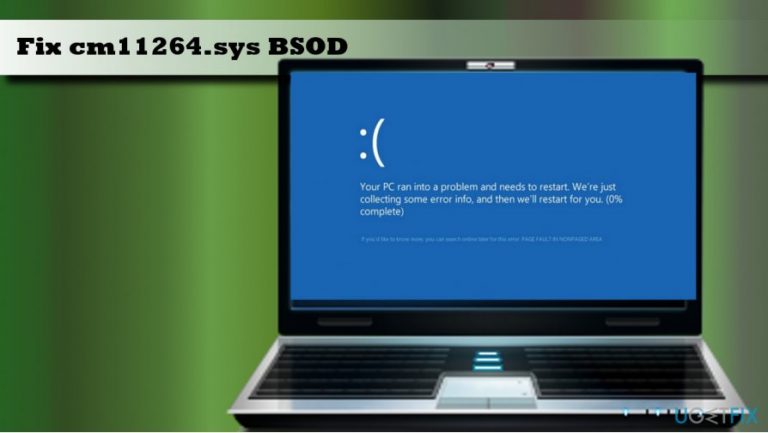
What causes How to Fix Cm11264.sys BSOD on Windows?
- Corrupted device drivers
- Incompatible device drivers
- Damaged registry entries
- Malware infection
- Problems with the hard disk
- Issues with memory (RAM)
Repairs Windows system files, removes malware, and restores a clean OS state — without reinstalling.
Once or twice in a week my computer crashes with a blue screen error, which says that cm11264.sys file is the culprit. I’m not aware of this file and the fixes that could be applied, so would you please help me? The error is not that that annoying, but when it shows up, it forces the system to restart, which is why I have lost important work.
Cm11264.sys is a core Windows file, which belongs to the package of C-Media USB Audio Driver (WDM) software developed by Windows Software Developer. Therefore, it’s a fact that this file cannot be modified or removed itself. However, if for some reason this file gets damaged, corrupted or deleted, people may encounter Cm11264.sys BSOD. It can occur on any Windows version, including Windows 10 and older versions.
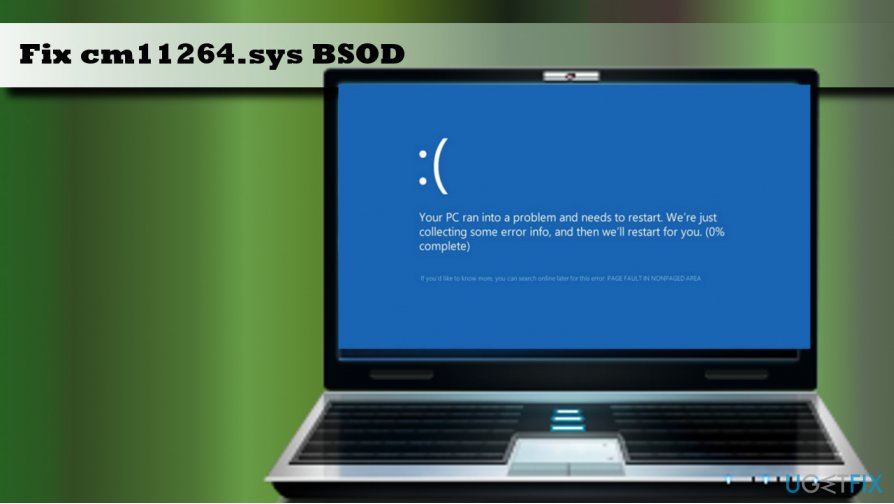
SYS files like Cm11264.sys contain codes that are responsible for loading and configuring Windows OS correctly. Some of the SYS files are exploited by hardware drivers and run in the kernel-mode. Usually, Cm11264.sys error happens after the installation of new hardware or software. According to people’s reports, in most of the cases, the bug shows up once the PC boots up, when running C-Media USB Audio Driver (WDM), launching specific apps, or playing high-resolution games. The culprit of the Cm11264.sys BSOD can be triggered by corrupted device drivers, incompatible device drivers, damaged registry entries, malware infection, problems with the hard disk or memory (RAM), and similar issues. The following are the error codes that people may receive:
- PAGE_FAULT_IN_NONPAGED_AREA STOP 0x00000050 cm11264.sys.
- NTFS_FILE_SYSTEM STOP 0x00000024 cm11264.sys.
- DRIVER_IRQL_NOT_LESS_OR_EQUAL STOP 0x000000D1 cm11264.sys.
- SYSTEM_SERVICE_EXCEPTION STOP 0x0000003B cm11264.sys
Possible Cm11264.sys BSOD Fixes
First of all, we would highly recommend you to check the system for malware. SYS files are often targeted by malware to trigger system’s malfunctions and disable its performance. In this case, we would highly recommend using [d1] malware removal and system optimization utility. It is has the latest Avira Antivir software definitions and contains a full-list of Windows files installed. Therefore, the toll is capable of both fixing system’s errors and removing malware. If the app did not help, try the following fixes:
Method 1. Update Intel HD graphics driver
- Right-click Windows key and select Device Manager.
- Expand Display adapters section and right-click the Intel HD Graphics Driver.
- Select Update Driver Software.
- Reboot your PC.
If driver update did not help, try to reinstall Intel HD Graphics Driver and check for other malfunctioning device drivers:
- Right-click Windows key and select Device Manager.
- Expand Display adapters section and right-click the Intel HD Graphics Driver.
- Click Uninstall.
- After that, expand device driver sections on-by-one and check if any drivers are marked with a yellow exclamation mark.
- If you found such a driver, right-click it and select Update driver software.
- Finally, reboot your PC.
Method 2. Install Windows Updates
- Press Windows key + I to open Settings.
- Select Updates & Security and open Windows Updates.
- Click Check for Updates option button and wait while the system is performing a scan.
- When the updates are ready, click Install Updates.
- Reboot your PC.
Method 3. Use a System Restore Point
If you have created a System Restore Point before the Cm11264.sys error occured, please enable the latest Restore Point:
- Hold the Power button to turn off your PC and then restart the system.
- Before Windows logo shows up, press F8 to boot into Safe Mode.
- Then right-click Windows key and open Control Panel.
- Navigate to the All Control Panel Items and select Recovery.
- Select Configure System Restore, click on System Restore, and press Next.
- Select the latest system restore point and click Next.
- Finally, reboot your PC.
Method 4. Update BIOS
First of all, you have to create a bootable flash drive with the BIOS update. You can find full insctructions on this page. Once ready, please follow these steps:
- Press Windows key and hover your mouse over Power button.
- Hold the Shift key and select Restart.
- Select Troubleshoot and open Advanced options.
- Click UEFI Firmware Settings.
- Now select Restart button to boot to BIOS.
- Locate BIOS update option and click it.
- Select the BIOS update file from your USB flash drive and wait while your BIOS updates.
Hopefully, one of the methods provided above helped you to fix Cm11264.sys BSOD error. If, unfortunately, you are still strugling with this problem, please let us know so that we could initiate a further research on this bug.
Bottom line
To fix the Cm11264.sys BSOD, it is recommended to check the system for malware using a reliable malware removal and system optimization utility. If the issue persists after using the recommended tools, further investigation into hardware and software compatibility may be necessary.
Frequently asked questions
The Cm11264.sys file is associated with certain hardware drivers, and a BSOD occurs when these drivers malfunction or conflict with Windows 10 or Windows 11 operations.
You can troubleshoot the Cm11264.sys BSOD by updating your device drivers, running the Windows Memory Diagnostic tool, or performing a system restore to a previous point.
Removing the Cm11264.sys file is not recommended as it may lead to further system instability; instead, focus on updating or reinstalling the associated drivers.




Report an issue
What's wrong with this guide? We review every report and update or remove content.
Report received — thank you. We'll review and fix it.
You need a free account to submit a report.
Be the first to comment