How to fix
Code 108 ERROR_DRIVE_LOCKED
on Windows
Resolve Code 108 ERROR_DRIVE_LOCKED in Windows 10 quickly with our expert tips and proven methods for a hassle-free fix. Updated 2025.


What causes How to fix Code 108 ERROR_DRIVE_LOCKED in Windows 10?
- Process in use
- Exclusive disk use preventing access
- Corrupted or altered files
- Conflicting driver issues
- Malfunctioned drivers
- Damaged registry files
Repairs Windows system files, removes malware, and restores a clean OS state — without reinstalling.
Hello. I get the drive locked error. It states that the disk is in use or locked. The computer freezes, and I cannot get to anything. The program shut down, and when I restart the PC, it runs poorly. I run windows 10, maybe that's the issue, but I cannot access any settings without frustration over these speed and performance issues. Can you help me fix this ERROR_DRIVE_LOCKED with code 108?
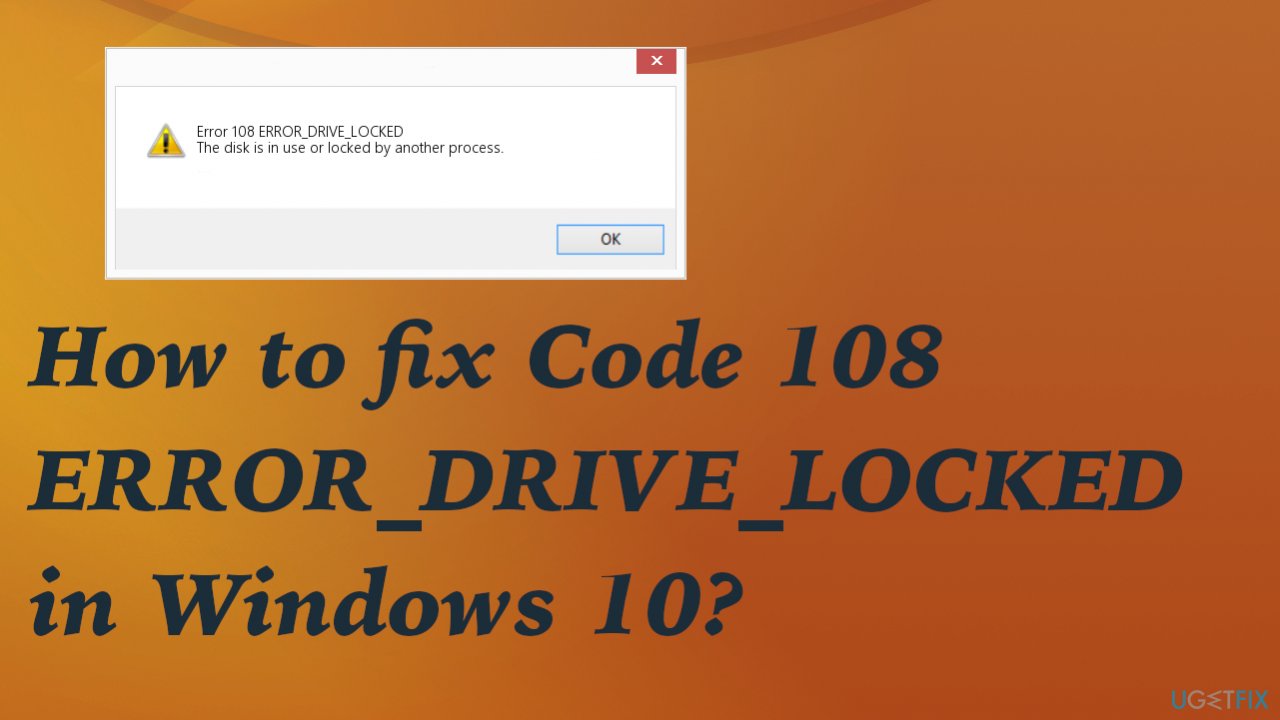
Code 108 ERROR_DRIVE_LOCKED in Windows means that the process you want to run is in use or the exclusive disk use prohibiting another process from accessing the drive at the time. It is possible that using other disks or retrying the operation later helps. However, repetition of the same error code and performance issues indicate that the machine has some problems.
Windows system errors are common and can occur during various processes and times on the machine. Unfortunately, when these issues with system performance paralyze the device, users need to investigate the root cause for the case. Receiving the error can indicate bugs or problems residing in Windows installation or updates.[ref en-1]
Another possible cause for the problem can be associated with files or drivers that get easily corrupted or altered. You need to solve those issues to fix Code 108 ERROR_DRIVE_LOCKED. In many cases, software and processes cannot work correctly when there are some inconsistency issues. Users might need to solve conflicting driver issues, repair damaged parts.
If the system freezes or you cannot correctly run the OS due to crashes and constant problems, you need to take serious action right about now. Slowness and crashes can indicate significant problems in the operating system, so solving the cause for the concern can prevent other errors from occurring. Files in the registry, malfunctioned drivers,[ref en-2] and other system files can get damaged by malware[ref en-3] too, so checking all possible reasons can help fix Code 108 ERROR_DRIVE_LOCKED in Windows 10.
If the prime reason for the Windows system errors is those affected, altered, corrupted files, you can solve the issue by repairing all the damaged components. [d1] can help you by checking the machine and fixing any detected issues. If you can pinpoint the software or hardware issue, you can solve the problem yourself. But it is more common for the users to have no idea why and when the issue started.
This is why we have a few methods for the solution of this error code. You need to address these problems and follow each method to repair possible issues on the machine. This is how you can fix Code 108 ERROR_DRIVE_LOCKED in Windows 10 without causing additional issues with the device.
1. Check for and repair corrupted system files
- Press Win+R and let the Run dialog appear on the screen.
- Type cmd and press Ctrl+Shift+Enter together to get the elevated Command Prompt or choose the option by searching cmd in the bottom bar.
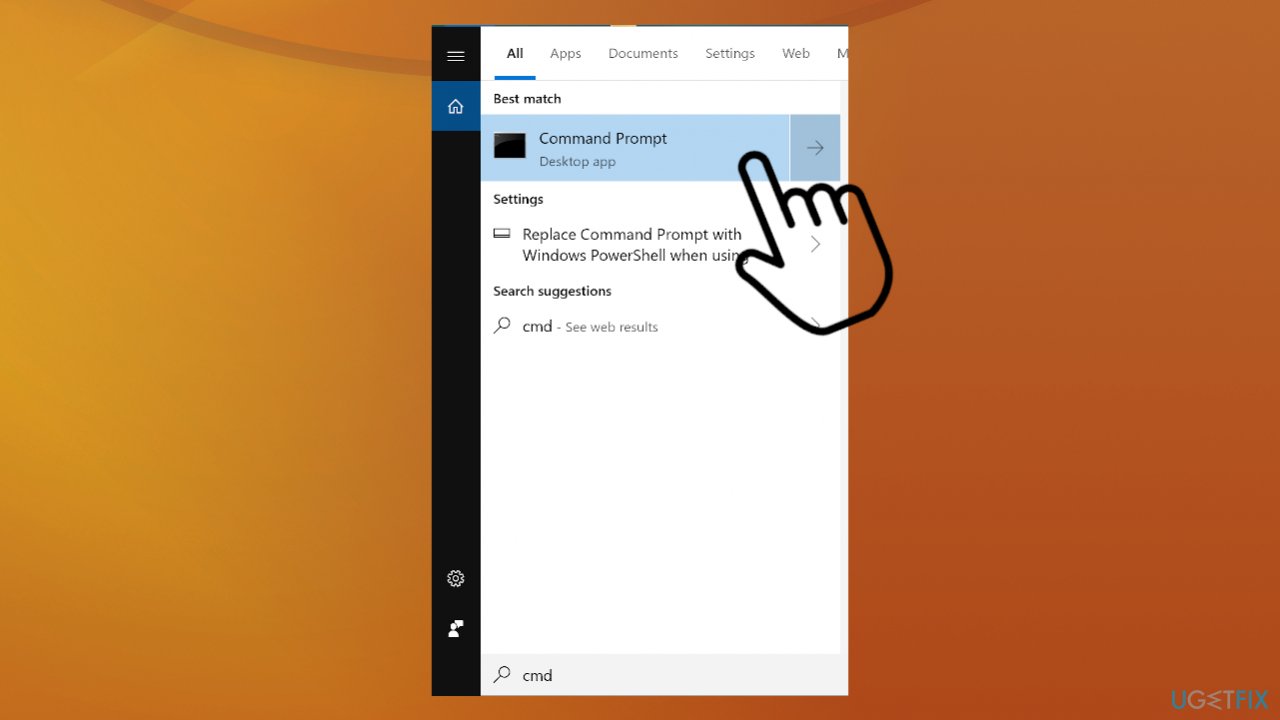
Code 108 error drive locked in windows cmd - Click on the Yes button if UAC prompts.
- Type in the following command and hit enter:
DISM.exe /Online /Cleanup-image /Restorehealth - Once that is finished, run:
sfc /scannow - Type cmd and press Ctrl+Shift+Enter together to get the elevated Command Prompt or choose the option by searching cmd in the bottom bar.
- Click on the Yes button if UAC prompts.
- Type in the following command and hit enter:
DISM.exe /Online /Cleanup-image /Restorehealth - Once that is finished, run:
sfc /scannow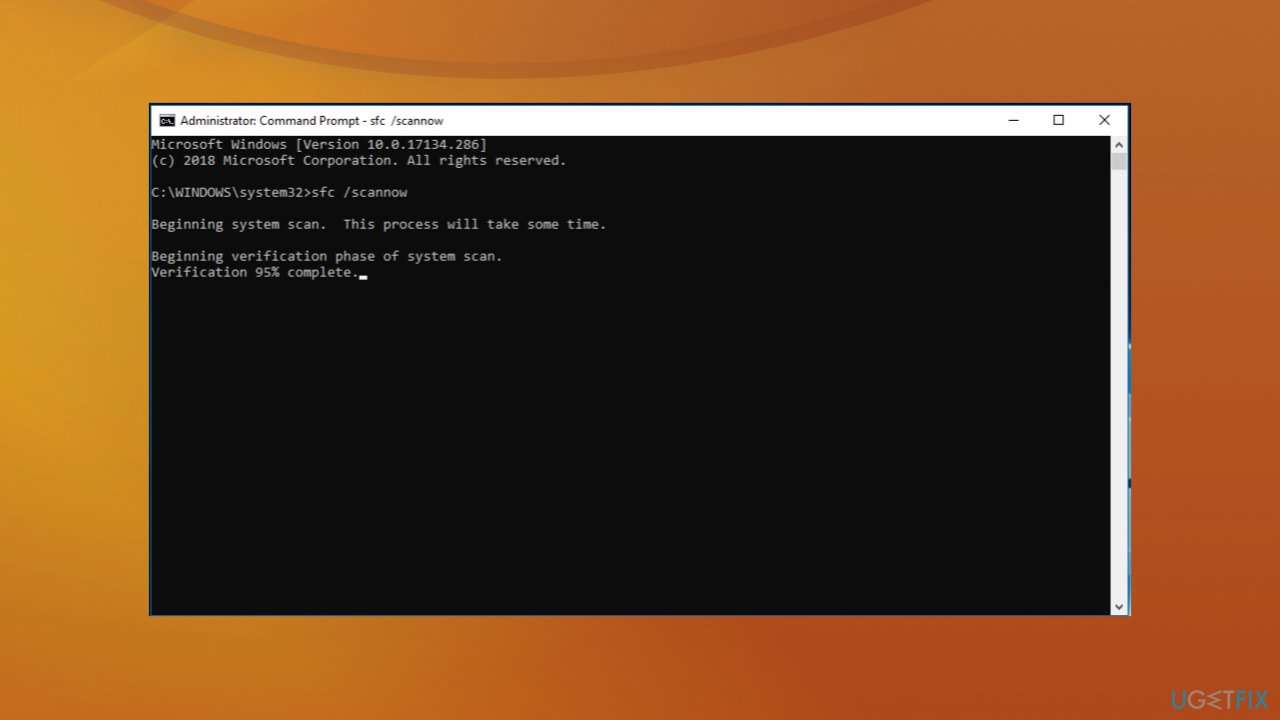
Code 108 error drive locked in windows sfc scan - Press the Enter to scan the system files.
- Try to update.
2. Update or reinstall drivers
- Launch device manager by searching for Device Manager or
- Click Windows key and R to open the Run box and launch devmgmt.msc.
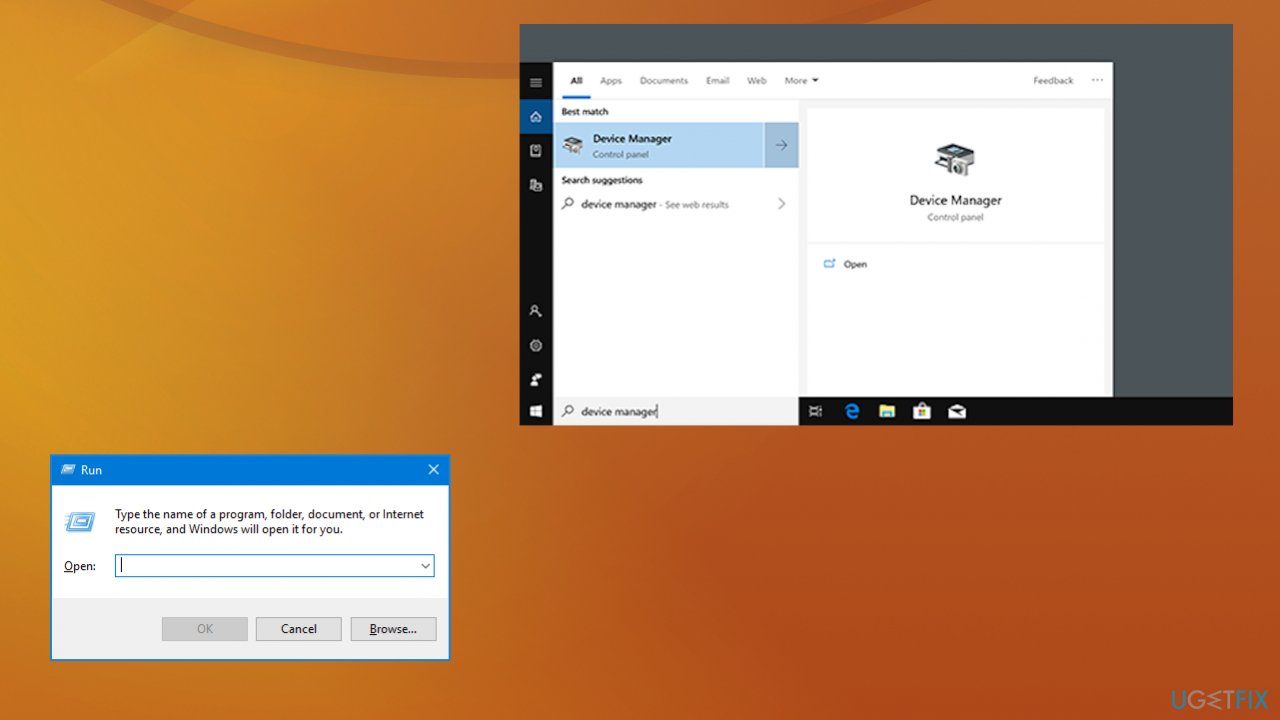
Code 108 error drive locked in windows devmgt - Find the driver on the list and right-click on it.
- Click Uninstall in case you want to reinstall the driver or Update Driver Software if you are trying to update it.
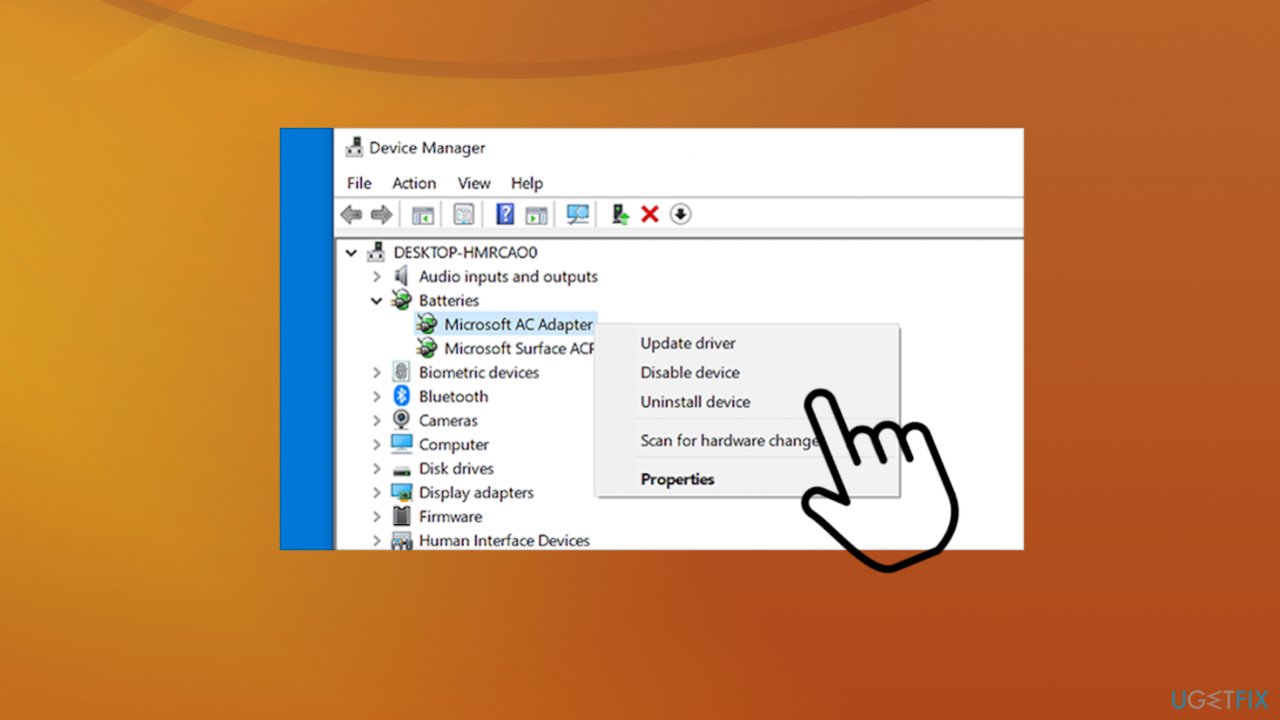
Code 108 error drive locked in windows driver options - Make sure the Delete driver software item is unchecked.
- Reboot the machine to save changes.
Alternatively, you can use a program like [rev id="DriverFix"] that acts as an automatic driver upkeep app. It can check the machine for any outdated software and upgrade them with compatible versions. This is the way to keep your machine up-to-date without manual interference. This is the proper application to get drivers from manufacturers and other reliable sources and save you time and hassle.
3. Rollback drivers
- Open Device Manager.
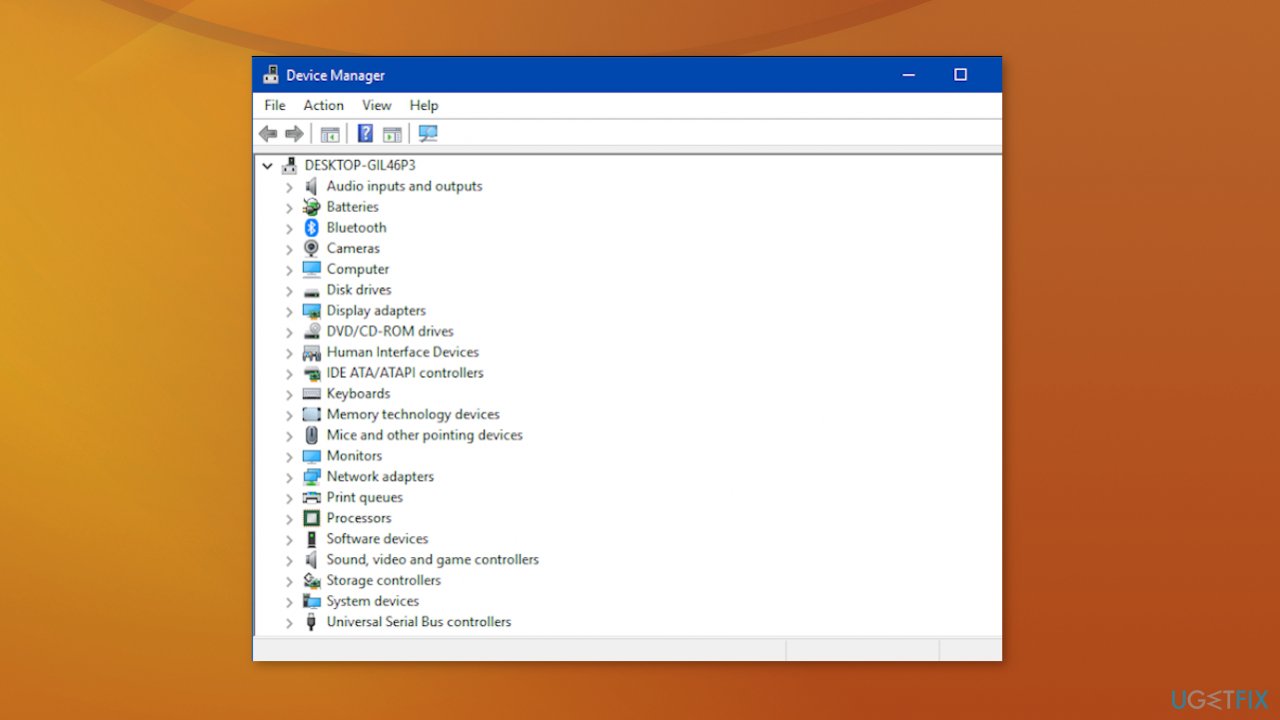
Code 108 error drive locked in windows device manager - Find the problematic driver.
- Right-click the device and click Properties.
- Click the Driver tab.
- Find the Roll Back Driver button, click that.
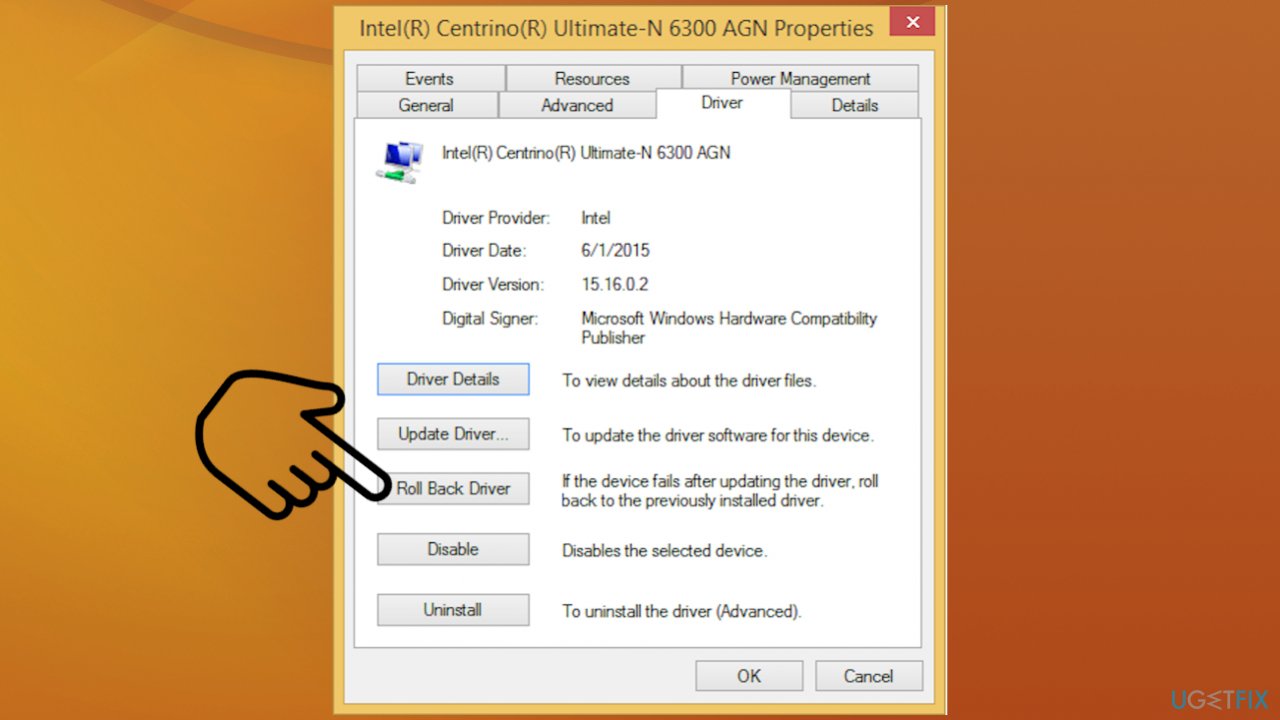
Code 108 error drive locked in windows rollback - Confirm the rollback by clicking Yes.
- Restart your computer after this.
4. Rely on System Restore
This is a risky solution. If you don't know what you are doing, this is not recommended. Create a backup of registry files
- Right-click the Start button.
- Then click System.
- Click System and Security.
- Hit System, and on the left side, click System protection.
- Choose System Restore.
- Follow the instruction to select your restore point.
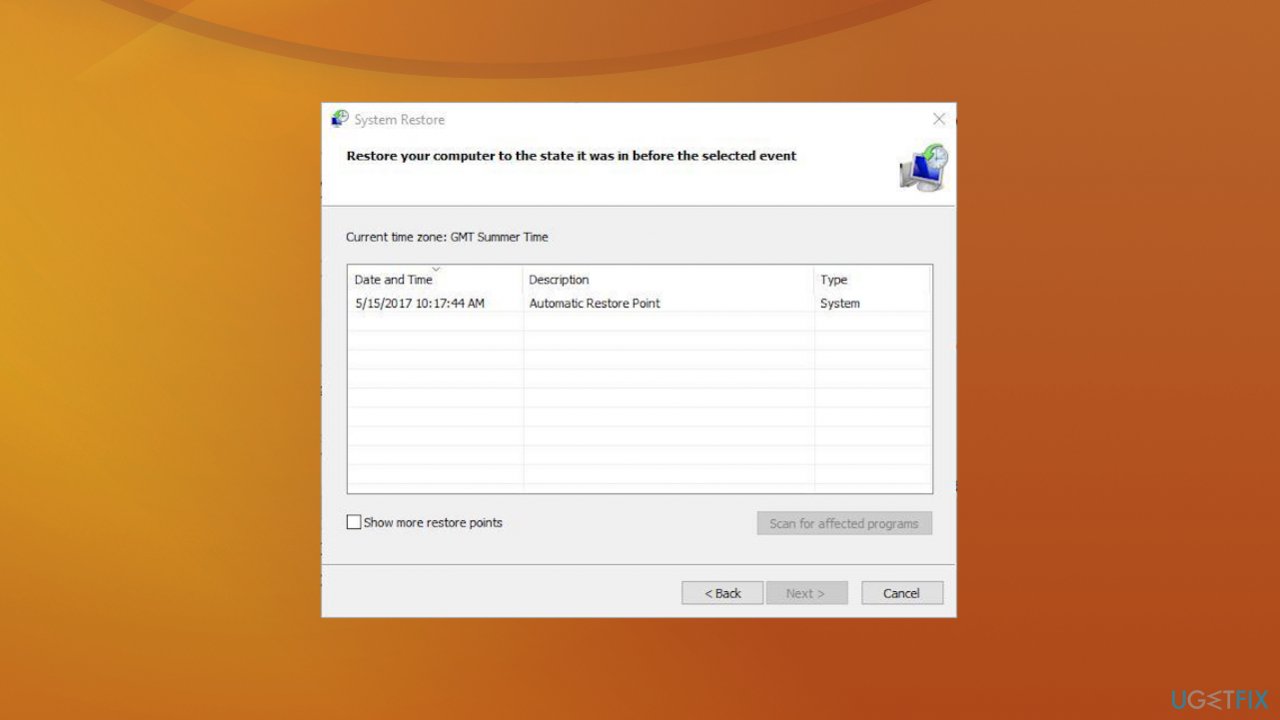
Code 108 error drive locked in windows restore points - Click Next until you see the Finish button.
- Wait for the process to finish.
5. Update the OS
- Go to Settings.
- Choose Update & Security
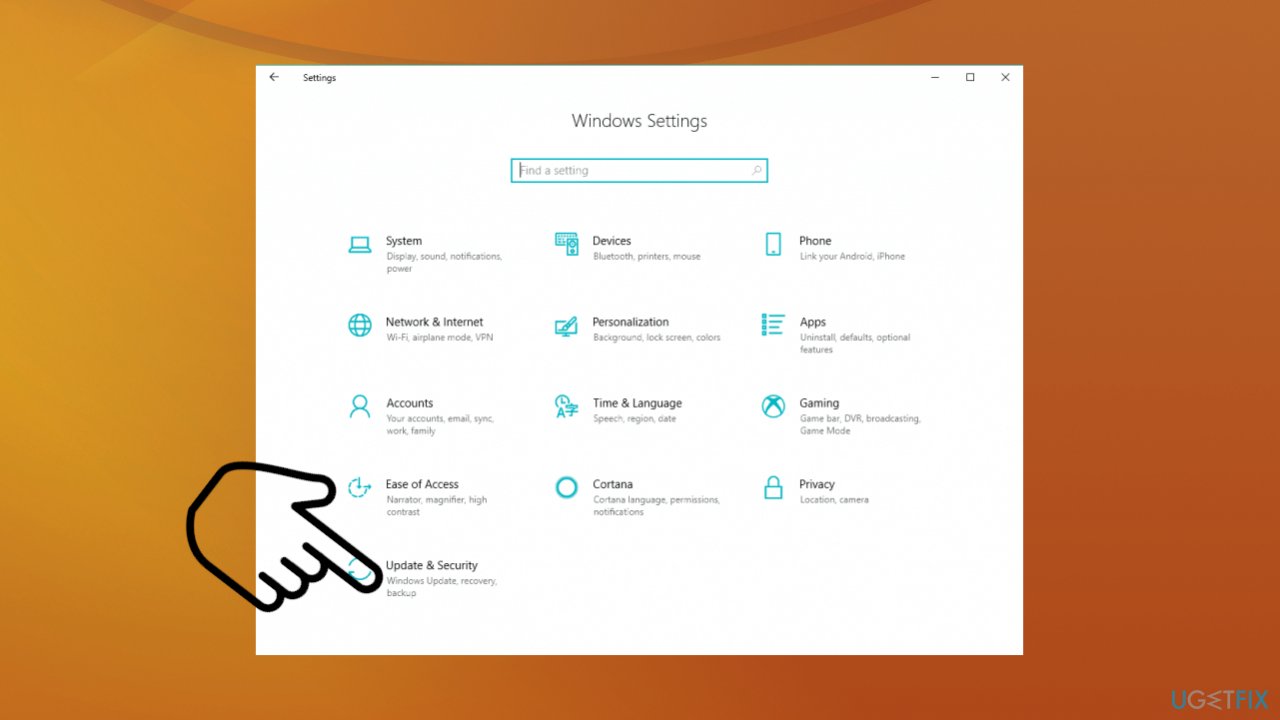
Code 108 error drive locked in windows settings - Select Windows Update.
- Find the check for updates option and run the check.
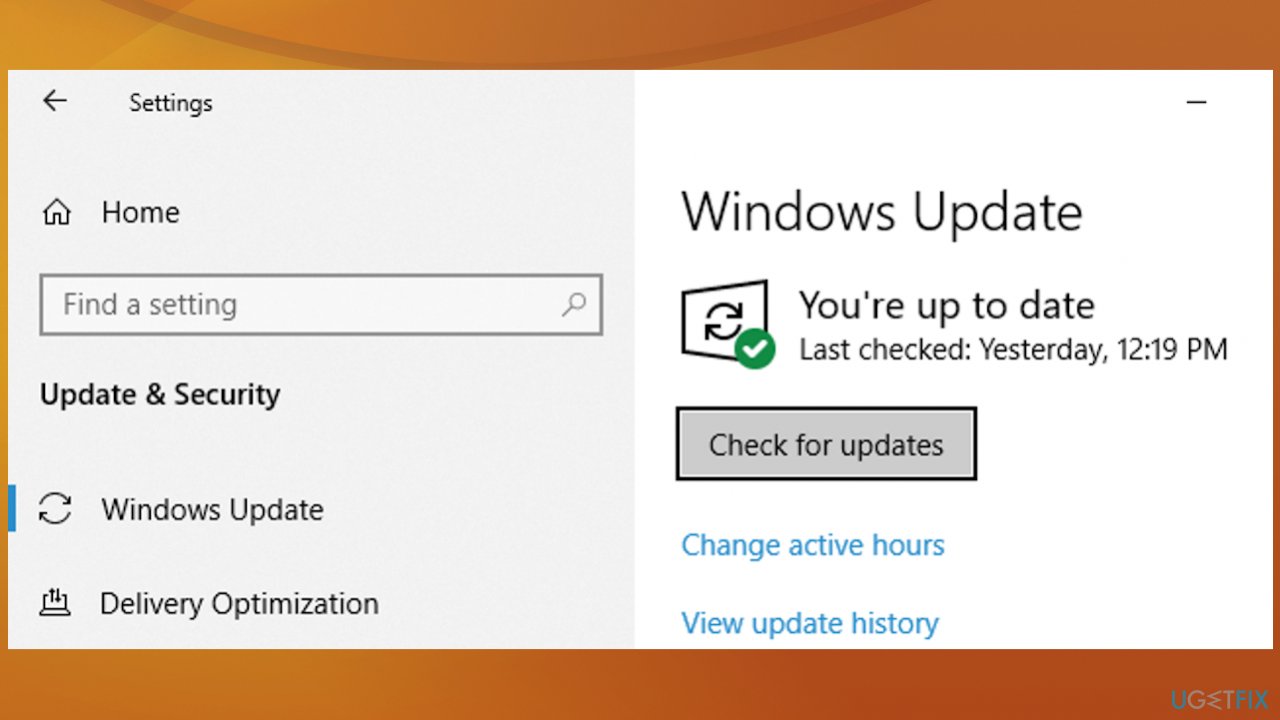
Code 108 error drive locked in windows check for updates - Install any pending updates to fix these issues.
Bottom line
To fix Code 108 ERROR_DRIVE_LOCKED, you may need to repair damaged components, resolve conflicting drivers, and check for malware. If these steps do not resolve the issue, further investigation into the system's performance and potential hardware problems may be necessary.
Frequently asked questions
The Code 108 ERROR_DRIVE_LOCKED typically occurs when a drive is in use, locked by a third-party application, or has file system errors. This can prevent access to the drive and cause issues in Windows 10.
To unlock a drive, ensure that no applications are using it, and you can also try rebooting your PC. If the issue persists, running a disk check using the Command Prompt may help resolve the drive's lock status.
Yes, you can attempt to fix the error by using Windows built-in tools like Disk Management or CHKDSK, which typically do not result in data loss. However, always back up important files before performing repairs.




Report an issue
What's wrong with this guide? We review every report and update or remove content.
Report received — thank you. We'll review and fix it.
You need a free account to submit a report.
Be the first to comment