How to fix
Com.android.vending:download_service using 100% CPU
on Windows
Resolve the com.android.vending:download_service issue causing 100% CPU usage on Windows 10 and 11. Expert-tested solutions await!

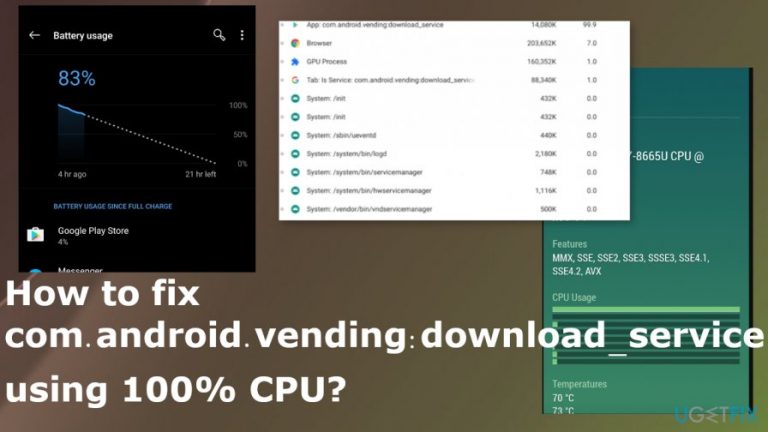
What causes How to fix com.android.vending:download_service using 100% CPU?
- High CPU usage due to a bug in the com.android.vending:download_service process
- Service running for long periods without downloading anything
- Overheating issues caused by prolonged resource usage
- Not all devices are affected, but specific models like Acer and ASUS Chromebooks experience constant issues
- Temporary solutions like killing the process only work for a limited time
Repairs Windows system files, removes malware, and restores a clean OS state — without reinstalling.
Hello. I have an issue with high CPU usage. The process com.android.vending:download_service eating resources, according to the Task Manager. It drains the device but there is nothing that the service downloads. Can you answer me what is the problem and how can I fix this?
Apparently com.android.vending:download_service process creates issues for users for a long time,[ref en-1] especially for ChromeOS users that have encountered this problem after the more recent update. People question if this service supposed to use high computer resources and run for a long time on the computer or not.[ref en-2]
The particular event com.android.vending:download_service is triggering issues with fans and resources, overheating when the task Service: com.android.vending:download_service appears on the screen running for long periods. It is not the common process, so force ending the task is not enough to tackle the initial problem.
Generally, com.android.vending:download_service is used to download new updates from the Google Play Store when those are available. But this bug causes high usage of CPU all the time without even downloading anything/ when the new update is not offered.[ref en-3]
This high resource usage issues with com.android.vending:download_service process is not affecting all Chromebooks. But Acer Chromebook, ASUS Chromebook Flip, Galaxy Chromebook users experience the overheating issue constantly. Killing the process can resolve the problem, but people state that the solution is working for a period of time, but the main issue remains unsolved.
It is possible to fix com.android.vending:download_service using 100% CPU by telling back to the older version of the OS via Google Play Store. This is the workaround that users online have reported trying, but there might be more things that users need to do since the big got analyzed further recently and experts offer more fixes, based on possible reasons.
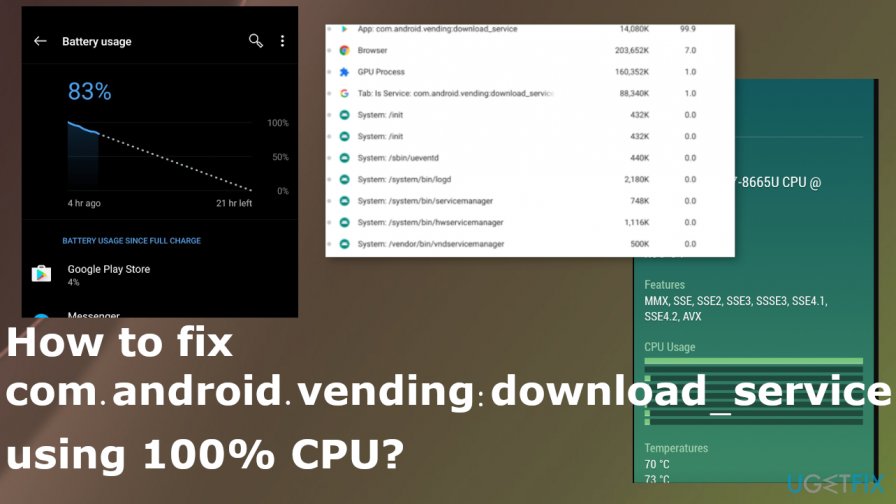
How to fix com.android.vending:download_service using 100% CPU
Some of the people that encountered this com.android.vending:download_service using 100% CPU issue stated that there are workarounds and possible temporary solutions. However, there is a need to fix the issue fully if you want to resolve the issue and avoid damage that can be triggered by overheating on the machine. This is not a malware issue, so you do not need to panic, but the problem might be triggered when ChromeOS is missing particular files. Managing files, applications, or properly reinstalling the OS can possibly fix com.android.vending:download_service using 100% CPU issue for you. Rely on listed methods and follow steps to achieve this.
Rollback to a previous ChromeOS version
- The problem started occurring when the ChromeOS 85.0.4183.108 and later versions received updates.
- Try to reboot the machine and while it is rebooting hold Ctrl+Alt+Shift+R buttons
- Then press those buttons again and wait for the Powerwash and Revert.
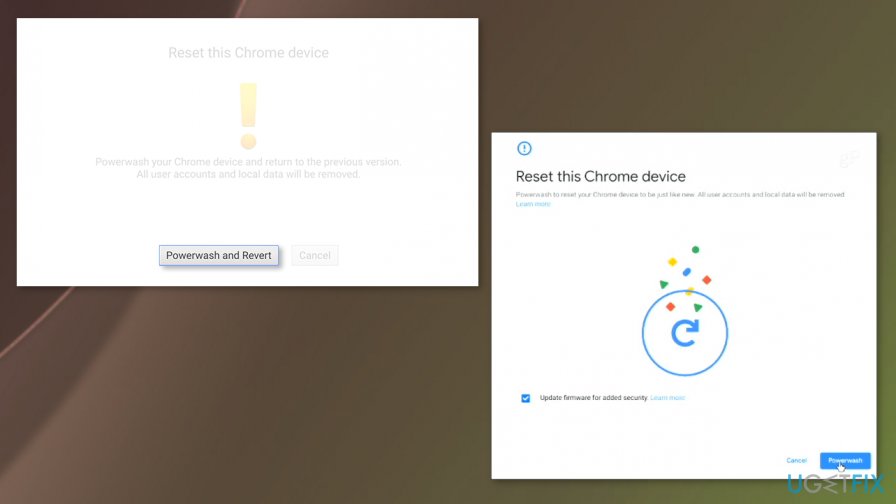
How to fix com android vending download service using 100 cpu powerwash - Click the Powerwash button and begin the rollback.
Uninstall updates to fix com.android.vending:download_service using 100% CPU
- Go to Settings.
- Locate the Apps section and find the Application Manager.
- Choose All when the list appears on the screen.
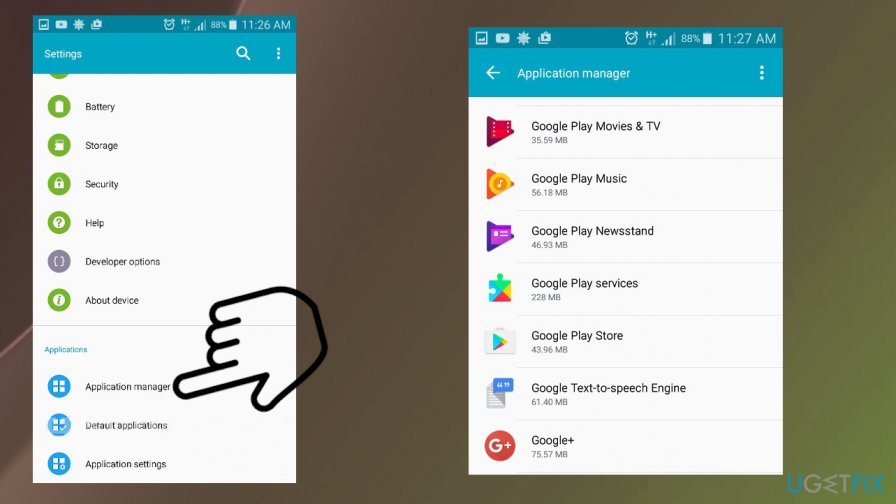
How to fix com android vending download service using 100 cpu app manager - Find the Google Play app and tap that.
- Choose Uninstall Updates.
- Run the Google Play Store and allow the application to uninstall updates, and the application should no longer display the process error.
Wipe clean the device to fix com.android.vending:download_service using 100% CPU
- Remove the SD card to save that data.
- Hold the Power key and Volume down button to see the screen with options.
- Go to Backup and Restore mode for a full factory reset.
- Wait for the complete reset.
- Reboot the phone in Recovery Mode and wipe the cache of the device.
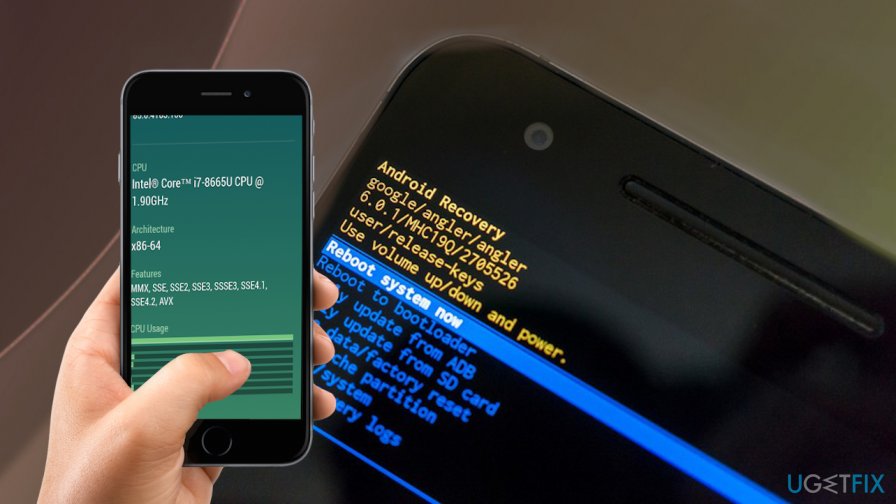
How to fix com android vending download service using 100 cpu android recovery
Bottom line
To fix the com.android.vending:download_service using 100% CPU, users can revert to an older version of the OS via the Google Play Store. It is important to fully resolve the issue to prevent overheating damage. If these solutions do not work, further investigation may be necessary.
Frequently asked questions
The high CPU usage is often linked to issues with the Google Play Store or Android emulators running on Windows 10, which may be trying to sync or download apps excessively.
You can try clearing the cache of the Google Play Store app within the emulator, or reinstalling the emulator software to resolve the CPU usage problem.
Disabling automatic updates for apps in your Android emulator settings can help mitigate the CPU usage caused by com.android.vending:download_service.




Report an issue
What's wrong with this guide? We review every report and update or remove content.
Report received — thank you. We'll review and fix it.
You need a free account to submit a report.
Be the first to comment