How to fix
Comctl32.dll missing or not found error
on Windows
Resolve the comctl32.dll missing error on Windows 10 and 11 quickly and easily. Follow our expert-tested solutions for a seamless experience. Fixed in m…


What causes How to fix comctl32.dll missing or not found error in Windows?
- Deletion of the comctl32.dll file
- Corruption of the comctl32.dll file
- Replacement by an ill-fated version of the file
- Infections caused by malware
- Problems arising from Windows update
Repairs Windows system files, removes malware, and restores a clean OS state — without reinstalling.
I don't know what happened, but there are several programs I can no longer open anymore. Every time I try to launch one of them, I get the following message "The program can't start because C:\WINDOWS\WinSxS\x86_microsoft.windows.common-controls\COMCTL32.dll is missing from your computer. Try reinstalling the program to fix this problem. " Please help - I really need those apps to work again.
DLL, or Dynamic Link Library, files are key support files inside a Windows system that allows programs to work by providing needed functionalities and resources. Such files are shared among many applications that depend on them for their seamless functioning.
One such critical DLL file is comctl32.dll, which is responsible for running elements of the user interface, like buttons, scroll bars, and windows among others, inside various applications.
Most users are met with the comctl32.dll missing or not found error on the Windows system, normally when trying to launch the application or during a boot-up operation. This error suggests that the system cannot find the necessary DLL file, which, in turn, hinders it from running an application as needed.
Some scenarios are related to this issue where the DLL file is lost because of deletion, corruption, or replacement by an ill-fated version. Infections caused by malware and problems arising from Windows update can also lead to this kind of problem.
The following are some of the measures that can be taken to restore or replace the missing comctl32.dll file. However, if that does not work through basic troubleshooting steps, [d1] the repair app is handy in finding and restoring the underlying Windows problems that lead to the comctl32.dll error.
In this way, you will be able to fix comctl32.dll missing or not found error and get applications to be functional again.

Fix 1. Run SFC and DISM
Fix corrupted system files by following these steps:
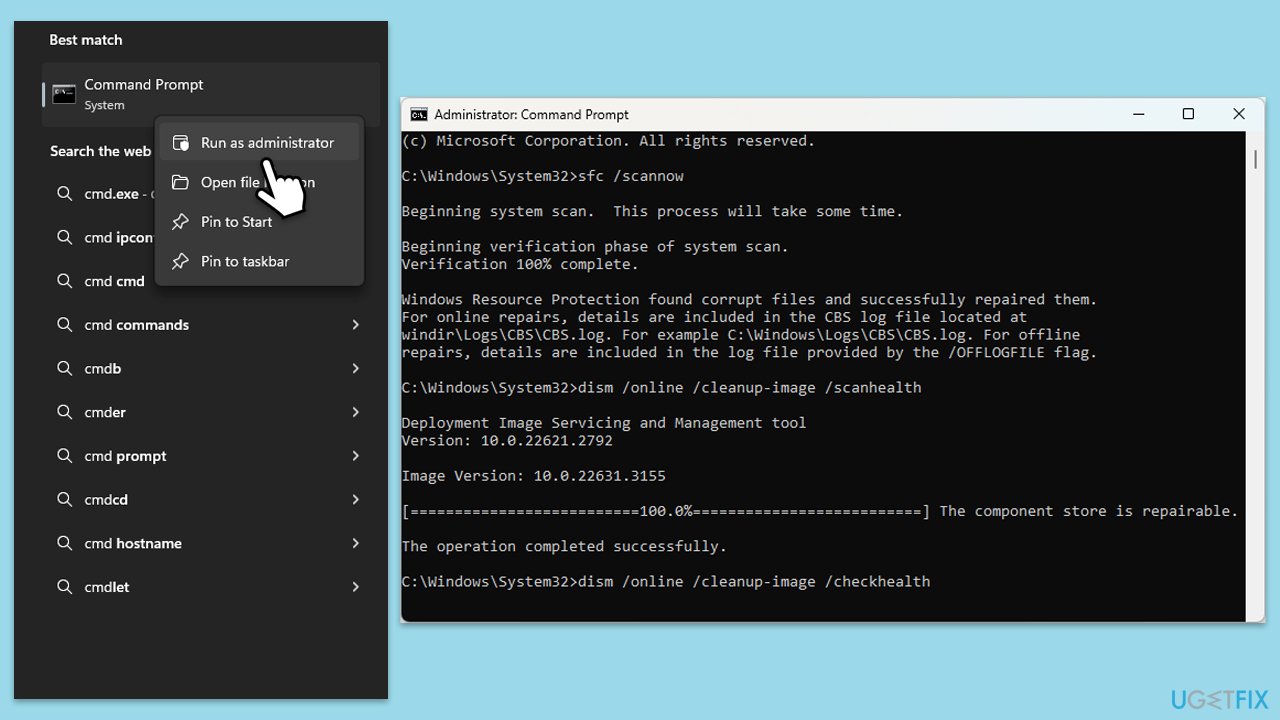
- Type cmd in Windows search.
- Right-click on Command Prompt and select Run as administrator.
- When User Account Control window shows up, click Yes.
- Paste the following command into the new window:
sfc /scannow - Press Enter and wait till the scan is executed.
- As soon as the scan finishes, Windows will report whether integrity violations were found and if they could be fixed. Regardless of the outcome, use these commands next, pressing Enter after each:
DISM /Online /Cleanup-Image /CheckHealth
DISM /Online /Cleanup-Image /ScanHealth
DISM /Online /Cleanup-Image /RestoreHealth
(Note: if you get an error executing this last command, add /Source:C:\RepairSource\Windows /LimitAccess to it and try again). - Restart your computer.
Fix 2. Re-register the comctl32.dll file
If the DLL file has become unregistered, then it can be restored to full functionality through re-registration.
- Open Command Prompt as administrator.
- In the prompt, type in the following command and press Enter:
regsvr32 /u SysMenu.dll - After that, type the next command and hit Enter:
regsvr32 /i SysMenu.dll - Restart your device to apply the changes.
Fix 3. Install Windows updates
It can also replace missing or corrupted system files by installing new updates.
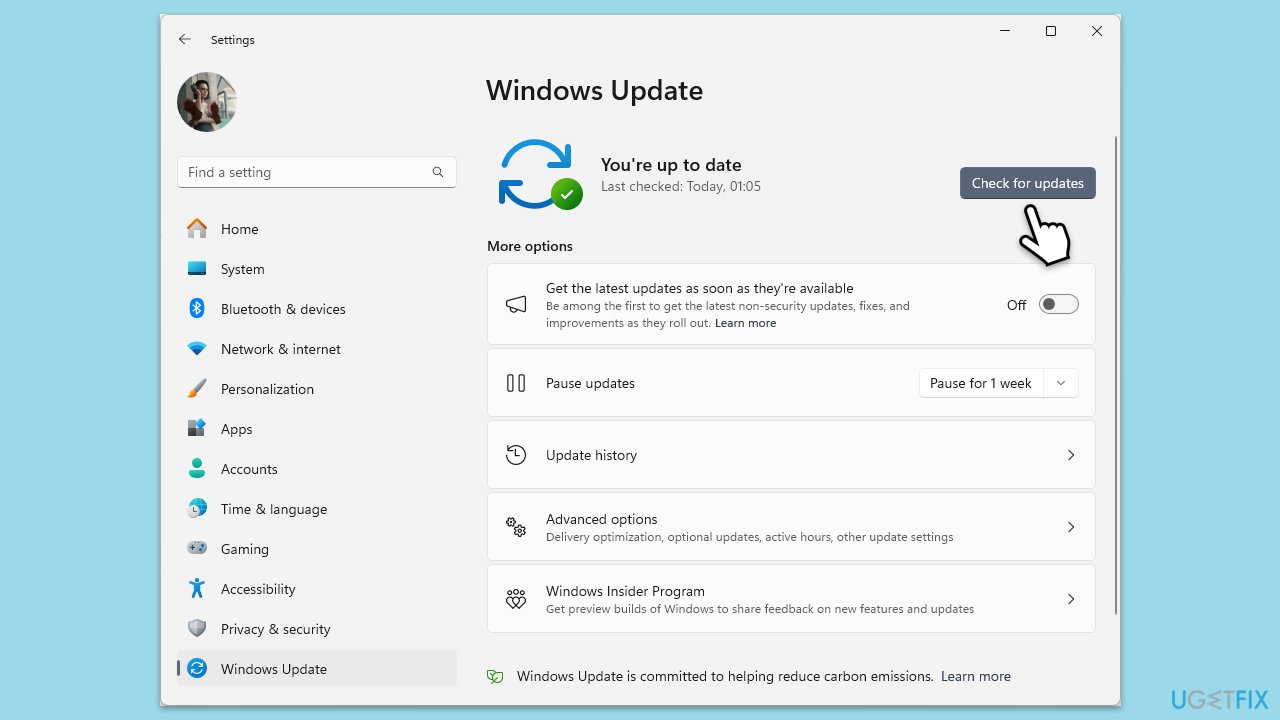
- Type Updates in Windows search and press Enter.
- Here, click Check for updates.
- Wait till Windows downloads and installs all the files.
- If optional updates are available, install them as well.
- Reboot your system.
Fix 4. Run a malware scan
You can use Microsoft Safety Scanner or even employ deep scan with Microsoft Defender:
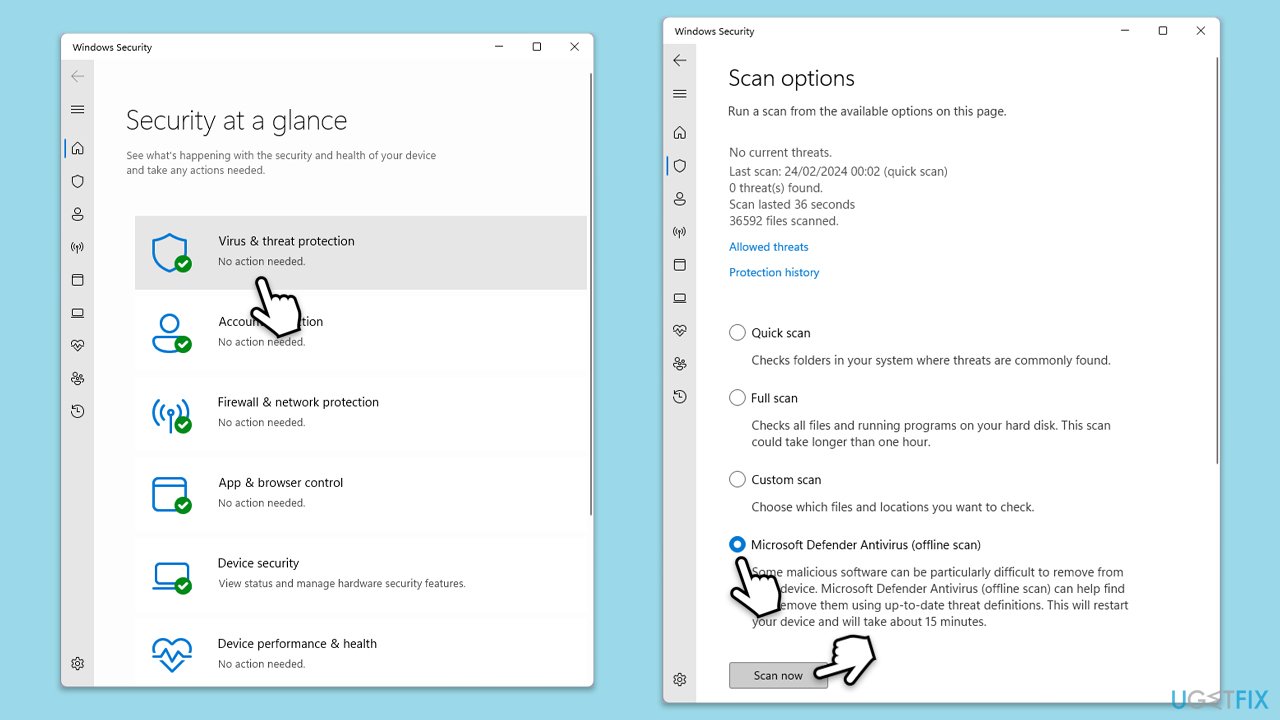
- Type Windows Security in the Windows search bar and hit Enter.
- Select Virus & threat protection.
- Pick Scan options.
- Choose Microsoft Defender Offline scan and click Scan now.
- Your computer will immediately restart to begin a deep scan.
Fix 5. Restore the system using System Restore
With System Restore, you can return your computer to the state when the DLL file was intact.
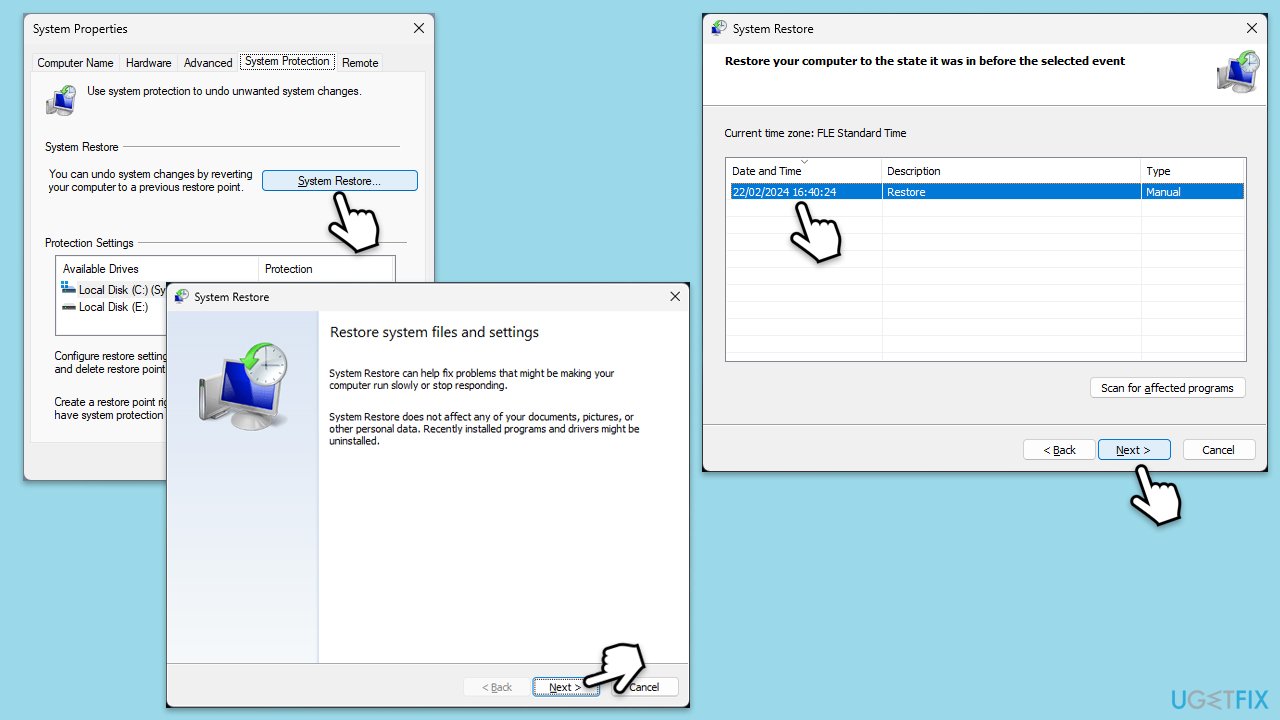
- Type System Restore in the search box and click Create a restore point.
- In the System Properties window, click System Restore.
- Click Next, choose a restore point from before the issues began, and click Next again.
- Follow the on-screen instructions to complete the restoration.
- Restart your computer after the process is completed.
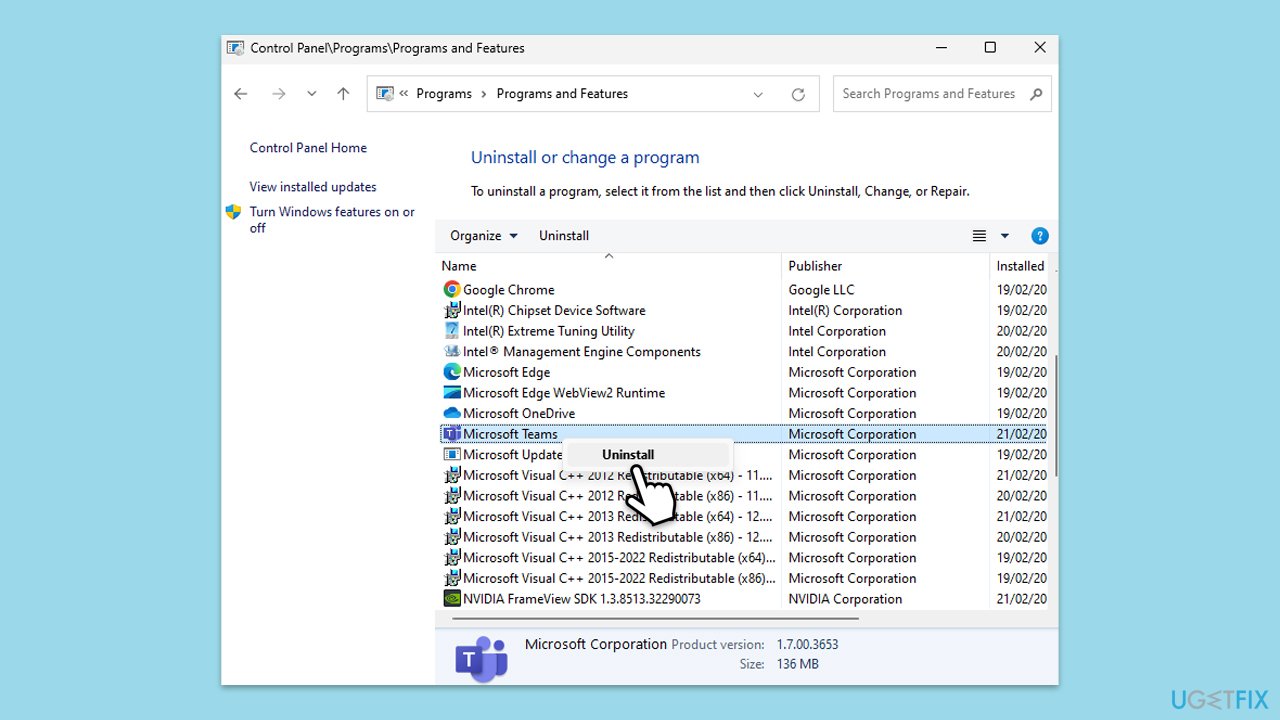
Fix 6. Reinstall the affected program
Reinstalling the program that triggers the error can replace missing or corrupted DLL files.
- Type Control Panel in Windows search and press Enter.
- Go to Programs > Uninstall a program.
- Select the affected application.
- Click on Uninstall and follow the prompts.
- Download the latest version of the application from its official website.
- Install the application following the installation prompts.
Fix 7. Use Media Creation Tool
Media Creation Tool allows you to repair your Windows installation by replacing corrupted or missing system files, including DLLs.
- Visit the official Microsoft website and download Windows 10 installation media (Windows 11 version).
- Double-click the installer and select Yes when UAC shows up.
- Agree to terms.
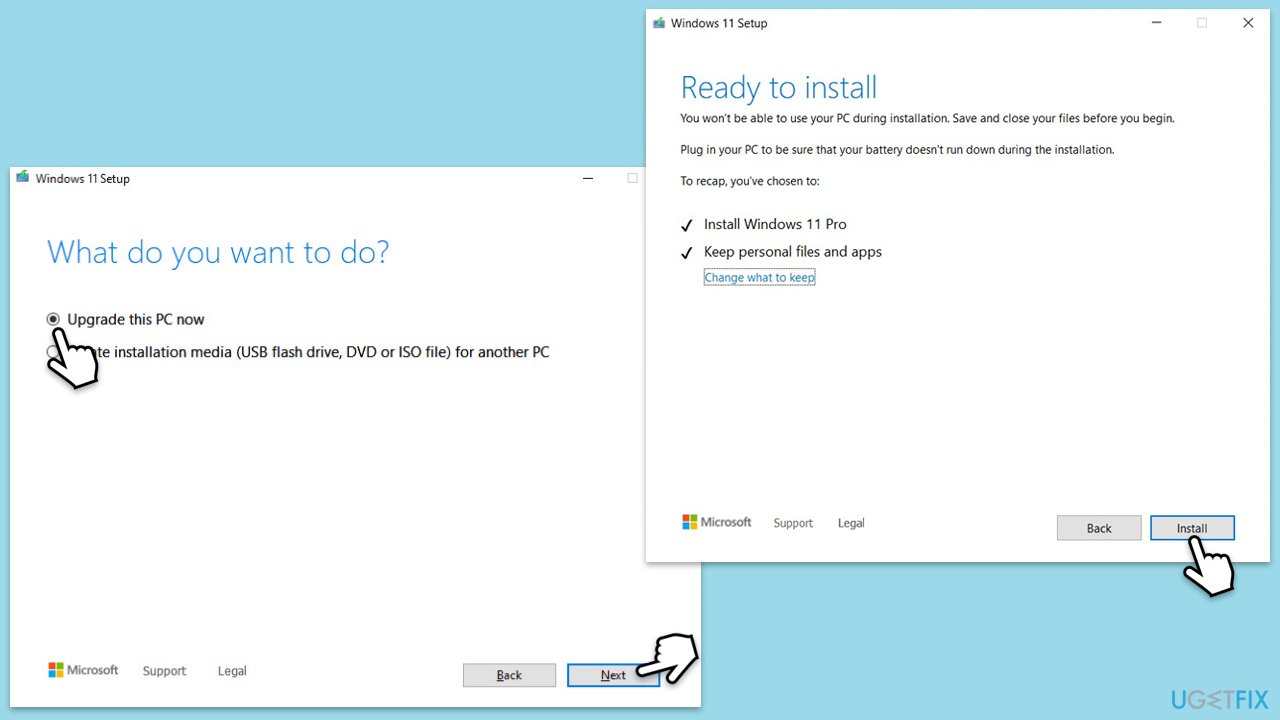
- Select Upgrade this PC now and select Next.
- Windows will now download all the necessary files – it might take a while.
- Agree to terms once again and click Next.
- Before installing, make sure that you are happy with your choices (otherwise, you can click the Change what to keep option).
- Click Install to begin the upgrade process.
Bottom line
To fix the comctl32.dll missing or not found error, you can run the SFC and DISM commands to repair corrupted system files. If these basic troubleshooting steps do not resolve the issue, consider using a repair app to restore underlying Windows problems.
Frequently asked questions
The comctl32.dll missing error in Windows 10 can be caused by corrupted system files, malware infections, or improper software installations. Running a system file check can often resolve this issue.
To restore the comctl32.dll file in Windows 11, you can use the System File Checker tool by running 'sfc /scannow' in an elevated Command Prompt. Alternatively, reinstalling the application that triggered the error may also restore the missing file.
Downloading comctl32.dll from the internet is not recommended as it may come from untrusted sources and pose security risks. It's safer to restore the file using built-in Windows tools or reinstalling the affected software.




Report an issue
What's wrong with this guide? We review every report and update or remove content.
Report received — thank you. We'll review and fix it.
You need a free account to submit a report.
Be the first to comment