How to fix
CompatTelRunner.exe high CPU usage
on Windows
Resolve CompatTelRunner.exe high CPU usage on Windows 10 and 11 effortlessly. Follow expert-tested tips for a smoother experience, fixed in minutes!

What causes How to fix CompatTelRunner.exe high CPU usage in Windows?
- High CPU usage during Windows updates
- Compatibility checks for older software
- Corrupted system files
- Resource-intensive applications running simultaneously
- Less capable hardware
Repairs Windows system files, removes malware, and restores a clean OS state — without reinstalling.
Hello. My Windows PC is slow and sometimes lagging. I noticed in Task Manager that the CompatTelRunner.exe process is using high amounts of CPU. Is there a way to fix this?
An essential part of the Windows operating system, CompatTelRunner.exe handles activities relating to Windows updates and compatibility testing. However, there are times when this process can become problematic, most notably when it uses a lot of CPU[ref en-1] power. Users may experience frustration over this problem, which could also affect how well their systems function as a whole.
The most typical association of the CompatTelRunner.exe process with Windows updates is updating. CompatTelRunner.exe is used to check for problems with installed software and hardware compatibility when Windows Update is running. Although this is necessary to ensure a smooth updating process, excessive CPU usage by this procedure might cause system lags, decreased responsiveness, and higher battery usage. As the CPU works overtime, users may notice their PCs becoming sluggish, their apps responding slowly, and fan noise.
CompatTelRunner.exe's ability to handle compatibility checks when running applications created for earlier versions of Windows is an essential feature. While CompatTelRunner.exe's high CPU utilization is a useful feature for ensuring that older software runs smoothly on more recent versions of Windows, it can be difficult for users to multitask or use resource-intensive apps without experiencing performance issues.
The intensity of the CPU utilization by CompatTelRunner.exe and the hardware capabilities of the system will determine how this issue affects users. High CPU utilization on less capable computers may make the computer practically unusable, resulting in lost productivity. Excessive CPU usage can be annoying and have a detrimental impact on the user experience, even on more powerful devices.
In this guide, you will find 5 steps that should help you fix CompatTelRunner.exe high CPU usage in Windows. You can also try running a system repair tool like [d1] that can fix most system errors, BSODs,[ref en-2] corrupted files, and registry[ref en-3] issues. Otherwise, follow the step-by-step instructions below.
Solution 1. Fix Corrupted System Files
Use Command Prompt commands to repair system file corruption:
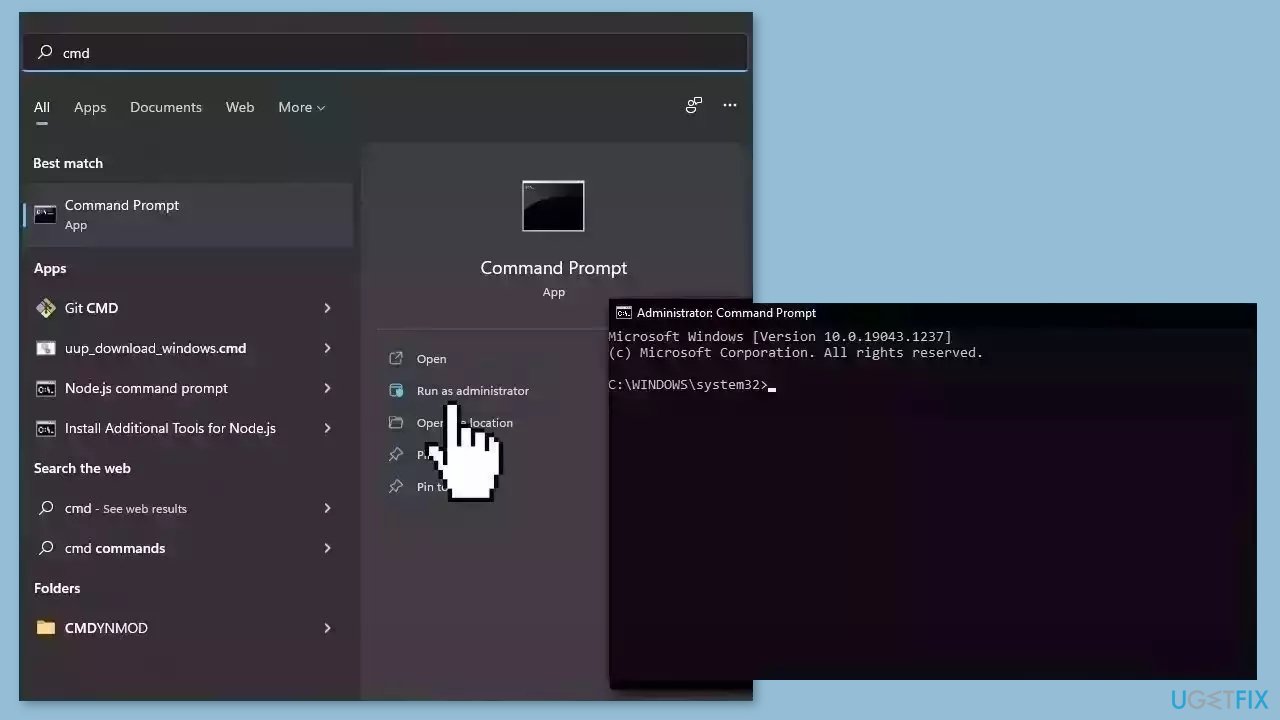
- Open Command Prompt as administrator
- Use the following command and press Enter:
sfc /scannow
- Reboot your system
- If SFC returned an error, then use the following command lines, pressing Enter after each:
DISM /Online /Cleanup-Image /CheckHealth
DISM /Online /Cleanup-Image /ScanHealth
DISM /Online /Cleanup-Image /RestoreHealth
Solution 2. Disable Microsoft Compatibility Appraiser
- Press the Windows key + R on your keyboard to open the Run utility.
- Type in taskschd.msc and press the Enter key on your keyboard.
- Using the left-side pane, navigate to the Library > Microsoft > Windows > Application Experience location.
- In the middle area, right-click on any of the tasks labeled Microsoft Compatibility Appraiser.
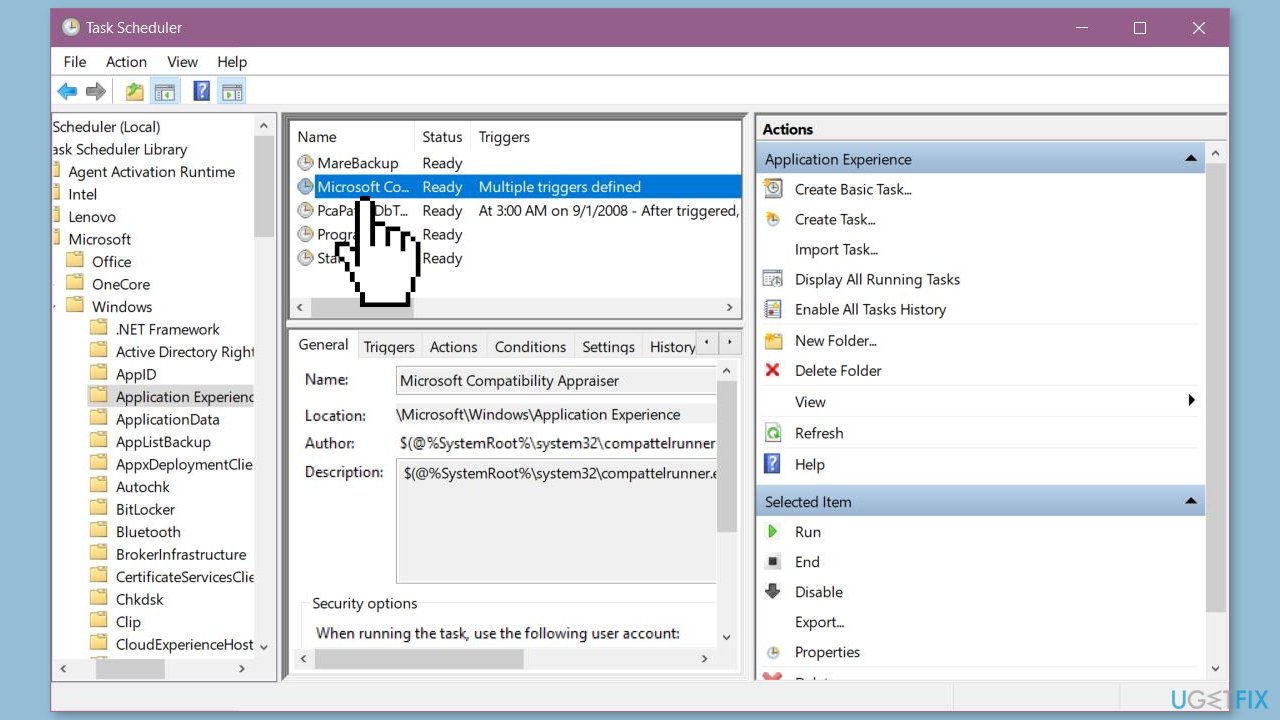
- From the context menu, choose the Disable option.
- Reboot your computer to apply the changes.
- Check if this helped resolve your issue with the CompatTelRunner.exe process consuming excessive CPU resources.
Solution 3. Edit the Windows Registry
- Press the Windows key + R to open the Run utility.
- Type in regedit and press the Enter key on your keyboard. This will launch the Registry Editor application.
- Use the Navigation pane to reach the following Registry key, or use the address bar and copy-paste the file's location:
HKEY_LOCAL_MACHINE\SOFTWARE\Policies\Microsoft\Windows\DataCollection
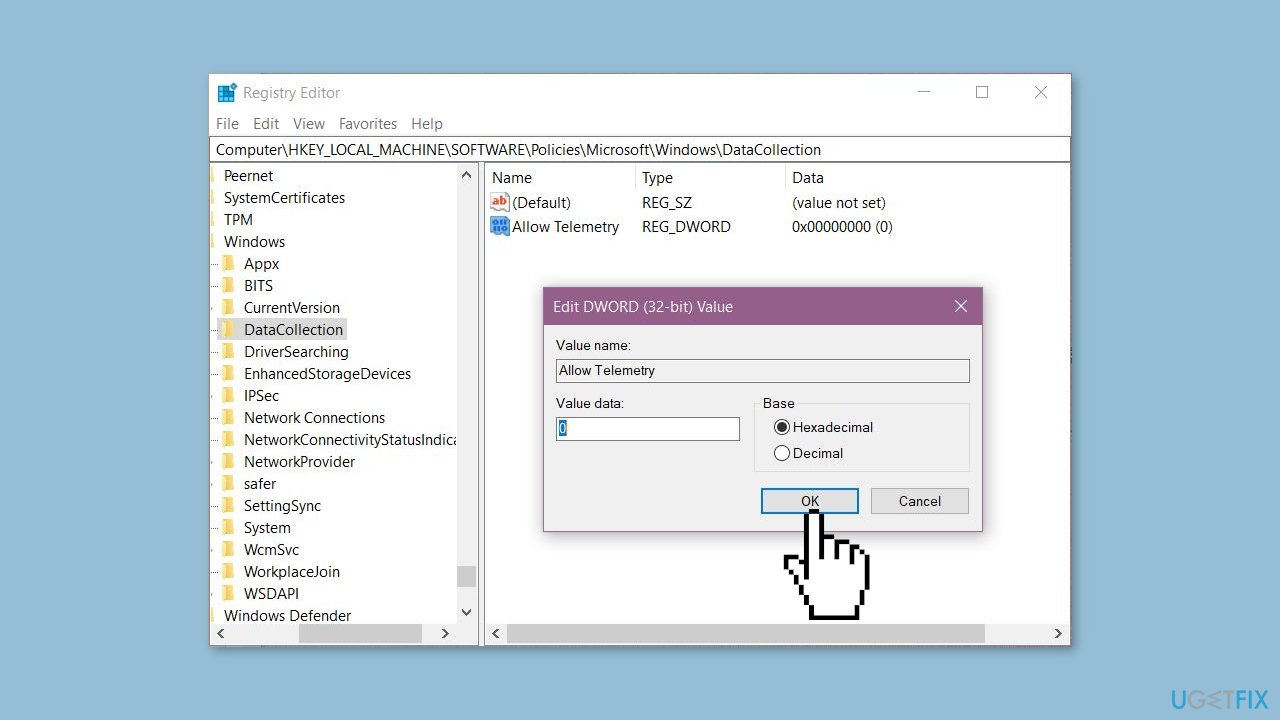
- Right-click on any empty space in the right pane.
- From the context menu that appears, select New > DWORD (32-bit) Value.
- Name the new value Allow Telemetry and press the Enter key to create it. You may need to have an administrator account to perform this step.
- Double-click on the value you just created.
- Set its value to 0.
- Click OK to save the changes.
- Reboot your computer to apply the changes.
Solution 4. Modify the Group Policy Editor
- Search for Group Policy in your search box and click on Edit group policy from the search results.
- Navigate to the following location within the Group Policy window: Computer Configuration > Administrative Templates > Windows Components > Data Collection and Preview Builds.
- Double-click on the Allow Telemetry entry.
- Select the Disable option, and then click OK.
- Make sure to reboot your computer to apply the change permanently.
- Monitor your CPU usage to check for any improvements.
Solution 5. Remove CompatTelRunner.exe
- Press the Windows key + R keys on your keyboard to open the Run utility.
- Type in C:\Windows\System32 and click on the OK button. This will open a File Explorer window in the correct location.
- Locate the CompatTelRunner.exe file in the folder.
- Right-click on the CompatTelRunner.exe file to bring up a context menu and select Properties from the list of options.
- In the Properties window, switch to the Security tab.
- Click on the Advanced button to access special permissions and settings.

- Click on the Change link next to the current owner of the CompatTelRunner.exe file, which should be TrustedInstaller. You'll need administrative permissions to do this.
- In the Enter the object name to select field, type Administrators.
- Click on the Check Names button. The system should automatically input the full name. When done, click the OK button.
- Select the administrator group, and click on the Edit button. A new window should open.
- Click on Select a principal and choose the Administrators group.
- Place a checkmark next to the Full Control option to grant administrator accounts full permissions to the folder and its files.
- Click the OK button twice to save your changes and exit the advanced properties window.
- Now, you should be able to right-click on the CompatTelRunner.exe file and select Delete from the context menu.
- Restart your computer and check if there are any improvements to your CPU usage and performance.
Bottom line
To fix CompatTelRunner.exe high CPU usage, you can try fixing corrupted system files using Command Prompt, running a system repair tool, or following the step-by-step instructions provided in the guide. If none of these solutions work, consider seeking additional technical support.
Frequently asked questions
CompatTelRunner.exe is a Windows process related to the Compatibility Telemetry feature, which collects data to improve user experience. High CPU usage can occur due to excessive data collection or if it's stuck in a loop.
You can disable CompatTelRunner.exe by modifying the Task Scheduler settings or by turning off the Compatibility Telemetry feature in the Group Policy Editor. This should help reduce CPU usage significantly.
Stopping CompatTelRunner.exe may prevent your system from sending diagnostic data to Microsoft, which could affect the quality of future updates and features in Windows 10 or Windows 11.




Report an issue
What's wrong with this guide? We review every report and update or remove content.
Report received — thank you. We'll review and fix it.
You need a free account to submit a report.
Be the first to comment