How to fix
“Compile Error in Hidden Module” error message when opening word/excel files
on Windows
Resolve the "Compile Error in Hidden Module" in Word and Excel on Windows 10 and 11 effortlessly. Fast fixes that leave zero traces behind!

What causes How to fix “Compile Error in Hidden Module” error message when opening word/excel files?
- Incompatible 32-bit add-ins on Office 2016 for Mac
- Upgrade from 32-bit to 64-bit version of Office 2016 for Mac
- Missing add-in buttons from the ribbon
- Add-ins colored in grey
- Leftover 32-bit add-ons after upgrade
Repairs Windows system files, removes malware, and restores a clean OS state — without reinstalling.
Hello. When I’m trying to launch Office 2016 for Mac Applications, I receive a message that reads: “Compile error in hidden module”. I don’t know why this has started happening because everything has worked fine a couple of days ago. Could you please comment? Thanks in advance!
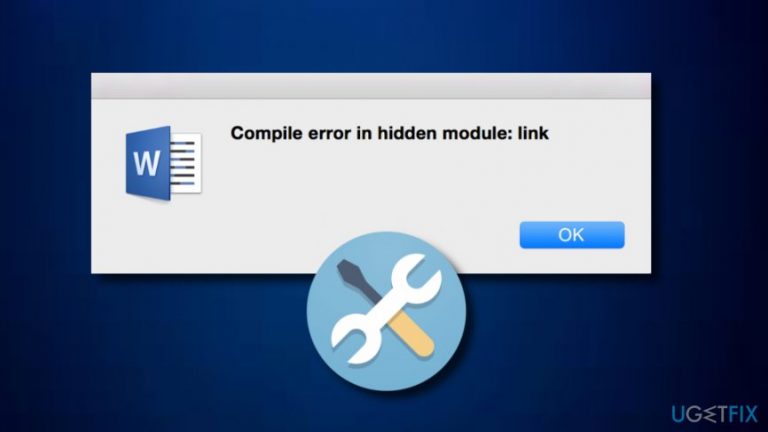
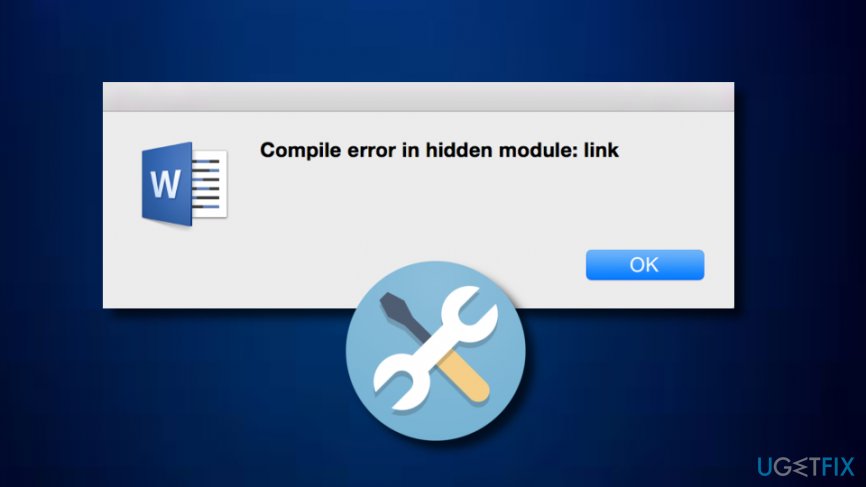
From August 22, 2016, Microsoft has started upgrading Office 2016 for Mac Applications from 32-bit version to 64-bit version. At the time being, all 32-bit versions should be upgraded already. While the majority of Office 2016 for Mac[ref en-1] users did not notice any changes, a few of them have reported about an error message saying: “Compile error in hidden module: Link”, which occurred immediately after the upgrade.
This issue might happen only if there are some incompatible 32-bit add-ins on the Office. In other words, some add-ins on the Mac OS contain a code, which is incompatible with the current version of the Office 2016 for Mac. To check that, you should open any of the Office 2016 for Mac application and look for the buttons of add-ins colored in grey.
Besides, you may notice that the add-on buttons are completely missing from the ribbon. In case your Office 2016 for Mac has been successfully upgraded to the 64-bit version, but some of the 32-bit add-ons were left installed, there is the only way to fix "Compile error in hidden module: Link" error – to disable incompatible add-ins.
How to fix "Compile Error in Hidden Module" error message when opening word/excel files?
Fix 1. Turn of Add-ins that are incompatible with the 64-bit Mac version
- Open Office 2016 for Mac application and turn off the add-ins.
- Once done, got to Tools and open Templates and Add-ins.
- All available add-ins will be displayed in the Global Templates and Add-ins list.
- To turn off the ones that are incompatible with the upgraded 64-bit version of Office 2016 for Mac, press + or – option.
- Once done, click OK and restart the app.
Fix 2. Place the linkCreation.dotm file on your desktop and refresh Word
- Close your Microsoft Word app.

Fix 2 for mac os - Open this folder: ~/Library/Group Containers/UBF8T346G9.Office/User Content/Word.
- In the Word folder, you will see the dotm file. Drag this file to your desktop.
- Refresh the Microsoft Word app.
Windows OS
The same “Compile error in hidden module” error message may show up on Windows OS[ref en-3] as well. It may happen but if the Microsoft Office Startup folder or the Microsoft Excel Startup folder contains Pdfmaker.dot and Pdfmaker.xla files that belong to Adobe Acrobat PDFMaker add-in template. In addition, research revealed that “Compile error in hidden module" error is more common on the Windows systems running Norton AntiVirus software. Luckily, to fix “Compile error in hidden module” error on Windows OS, you just have to perform several simple steps:
Fix 1. Download the latest version of the add-in for Adobe Acrobat 5.0
To download the latest version of the add-in for Adobe Acrobat 5.0, go to the official Adobe’s website and perform the installation manually.
Fix 2. Change the location of Pdfmaker.dot and Pdfmaker.xla files
Go to the Office or Excel Startup folder and check if Pdfmaker.dot and Pdfmaker.xla files are listed there. In case one both of these files are located in this folder, our recommendation would be to transfer it/them to My Documents Folder.
Fix 3. Use cmd to reregister the OCX files
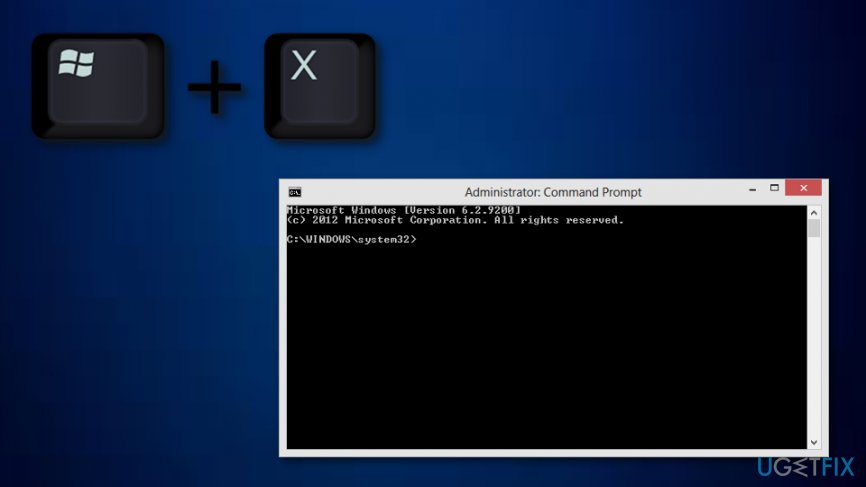
- Press Windows key + X together.
- Go to the Windows search section and type in "Command Prompt".
- Select to Run as Administrator.
Fix error code on windows - If you are running a 32-bit Windows platform, write these commands in the Command Prompt:
regsvr32 -u c:windowssystem32mscomctl.ocx
regsvr32 c:windowssystem32mscomctl.ocx
- For a 64-bit Windows platform:
regsvr32 -u c:windowssyswow64mscomctl.ocx
regsvr32 c:windowssyswow64mscomctl.ocx.
Last, but not least, once the “Compile error in hidden module” error fix is finished, both Mac and Windows OS users are strongly recommended to initiate a thorough system scan with an optimization and anti-malware[ref en-2] tool such as [d1].
Bottom line
To resolve the 'Compile Error in Hidden Module' error, you can disable incompatible add-ins or refresh Word by placing the linkCreation.dotm file on your desktop. If these solutions do not work, consider checking for additional updates or reinstalling Office.
Frequently asked questions
This error typically occurs due to compatibility issues with add-ins or outdated Visual Basic for Applications (VBA) components that are not functioning properly in the Office suite.
To disable add-ins, open Word or Excel, go to 'File' > 'Options' > 'Add-ins', select 'COM Add-ins' from the Manage dropdown, and click 'Go' to uncheck any active add-ins.
If reinstalling Office doesn't resolve the issue, try repairing the Office installation through 'Settings' > 'Apps' > 'Apps & features', select your Office installation, and choose 'Modify' to perform a quick or online repair.




Report an issue
What's wrong with this guide? We review every report and update or remove content.
Report received — thank you. We'll review and fix it.
You need a free account to submit a report.
Be the first to comment