How to fix
Computer keeps shutting down
on Windows
Solve the frustrating issue of your Windows 10 or Windows 11 computer shutting down unexpectedly. Get expert-tested solutions to fix it in minutes!

What causes How to fix computer keeps shutting down?
- Hardware issues
- Software issues
- Battery problems
- Dodgy sleep mode
- Startup issues
- Malware
Repairs Windows system files, removes malware, and restores a clean OS state — without reinstalling.
Hello, My computer repeatedly reboots at ransom times. Then it cannot restart again for a few minutes at least. I don't know if it is overheating or what because it doesn't seem to be hot at all, and other issues are not occurring besides this sudden shutdown. PC randomly turns off when I watch movies, work on some documents, and so. Particular programs are not to blame. Can you suggest anything that could fix this issue?
If your computer shuts down randomly without any errors or warning messages the issue can be not that crucial.[ref en-1] In most of the cases, spontaneous shutdowns can be caused by hardware or software issues or isolated events. If that repeats, you need to check some of the drivers, programs, files, and other functions first to determine particular reasoning behind the random reboot or shutdown.
Another reason why computer shuts down randomly can be battery problems or dodgy sleep mode, startup issues. Of course, these unexpected shutoffs cause frustration and nervous breakdowns, and this is totally normal. This is on BSOD,[ref en-2] so do not panic. The random shut off can mess up your work, damage some files, or ruin your work because those tasks that get cut of most likely are not recovered after the reboot.
When the computer keeps shutting down your Windows machine might be affected by malware[ref en-3] too, but that is not the most common reason behind such issues. If you see the device without proper care, various issues can trigger the turnoff. It comes to dirt, hair, due, other debris, fan issues, overclocking, or nonstop running that works the device down significantly.
PC randomly turns off when there are particular OS or update issues regarding BIOS, so keeping things up-to-date can change things significantly. There are ni crucial errors and codes that come on the screen when the computer randomly turns off, so it should mean that the problem is easily fixable and is not permanent or crucial.
In most cases, when it comes to more recent devices and modern computers there are features that once any of the components overheat the system turns off. There are many things that overheating can cause and lead to permanent damage on the computer, so this is a great feature. However, when the computer shuts down randomly people may lose their work. This might be the reason, but since there are a lot of possible triggers, we listed many solutions for the particular issue. 
How to fix computer keeps shutting down
Even though when the PC randomly turns off there are no error messages or warnings, the main reason why this is happening probably is the overheating. If PC randomly turns off once or twice it may be the cyber virus fault, but dangers to the system due to overheating may be more serious. Of course, first, you should determine if any PUPs or malware are not causing particular frustration. You can run [d1] and find out of there are any issues regarding cyber infections or affected files in the system. This PC repair tool can even fix some damaged files and save time for you. If the computer randomly turns off still, go through the steps below.
Check drivers to fix computer keeps shutting down issue
- Right-click the Start and run Device manager.
- Locate to Display adapters.
- Righ-click on the GPU and open Properties.

How to fix computer keeps shutting down drivers - The Details tab opens up, so choose Hardwareld and copy the first line.
- Paste it and search. You will see the exact name and details about the GPU you are using.
- Find official drivers provider and install the latest ones.
- Or you can update them by choosing the Update option.
Turn off fast Startup and fix PC randomly turns off this way
- Open the Control Panel and select View by Large icons.
- Click Power Options.
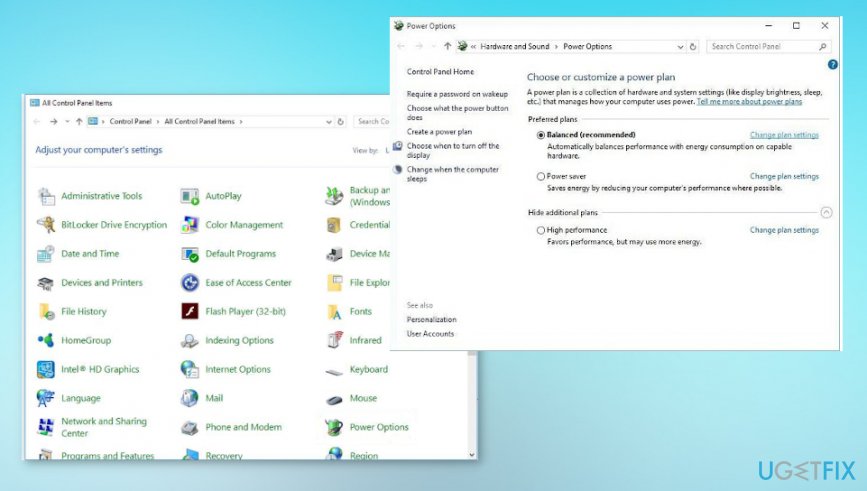
How to fix computer keeps shutting down power options - Choose what the power buttons do.
- Click Change settings that are currently unavailable.
- Go to Shutdown settings and uncheck the Turn on fast startup and Save changes.
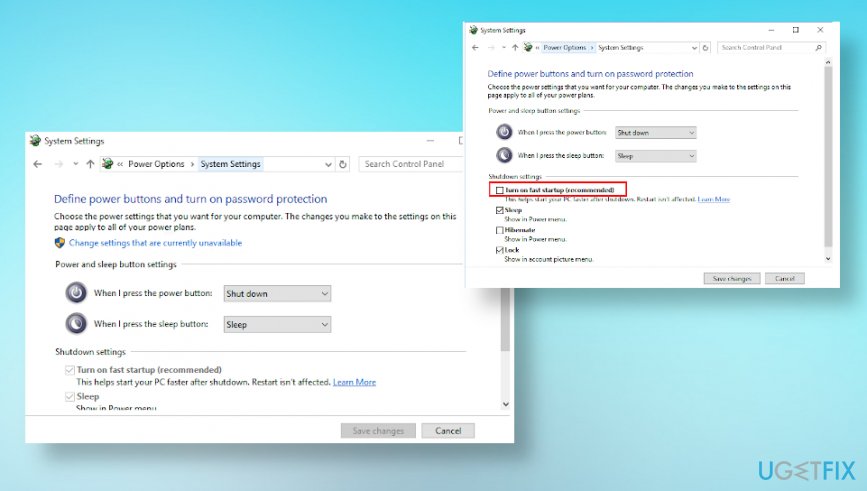
How to fix computer keeps shutting down power options advanced
Update BIOS to fix computer keeps shutting down
This is the step that requires a particular manufacturer and official sources. You can update BIOS by searching the internet for them. Offical providers also should include steps for this difficult process and ensure that you are doing things correctly. This step may be crucial if done badly, so rely on computer repair technicians instead.
Turn off the sleep mode to fix computer keeps shutting down
- Go to Settings and find System preferences.
- Choose Power & Sleep and go to Screen & Sleep.
- The select to sleep Never.
Bottom line
To address the issue of your computer shutting down randomly, check your drivers, programs, and files. Ensure that your system is free of debris and that your BIOS and operating system are up-to-date. If none of these solutions work, consider seeking professional help.
Frequently asked questions
First, verify that your system is not overheating by checking the CPU and GPU temperatures. Additionally, inspect the power supply and ensure all connections are secure.
Yes, corrupted system files or problematic updates can lead to unexpected shutdowns; running the System File Checker can help resolve these issues.
You can run built-in Windows diagnostics or third-party tools to test your hardware components, such as RAM and hard drive health.




Report an issue
What's wrong with this guide? We review every report and update or remove content.
Report received — thank you. We'll review and fix it.
You need a free account to submit a report.
Be the first to comment