How to fix
Connected Devices Platform User Service high RAM usage
on Windows
Reduce high RAM usage caused by Connected Devices Platform User Service in Windows 10/11 with efficient fixes. Expert-tested solutions for seamless perf…

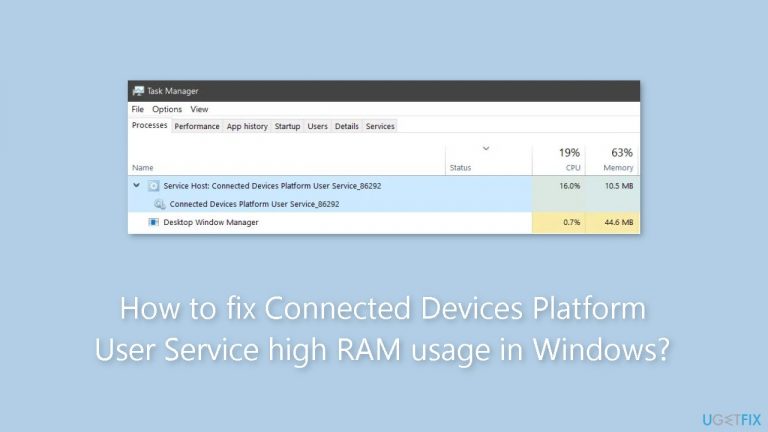
What causes How to fix Connected Devices Platform User Service high RAM usage in Windows?
- High RAM utilization due to issues with linked devices
- Malware or unwanted programs affecting resource usage
- Outdated device drivers
- Improper functioning of the Connected Devices Platform User Service
- Excessive resource usage impacting battery life
Repairs Windows system files, removes malware, and restores a clean OS state — without reinstalling.
Hello. I noticed that my Windows PC was getting very slow and I found that the Connected Devices Platform User Service is using a lot of RAM. Any suggestions would be appreciated.
Users may find the Connected Devices Platform User Service's high RAM utilization to be a worrying problem. This service, which is a crucial component of the Windows operating system, is in charge of controlling data flow between different connected devices, assuring smooth interaction, and supplying necessary authentication. When this service uses a lot of RAM, it sends a warning sign that something might be wrong with the linked devices or the service itself.
The effects of this problem may be highly detrimental to people. First and foremost, this service's high RAM utilization might considerably impede the computer's overall performance. It might be irritating for users to use their devices to complete routine operations when the system memory is being overly utilized. A less-than-ideal computing experience could result from it as well as having an impact on the performance of other apps that are running.
Additionally, the increased RAM utilization may shorten battery life, particularly on laptops and portable electronics. Increased power consumption is a result of the service's ongoing resource usage, which might be problematic for users who depend on their mobile devices. Users trying to fix the issue must first recognize and address the issue.
It's advisable to think about a few broad answers even if exact directions for debugging and fixing the issue can vary based on the underlying cause. Updates to device drivers, checking that linked devices are operating properly, and a search for malware or possibly unwanted programs that might be the source of the increased resource usage might all be part of this. The Connected Devices Platform User Service may occasionally need to be disabled or reset, but this should be done with caution and knowledge of its potential effects on device connectivity.
In this guide, you will find 4 steps that should help you fix Connected Devices Platform User Service high RAM usage in Windows. You can also run a system repair tool like [d1] that can fix most system errors, BSODs, corrupted files, and registry issues. Otherwise, follow the step-by-step instructions below.
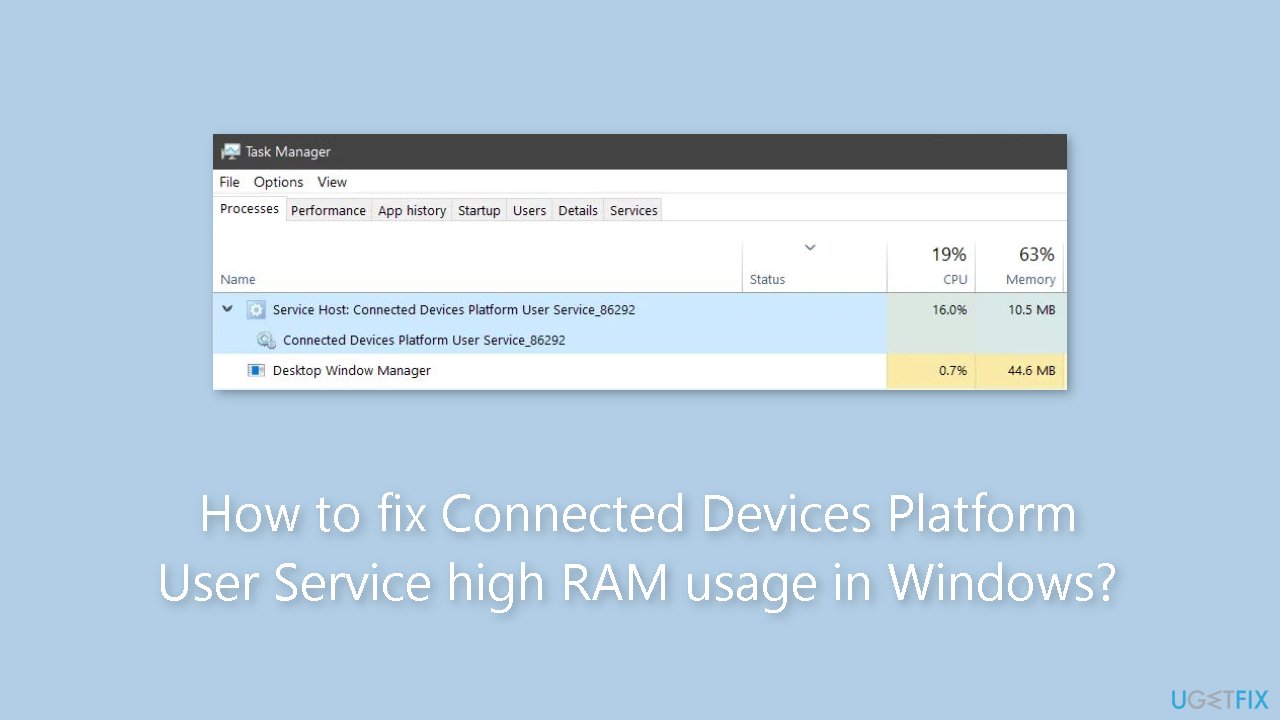
Method 1. Disable Connected Devices Platform User Service
- Press the Windows key + R to open the Run dialog box.
- Type services.msc into the text box and press Enter.
- Locate Disable Connected Devices Platform User Service in the list of services.
- Double-click on it.
- In the window that appears, click the dropdown for Startup type.
- Select Disabled from the options.
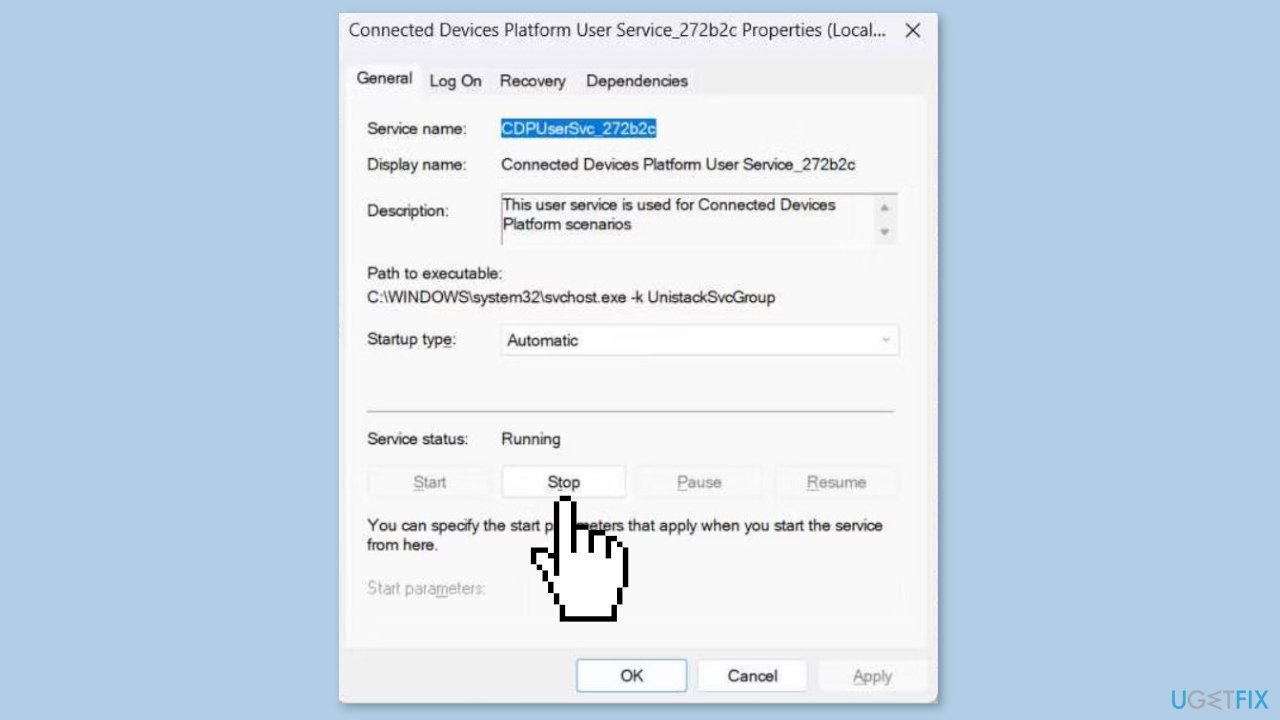
- Below that, under Service status, click Stop.
- To verify, open Task Manager and check if the service still consumes excessive RAM.
Method 2. Remove the ActivitiesCache.db File
- Press the Windows key + R to access the Run dialog box.
- Copy and paste %localappdata%\ConnectedDevicesPlatform\ into the text field.
- Press Enter to open the ConnectedDevicesPlatform folder.
- Within this folder, you'll find several files and folders.
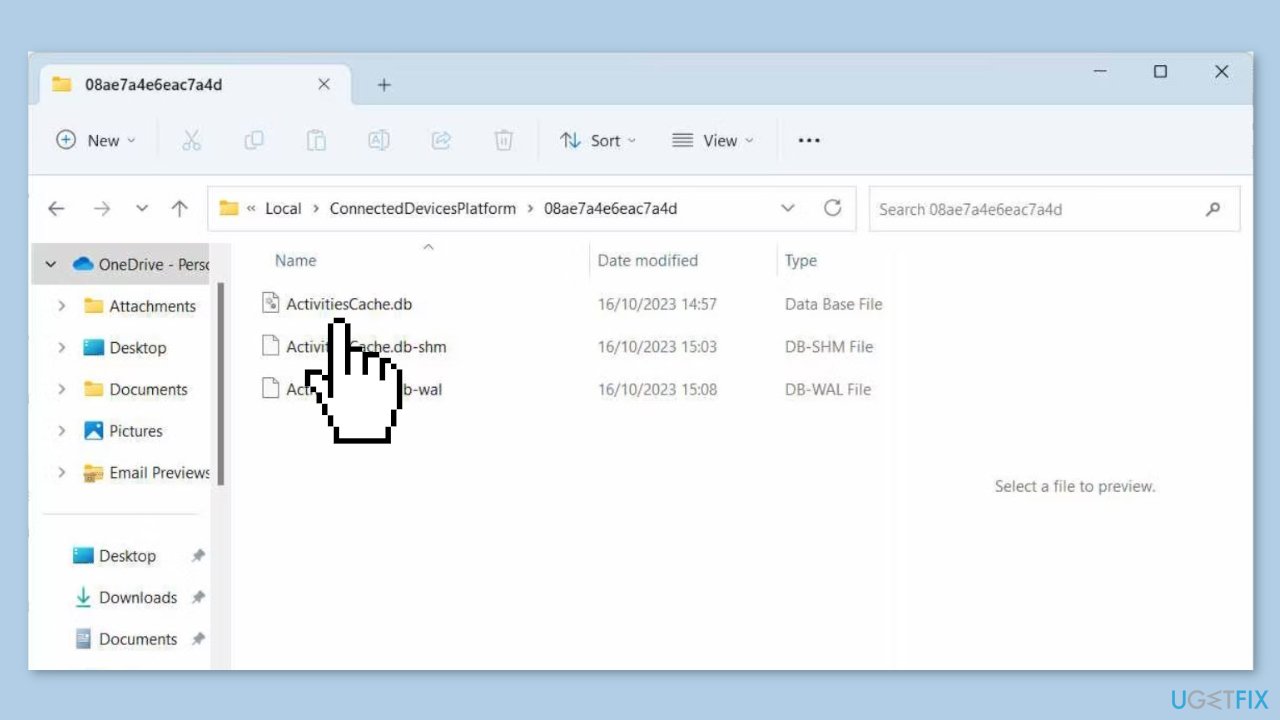
- Open each of the folders and locate the ActivitiesCache.db file in each of them.
- Delete the ActivitiesCache.db file from each folder.
- Finally, restart your computer to apply the changes.
Method 3. Check for Hardware Issues
- Press the Windows key + R to launch the Run dialog box.
- Enter devmgmt.msc in the text box.
- Press Enter on your keyboard to open Device Manager.
- In Device Manager, double-click on the device you suspect is causing issues to open its properties window.
- In the Properties window, navigate to the General tab.
- Ensure it displays This device is working properly under Device status.
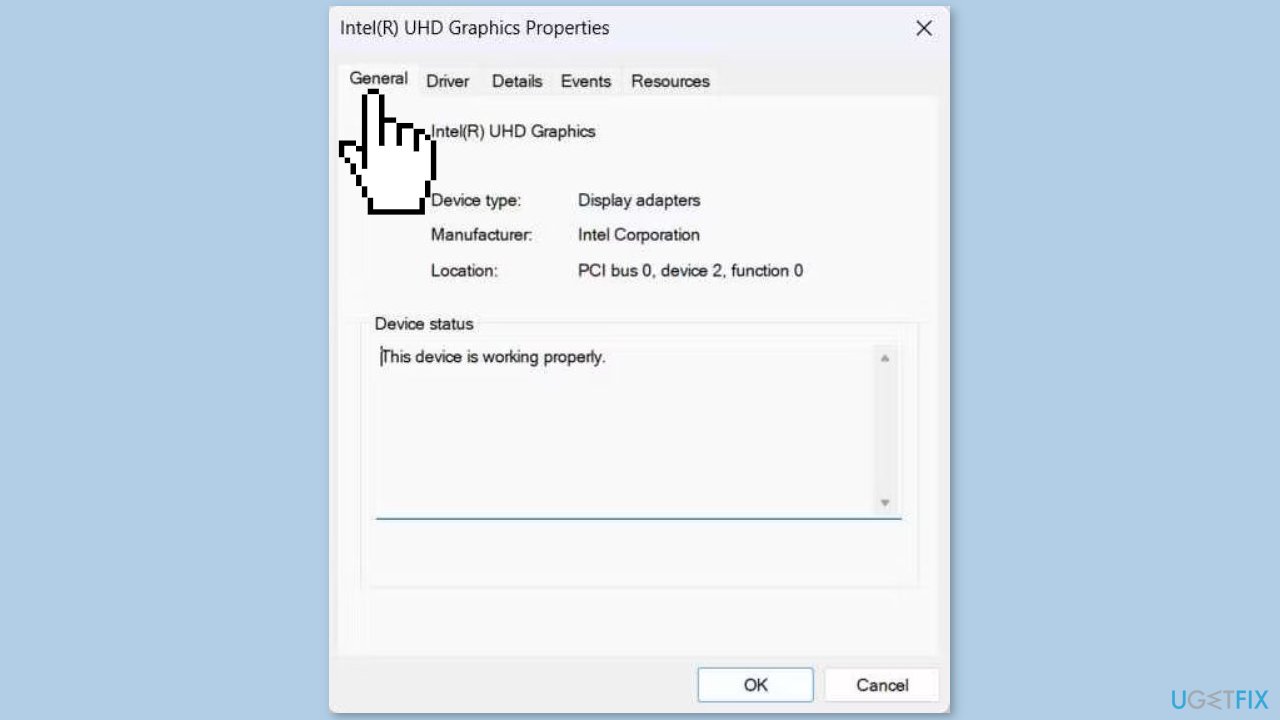
- If it doesn't, you'll see an error message and a code.
- Take note of both for troubleshooting purposes.
- You can initiate troubleshooting by using one of the built-in Windows troubleshooters to check for and fix the hardware problem you've identified.
Method 4. Use System Restore
System Restore is a feature in Microsoft Windows that allows users to revert their computer's state to a previous point in time. This can be helpful if you have made changes to your system that are causing problems.
- Press the Windows key + R on your keyboard to open the Run box.
- Type SystemPropertiesProtection and press Enter.
- Go to the System Protection tab.
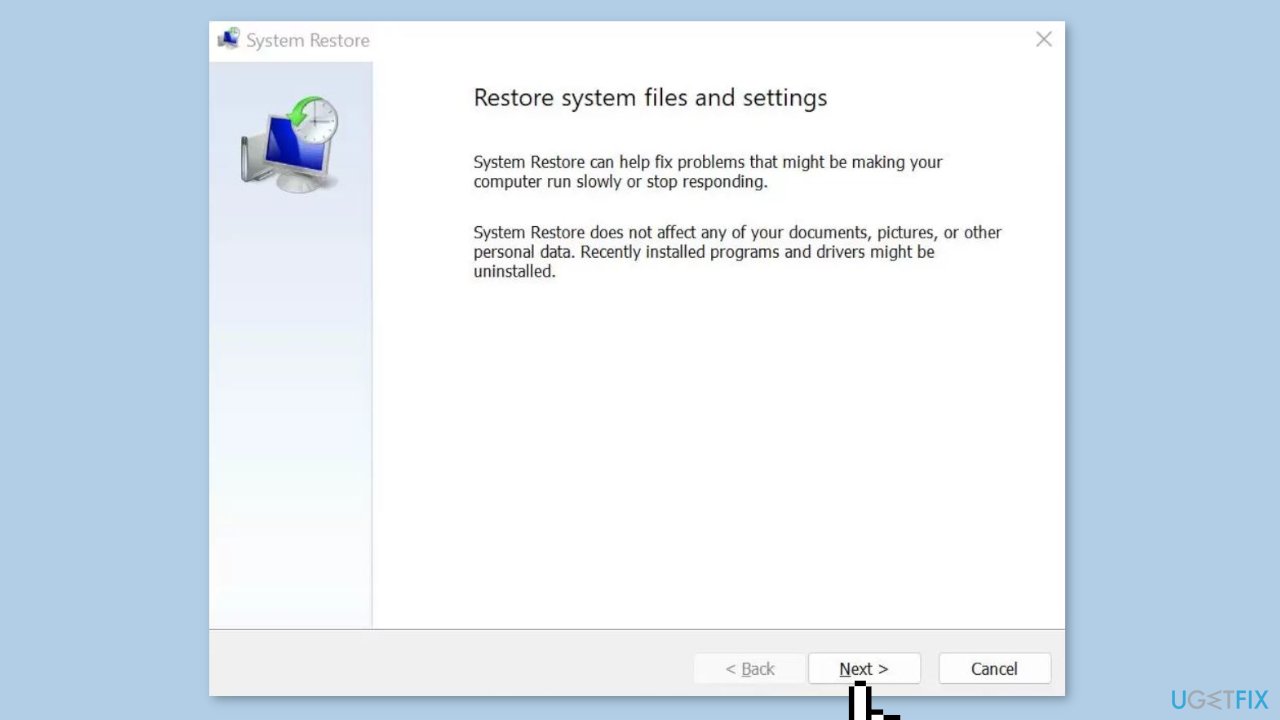
- You will see the System Restore… button. Click it to run System Restore.
- Follow the prompts until you can select a restore point.
- Select the one you want (ideally before the issue started occurring) and go ahead with the process.
Bottom line
To fix the high RAM usage of the Connected Devices Platform User Service, consider updating device drivers, checking the functionality of connected devices, and scanning for malware. If these steps do not resolve the issue, you may need to disable or reset the service, but proceed with caution regarding its impact on device connectivity.
Frequently asked questions
High RAM usage by the Connected Devices Platform User Service can be caused by background processes, outdated drivers, or conflicts with other applications. Identifying and addressing these issues can help reduce memory consumption.
To reduce RAM usage, you can disable the service through the Services app, or check for updates and driver installations that may resolve conflicts. Additionally, consider optimizing startup programs to improve overall system performance.
Yes, it is generally safe to disable the Connected Devices Platform User Service if you do not use features that rely on connected devices, but it may limit functionality for certain apps. Always ensure your system is backed up before making changes.




Report an issue
What's wrong with this guide? We review every report and update or remove content.
Report received — thank you. We'll review and fix it.
You need a free account to submit a report.
Be the first to comment