How to fix
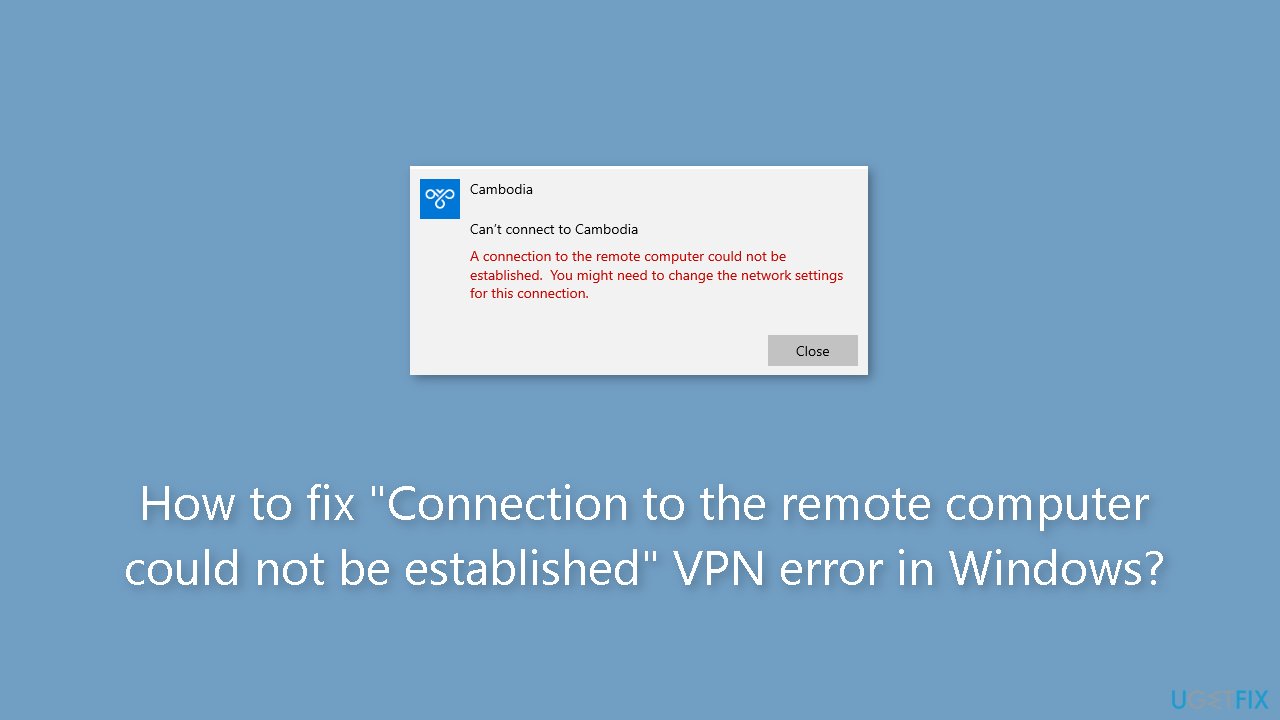
“Connection to the remote computer could not be established” VPN error
on Windows
Resolve the "Connection to the remote computer could not be established" VPN error in Windows 10 and 11 quickly and effectively. Expert-tested solutions…


What causes How to fix “Connection to the remote computer could not be established” VPN error in Windows?
- Network connectivity issues
- Incorrect VPN settings
- Interference from firewalls or third-party security programs
- Outdated VPN client software
Repairs Windows system files, removes malware, and restores a clean OS state — without reinstalling.
Hello. I tried turning on my VPN in Windows but I got the "Connection to the remote computer could not be established" error. Is there a way to fix this?
Users trying to set up VPN connections on their Windows PCs may experience the unpleasant "Connection to the remote computer could not be established" VPN error. When users attempt to connect to VPNs, this error notice often shows in the Windows Settings and indicates an interruption in the connection process.
Depending on their particular use cases, users may experience a variety of effects from this issue. It can firstly interfere with remote work or resource access from a distant location. For safe access to enterprise networks, many people and businesses rely on VPN connections, therefore when this issue happens, productivity may be hampered.
Additionally, this issue may disclose and expose users' data who depend on VPNs for privacy and security purposes, such as when connecting to public Wi-Fi networks. Sensitive data may be in danger without a reliable VPN connection. Users occasionally run into this error when trying to diagnose network problems or when they urgently need to access resources on a remote server. It may result in annoyance, delays, and possible difficulties while resolving technical issues.
Users can investigate a number of potential solutions to this problem. Checking their network connectivity, confirming VPN settings, making sure firewalls or third-party security programs aren't interfering, or updating VPN client software are a few examples. It's crucial to remember that the precise answer can change based on what caused the problem in the first place.
In this guide, you will find 8 steps that should help you fix "Connection to the remote computer could not be established" error in Windows. You can also run a maintenance tool like [d1] that can fix most system errors, BSODs,[ref en-1] corrupted files, and registry[ref en-2] issues, Otherwise, follow the step-by-step instructions below.
Method 1. Run the Network Adapter Troubleshooter
- Press the Windows key + I to open the Windows Settings app.
- Select the System tab from the left sidebar.
- Then, click on Troubleshoot from the right pane.
- Click on Other troubleshooters.
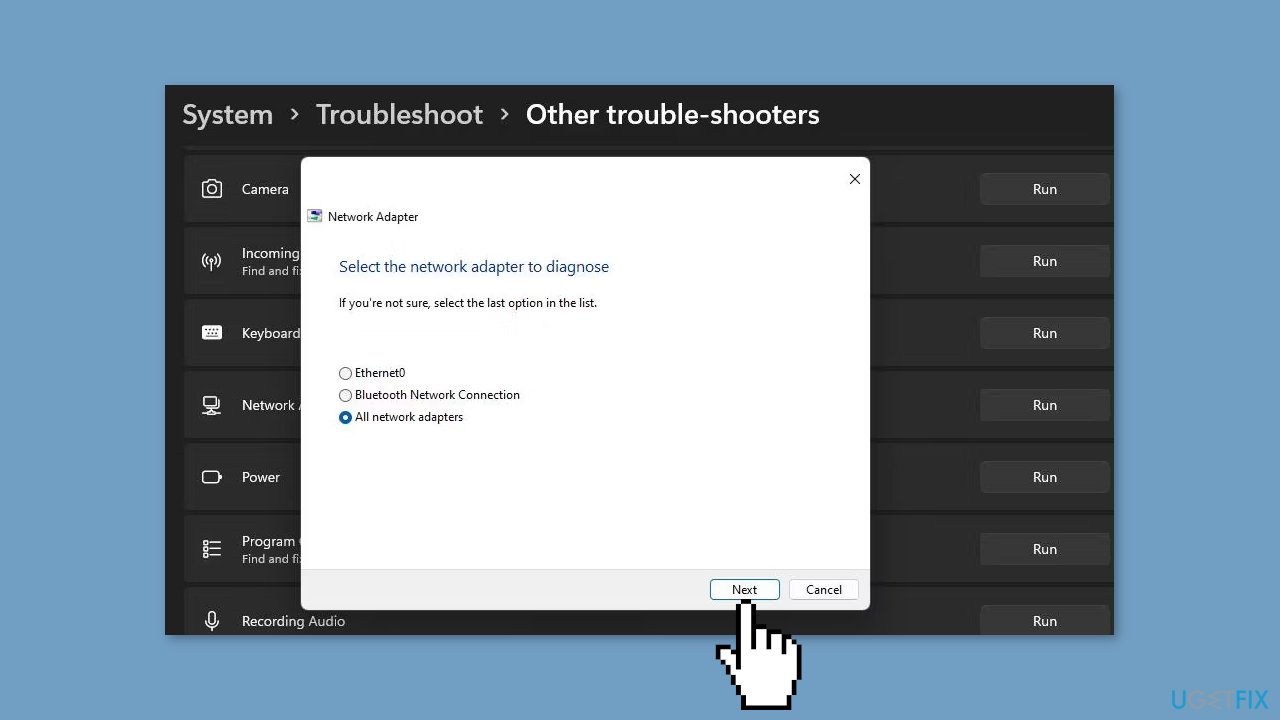
- Click on the Run button next to the Network adapter troubleshooter.
- Follow the on-screen instructions to assist the troubleshooter in diagnosing and resolving the problem.
Method 2. Turn Off the Proxy Server Setting
- Press the Windows key + I to open the Settings menu.
- Go to the left pane and select Network & internet.
- Select Proxy from the right-side menu.
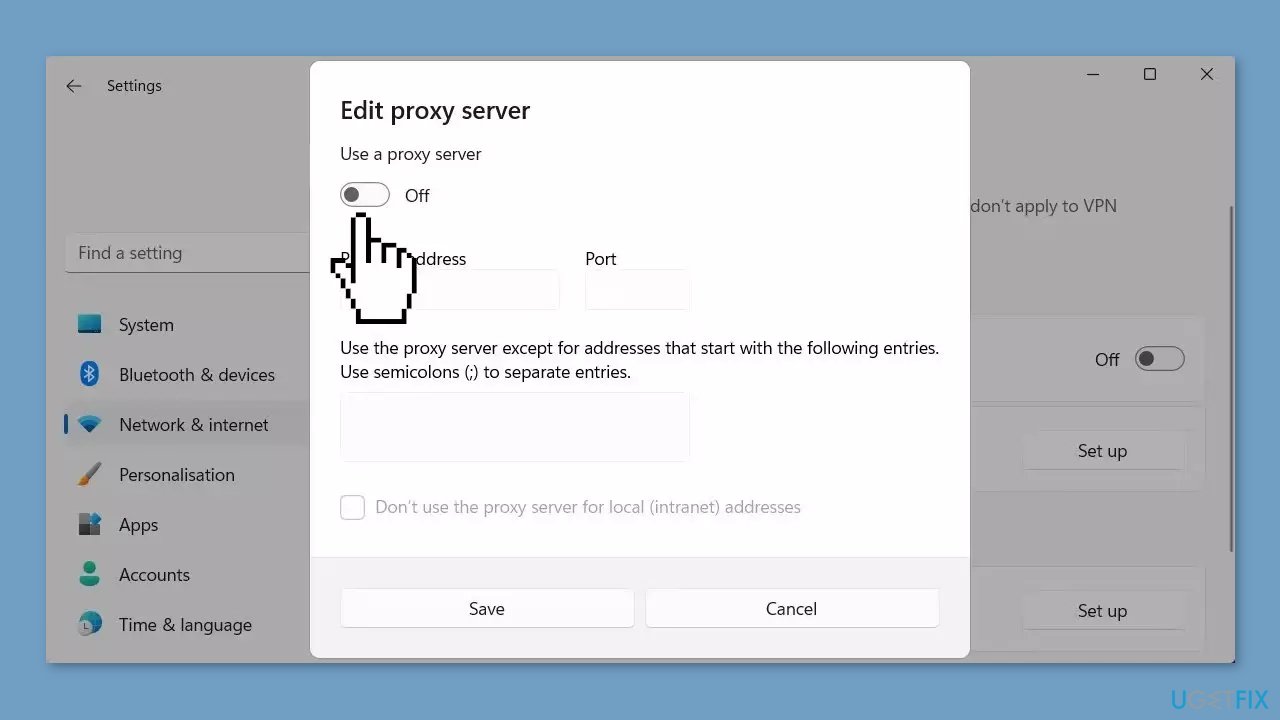
- Under Automatic proxy setup, turn off Automatically detect settings.
- Scroll down to Manual proxy setup and click on the Setup button (next to Use a proxy server).
- Next, toggle off the Use a proxy server slider.
Method 3. Reconfigure VPN Security Settings
- Press the Windows key + R to open the Run box.
- Input ncpa.cpl in the Run dialog.
- Click OK in the Run dialog to open the Network Connections window.
- Right-click on your VPN connection in the Network Connections window.
- Select Properties from the context menu.
- In the VPN properties window, click on Security.
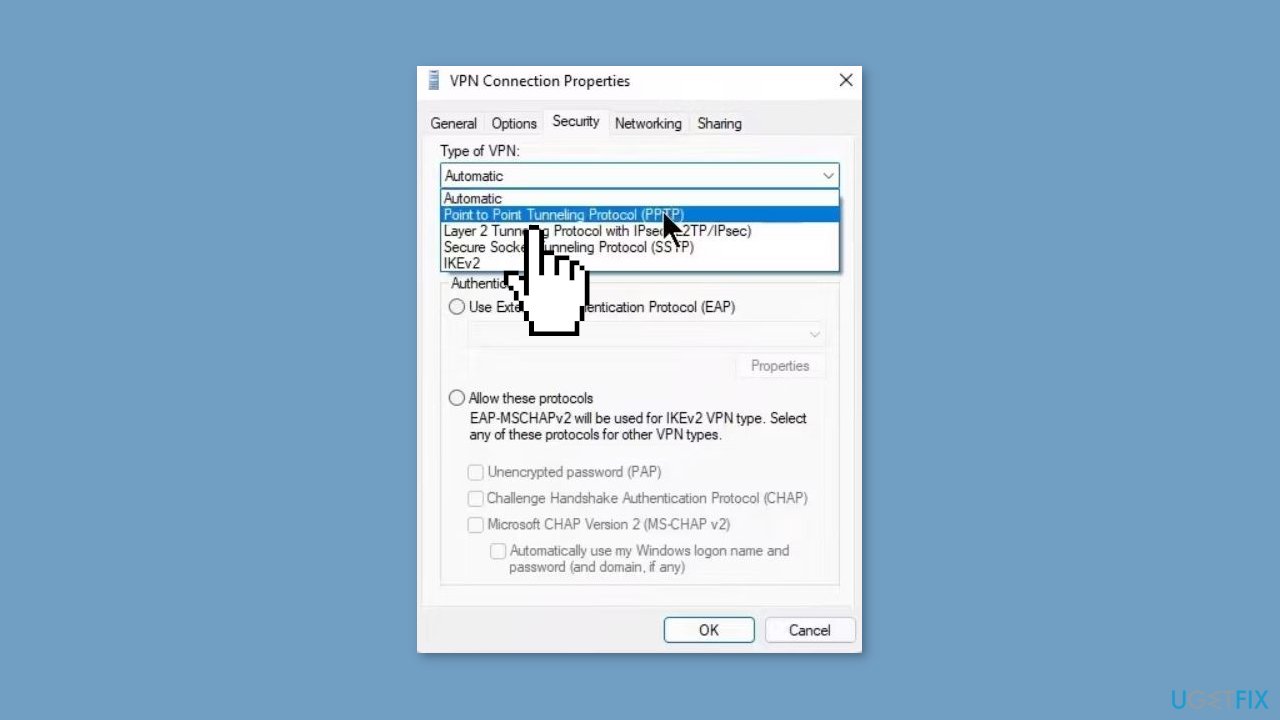
- On the Type of VPN drop-down menu, select Point to Point Tunnelling Protocol.
- Click the Allow these protocols radio button.
- Select the Challenge Handbrake Authentication Protocol (CHAP) checkbox.
- Next, click the Microsoft CHAP Version 2 checkbox to select that option.
- Finally, click OK to save the new VPN security settings.
Method 4. Disable the Windows Firewall
- Click on Start and search for Windows Security.
- Select the result from the top of the list.
- Once you are in Windows Security, click on the Firewall & network protection option.
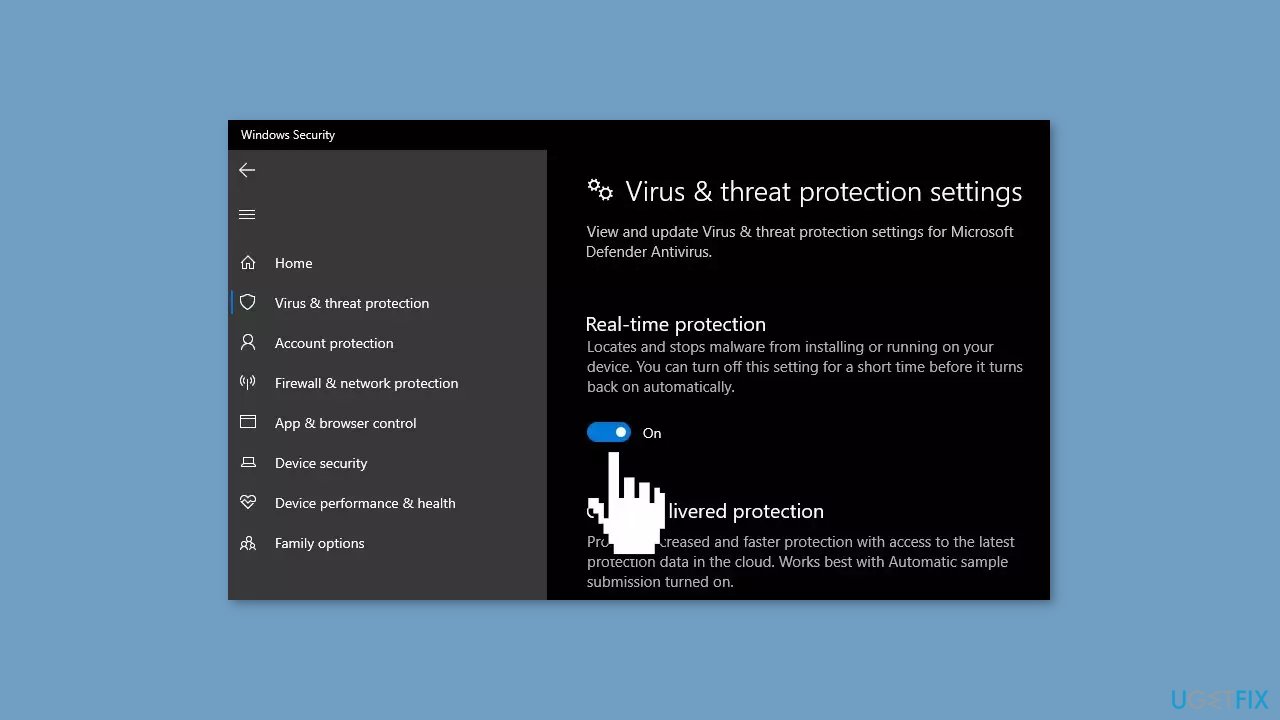
- Select the Public network or Private network profile and turn off the firewall for that selection.
- The UAC prompt will require you to accept it, so make sure your computer is set up as an admin account. If a UAC prompt appears on the screen, click Yes to continue.
Method 5. Disable Third-Party Security Software
Third-party security software, including antivirus packages, often come with built-in firewalls that can potentially block VPN connections. If you have such third-party security software installed on your PC, consider these steps to troubleshoot your VPN connection:
- Disable the firewall component of your third-party security software to check if it affects your VPN connection.
- If disabling the firewall resolves the issue, configure a firewall exception specifically for your VPN connection within your security software settings.
Method 6. Reinstall the WAN Miniport Devices
- Right-click on the Windows taskbar icon and select Device Manager.
- Click the little arrow beside Network adapters to view all devices for that category.
- Right-click on the WAN Miniport (IKEv2) adapter and select Uninstall device. Press Uninstall within the confirmation dialog box.
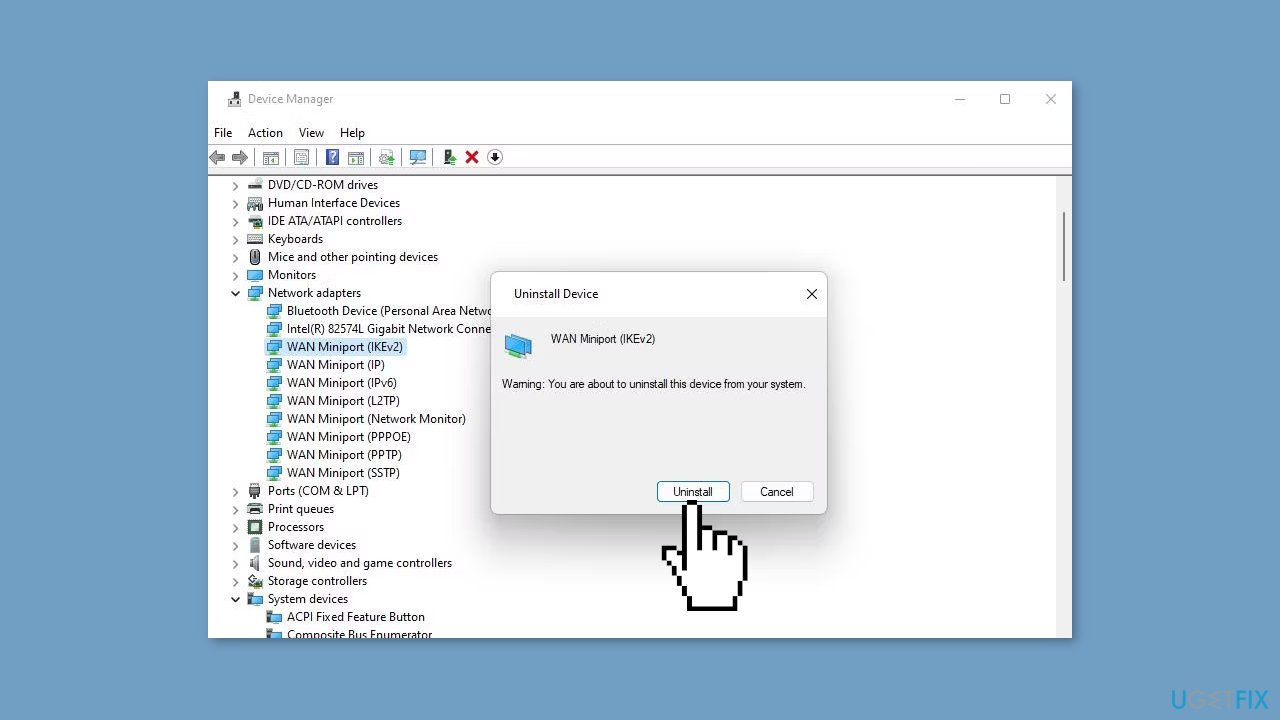
- Repeat the previous two steps for all WAN Miniport adapters shown within Device Manager.
- When you’ve uninstalled all the WAN Miniport devices, click the Action menu.
- Select the Scan for hardware changes option to reinstall the WAN Miniport devices.
Method 7. Reset Network Settings
- Launch the Settings by using the Windows key + I.
- Select the Network & Internet option from the left sidebar.
- Scroll down and click on Advanced network settings to access network reset.
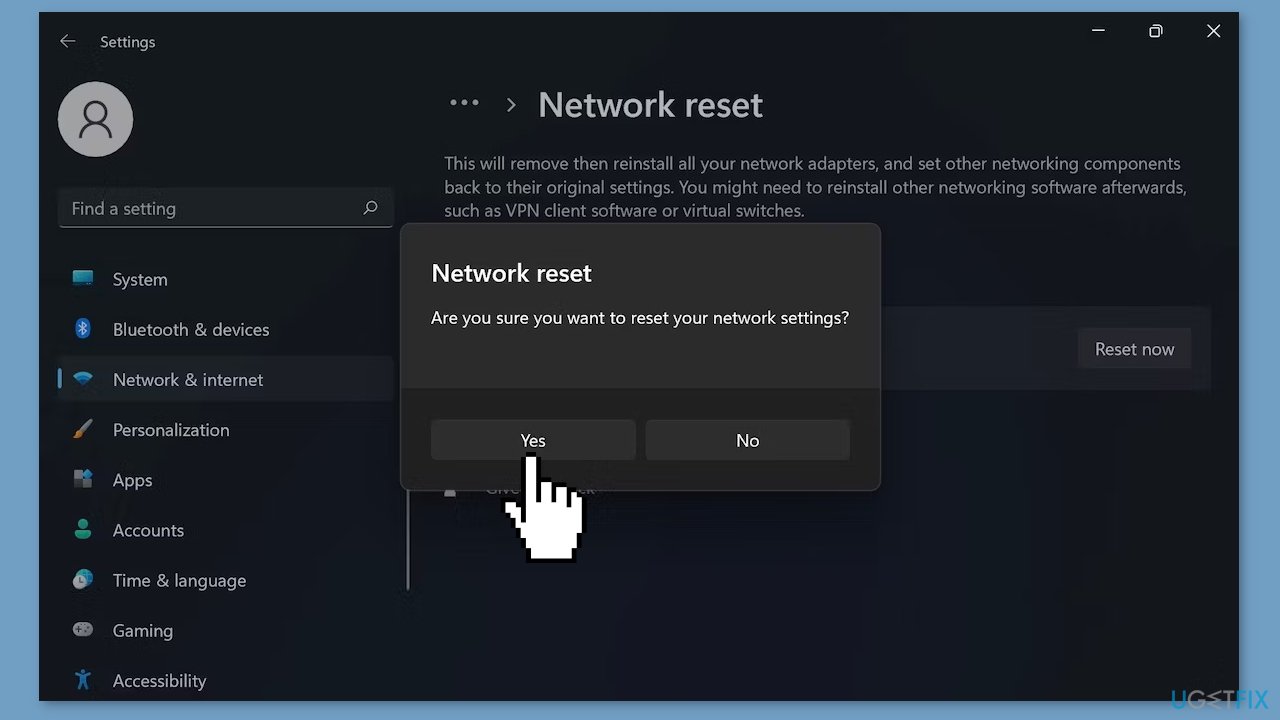
- Under the More settings section in Advanced network settings, choose Network reset.
- Finally, click on Reset now to proceed.
Method 8. Reinstall VPN Software
- Right-click on Start in the taskbar to open the Power User’s menu.
- Select Run from the menu.
- In the Run dialog, type appwiz.cpl and press Enter.
- Click OK to open the Programs and Features window.
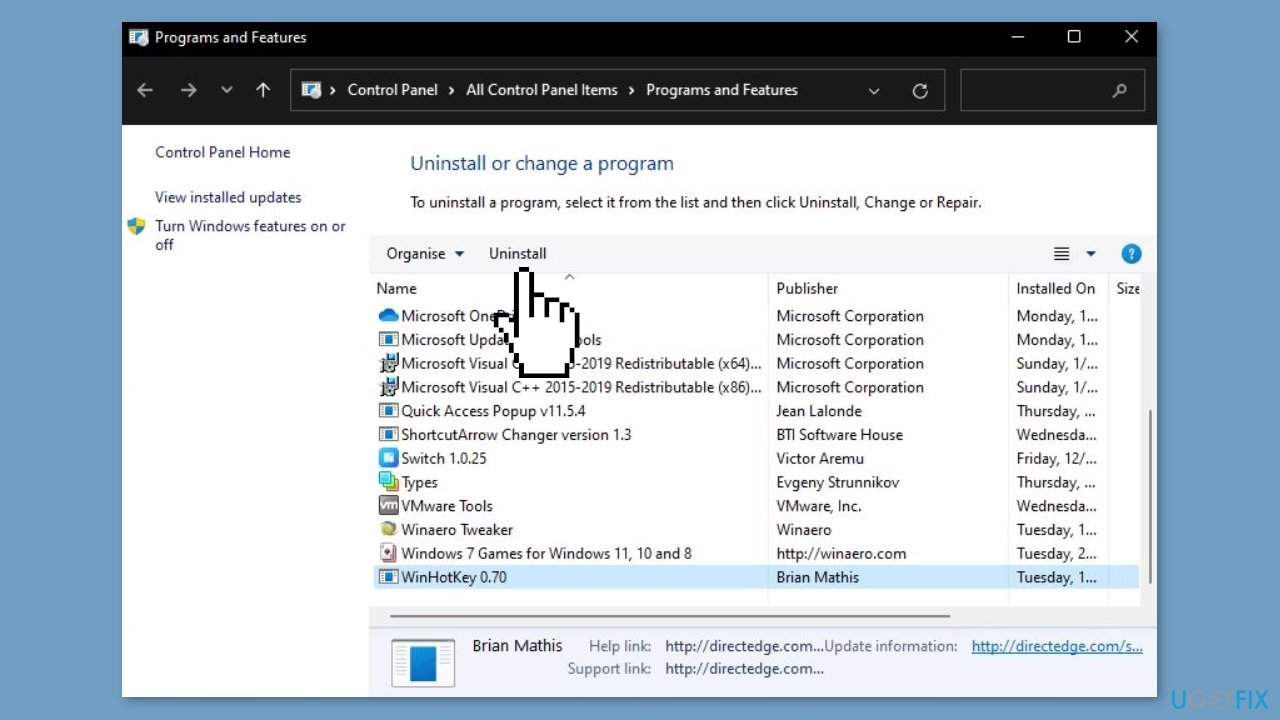
- Choose the software package you want to remove.
- Click the Uninstall button.
- Select Yes on any confirmation dialog boxes that may appear.
- An uninstaller wizard for the software may then open. Follow the wizard's instructions to choose the required uninstall options.
- After a successful uninstallation process, proceed with installing the software the same way you did before.
Bottom line
To fix the 'Connection to the remote computer could not be established' error in Windows, users can run the Network Adapter Troubleshooter, check their VPN settings, and ensure that security software is not blocking the connection. If these steps do not resolve the issue, consider using a maintenance tool to address system errors.
Frequently asked questions
This error can be caused by incorrect VPN settings, firewall restrictions, or network connectivity issues on your Windows 10 device.
Ensure that your VPN client is updated and supports Windows 11 by checking the official website or user documentation for compatibility information.
You can troubleshoot the VPN connection error by verifying your network settings, disabling firewall or antivirus temporarily, and ensuring that your VPN credentials are correct.




Report an issue
What's wrong with this guide? We review every report and update or remove content.
Report received — thank you. We'll review and fix it.
You need a free account to submit a report.
Be the first to comment