How to fix
Constantly Refreshing Windows 10 Taskbar and Desktop
on Windows
Tired of a constantly refreshing Windows 10 taskbar and desktop? Discover expert solutions to restore stability today. Fixed in minutes!


What causes How to Fix Constantly Refreshing Windows 10 Taskbar and Desktop?
- Bug or virus
- Explorer.exe refresh problem
- Certain apps using large CPU resources
- Corrupted user account
- IDT Audio Driver issues
Repairs Windows system files, removes malware, and restores a clean OS state — without reinstalling.
I upgraded from Windows 8 to Windows 10 and the desktop keeps refreshing itself. Is it a bug or a virus?
Constantly refreshing Windows 10 taskbar and desktop might be an indicator of several issues. After Windows users had started upgrading to Windows 10, this phenomenon became a prevalent issue. Alternatively, this problem might also be related to the explorer.exe refresh problem. You will find solutions for that problem in the link.
Alternatively, certain apps using large CPU resources might cause this phenomenon. There are also cases when corrupted user account triggered such misbehavior of desktop and taskbar. In order to repair constantly refreshing Windows 10 taskbar and desktop, let us look through the solutions.
Option 1. Sign in to administrator’s account
If there are more than two accounts on the device, you might want to check whether desktop and taskbar refresh in this account as well. In some cases, the problem manifests itself only in a certain account. You might also run Command Prompt (Windows+R, enter cmd and hit Enter) and type sfc /scannow. If the problem stems from the system, i.e., if it is not of malicious origin, this tool will help you identify and solve the issue.
Option 2. Identify the app draining CPU resources
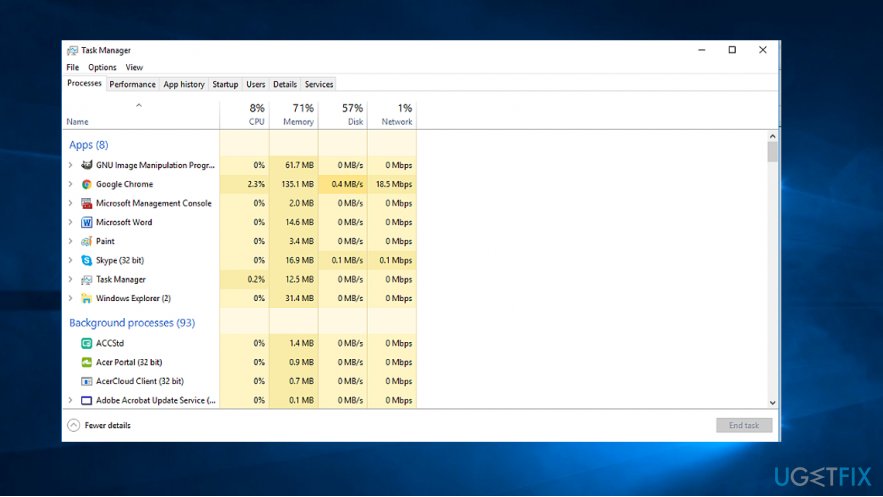
Users have discovered that certain apps, which use a lot of CPU memory, cause Windows desktop to refresh itself often. Launch Task Manager by clicking ESC+SHIFT+CTRL. However, it is unusual that a legitimate app might be using over 30% of CPU. Try reinstalling it. Download its installer from an official site.
Option 3. Uninstall IDT Audio Driver
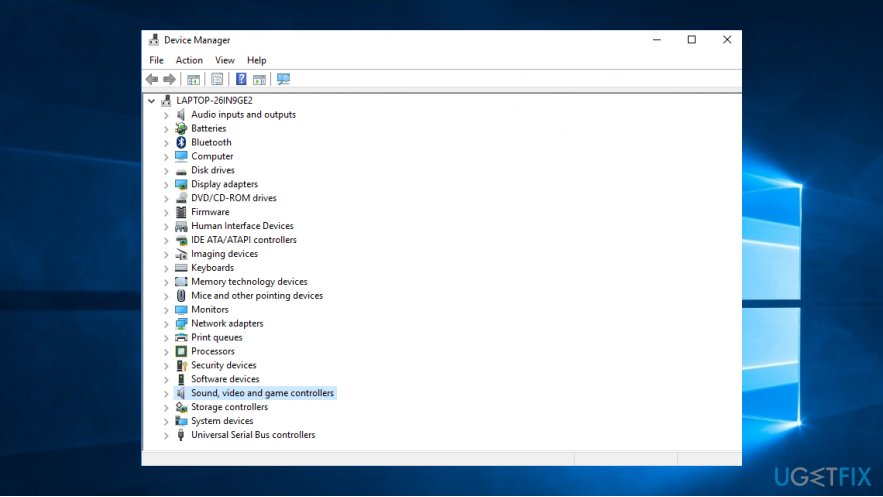
Some users reported that uninstalling this driver and opting for Windows default drivers solves the problem. Note that the former driver only comes with certain PC brands. So if you cannot find it on the PC, there is no need to worry.
In order to manage your drivers, go to the following location:
- Click on the Start button and type Device Manager.
- Launch and find Sound, video and game controllers. Extend it.
- Right-click on it and you will see several options.
- You can uninstall the driver. However, Windows 10 installs necessary drivers once it detects the lack of them. If it installs them again after you reboot the system, you can opt for disable device.
Option 4. Reinstall security tools
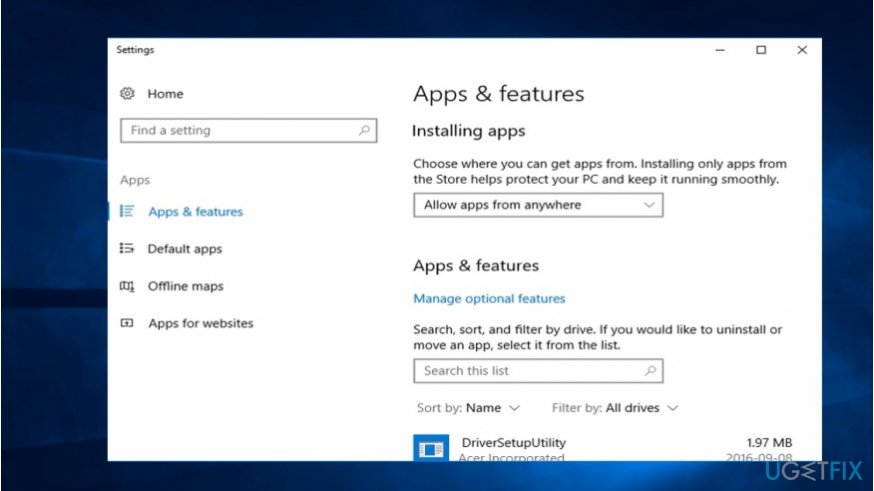
Certain security tools did not evaluate the upgrade properly which resulted in the annoying flickery of Windows 10 taskbar and desktop. Bitdefender and Norton tools are known to be related to the issue. Try reinstalling them according to the instructions given by their developers on the official website.
Option 5. Scan the device for malware
Considering crafty malware developers, it would not be surprising if a troublesome virus may have caused Windows 10 desktop and taskbar to flicker. In order to find it, you should scan the device with [d1] or Malwarebytes Anti-malware. You might also do so in Safe Mode as well.
Note. Check the free space on a local disc. In rare cases, the lack of free space may result in Windows 10 displaying various errors.
Bottom line
To fix the constantly refreshing Windows 10 taskbar and desktop, you can sign in to an administrator's account, identify apps draining CPU resources, or uninstall the IDT Audio Driver. If none of these solutions work, consider seeking further technical assistance.
Frequently asked questions
The constant refreshing of the taskbar and desktop in Windows 10 can be caused by corrupted system files, third-party applications, or issues with Windows Explorer itself.
You can stop the taskbar from refreshing by restarting Windows Explorer through the Task Manager or by running the System File Checker tool to repair corrupted files.
Updating Windows 10 can resolve the taskbar refresh issue if the problem is due to known bugs that have been fixed in later updates.




Report an issue
What's wrong with this guide? We review every report and update or remove content.
Report received — thank you. We'll review and fix it.
You need a free account to submit a report.
Be the first to comment