How to fix
“Content servers unreachable” Steam error
on Windows
Resolve the "Content servers unreachable" error on Windows 10 and 11 easily. Follow our expert-tested solutions and get back to gaming in minutes.

What causes How to fix “Content servers unreachable” Steam error in Windows?
- Internet connection issues
- Network problems
- Unstable Steam servers
- Conflicting firewall settings
- Conflicting antivirus settings
- Corrupted Steam client
Repairs Windows system files, removes malware, and restores a clean OS state — without reinstalling.
Hello. When I try to update my games in Steam I get the "Content servers unreachable" error. How do I fix it?
Developed by Valve Corporation, Steam is a digital distribution platform primarily intended for social networking, multiplayer gaming, and the distribution of video games. It enables users to buy, download, and manage a variety of video games, programs, and downloads. Additionally, Steam offers tools like voice and chat capabilities in-game, automated game updates, and discussion forums. With millions of users throughout the globe, Steam has emerged as the go-to place for gamers to discover, acquire, and interact with a variety of digital material.
The "Content servers unreachable" warning is a rather typical problem that Steam users run across, especially while downloading or upgrading a game. This error occurs when a user's Steam client is unable to connect to the designated content servers in charge of distributing game data and updates. Users may be unable to download new games, update their existing titles, or access the Steam store due to this connectivity issue. Users may thus encounter delays, disruptions, or outright stops in their gaming sessions.
The "Content servers unreachable" problem has a number of possible fixes, which users might think about. These can entail modifying the internet connection, resolving network problems, monitoring the stability of the Steam server, and making sure that firewall and antivirus settings don't conflict. Additionally, users might have to reinstall the Steam client in more serious circumstances or clear the Steam download cache.
In this guide, you will find 6 steps that should help you fix "Content servers unreachable" error. You can also use a maintenance tool like [d1] that can fix most system errors, BSODs,[ref en-1] corrupted files, registry[ref en-2] issues, or clear cookies and cache.[ref en-3] Otherwise, follow the step-by-step instructions below.
Solution 1. Run Steam as an Administrator
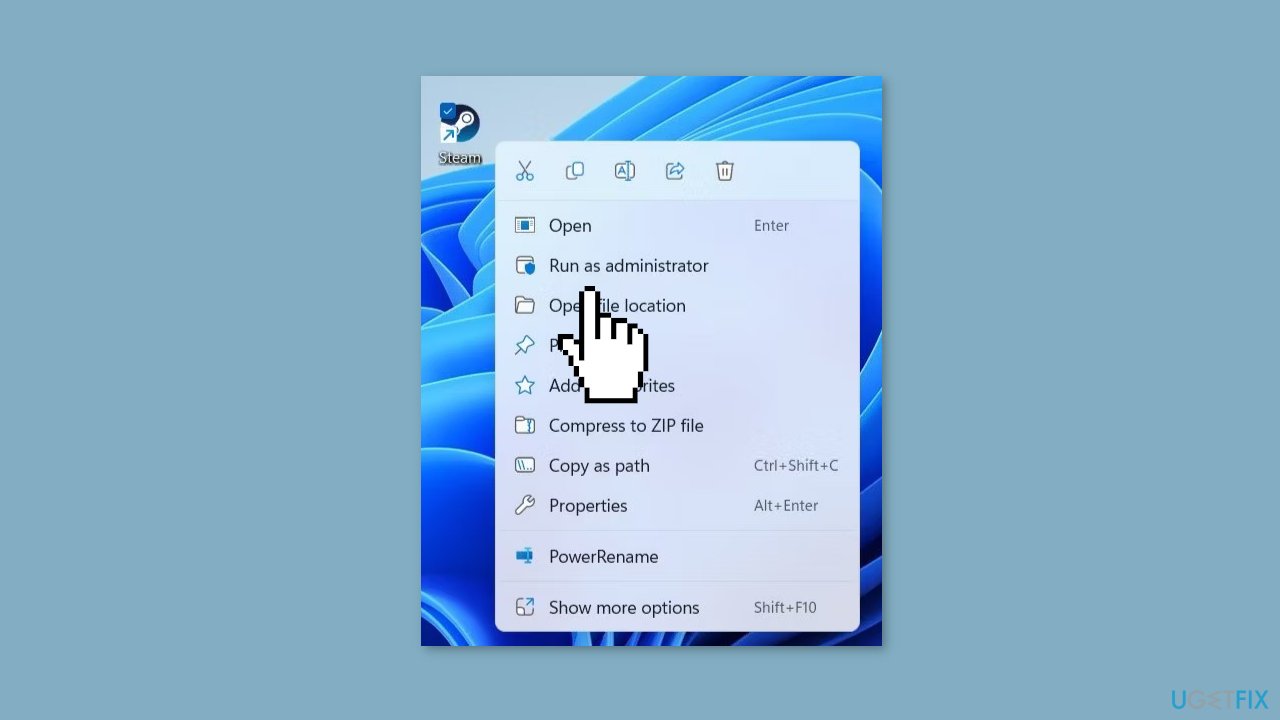
- Locate the Steam app shortcut on your computer.
- Right-click on the Steam app shortcut.
- From the context menu that appears, choose Run as administrator.
- A User Account Control (UAC) prompt will pop up.
- Click on the Yes button in the UAC prompt to proceed.
Solution 2. Change the Download Region
- Open Steam on your PC.
- Click on the Steam menu located in the top left corner.
- From the menu, choose Settings.
- Go to the Downloads tab within the Settings.

- Under the Download Region section, you'll find a drop-down menu.
- Select a nearby server from the drop-down menu.
- After selecting a new server, close the Steam app completely.
- Reopen the Steam app to check if the error persists.
Solution 3. Clear Steam Download Cache
- Access the Steam app by utilizing the search menu.
- Open the Steam menu located at the top left corner and pick Settings.

- On the left sidebar, choose Downloads.
- Locate and click on the Clear Download Cache button.
- To proceed, click on the Confirm option.
Solution 4. Delete the ClientRegistry File
- Click on the arrow for show hidden icons located on the taskbar.
- Right-click on the Steam logo, then choose Exit Steam from the menu that appears.
- Press the Windows key + E simultaneously to open File Explorer.
- Navigate to the following path: C: > Program Files (x86) > Steam folder.
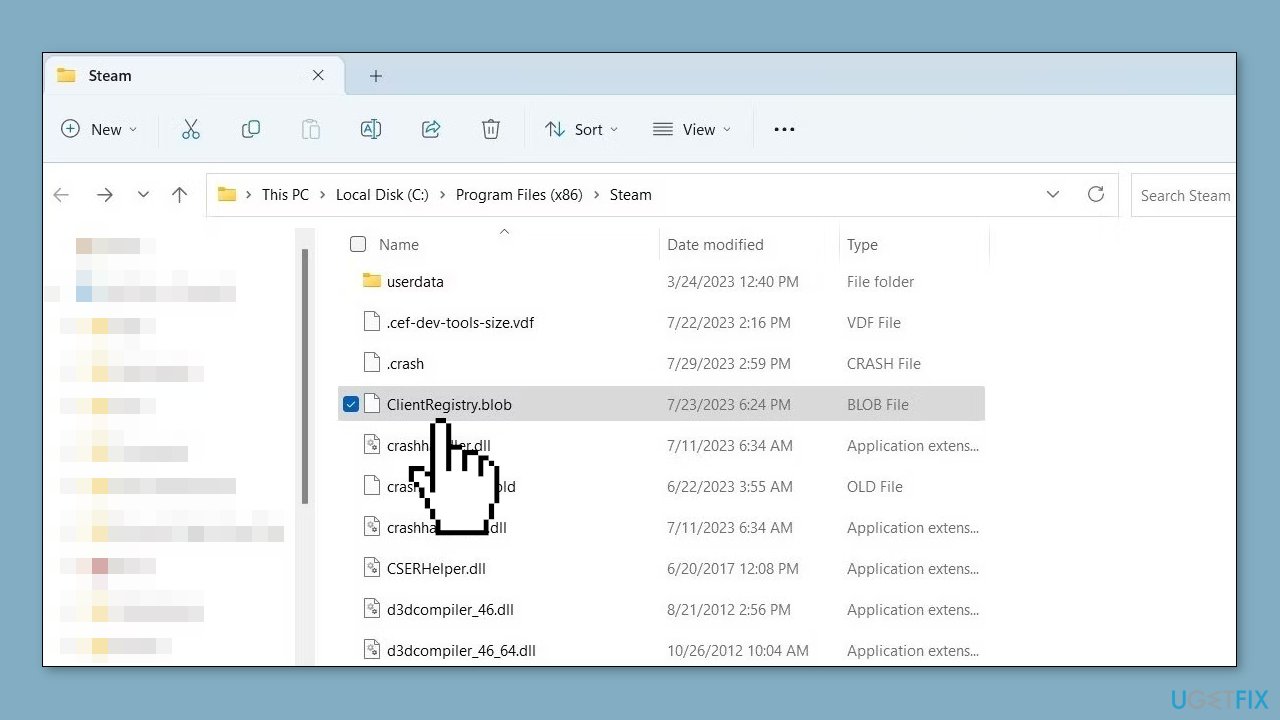
- Find and select the file named ClientRegistry.blob.
- Click on the trash icon at the top of the window to delete this file.
Solution 5. Allow Steam Through the Windows Firewall
- Launch the Windows Security app by searching for it in the Start menu.
- From the main menu of Windows Security, choose Firewall & network protection to access the corresponding panel. Here, you'll be able to view your firewall's current status.
- Click on the Change settings button to grant yourself editing access. Note that if you're not already logged into an administrator account, you'll need to provide admin permission to proceed.
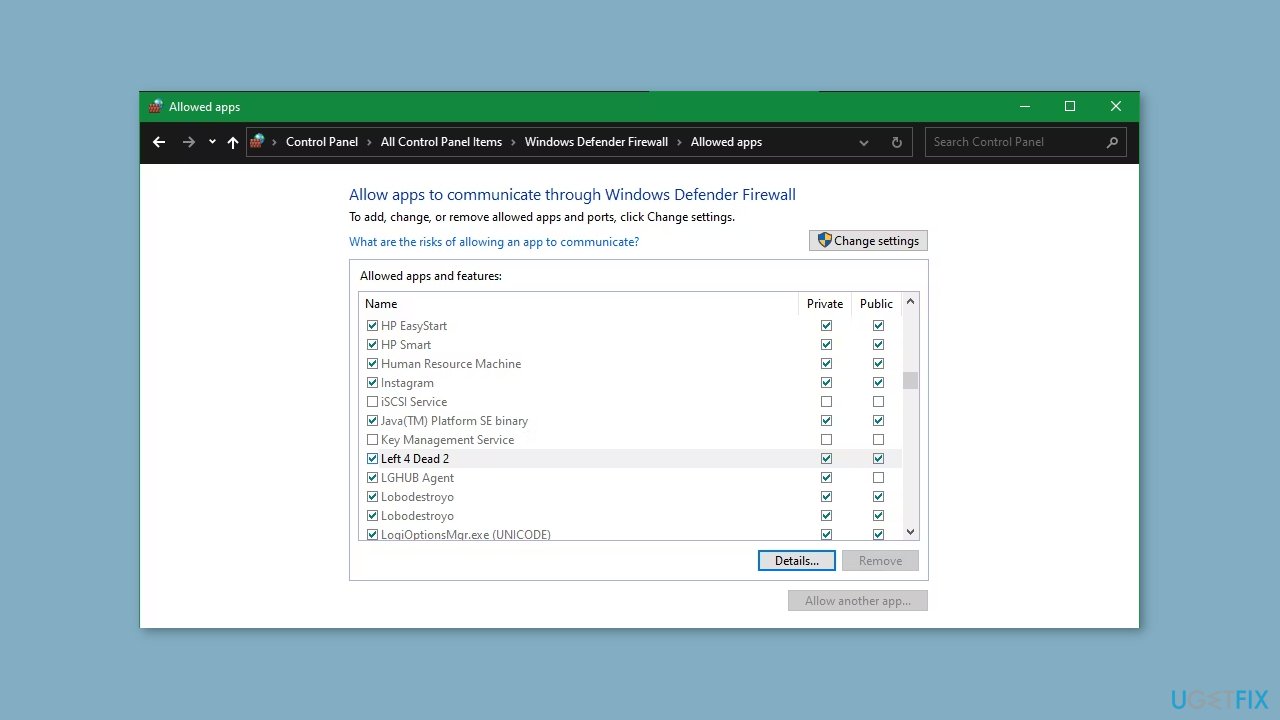
- Within the editing section, you'll find checkboxes for program selection on both Private and Public networks.
- Utilize these checkboxes to decide which programs should be permitted through the firewall.
Solution 6. Flush the Steam Configuration Files
- Open the Task Manager using Ctrl + Shift + Esc or another preferred method.
- Within the Task Manager, navigate to the Processes tab.
- Right-click on the Steam entry and choose the End task option.
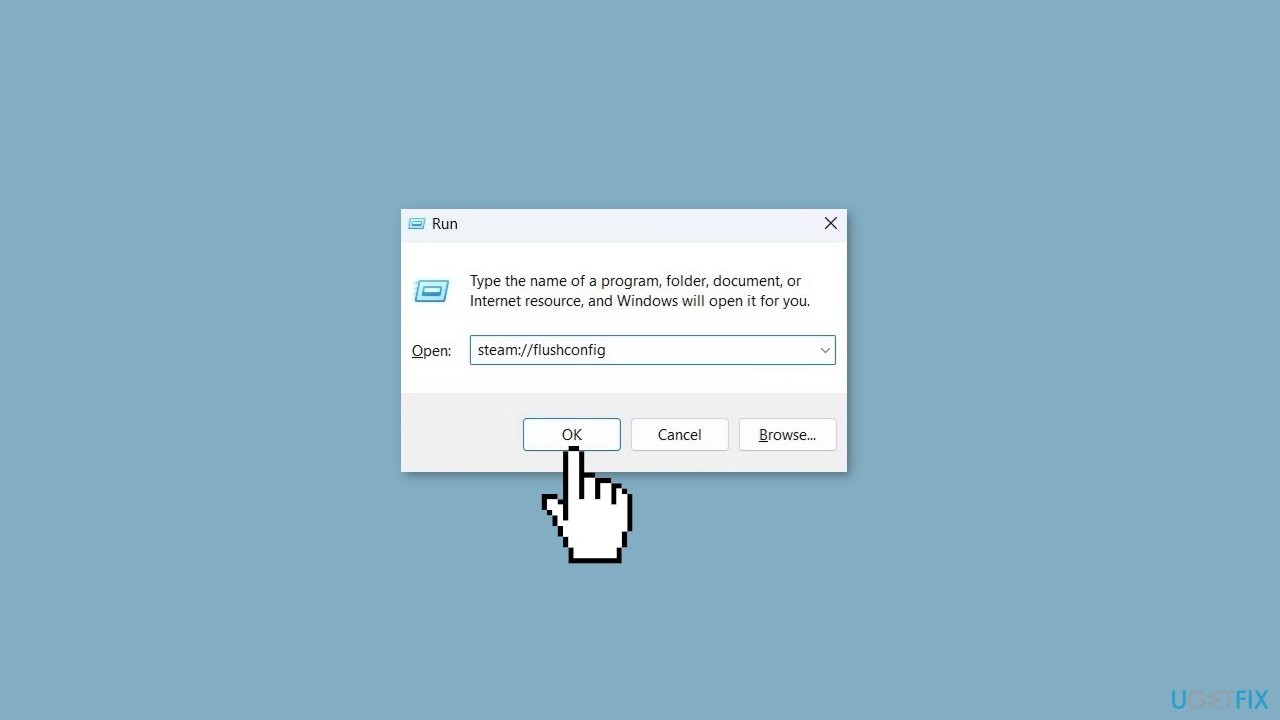
- Open the Run dialog box by pressing the Windows key + R.
- Type steam://flushconfig into the provided box.
- Click OK to initiate the process.
Bottom line
To fix the 'Content servers unreachable' error, users can try running Steam as an administrator, modifying their internet connection, and checking firewall and antivirus settings. If these solutions do not resolve the issue, users may need to reinstall the Steam client or clear the Steam download cache.
Frequently asked questions
This error can occur due to network connectivity issues, Steam server downtime, or corrupted Steam files on your Windows 10 system.
You can reset your network settings by going to Settings > Network & Internet > Status, then clicking on 'Network reset' to restore default configurations on Windows 11.
Yes, clearing the download cache can help fix this issue; you can do this by going to Steam settings, selecting 'Downloads', and then clicking on 'Clear Download Cache'.




Report an issue
What's wrong with this guide? We review every report and update or remove content.
Report received — thank you. We'll review and fix it.
You need a free account to submit a report.
Be the first to comment