How to fix
Context menu shows up on the wrong monitor
on Windows
Fix the context menu issue on the wrong monitor in Windows 10 or 11 easily. Get expert-tested solutions and enjoy a seamless multi-monitor experience!

What causes How to fix context menu shows up on the wrong monitor in Windows?
- Misaligned monitor positions in display settings
- Scaling discrepancies between monitors
- Outdated graphics drivers
- Interference from third-party tools
- Driver conflicts or registry misconfigurations
Repairs Windows system files, removes malware, and restores a clean OS state — without reinstalling.
Earlier today, I tried organizing files on my second monitor, but the context menu keeps appearing on my main screen. Why does it display on the wrong monitor with multiple monitors, and how can I stop it?
Multiple-monitor setups are a boon for Windows users, offering expanded screen real estate for work and play. Yet, they’re not without their quirks, and one persistent issue is the context menu shown in the wrong monitor. This problem (where the context menu displays on the wrong monitor with multiple monitors) has been flagged across platforms like Microsoft Answers, or Reddit.
Users describe right-clicking on one screen, say their secondary monitor, only to see the menu pop up on their primary display instead. It’s a disruption tied to Windows 11’s multi-monitor management, often exacerbated by misaligned display settings, scaling discrepancies, or driver inconsistencies.
The cause behind the context menu shown in the wrong monitor isn’t universal. Feedback from online communities suggests that uneven monitor alignment in the display settings can confuse Windows about where to place the menu. Scaling differences between screens (say, 100% on one and 125% on another) can also throw it off, as can outdated graphics drivers or third-party tools interfering with window behavior.
Solving this glitch often means testing a few fixes tailored to your setup, whether it’s realigning monitors, syncing DPI settings, or refreshing drivers to stop the context menu displaying on the wrong monitor with multiple monitors.
For a streamlined fix, the [d1] repair tool can be a lifesaver. It targets system-level hitches - like driver conflicts or registry misconfigurations - that might cause the context menu to misfire across monitors. By automating these corrections, it spares you the grunt work of manual tweaks, ensuring your right-click stays where it should. We’ll dive into specific solutions later to help you reclaim control over your multi-monitor experience.
Fix 1. Realign monitor layout
Misaligned monitor positions in Windows settings can cause the context menu to appear on the wrong screen, and correcting their arrangement ensures accurate placement.
- Right-click on Start and select Settings.
- Navigate to System > Display.
- Drag the monitor boxes to match their physical layout (e.g., side-by-side or stacked).
- Click Apply and test by right-clicking on each screen.

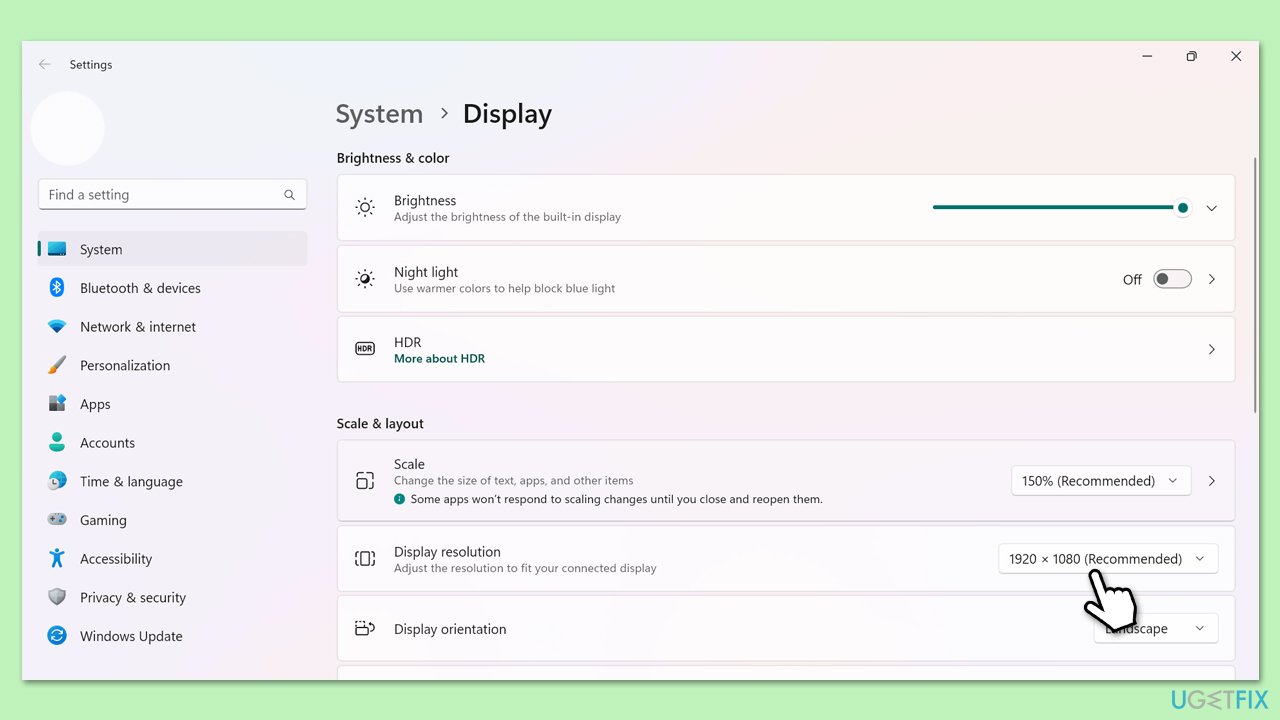
Fix 2. Set uniform scaling across monitors
Differing DPI scaling settings can confuse Windows, leading to the context menu displaying on the wrong monitor, and syncing them can resolve this.
- Open Settings.
- Go to System > Display and select the first monitor.
- Set the Scale and layout percentage (e.g., 100%) and repeat for the second monitor.
- Click Apply and check the context menu behavior.
Fix 3. Update graphics drivers
Outdated or buggy graphics drivers might misdirect the context menu, and updating them can fix multi-monitor rendering issues.
- Right-click on the Start button and select Device Manager from the menu.
- Expand the Display adapters section.
- Right-click on your graphics card and select Update driver.
- Pick Search automatically for drivers.
- If updates are found, allow them to install.
- Restart your computer after updating all necessary drivers.
- If you would rather take an automatic approach, [rev id="DriverFix"] can be a good choice here - it will save you lots of time and effort.

Fix 4. Set correct primary monitor
If the wrong monitor is set as primary, the context menu may default there, and reassigning it can correct this.
- Open Settings.
- Go to System > Display and select your preferred primary monitor.
- Check Make this my main display under Multiple displays.
- Click Apply and test with a right-click.

Fix 5. Disable third-party display tools
Software like DisplayFusion can override Windows’ monitor handling, causing the context menu to show on the wrong monitor, and disabling them may help.
- Press Ctrl + Shift + Esc to open Task Manager.
- Go to the Startup tab and locate any display management apps.
- Right-click and select Disable.
- Restart your PC and test the context menu.
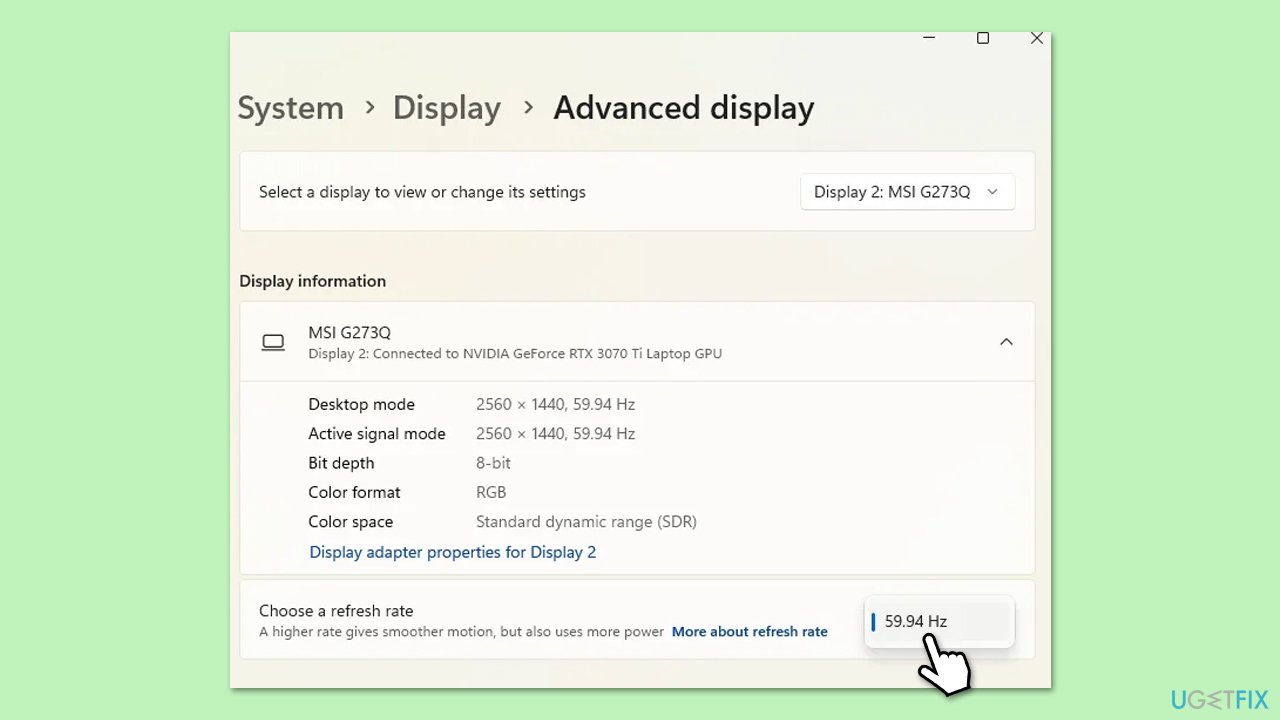
Fix 6. Adjust monitor refresh rates
Mismatched refresh rates can disrupt multi-monitor coordination, pushing the context menu to the wrong screen, and aligning them might fix it.
- Right-click on Start and pick Settings.
- Go to System > Display > Advanced display settings.
- Match the refresh rate (e.g., 60Hz) for each monitor.
- Click Apply and verify the context menu placement.
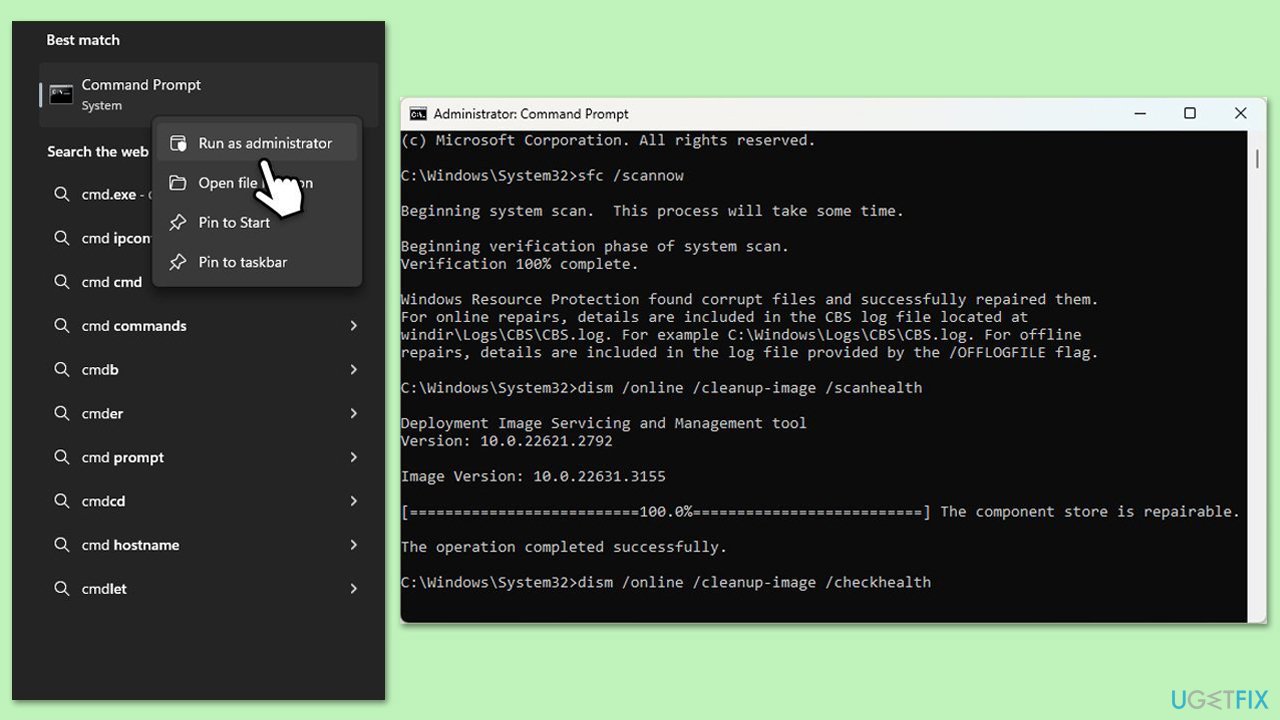
Fix 7. Run SFC and DISM scans
Corrupted system files can affect monitor behavior, misplacing the context menu, and these scans repair them to restore functionality.
- Type cmd in Windows search.
- Right-click on Command Prompt and select Run as administrator.
- When User Account Control window shows up, click Yes.
- Paste the following command into the new window:
sfc /scannow - Press Enter and wait till the scan is executed.
- As soon as the scan finishes, Windows will report whether integrity violations were found and if they could be fixed. Regardless of the outcome, use these commands next, pressing Enter after each:
DISM /Online /Cleanup-Image /CheckHealth
DISM /Online /Cleanup-Image /ScanHealth
DISM /Online /Cleanup-Image /RestoreHealth - (Note: if you get an error executing this last command, add /Source:C:\RepairSource\Windows /LimitAccess to it and try again).
- Close down the Command Prompt and restart your computer.
Fix 8. Reset display settings to default
Custom display configurations might confuse Windows, causing the context menu to display incorrectly, and resetting them can realign behavior.
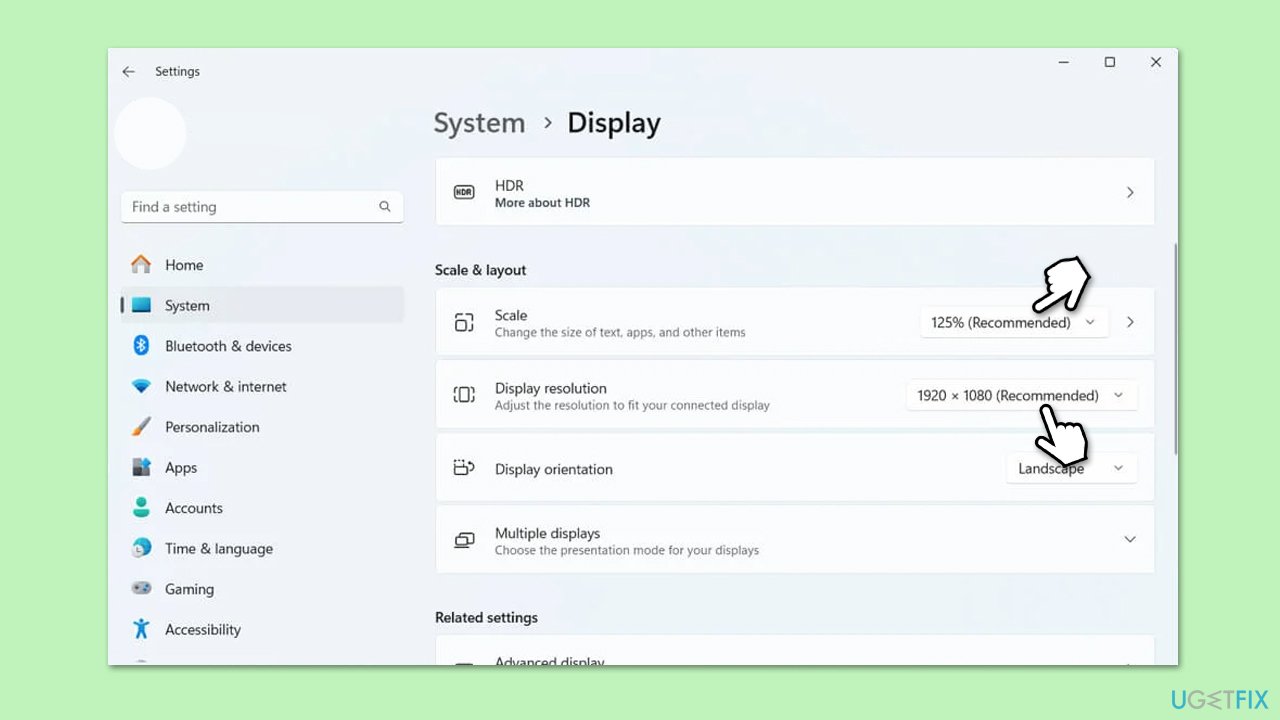
- Right-click on Start and select Settings.
- Go to System > Display > Advanced display settings.
- Click Reset under Multiple displays if available, or manually revert custom settings (you will see "Recommended" next to the resolution and refresh rate settings).
- Click Apply and check the context menu on each monitor.
Bottom line
To fix the issue of the context menu appearing on the wrong monitor, you can realign the monitor layout, sync DPI settings, or refresh your graphics drivers. If these solutions do not resolve the problem, consider using a repair tool to automate corrections.
Frequently asked questions
This issue may occur due to display settings misconfiguration or when using multiple monitors with different resolutions. Ensure that your primary display is correctly set in the Display settings.
You can reset your display settings by going to Settings > System > Display and clicking on 'Advanced display settings' to reconfigure your monitors. Also, try disconnecting and reconnecting the monitors to refresh the settings.
To prevent this issue, make sure that your main monitor is set correctly in the display settings and that all monitors are aligned properly in the display arrangement. Additionally, updating your graphics drivers can help resolve display-related issues.




Report an issue
What's wrong with this guide? We review every report and update or remove content.
Report received — thank you. We'll review and fix it.
You need a free account to submit a report.
Be the first to comment