How to fix
Copilot error “It looks like you’ve been signed out”
on Windows
Resolve the Copilot error "It looks like you’ve been signed out" on Windows 10 and 11 quickly and efficiently. Fixed in minutes, expert-tested.

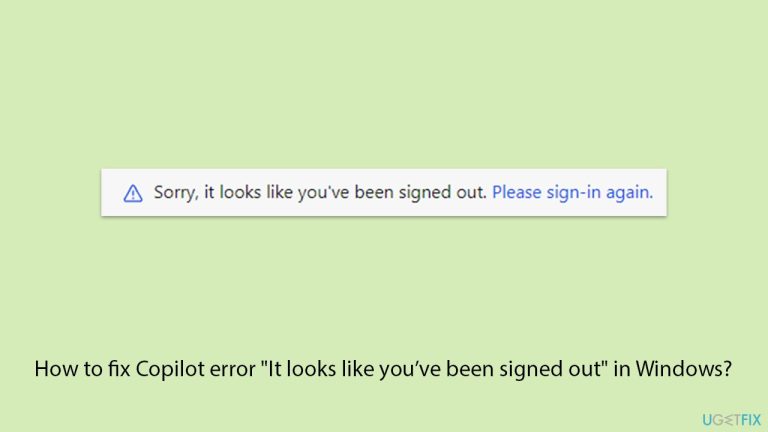
What causes How to fix Copilot error “It looks like you’ve been signed out” in Windows?
- Account session timeouts
- Connectivity disruptions
- Issues related to browser configurations
- Problems with Microsoft’s authentication servers
- User profile settings issues
Repairs Windows system files, removes malware, and restores a clean OS state — without reinstalling.
Copilot keeps telling me to sign in, even though I already have done that. I can't even ask a question without it being the case, which is really frustrating. Maybe you could help me to resolve this?
The "It looks like you’ve been signed out" error in Microsoft Copilot can occur when your Microsoft account session expires or faces connectivity issues. It may be a sign that the Copilot feature is unable to authenticate your account, preventing access to its features. This problem is commonly encountered by users of Microsoft Edge or during the use of Windows Copilot.
There are a few common causes behind "It looks like you’ve been signed out" error. The most common include account session timeouts, connectivity disruptions, or issues related to browser configurations. It can also be triggered by problems with Microsoft’s authentication servers or user profile settings, both of which may prevent Copilot from working as expected.
One possible solution is simply logging out of your Microsoft account and then signing back in. Doing so will refresh the authentication token, potentially resolving the error. You may want to check if your network connection is stable and if the services from Microsoft are running.
Besides, this error sometimes can be fixed by clearing browser cache and cookies. It could be that corrupted or outdated files are stored in the cache that conflict with Copilot's functionality.
Similarly, disabling conflicting extensions in Microsoft Edge or resetting its settings may also resolve the issue. In the case of more persistent issues, creating a new profile in Edge or reinstalling the application itself can resolve the problem if it is related to profile corruption.
If you're still having the "It looks like you've been signed out" error, a repair tool like [d1] can automatically help identify and fix underlying issues in the system or software that might be causing this problem.
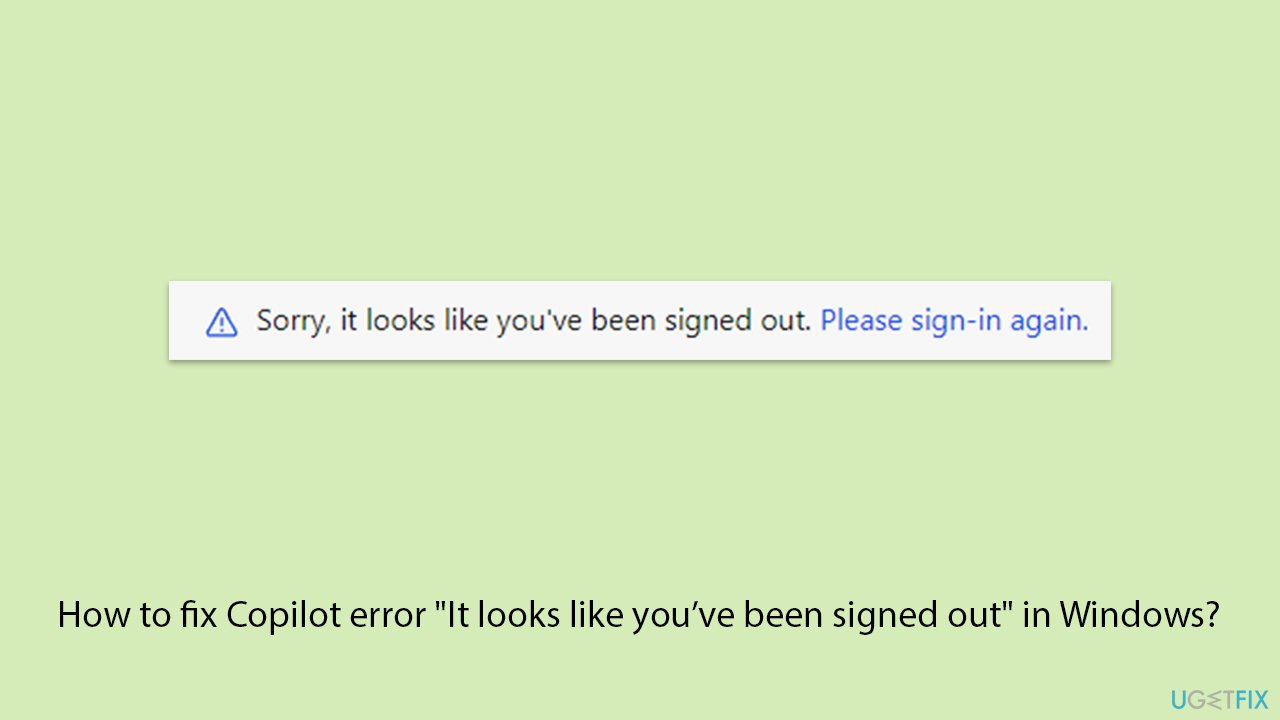
Fix 1. Update Windows
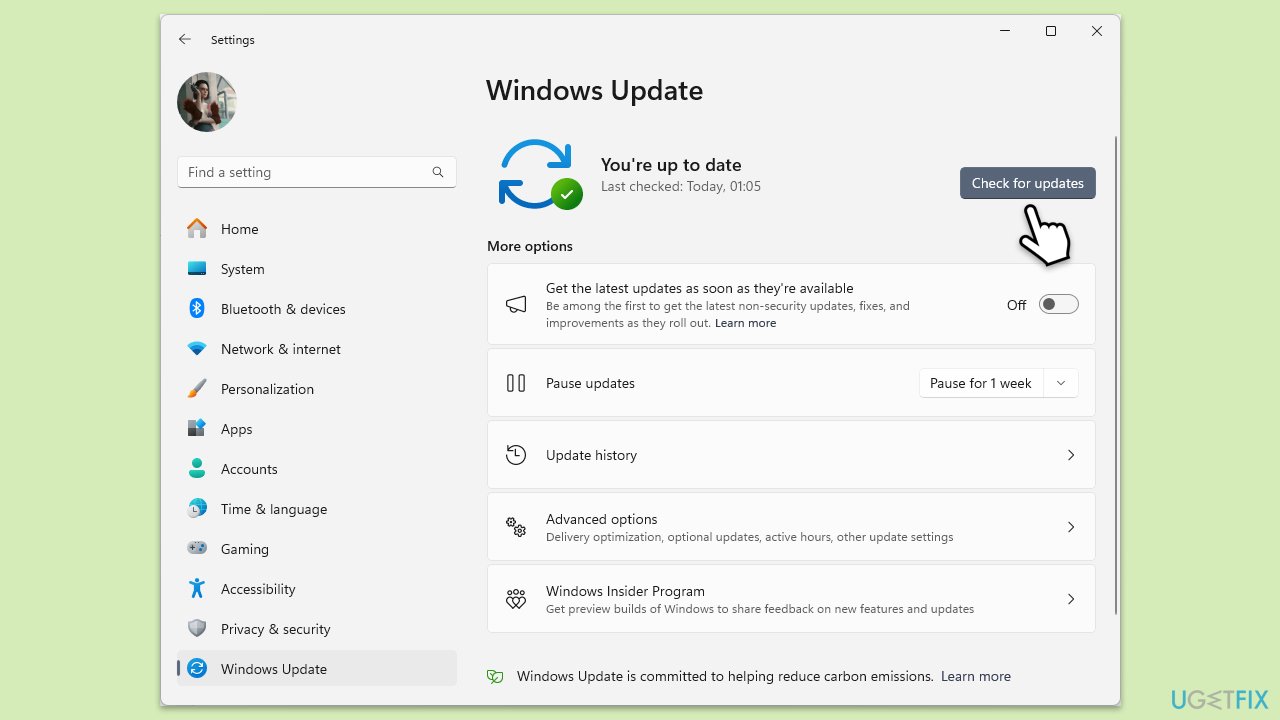
Outdated software can cause compatibility issues with Copilot, so make sure you are running the latest version of Windows.
- Type Updates in the Windows search box and press Enter.
- Click Check for Updates or Install all.
- Ensure optional and pending updates are installed as well.
- Wait till the process is finished.
- Restart your system to implement the changes.
Fix 2. Update Microsoft Edge
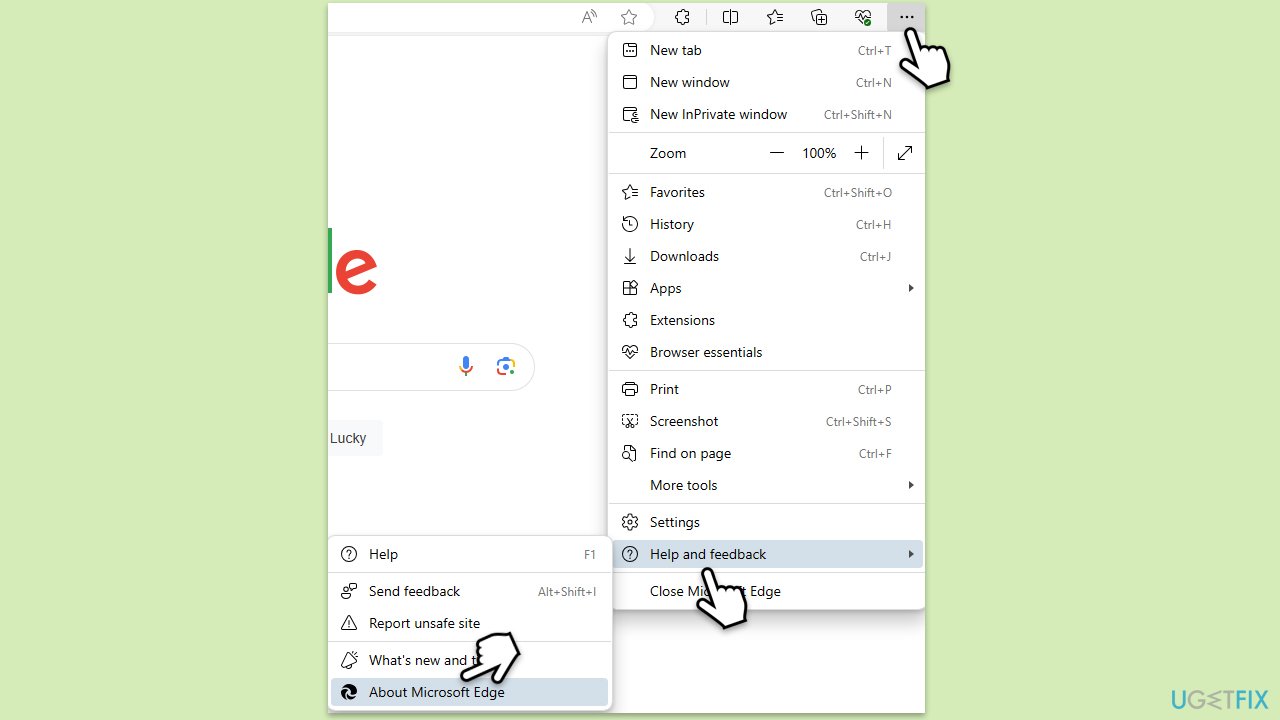
Similarly, make sure that Edge is updated.
- Open Edge and click on three horizontal dots (Settings and more).
- Select Settings.
- Click on Help and Feedback > About Microsoft Edge on the left.
- The browser should now automatically be updated to the latest version.
Fix 3. Disable VPN or similar software
VPNs and proxy services can interfere with Microsoft’s authentication servers, leading to the error.
- Open your VPN application or network settings.
- Turn off the VPN or disconnect from the proxy service.
- Restart your device and try using Copilot again.
Fix 4. Check your internet connection
A stable internet connection is essential for Copilot to authenticate your account and function properly.
Windows 11
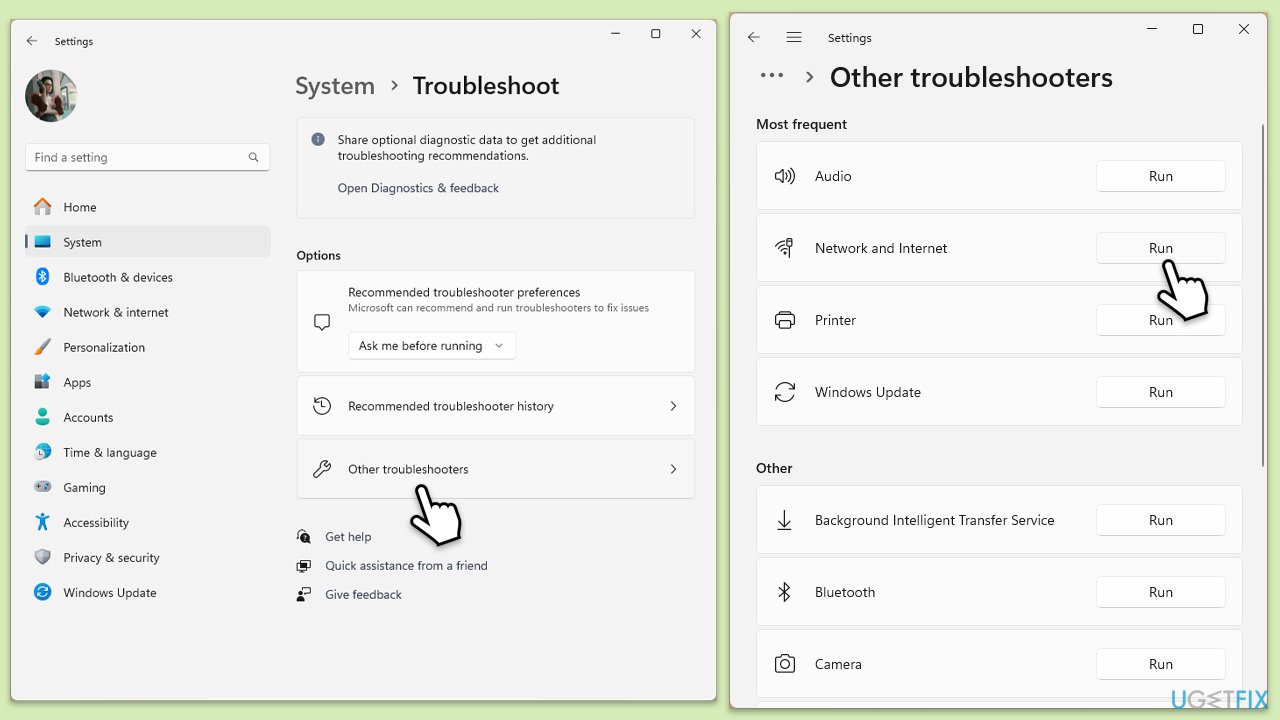
- Type Troubleshoot in Windows search and hit Enter.
- Select Other troubleshooters.
- Locate Network & Internet troubleshooter from the list and click Run.
- Wait till the process is finished and apply the recommended fixes.
- Restart your computer.
Windows 10
- Right-click on Start and pick Settings.
- Go to the Network & Internet section.
- On the right side, find the Advanced network settings section.
- Click Network troubleshooter and wait.
- The fixes will be automatically applied.
Fix 5. Clear cache and cookies in Microsoft Edge
Outdated or corrupted browser data can cause issues with account authentication. Clearing this data can help.
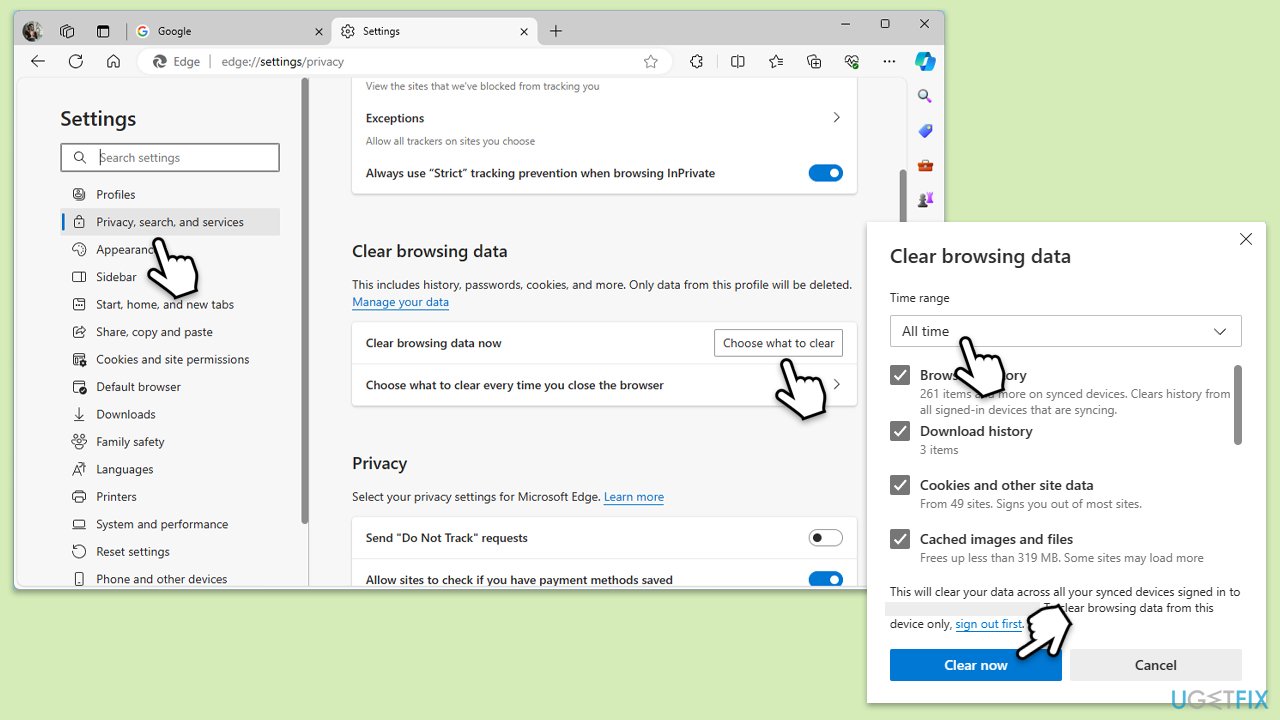
- Open Microsoft Edge.
- Go to Settings and then pick Privacy, search, and services on the left.
- On the right side of the window, scroll down to find the Clear browsing data section.
- Click Choose what to clear.
- Select All time under the time range.
- Pick all the sections and click Clear now.
Fix 6. Check for browser extensions causing conflicts
Certain browser extensions may block or interfere with Copilot functionality.
- Click the Extensions button next to the address bar.
- Select Manage extensions.
- Here, you can either Remove the extension or disable it by toggling the switch.
Fix 7. Reset Microsoft Edge settings
Resetting the browser removes misconfigured settings that might trigger errors.
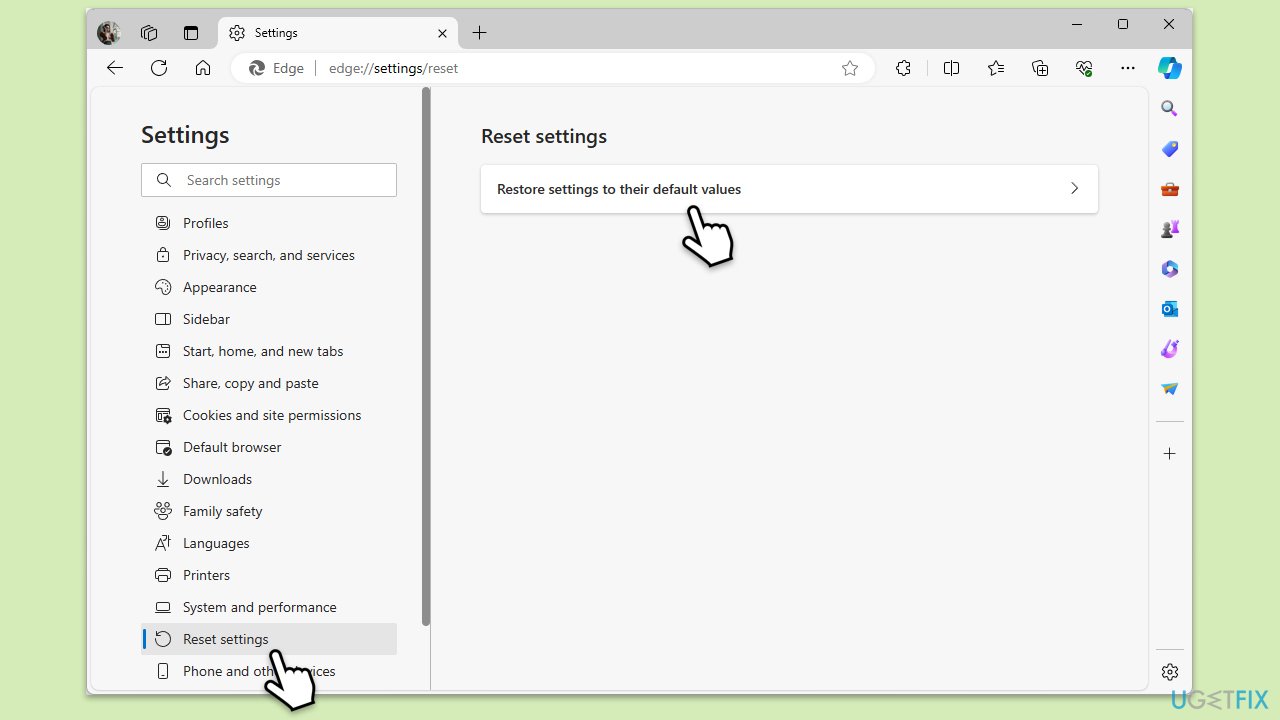
- Open Edge Settings.
- Scroll down and click on Reset Settings.
- Click Restore settings to their default values.
- Confirm by clicking Reset.
- Reopen Edge and test Copilot.
Fix 8. Use a new user profile in Microsoft Edge
A corrupted user profile can cause persistent errors with Copilot. Creating a fresh profile may resolve the issue.
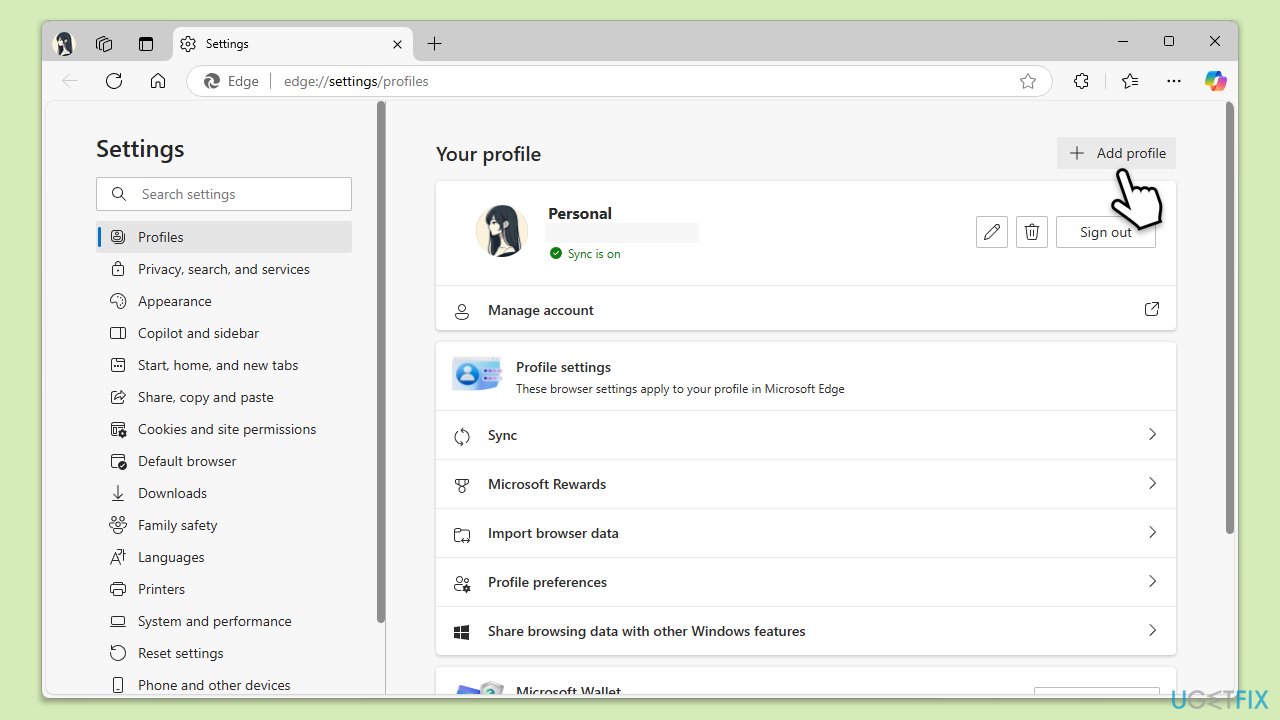
- Open Microsoft Edge and go to the Profile menu.
- Click Add profile and follow the steps to create a new one.
- Log in to your Microsoft account with the new profile and check Copilot.
Bottom line
To resolve the 'It looks like you’ve been signed out' error, you can try logging out and back into your Microsoft account, checking your network connection, and clearing your browser cache and cookies. If the issue persists, consider disabling conflicting extensions in Microsoft Edge, creating a new profile, or reinstalling the application. If none of these solutions work, using a repair tool may help identify and fix underlying issues.
Frequently asked questions
Try signing back into your Microsoft account within the Copilot settings, as this often resolves the issue immediately.
Yes, resetting your network settings in Windows 10 can help, as connectivity issues might cause sign-in problems with Copilot.
Absolutely, you can run the Windows Troubleshooter for apps and check for updates, which may fix the Copilot error without needing a full reinstall.




Report an issue
What's wrong with this guide? We review every report and update or remove content.
Report received — thank you. We'll review and fix it.
You need a free account to submit a report.
Be the first to comment