How to fix
Copilot error “Sorry, we’ll have to talk later”
on Windows
Resolve the Copilot error "Sorry, we’ll have to talk later" on Windows 10 and 11 with simple steps. Expert-tested solutions for quick fixes!


What causes How to fix Copilot error “Sorry, we’ll have to talk later” in Windows?
- Connectivity issues
- Outdated system configurations
- Problems with the speech recognition service
- Microphone permission settings
- Regional restrictions
Repairs Windows system files, removes malware, and restores a clean OS state — without reinstalling.
I wanted to try Copilot voice but it didn't work. It simply keeps saying "Sorry, we’ll have to talk later." I am using Windows 11 Pro and have installed the latest updates.
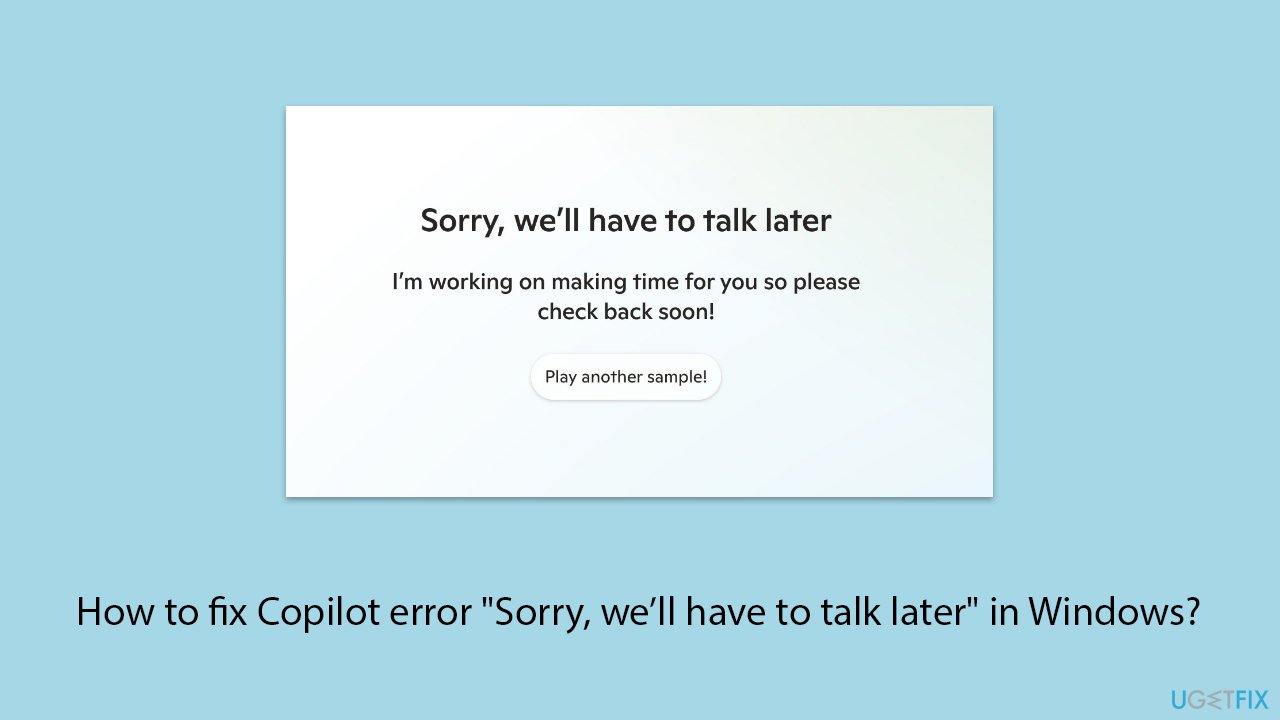
Copilot is a new feature in Windows, allowing users to operate their device simply by talking to it. It's designed for opening applications, navigating through the system, and responding to your questions by handling what's being fed to it in real-time. Copilot Voice Mode failed to impress some users as they said that it fails to deliver complete functionality and, instead, shows the following error when it's invoked: "Sorry, we'll have to talk later".
Most users reported that the "Sorry, we’ll have to talk later" error showed up after updating Windows to the latest version. While this does not mean that everyone is affected, different computer configurations and specifications might matter a lot here.
Users experiencing this error typically face it when attempting to use Copilot’s voice feature, even though text-based commands work fine. The error seems to be linked to connectivity issues, outdated system configurations, or problems with the speech recognition service. It may also happen due to microphone permission settings or regional restrictions.
To fix the "Sorry, we’ll have to talk later" error, potential solutions include checking system updates, ensuring microphone permissions are enabled, and verifying internet connectivity. Resetting Copilot’s voice settings or updating related services can also help.
For users who are less familiar with troubleshooting or want to save time, using a trusted [d1] repair tool can automatically detect and fix system issues that might be causing the error, ultimately resolving the "Sorry, we’ll have to talk later" error.
Fix 1. Check microphone permissions
Improper microphone settings can prevent Copilot from using voice commands. Ensuring that the microphone is enabled for Copilot can help resolve the error.
- Right-click on Start and click Settings.
- Go to Privacy & Security, then click Microphone.
- Ensure that the microphone access toggle is turned on for Copilot.

Fix 2. Update Windows
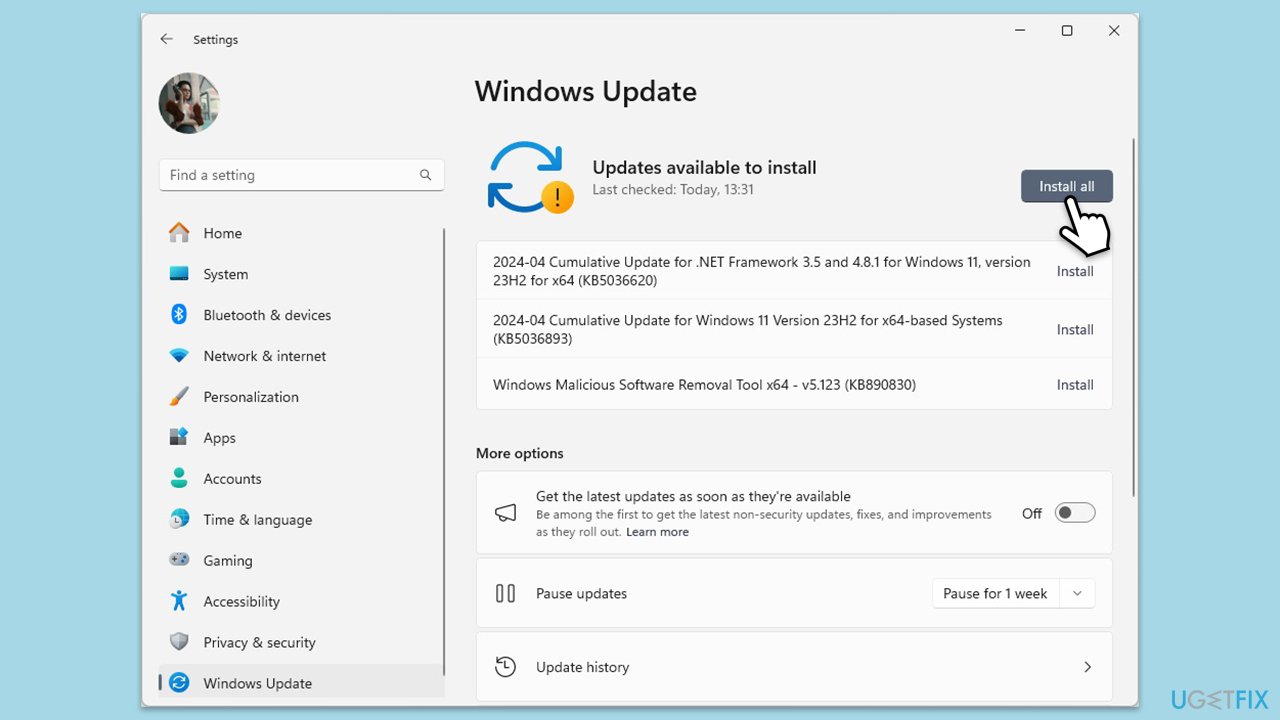
Outdated Windows versions can interfere with features like Copilot, causing issues such as "Sorry, we’ll have to talk later". Updating Windows can fix bugs and improve performance.
- Type Updates and press Enter.
- In the new window, click Install all (if pending) or Check for updates.
- Wait till all the files are downloaded and installed.
- If optional updates are available, install them as well.
- Restart your device when done.
Fix 3. Check Windows Audio Service
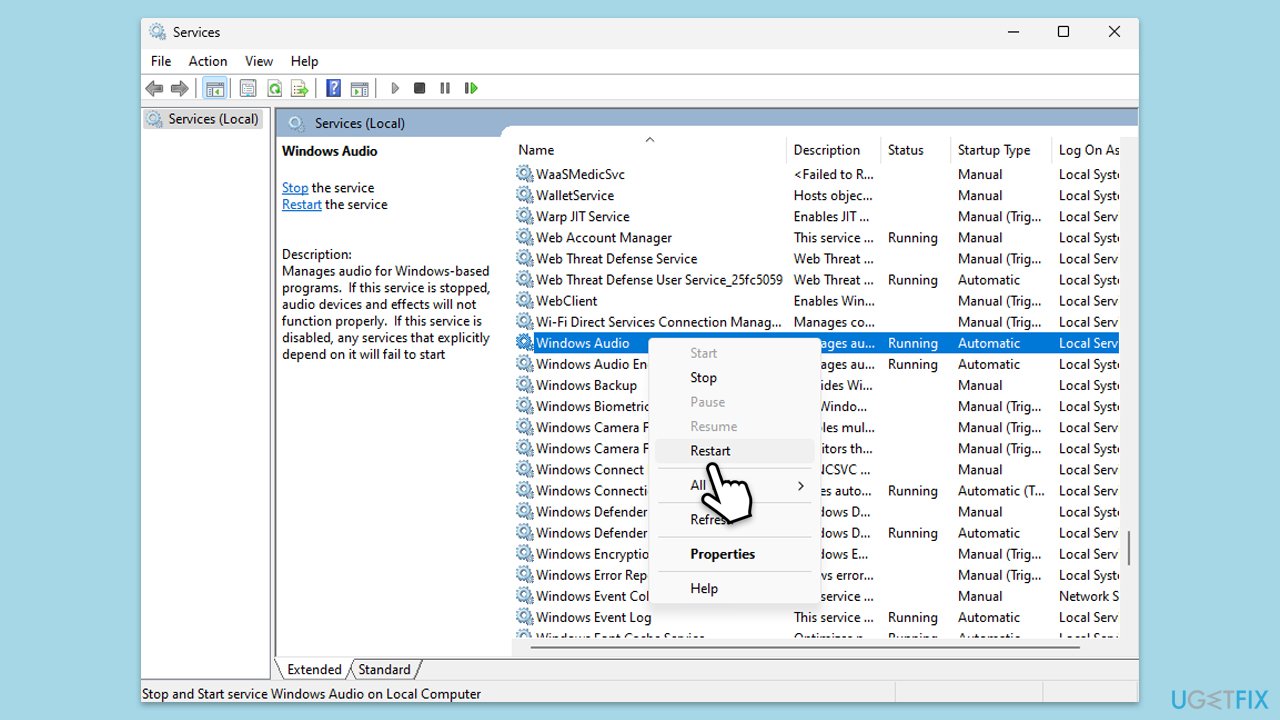
Copilot's voice mode may rely on the Windows Audio service to process sound and voice commands. Restarting it can help resolve voice-related issues.
- Type Services in Windows search and press Enter.
- Scroll down to Windows Audio, right-click it, and select Restart.
- If the service is not running, double-click it to open Properties.
- Under Startup type, select Automatic from the drop-down menu and pick
- Test Copilot again to see if the voice feature works.
Fix 4. Re-login to your account
Sometimes, signing out and signing back into your Microsoft account can reset any temporary issues related to Copilot’s voice mode.
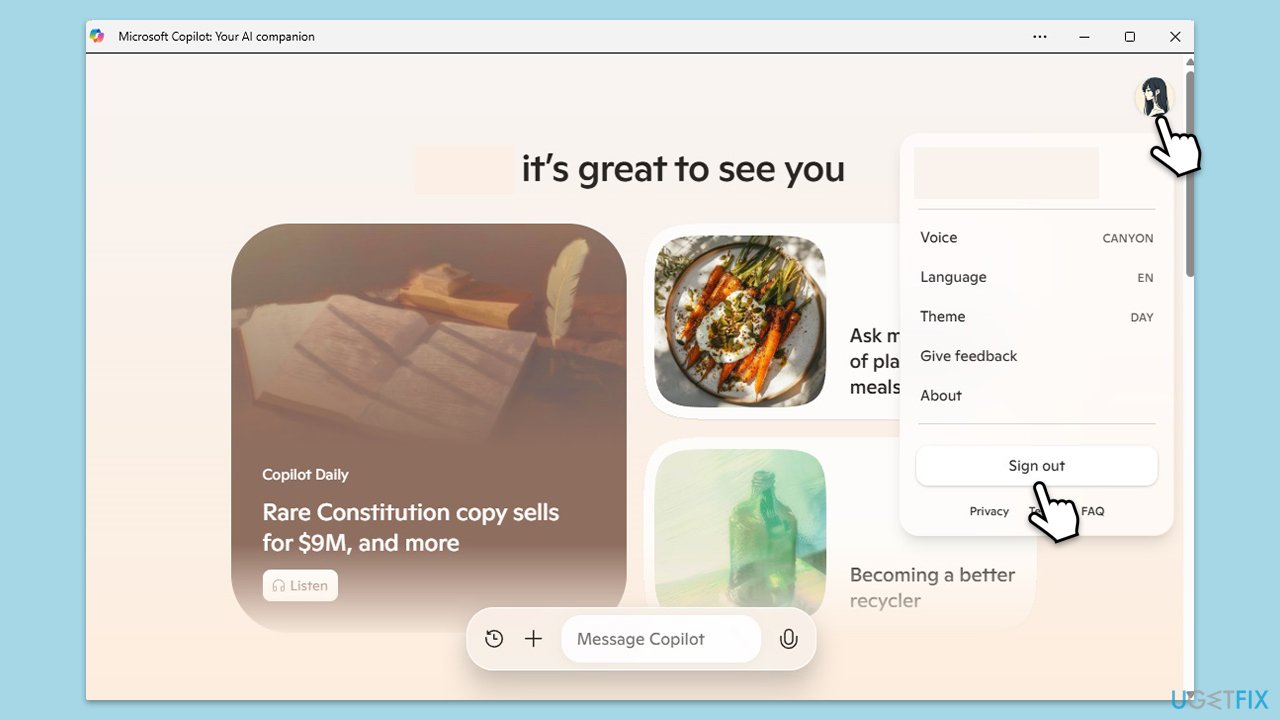
- Open the Copilot app.
- Click on your avatar at the top-right corner of the window.
- Select Sign out.
- Restart your computer.
- Open Copilot again, sign back in, and check if the issue is gone.
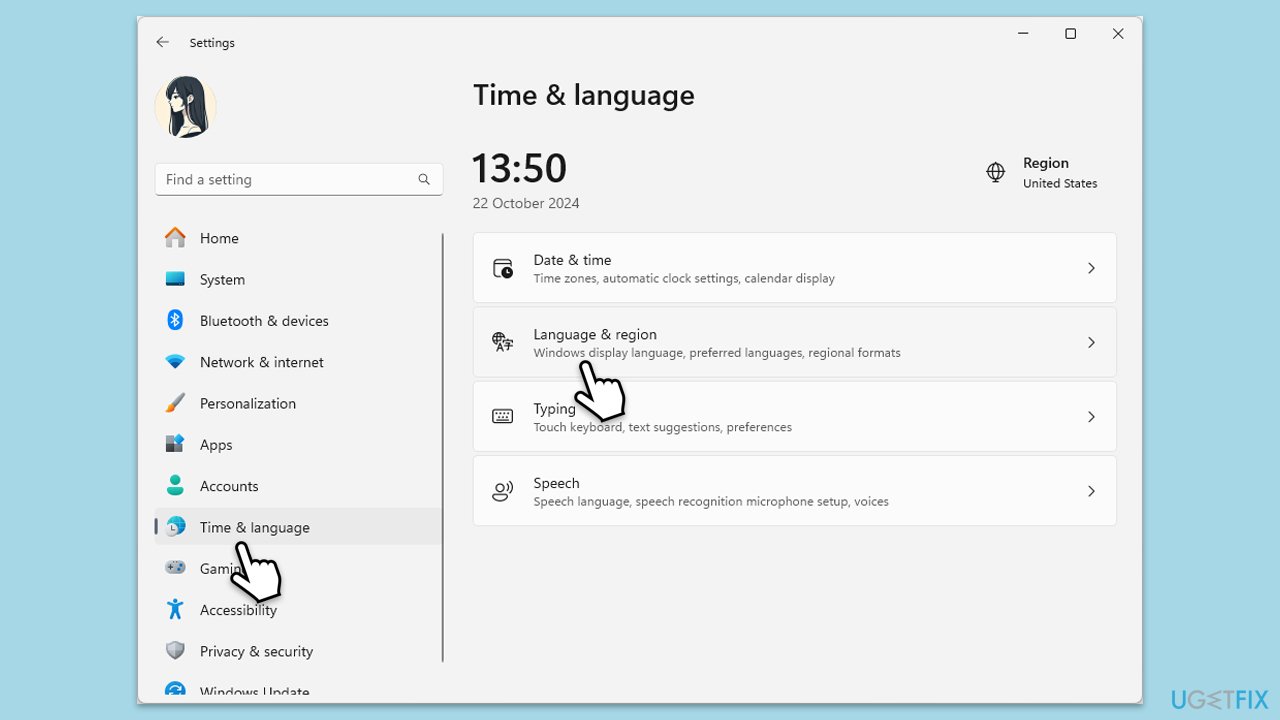
Fix 5. Adjust regional settings
In some cases, incorrect regional settings can cause issues with Copilot's voice feature. Setting the correct region may help.
- Open Settings.
- Go to Time & Language, then select Language & Region.
- Ensure your region and language are set correctly.
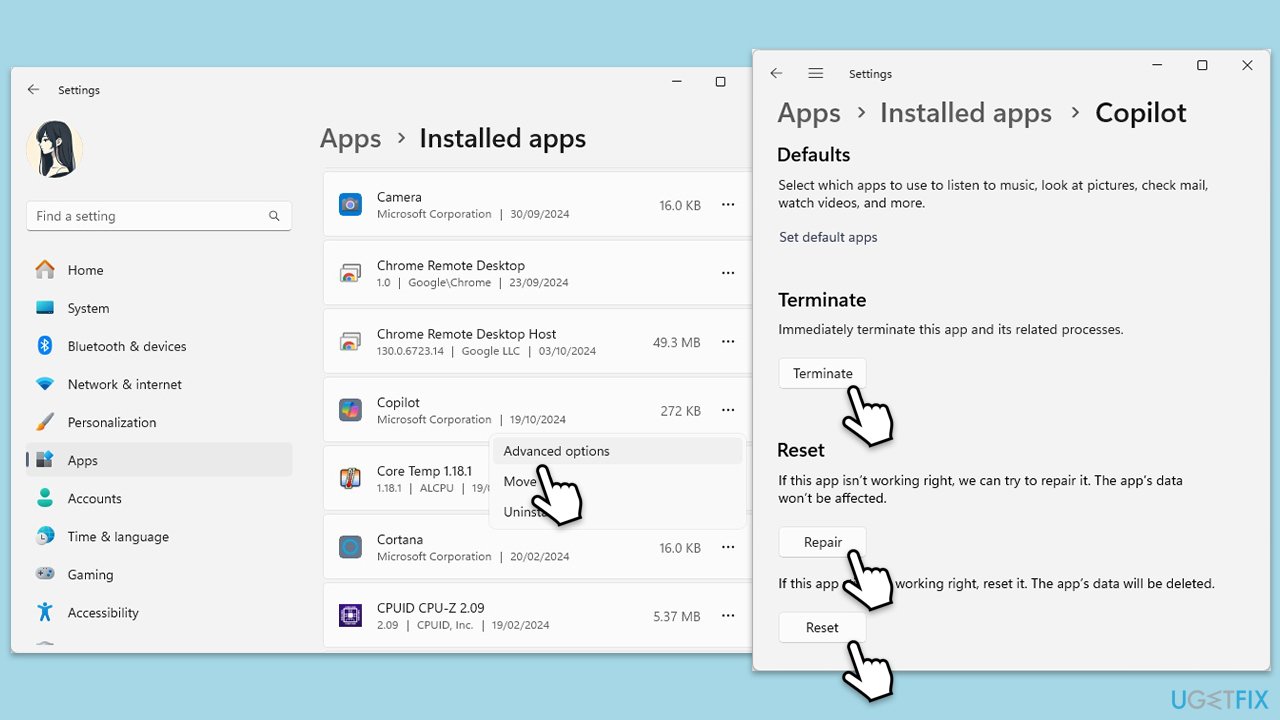
Fix 6. Repair or reset Copilot settings
Resetting Copilot to default settings can resolve issues caused by configuration errors.
- Right-click on Start and pick Installed apps/Apps & Features.
- Scroll down to find Copilot and click Advanced options.
- Scroll down and select Repair then wait till the process is finished.
- If that doesn't help, try the Reset option instead.
Fix 7. Reinstall voice packages
Missing or corrupted voice packages can trigger the "Sorry, we’ll have to talk later" error. Reinstalling the voice packages may resolve the problem.
- Open Settings.
- Go to Time & Language, then click Speech.
- Select your preferred language and reinstall the voice packages.
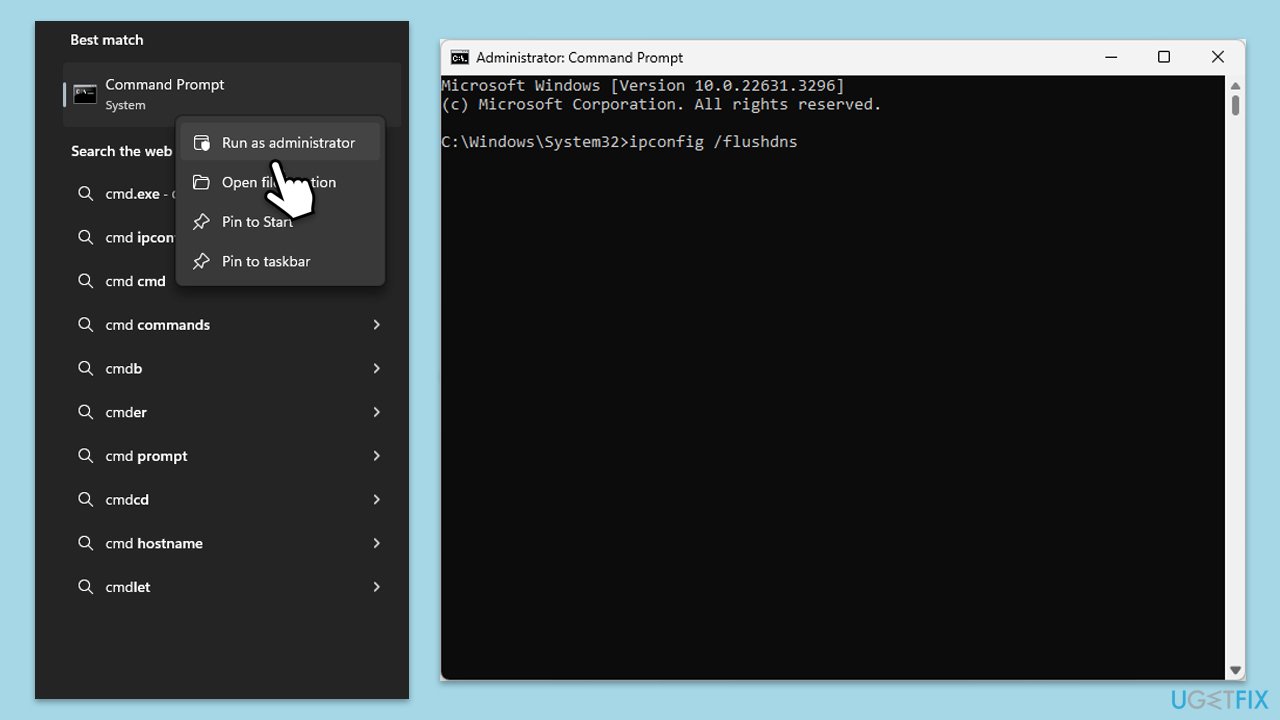
Fix 8. Reset network settings
Resetting your network can resolve connection-related issues that affect Copilot's voice functionality.
- Type cmd in Windows search.
- Right-click on the Command Prompt result and select Run as administrator.
- User Account Control will ask whether you want to allow changes - click Yes.
- Copy and paste each of the following commands, pressing Enter every time:
ipconfig /flushdns
ipconfig /registerdns
ipconfig /release
ipconfig /renew
netsh winsock reset - Reboot your device.
Fix 9. Uninstall the most recent Windows update
This might not be possible for everyone but if you have noticed that the problem started after updating Windows, you can try uninstalling the update that has caused it.
- Type Control Panel in Windows search and press Enter.
- Select Programs > Uninstall a program.
- Click on View installed updates on the left side of the window.
- Sort all the updates by date.
- Right-click on the recent update and select Uninstall.
- Proceed with on-screen instructions.
- Then, type Updates in Windows search and press Enter.
- Click Pause the updates for 7 days (in Windows 11, you can pick a different time period).
- Install updates only once the issue is addressed by Microsoft.
Bottom line
To fix the "Sorry, we’ll have to talk later" error, check your system updates, ensure microphone permissions are enabled, and verify your internet connectivity. Resetting Copilot’s voice settings or updating related services may also help. If none of these solutions work, consider using a trusted repair tool to automatically detect and fix system issues.
Frequently asked questions
You can try restarting your PC, as this often resolves temporary glitches. If the issue persists, ensure that your Windows 11 is updated to the latest version.
Go to Settings > Update & Security > Windows Update, and click on 'Check for updates' to ensure you have the latest features and fixes for Windows 10 or Windows 11.
Yes, you can reset Copilot by going to Settings > Apps > Apps & features, locating Copilot, and selecting 'Advanced options' to reset the app.




Report an issue
What's wrong with this guide? We review every report and update or remove content.
Report received — thank you. We'll review and fix it.
You need a free account to submit a report.
Be the first to comment