How to fix
Copilot error “Unable to connect to the service”
on Windows
Resolve the "Unable to connect to the service" error in Windows 10 and 11 easily. Follow our expert-tested solutions for quick fixes and seamless perfor…


What causes How to fix Copilot error “Unable to connect to the service” in Windows?
- Unstable or weak internet connection
- Firewall settings blocking the connection
- Proxy servers interfering with access
- Temporary server outages on Microsoft's end
- Outdated software or system files
Repairs Windows system files, removes malware, and restores a clean OS state — without reinstalling.
Hello. I can't open Copilot on my laptop. Every time I try, it starts loading for a bit and then I receive a message saying "We're sorry but we're unable to connect to the service at this time."
Microsoft Copilot is an AI-powered assistant integrated into Windows to enhance productivity and creativity. It helps with various tasks like creating documents, editing photos, managing emails, and even controlling system settings. By using natural language processing, Copilot provides real-time assistance and suggestions within apps like Word, Excel, PowerPoint, and more, making it a versatile tool for both personal and professional use.
The "Unable to connect to the service" error in Copilot typically indicates issues with network connectivity or system configurations. This error can occur due to an unstable or weak internet connection, which prevents Copilot from accessing the necessary online services.
Additionally, network configurations such as firewall settings or proxy servers might block the connection. In some cases, the problem could stem from temporary server outages on Microsoft's end. It's also possible that outdated software or system files could interfere with Copilot's ability to connect.
To fix the Copilot error "Unable to connect to the service" error, you can start by ensuring that your internet connection is stable and working correctly. Keeping your Windows operating system and Copilot software up-to-date is crucial for compatibility and smooth functioning. I
If the error persists, there are a few other things you can do to resolve the "Unable to connect to the service" error in Copilot, including refreshing it, clearing Edge cache, ensuring the correct location in Bing, etc.
For dealing with various Windows issues related to system file corruption, DLL errors, and more, using a repair and maintenance tool like [d1] can be very effective. This tool is designed to identify and fix common system problems, ensuring your computer runs smoothly.

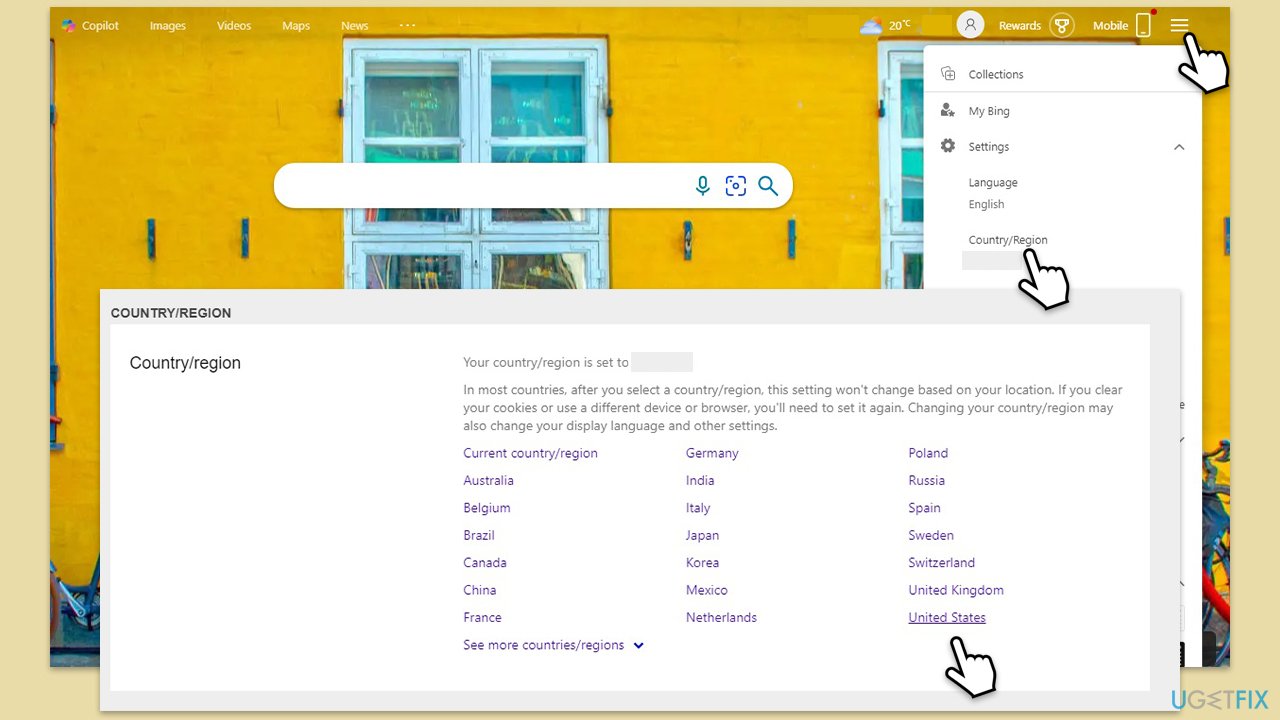
Fix 1. Check your location in Bing
Ensuring that your location settings in Bing are correct can help Copilot access relevant data and services based on your location. Incorrect location settings may lead to connectivity issues.
- Open Bing in your web browser.
- Click on the menu icon (three horizontal lines) in the top-right corner.
- Select Settings.
- Select Country/Region.
- Ensure your location is set correctly and adjust if necessary.
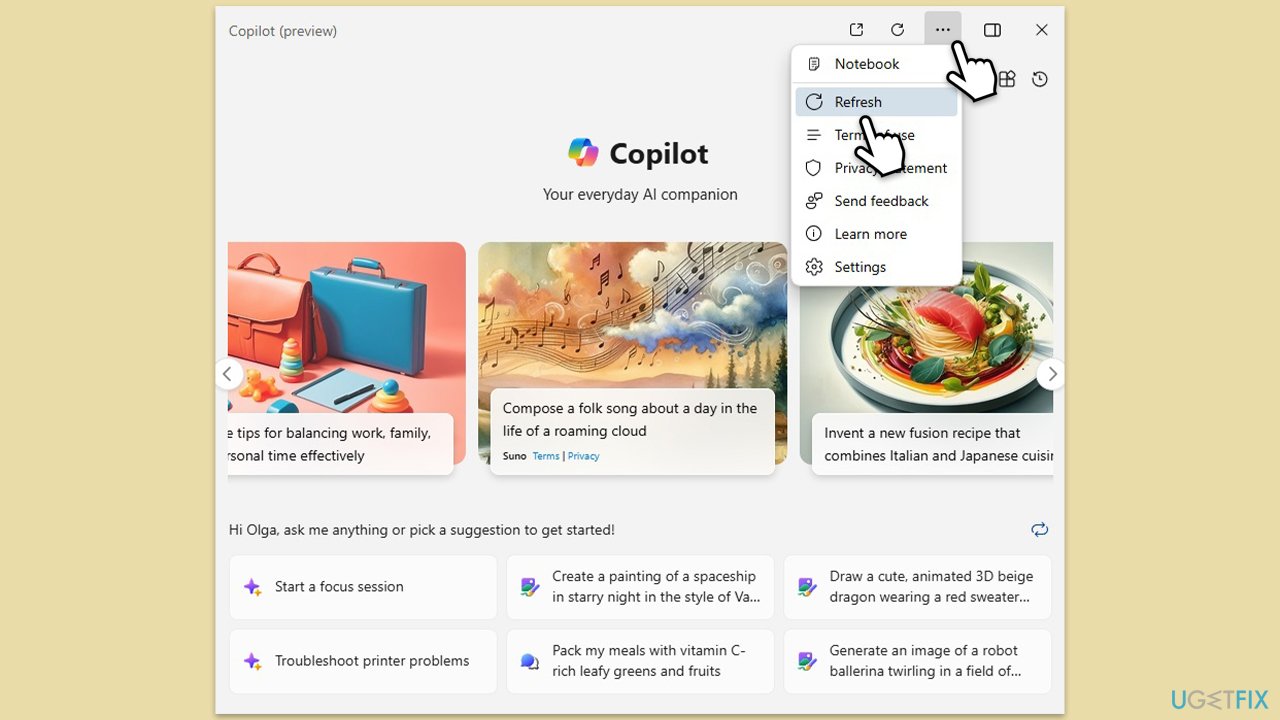
Fix 2. Refresh Copilot
Refreshing Copilot can help resolve temporary glitches and connectivity issues by re-establishing its connection to the service.
- Open Copilot by pressing its icon in the taskbar.
- Click on the More options (three horizontal dots) at the top-right corner.
- Select Refresh.
- Wait for the app to refresh and see if that fixed the "Unable to connect to the service" error in Copilot.
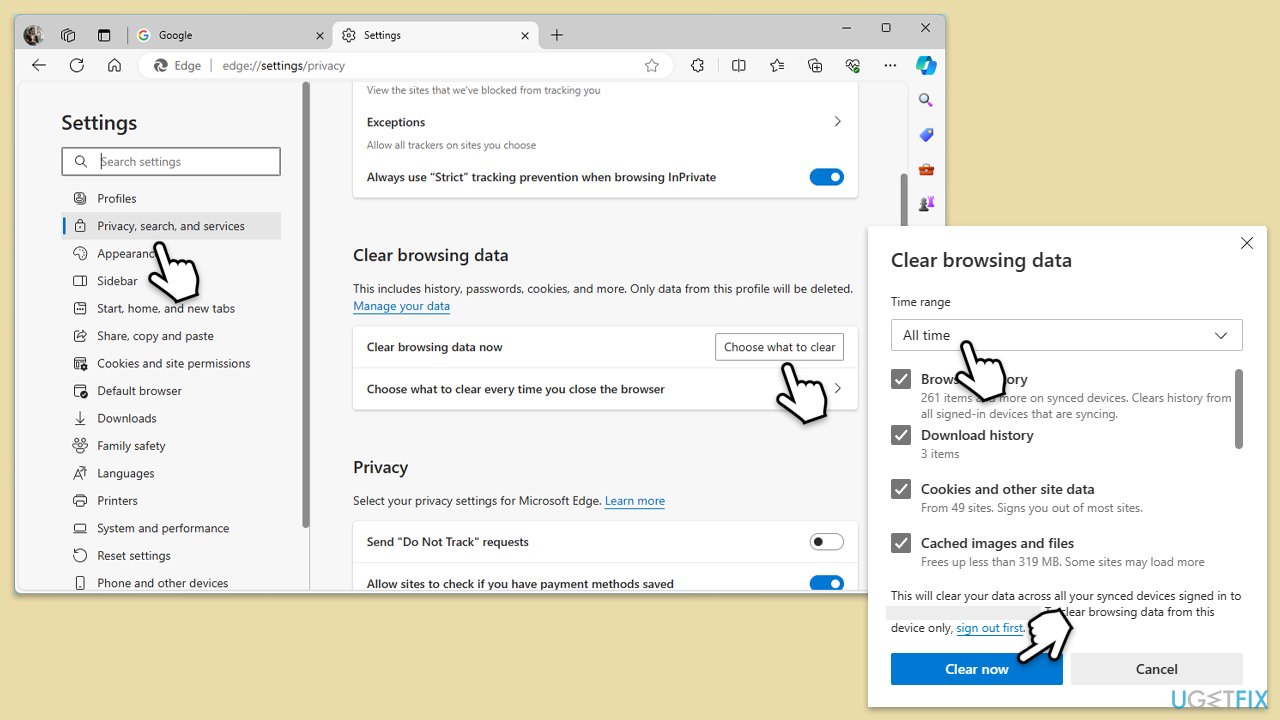
Fix 3. Clear cache and cookies in Edge
Clearing the cache and cookies in Microsoft Edge can help resolve issues caused by corrupted or outdated data that might be affecting Copilot's performance.
- Open Edge and click on three horizontal dots (Settings and more).
- Select Settings and then pick Privacy, search, and services on the left.
- On the right side of the window, scroll down to find the Clear browsing data section.
- Click Choose what to clear.
- Select All time under the time range.
- Pick all the sections and click Clear now.
Fix 4. Check Microsoft service status
Sometimes the issue might be on Microsoft's end due to server outages. Checking the service status can help you determine if this is the case.
- Visit the Microsoft service status website.
- Look for any ongoing issues.
- If there are service disruptions, wait for Microsoft to resolve them.

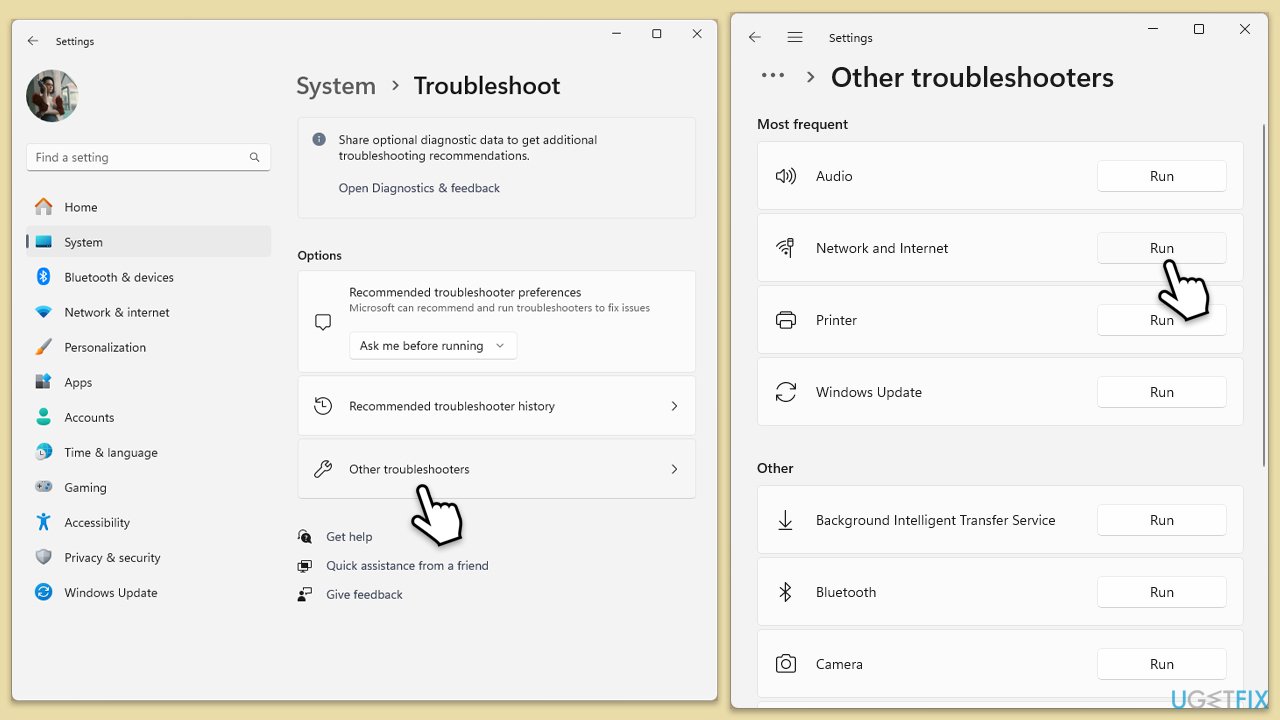
Fix 5. Run network troubleshooter
Running the network troubleshooter can identify and automatically fix many common problems related to network connectivity. This tool analyzes your network setup and configurations to find and resolve issues that might be preventing Copilot from connecting to the service.
Windows 11
- Type Troubleshoot in Windows search and press Enter.
- Select Other troubleshooters.
- Find Network & Internet troubleshooter from the list and select Run.
- Wait till the process is finished and apply the offered fixes.
- Restart your computer.
Windows 10
- Right-click on Start and pick Settings.
- Go to Network & Internet section.
- On the right side, find the Advanced network settings section.
- Click Network troubleshooter, specify the problem, and wait till the scan is finished.
- When done, apply all the recommendations.
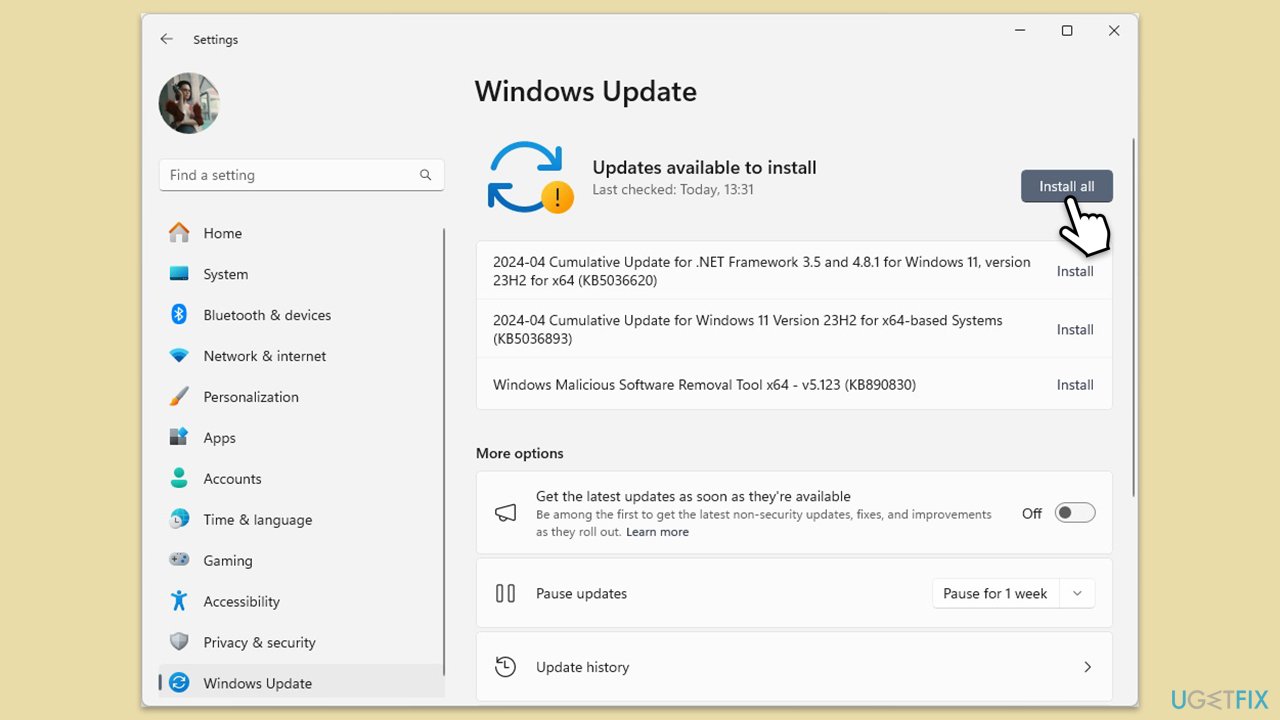
Fix 6. Update Windows and Copilot
Outdated software can cause compatibility issues, leading to connectivity errors. Keeping your system and applications updated ensures they function correctly.
- In Windows search, type Updates and press Enter.
- Click Check for updates and wait till Windows installs update.
- Make sure you also install all optional updates if they are available.
- To implement the changes, reboot your computer.
Bottom line
To fix the Copilot error 'Unable to connect to the service', ensure your internet connection is stable and up-to-date. You can also check your location settings in Bing, refresh Copilot, and clear the Edge cache. If these steps do not resolve the issue, consider using a repair and maintenance tool to identify and fix common system problems.
Frequently asked questions
First, ensure that your internet connection is stable and then restart your device. If the problem persists, check for Windows updates and install any available updates.
Try resetting the Copilot app via Settings by going to Apps, selecting Copilot, and clicking on 'Advanced options' to reset it. Additionally, make sure that your firewall or antivirus is not blocking the service.
Yes, clearing the cache can resolve connectivity issues; you can do this by navigating to Settings > Apps > Copilot and selecting 'Clear cache'. This action can help refresh the application's connection to the service.




Report an issue
What's wrong with this guide? We review every report and update or remove content.
Report received — thank you. We'll review and fix it.
You need a free account to submit a report.
Be the first to comment